
- Introduction to SureContact Dashboard
- How to Install and Connect the SureContact WordPress Plugin
- What Do Contact Fields Mean in the SureContact WordPress Plugin
- How to Invite Members to a Workspace in SureContact
- How to Switch Organizations in SureContact
- Workspace-Level Contact Allocation in SureContact
- Workspace-Level Timezone Settings in SureContact
- How to Add a Custom Tracking Domain in a Workspace in SureContact
How to Add a Custom Tracking Domain in a Workspace in SureContact
Custom Tracking Domains allow you to use your own branded domain for email tracking links instead of generic URLs. This means when subscribers click links inside your emails, they will see your brand’s domain (for example, links.yourdomain.com) rather than a system-generated tracking URL.
Using a custom tracking domain helps:
• Maintain brand consistency
• Improve trust with subscribers
• Potentially increase click-through rates
• Strengthen overall email deliverability
You can configure tracking domains at the workspace level inside SureContact. Follow the steps below depending on whether you are adding your first domain or additional domains.
Method 1: Adding Your First Tracking Domain
Follow these steps to add your initial custom tracking domain:
1. Log in to Your SureContact Account
- Visit https://surecontact.com/ and log in to your account.
2. Open Settings
- From your dashboard, click on Settings in the left-hand menu.
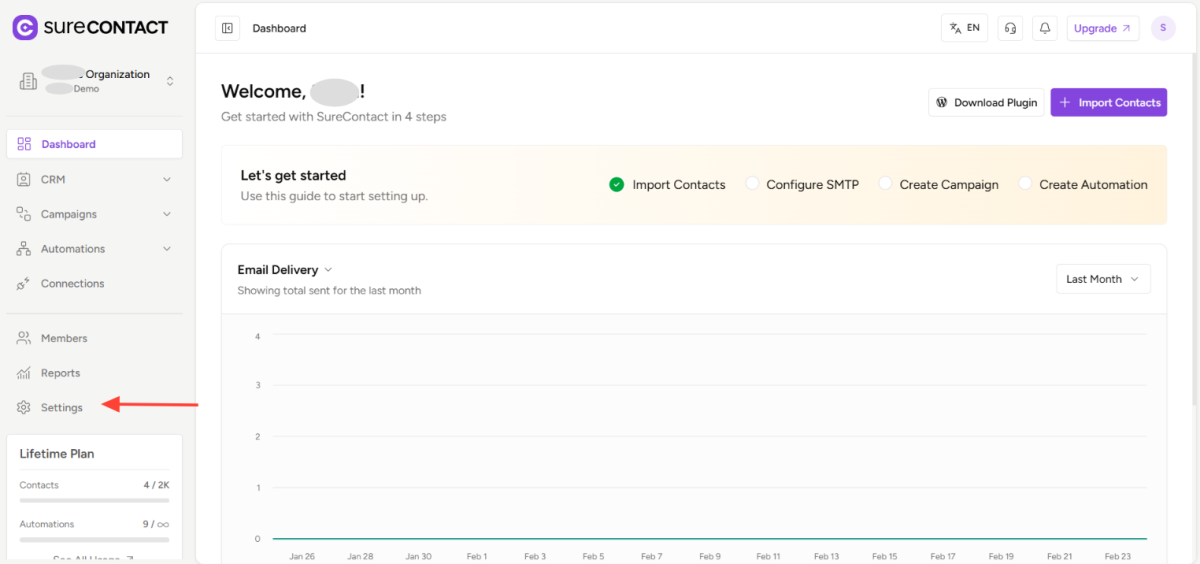
3. Navigate to Tracking Domain
- Scroll down and locate the Tracking Domain section.
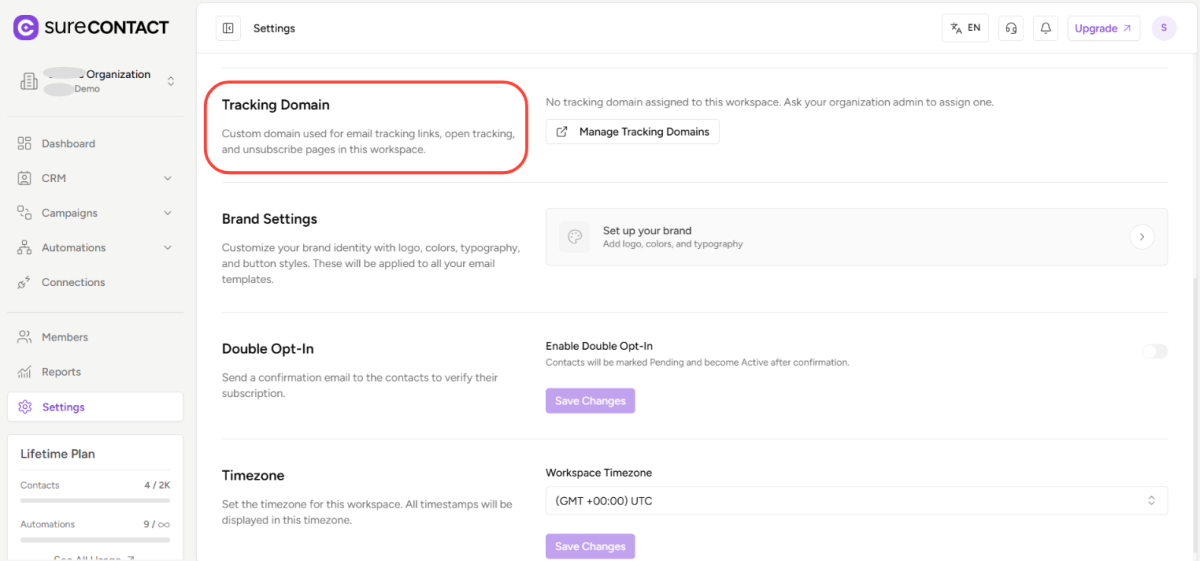
4. Click Manage Tracking Domains
- Click on Manage Tracking Domains to open the tracking domain settings.
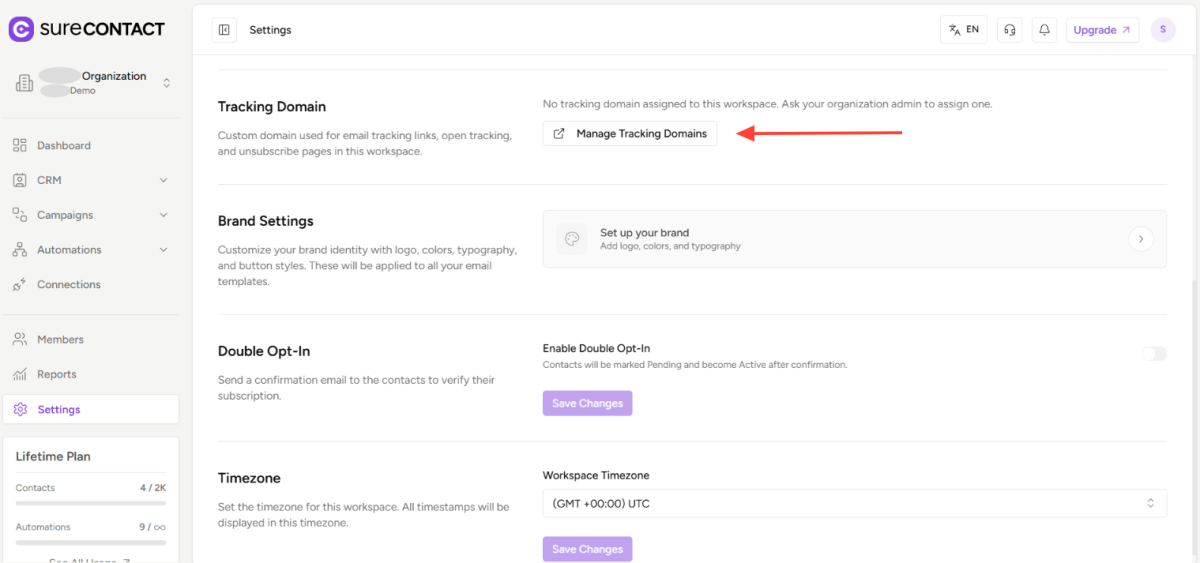
5. Click Add Domain
- Click on the Add Domain button.
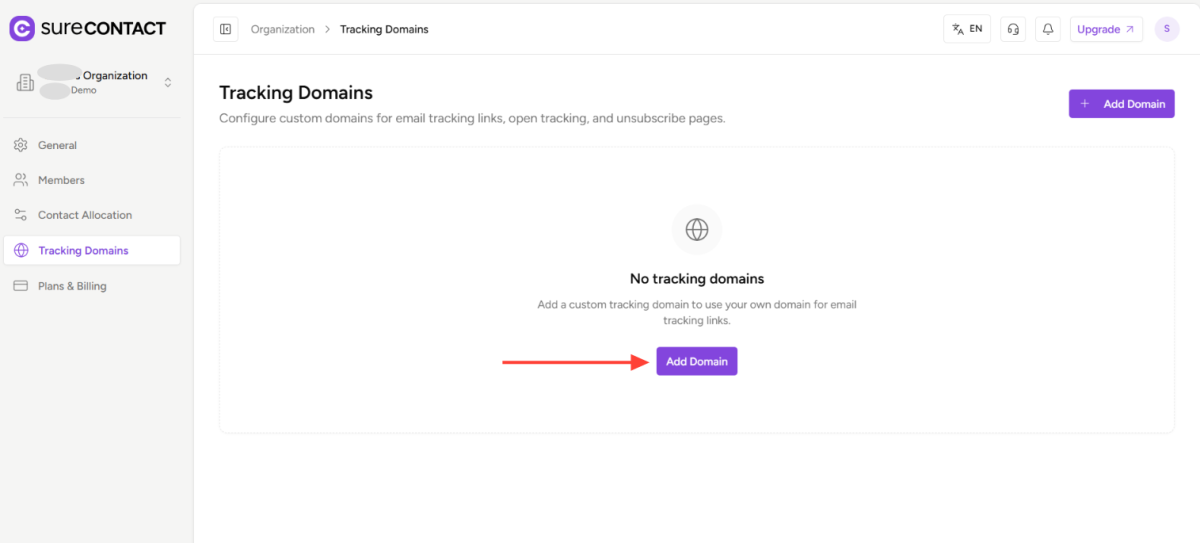
6. Enter Your Hostname
- Inside the Hostname field, enter the domain or subdomain you want to use for tracking email links.
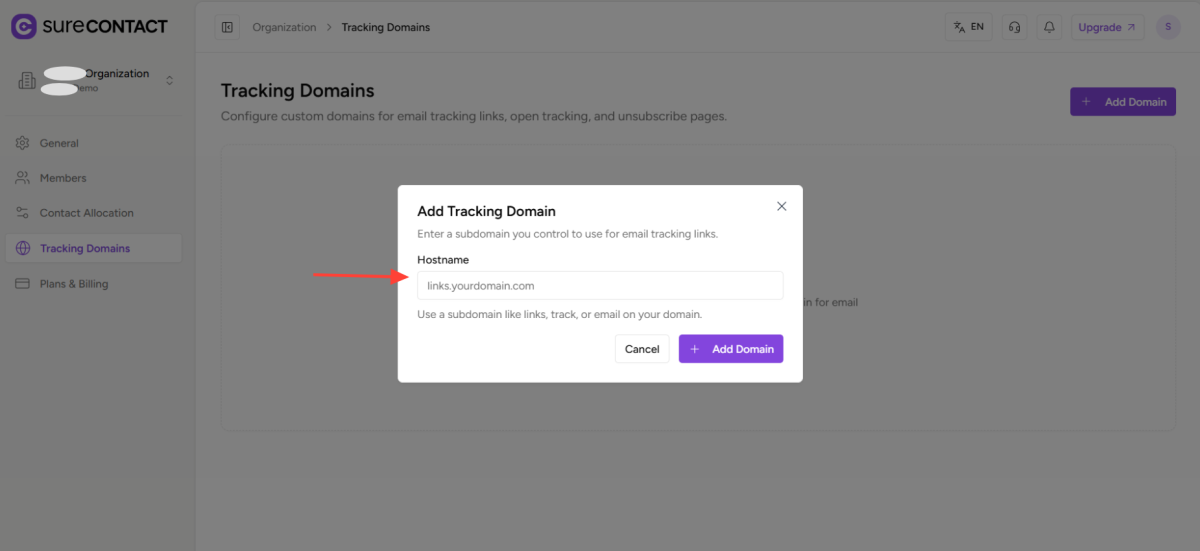
- Example:
- links.yourdomain.com
- It is recommended to use a subdomain rather than your root domain.
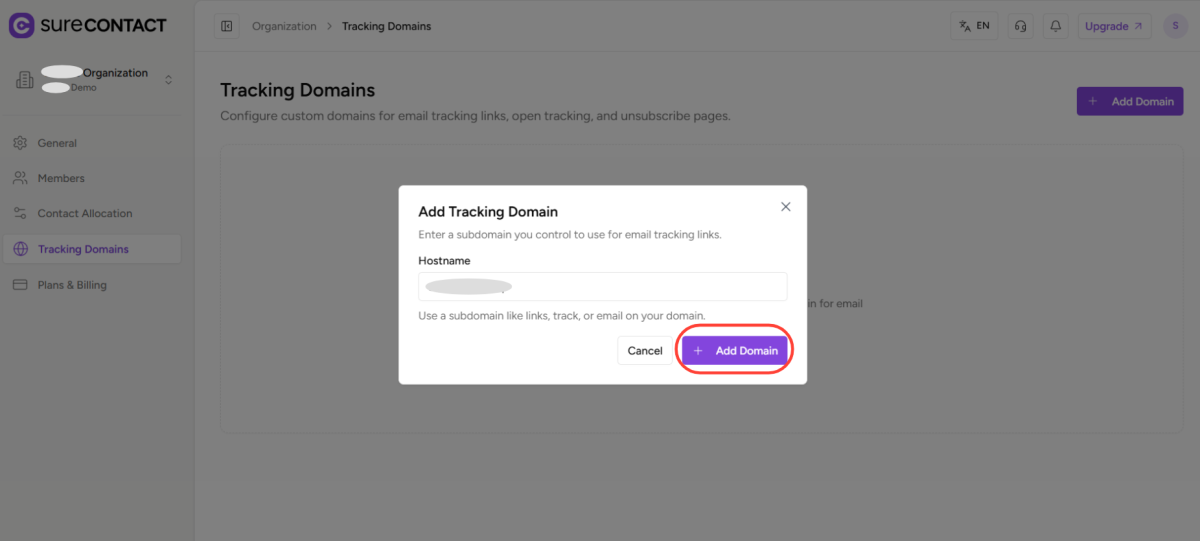
7. Add the Domain
- Click on Add Domain.
8. Copy the CNAME Record
- SureContact will generate a CNAME record. Copy the provided CNAME details.
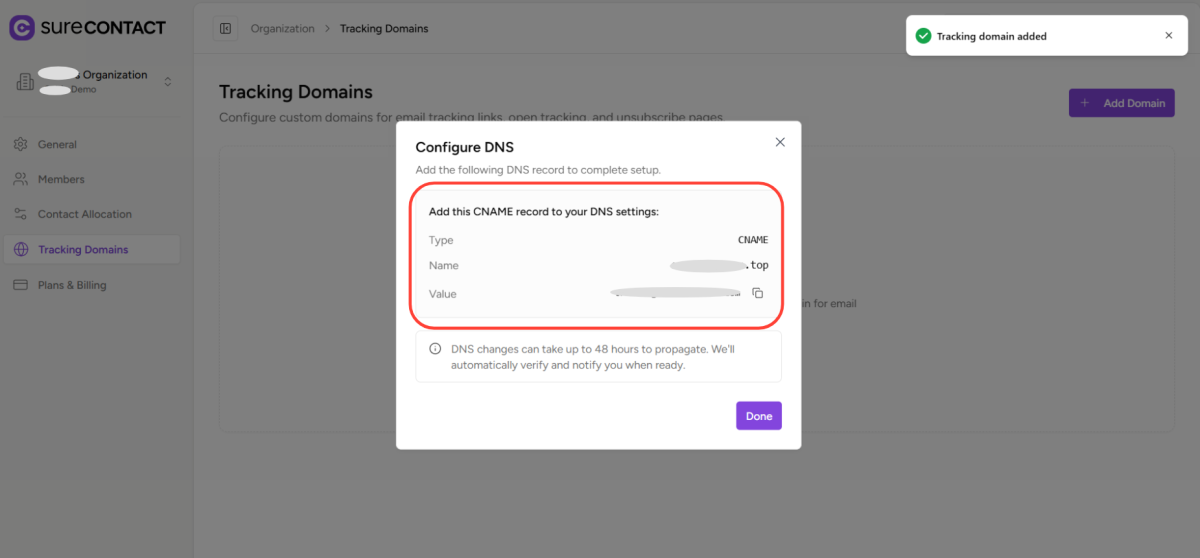
9. Update Your DNS Settings
- Go to your domain registrar or hosting provider and add the copied CNAME record to your DNS settings.
10. Confirm Setup
After adding the DNS record, return to SureContact and click Done.
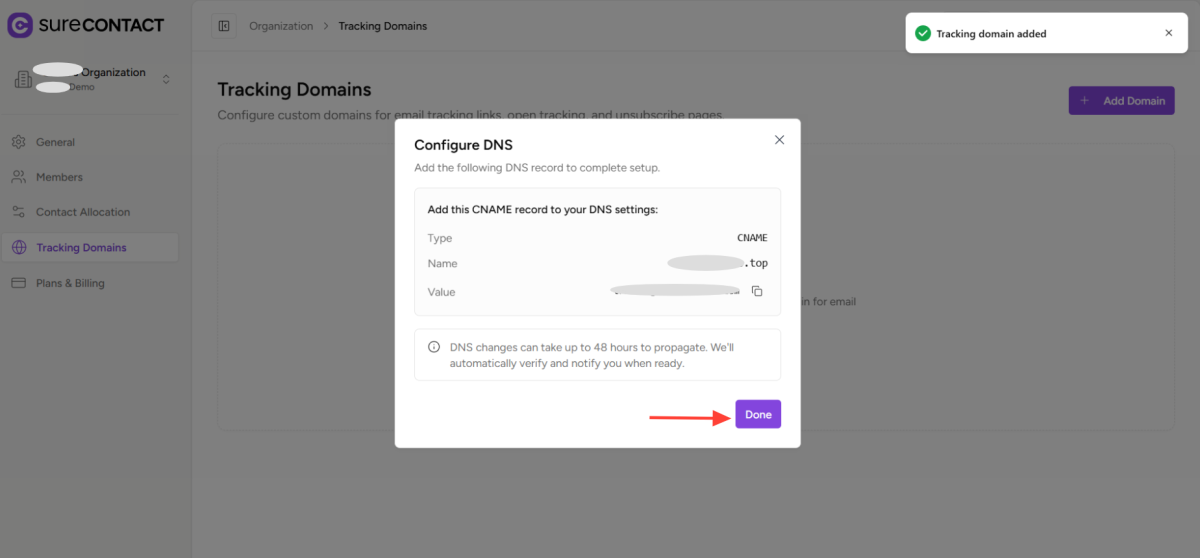
That’s it. Your custom tracking domain has now been successfully added to your workspace.
Method 2: Adding Multiple Tracking Domains Under a Workspace
If you would like to add additional tracking domains to the same workspace, follow these steps:
1. Log in to Your SureContact Account
- Visit https://surecontact.com/ and log in.
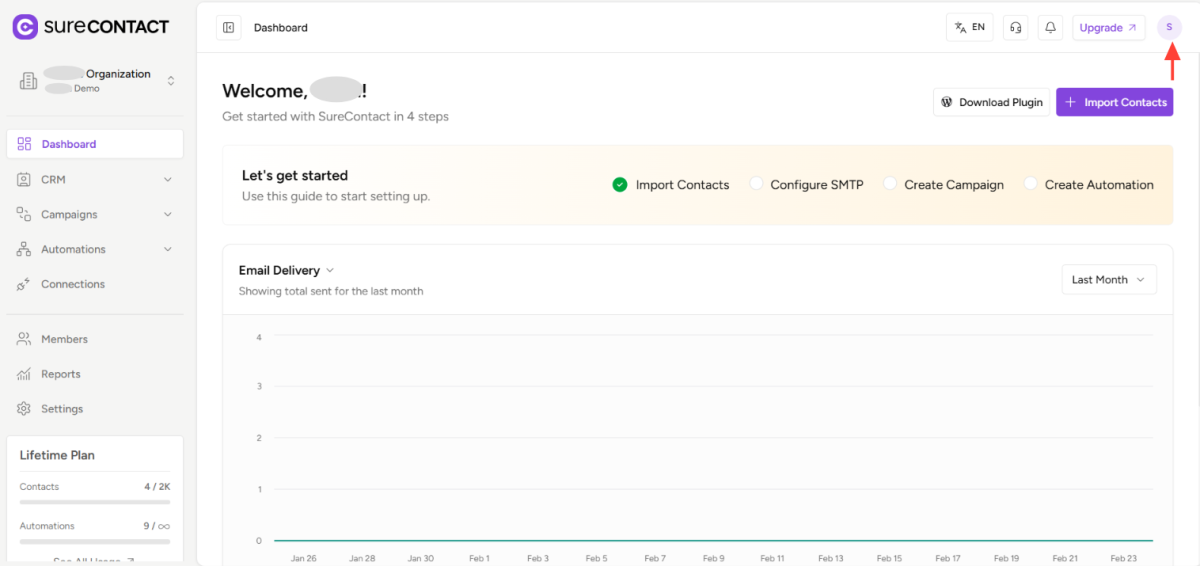
2. Click on Profile Icon
- Navigate to the top-right corner of your dashboard and click on your Profile Icon.
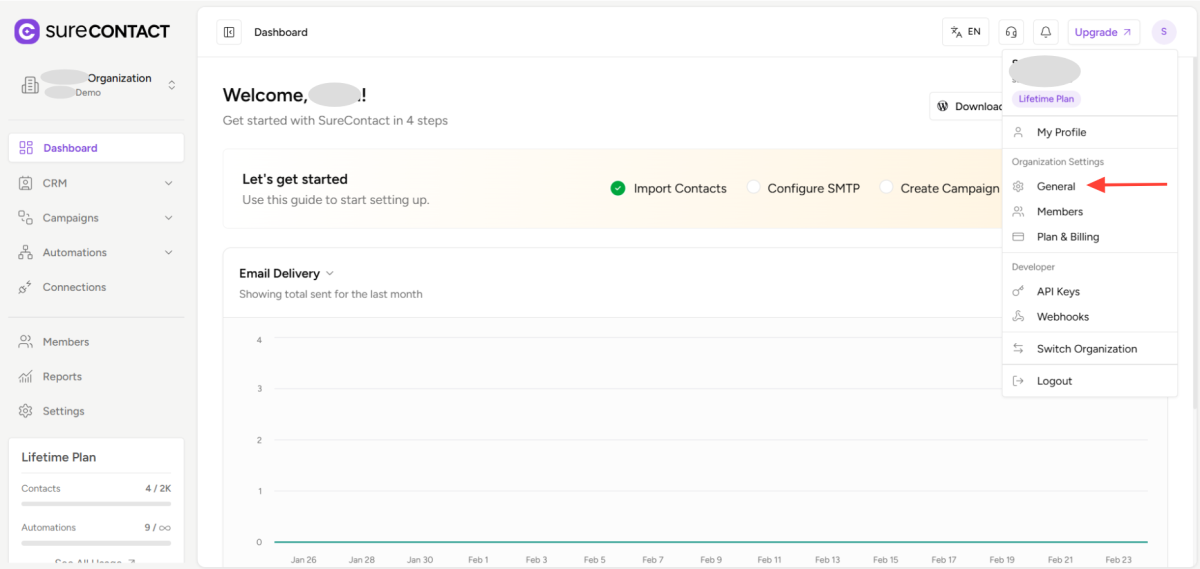
3. Open General Settings
- From the dropdown menu, select General Settings.
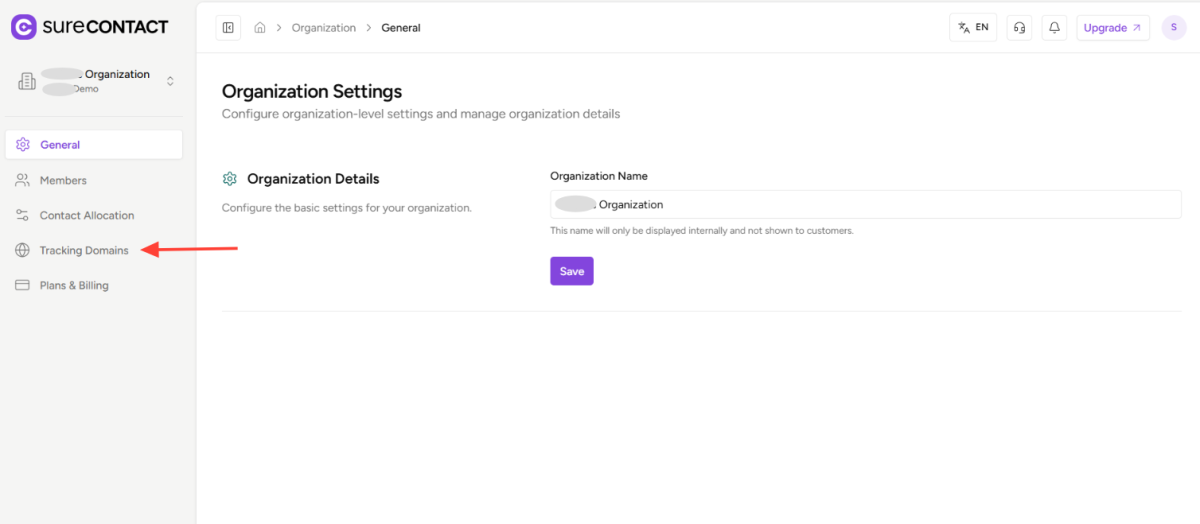
4. Select Tracking Domain
- From the left-hand menu, click on Tracking Domain.
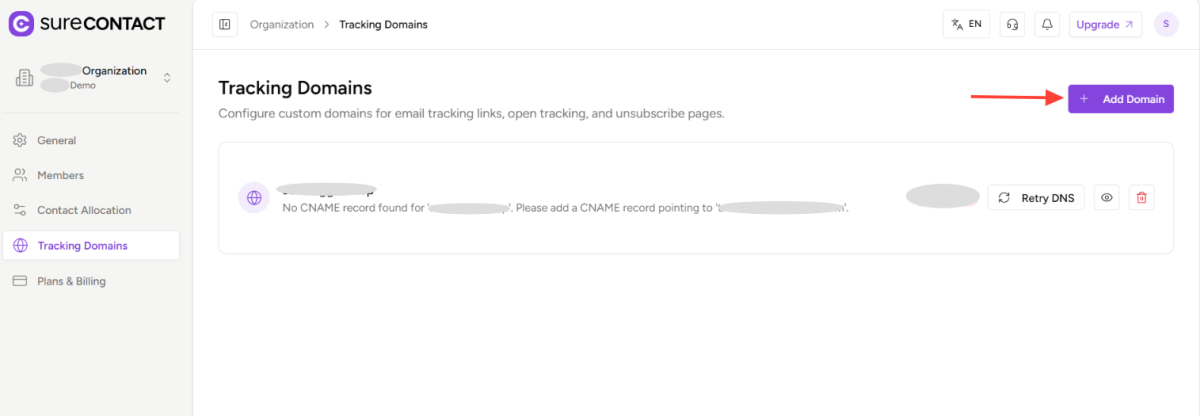
5. Click + Add Domain
- Click on the + Add Domain button.
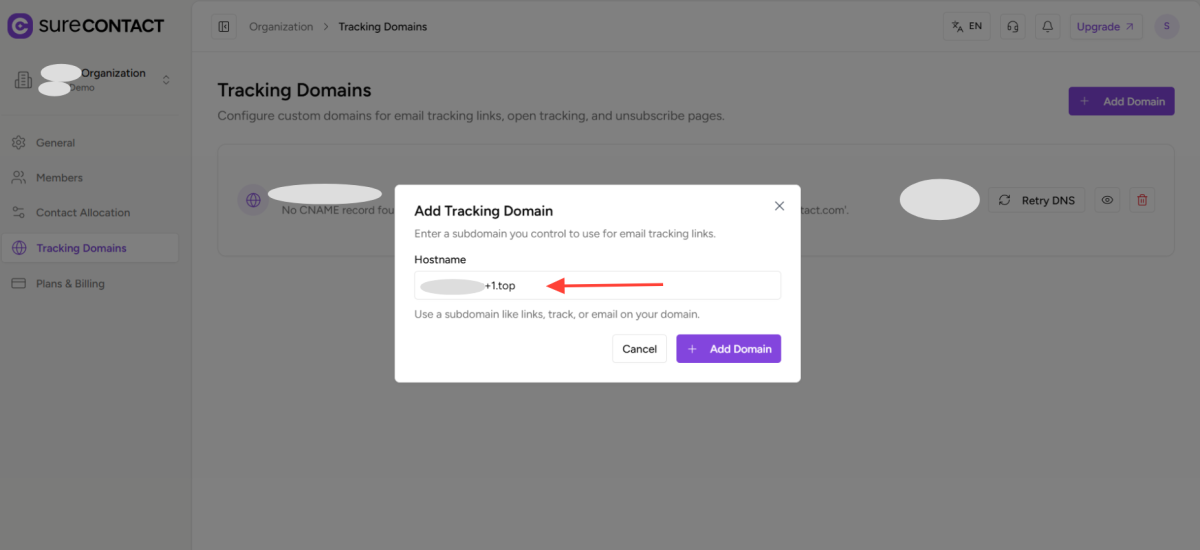
6. Enter the New Hostname
- In the Hostname field, enter the additional domain or subdomain you want to use.
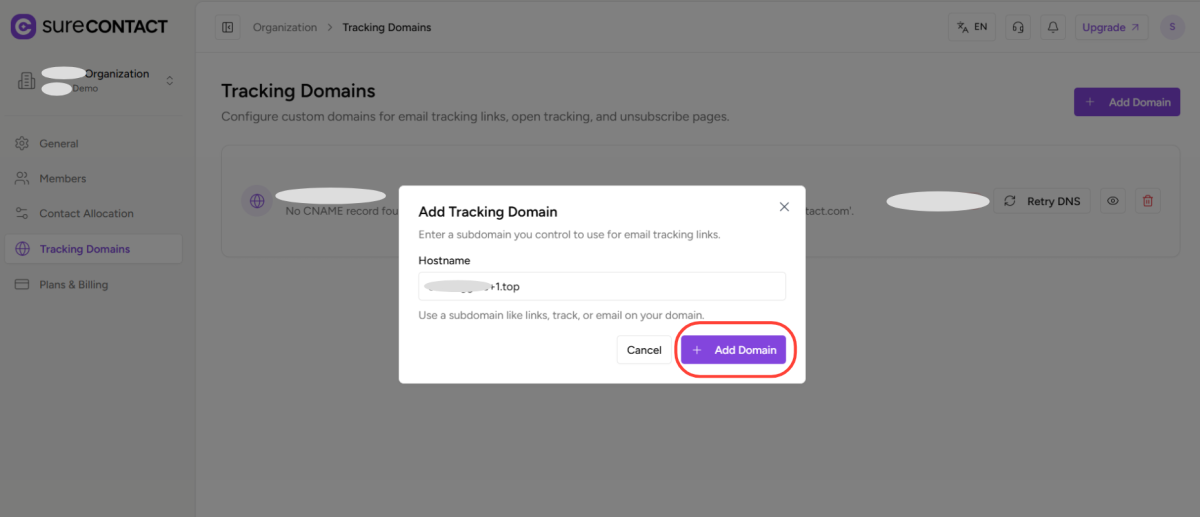
7. Add the Domain
- Click on Add Domain.
8. Copy the CNAME Record
- Copy the newly generated CNAME record.
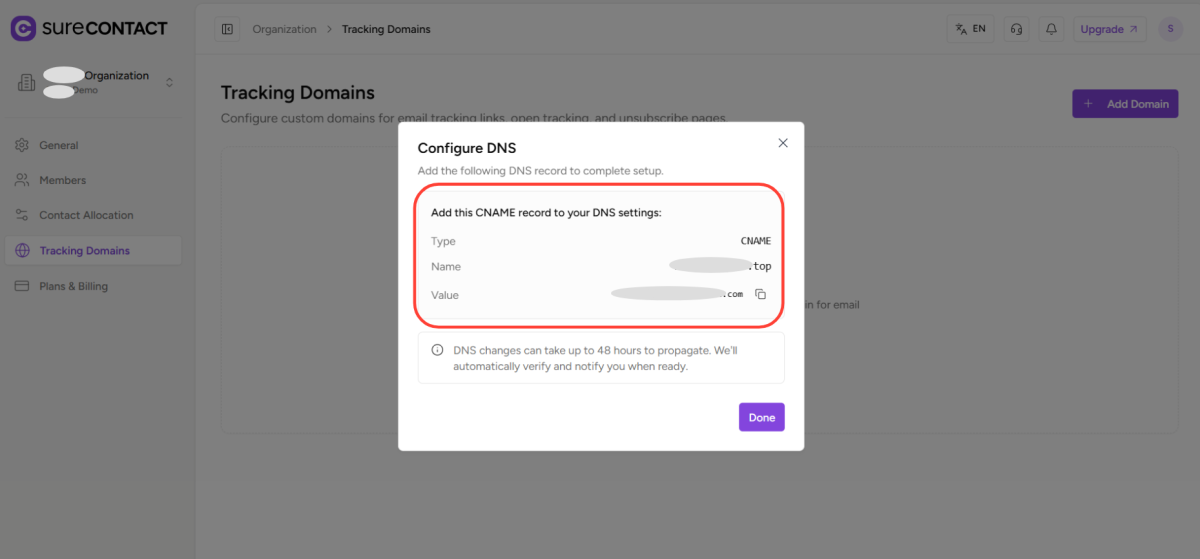
9. Update DNS Settings
- Add the CNAME record in your domain’s DNS settings through your domain registrar or hosting provider.
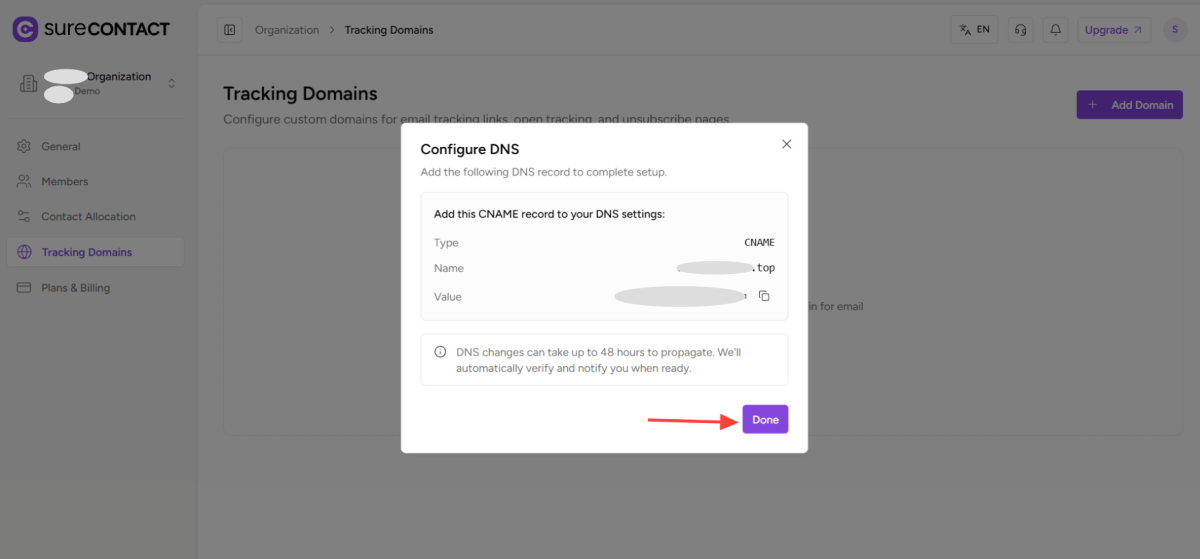
10. Confirm Setup
- Return to SureContact and click Done.
You can repeat these steps to add multiple tracking domains within the same workspace.
Important Notes
• DNS changes may take some time to propagate (sometimes up to 48 hours).
• Ensure the CNAME record is added exactly as provided to avoid verification errors.
• Using a dedicated subdomain (e.g., links.yourdomain.com) is considered best practice for tracking and email reputation management.
If you experience any issues while setting up your tracking domain, please reach out to SureContact support for assistance.
We don't respond to the article feedback, we use it to improve our support content.