
- Introduction to SureContact Dashboard
- How to Install and Connect the SureContact WordPress Plugin
- What Do Contact Fields Mean in the SureContact WordPress Plugin
- How to Invite Members to a Workspace in SureContact
- How to Switch Organizations in SureContact
- Workspace-Level Contact Allocation in SureContact
- Workspace-Level Timezone Settings in SureContact
- How to Add a Custom Tracking Domain in a Workspace in SureContact
How to Install and Connect the SureContact WordPress Plugin
Introduction
SureContact is a lightweight and easy-to-use CRM plugin for WordPress that helps you manage, organize, and understand your customer relationships directly from your website. It automatically captures and syncs contact data from multiple sources—such as WordPress users, e‑commerce orders, and form submissions—so you always have a complete and up‑to‑date view of your customers.
With SureContact, you can:
- Centralize customer and user data in one place
- Reduce manual data entry
- Track interactions across plugins and tools
- Build better relationships with your audience
This document will guide you step by step on how to install, connect, and start using the SureContact WordPress plugin, along with real‑world use cases you can achieve using it.
Prerequisites
Before you begin, make sure you have:
- A working WordPress website
- Administrator access to the WordPress dashboard
- An active SureContact account
Installing the SureContact Plugin on Your WordPress Site
To sync your users or customers from WordPress plugins such as Fluent CRM, WooCommerce, SureCart, SureForms, and more, you first need to install and activate the SureContact plugin on your WordPress site.
Step-by-Step Installation
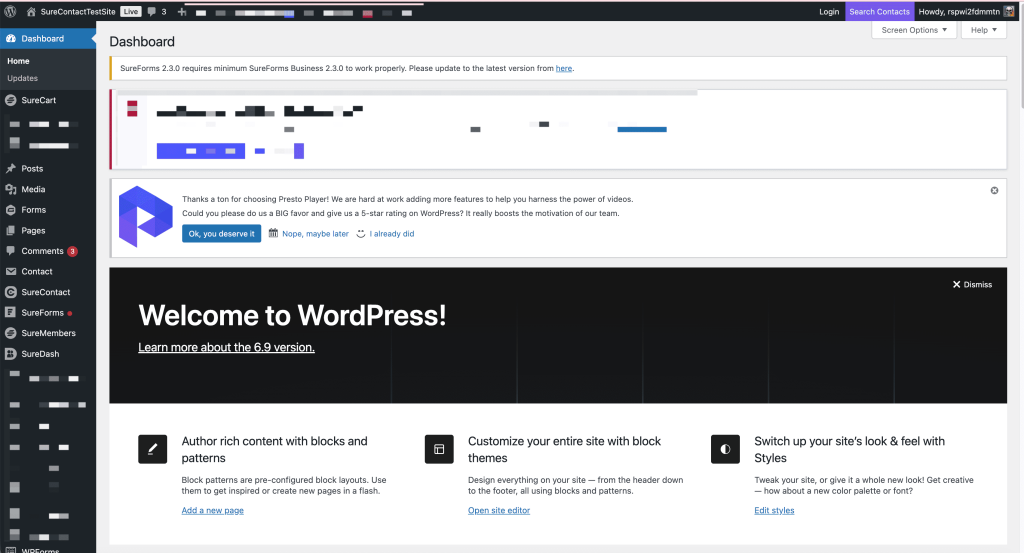
- Log in to your WordPress Dashboard.
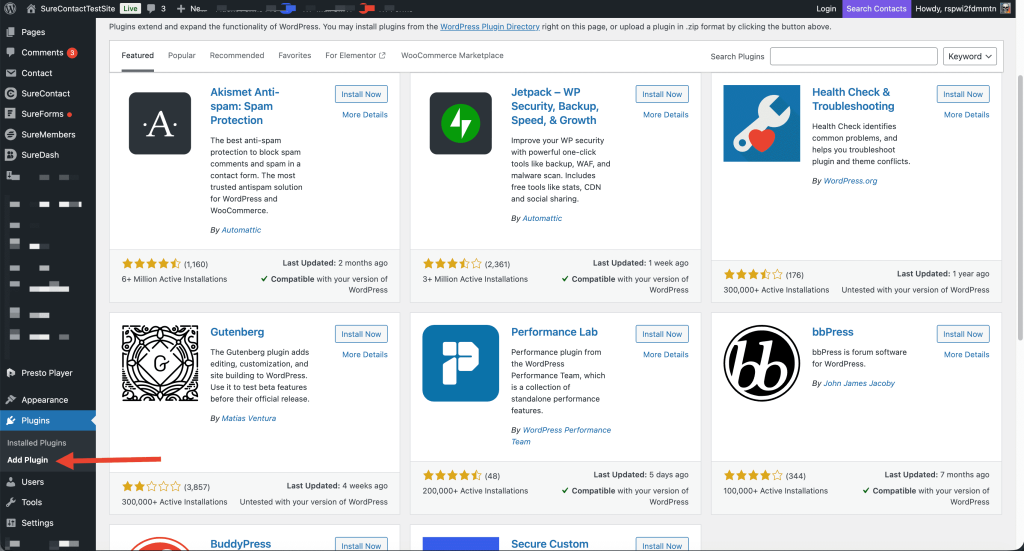
- From the left-hand menu, click on Plugins → Add New.
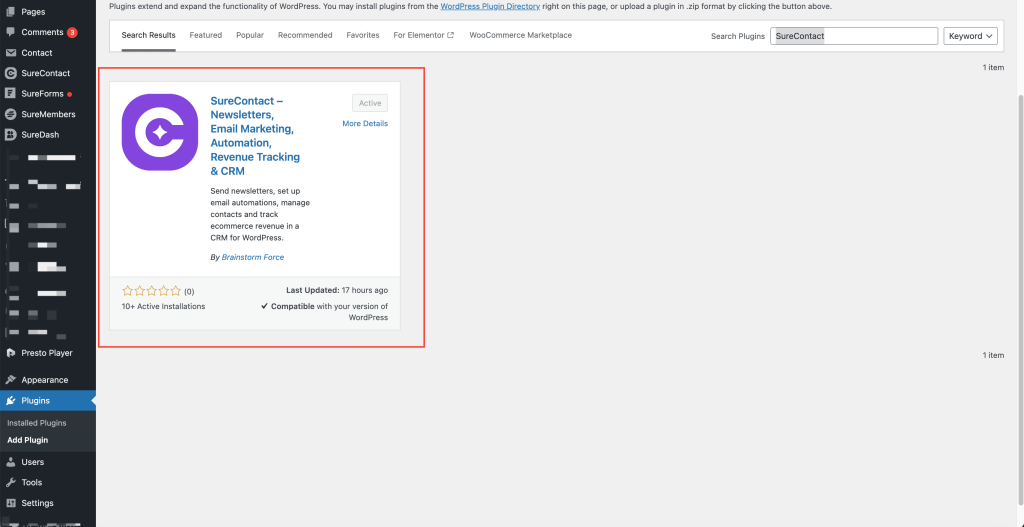
- In the search box, type SureContact and press Enter.
- Locate the SureContact plugin in the search results.
- Click on Install Now.
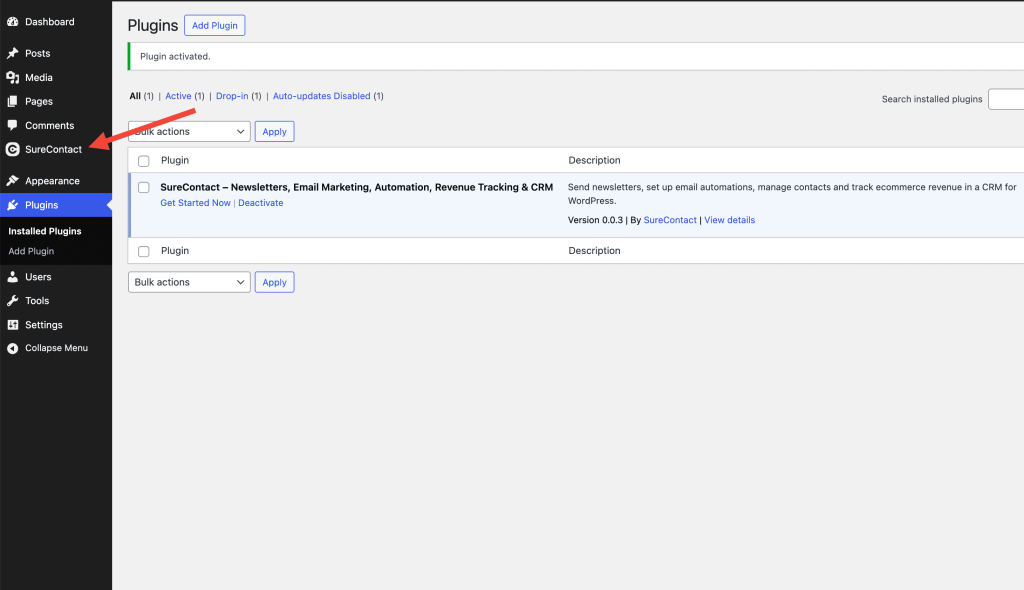
- Once installation is complete, click Activate.
Connecting the SureContact Plugin to Your SaaS Account
After activation, you need to connect the WordPress plugin to your SureContact SaaS account so data can sync securely.
Connection Steps
- In the WordPress sidebar, click on SureContact.
- You will land on the Welcome Page.
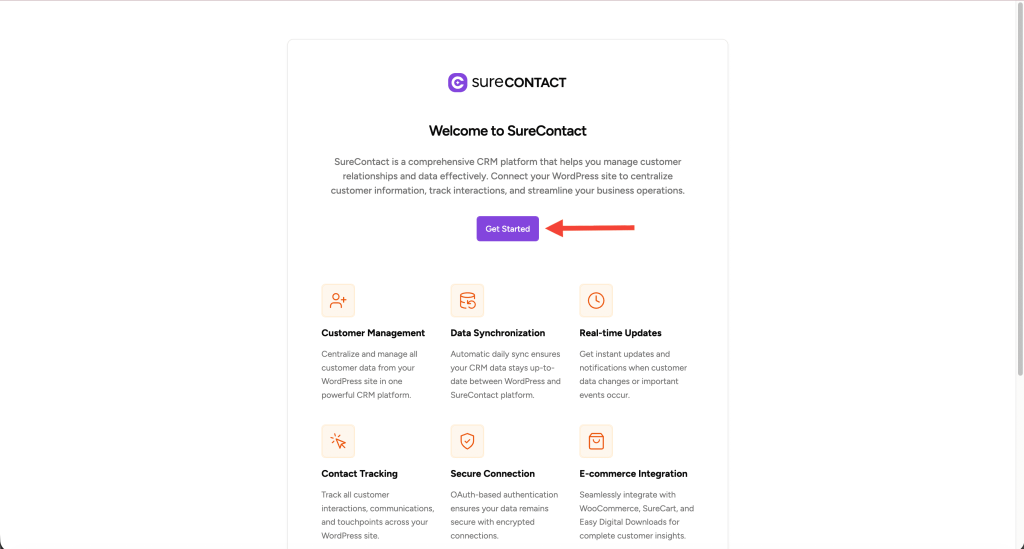
- Click on the Get Started button.
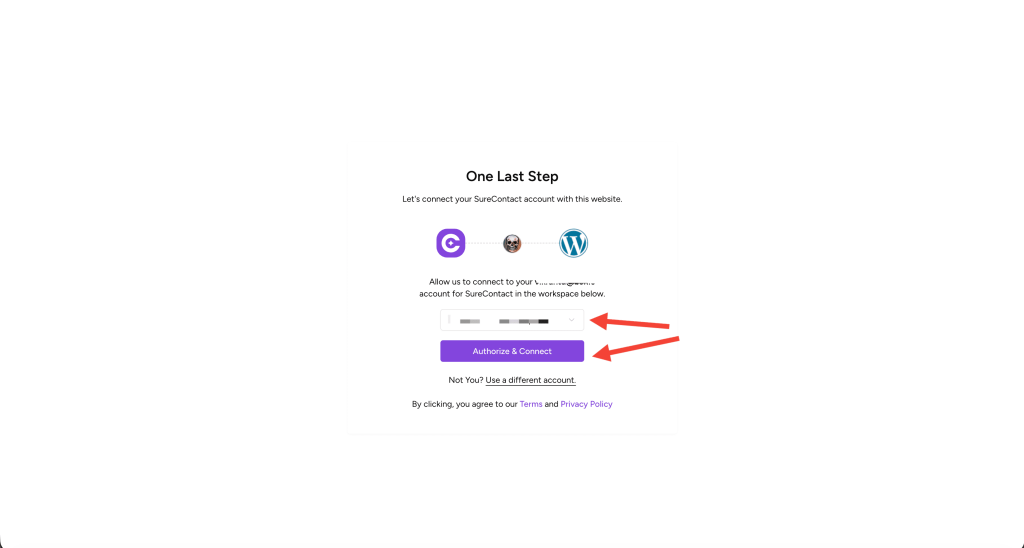
- On the One Last Step page:
- Select your SureContact workspace/account from the list.
- Click on Authorize and Connect.
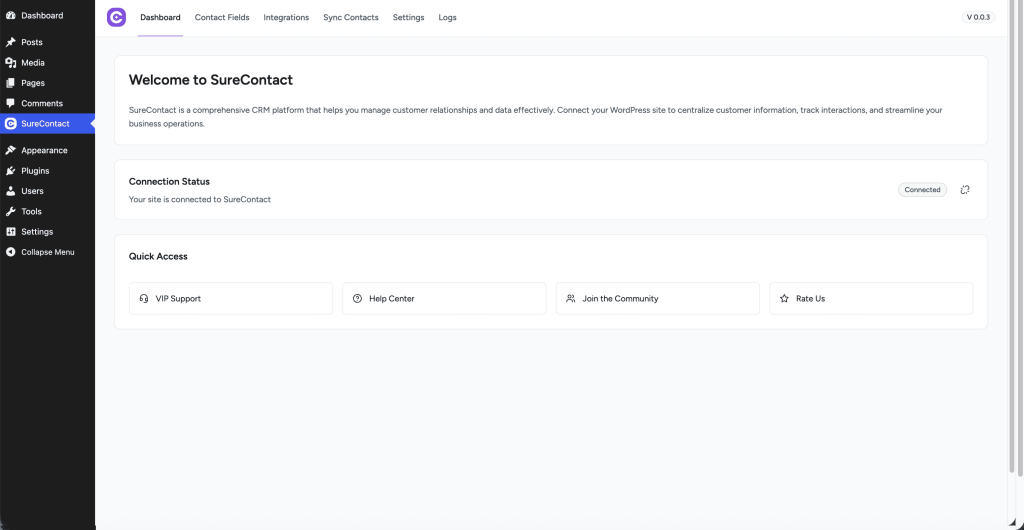
Once connected successfully, you will see the SureContact dashboard inside your WordPress admin panel.
What Happens After Connection
After connecting your WordPress site with SureContact:
- Your site is securely linked to your SureContact workspace
- You can start importing and syncing contacts
- Supported plugins can now send data automatically to SureContact
- New users, customers, or form entries will be captured without manual effort
Supported integrations currently include:
- Fluent CRM
- WooCommerce
- SureCart
- Easy Digital Downloads (EDD)
- SureForms
- ………and the list goes on.
Common Use Cases You Can Achieve with SureContact
Below are some practical and easy‑to‑understand examples of how SureContact can be used in real scenarios.
1. Centralized Customer Management
If you use multiple plugins (WooCommerce for sales, forms for leads, and WordPress users for memberships), SureContact brings all contacts into one single CRM view. You no longer need to switch between plugins to understand a customer.
Example: A user signs up on your site, submits a contact form, and later makes a purchase. SureContact merges all this activity into one contact profile.
2. E‑commerce Customer Tracking
Automatically sync customers from WooCommerce, SureCart, or EDD.
Example:
- Track who purchased which product
- Identify repeat customers
- Segment customers based on purchase history
This helps with follow‑ups, loyalty programs, and personalized offers.
3. Lead Collection from Forms
Every form submission can be turned into a contact automatically.
Example: Someone fills out a “Contact Us” or “Free Consultation” form. Their details are instantly added to SureContact, ready for follow‑up—no manual export required.
4. Membership & User Management
Sync WordPress users and members into SureContact.
Example: You can easily see:
- When a user registered
- Whether they later became a customer
- Their engagement across your site
5. Better Support & Communication
With a complete contact profile, support teams can respond faster and more accurately.
Example: Before replying to a support query, you can check:
- Past purchases
- Previous form submissions
- Account status
This results in better and more personalized support.
Conclusion
SureContact makes customer and user management simple by connecting your WordPress site directly with a powerful yet lightweight CRM. With easy installation, seamless SaaS connection, and automatic syncing from popular plugins, you can focus more on growing your business and less on managing data.
You’re all set—start syncing and building better customer relationships today
We don't respond to the article feedback, we use it to improve our support content.