
- Introduction to SureContact Dashboard
- How to Install and Connect the SureContact WordPress Plugin
- What Do Contact Fields Mean in the SureContact WordPress Plugin
- How to Invite Members to a Workspace in SureContact
- How to Switch Organizations in SureContact
- Workspace-Level Contact Allocation in SureContact
- Workspace-Level Timezone Settings in SureContact
- How to Add a Custom Tracking Domain in a Workspace in SureContact
Contact Lists
Lists in SureContact allow you to organize and segment your contacts based on common characteristics, behaviors, or criteria. SureContact provides two types of Lists:
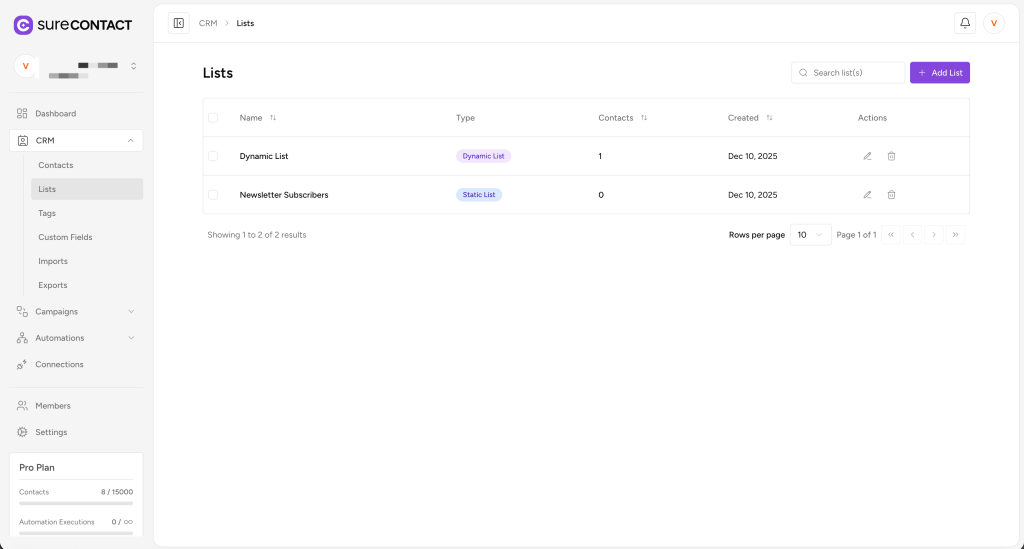
- Static Lists
- Dynamic Lists
Both types help you group contacts for targeted communication and campaign management, but they work in different ways.
1. Static Lists
A Static List is a simple, manual list of contacts.
Contacts are added to this list:
- Manually from the contact’s profile
- Using Bulk Actions
- Through Automations or WordPress Integrations
Static Lists do not have conditions and do not update automatically when new contacts are created (unless added via automation).
Creating a Static List
Follow these steps:
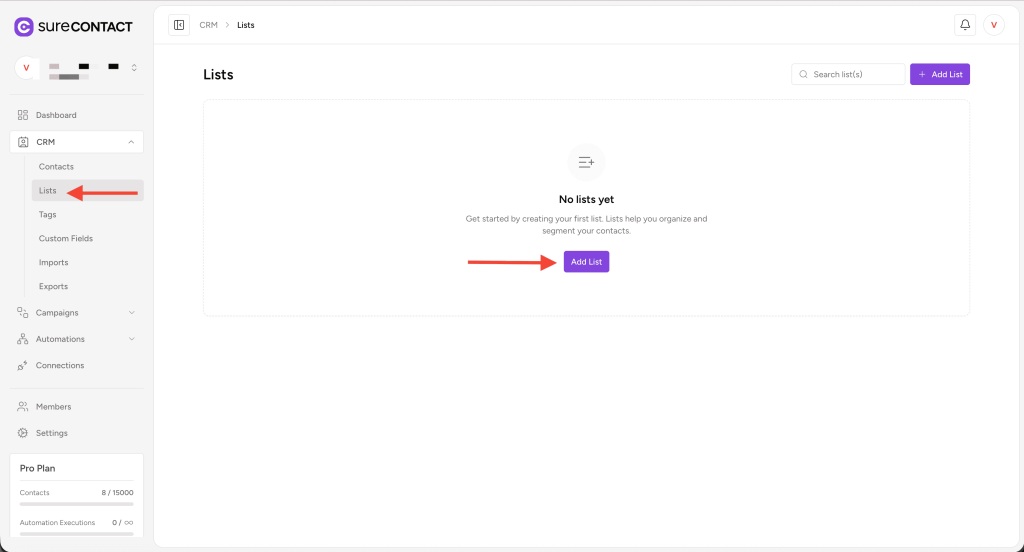
- Go to CRM → Lists from the sidebar.
- Click Add List.
- The Add New List flyout will appear.
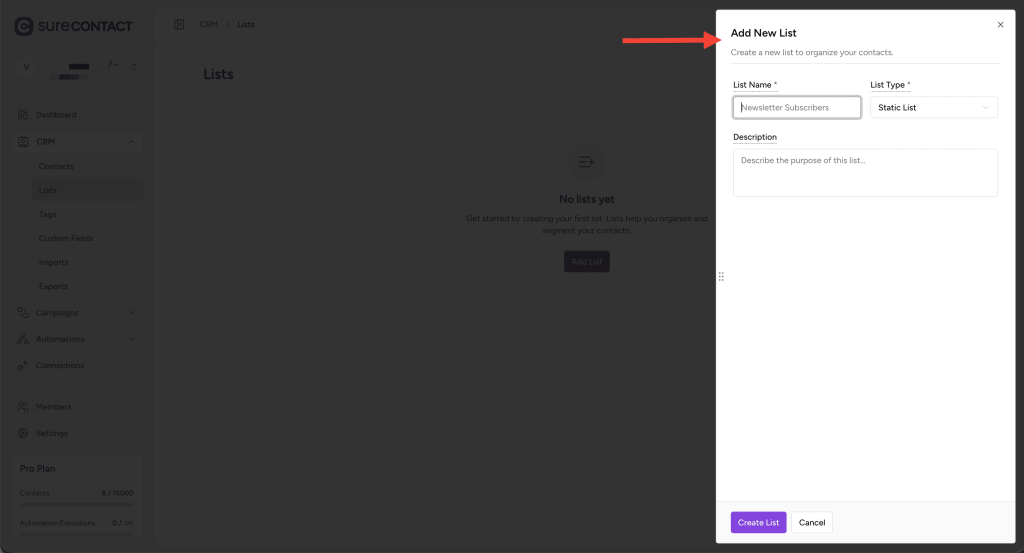
- Enter the List Name (e.g., Newsletter Subscribers).
- Leave List Type as Static List (default).
- Optionally add a Description to explain the purpose of the list.
- Click Create List.
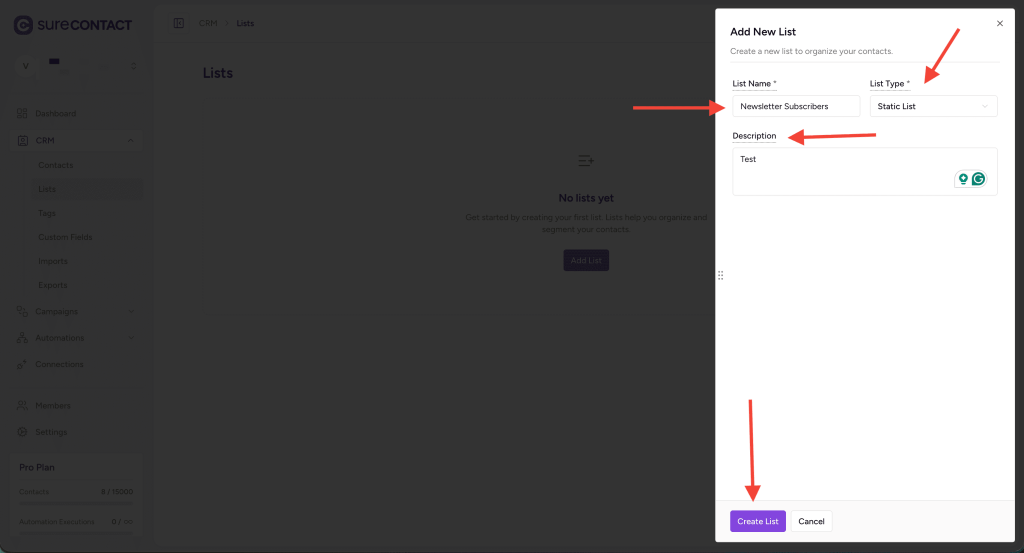
Your Static List is now ready.
Managing Static Lists
- Edit List – You can modify the name and description, but List Type cannot be changed.
- Delete List – Remove the list permanently using the delete icon.
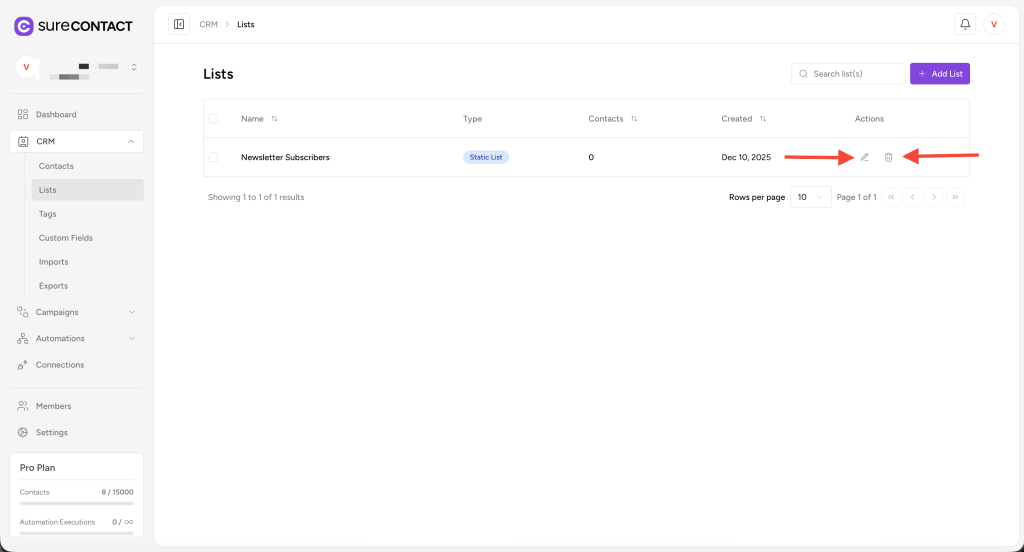
- Add Contacts –
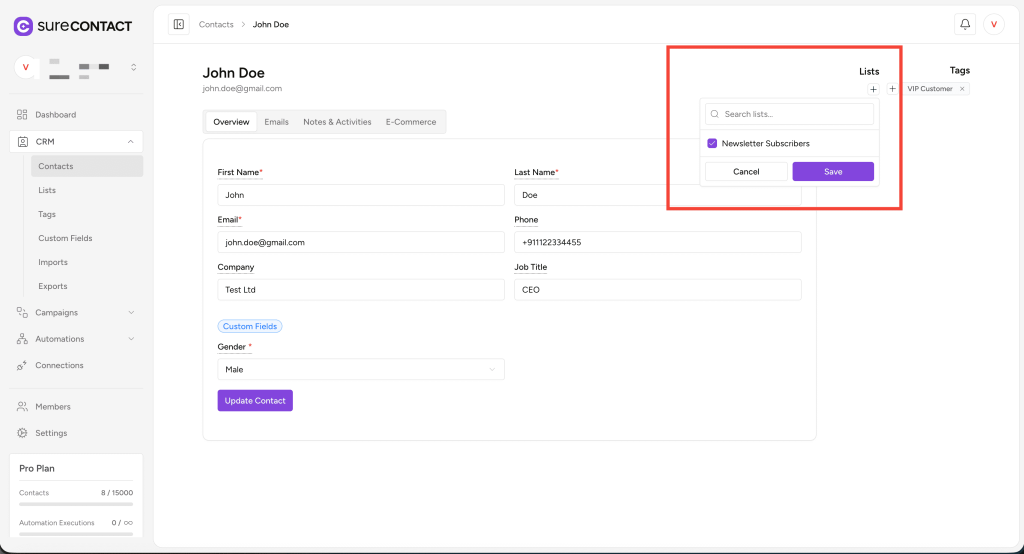
- From individual contact pages (using the Lists selector)
- Using Bulk Actions → Add to List
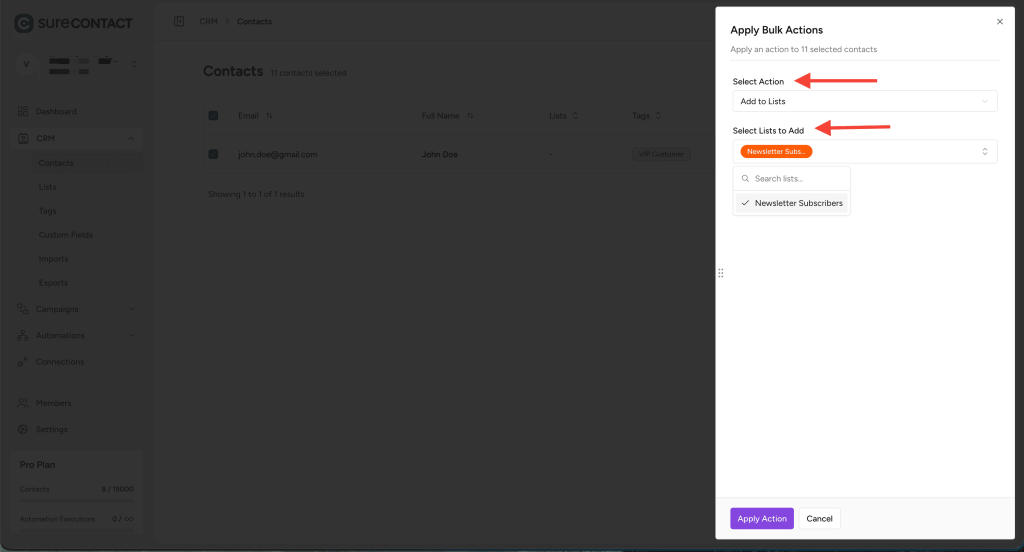
Static Lists are ideal for grouping contacts manually or using actions/automations.
2. Dynamic Lists
A Dynamic List automatically includes contacts based on specific conditions you define.
Whenever a contact is created or updated, SureContact checks whether it matches the conditions—if yes, the list is added automatically.
Dynamic Lists are great for smart segmentation, such as:
- Contacts belonging to a specific company
- Users with a particular tag
- Users with an email domain
- Contacts created in the last 30 days
- Customers with specific purchase behavior
Creating a Dynamic List
Follow the steps below:
- Go to CRM → Lists.
- Click Add List.
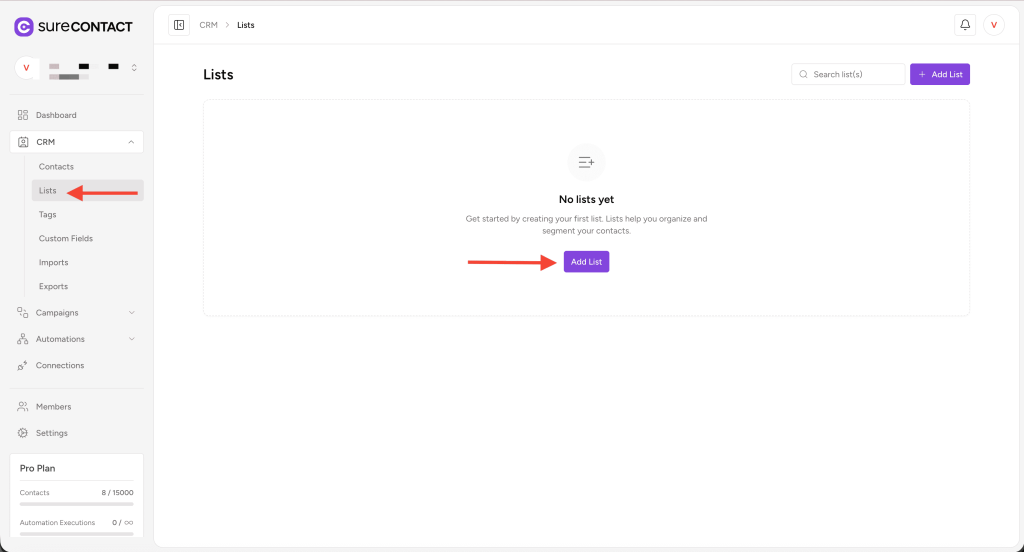
- In the flyout, provide the List Name.
- Change List Type to Dynamic List.
- A Filter Conditions section will appear.
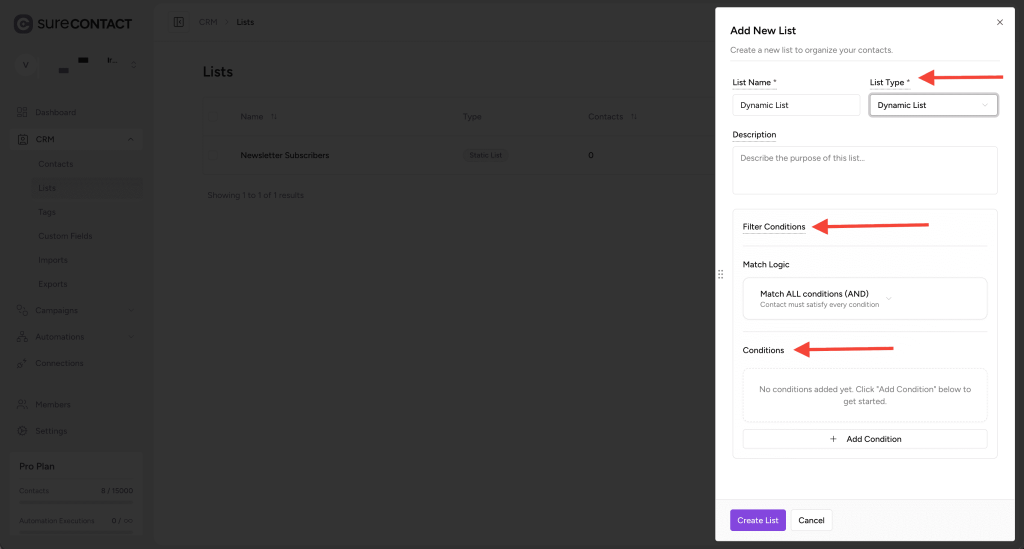
This is where you define the rules that automatically include contacts in this list.
Adding Conditions
To add a condition:
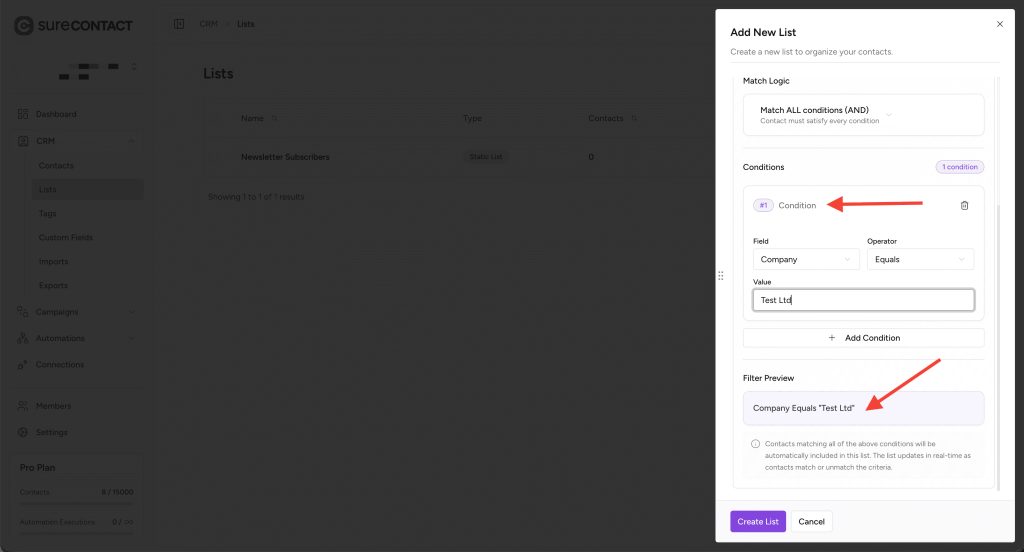
- Click Add Condition.
- You will see three fields:
- Field
- Operator
- Value
Example setup:
- Field: Company
- Operator: Equals
- Value: Test Ltd
This means:
Any contact whose Company = “Test Ltd” will automatically be added to this list.
Available Fields
You can use:
- Standard contact fields (Name, Email, Phone, Status, Company, etc.)
- Custom Fields you created
- Date fields (Created At, Last Updated)
- Tags
- Other sureContact data fields
Operators in Dynamic Lists
Operators vary depending on the field type:
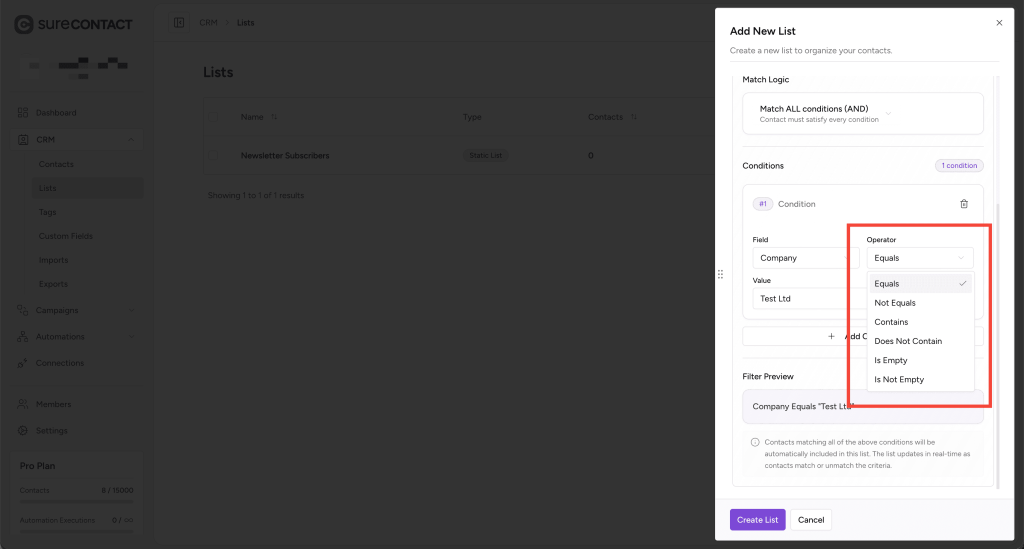
For Text Fields
- Equals
- Not Equals
- Contains
- Does Not Contain
- Is Empty
- Is Not Empty
For Dropdown Fields (e.g., Status, Gender)
- Equals
- Not Equals
- In
- Not In
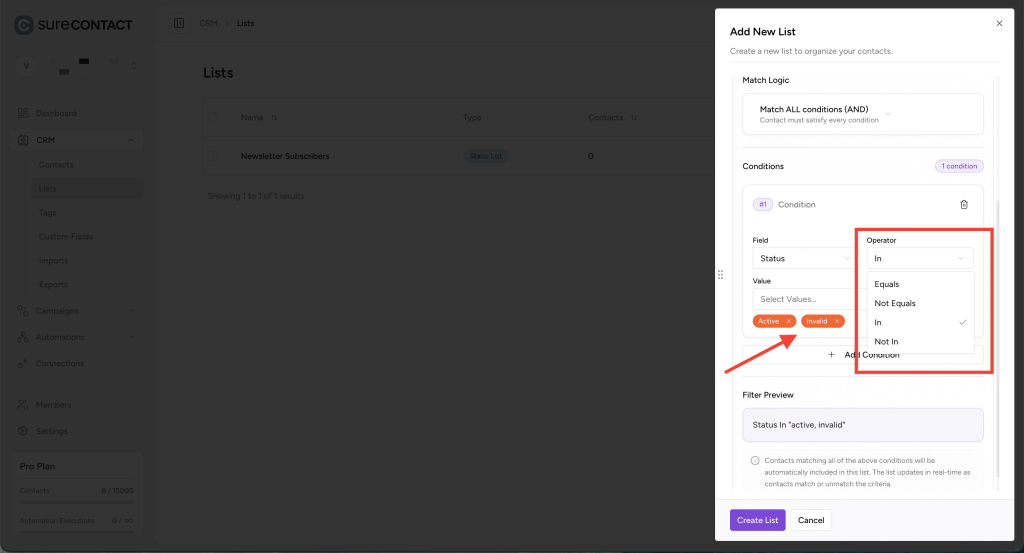
(Useful for selecting multiple values)
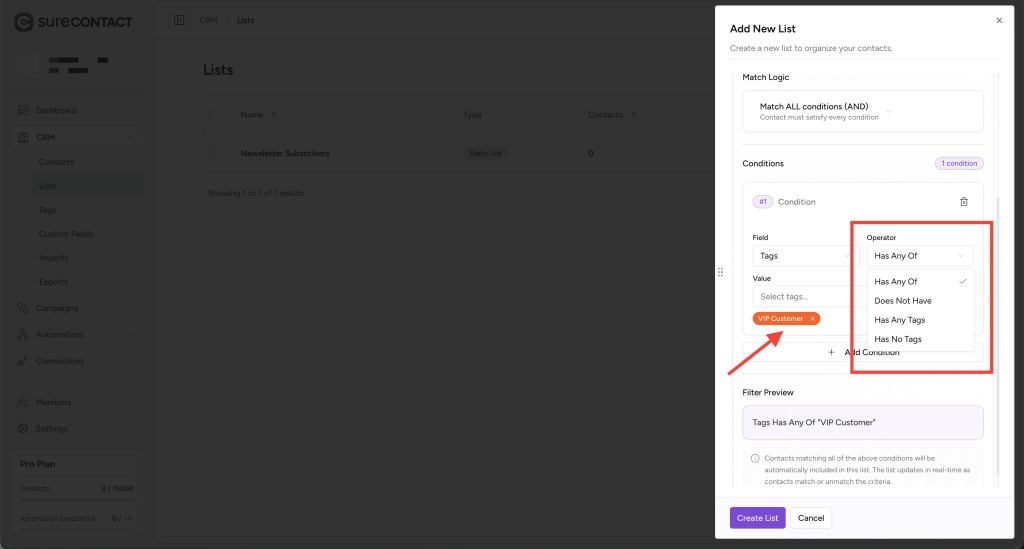
For Tags Field
- Has Any Of
- Does Not Have
- Has Any Tags
- Has No Tags
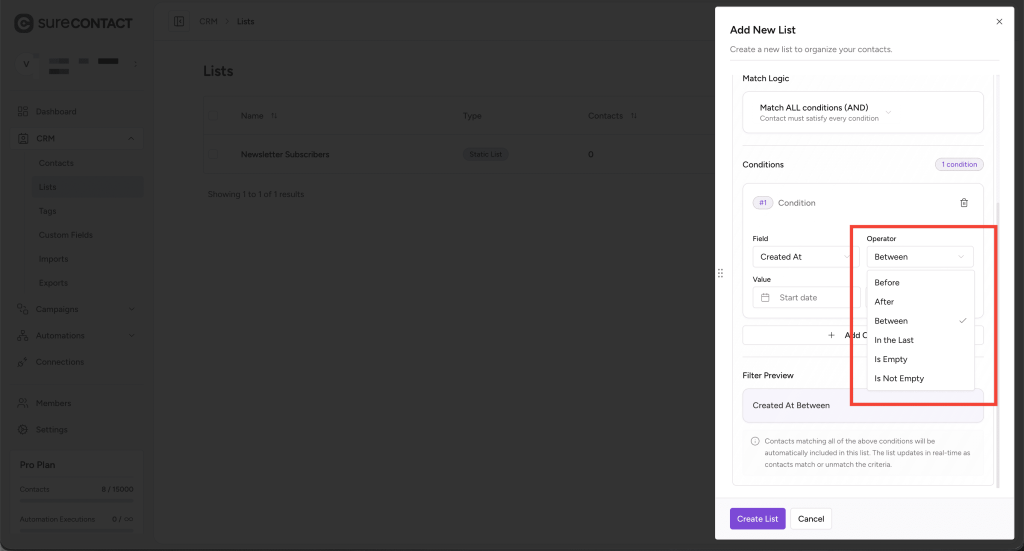
For Date Fields
- Before
- After
- Between
- In the Last
- Is Empty
- Is Not Empty
SureContact adjusts the Value input automatically depending on the selected field (dropdown, text box, date picker, etc.).
Match Logic (AND / OR)
Dynamic Lists support two types of match logic:
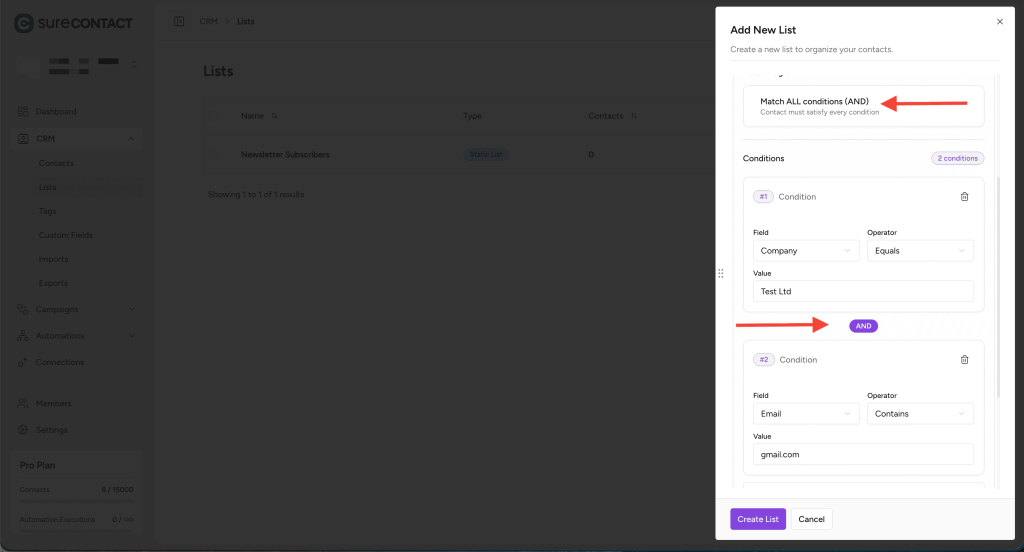
Match All Conditions (AND)
All conditions must be true for the list to apply.
Example:
- Company Equals “Test Ltd”
- AND Email Contains “gmail.com”
A contact must satisfy both conditions.
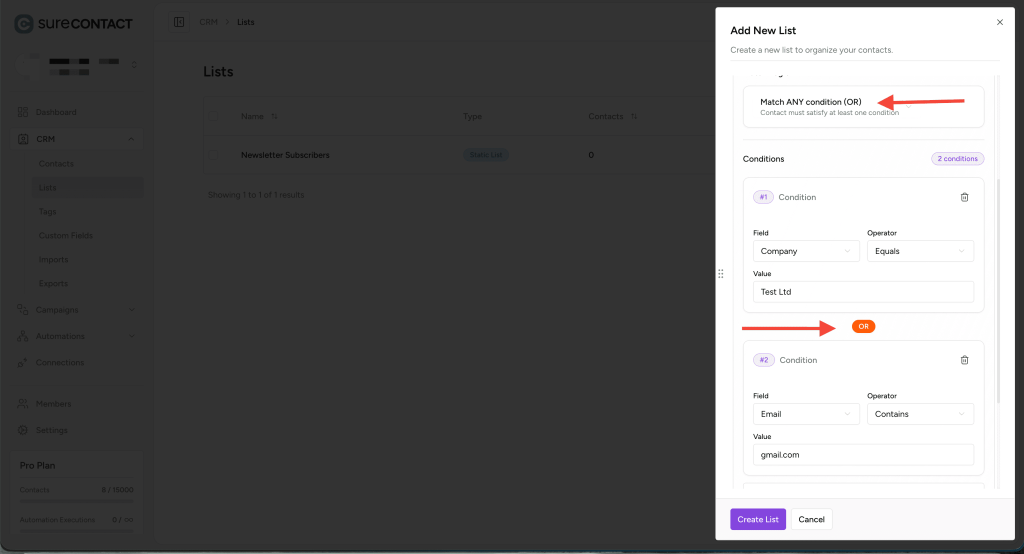
Match Any Condition (OR)
At least one condition must be true.
Example:
- Company Equals “Test Ltd”
- OR Email Contains “gmail.com”
If the contact meets either, the list applies.
Completing the Dynamic List
Once you have added all the conditions:
- Click Create List
- SureContact will automatically evaluate existing and new contacts against your rules
The Dynamic List updates in real-time.
Managing Dynamic Lists
- Edit List – You can update the list name, description, and conditions, but List Type remains fixed.
- Delete List – Removes the list permanently.
- Dynamic Lists apply automatically as long as their conditions match.
Summary
SureContact’s List system allows powerful segmentation, whether you need simple grouping (Static Lists) or automated rule-based grouping (Dynamic Lists).
We don't respond to the article feedback, we use it to improve our support content.