
- Introduction to SureContact Dashboard
- How to Install and Connect the SureContact WordPress Plugin
- What Do Contact Fields Mean in the SureContact WordPress Plugin
- How to Invite Members to a Workspace in SureContact
- How to Switch Organizations in SureContact
- Workspace-Level Contact Allocation in SureContact
- Workspace-Level Timezone Settings in SureContact
- How to Add a Custom Tracking Domain in a Workspace in SureContact
Contact Overview
The Contact Overview Page in SureContact provides a complete, consolidated view of an individual contact. It contains all essential information, interaction history, tags, lists, and e-commerce details associated with that contact.
The page is divided into four main tabs:
- Overview
- Emails
- Notes & Activities
- E-Commerce
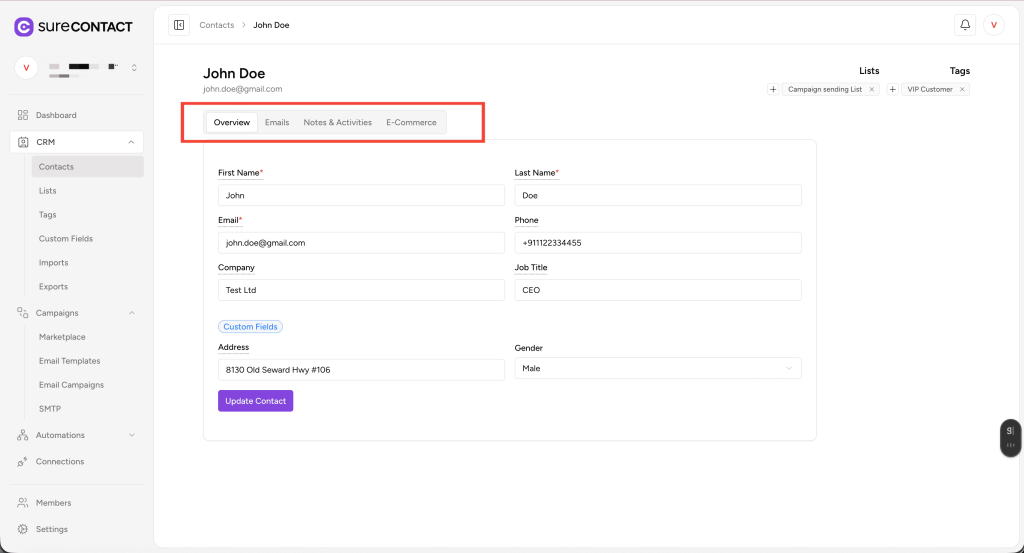
Each tab serves a dedicated purpose, providing you with full context and control over the selected contact.
1. Overview Tab
The Overview tab displays the primary details of the contact. This section includes both default contact fields and custom fields created by the user.
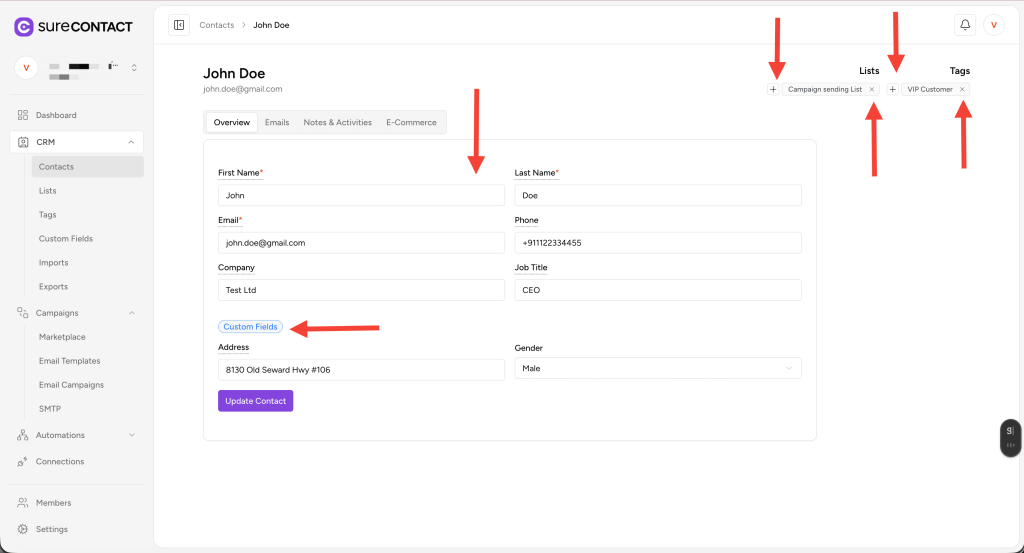
Standard Contact Fields
SureContact includes the following built-in fields:
- First Name
- Last Name
- Phone
- Company
- Job Title
These fields can be edited as needed using the editable text boxes.
Custom Fields
Beneath the standard fields, SureContact displays custom fields that you have created under the Custom Fields section of your CRM.
- Only fields relevant to your workspace will appear here.
- These fields allow you to store personalized or business-specific data for each contact.
Lists & Tags Management
In the top-right area of the contact page, you will find Lists and Tags assigned to the contact.
Add Lists / Tags
- Click the “+” icon next to Lists or Tags.
- A dropdown will appear where you can:
- Select existing lists/tags
- Create new lists/tags instantly if they don’t already exist
- Save your selection to assign them to the contact
Remove Lists / Tags
- Click the “X” icon on any assigned List or Tag to remove it.
2. Emails Tab
The Emails tab displays the email interaction history between your account and this contact.
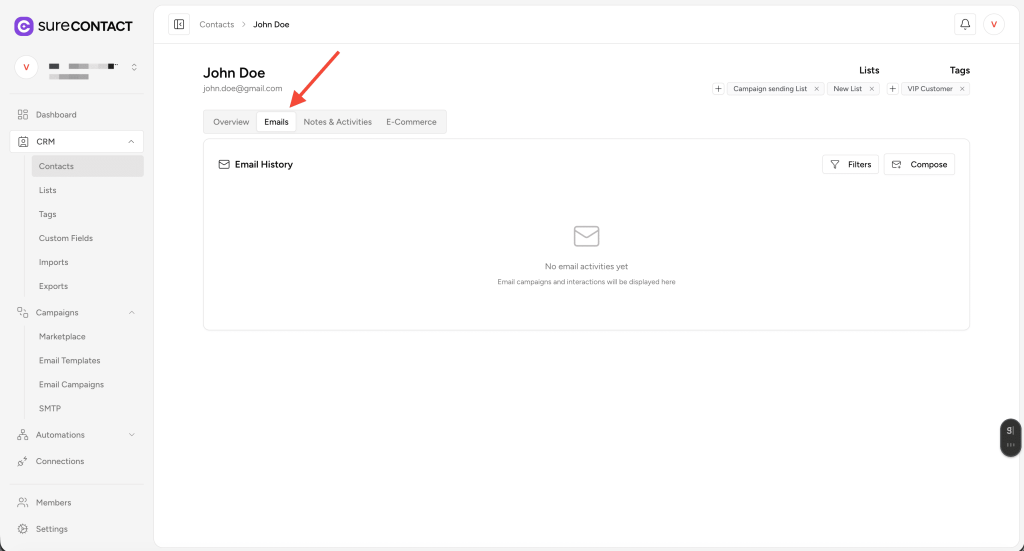
It includes two key actions:
A. Compose
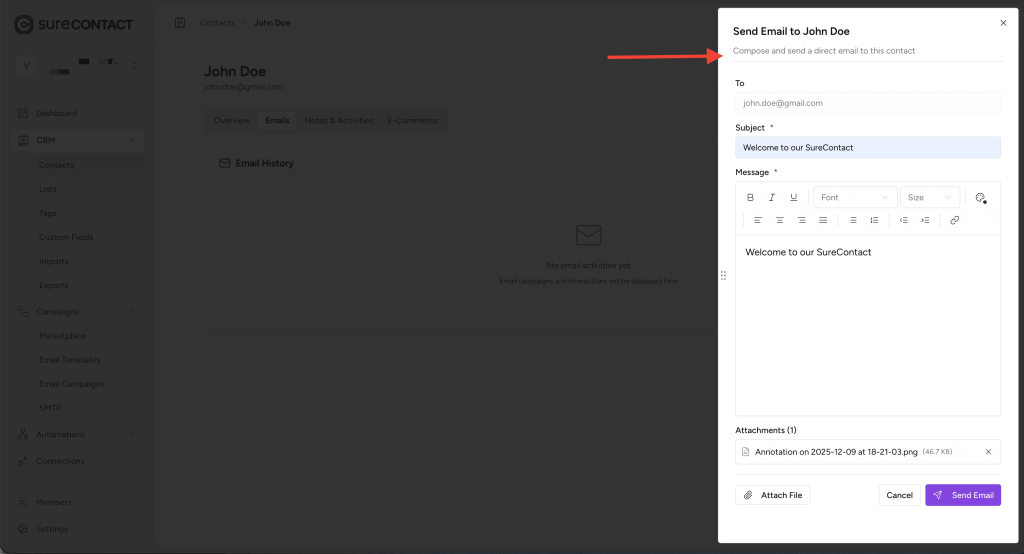
Use the Compose button to send a direct email to this contact.
The compose flyout includes:
- To (auto-filled with contact’s email)
- Subject
- Message body with rich-text formatting
- Attachment support to upload files before sending
B. Filters
You can filter the email activity timeline using:
- Activity Type
- Email Sent
- Email Opened
- Email Clicked
- Date Range
- Last 7 Days
- Last 30 Days
- Last 90 Days
- Custom date ranges
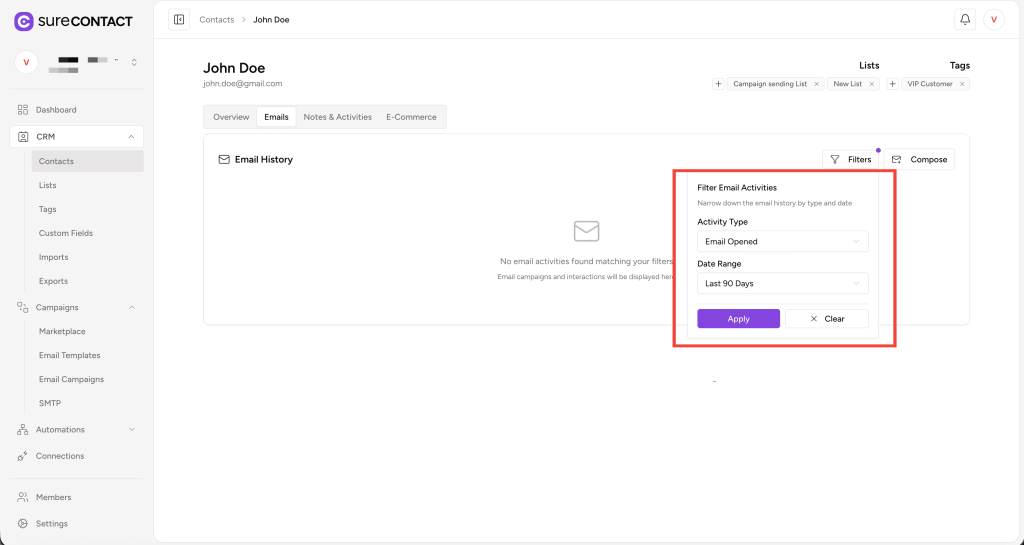
This allows you to quickly narrow down the contact’s email engagement.
3. Notes & Activities Tab
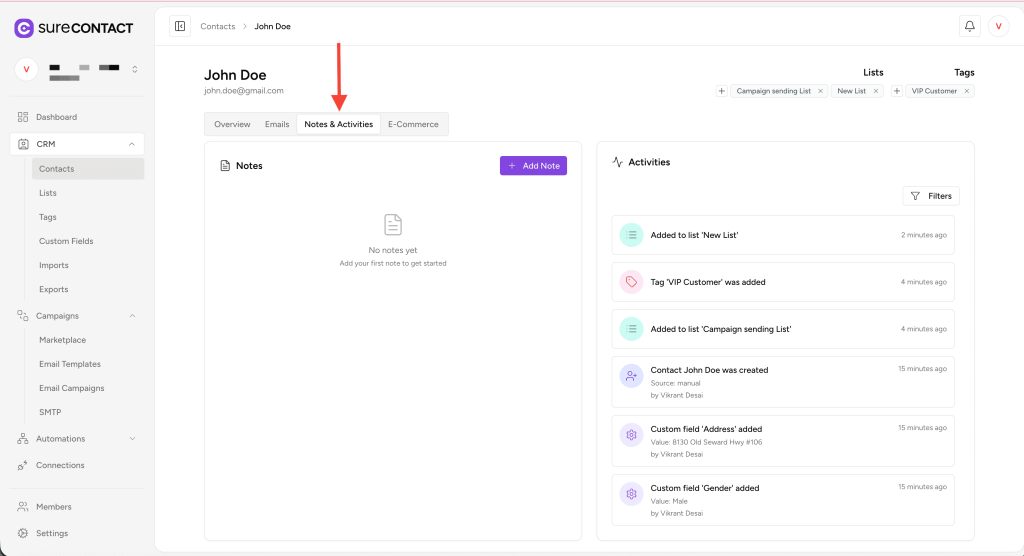
This tab is divided into two sections:
A. Notes
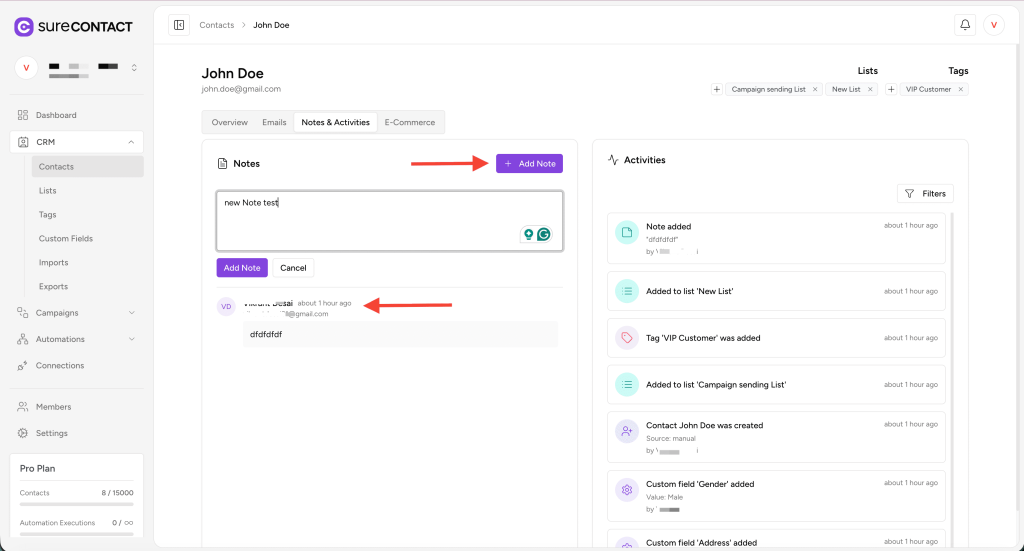
You can add internal notes about the contact for team reference.
- Click Add Note
- Enter your text
- Save the note, which will then appear in the Notes section
Notes help you track conversations, context, or any important details about the contact.
B. Activities
This section displays a chronological activity log for the contact, such as:
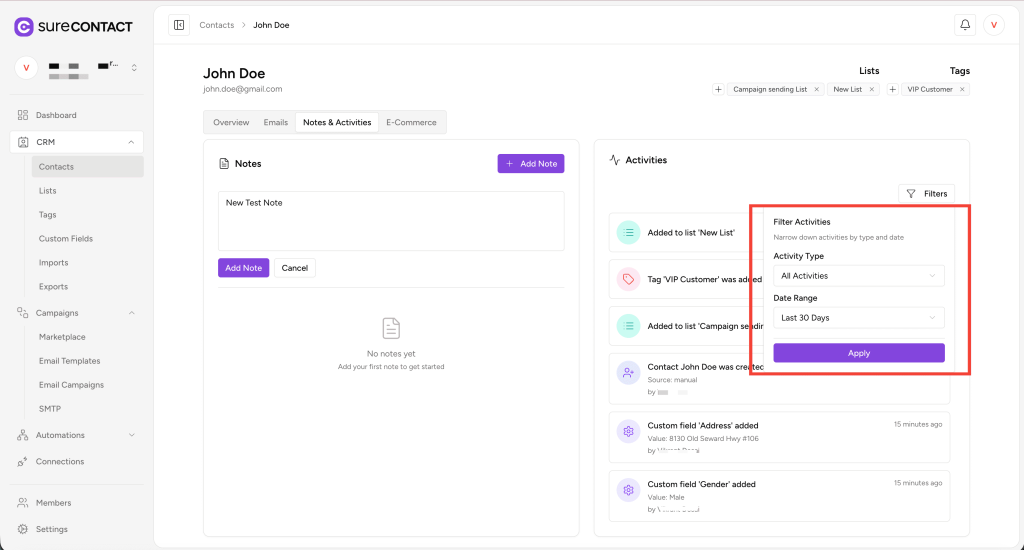
- List added / removed
- Tag added / removed
- Custom field updates
- Contact created
- Email actions (if enabled)
Each activity shows:
- Description
- Time of occurrence
- Source (manual, import, automation, etc.)
Activity Filters
You can narrow the activity feed using:
- Activity Type (All Activities, Tag Changes, List Changes, Field Updates, etc.)
- Date Range
This makes it easy to focus on recent or specific actions.
4. E-Commerce Tab
The E-Commerce tab shows the information if the contact originates from SureCart or WooCommerce integrations.
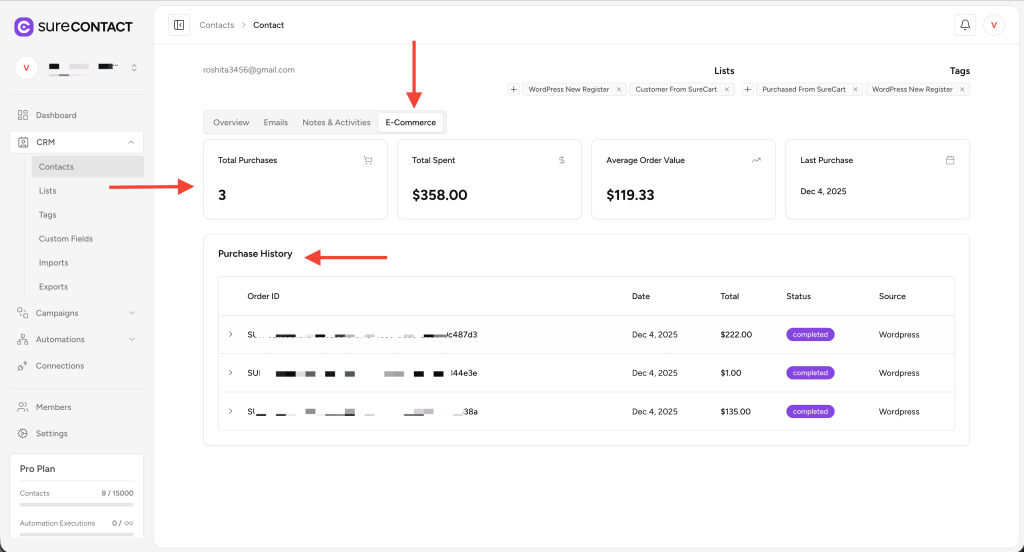
This tab displays the purchase behavior of the contact, including:
- Total Purchases
- Total Amount Spent
- Average Order Value
- Order History
- Most Recent Purchases
This section helps you evaluate the contact’s buyer value and interaction with your store.
Summary
The Contact Overview Page in SureContact is designed to give you a complete 360° view of an individual contact. It centralizes:
- Personal details
- Lists & tags
- Email communication history
- Notes & CRM activities
- E-commerce purchase data
This makes it a powerful tool for managing customer relationships efficiently.
We don't respond to the article feedback, we use it to improve our support content.