
- Introduction to SureContact Dashboard
- How to Install and Connect the SureContact WordPress Plugin
- What Do Contact Fields Mean in the SureContact WordPress Plugin
- How to Invite Members to a Workspace in SureContact
- How to Switch Organizations in SureContact
- Workspace-Level Contact Allocation in SureContact
- Workspace-Level Timezone Settings in SureContact
- How to Add a Custom Tracking Domain in a Workspace in SureContact
Contact Tags
Tags in SureContact allow you to categorize, segment, and identify contacts based on characteristics, behavior, or business requirements. Tags are highly flexible and can be applied manually, through bulk actions, or automatically through integrations and automations.
Tags make it easy to:
- Filter contacts
- Build targeted email campaigns
- Trigger automations
- Segment contacts by behavior or attributes
Creating a Tag
To create a new tag:
- Go to CRM → Tags from the left sidebar.
- Click the Add Tag button.
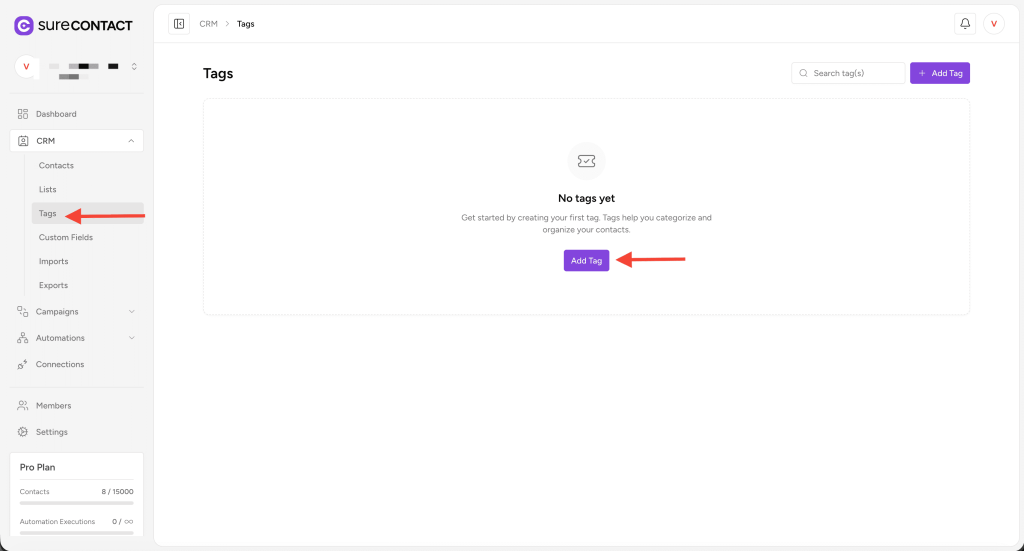
- The Add New Tag flyout will open with three fields:
- Tag Name
- Description
- Color
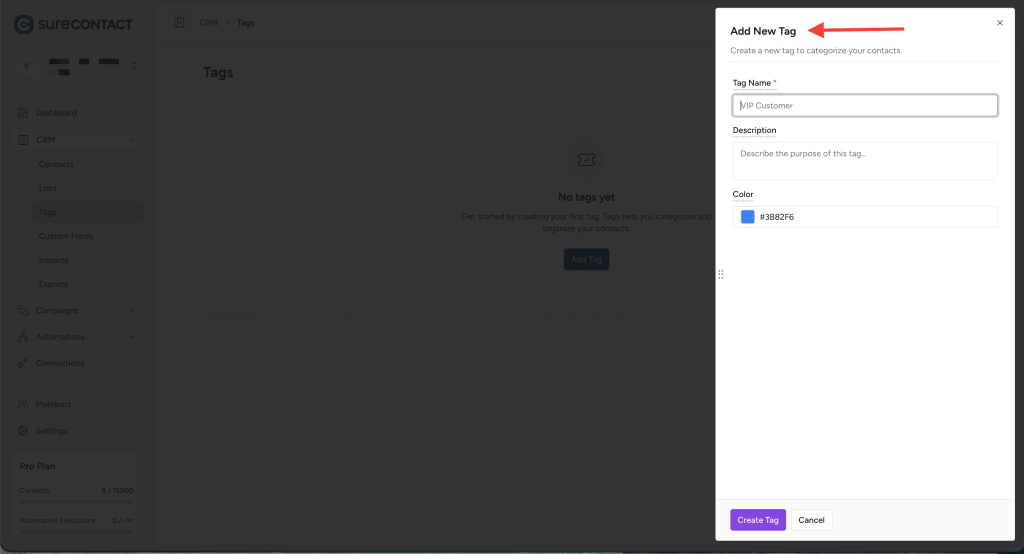
Fill in the fields as follows:
1. Tag Name
Provide a unique name that represents the category or segment.
Examples:
- VIP Customer
- Newsletter Subscriber
- High Value Lead
- Cold Lead
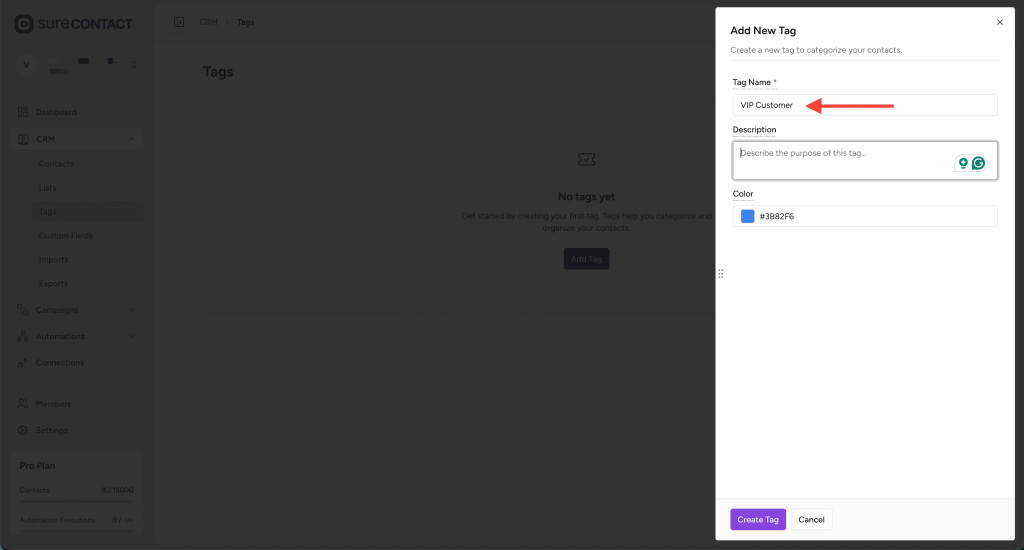
This name is used across SureContact for filtering, automation triggers, and grouping.
2. Description
Add an optional description to clarify the purpose and usage of the tag.
Examples:
- “Use this tag for customers who have purchased more than 3 times.”
- “Tag assigned to contacts who joined the webinar registration list.”
Descriptions help teams maintain consistent tagging practices.
3. Tag Color
Assign a color to visually distinguish the tag in the Contacts Dashboard.
You can choose:
- Preset colors
- Custom colors
- HEX color code (e.g., #FF5733)
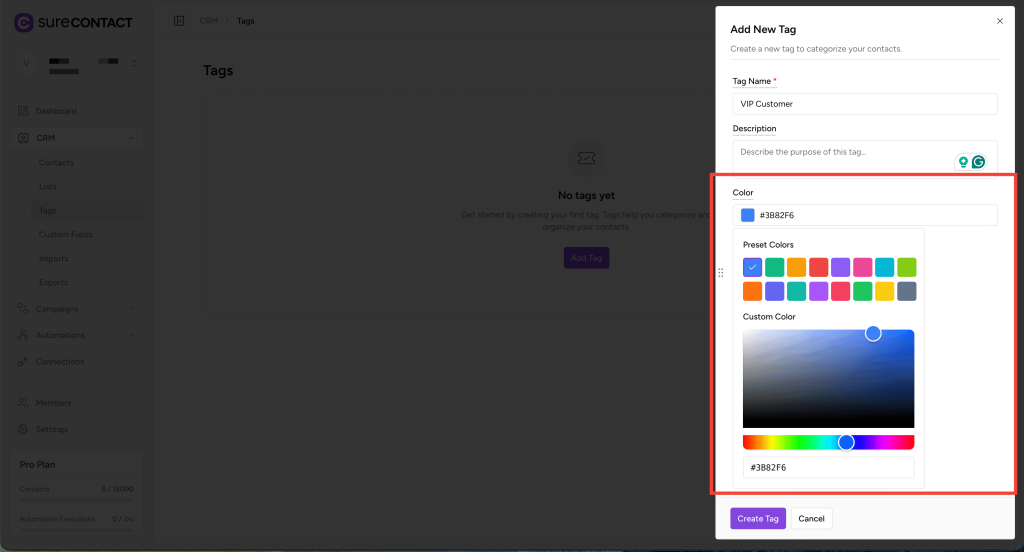
Color coding helps quickly recognize contact segments at a glance.
Create the Tag
Once all fields are filled, click Create Tag.
Your tag is now ready to use across your CRM.
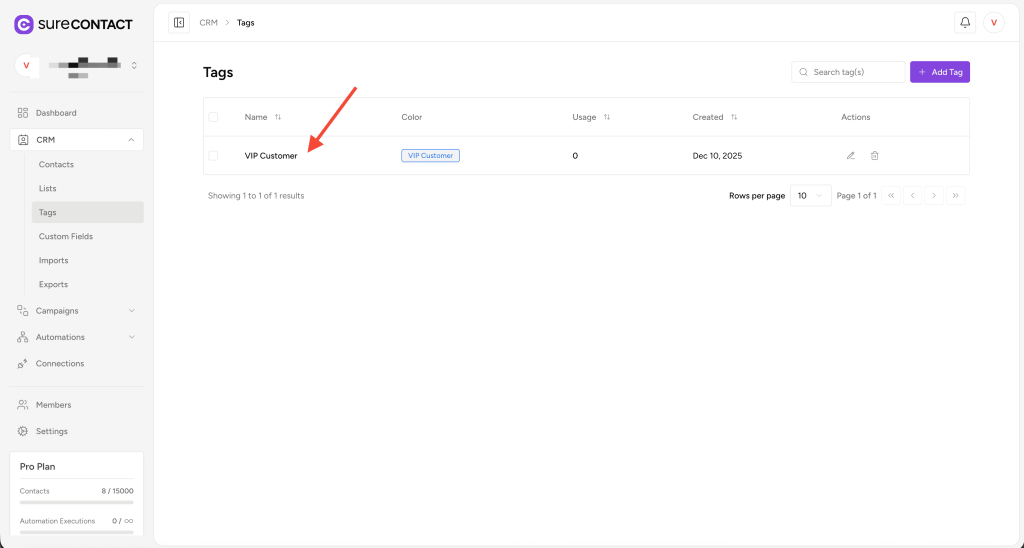
Managing Tags
Each tag row provides options to:
- Edit the tag (name, description, color)
- Delete the tag
Editing helps refine tag usage, and deleting removes it from the system. Deleted tags are also removed from all contacts.
Adding Tags to Contacts
Tags can be added to contacts in multiple ways:
1. From the Contact Overview Page
- Open a contact from CRM → Contacts
- On the Overview tab, click the + button in the Tags section
- Select an existing tag or create a new tag directly
- Save your selection
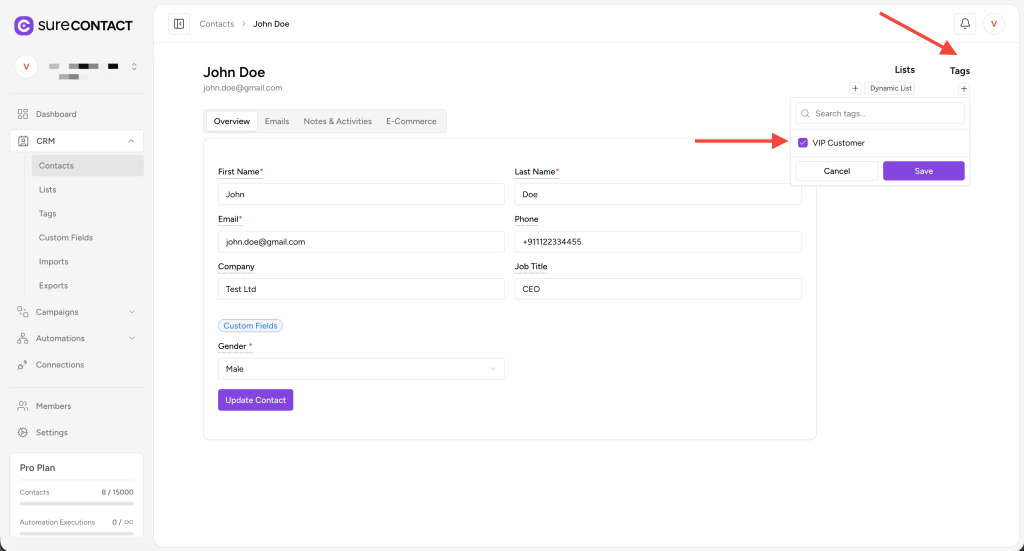
This method is ideal for adding tags to individual contacts.
2. Using Bulk Actions
- Go to Contacts List
- Select one or more contacts using the checkbox
- Click Apply Actions
- Choose:
- Add Tags
- Remove Tags
- Select your tags and apply
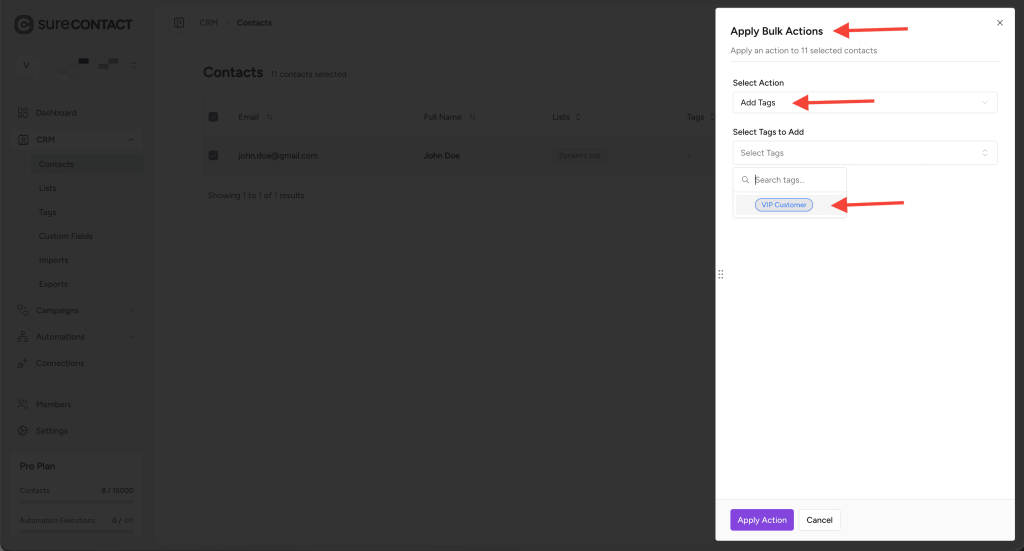
Bulk tag management helps organize large groups quickly.
Summary
Tags in SureContact provide powerful ways to:
- Segment contacts
- Filter and group contacts
- Track customer attributes
- Enhance personalization
They support flexible creation, visual customization, and multi-method assignment.
We don't respond to the article feedback, we use it to improve our support content.