
- Introduction to SureContact Dashboard
- How to Install and Connect the SureContact WordPress Plugin
- What Do Contact Fields Mean in the SureContact WordPress Plugin
- How to Invite Members to a Workspace in SureContact
- How to Switch Organizations in SureContact
- Workspace-Level Contact Allocation in SureContact
- Workspace-Level Timezone Settings in SureContact
- How to Add a Custom Tracking Domain in a Workspace in SureContact
Contacts Dashboard
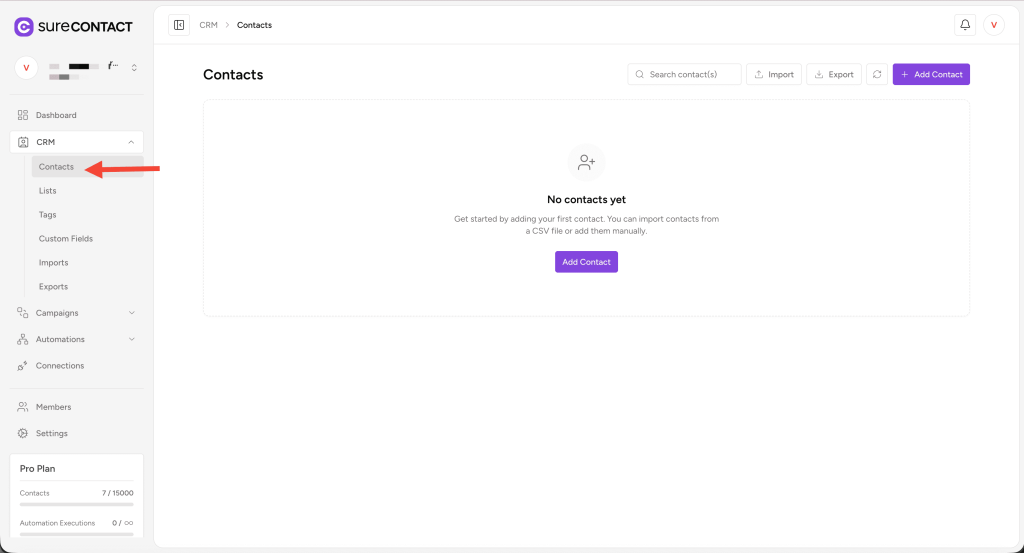
The SureContact Contacts Dashboard provides a complete overview of all stored contacts and allows you to efficiently manage, filter, import, export, and update your contact data. From searching contacts to applying bulk actions, the dashboard centralizes everything you need to maintain an organized CRM.
The Contacts Dashboard includes:
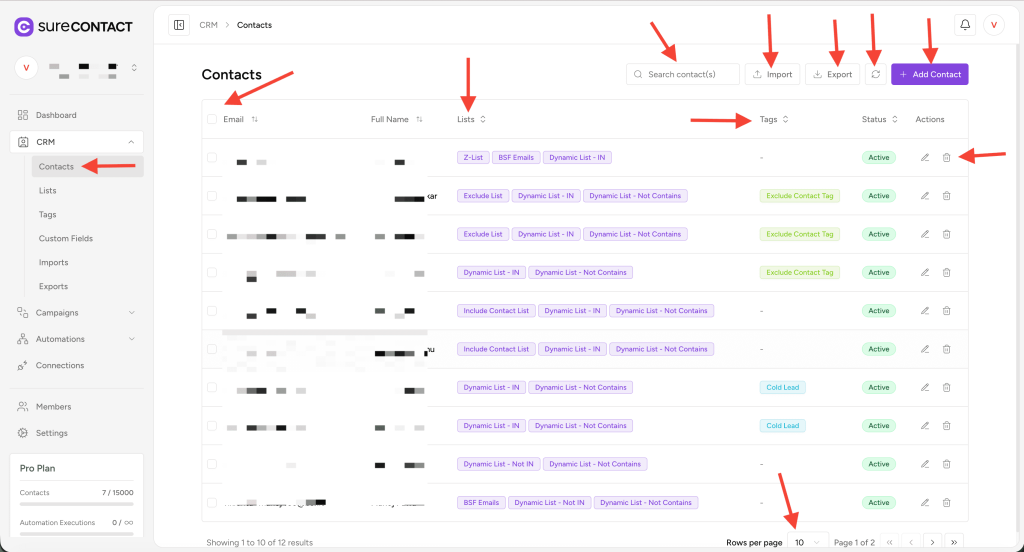
- Paginated contact list
- Filters by Lists, Tags, and Status
- Contact search bar
- Import & Export options
- Bulk action capabilities
- Edit & delete actions
- Add Contact
- Real-time data refresh
The key elements are explained below:
1. Filter by Lists
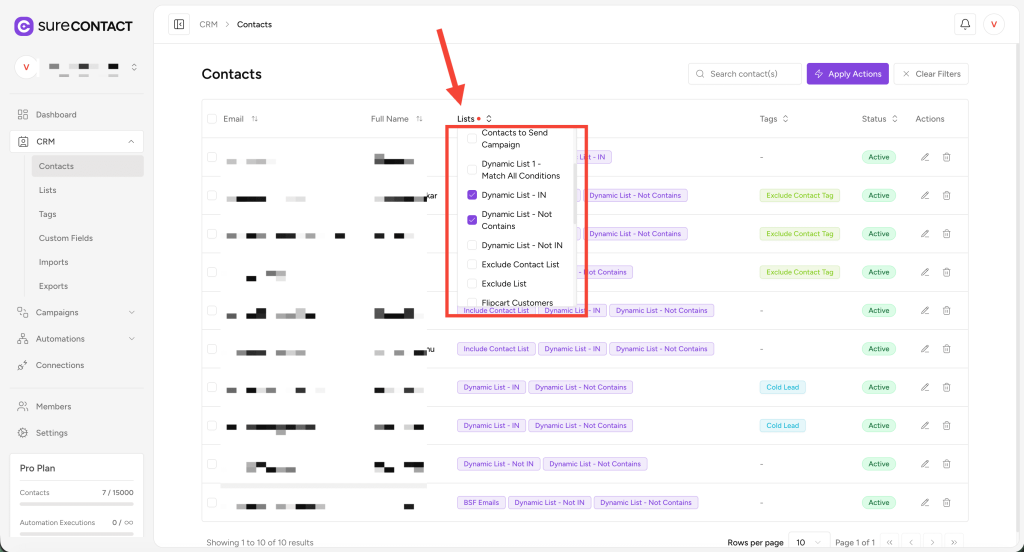
This dropdown shows all the Lists you have created. You can filter contacts based on one or multiple Lists to view specific segments.
Selecting a List displays only the contacts associated with that List. Multiple List selections help refine your view further.
More details are covered in the “Basic Filters & Pagination” section.
2. Filter by Tags
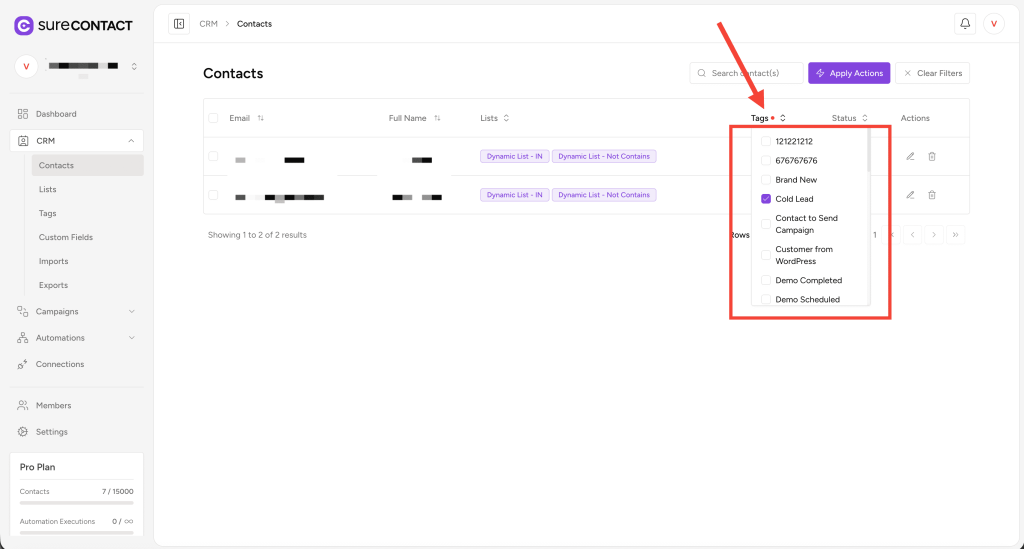
This dropdown allows you to filter contacts based on Tags. You can select one or multiple tags as needed.
This is particularly useful for viewing groups like Newsletter Subscribers, Leads, Customers, etc.
3. Filter by Status
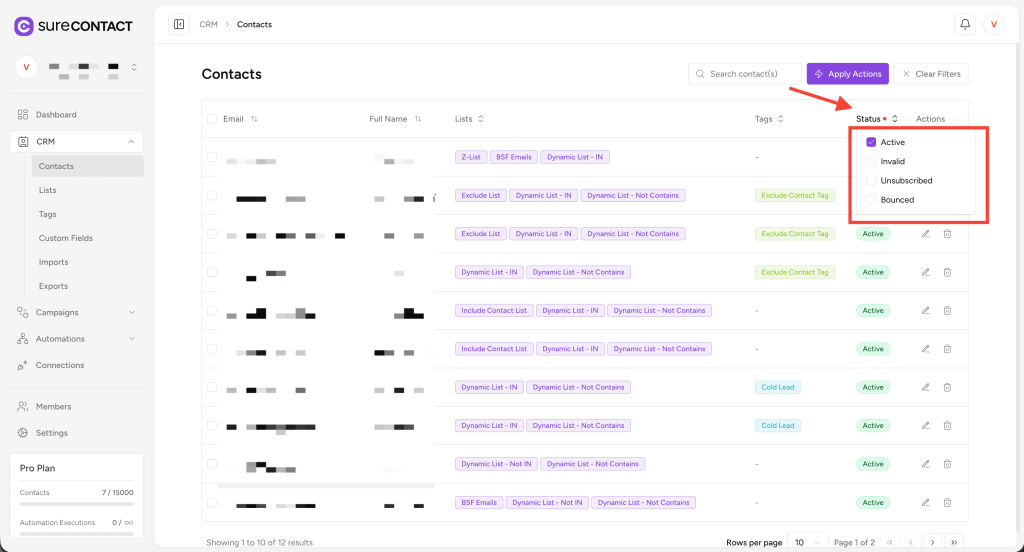
SureContact provides a dropdown to filter contacts by their Status (e.g., Active, Invalid, Unsubscribed, Bounced).
You may select one or more statuses to narrow down the contact list based on engagement or category.
4. Add Contact
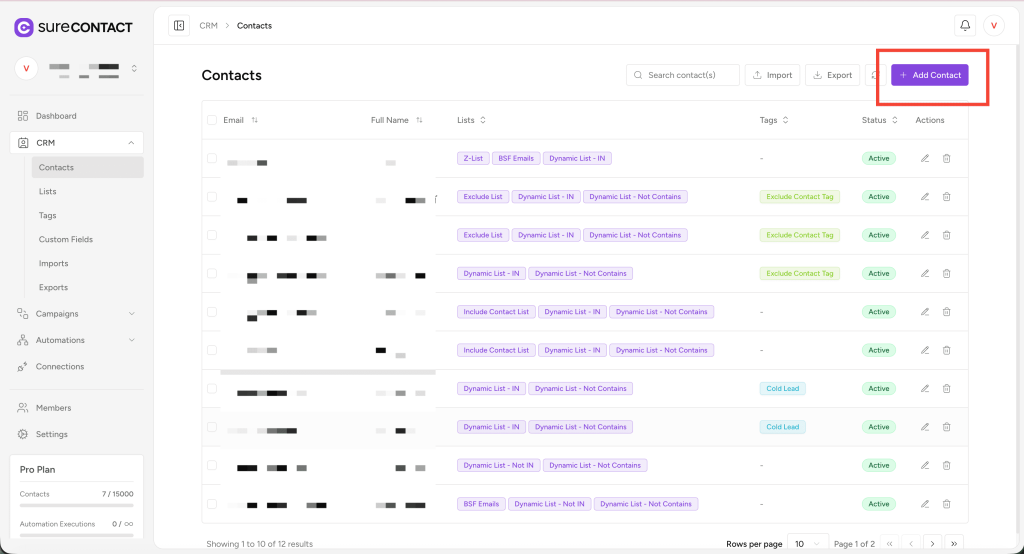
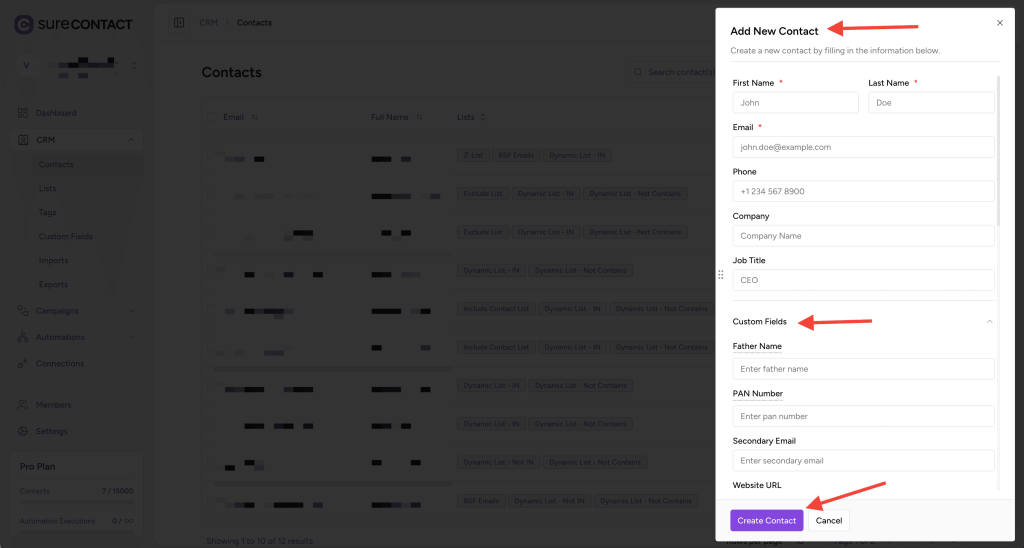
Using the Add Contact button, you can manually add a new contact to SureContact.
A flyout appears where you can enter:
- First Name
- Last Name
- Phone
- Company
- Job Title
- Custom Fields
This feature is ideal for one-off additions or manually collected leads.
5. Import Contacts
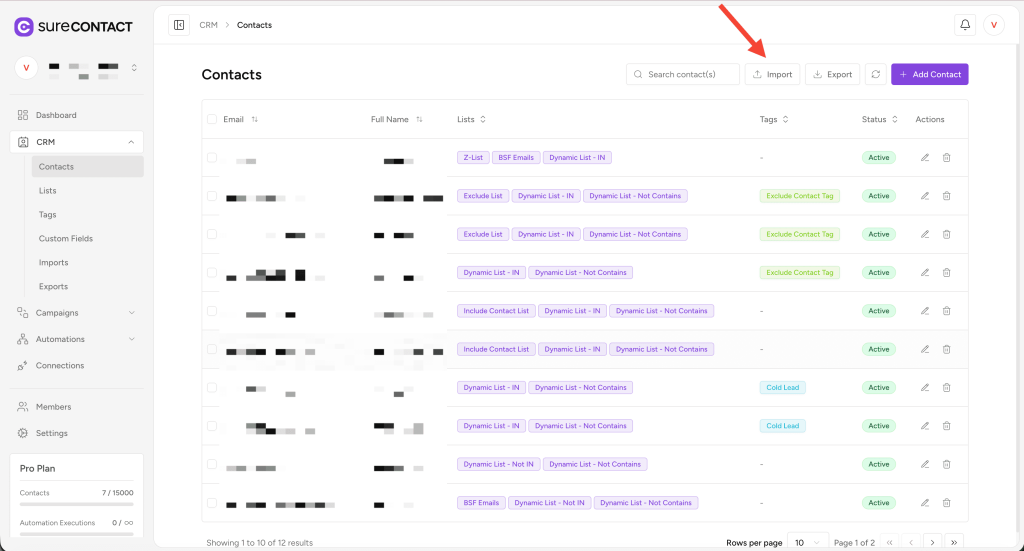
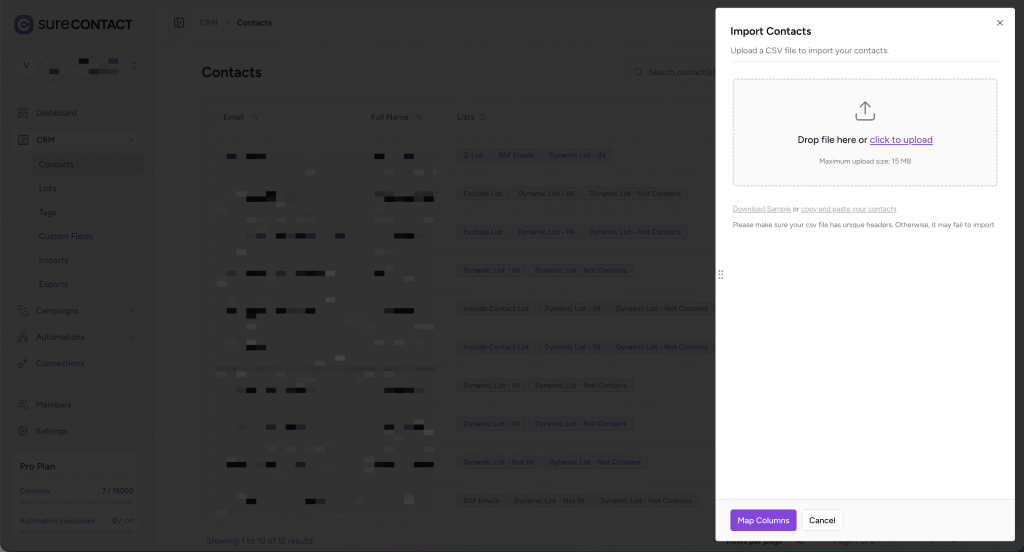
The Import option lets you bring contacts into SureContact in two ways:
- Upload a CSV file (up to 15 MB)
- Paste contact data manually in a comma-separated format
After uploading or pasting, you will map fields to SureContact’s contact fields before completing the import.
More details are available in the “Import Contacts” document.
6. Export Contacts
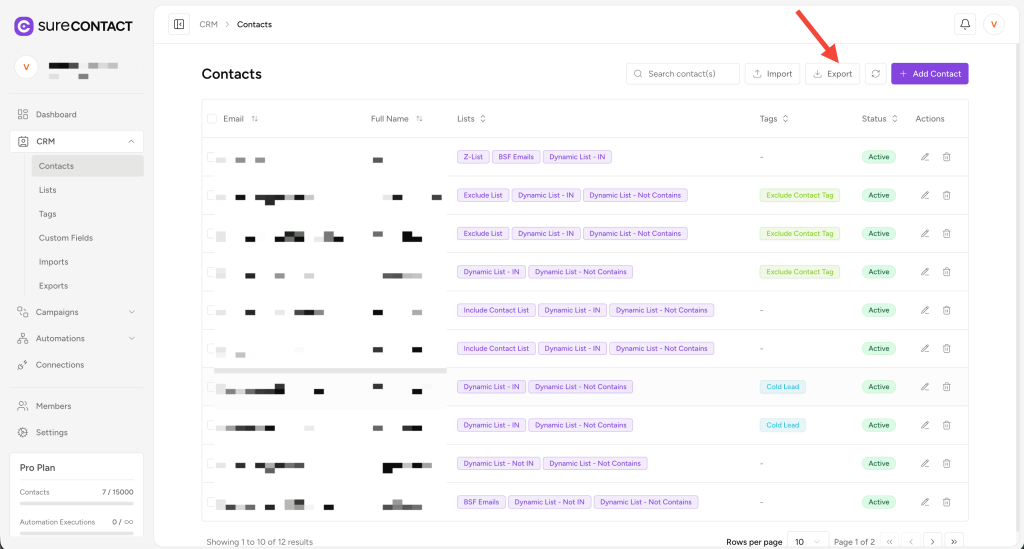
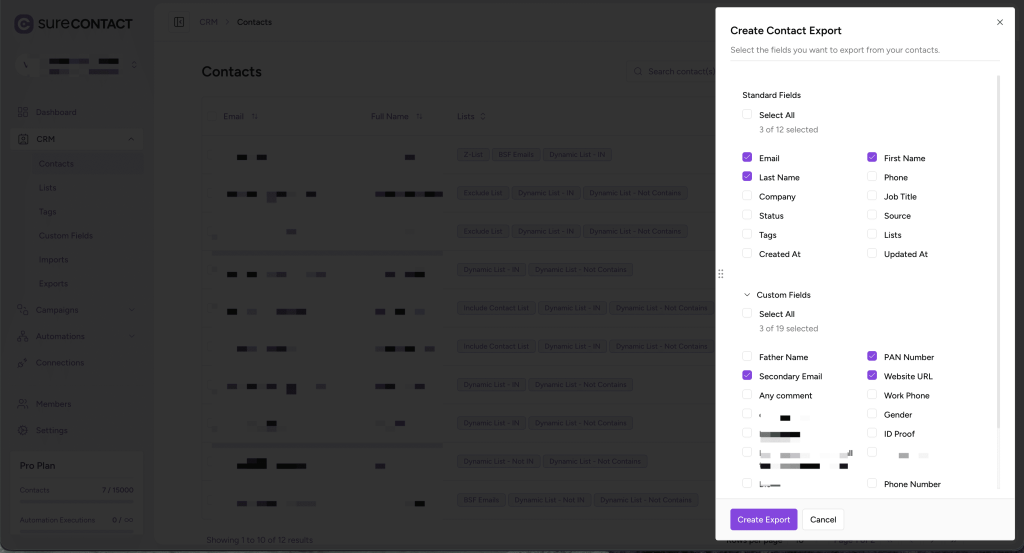
The Export button allows you to export selected contacts with the fields you choose. You can export:
- All contacts
- Only selected contacts
- Contacts with only selected fields (Standard + Custom Fields)
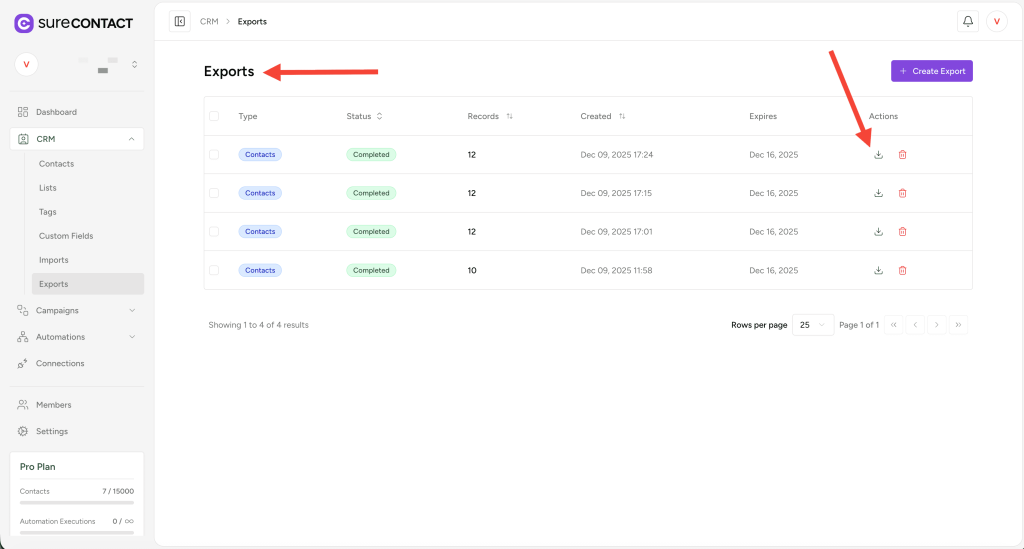
Exports are listed on the Exports Page, where you can download them. You also receive an email with the download link.
7. Search Box
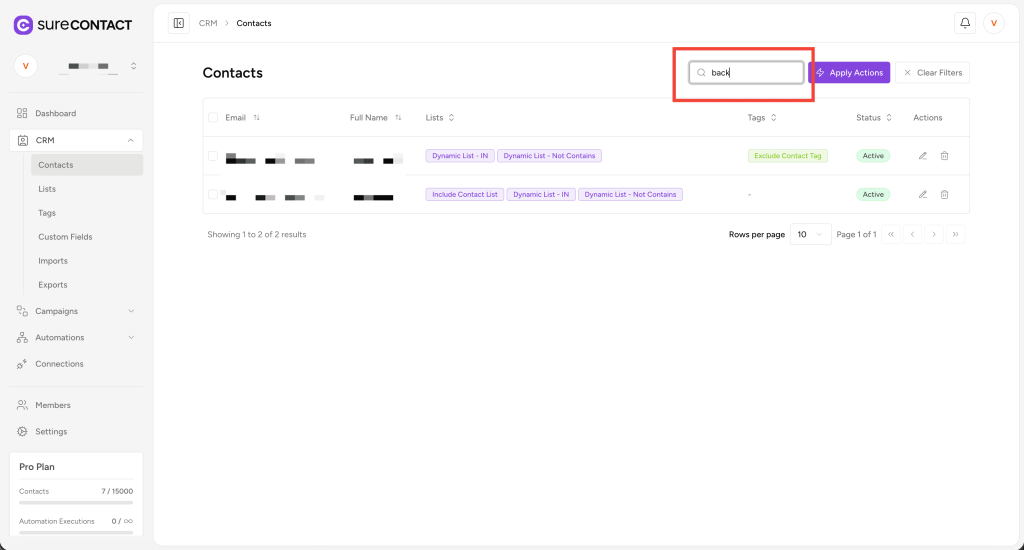
The search bar allows quick lookup of contacts by:
- Name
This helps you navigate large datasets quickly.
8. Bulk Actions
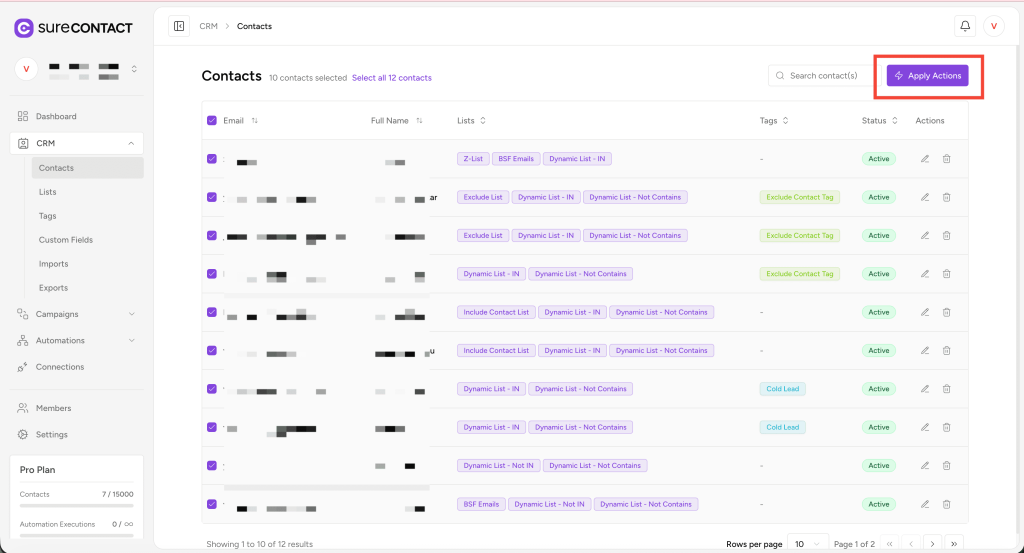
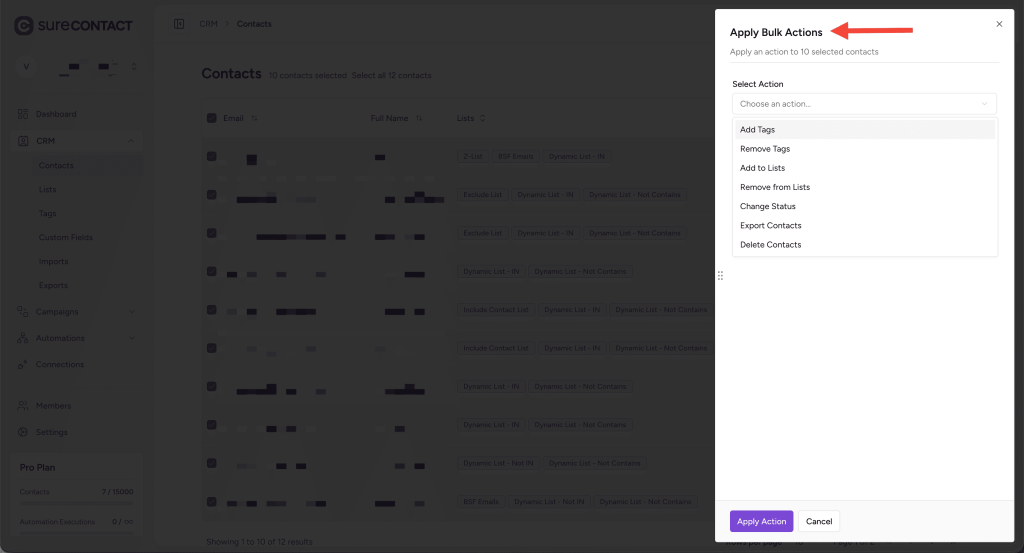
SureContact supports bulk operations for selected contacts. After selecting checkboxes, the Apply Actions button appears.
Bulk actions include:
- Add Tags
- Remove Tags
- Add to Lists
- Remove from Lists
- Change Status
- Export Selected Contacts
- Delete Contacts
This allows you to manage multiple contacts efficiently without editing each one manually.
9. Columns
The Contacts Dashboard displays key data points, including:
- Full Name
- Lists
- Tags
- Status
- Actions
Each column supports sorting or filtering (where applicable), allowing quick scanning and refinement of data.
Basic Filters & Pagination
Filters by Lists, Tags & Status
These three filters operate with AND logic.
Example:
If you select List A, Tag B, and Status = Active, you will see only the contacts that match all three conditions simultaneously.
You can combine multiple selections to refine your results further.
Pagination
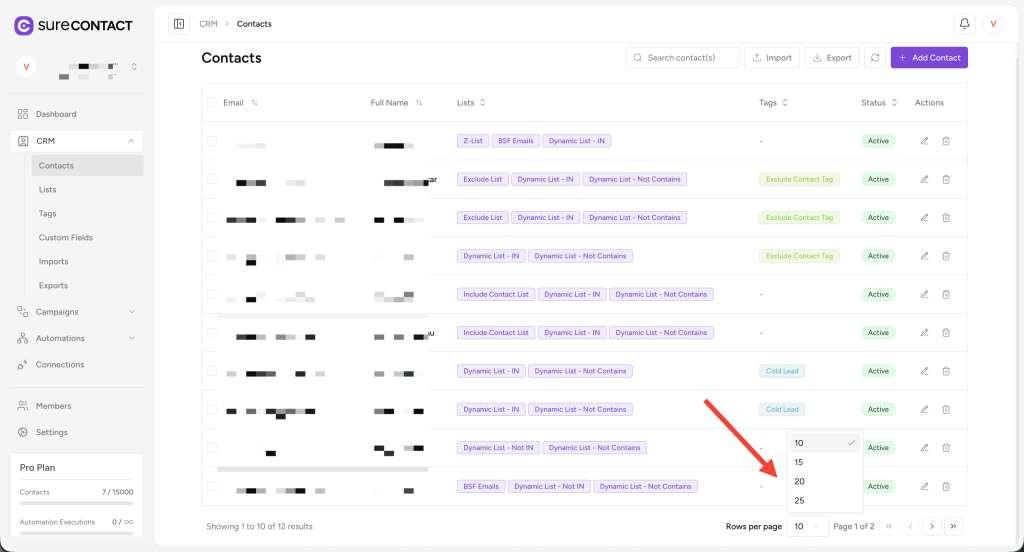
Contacts can be viewed page-by-page using the pagination controls at the bottom of the table.
You can change Rows per page to:
- 10
- 15
- 20
- 25
If your contact list spans multiple pages, navigation arrows help you move between pages easily.
Summary
That’s the complete overview of the Contacts Dashboard.
We don't respond to the article feedback, we use it to improve our support content.