
- Introduction to SureContact Dashboard
- How to Install and Connect the SureContact WordPress Plugin
- What Do Contact Fields Mean in the SureContact WordPress Plugin
- How to Invite Members to a Workspace in SureContact
- How to Switch Organizations in SureContact
- Workspace-Level Contact Allocation in SureContact
- Workspace-Level Timezone Settings in SureContact
- How to Add a Custom Tracking Domain in a Workspace in SureContact
Custom Contact Fields
SureContact allows you to create Custom Contact Fields to store additional information that is specific to your business needs. These fields expand the default contact information and give you full flexibility to personalize your CRM data.
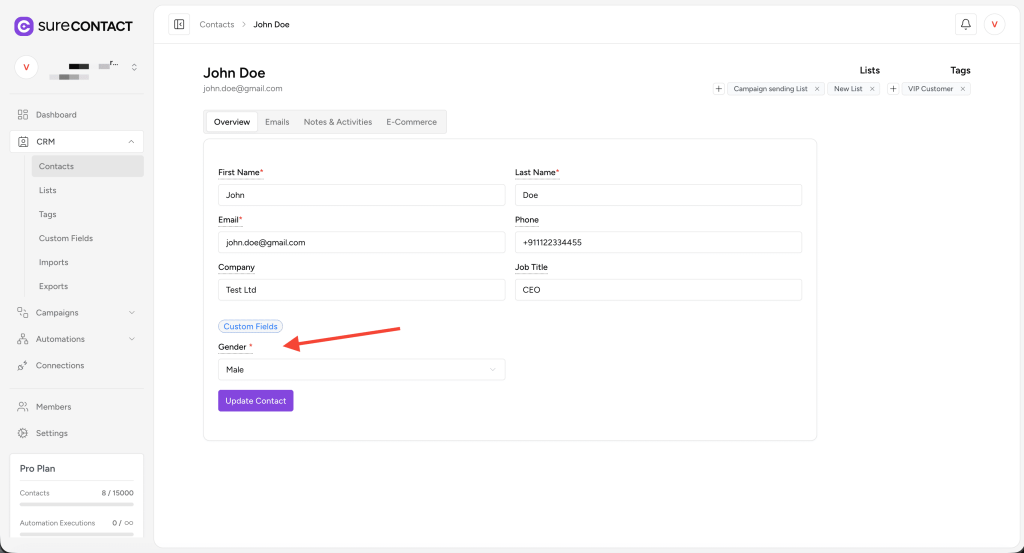
Custom Fields appear on every Contact Overview Page under the “Custom Fields” section once created.
Accessing Custom Fields
To create new custom fields:
- Navigate to the CRM section in the sidebar.
- Click on Custom Fields.
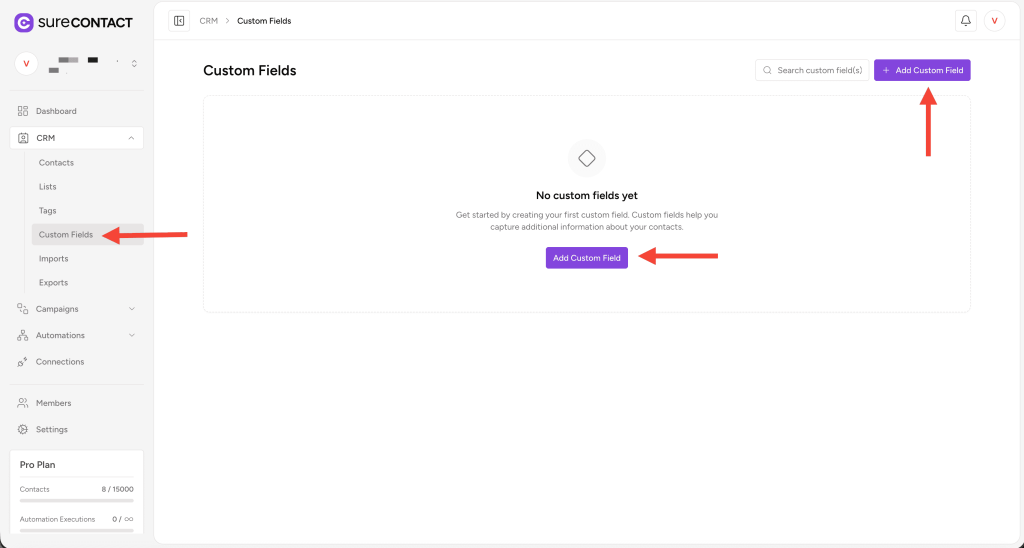
This area allows you to add, edit, and delete custom fields for your workspace.
Adding a New Custom Field
To create a new field:
- Click the Add Custom Field button.
- The Add New Custom Field flyout will appear with multiple configuration options.
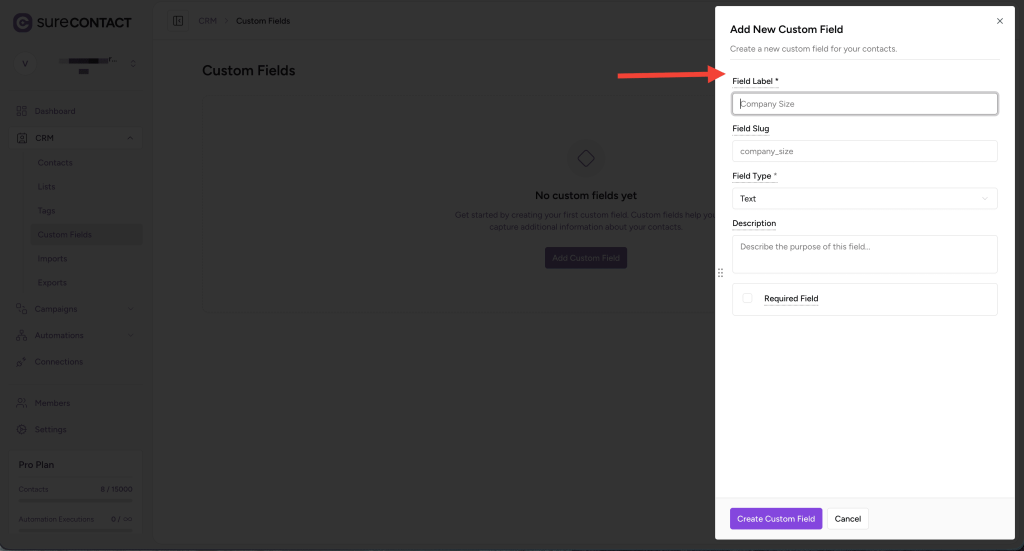
The flyout contains several settings that determine how your custom field behaves and appears on contact pages.
1. Field Label
Enter the display name of your custom field.
Example:
- Gender
- Website URL
- Birthday
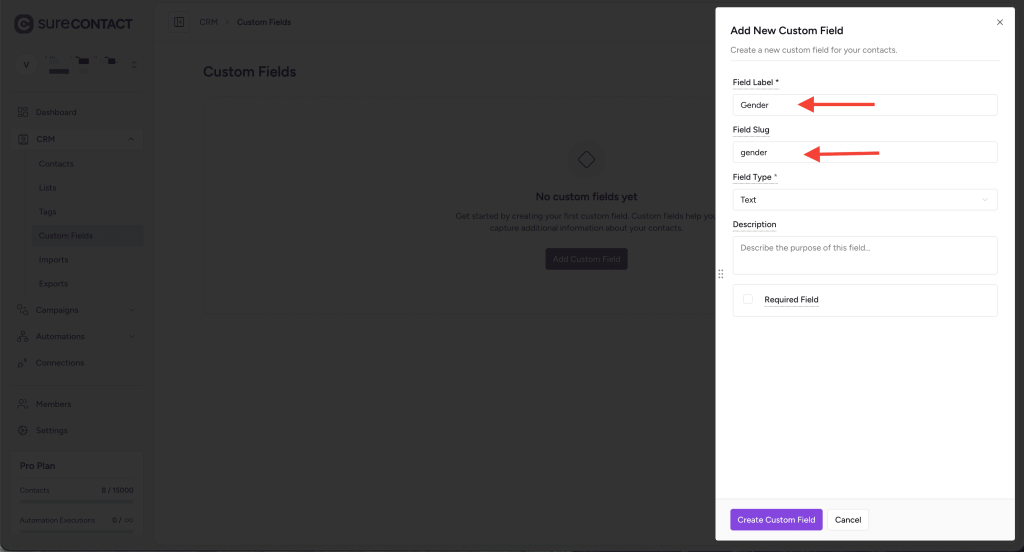
The Field Slug is generated automatically based on the label, but you may edit it if needed.
2. Field Type
Next, select the type of field you want to create. SureContact supports several field types:
- Text
- Number
- Phone
- URL
- Date
- Select (Dropdown)
- Multi Select
- Text Area
- Checkbox
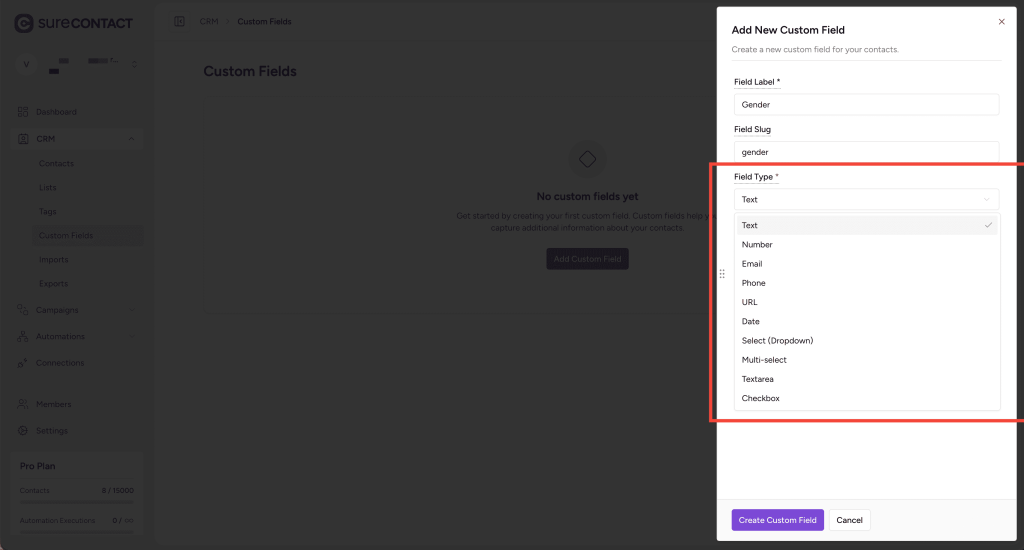
Choose the field type based on the kind of data you expect to collect.
3. Options (For Select or Multi-Select Fields Only)
If you choose Select or Multi Select, you must define the dropdown options.
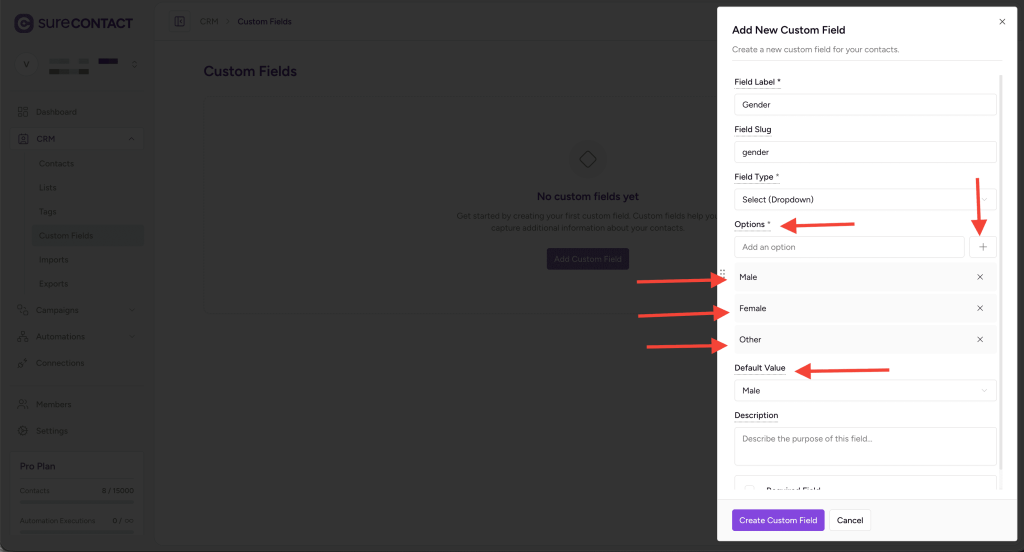
Example for the Gender field:
- Male
- Female
- Other
How to add options:
- Type the option name.
- Click the + button to add it to the list.
- Repeat for additional options.
You may also select a Default Value — this value will be automatically applied when creating a new contact (optional).
4. Description
Use this field to add a help text or instruction for the user.
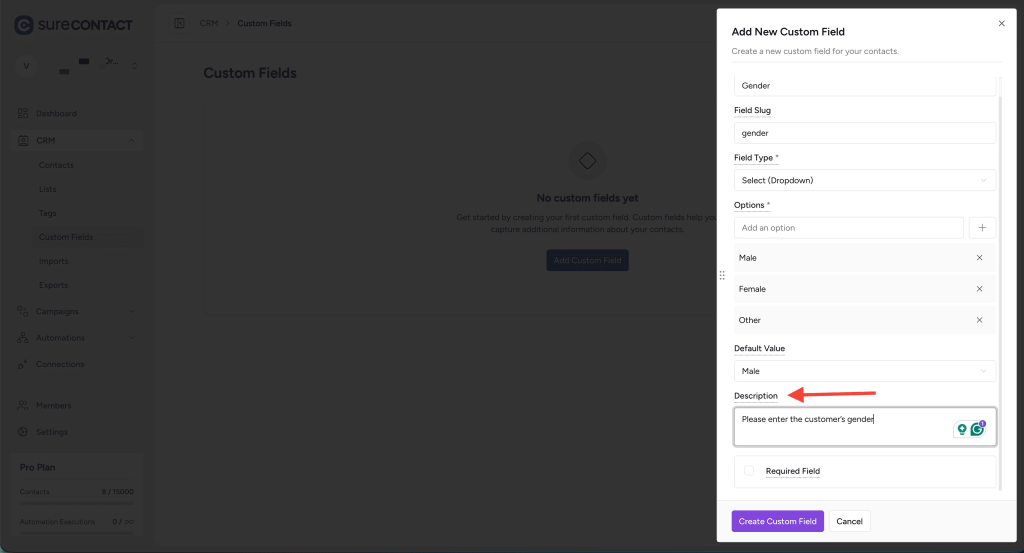
Example:
- “Please enter the customer’s gender.”
- “Use official company phone number.”
- “Enter the client’s website URL.”
This appears as a guideline when editing the contact.
5. Required Field
Enable the Required checkbox if this field must be filled before saving the contact.
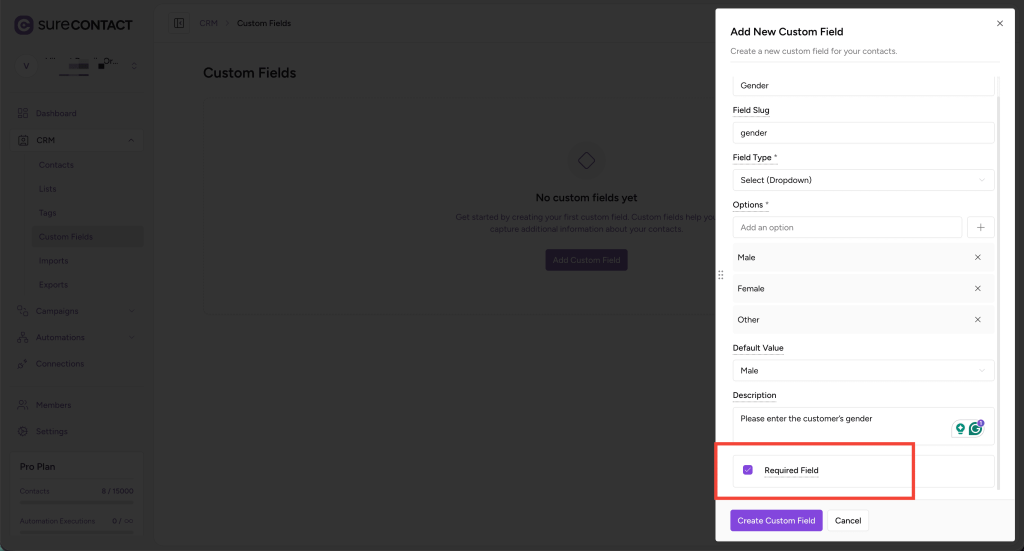
- Checked ➝ Contact cannot be saved without completing this field
- Unchecked ➝ Field is optional
6. Create the Field
Finally, click Create Custom Field to save your new field.
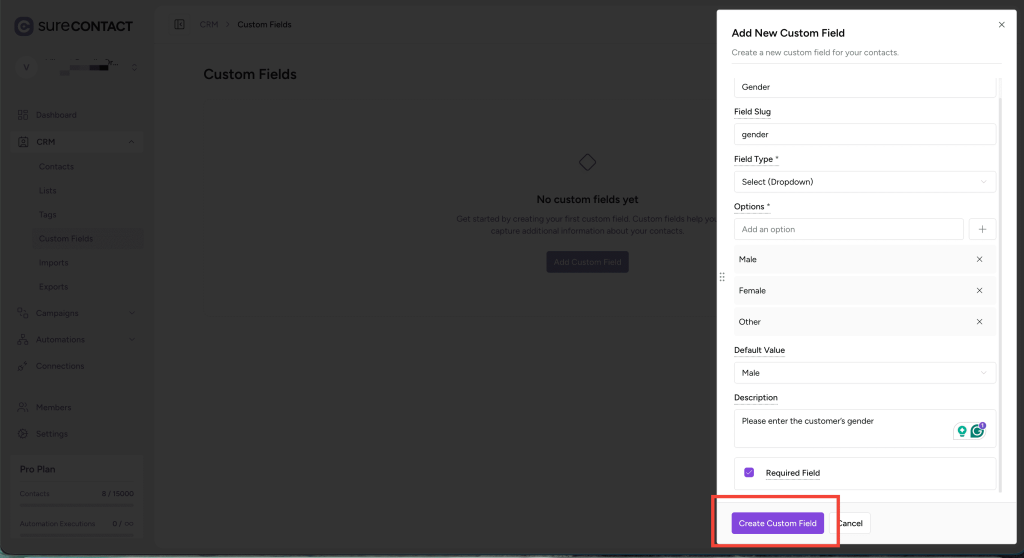
Your custom field will now appear:
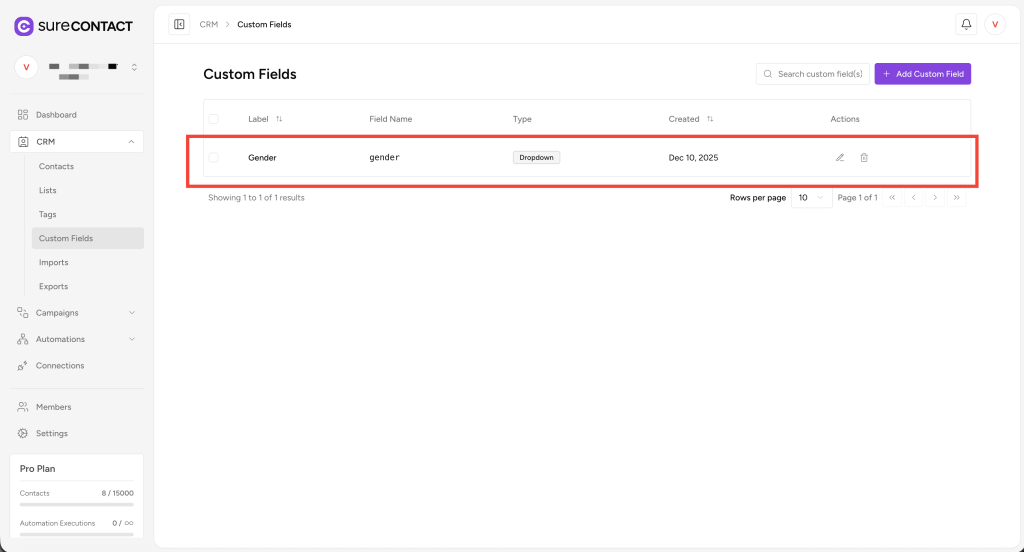
- In the Custom Fields list
- Inside every Contact Overview Page under the “Custom Fields” section
Editing a Custom Field
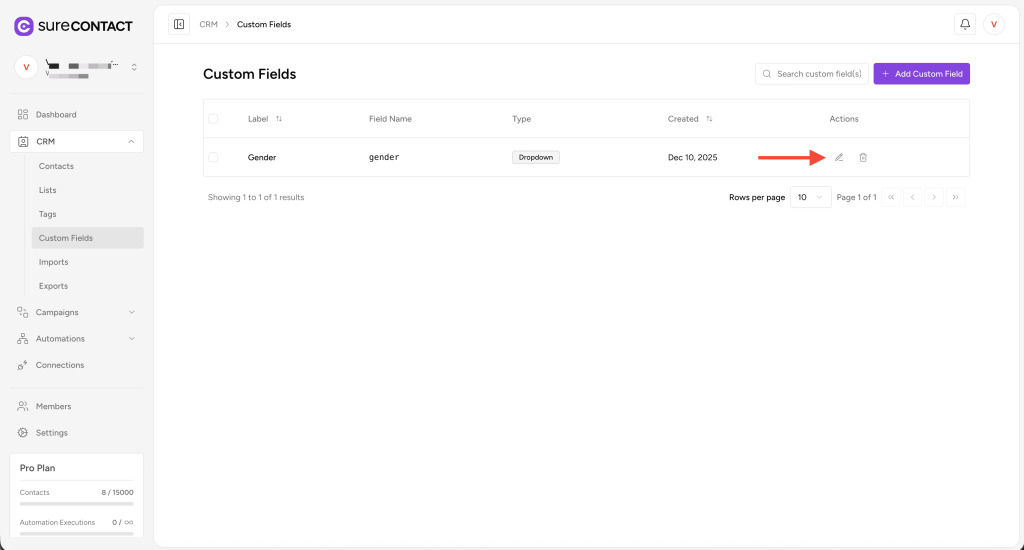
You can update an existing field by clicking the Edit button next to that field.
Important:
You can only update certain settings.
The following fields cannot be changed after creation:
- Field Slug
- Field Type
This ensures data consistency across all contacts.
However, you can update:
- Field Label
- Description
- Options (for Select/Multi Select)
- Default value
- Required status
Click Save after making your changes.
Deleting a Custom Field
To delete a custom field:
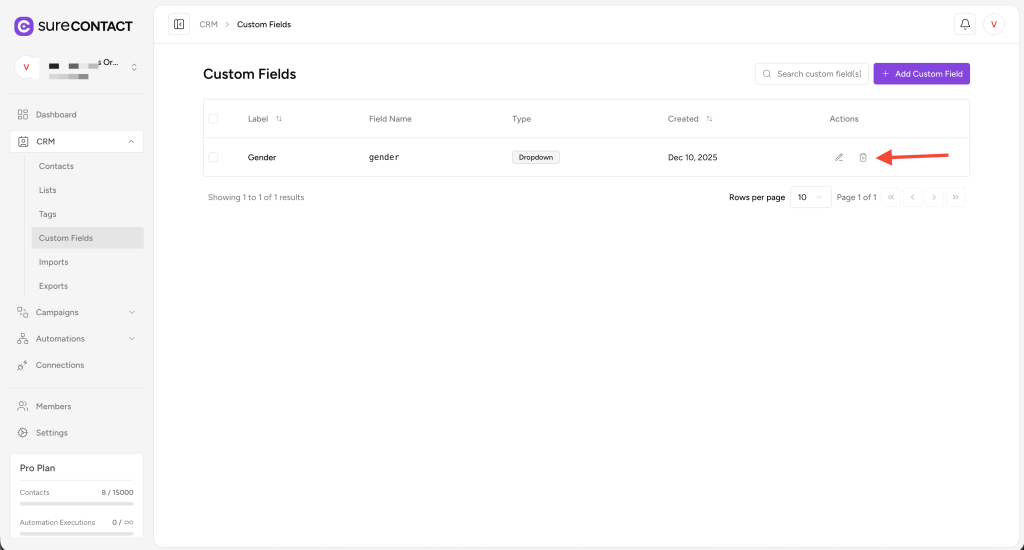
- Click the Delete icon next to the field row.
Once deleted:
- The field will no longer appear on contact pages.
- Existing data stored for that field will not be accessible.
Use caution when deleting fields.
Custom Fields in Contact Overview
After creating custom fields, they automatically appear under the Custom Fields section of every contact.
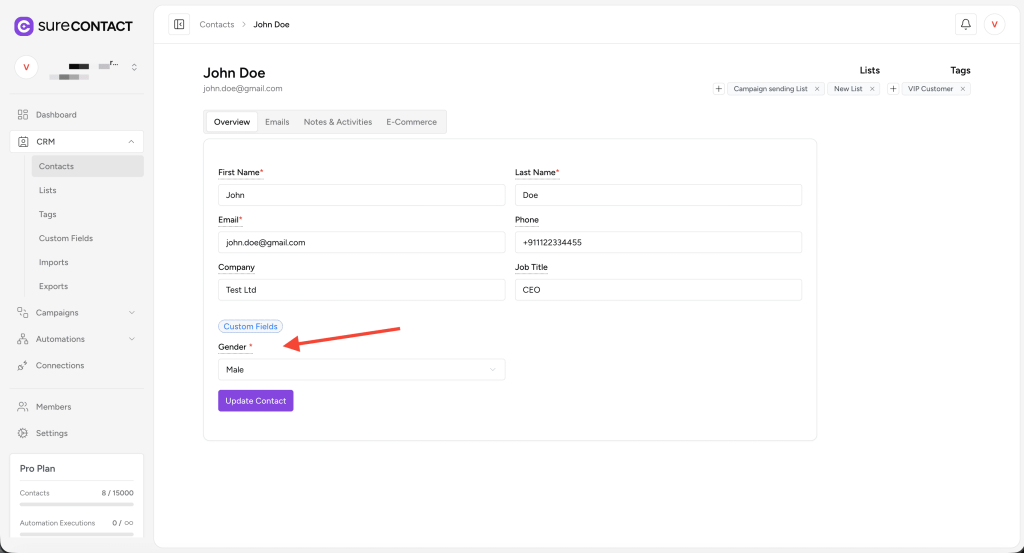
From there, you can:
- View the custom field values
- Add or update the values for each contact individually
This allows you to personalize and enrich your CRM data based on your business workflows.
Summary
Custom Fields in SureContact help you capture and manage additional information beyond the standard contact fields. Whether you need to track gender, membership IDs, preferences, dates, or any other custom data, the Custom Fields system is designed to be flexible and easy to use.
We don't respond to the article feedback, we use it to improve our support content.