
- Introduction to SureContact Dashboard
- How to Install and Connect the SureContact WordPress Plugin
- What Do Contact Fields Mean in the SureContact WordPress Plugin
- How to Invite Members to a Workspace in SureContact
- How to Switch Organizations in SureContact
- Workspace-Level Contact Allocation in SureContact
- Workspace-Level Timezone Settings in SureContact
- How to Add a Custom Tracking Domain in a Workspace in SureContact
Email Campaigns in Surecontact
In the previous guide, we learned how to configure SMTP settings in SureContact. With your SMTP setup ready, you can now start sending beautiful, targeted email campaigns to your contacts.
In Surecontact, you can create email campaigns from scratch or use the pre-designed template gallery created by our design experts.
This guide walks you through the entire process—from choosing your template to sending your finished campaign.
Start Creating an Email Campaign
- Log in to your SureContact account.
- From the sidebar, expand the Campaigns section.
- Click Email Campaigns.
- On the Email Campaigns page, click Create Campaign.
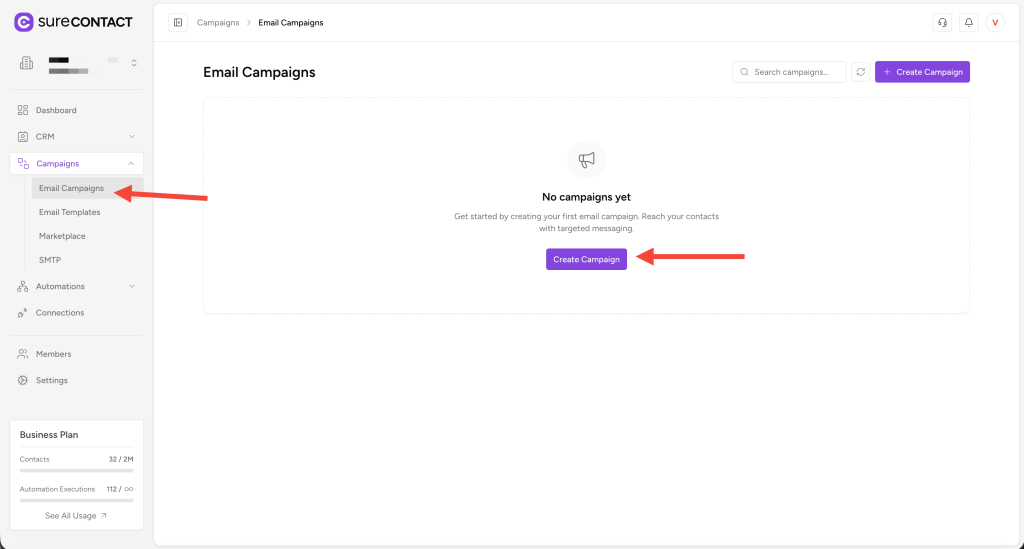
You will be taken to the campaign creation screen, where the first step is naming your campaign.
Step 1: Choose How You Want to Create Your Email
Before designing, give your campaign a name.
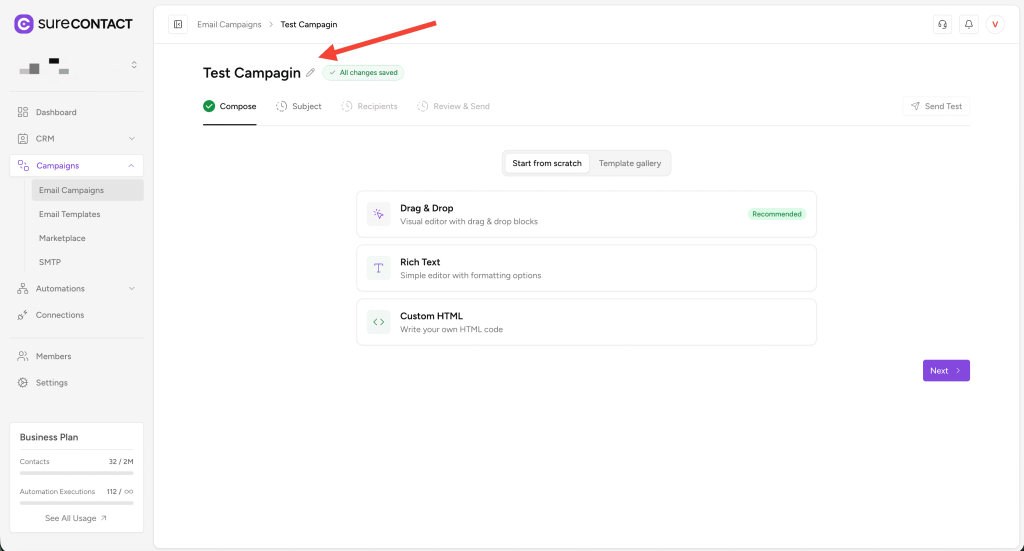
Surecontact offers two approaches:
- Use Template Gallery (pre-made designs)
- Start From Scratch (build your own email)
Let’s explore both.
1) Using the Template Gallery
Switch to the Template Gallery tab.
Inside, you will find:
✔ Your Templates
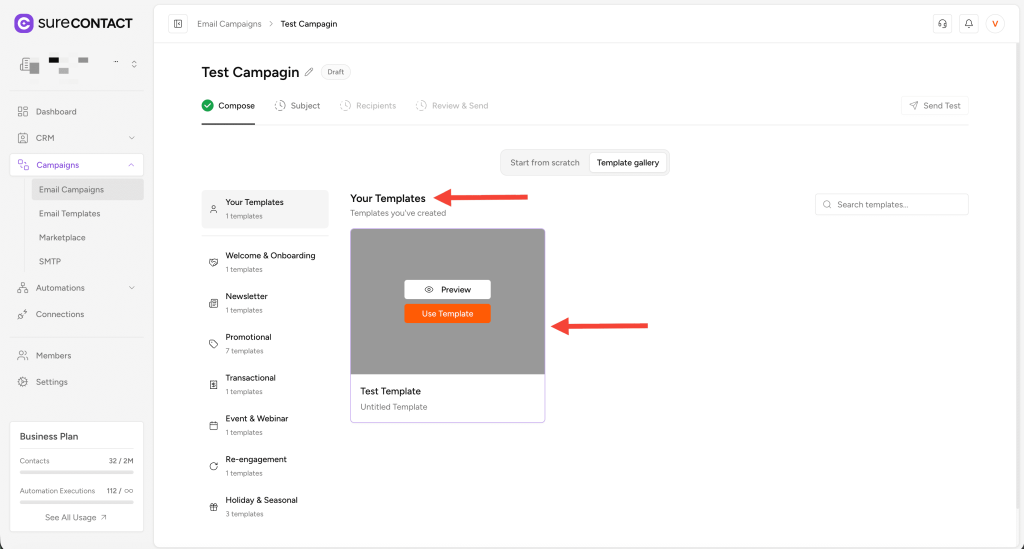
Templates you created earlier.
✔ Designers’ Templates
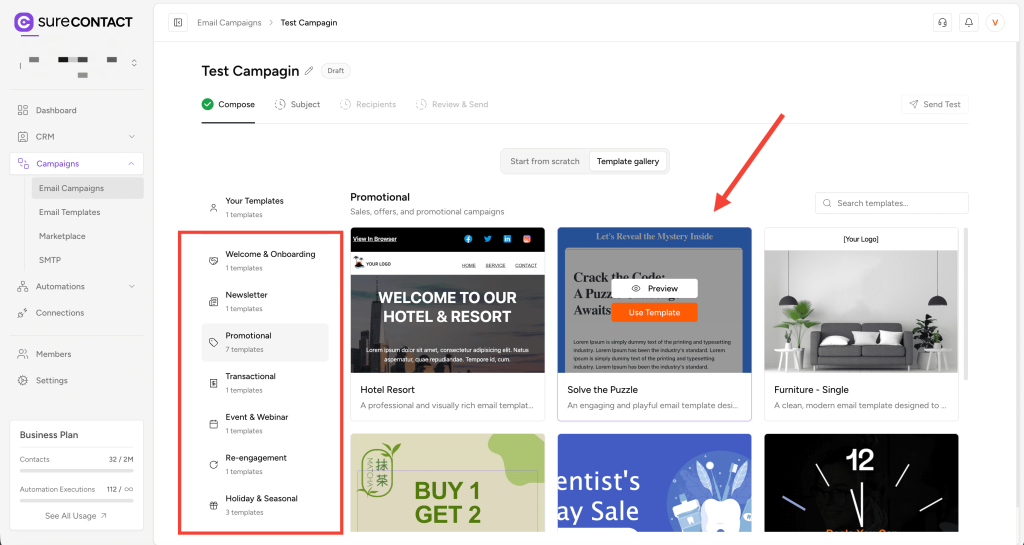
Beautiful email templates created by Surecontact’s design team, grouped under categories in the sidebar.
Using a Template
- Click Use Template on any design.
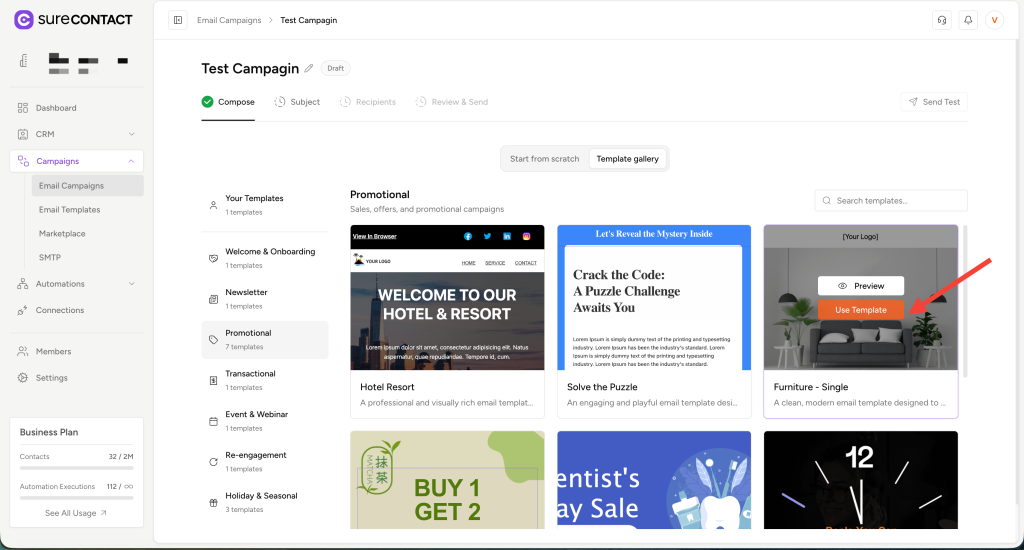
- A preview opens in drag-and-drop format.
- You can:
- Click Edit → Opens the Email Template Builder to customize the template
- Click Reset Icon → Start over with template selection
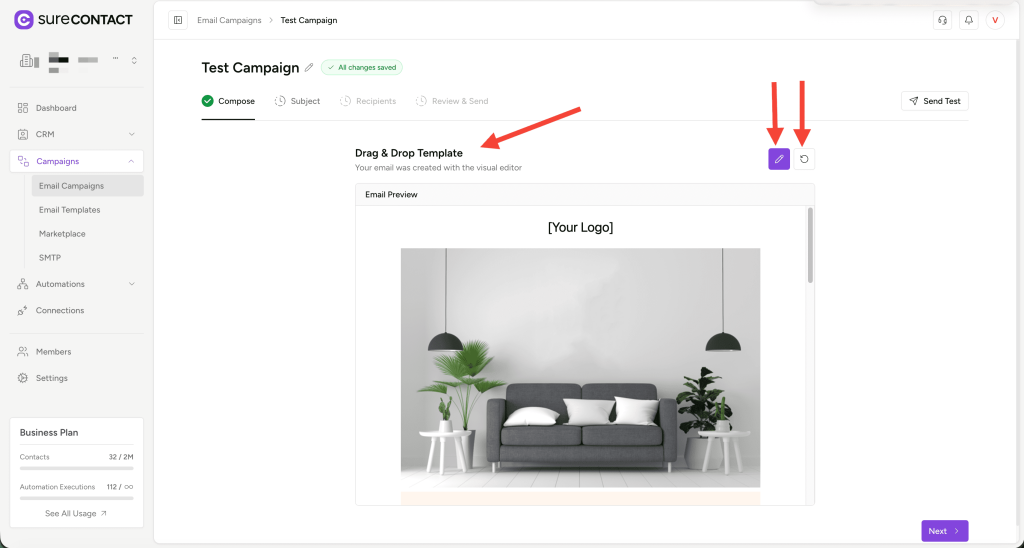
Once you’re satisfied with the design, proceed to the next step.
2) Start From Scratch (Three Options)
If you choose not to use templates, SureContact allows you to build emails in three different ways:
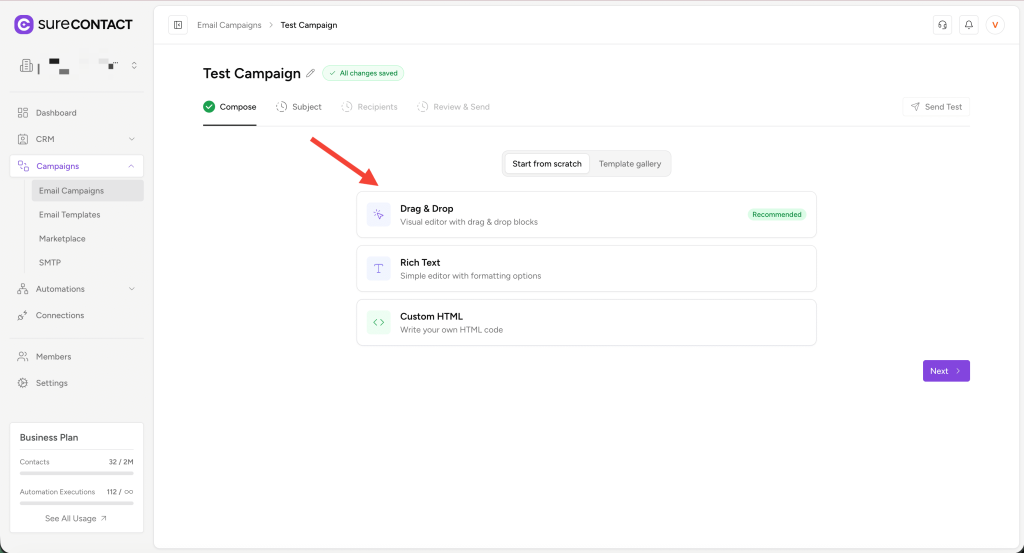
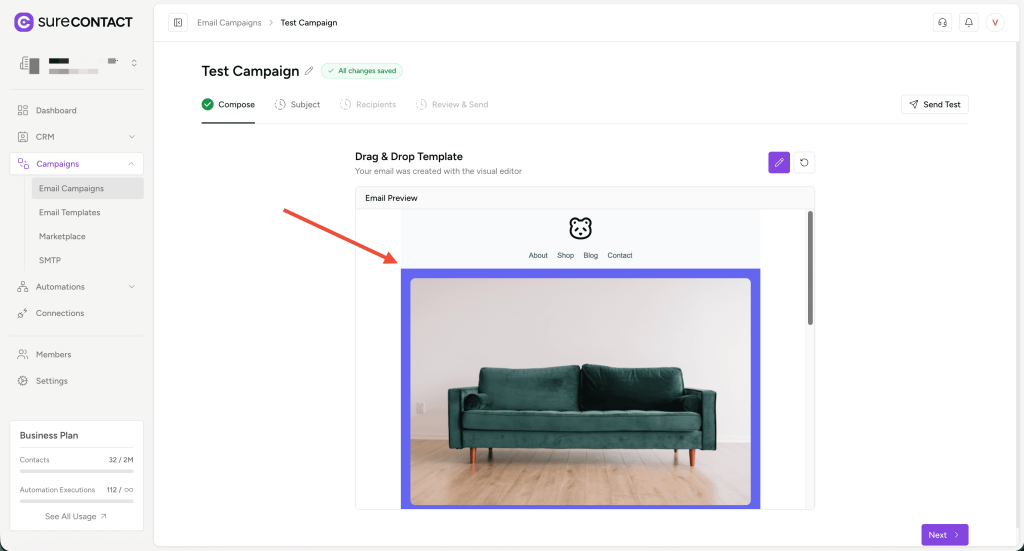
A. Drag & Drop Editor
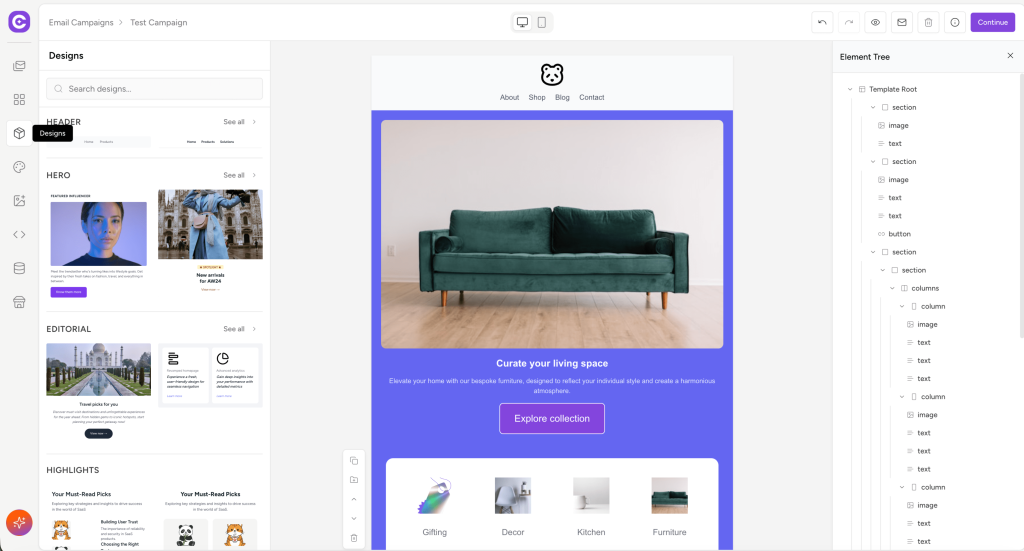
Click, Drag and Drop to open the email builder.
Inside the builder you can:
- Add blocks and elements
- Customize layout and styles
- Insert images, buttons, spacers, lists, etc.
- Save your designed template
This method is best for users who want a visual building experience.
B. Rich Text Editor
Use this option if you prefer writing content in a text-focused editor.
The rich text editor includes:
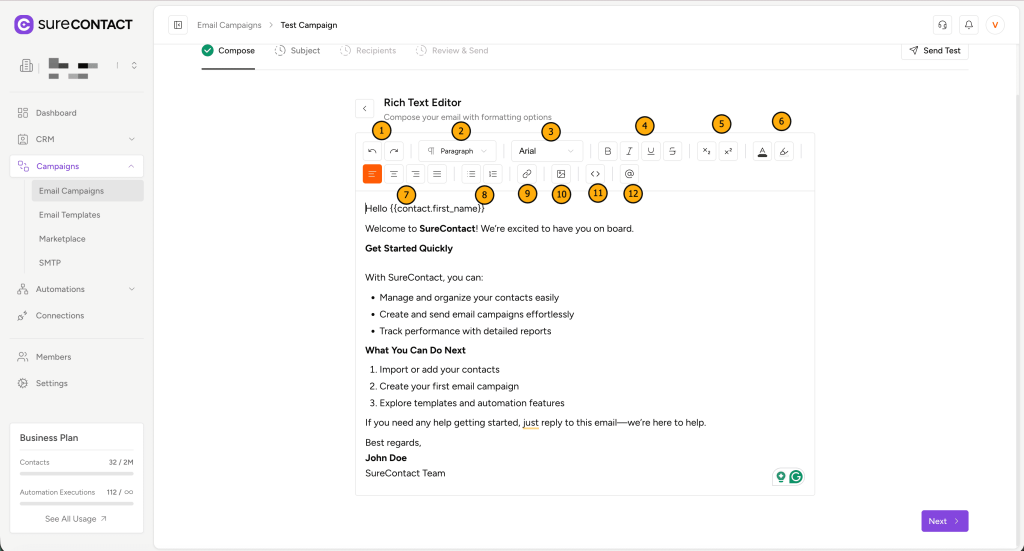
- Undo/Redo
- Heading, paragraph, code block
- Font family selector
- Bold, italic, underline, strikethrough
- Subscript & superscript
- Font color & highlight
- Text alignment (left, center, right, justify)
- Bullet and numbered lists
- Insert hyperlink
- Insert images (upload, URL, media library)
- HTML code editor
- Insert dynamic variables into email (type @ to select)
Perfect for simple emails that prioritize content over visuals.
C. Custom HTML
If you’re a developer or already have HTML email code, use this option.
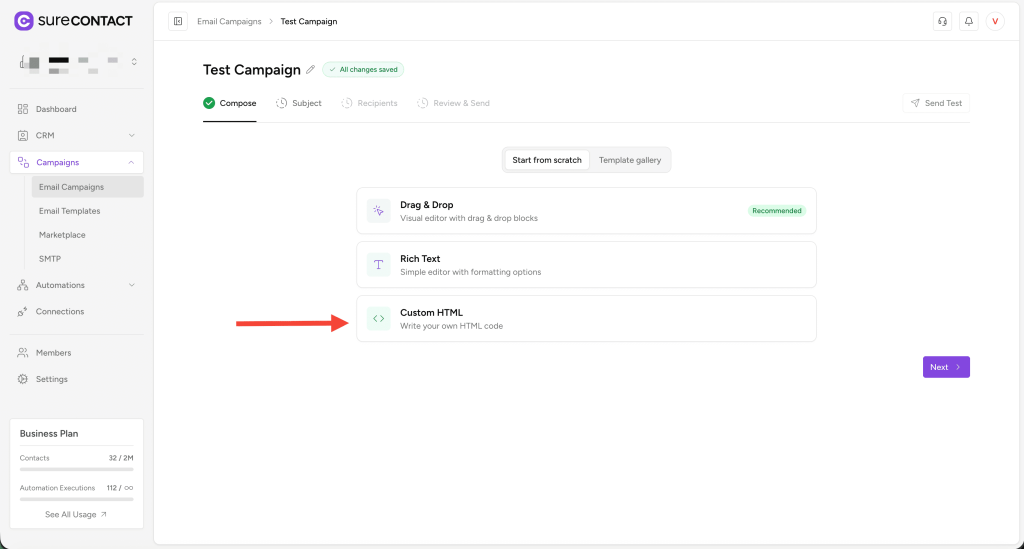
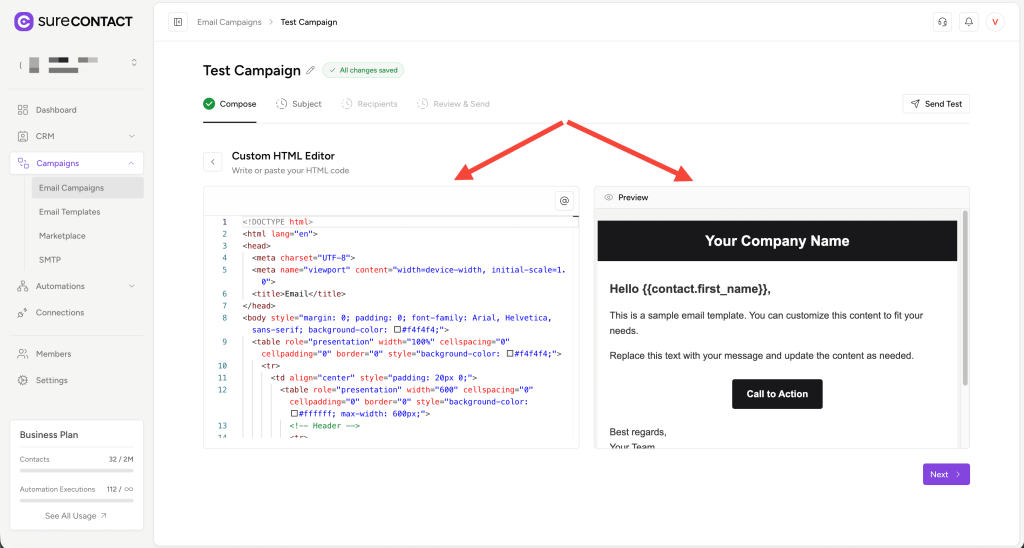
You will see:
- A Custom HTML Editor
- A Live Preview Panel
Buttons Available:
- Edit HTML → Opens side-by-side editor with preview
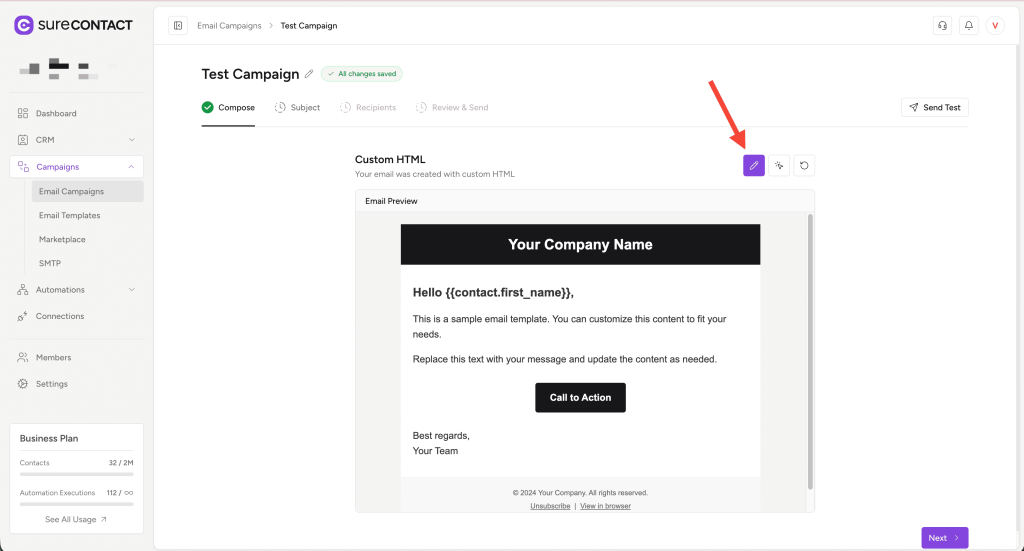
- Open in Drag & Drop → Loads your HTML layout into the template builder for further editing
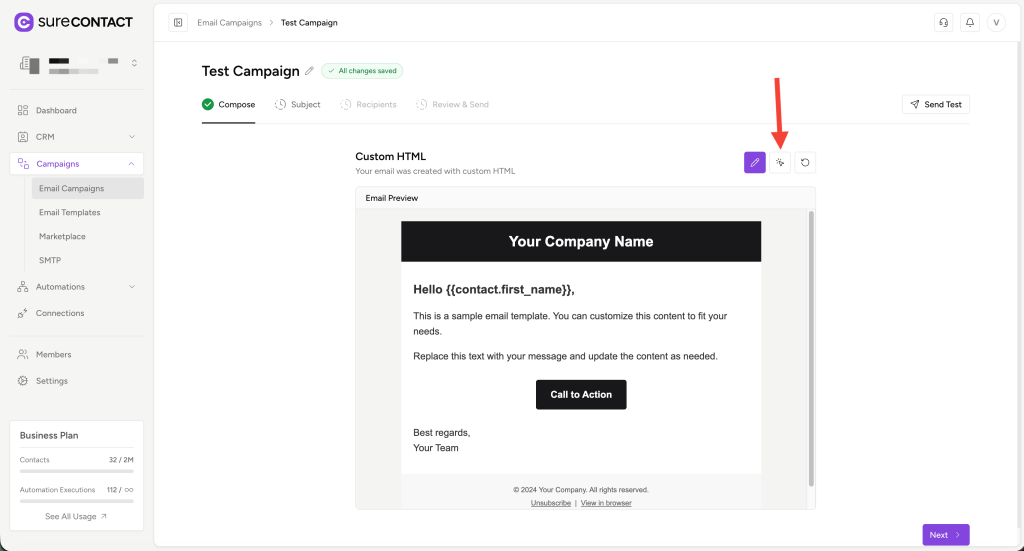
A sample HTML template is provided to help you get started.
Send Test Email
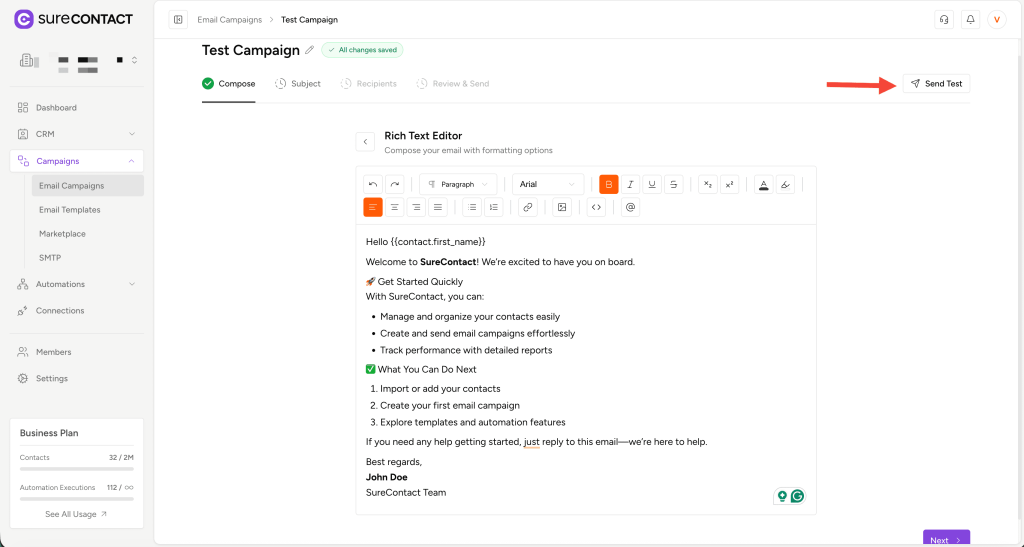
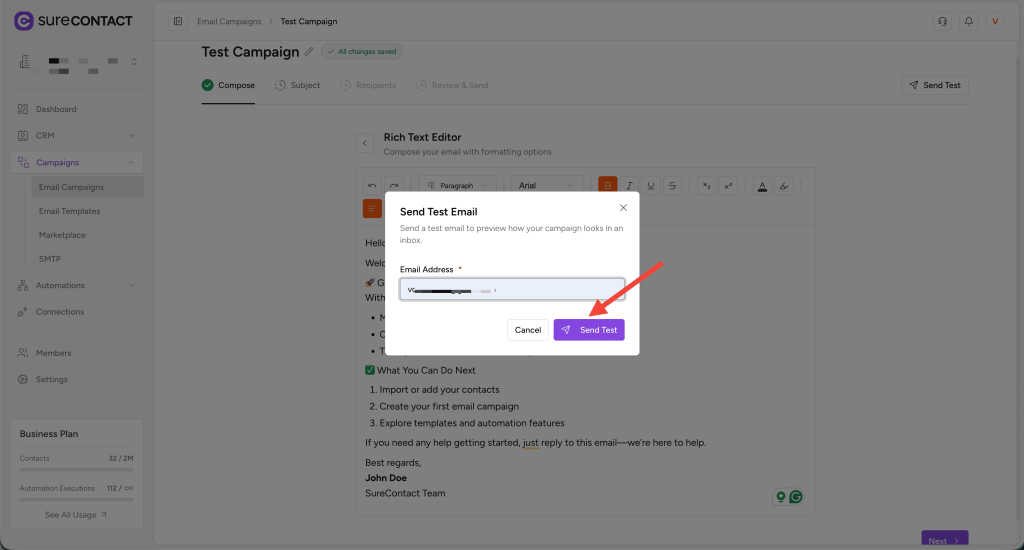
Before moving to the next step, you can preview how your email will look in an inbox.
- Click Send Test (top-right corner).
- A popup opens → enter any email address → click Send Test Email.
Click Next to move to the Subject tab.
Step 2: Add Subject & Sender Details
Fill in the following fields:
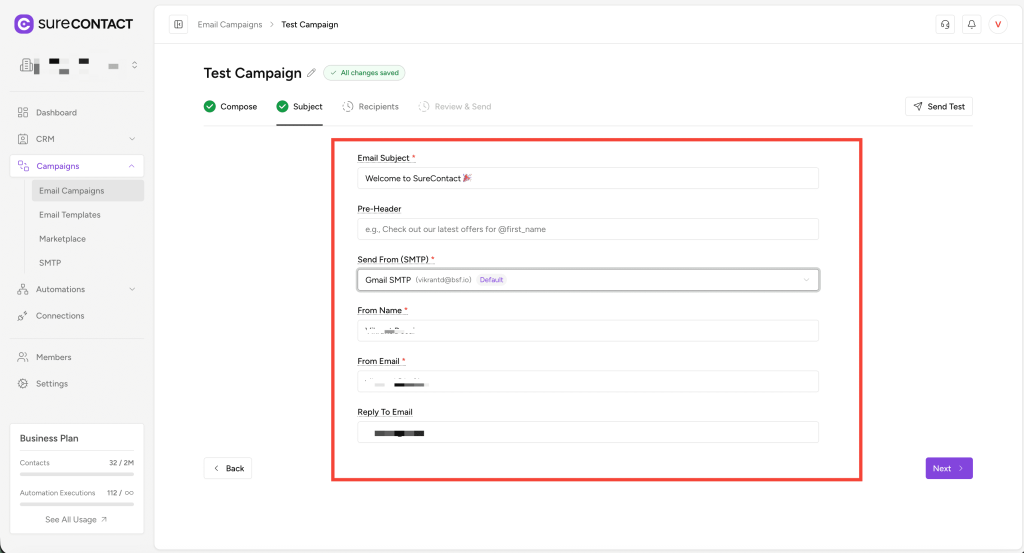
Subject
The email subject line recipients will see.
Type @ to insert dynamic variables (like name, company, etc.)
Pre-header
The short preview text after the subject line.
Send From SMTP
Choose which SMTP configuration to send from.
Your default SMTP will auto-select.
From Name
Sender display name.
(Dynamic variables supported using @)
From Email
Sender email address.
Reply-To Email
Where replies should be sent.
(If left empty → defaults to From Email)
Click Next to continue.
Step 3: Select Recipients
This is where you choose who will receive your campaign.
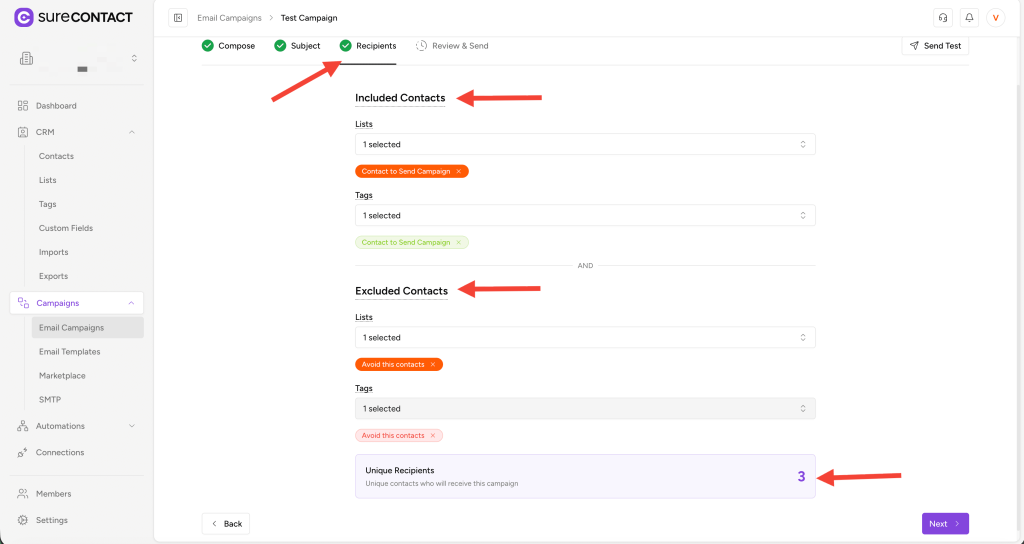
There are two sections:
✔ Included Contacts
Contacts you want to send the email to.
Select by:
- Lists
- Tags
- Or both
✔ Excluded Contacts
Contacts that should NOT receive the campaign.
Also selectable by:
- Lists
- Tags
You can view the recipient count at the bottom.
When done, click Next.
Step 4: Review & Send
This is the final step.
Here, you can:
- Review all campaign information
- Edit any section by clicking the Edit buttons
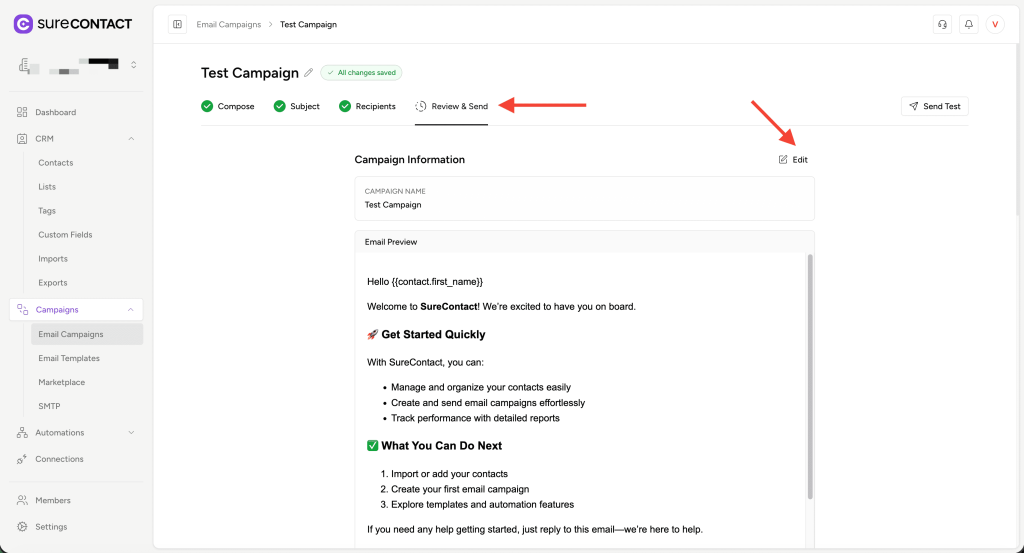
- Adjust final campaign settings
✔ Campaign Settings
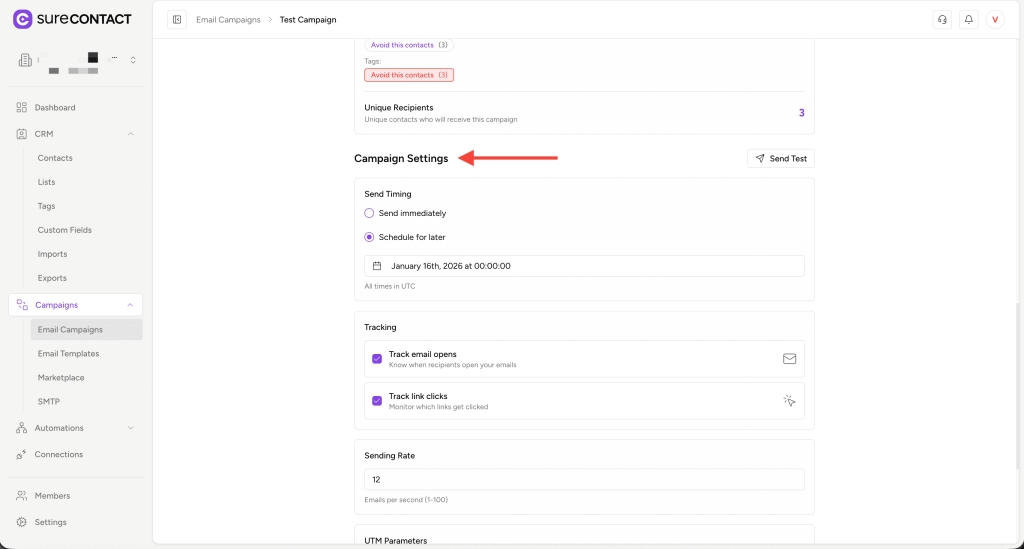
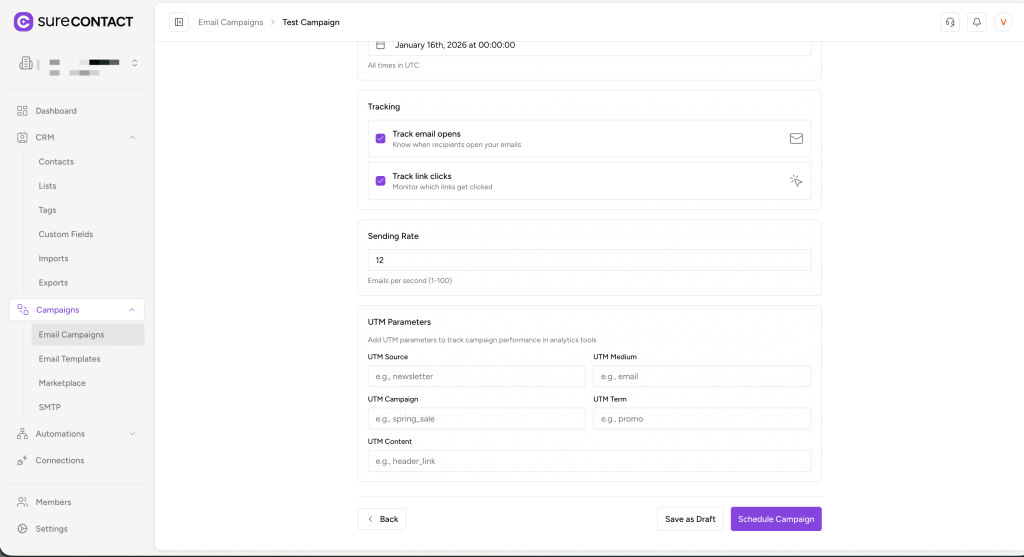
1. Send Timing
- Send Immediately
- Schedule for later (select date & time)
2. Tracking Options
- Track email opens
- Track link clicks
(Both can be turned ON/OFF)
3. Sending Rate
Control how many emails are sent per second.
4. UTM Parameters
Add tracking tags for analytics tools (like Google Analytics):
- UTM Source
- UTM Medium
- UTM Campaign
- UTM Term
- UTM Content
Send Your Campaign
Click Send Campaign.
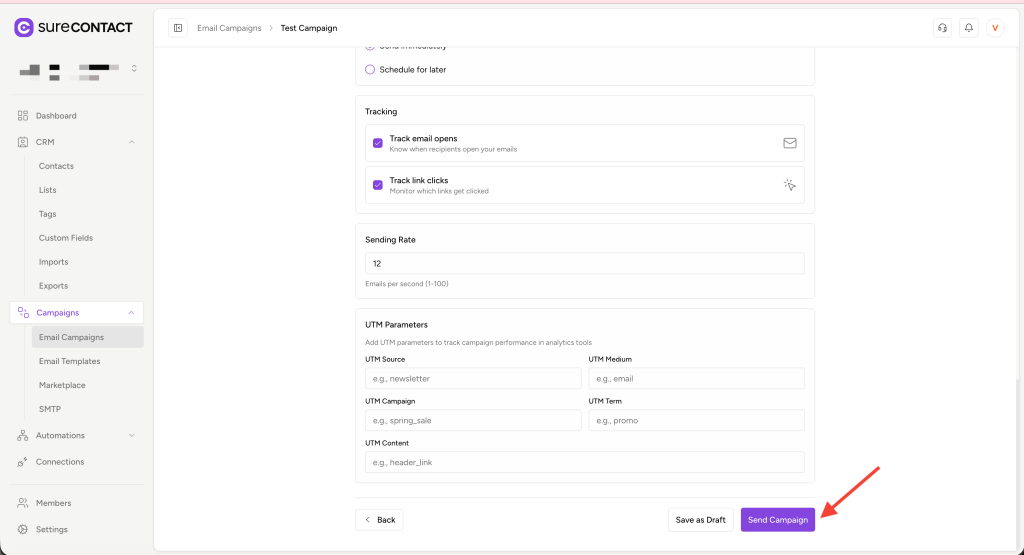
Congratulations — your campaign has been sent!
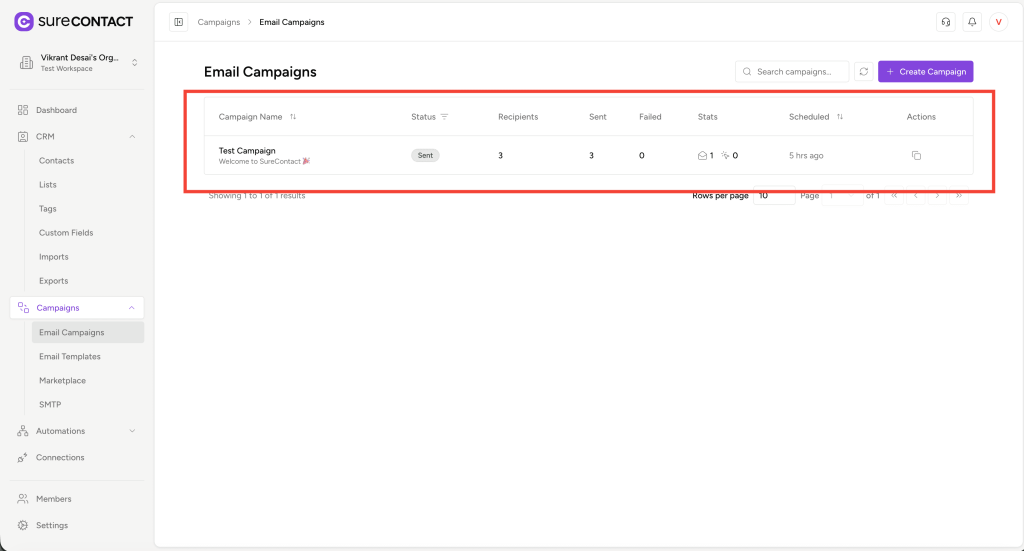
Your campaign will now appear in the Email Campaigns table with details like:
- Recipients
- Sent
- Failed
- States
View Campaign Report
Click on any campaign to see its detailed performance report:
- Recipient list
- Sent count
- Failed count
- Open rate
- Click rate
- Link-level analytics
- And more…
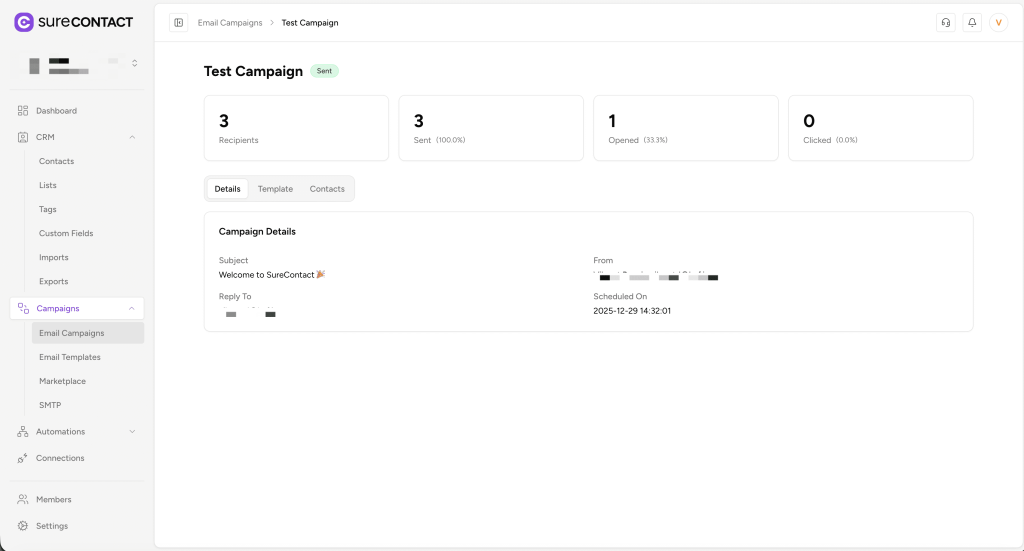
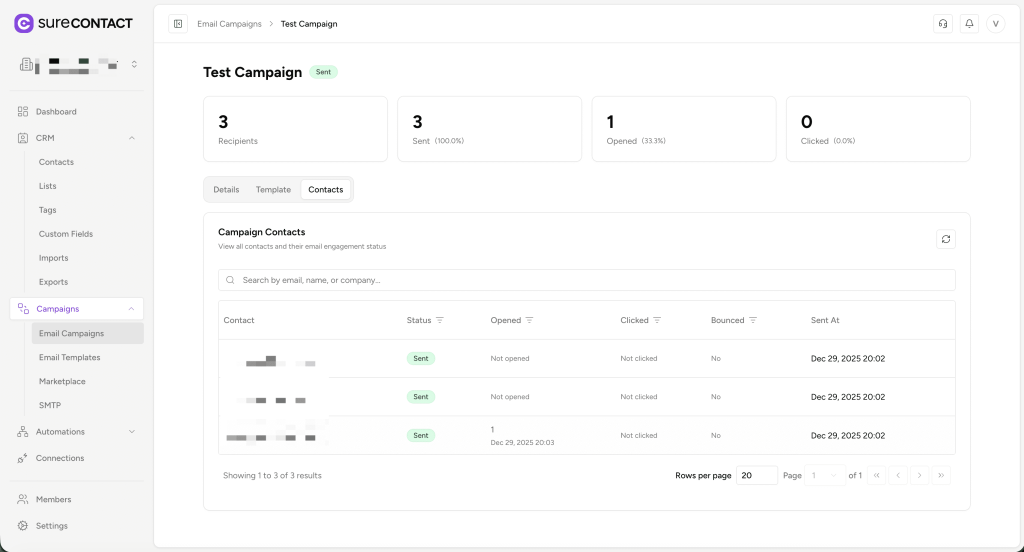
This helps you understand how your audience interacts with your email.
You’re All Set!
You now know how to:
- Create campaigns using templates or from scratch
- Add subject and sender details
- Select recipients
- Review and send campaigns
- Analyze campaign performance
We don't respond to the article feedback, we use it to improve our support content.