
- Introduction to SureContact Dashboard
- How to Install and Connect the SureContact WordPress Plugin
- What Do Contact Fields Mean in the SureContact WordPress Plugin
- How to Invite Members to a Workspace in SureContact
- How to Switch Organizations in SureContact
- Workspace-Level Contact Allocation in SureContact
- Workspace-Level Timezone Settings in SureContact
- How to Add a Custom Tracking Domain in a Workspace in SureContact
Export Contacts from SureContact
SureContact allows you to export your contact data in CSV format for reporting, backup, or transferring data to other platforms. You can export all contacts at once or export selected contacts using Bulk Actions.
There are two ways to export contacts:
- Export All Contacts using the Export button
- Export Selected Contacts using Bulk Actions
Both methods generate a downloadable CSV file that includes the contact fields you choose.
1. Exporting All Contacts
To export all contacts:
Step 1: Open the Export Flyout
- Go to CRM → Contacts
- Click the Export button at the top-right corner of the page
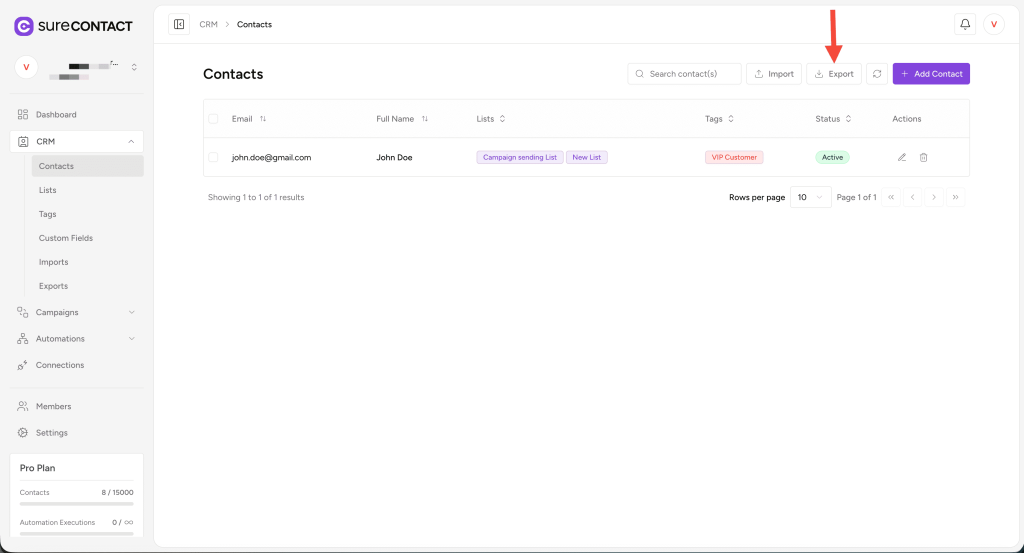
- The Create Contact Export flyout will open
Step 2: Select Fields for Export
Inside this flyout, you will see:
- Standard Fields (default fields like First Name, Email, Phone, etc.)
- Custom Fields created by your account
You may choose:
- Only specific fields to export
- OR click Select All to export all available fields
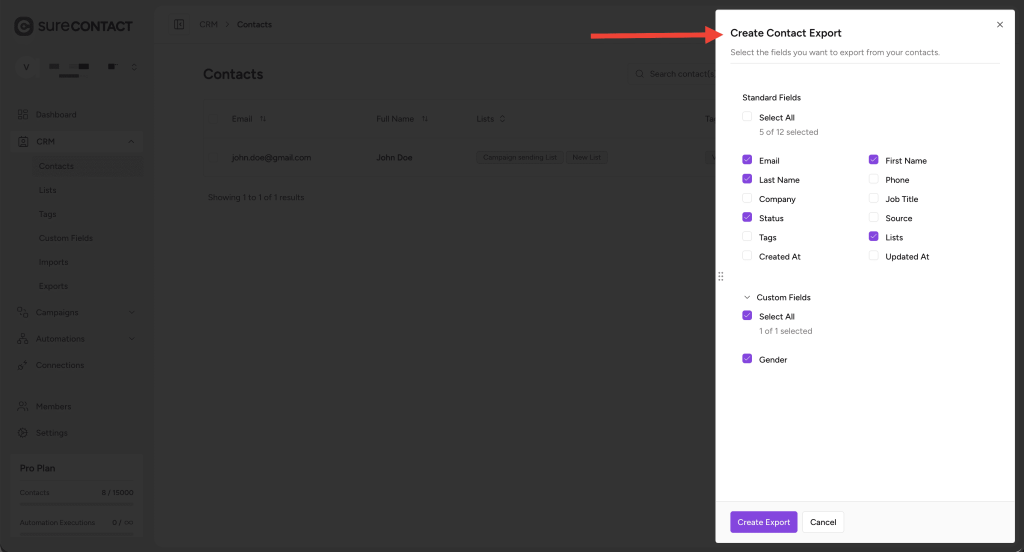
This gives you full control over the structure of your CSV file.
Step 3: Create Export
- Click the Create Export button
- Your export process will begin in the background
Step 4: Download the Export File
After creating the export:
- Go to CRM → Exports
- On the Exports page, you will find your newly created export entry in the table
- Click Download Export
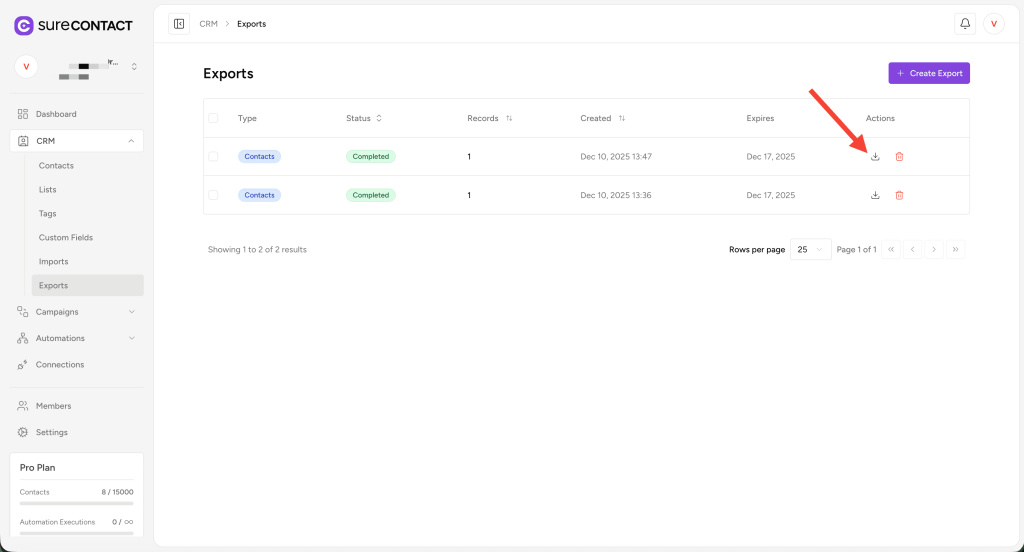
- Your CSV file will be downloaded to your device
Additional Download Option (Email Notification)
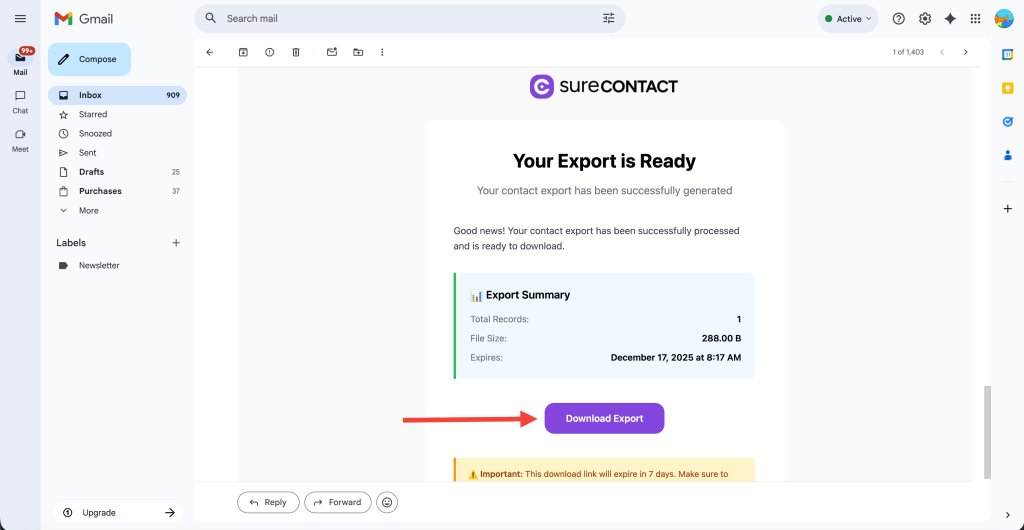
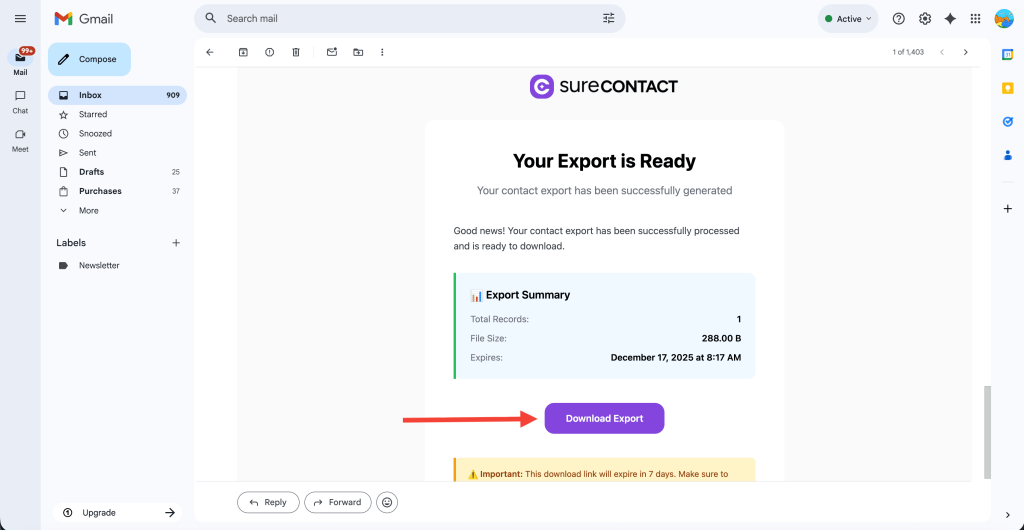
SureContact also sends an email notification to your account email when the export file is ready.
The email contains a direct download link, so you can download the CSV file from your inbox as well.
2. Exporting Contacts Using Bulk Actions
SureContact also supports exporting selected contacts only, using Bulk Actions.
Step 1: Select Contacts
- Go to CRM → Contacts
- Use the checkboxes to select:
- All contacts
- OR specific contacts only
Step 2: Apply Bulk Actions
- Click the Apply Actions button
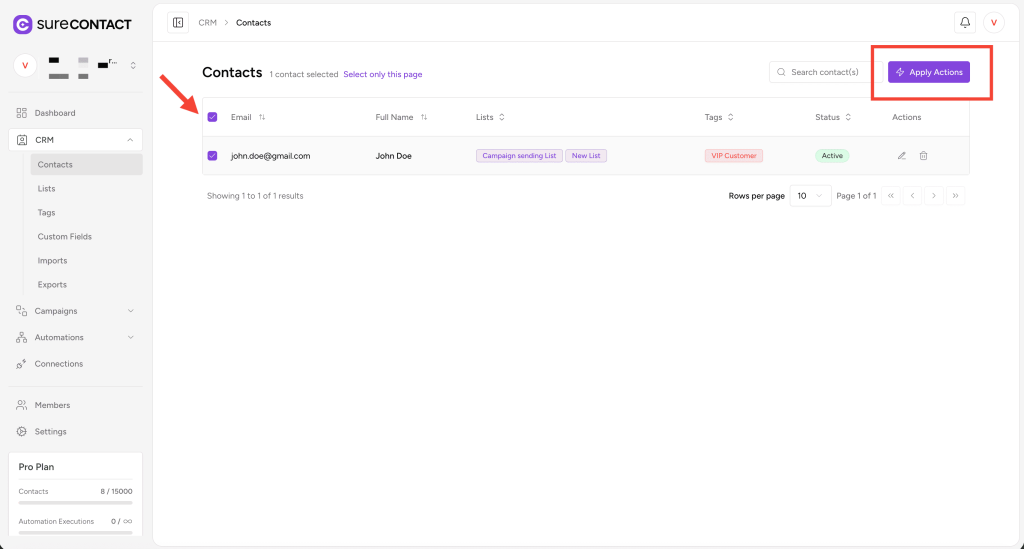
- The Apply Bulk Actions flyout will open
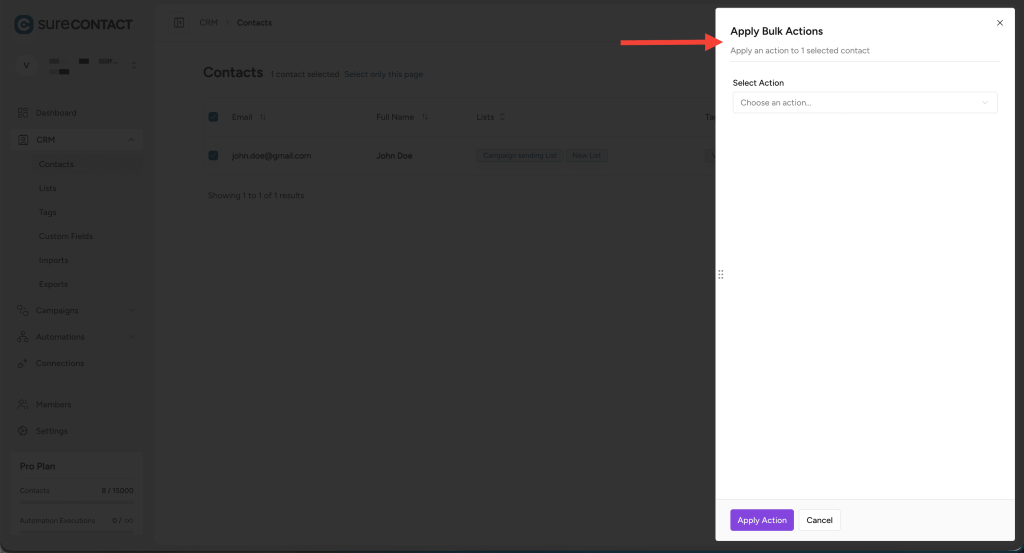
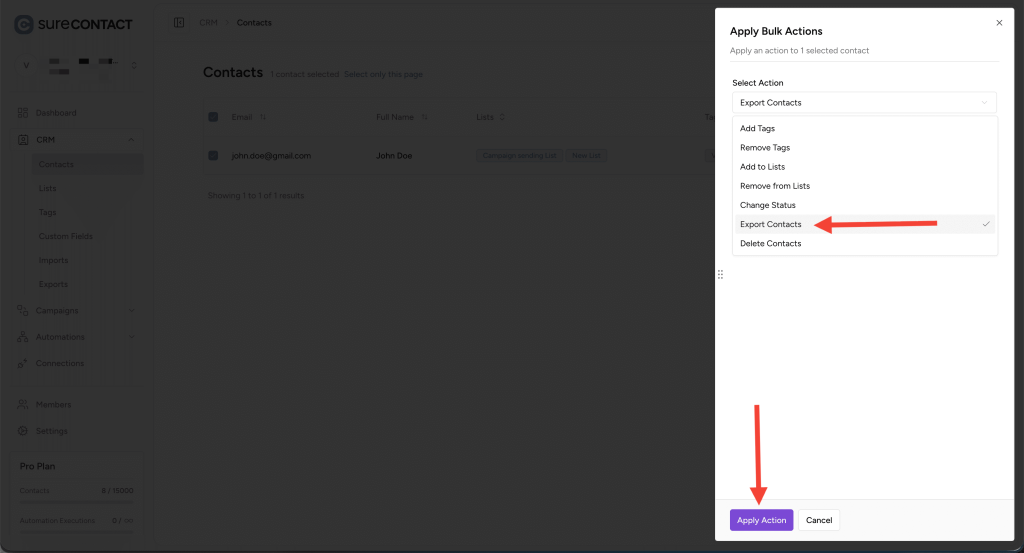
Step 3: Choose Export Contacts
- Under Select Action, choose Export Contacts
- Click Apply Action
Step 4: Download the Export
Just like the regular export:
- The export entry will be created on the Exports page
- Go to CRM → Exports
- Click Download Export once ready
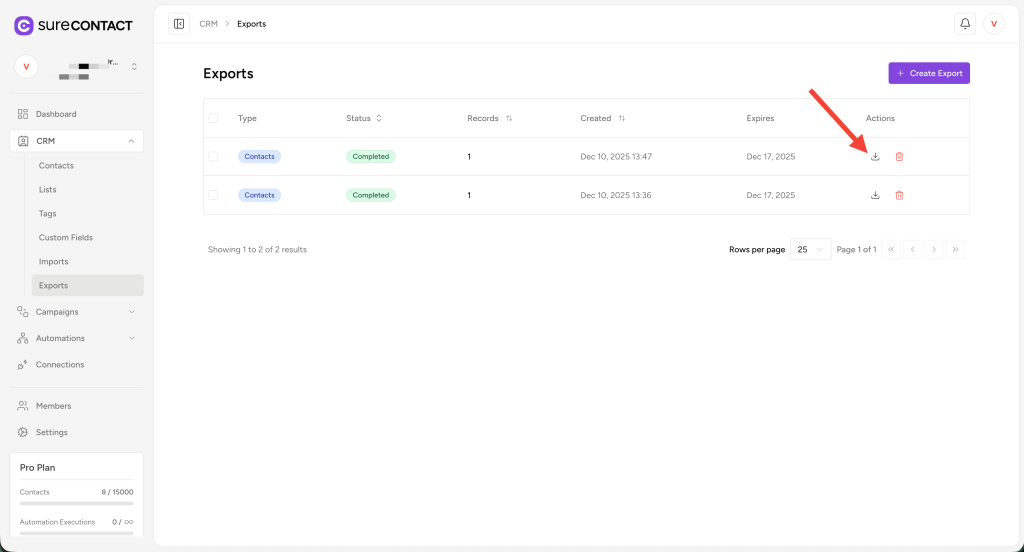
You will also receive the export file link in your email.
Summary
SureContact provides flexible exporting options to help you manage your data efficiently:
✔ Export all contacts
✔ Export selected contacts using Bulk Actions
✔ Choose which fields (standard + custom) to include
✔ Download from the Exports page
✔ Or download directly from your email
This ensures you have complete control over your contact data and can conveniently use it for external systems or reporting.
We don't respond to the article feedback, we use it to improve our support content.