
- Introduction to SureContact Dashboard
- How to Install and Connect the SureContact WordPress Plugin
- What Do Contact Fields Mean in the SureContact WordPress Plugin
- How to Invite Members to a Workspace in SureContact
- How to Switch Organizations in SureContact
- Workspace-Level Contact Allocation in SureContact
- Workspace-Level Timezone Settings in SureContact
- How to Add a Custom Tracking Domain in a Workspace in SureContact
FluentCRM Integration with SureContact
SureContact allows you to seamlessly sync and migrate your contacts from FluentCRM into your SureContact workspace.
The FluentCRM integration supports both bulk migration and real-time synchronization of contact data — including lists, tags, and custom fields.
This guide explains the complete setup process and every available setting in the FluentCRM integration panel.
Prerequisites
Before enabling the FluentCRM integration, ensure the following:
1. FluentCRM must be installed on your WordPress site
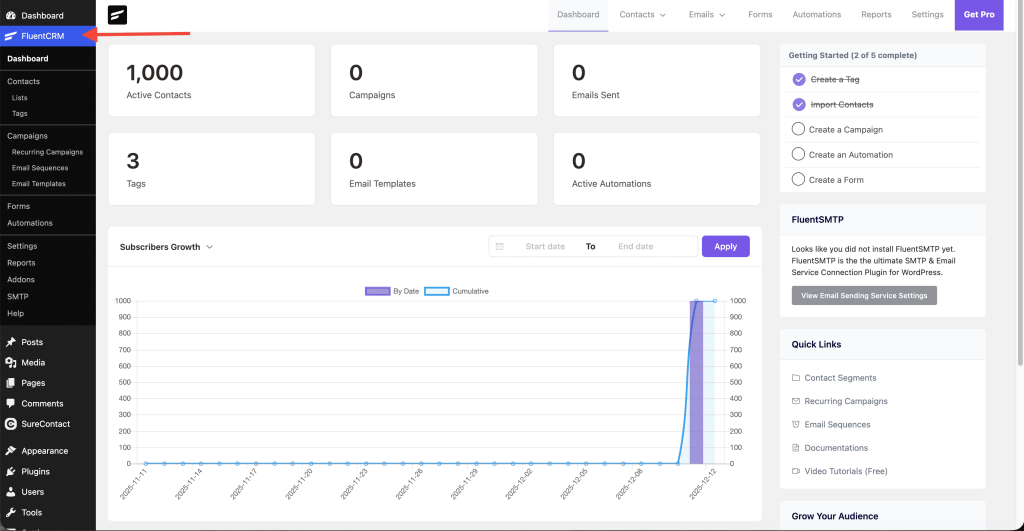
SureContact reads data directly from FluentCRM, so the plugin must be active.
2. The SureContact plugin must be installed on your site
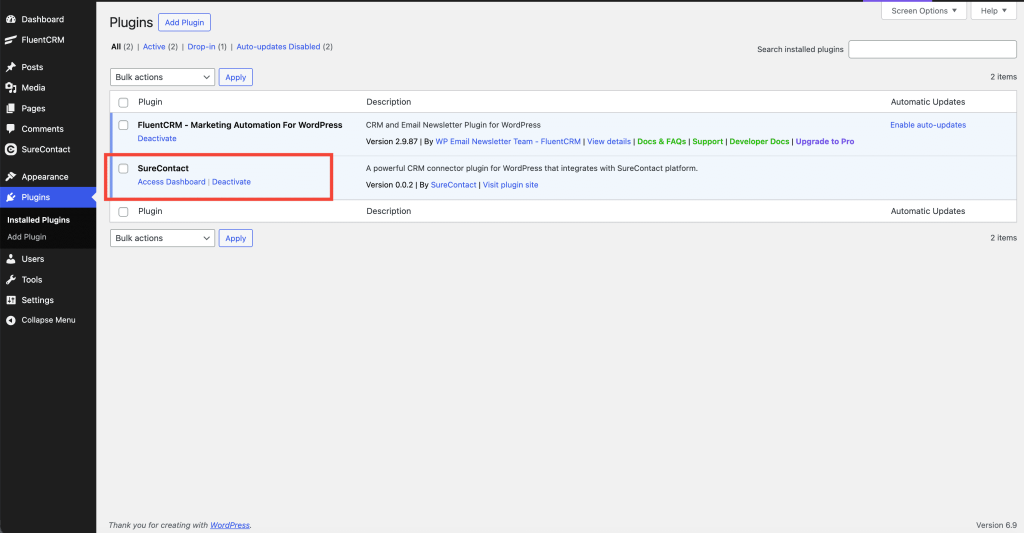
Install and activate the SureContact WordPress plugin.
3. The SureContact plugin must be connected to your SureContact SaaS account
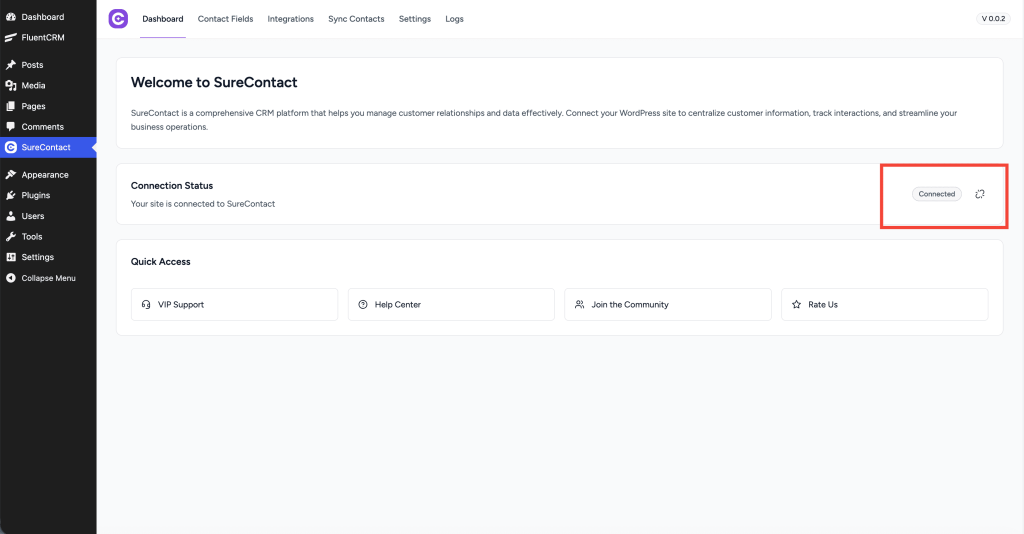
If not yet connected, please refer to the documentation:
How to Install and Connect the SureContact Plugin
Step 1: Accessing the FluentCRM Integration
- Open the SureContact plugin inside your WordPress dashboard.
- Navigate to the Integrations page.
- Locate FluentCRM and open its configuration panel.
- Ensure that the toggle switch is enabled.
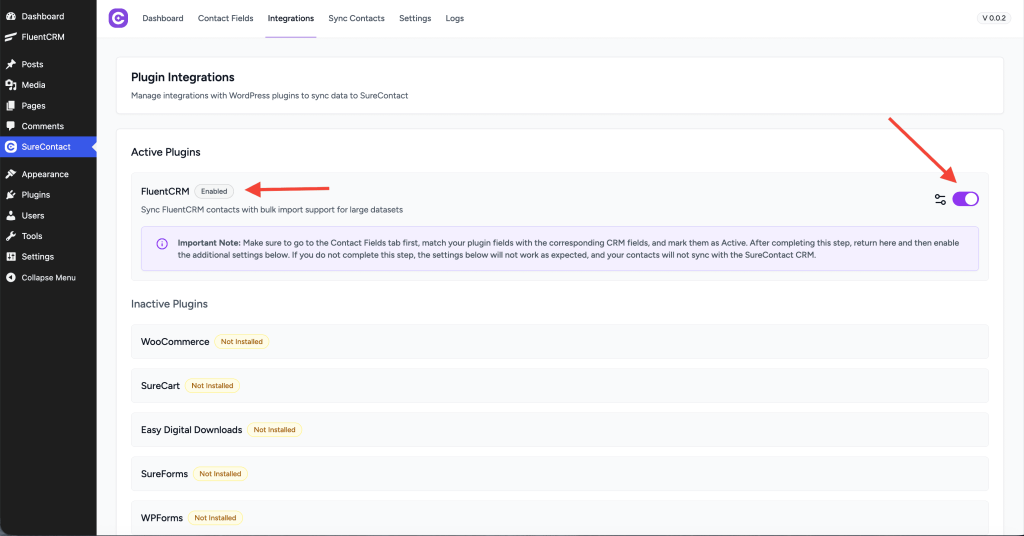
This will open all available FluentCRM sync settings inside SureContact.
Step 2: Configure Contact Field Mapping
Before configuring any sync settings, you must map all FluentCRM fields to their corresponding SureContact fields.
This ensures that FluentCRM data such as names, emails, phone numbers, and custom fields sync correctly when contacts are imported.
How to Map Fields
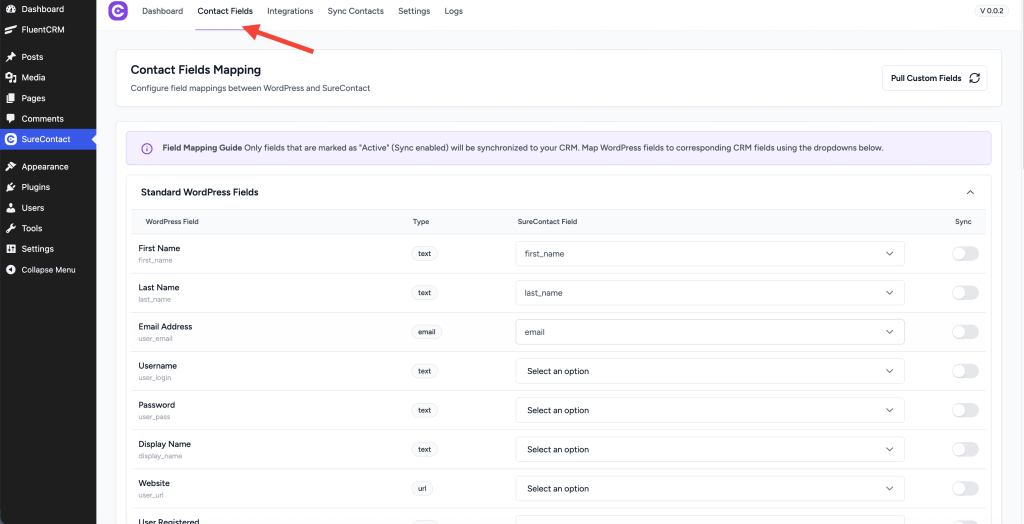
- In the SureContact plugin, go to the Contact Fields page.
- Scroll to the FluentCRM section.
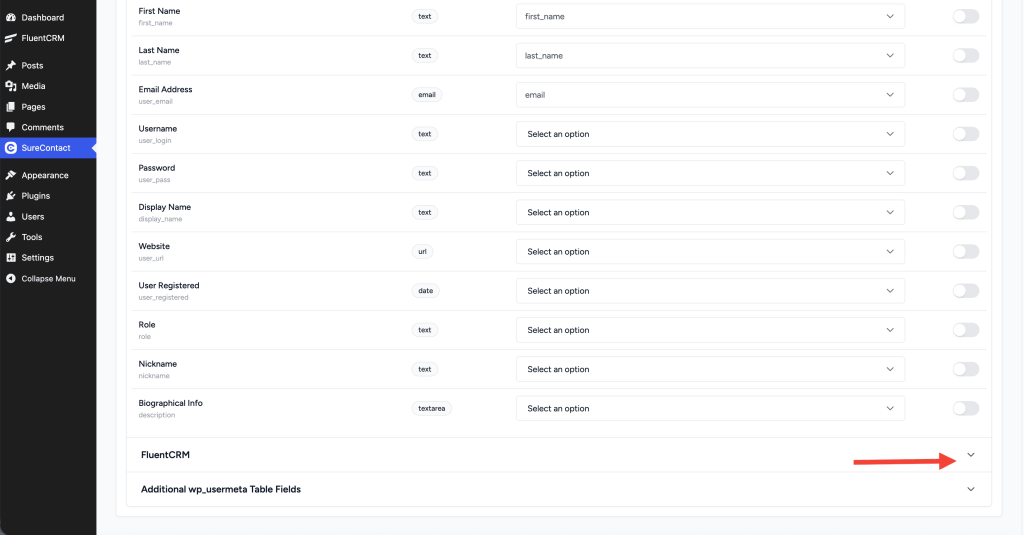
- Expand the panel — you will now see a list of all FluentCRM fields.
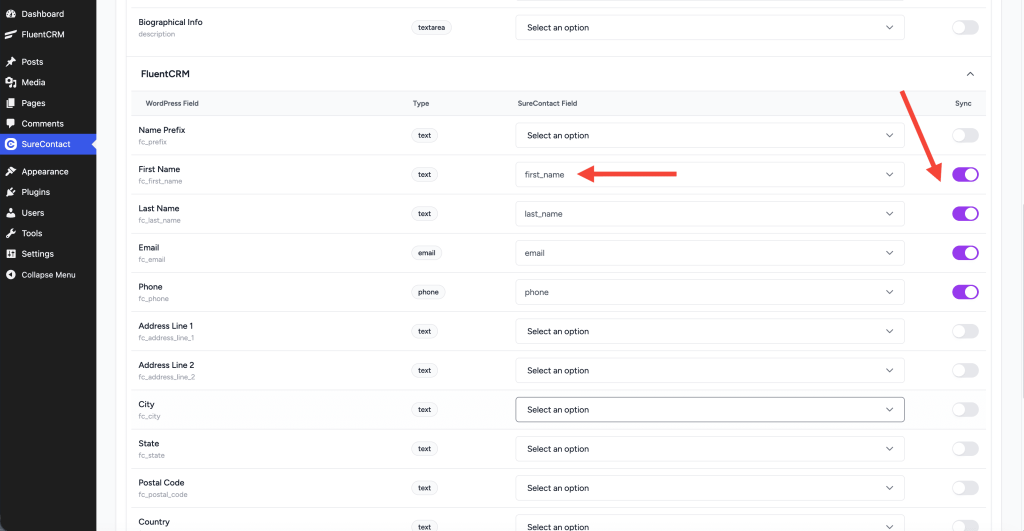
- For each FluentCRM field:
- Select the matching SureContact field from the dropdown menu.
Examples:- FluentCRM First Name → SureContact First Name
- FluentCRM Last Name → SureContact Last Name
- FluentCRM Phone → SureContact Phone
- Select the matching SureContact field from the dropdown menu.
- Enable the sync toggle beside each mapped field.
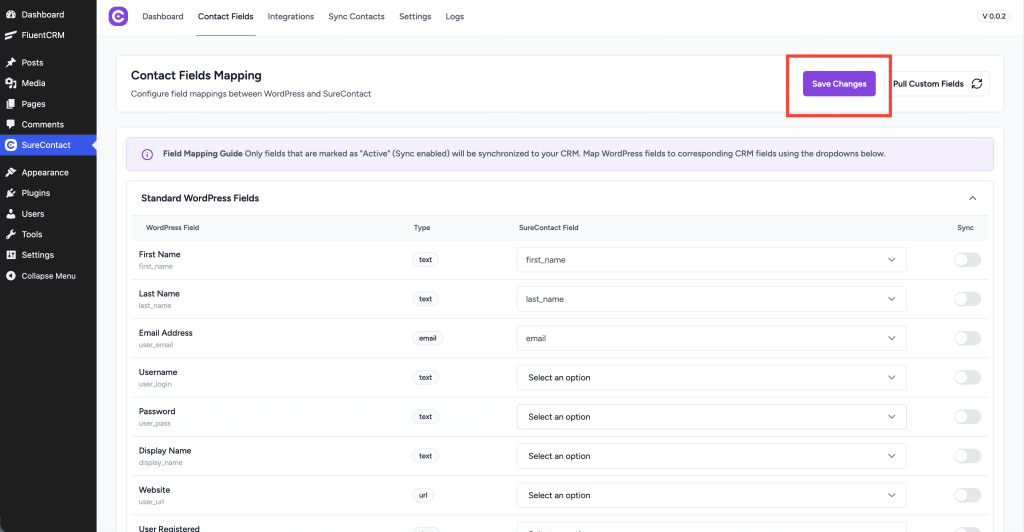
- Once all mappings are completed, click Save Changes.
Why Field Mapping Is Required?
✔ Prevents missing or mismatched data
✔ Required for both real-time sync and bulk migration
✔ Ensures contact records are complete and accurate in SureContact
Step 3: Configure FluentCRM Integration Settings
After completing field mapping, return to:
SureContact Plugin → Integrations → FluentCRM
Below is a detailed explanation of each setting.
FluentCRM Integration Settings Explained
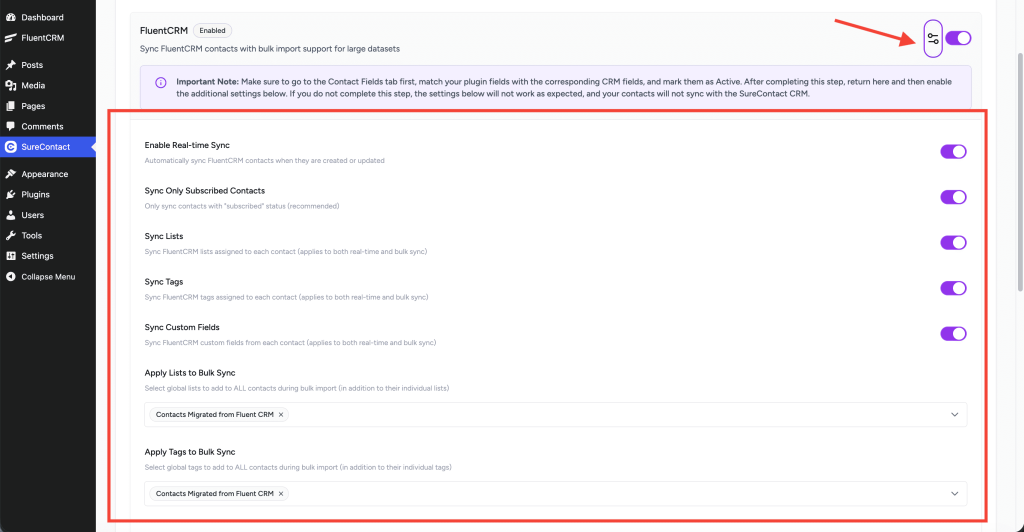
1. Enable Real-time Sync
Description:
Automatically sync FluentCRM contacts whenever they are created or updated in WordPress.
Use Case:
Enable this to keep SureContact updated with new signups, form submissions, or manual edits made inside FluentCRM.
2. Sync Only Subscribed Contacts
Description:
Only contacts with the “Subscribed” status in FluentCRM are synced to SureContact.
Recommended: ✔️
Use Case:
Ideal when your FluentCRM database contains many unsubscribed, invalid, or bounced contacts that you do not want to migrate.
3. Sync Lists
Description:
Sync all FluentCRM lists assigned to each contact.
Behavior:
- Applies to real-time synchronization
- Applies to bulk migration
- Lists appear under each contact’s profile in SureContact
4. Sync Tags
Description:
Sync all FluentCRM tags associated with each contact.
Behavior:
- Works during real-time sync
- Works during bulk migration
- Tags appear instantly under each contact’s profile in SureContact
5. Sync Custom Fields
Description:
Sync all FluentCRM custom fields for each contact.
Important:
⚠️ Requires proper mapping in the Contact Field Mapping page before syncing.
Bulk Sync Enhancements
These settings apply only during bulk migration and allow you to apply additional lists or tags globally.
6. Apply Lists to Bulk Sync
Description:
Assign global lists to all contacts during bulk import.
Example:
Add all migrated contacts to a list like “Contacts Migrated from FluentCRM”.
Use Case:
✔ Helps identify imported contacts
✔ Useful for segmentation and automations
7. Apply Tags to Bulk Sync
Description:
Assign global tags during bulk import.
Example:
Tag all migrated contacts with “Migrated from FluentCRM”.
Use Case:
✔ Helps with grouping, filtering, and automation triggers
Saving Integration Settings
Once all settings are configured:
Click Save Settings at the bottom of the panel.
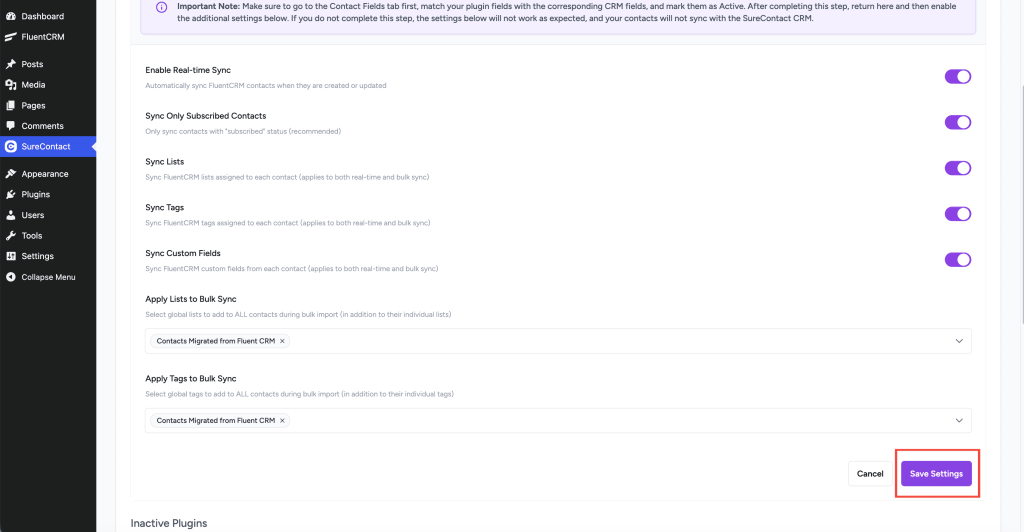
This ensures all sync and migration rules are applied correctly.
Final Step
You have now successfully configured the FluentCRM integration inside SureContact.
- New or updated FluentCRM contacts will automatically sync into SureContact.
- Assigned lists, tags, and mapped fields will be applied instantly.
- You can now perform a bulk migration of all existing FluentCRM contacts from the Sync Contacts page.
To proceed with the migration process, refer to the documentation below:
We don't respond to the article feedback, we use it to improve our support content.