
- Introduction to SureContact Dashboard
- How to Install and Connect the SureContact WordPress Plugin
- What Do Contact Fields Mean in the SureContact WordPress Plugin
- How to Invite Members to a Workspace in SureContact
- How to Switch Organizations in SureContact
- Workspace-Level Contact Allocation in SureContact
- Workspace-Level Timezone Settings in SureContact
- How to Add a Custom Tracking Domain in a Workspace in SureContact
How to Add a Preferences URL in Your Emails
SureContact allows you to give your contacts full control over their email preferences by adding a Preferences URL to your emails. This link lets recipients manage what type of emails they want to receive instead of completely unsubscribing.
Many users are unsure how to add a Preferences link in the email footer and how it works dynamically. This guide explains the complete process step by step.
What Is a Preferences URL?
The Preferences URL allows contacts to opt out of receiving any type of marketing emails from the sender without using the unsubscribe option.
Using the Preferences page, a contact can choose Do Not Email, which means:
- The contact will stop receiving all marketing emails from you
- The contact remains in your contact list for record and non-marketing purposes
The Preferences URL is dynamic and unique for each contact.
Prerequisites
Before proceeding, please make sure:
- You are logged in to your SureContact account
Login here: https://app.surecontact.com/ - SMTP is configured in your SureContact account
SMTP setup is required to send emails. Refer to this guide if needed. - You know how to create an email campaign
If not, follow this step-by-step guide.
Step 1: Create a New Email Campaign
- Log in to your SureContact account.
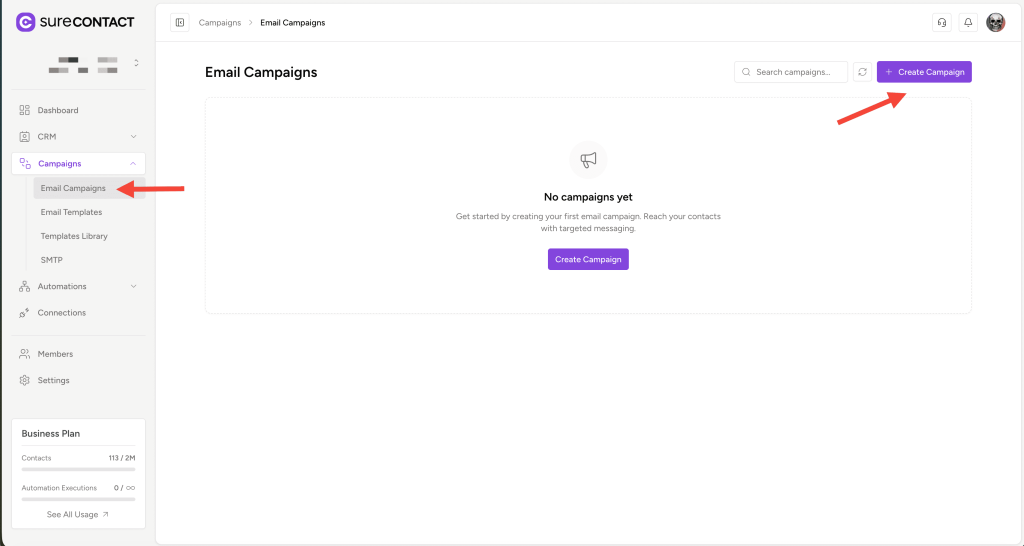
- From the Dashboard, expand Campaigns in the left sidebar.
- Click on Email Campaigns.
- Click Create Campaign.
Step 2: Select an Email Editor
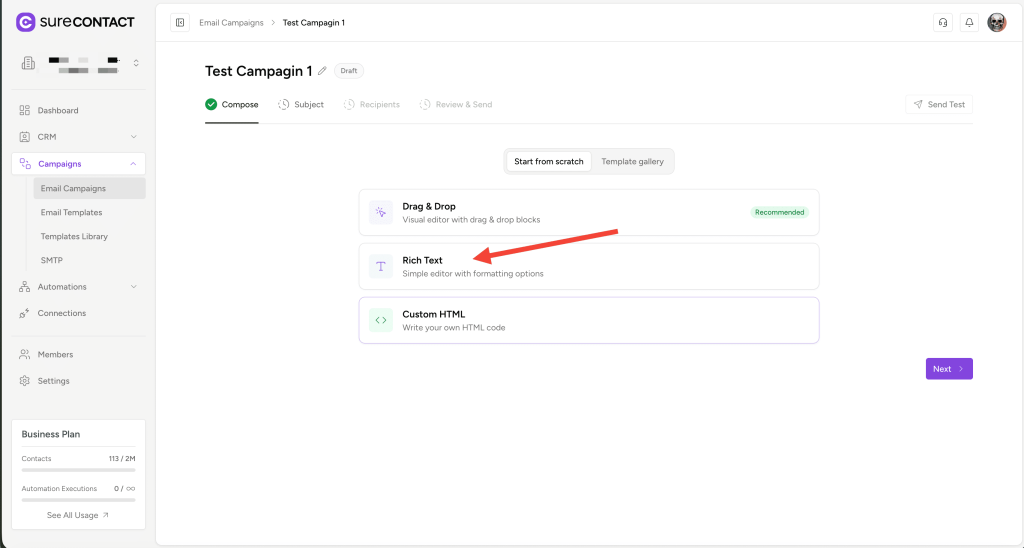
SureContact provides multiple ways to design emails. In this guide, we’ll first explain using the Rich Text Editor.
- Choose Rich Text Editor.
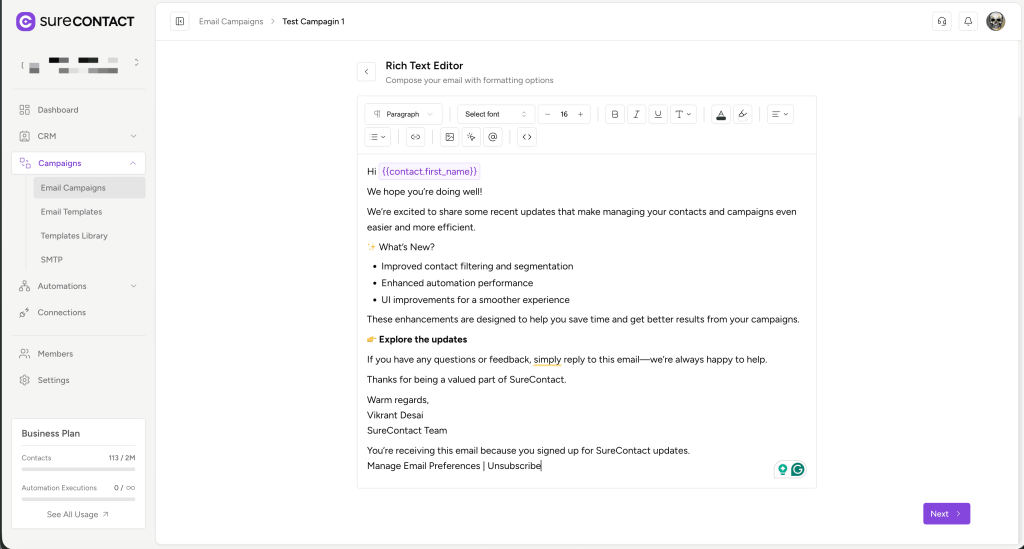
- Start writing the email content you want to send.
Step 3: Add the Preferences URL
Follow these steps to add a Preferences link:
- Type the text where you want the preferences link, for example:
Manage Email Preferences - Select the text Manage Email Preferences.
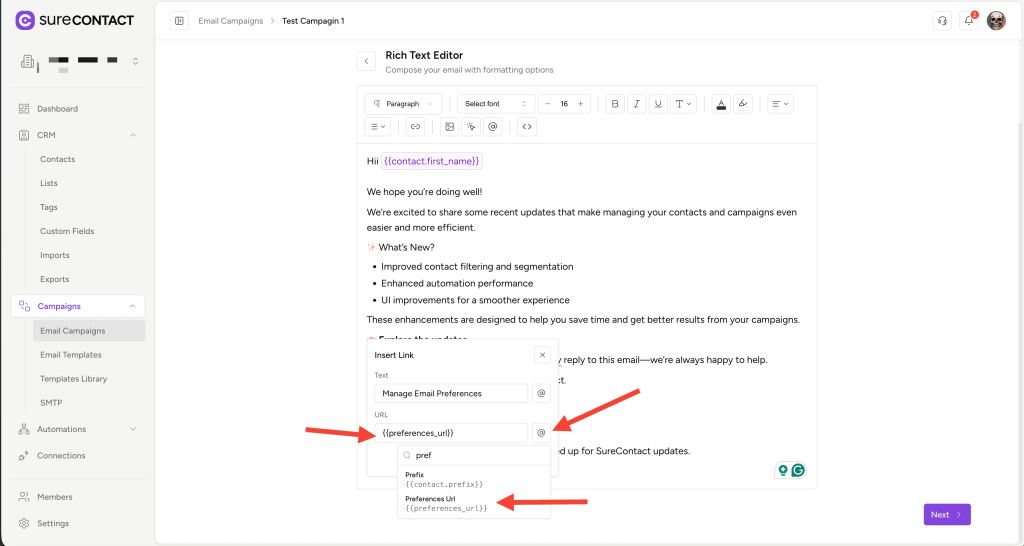
- Click the Insert Link button in the editor toolbar.
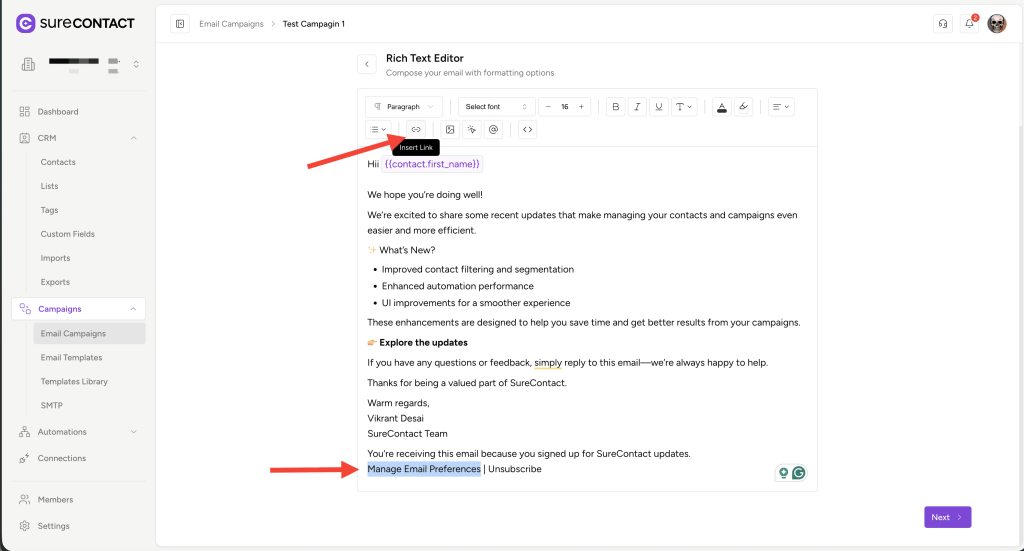
- The Insert Link popup will appear.
- In the URL field:
- Click on the @ icon
- From the variable dropdown, select the {{preferences_url}} variable
- Insert the variable so the URL field contains:
{{preferences_url}}
- Save the link.
You have successfully added a Preferences URL to your email.
What Happens When a User Clicks the Preferences Link?
- The recipient is redirected to the Preferences page.
- The user can select Do Not Email to stop receiving all marketing emails.
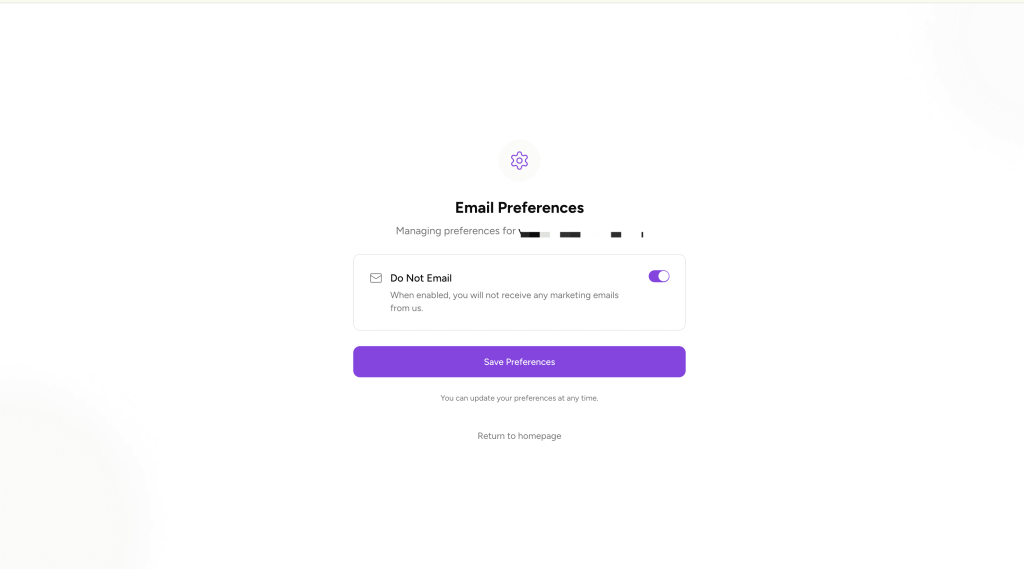
- Once the preference is saved:
- A Do Not Email badge is added next to the contact in the Contact View page.
- The contact will no longer receive any marketing email campaigns.
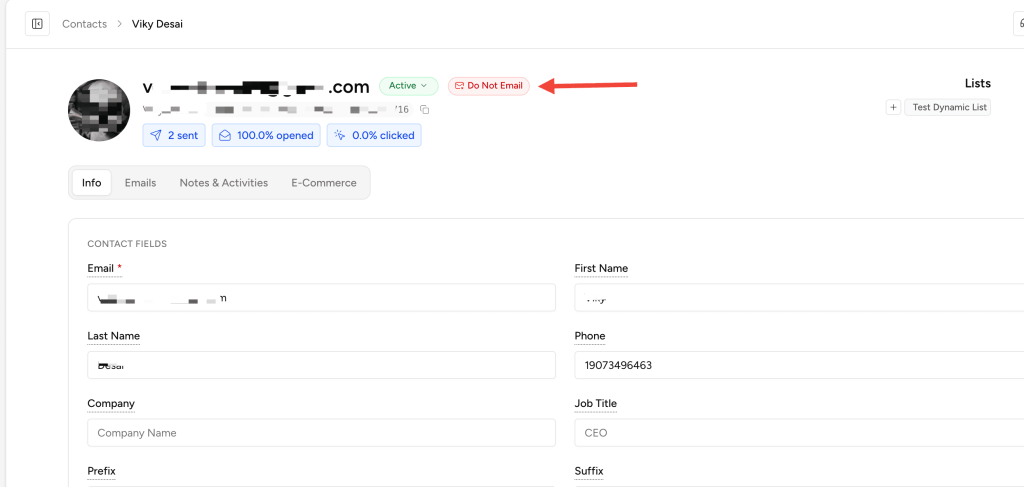
- The contact is not deleted and can still exist in your contact list.
Adding Preferences URL Using Drag & Drop Editor
The same process applies when using the Drag & Drop Email Builder:
- Design your email using the Drag & Drop editor.
- Add a Text element where you want the Preferences link.
- Enter text such as Manage Preferences.
- Convert the text into a hyperlink.
- Set the link URL to:
{{preferences_url}}
The Preferences URL will be dynamically generated for each contact.
Best Practices
- Always include a Preferences link along with an Unsubscribe link in your emails.
- Preferences links help reduce unsubscribe rates by giving users more control.
- The {{preferences_url}} variable works automatically—no manual setup is required.
You’re all set!
Your emails now allow recipients to manage their preferences easily, creating a better user experience and healthier email engagement.
We don't respond to the article feedback, we use it to improve our support content.