
- Introduction to SureContact Dashboard
- How to Install and Connect the SureContact WordPress Plugin
- What Do Contact Fields Mean in the SureContact WordPress Plugin
- How to Invite Members to a Workspace in SureContact
- How to Switch Organizations in SureContact
- Workspace-Level Contact Allocation in SureContact
- Workspace-Level Timezone Settings in SureContact
- How to Add a Custom Tracking Domain in a Workspace in SureContact
How to Add an Unsubscribe Link in Your Emails
As an email marketing platform, SureContact automatically supports unsubscribe and preference management for your contacts. However, many users often wonder how to add an Unsubscribe or Preferences link in the email footer and how it works dynamically.
This guide explains, step by step, how to add an unsubscribe link to your emails in SureContact, whether you are using the Rich Text Editor or the Drag & Drop Email Builder.
Prerequisites
Before getting started, please ensure the following:
- You are logged in to your SureContact account
Login here: https://app.surecontact.com/ - SMTP is configured in your SureContact account
SMTP setup is required to send email campaigns. If you haven’t configured it yet, refer to this guide - You have basic knowledge of creating an email campaign
If you haven’t created an email campaign before, follow this step-by-step guide.
Step 1: Create a New Email Campaign
- After logging in, you will land on the Dashboard.
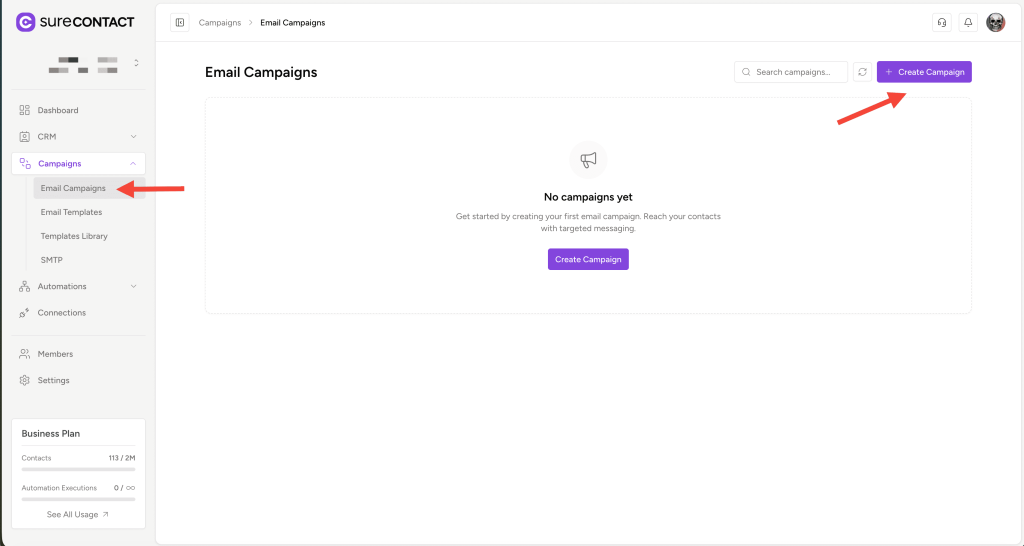
- From the left sidebar, expand the Campaigns menu.
- Click on Email Campaigns.
- On the Email Campaigns page, click the Create Campaign button.
Step 2: Choose the Email Editor
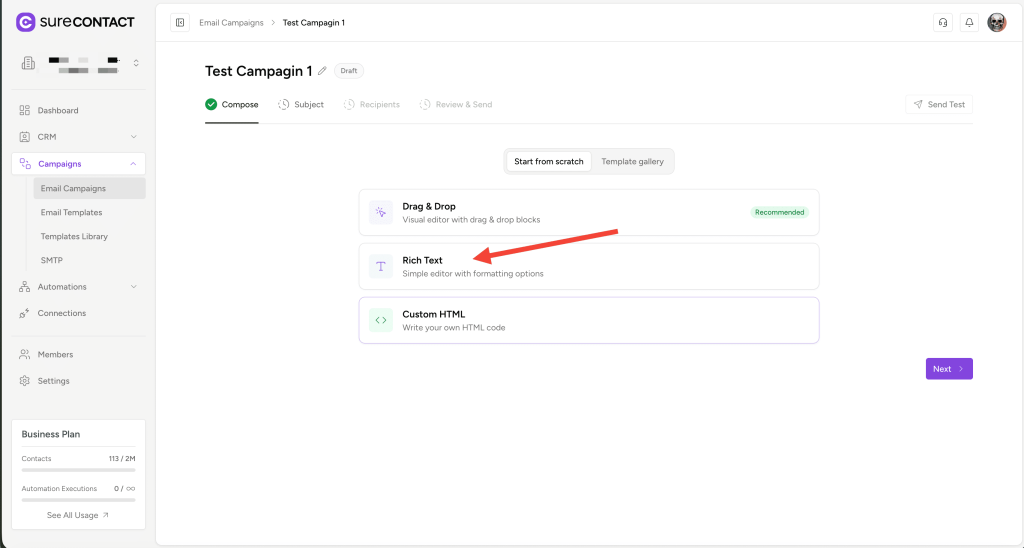
SureContact allows you to create emails using different methods. In this guide, we’ll first cover the Rich Text Editor.
- Select Rich Text Editor as your email creation method.
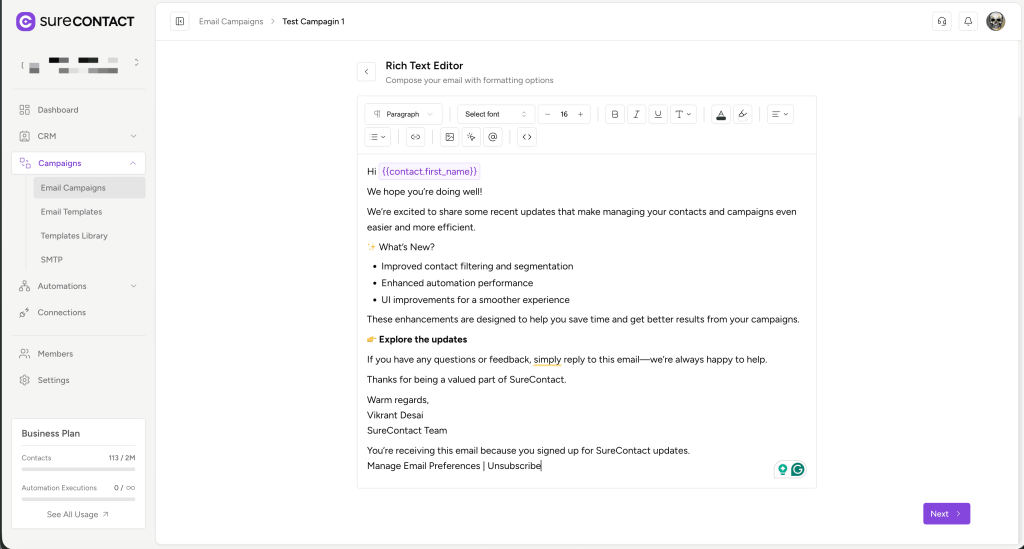
- Start typing the email content you want to send to your contacts.
Step 3: Add the Unsubscribe Link
To add an unsubscribe link in your email footer:
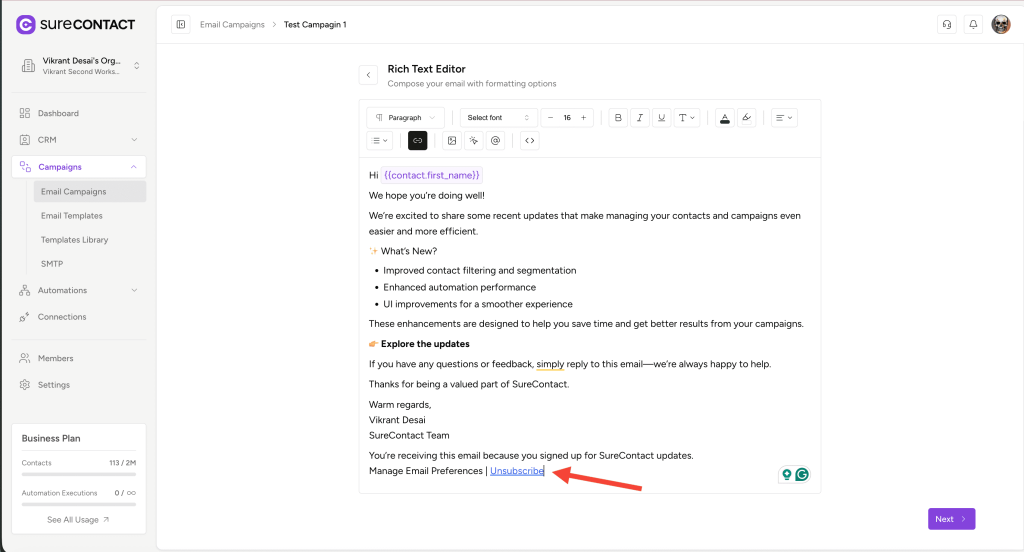
- Type the text where you want the unsubscribe link, for example:
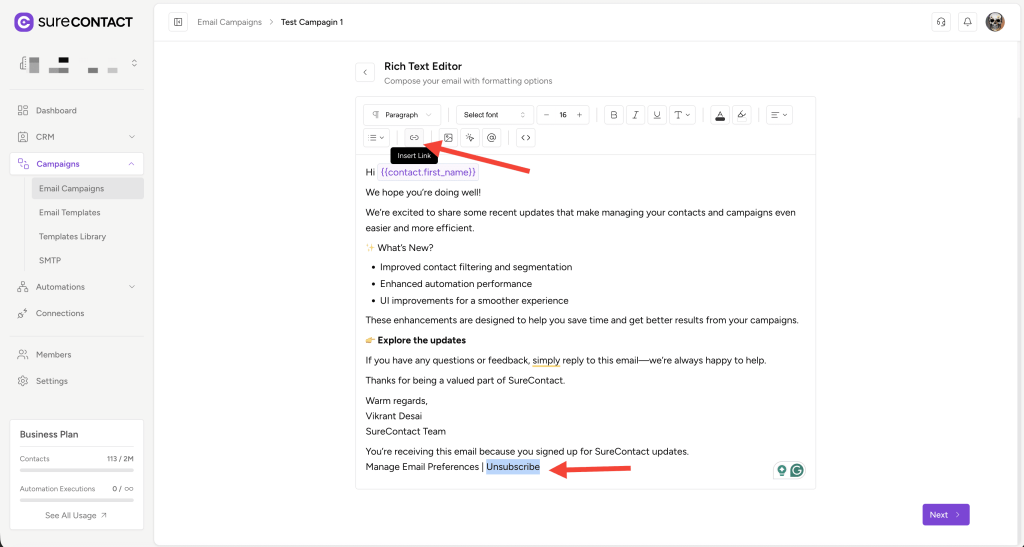
Unsubscribe - Select the text Unsubscribe.
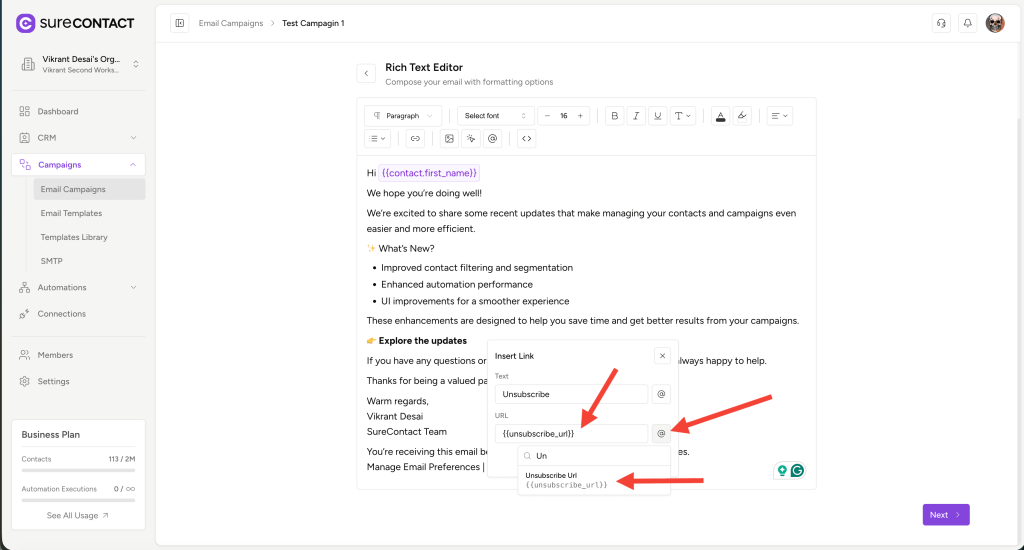
- Click on the Insert Link button in the editor toolbar.
- The Insert Link popup will appear.
- In the URL field:
- Click on the @ icon
- From the variable dropdown, select the {{unsubscribe_url}} variable
- Insert the variable so the URL field contains:
{{unsubscribe_url}}
- Save the link.
That’s it! You have successfully added an unsubscribe link to your email.
What Happens When a User Clicks the Unsubscribe Link?
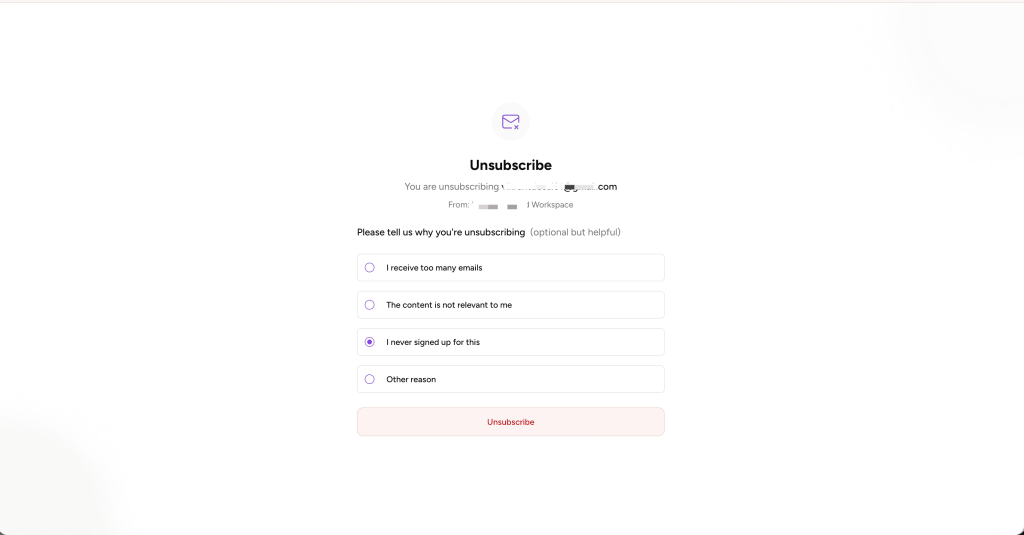
- When a recipient clicks the unsubscribe link, an unsubscribe form opens.
- The form displays multiple reasons for unsubscribing.
- Once the user completes the process:
- Their contact status is automatically updated to Unsubscribed in your SureContact contact list.
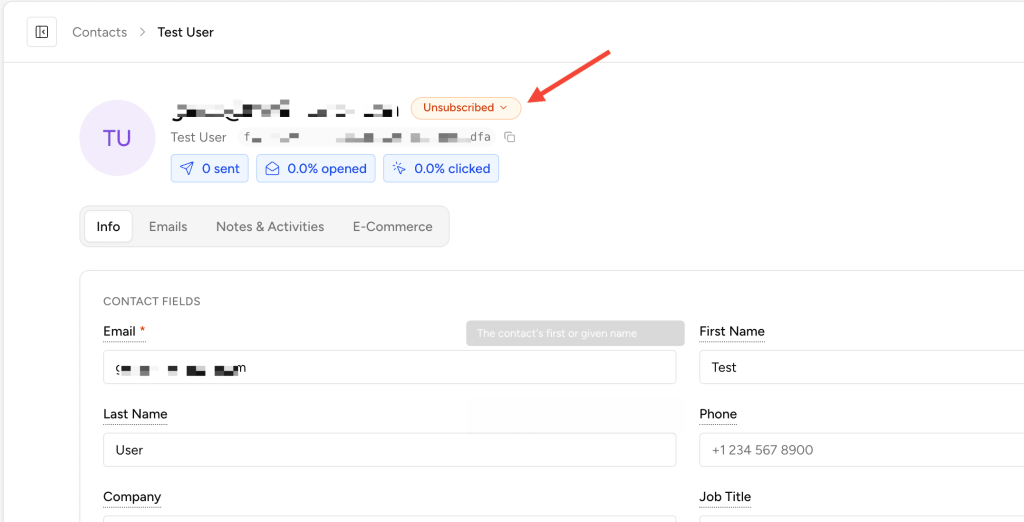
- Unsubscribed contacts will no longer receive future email campaigns.
Adding Unsubscribe Link Using Drag & Drop Editor
The process is similar when using the Drag & Drop Email Builder:
- Create your email template using the Drag & Drop editor.
- Add a Text element where you want the unsubscribe link.
- Type your unsubscribe text (for example: Unsubscribe).
- Convert the text into a hyperlink.
- Set the link URL to:
{{unsubscribe_url}}
Once saved, the unsubscribe link will work dynamically for every recipient.
Important Notes
- Always include an unsubscribe link in your emails to comply with email marketing best practices and regulations.
- The {{unsubscribe_url}} variable is dynamic and unique for each contact.
- You do not need to manually create or manage unsubscribe forms—SureContact handles this automatically.
You’re all set!
Your emails will now include a fully functional unsubscribe link, ensuring a better experience for your recipients and compliance with email standards.
We don't respond to the article feedback, we use it to improve our support content.