
- Introduction to SureContact Dashboard
- How to Install and Connect the SureContact WordPress Plugin
- What Do Contact Fields Mean in the SureContact WordPress Plugin
- How to Invite Members to a Workspace in SureContact
- How to Switch Organizations in SureContact
- Workspace-Level Contact Allocation in SureContact
- Workspace-Level Timezone Settings in SureContact
- How to Add a Custom Tracking Domain in a Workspace in SureContact
How to Share Email Templates in SureContact
Need to reuse an email template across different workspaces or even different organizations? SureContact allows you to share email templates using a simple share link.
This feature makes it easy to maintain consistency across teams, client accounts, or multiple organizations — without manually recreating templates each time.
You can share templates:
- Between workspaces within the same organization
- Between workspaces in different organizations
Below are the step-by-step instructions for both scenarios.
Scenario 1: Share an Email Template Between Workspaces (Same Organization)
Follow the steps below to share a template from one workspace to another within the same organization.
1. Log in to SureContact
- Go to: https://surecontact.com/
- Sign in to your account.
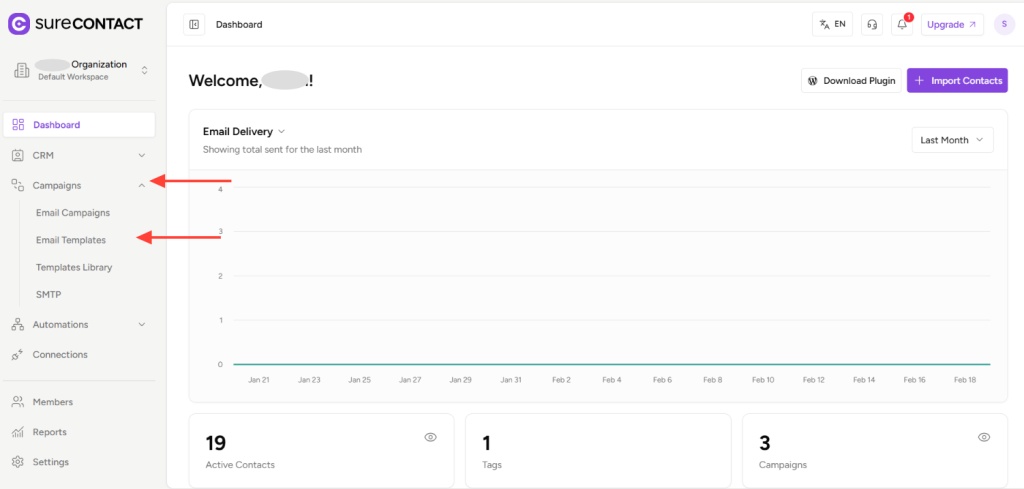
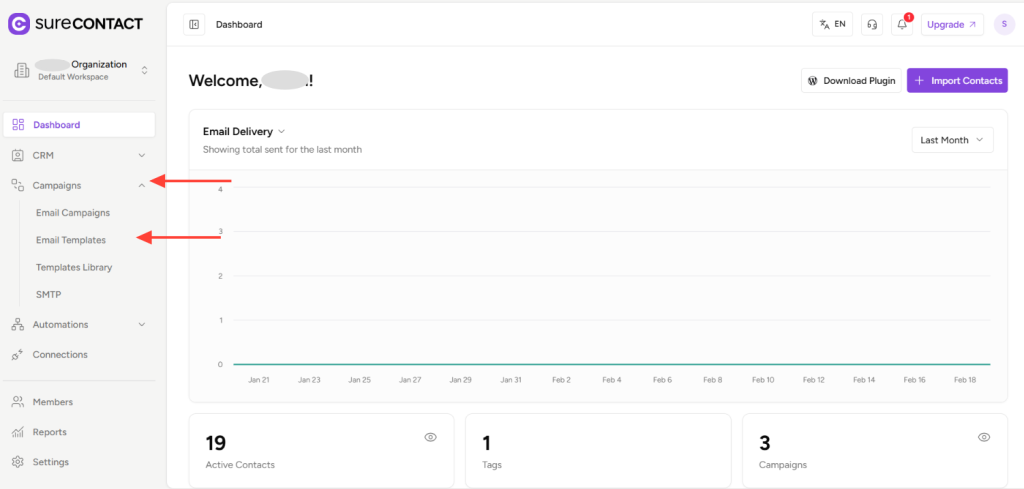
2. Go to Email Templates
- Navigate to Campaigns → Email Templates.
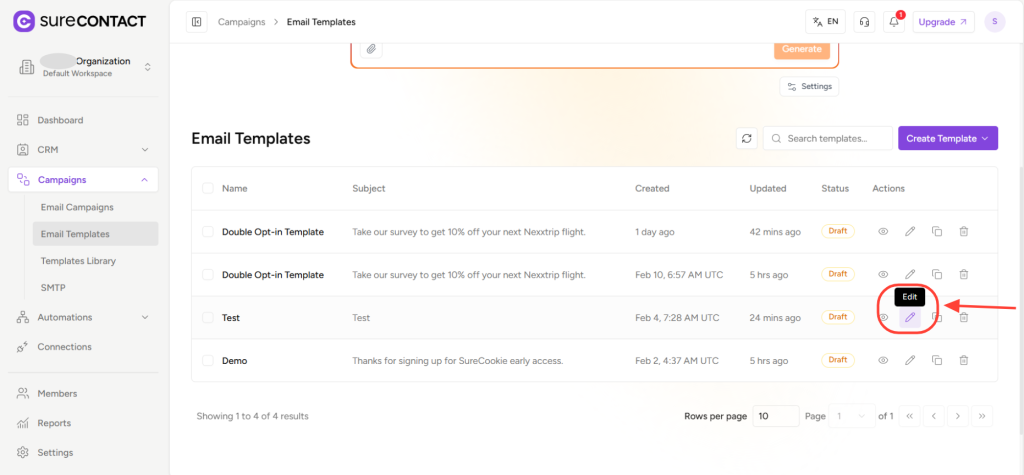
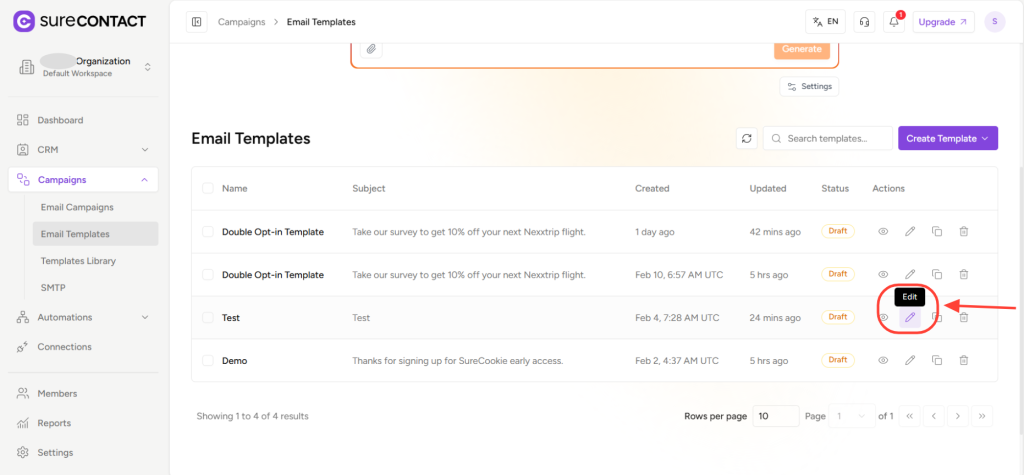
3. Edit the Template
- Click on the Edit button of the email template you want to share.
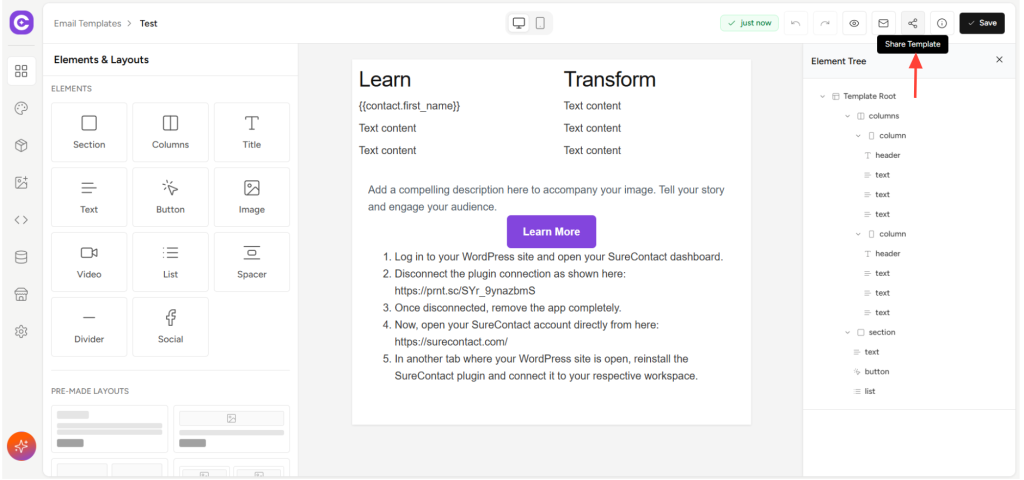
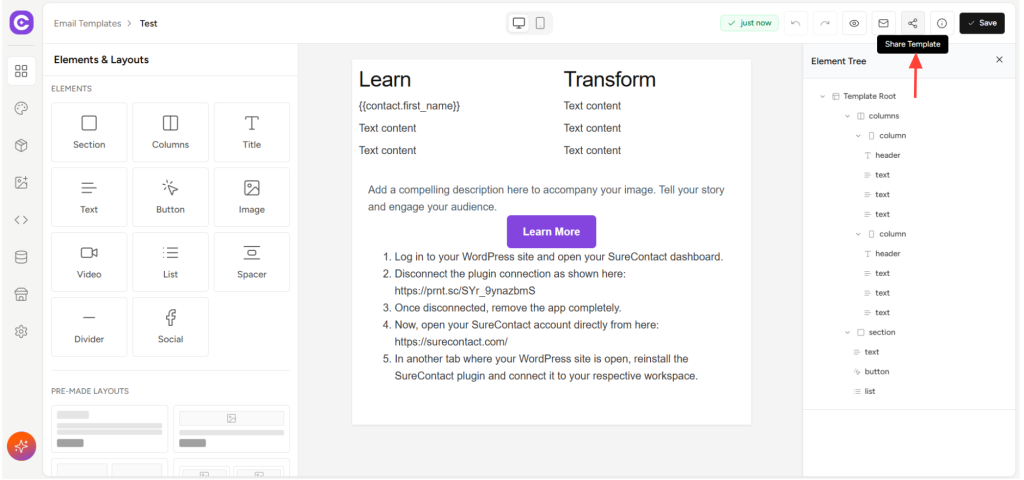
4. Click the Share Template Icon
- In the top-right corner of the template editor, click on the Share Template icon.
5. Create Share Link
- Click on Create Share Link or copy the link
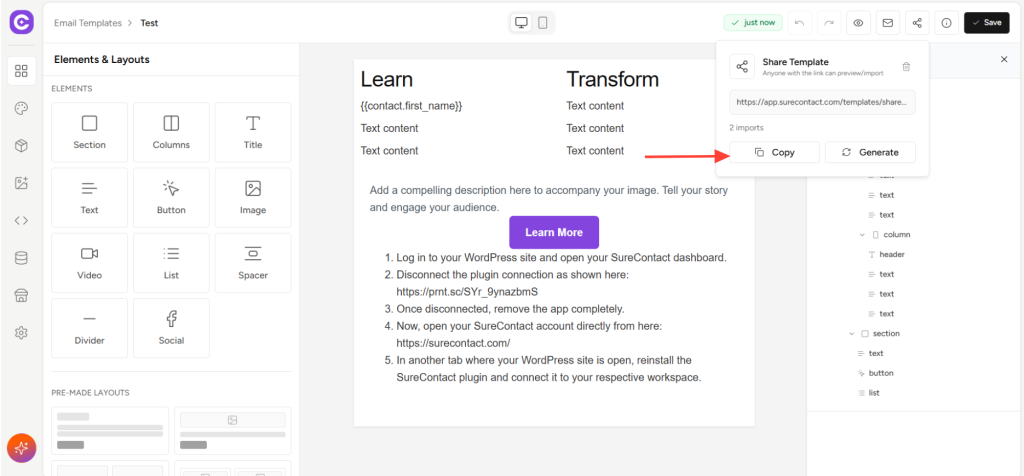
- The share link will be automatically copied to your clipboard.
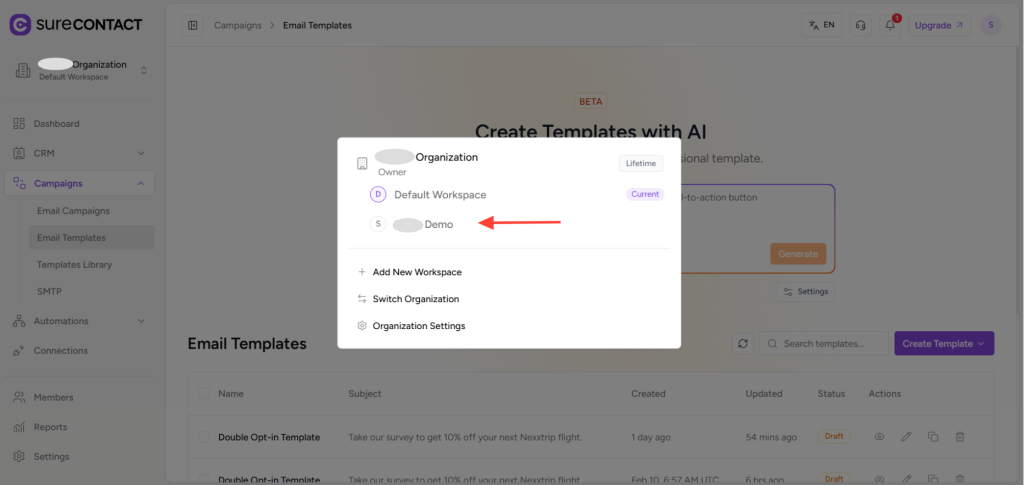
6. Switch to the Target Workspace
- Return to your dashboard.
- Switch to the workspace where you want to import the template.
7. Open the Share Link
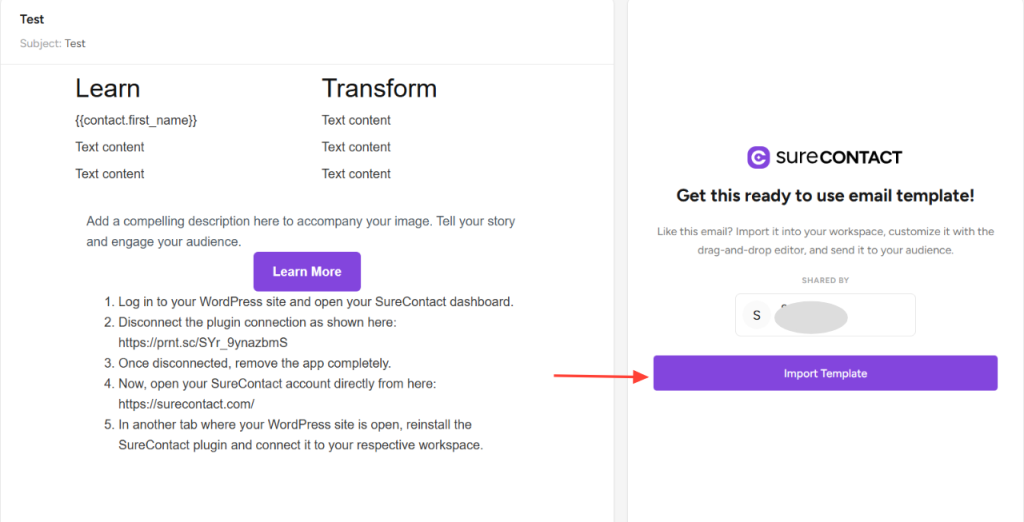
- Open a new browser tab and paste the copied share link.
8. Import the Template
- Click on Import Template.
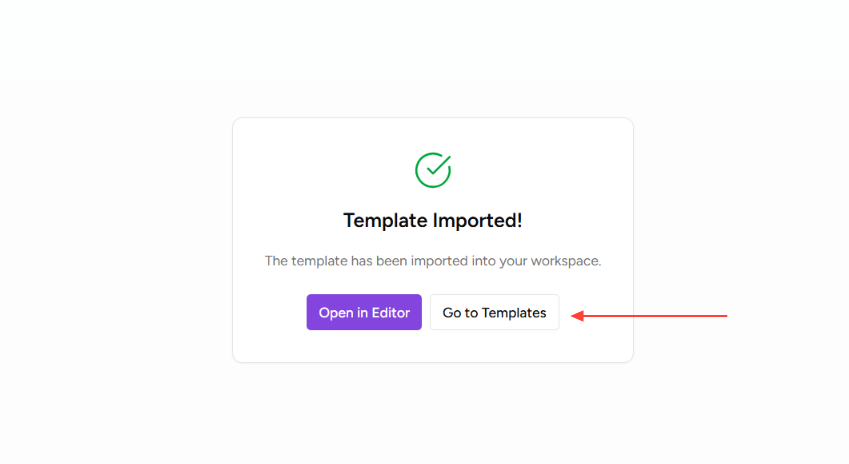
9. View the Imported Template
- Click Go to Templates.
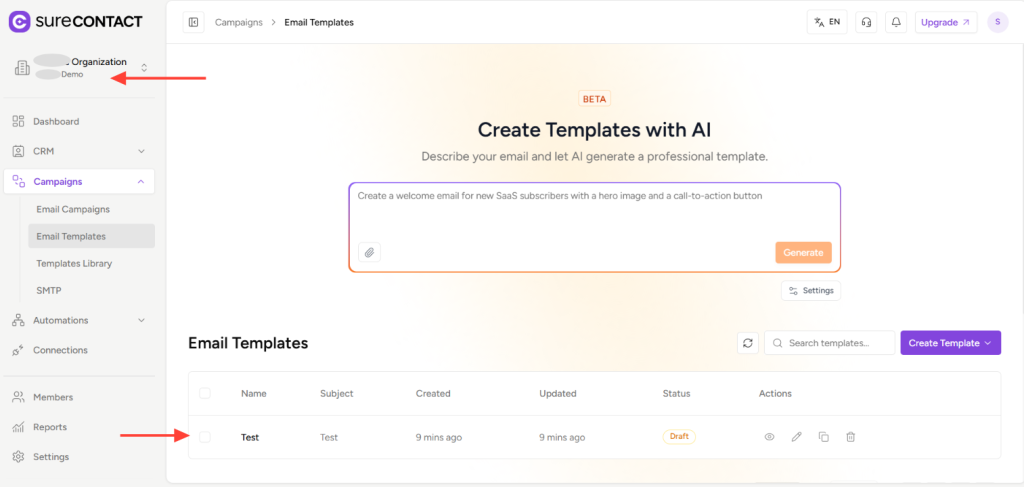
- You will now see the shared template available in the Email Templates section of the selected workspace.
Scenario 2: Share an Email Template Between Different Organizations
You can also share templates across different organizations using the same share link method.
Follow the steps below:
1. Log in to SureContact
- Go to: https://surecontact.com/
- Sign in to your account.
2. Go to Email Templates
- Navigate to Campaigns → Email Templates.
3. Edit the Template
- Click on the Edit button of the email template you want to share.
4. Click the Share Template Icon
- In the top-right corner, click the Share Template icon.
5. Create Share Link
- Click on Create Share Link.
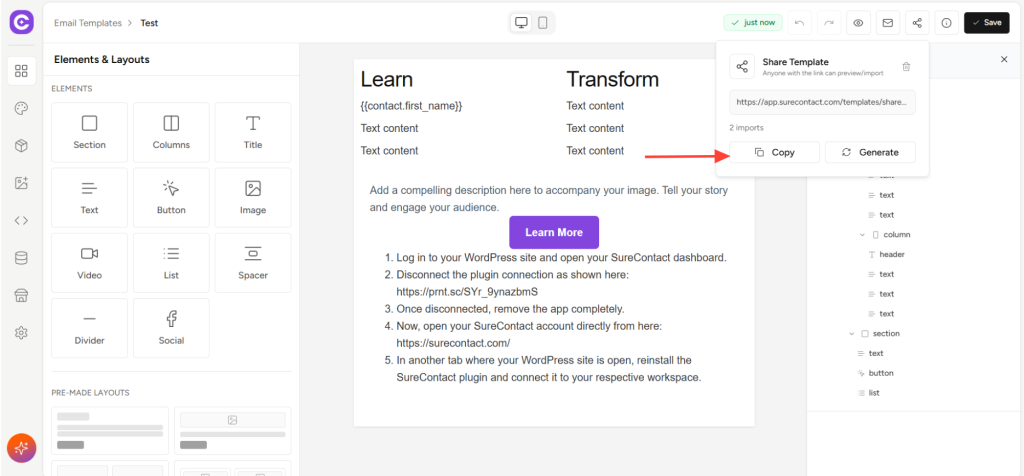
- The link will be automatically copied.
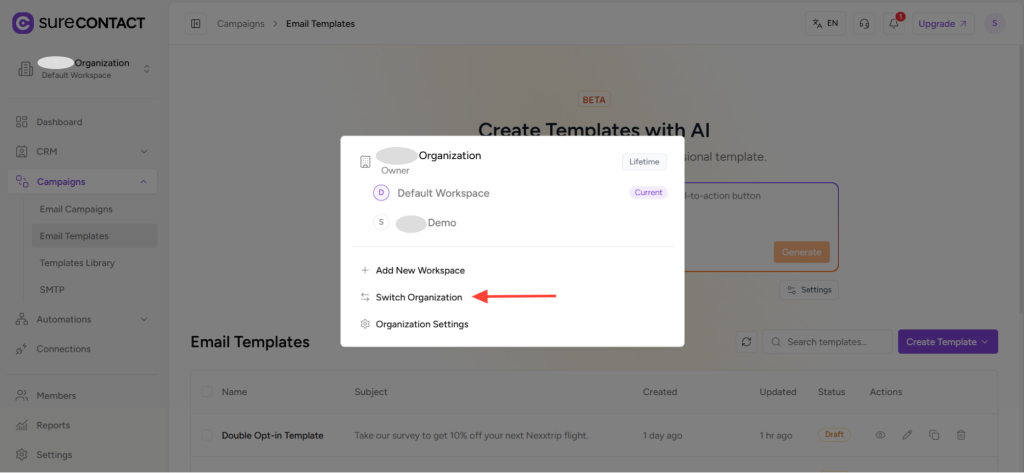
6. Switch to the Target Organization
- Return to your dashboard.
- Switch to the organization and workspace where you want to add the template.
7. Open the Share Link
- Open a new tab and paste the copied link.
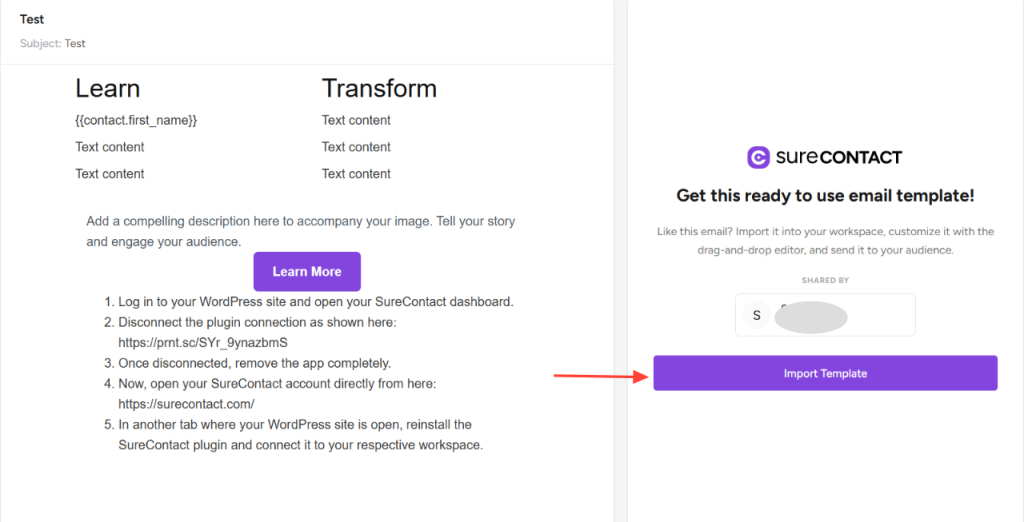
8. Import the Template
- Click on Import Template.
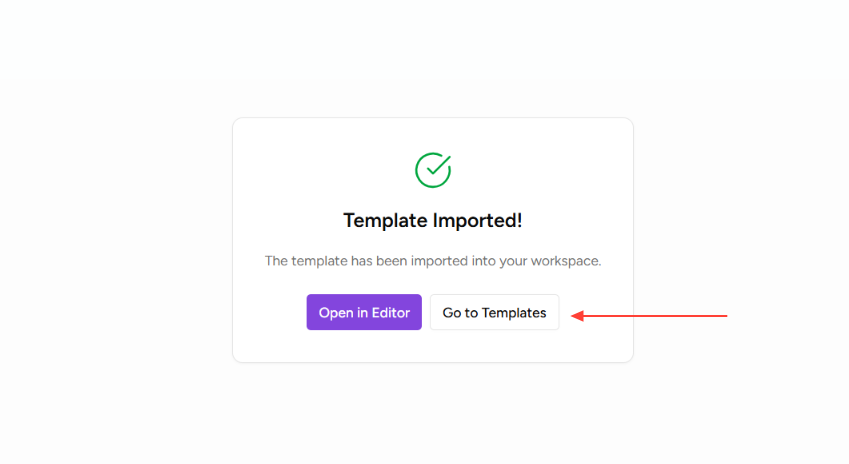
9. Confirm Import
- Click Go to Templates.
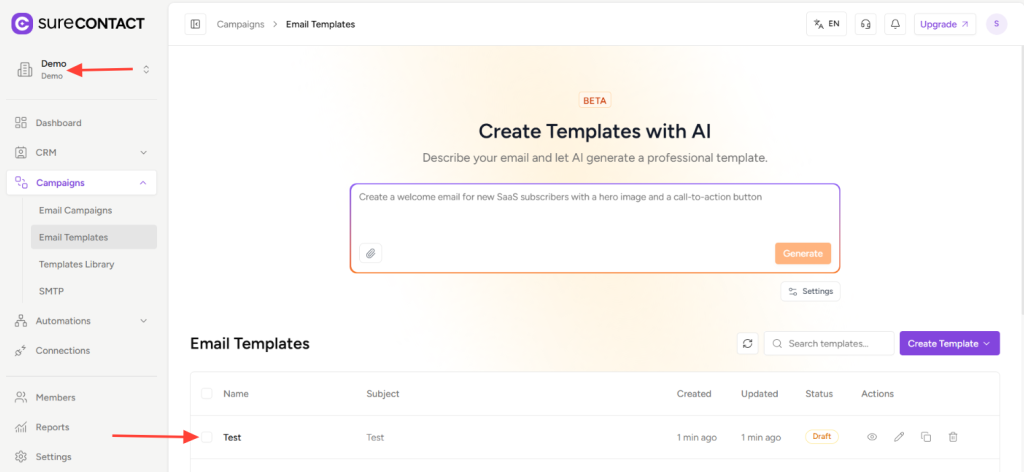
- You will now see the template added to the Email Templates section of the selected workspace in the other organization.
That’s It
You’ve successfully shared an email template.
This feature helps you maintain consistency, save time, and streamline campaign management across multiple workspaces and organizations.
If you need any assistance, feel free to contact our support team at [email protected].
We don't respond to the article feedback, we use it to improve our support content.