
- Introduction to SureContact Dashboard
- How to Install and Connect the SureContact WordPress Plugin
- What Do Contact Fields Mean in the SureContact WordPress Plugin
- How to Invite Members to a Workspace in SureContact
- How to Switch Organizations in SureContact
- Workspace-Level Contact Allocation in SureContact
- Workspace-Level Timezone Settings in SureContact
- How to Add a Custom Tracking Domain in a Workspace in SureContact
How to Switch Organizations in SureContact
If you are part of multiple organizations in SureContact, you can easily switch between them to access different workspaces, contacts, and automation setups.
In SureContact, your account structure is organized as follows:
- Organization:
This is your primary account where your SureContact plan, billing, and overall account management are handled. - Workspace:
A workspace exists inside an organization and is where you manage contacts, campaigns, automations, and team collaboration.
If you are working with multiple teams, clients, or projects, switching organizations allows you to quickly access the correct environment.
Steps to Switch Organizations
Follow the steps below to switch to another organization in SureContact:
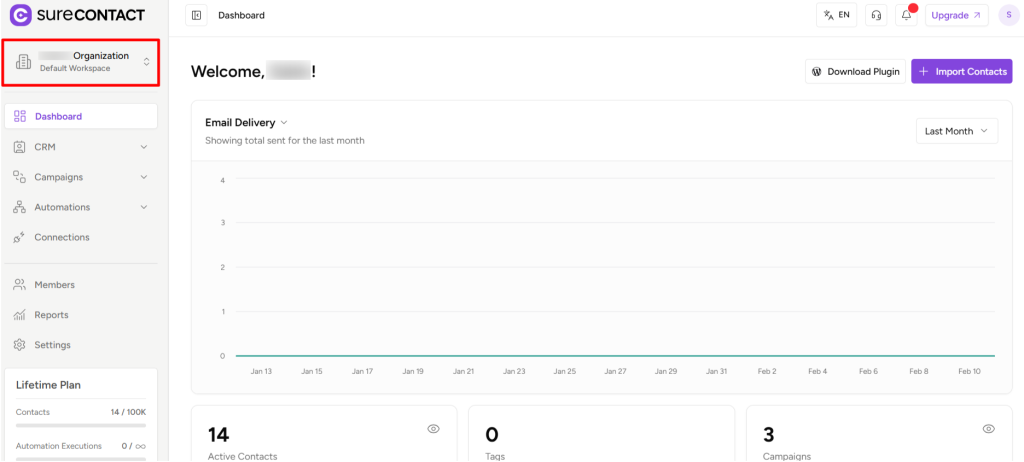
1. Click on the Organization Icon
Navigate to the top-left corner of the SureContact dashboard and click on your organization icon.
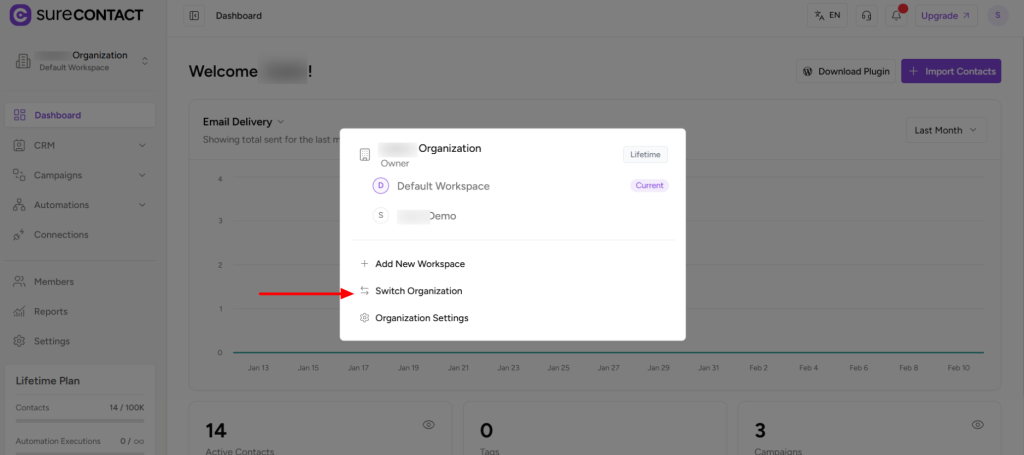
2. Select Switch Organization
From the dropdown menu, click on Switch Organization.
This will display a list of all organizations that you are currently a member of.
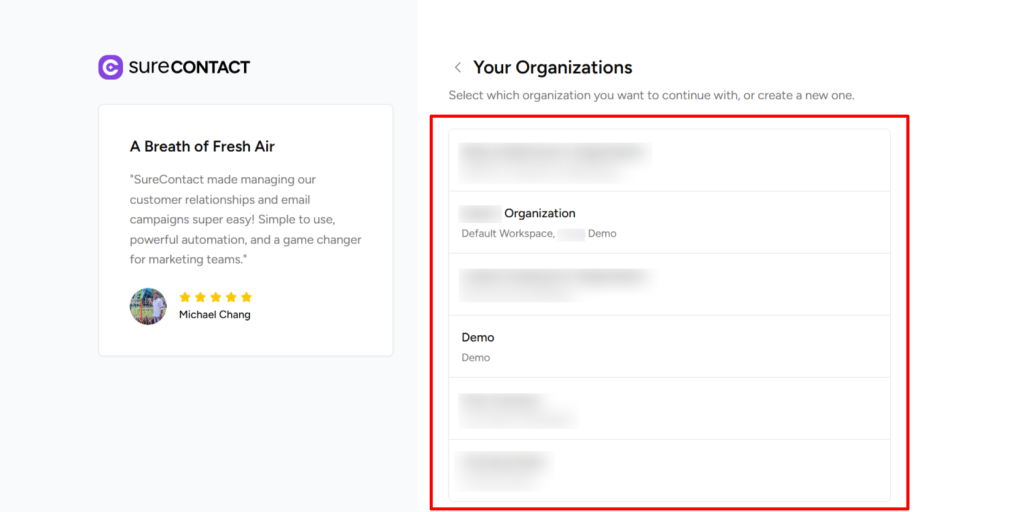
3. Choose Your Target Organization
Select the organization you want to switch to.
SureContact will refresh and load the dashboard for the selected organization.
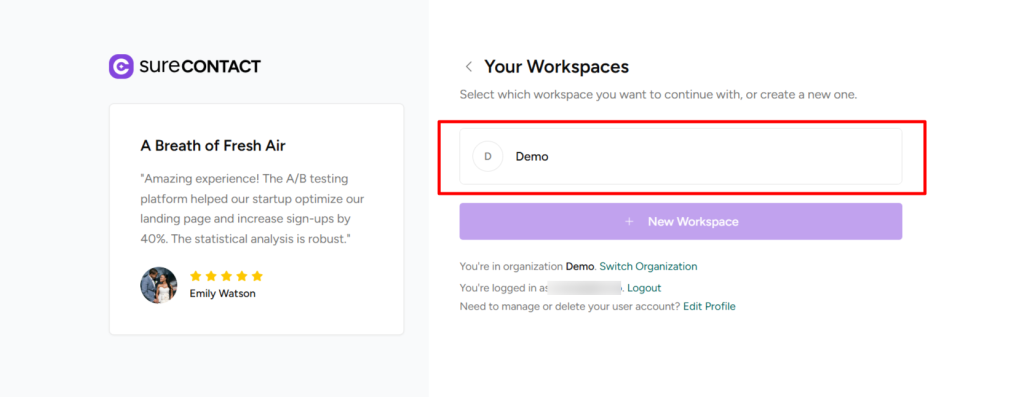
4. Select the Workspace
Once you switch organizations, choose the workspace you want to access within that organization.
That’s it! You have successfully switched organizations.
When Should You Switch Organizations?
You may need to switch organizations when:
- You manage multiple client accounts
- You collaborate with different teams
- You have separate projects under different organizations
- You want to access contacts or automations from another organization
You can switch organizations anytime by following the same steps above.
We don't respond to the article feedback, we use it to improve our support content.