
- Introduction to SureContact Dashboard
- How to Install and Connect the SureContact WordPress Plugin
- What Do Contact Fields Mean in the SureContact WordPress Plugin
- How to Invite Members to a Workspace in SureContact
- How to Switch Organizations in SureContact
- Workspace-Level Contact Allocation in SureContact
- Workspace-Level Timezone Settings in SureContact
- How to Add a Custom Tracking Domain in a Workspace in SureContact
Importing Contacts into SureContact
Surecontact allows you to import your contacts quickly and conveniently, no matter where you are in the app. You can upload contacts using a CSV file or by copying and pasting your contact data directly.
This guide explains every step you need to follow to import contacts smoothly.
Where Can You Import Contacts From?
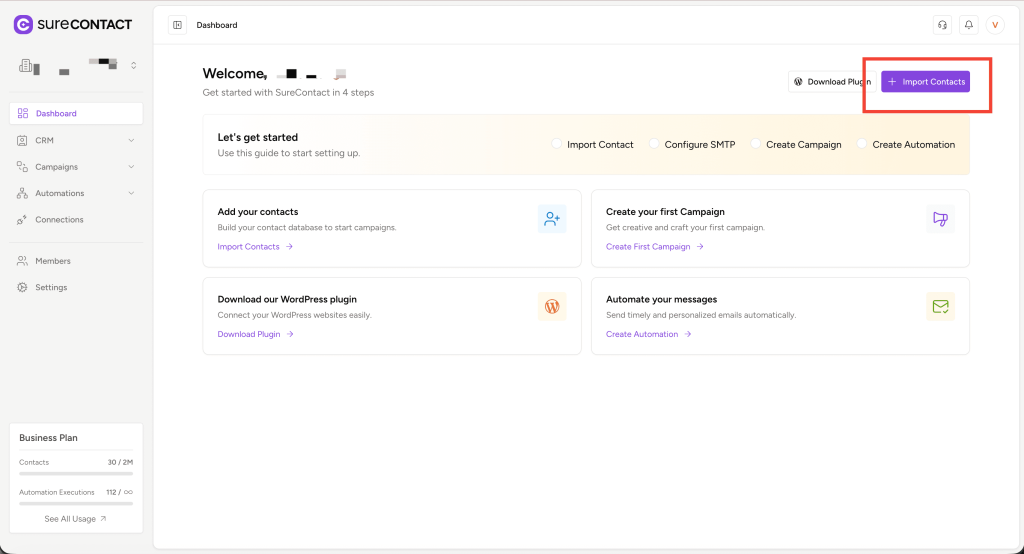
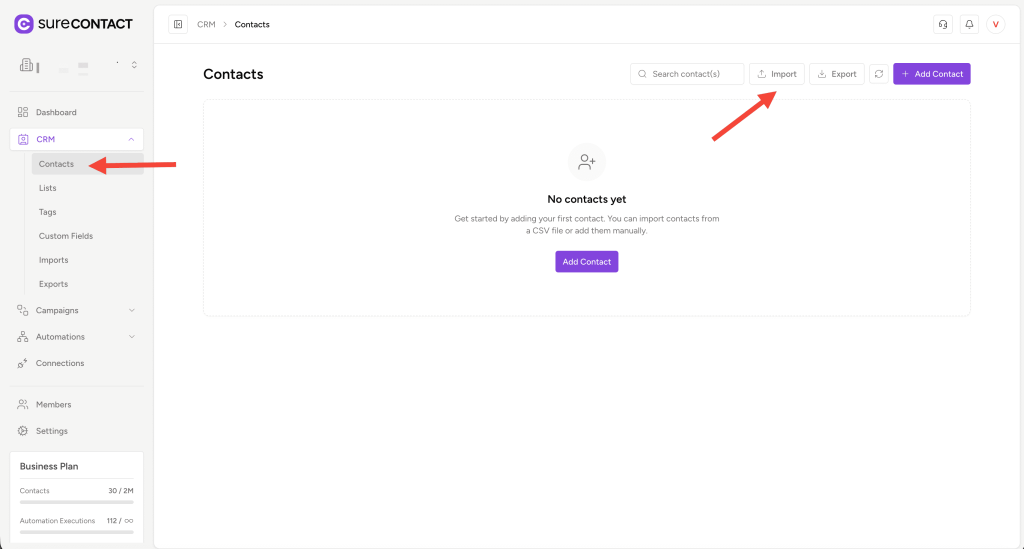
You can import contacts from three different pages:
- Dashboard
- Contacts
- Imports
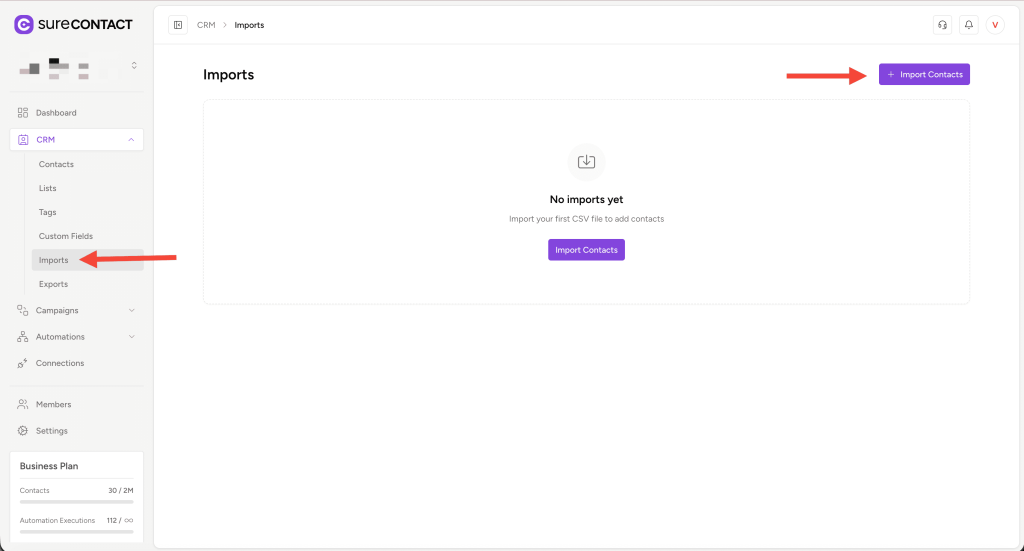
All three Import buttons perform exactly the same action.
They are provided simply for your convenience, so you can import contacts from whichever page you are currently working on.
Start the Import Process
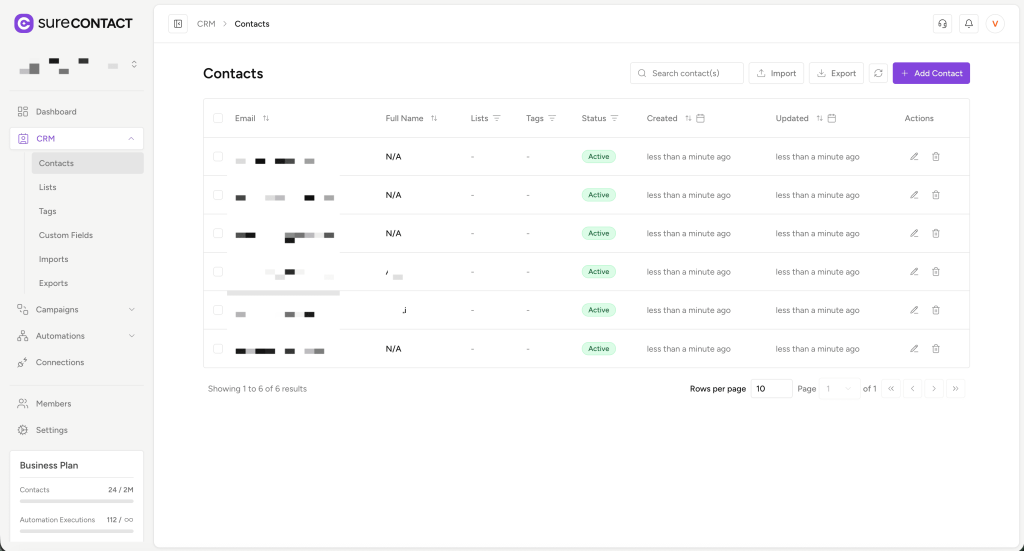
- Log in to your Surecontact Dashboard.
- Navigate to the Contacts page (or any page with an Import button).
- Click Import to open the Import Contacts Flyout.
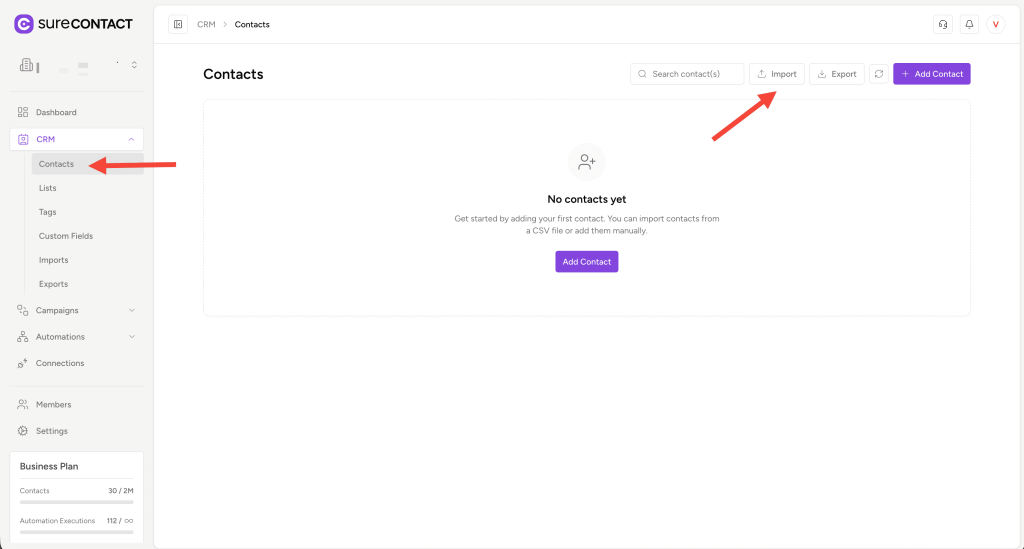
You will now see two import options:
- Upload CSV file
- Copy & Paste (comma-separated)
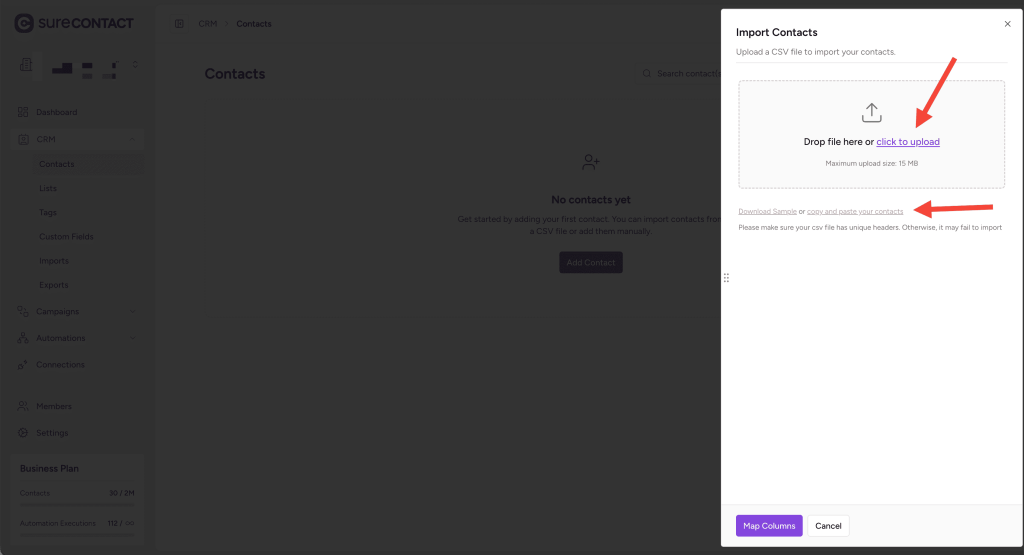
Importing Contacts Using a CSV File
Step 1 — Prepare Your CSV
You must have your contacts ready in a CSV file.
Surecontact provides a Sample CSV for your convenience—ideal for testing or understanding the required format.
Click Download Sample CSV from the import flyout.
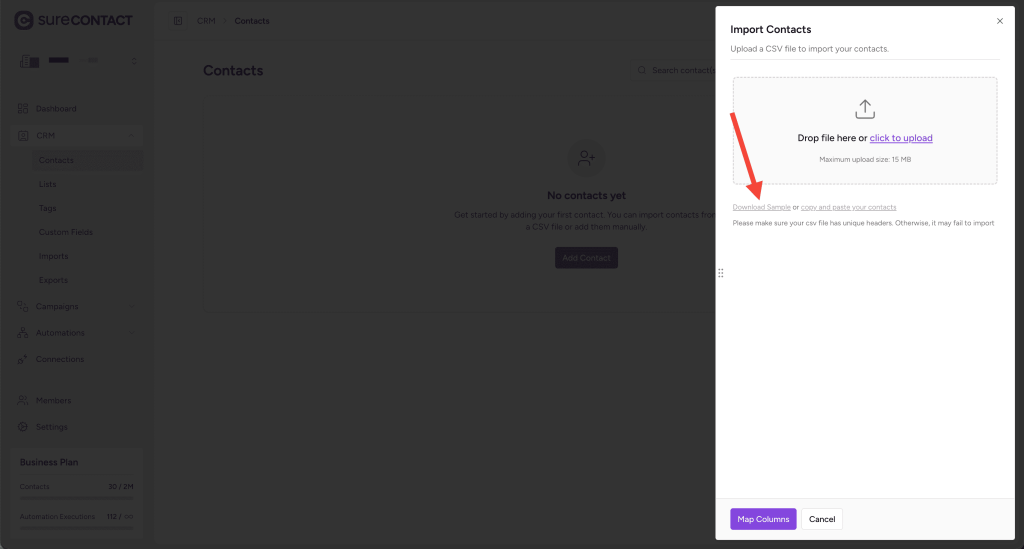
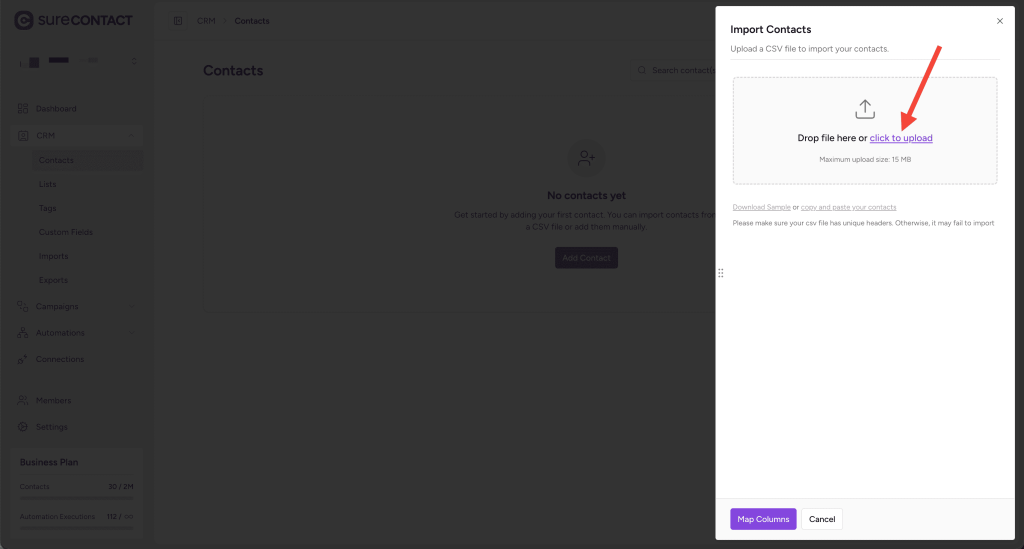
Step 2 — Upload the CSV
- Click to Upload.
- Select your CSV file.
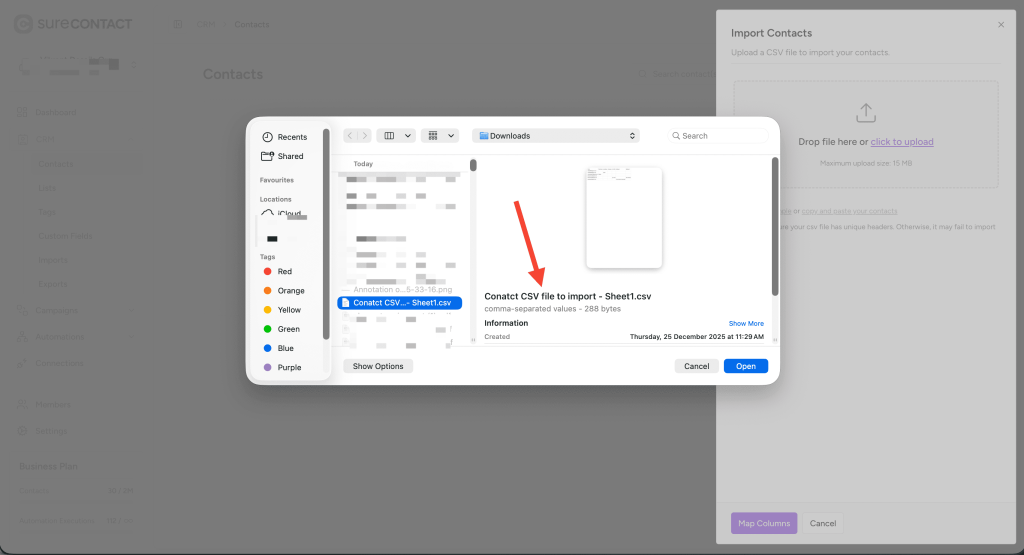
- Once uploaded, click Map Columns to continue.
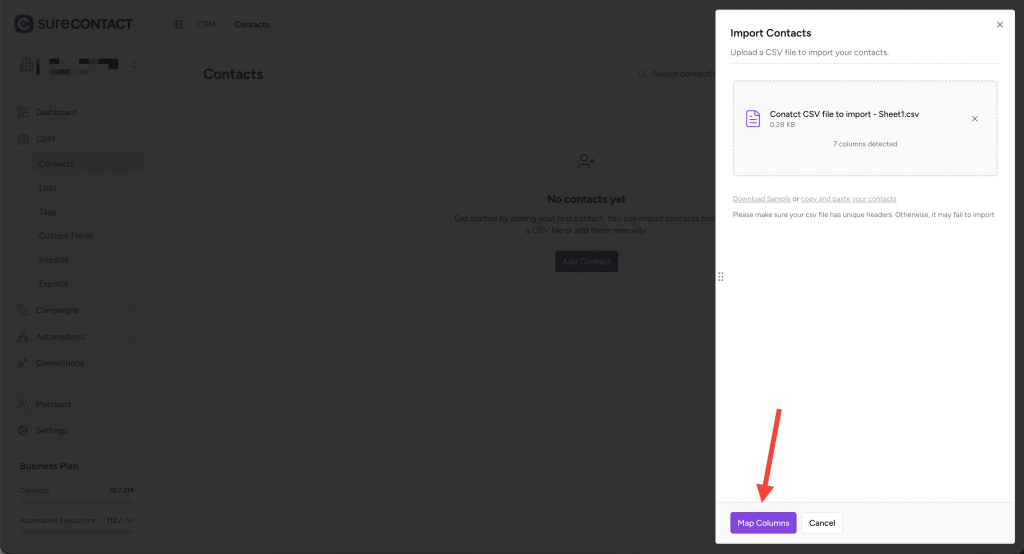
Step 3 — Map Your CSV Columns
The mapping screen allows you to match your CSV file’s column headers with Surecontact’s contact fields.
- If your CSV headers match the system fields, they will be mapped automatically.
- If not, you can map each field manually from the dropdown.
- You can also map custom contact fields if your account has any.
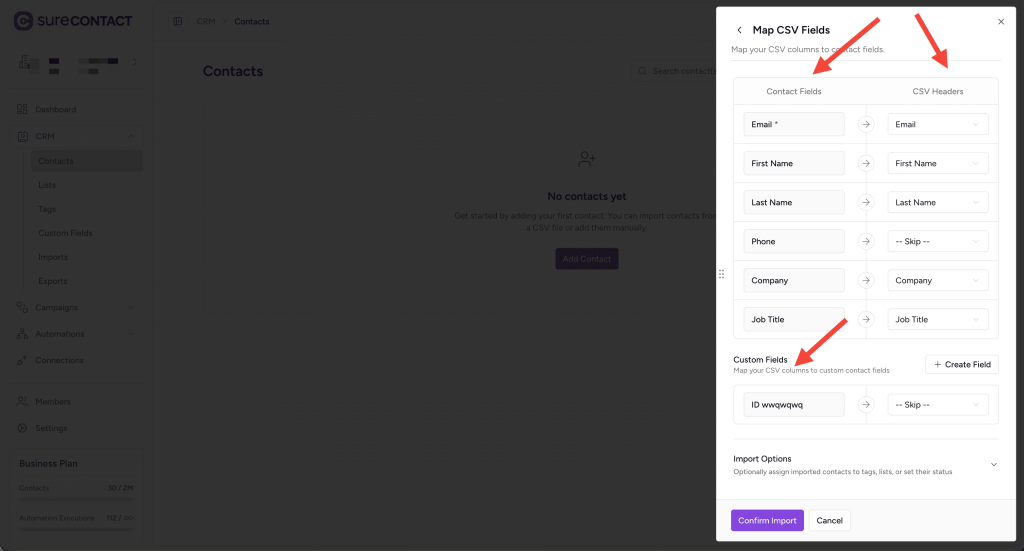
Creating Custom Fields (Optional)
If you need additional fields:
- Click Create Field.

- A “Create Custom Field” flyout will appear.
- Fill in the required details and save.

For full details on custom fields, refer to:
https://surecontact.com/docs/custom-contact-fields/
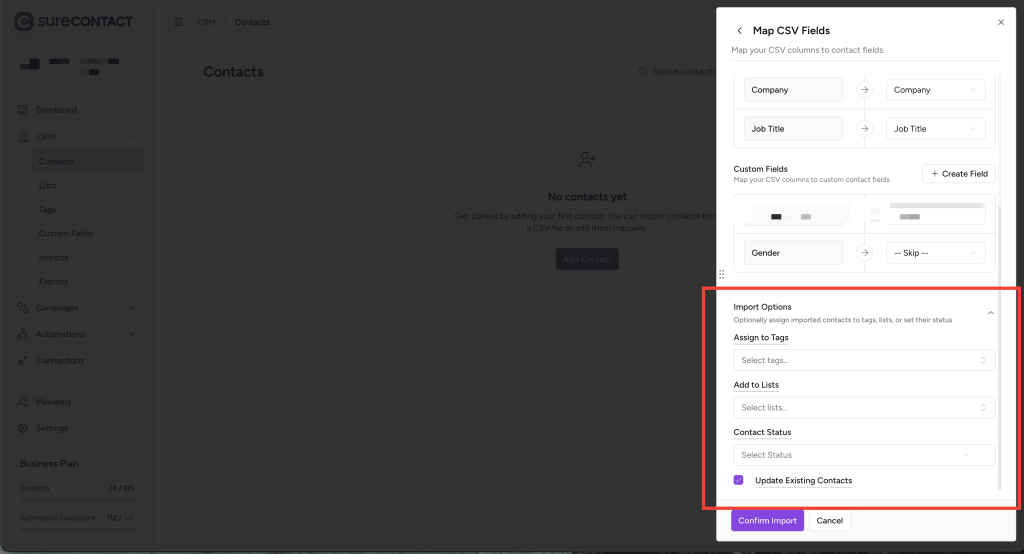
Step 4 — Additional Import Options (Optional)
Before confirming import, you can choose:
- Add Tags to all imported contacts
- Add Lists to group the contacts
- Set Default Contact Status
- Update Existing Contacts
- Enable this if you want Surecontact to update existing contacts instead of creating duplicates
- If a contact already exists (same email or phone), it will be updated automatically
Step 5 — Confirm the Import
Click Confirm Import to begin.
Your contacts will now be imported into SureContact.
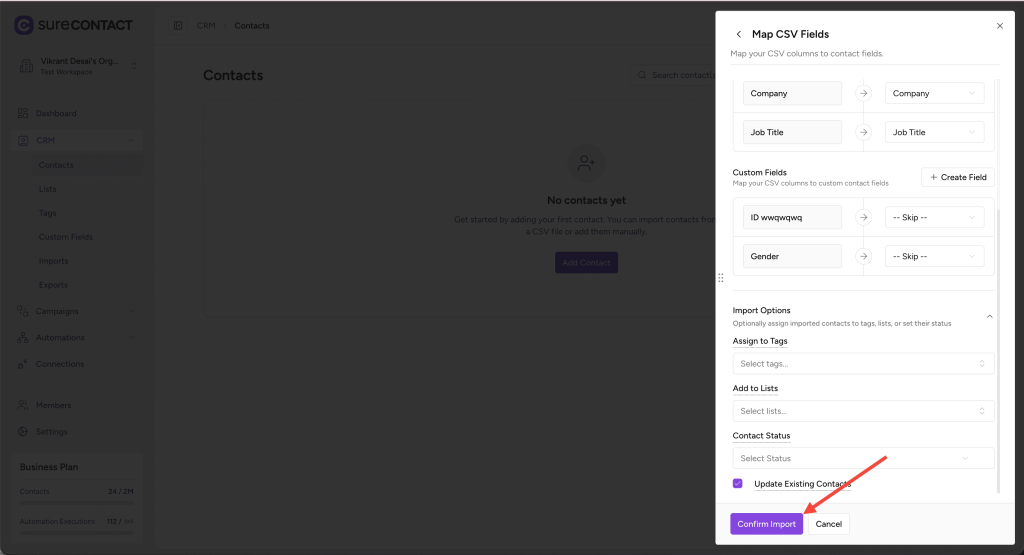
You’ve successfully imported contacts using CSV!
Importing Contacts Using Copy & Paste
If you don’t have a CSV, you can quickly paste your contact data in a comma-separated format.
Step 1 — Open the Import Flyout
- Go to the Contacts page.
- Click Import.
- Select Copy and Paste your contacts.
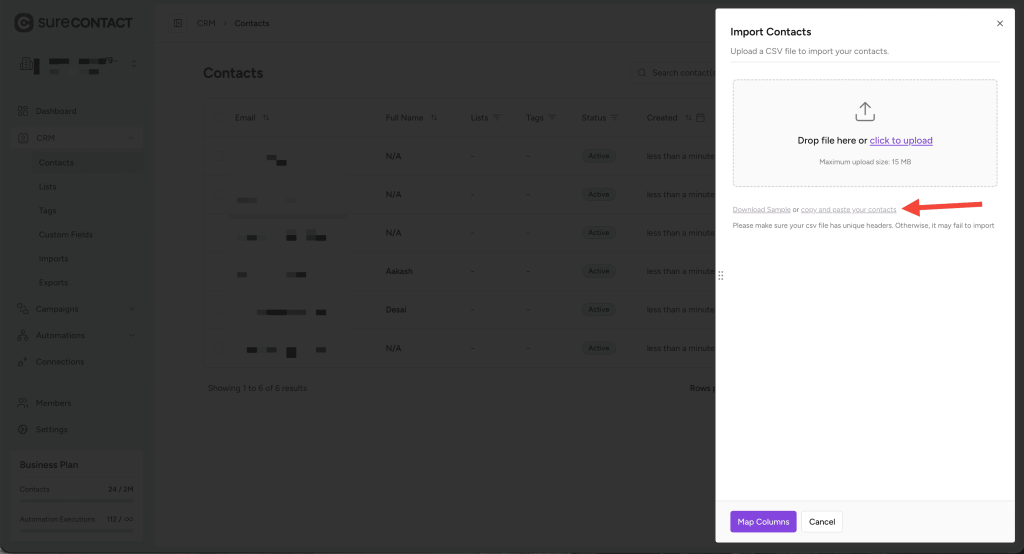
Step 2 — Enter Contacts in Comma-Separated Format
Paste your data following the format shown in the example:
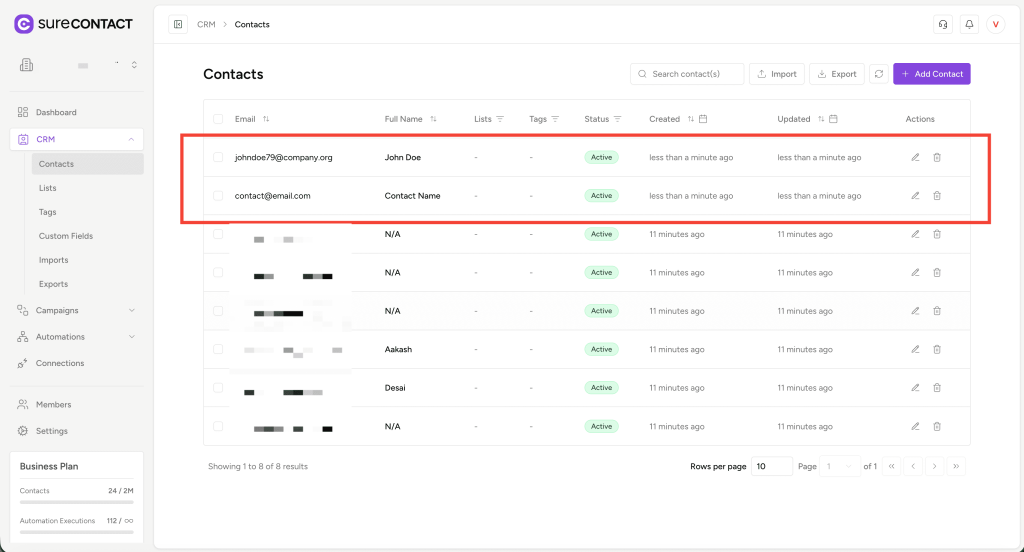
Data Example:
Email,First Name,Last Name,Phone,Company,Job Title
[email protected],Contact,Name,,,
[email protected],John,Doe,+1 9876543210,The Company,Associate Manager
Each line represents one contact, and values must be separated by commas.
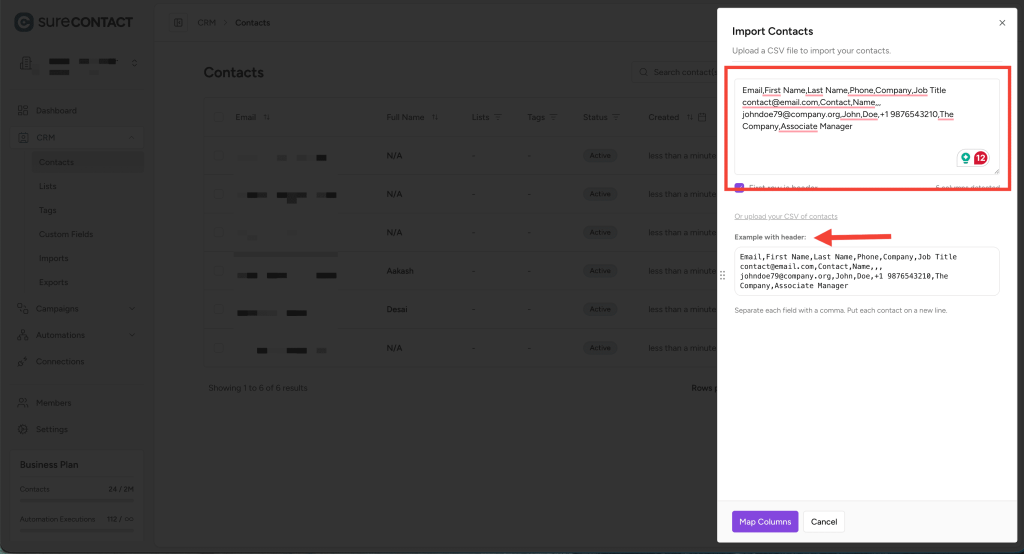
Step 3 — Map Columns
Just like with CSV import:
- Click Map Columns
- Match each field with the corresponding SureContact field
- Add custom fields if needed
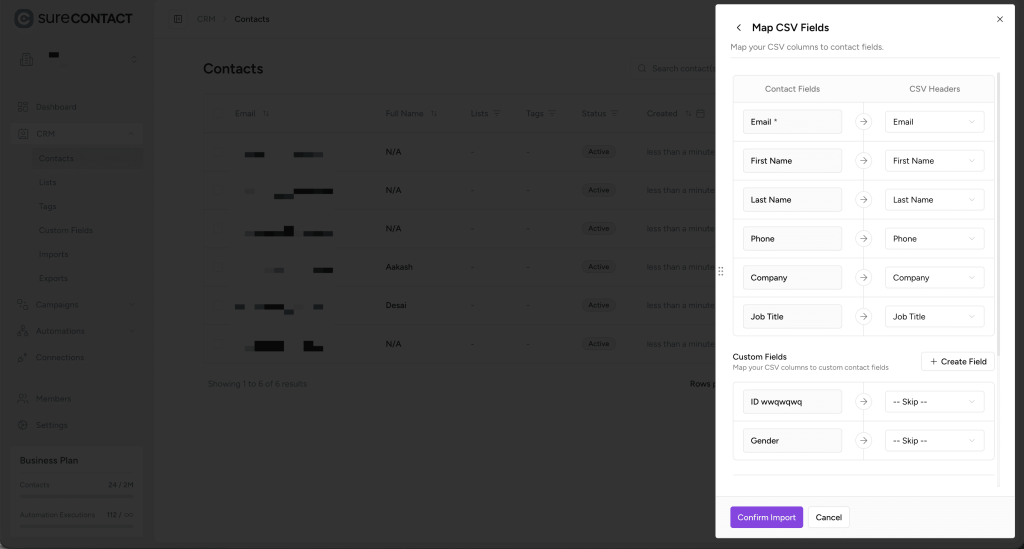
Step 4 — Confirm Import
Finally, click Confirm Import to finish.
You have successfully imported contacts using the Copy & Paste method!
Summary
You can import contacts in SureContact using:
✔ CSV File Upload
✔ Copy & Paste (comma-separated format)
Both methods include:
- Column Mapping
- Custom Field Support
- Tag & List Assignment
- Default Status Options
- Option to Update Existing Contacts
We don't respond to the article feedback, we use it to improve our support content.