
- Introduction to SureContact Dashboard
- How to Install and Connect the SureContact WordPress Plugin
- What Do Contact Fields Mean in the SureContact WordPress Plugin
- How to Invite Members to a Workspace in SureContact
- How to Switch Organizations in SureContact
- Workspace-Level Contact Allocation in SureContact
- Workspace-Level Timezone Settings in SureContact
- How to Add a Custom Tracking Domain in a Workspace in SureContact
Introduction to SureContact Dashboard
1. Introduction
The SureContact Dashboard serves as the central hub for viewing contact statistics, managing onboarding steps, monitoring email performance, and quickly navigating essential tools. This document explains each component of the Dashboard to help users understand and utilize its features effectively.
2. Dashboard Layout
When you log in to SureContact, you are taken directly to the Dashboard. The page consists of the following sections:
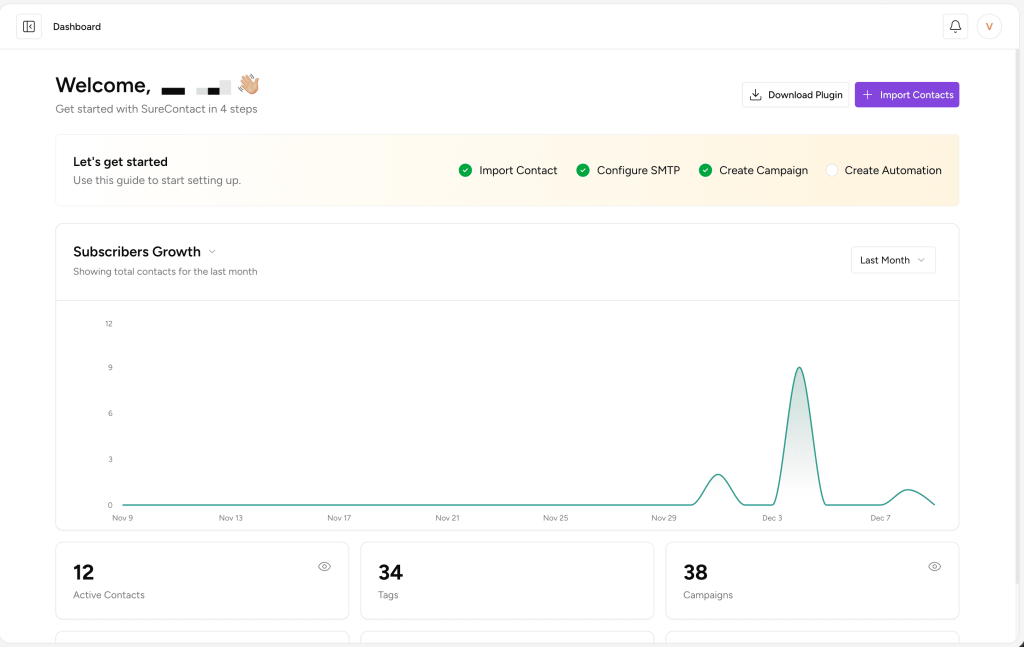
- Header Area
- Welcome & Onboarding Steps
- Performance Analytics Chart
- Key Metrics Summary
Note: When you sign up as a completely new user, you will not see the dashboard as shown in the screenshot above because your account does not yet have any data.
So, in this situation, you will see a different dashboard where we provide four sections to help new users begin their SureContact journey.
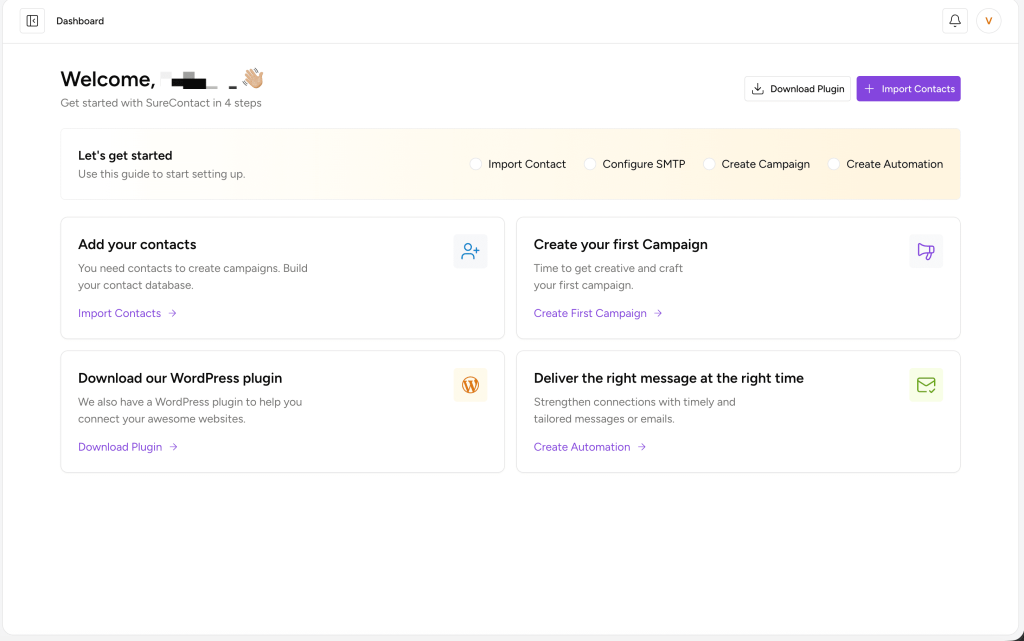
- Import Contacts
- Create First Campaign
- Download WordPress plugin
- Create Automation
3. Header Area
The top navigation bar provides quick access to essential actions and account tools.
Action Buttons
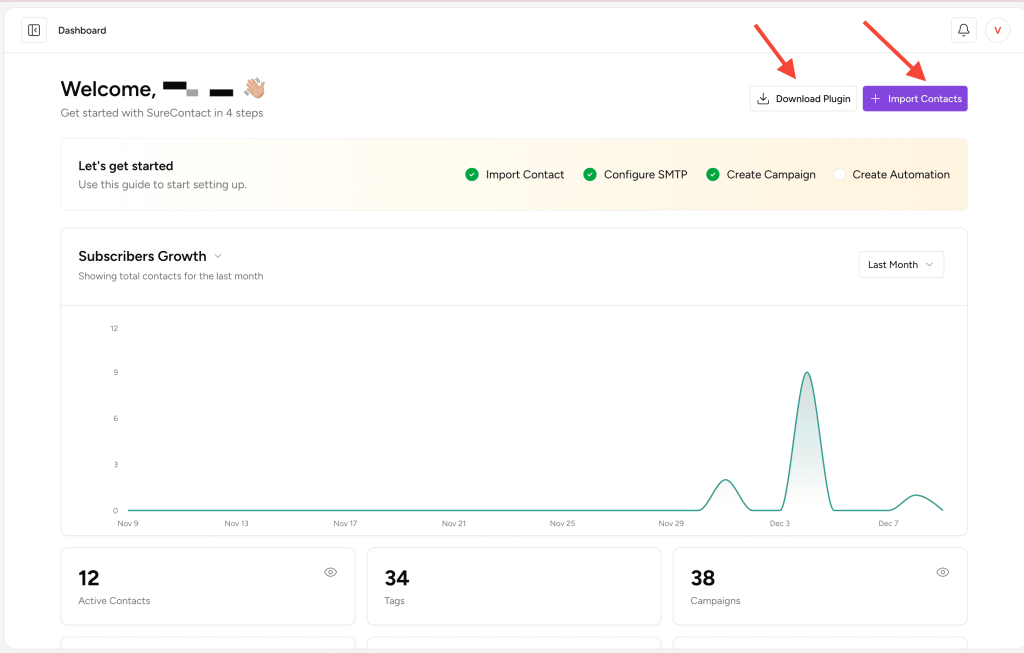
Download Plugin
Allows you to download the SureContact WordPress plugin for syncing contacts from various integrations, including WooCommerce, SureCart, FluentCRM, and more.
Import Contacts
Opens the contact import interface, where users can upload CSV files or paste contact details manually to bulk-import contacts into SureContact.
4. Welcome & Onboarding Section
This area greets the logged-in user and provides a guided onboarding checklist.
Onboarding Checklist
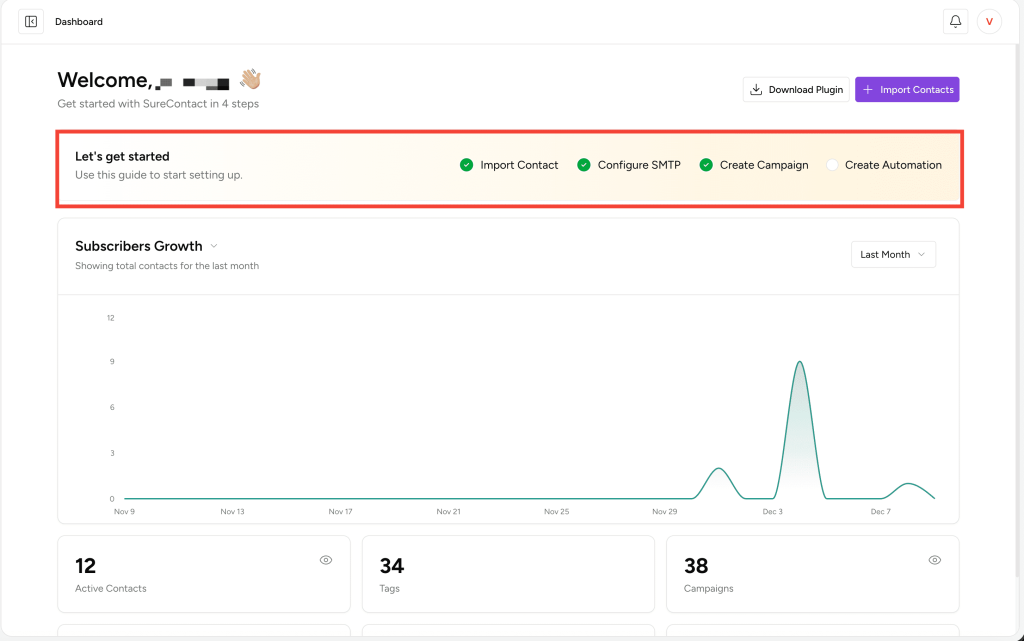
The onboarding flow consists of four steps:
- Import Contacts – Upload or add contact data.
Clicking this option opens the Import Contacts flyout, where you can upload a CSV file of contacts or manually paste your contacts in the given format.
You can also download a sample CSV to test the application. - Configure SMTP – Set up your email-sending method.
Before creating an email campaign, you must configure SMTP, as it is required to send campaigns. On the SMTP page, you will find a list of SMTP options. Select any one of them and complete the setup. - Create Campaign – Once SMTP is configured, the next step is creating a campaign.
You can design beautiful campaigns using our pre-designed templates from the marketplace or use the drag-and-drop editor to build your own. - Create Automation – The final step is creating automation.
Here, you can create useful workflows similar to OttoKit, such as:
“When a contact is created → Add a tag → Send a personalized welcome email,” etc.
Completed items show a green checkmark. Incomplete items remain unmarked.
5. Dashboard Analytics
The Analytics section helps users track performance metrics over time.
Metric Selector
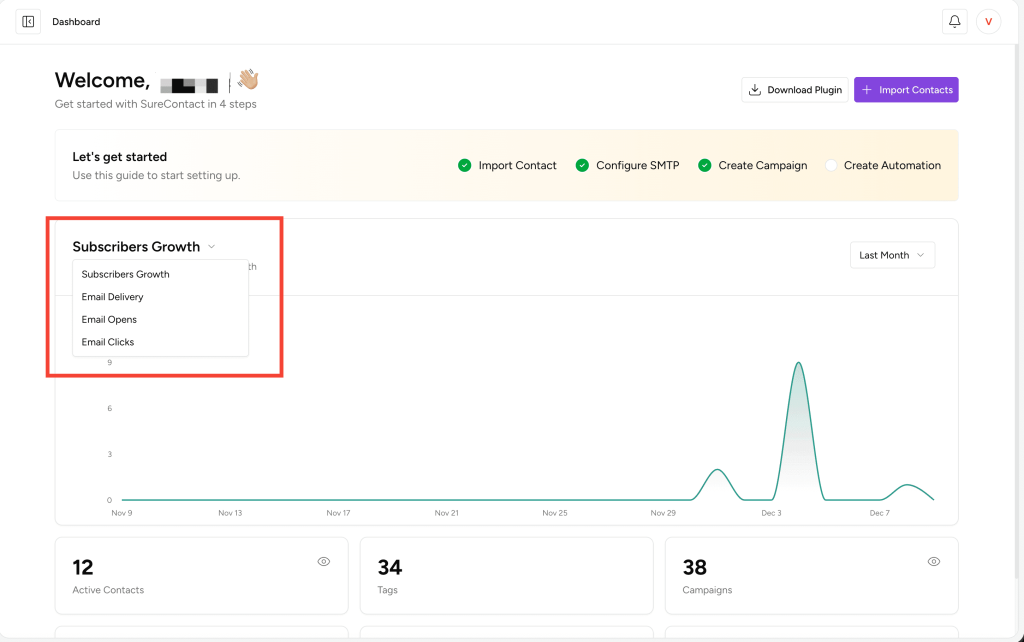
Located above the chart, the dropdown allows users to switch between:
- Subscribers Growth – Overall subscriber growth in the selected duration
- Email Delivery – Number of emails sent/delivered
- Email Opens – Number of emails opened
- Email Clicks – Number of clicks on email links
Selecting a metric updates the chart accordingly.
Date Range Filter
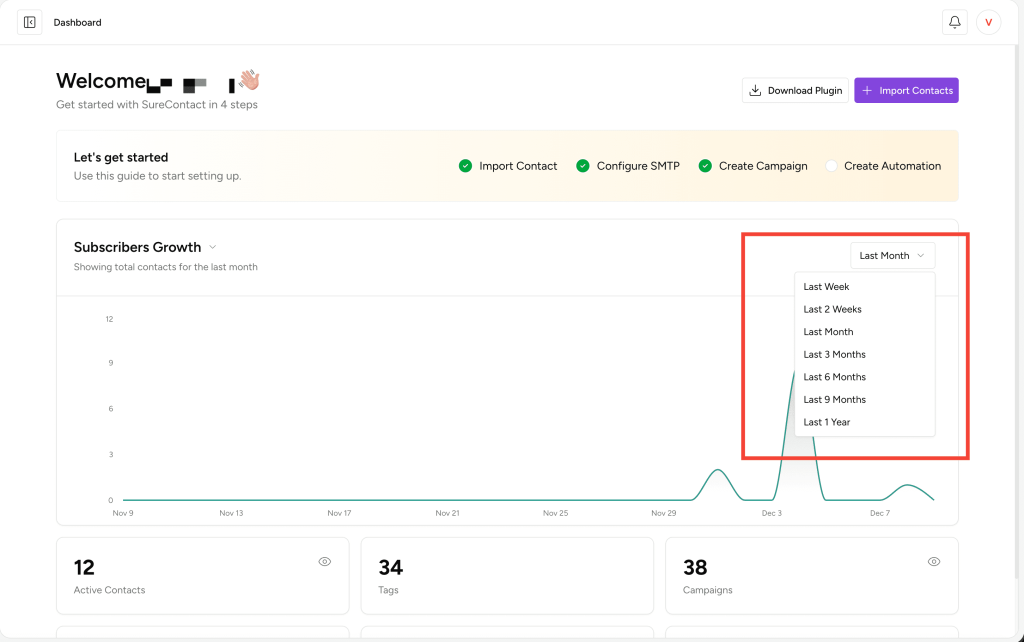
On the top-right of the chart, the date range filter offers multiple timeline options:
- Last Week
- Last 2 Weeks
- Last Month
- Last 3 Months
- Last 6 Months
- Last 9 Months
- Last 1 Year
The displayed data updates dynamically based on the selection.
Chart Display
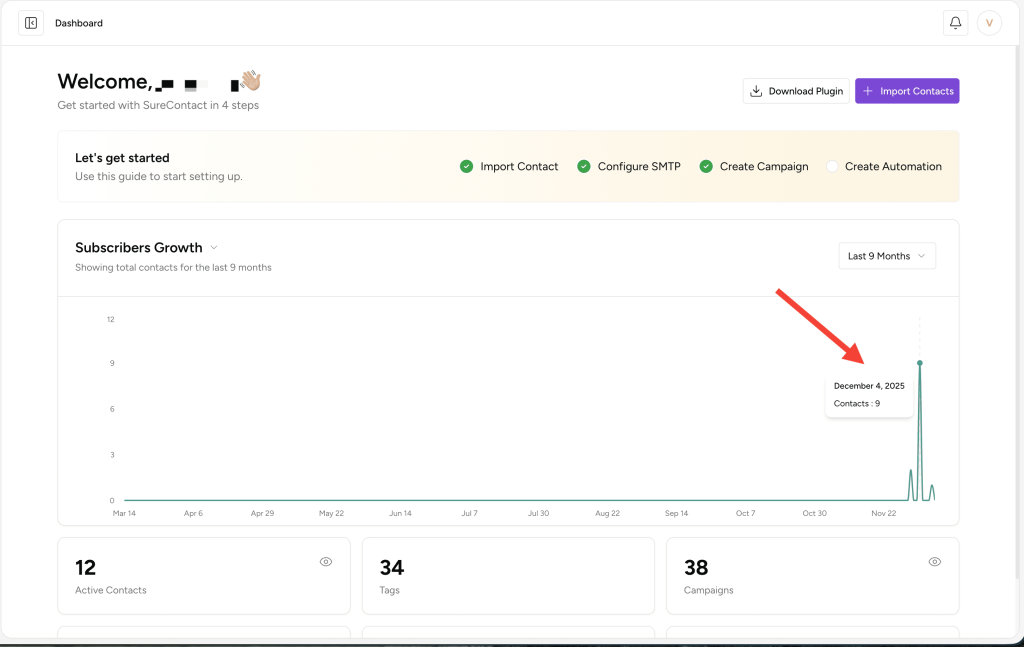
The chart visualizes performance or growth trends.
Hovering over any data point displays the exact date and value (e.g., number of contacts added).
6. Summary Metrics (Statistic Cards)
Below the analytics chart, the Dashboard displays the following key data points in card format:
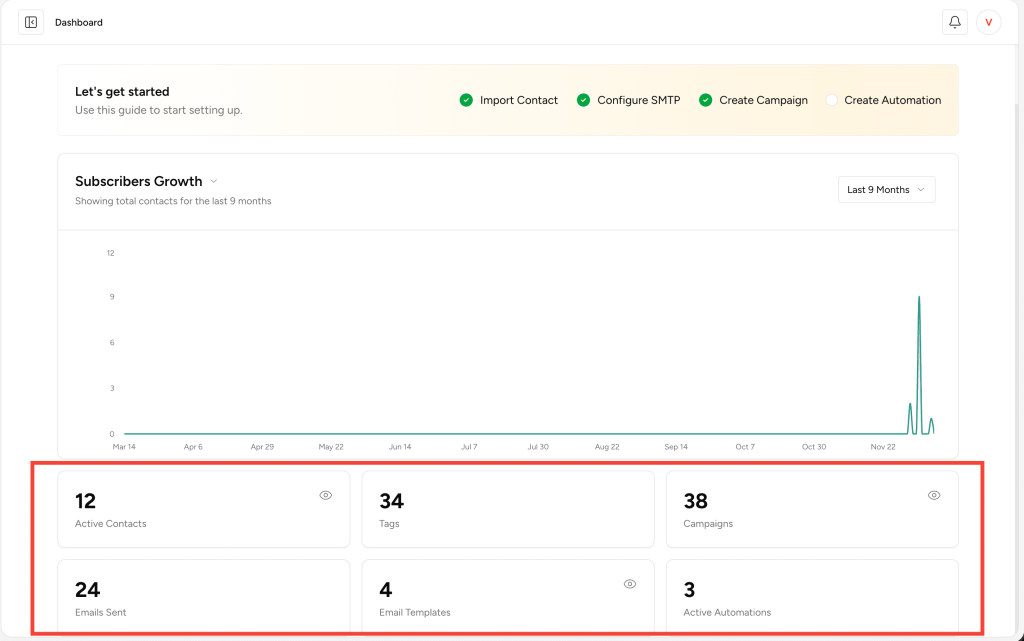
- Active Contacts – Number of contacts currently active in your CRM
- Tags – Total number of tags created
- Campaigns – Total number of campaigns in the workspace
- Emails Sent – Total number of delivered emails
- Email Templates – Total number of saved templates
- Active Automations – Number of workflows currently running
These metrics provide a quick overview of CRM usage and performance.
7. Summary
The SureContact Dashboard is designed to give users a complete overview of their CRM activity at a glance. From onboarding guidance to analytics and contact-management shortcuts, the Dashboard is the central place to understand system performance and take quick action.
We don't respond to the article feedback, we use it to improve our support content.