
- Introduction to SureContact Dashboard
- How to Install and Connect the SureContact WordPress Plugin
- What Do Contact Fields Mean in the SureContact WordPress Plugin
- How to Invite Members to a Workspace in SureContact
- How to Switch Organizations in SureContact
- Workspace-Level Contact Allocation in SureContact
- Workspace-Level Timezone Settings in SureContact
- How to Add a Custom Tracking Domain in a Workspace in SureContact
How to Invite Members to a Workspace in SureContact
Need to collaborate with your team or give clients access to your SureContact workspace? SureContact allows you to invite members and assign them specific roles and workspace permissions so you can work together efficiently.
Inviting members helps streamline collaboration, manage contacts, and handle automation tasks as a team.
Steps to Invite a Member
Follow the steps below to invite a new member to your SureContact workspace:
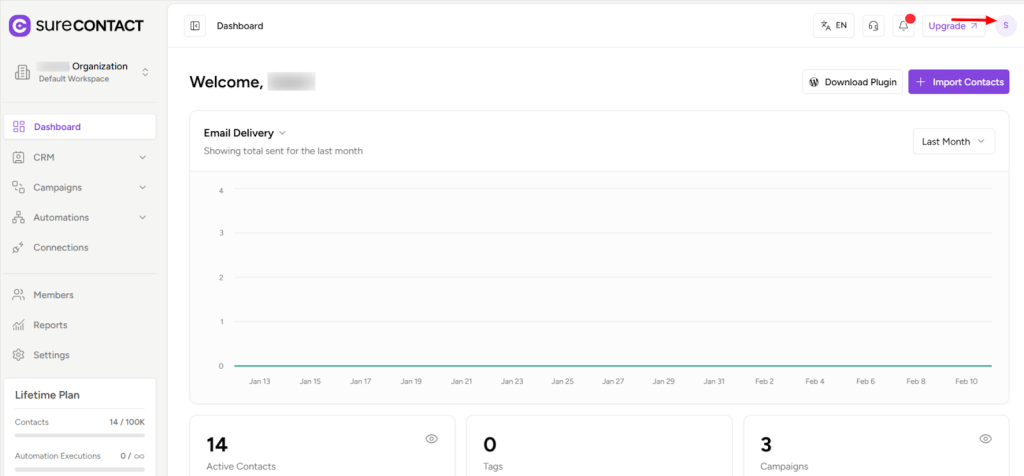
1. Click on the Profile Icon
Navigate to the top-right corner of your SureContact dashboard and click on your profile icon.
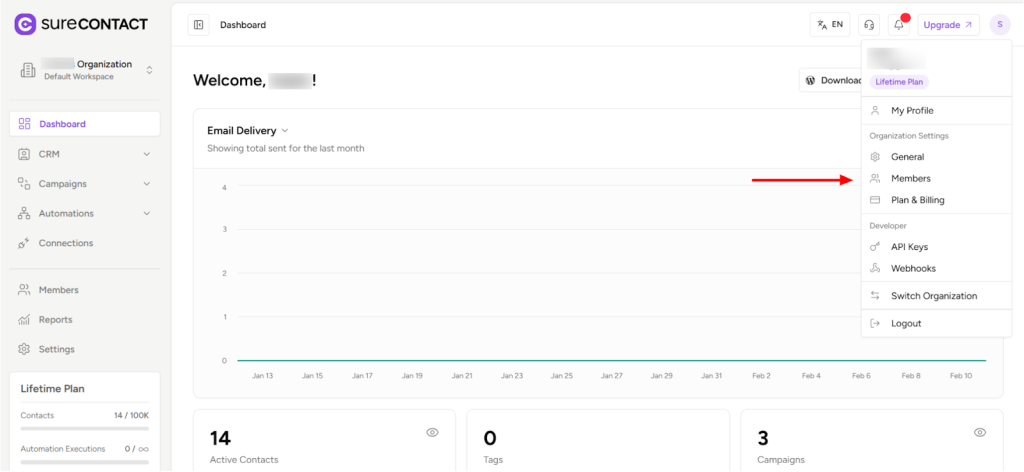
2. Open Members Section
From the dropdown menu, select Members.
This will open the member management area, where you can view and manage workspace users.
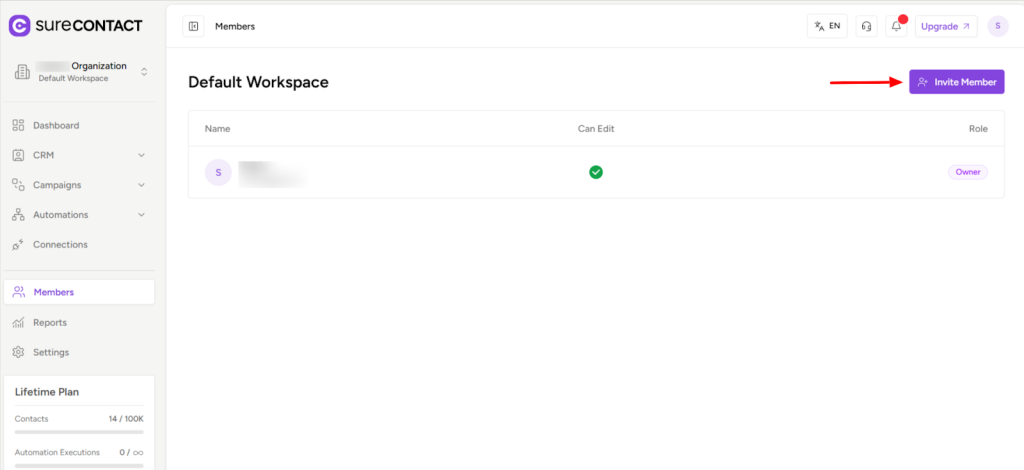
3. Click Invite Member
Click on the Invite Member button to start the invitation process.
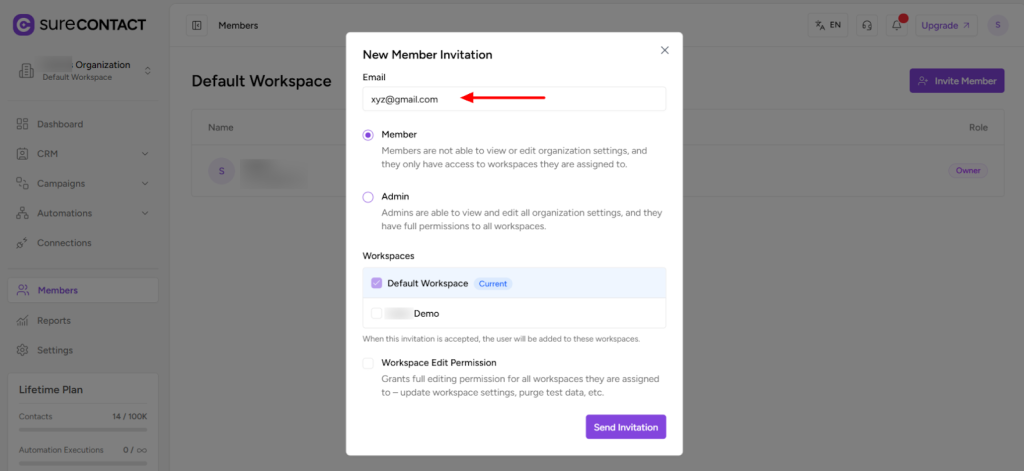
4. Enter Member Email Address
Enter the email address of the person you want to invite.
Important:
Make sure the email address you enter is already registered with a SureContact account. Invitations can only be sent to existing SureContact users.
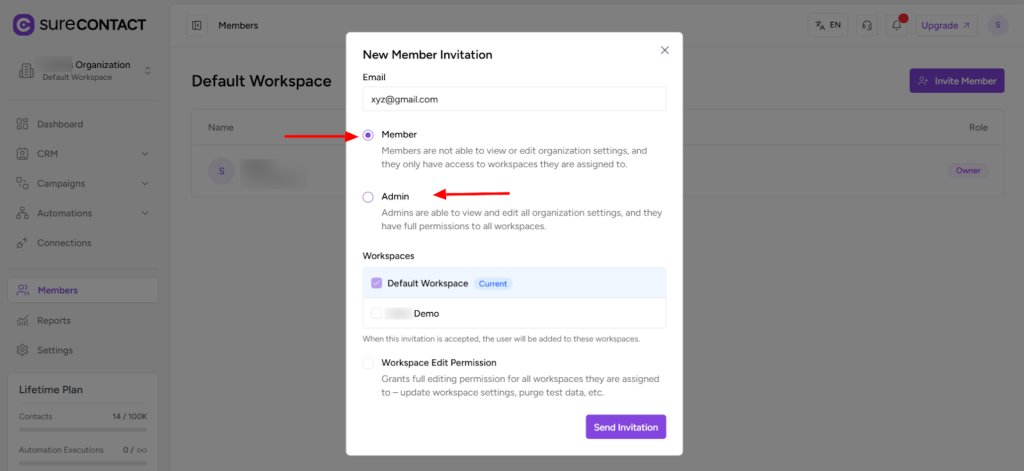
5. Assign Role Permissions
Select the appropriate role for the invited user:
- Admin:
Admin users have advanced permissions and can help manage workspace settings, members, and automations. - Member:
Members can access and work within the workspace but have limited administrative permissions.
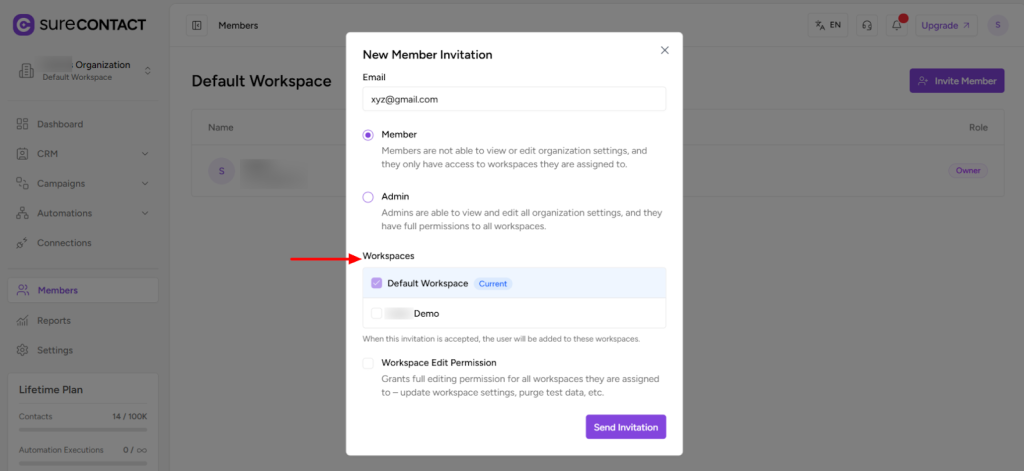
6. Assign Workspace
Choose the workspace you want the invited user to access. This ensures they only have access to the relevant workspace.
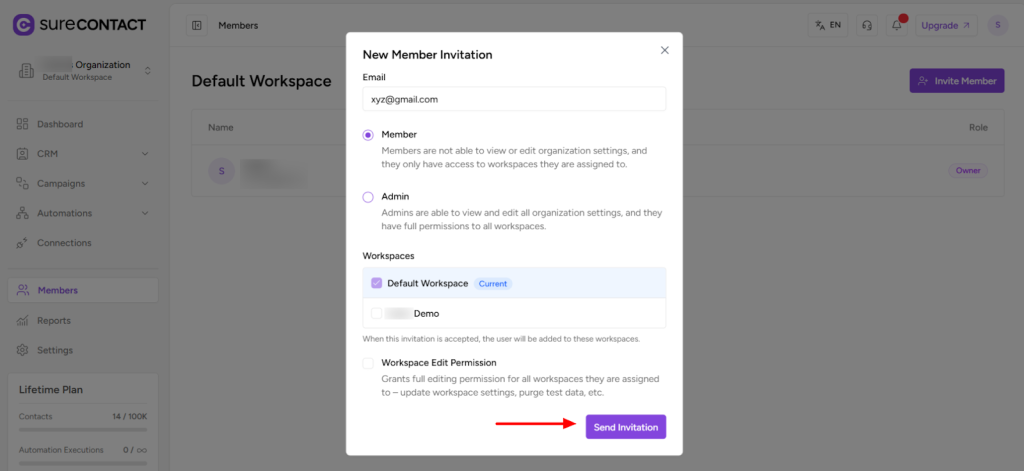
7. Send Invitation
Click Send Invitation to invite the user to your workspace.
What Happens Next?
- The invited user will receive an email invitation to join the workspace.
- Once they accept the invitation, they will gain access based on the role and workspace permissions you assigned.
We don't respond to the article feedback, we use it to improve our support content.