
- Introduction to SureContact Dashboard
- How to Install and Connect the SureContact WordPress Plugin
- What Do Contact Fields Mean in the SureContact WordPress Plugin
- How to Invite Members to a Workspace in SureContact
- How to Switch Organizations in SureContact
- Workspace-Level Contact Allocation in SureContact
- Workspace-Level Timezone Settings in SureContact
- How to Add a Custom Tracking Domain in a Workspace in SureContact
How to migrate all your Fluent CRM contacts to SureContact
SureContact allows you to seamlessly migrate your existing contacts from FluentCRM into your SureContact account. Follow the steps below to ensure a smooth and accurate migration.
Prerequisites
Before starting the migration, make sure:
1. FluentCRM is Installed on Your WordPress Site
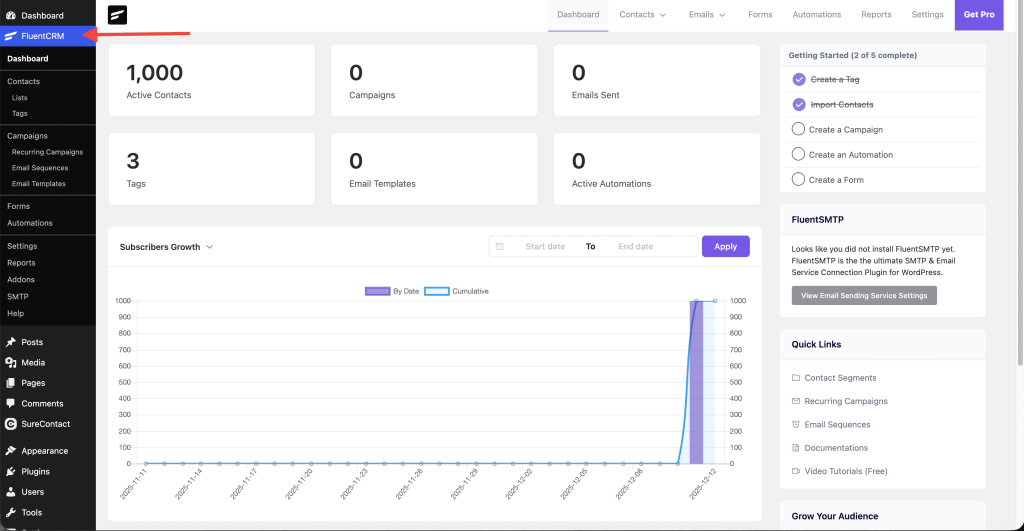
Your site must already have FluentCRM installed, since SureContact reads contact data directly from FluentCRM.
2. SureContact Plugin is Installed
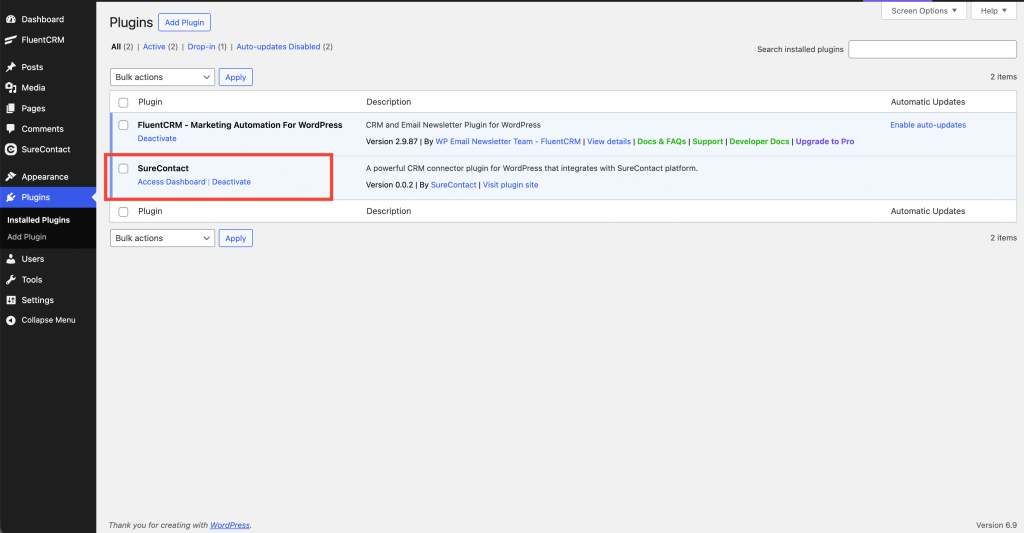
Download and install the SureContact WordPress plugin on the same site.
3. SureContact Plugin is Connected to Your SaaS Account
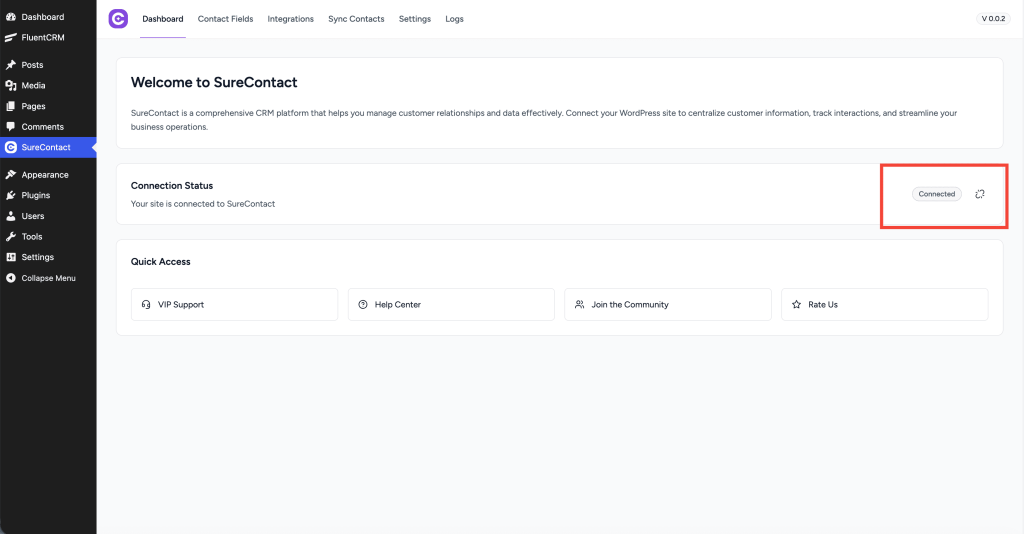
After installation, connect your SureContact plugin to your SureContact SaaS app.
If you haven’t done this yet, please check the SureContact documentation on How to Install and Connect the SureContact Plugin.
Once all three prerequisites are completed, you can begin the migration process.
Step 1: Enable FluentCRM Integration
- Open the SureContact plugin dashboard on your WordPress site.
- Navigate to Integrations.
- Find FluentCRM Integration and enable it.
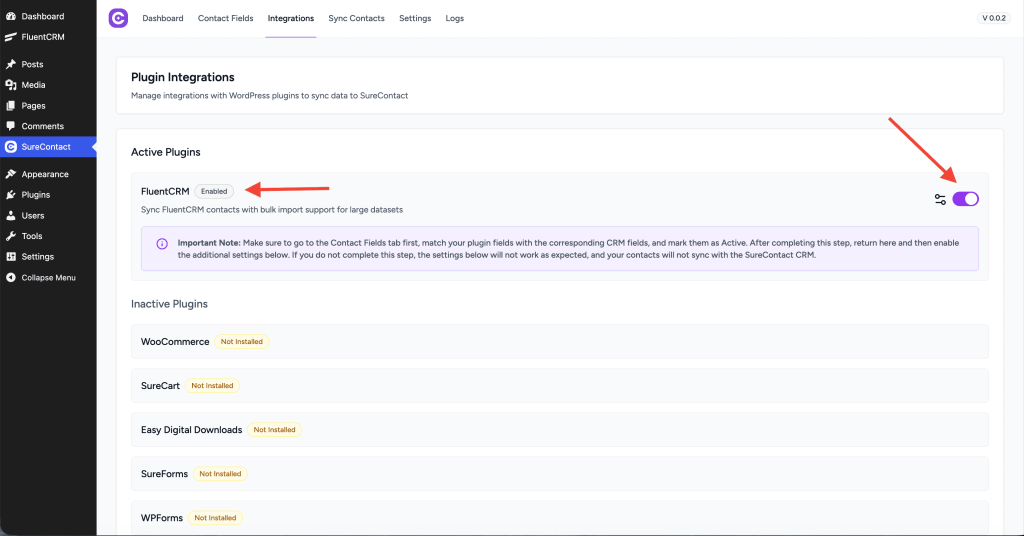
Why is this important?
If FluentCRM integration is not enabled, the Sync Contacts tab will not display the FluentCRM syncing option.
Step 2: Configure Contact Field Mapping
Before syncing contacts, you must map FluentCRM fields to SureContact fields to ensure data is transferred correctly.
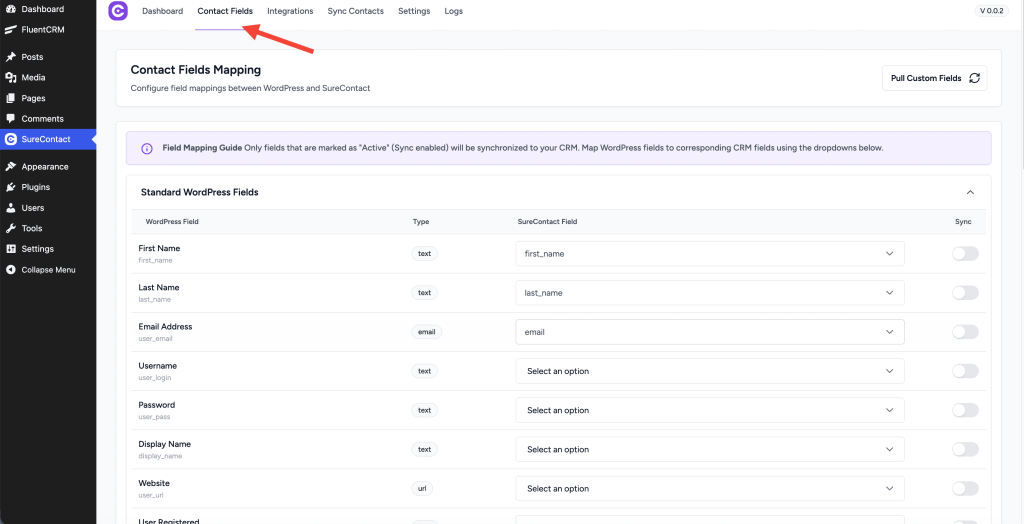
- Go to the Contact Fields Mapping page in the SureContact plugin.
- Expand the FluentCRM section.
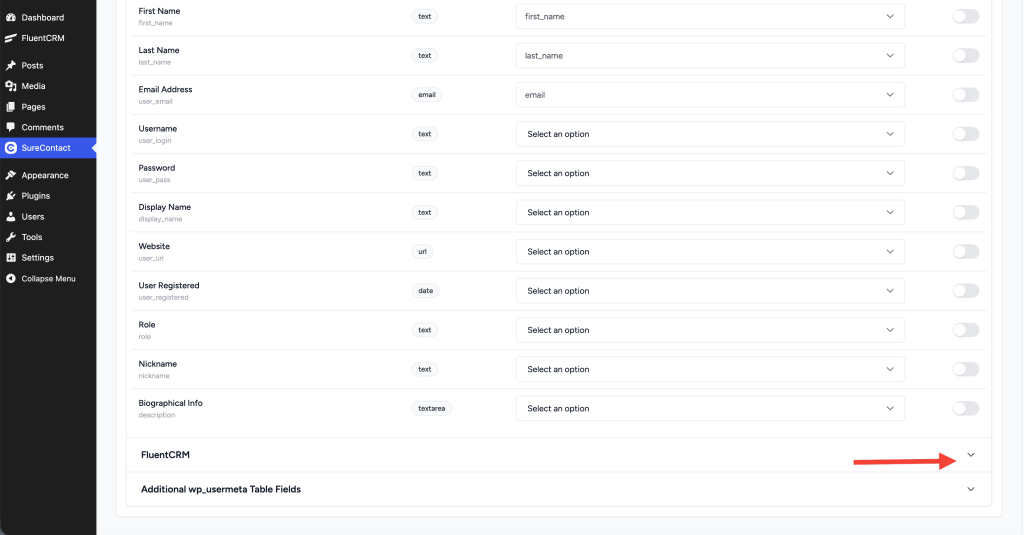
- You will see:
- All FluentCRM fields are listed on the left
- Corresponding SureContact field dropdowns on the right
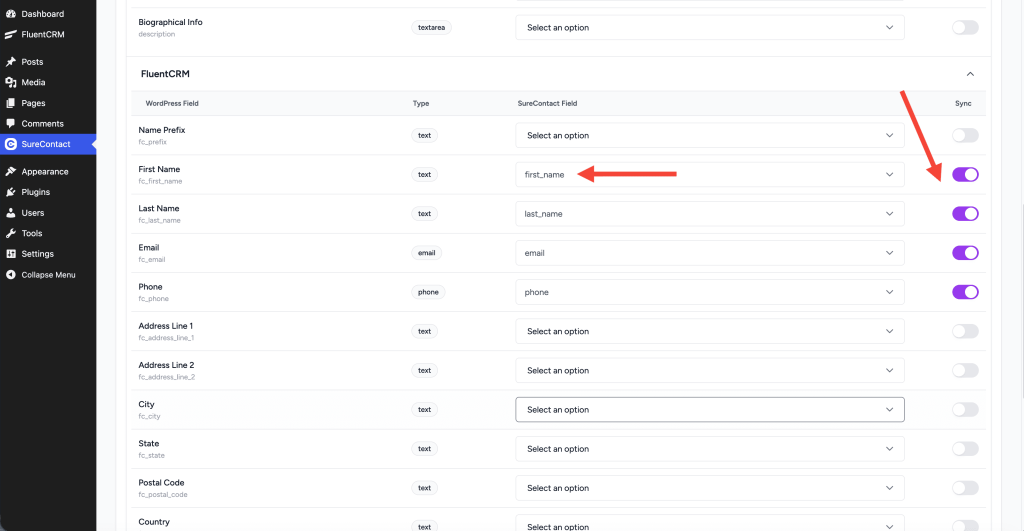
Map each FluentCRM field to a SureContact field
Example:
- FluentCRM Field → First Name
- SureContact Field → First Name
- FluentCRM Field → Last Name
- SureContact Field → Last Name
Enable Sync Switch
For each mapped field, toggle the sync switch to enable synchronization.
Save Your Changes
After mapping all fields, click Save Changes to finalize the mapping configuration.
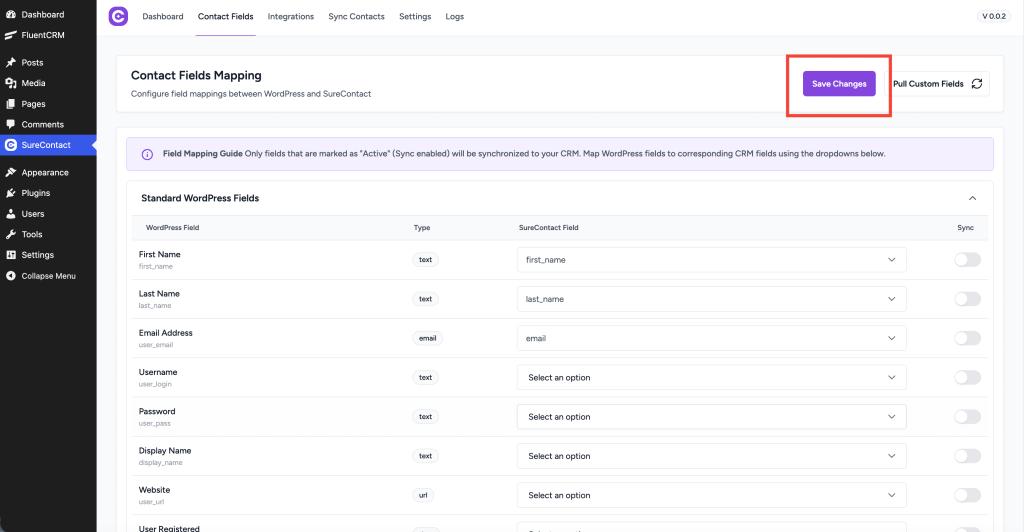
This ensures that when migration happens, the correct FluentCRM data will populate the matching SureContact fields.
Step 3: Configure FluentCRM Integration Settings
Next, return to the Integrations page and open the Settings for FluentCRM.
Ensure that:
- Sync Lists
- Sync Tags
- Sync Custom Fields
- Apply SureContact Lists & Tags during bulk sync (optional)
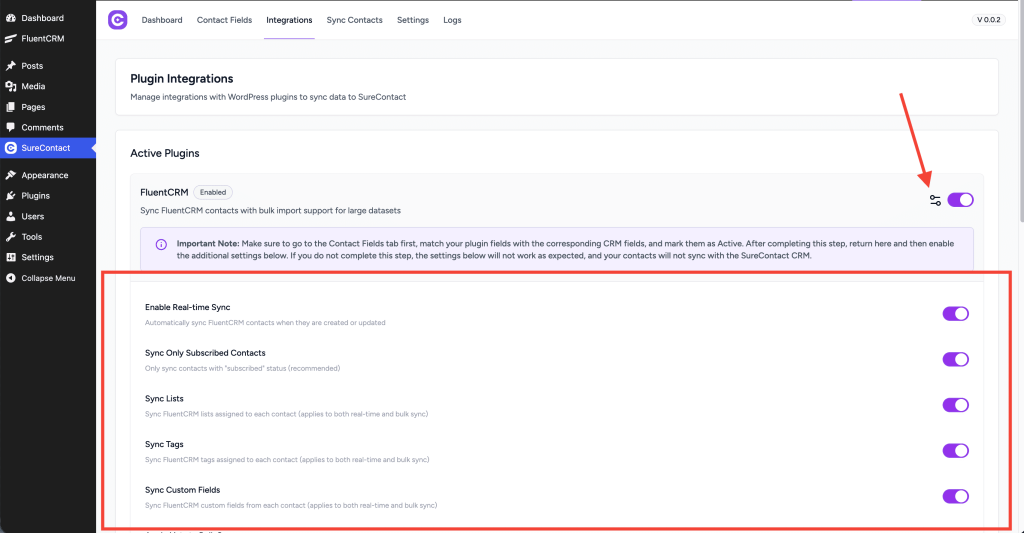
These settings help ensure FULL migration of contact attributes from FluentCRM into SureContact.
Click Save Settings once done.
Step 4: Start Migrating Contacts
After completing mappings and integration settings:
- Go to the Sync Contacts tab in the SureContact plugin.
- Locate the section Sync FluentCRM Contacts.
- Click Start Migration.
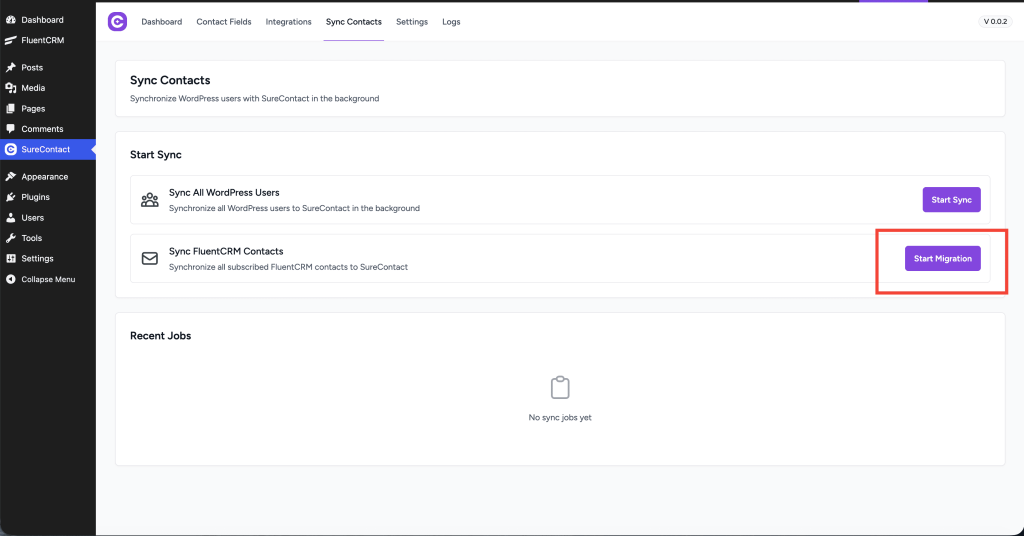
SureContact will now begin importing all FluentCRM contacts into your SureContact account.
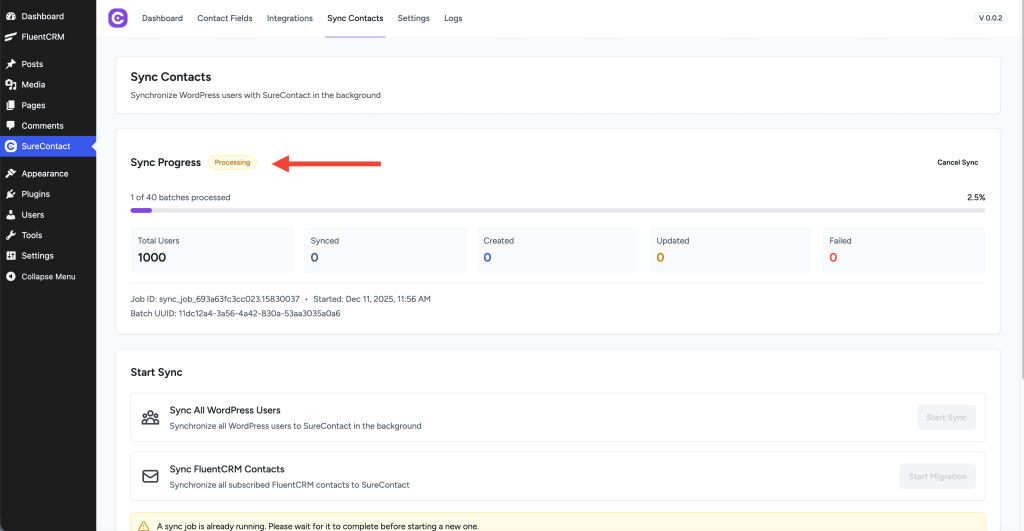
What Happens During Migration
✔ All FluentCRM contacts are imported
✔ Field values are mapped into SureContact fields
✔ Lists and Tags are synced (if enabled)
✔ Custom Fields are synced (if enabled)
✔ Contacts appear in your SureContact CRM with correct data
Migration time will depend on the number of contacts in your FluentCRM database.
Migration Complete
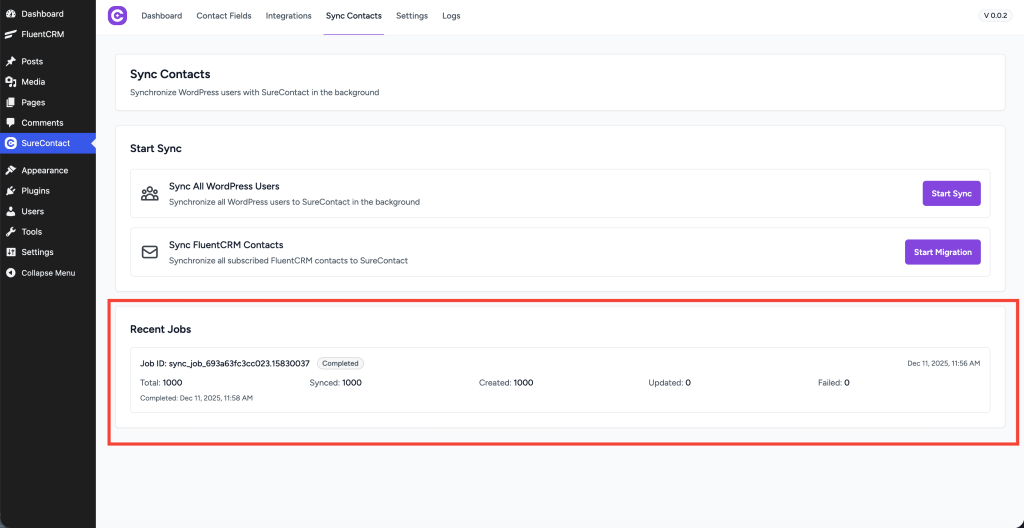
Once migration is complete, you will see:
- On the Sync Contacts page, you will see the details of the completed migration job under Recent Jobs, along with the Job ID and other details such as Total, Synced, Created, Updated, and Failed contacts. You can also see the completion time.
- Contacts inside your SureContact Dashboard
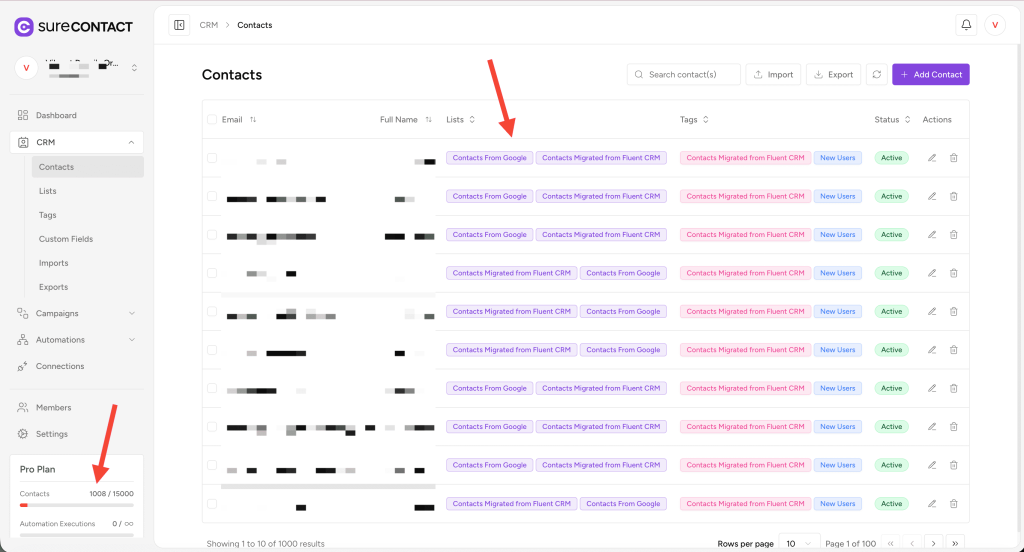
- Lists, tags, and custom data applied
- Accurate mapping of all contact records
You can now start managing, filtering, and communicating with contacts inside SureContact.
We don't respond to the article feedback, we use it to improve our support content.