
- Introduction to SureContact Dashboard
- How to Install and Connect the SureContact WordPress Plugin
- What Do Contact Fields Mean in the SureContact WordPress Plugin
- How to Invite Members to a Workspace in SureContact
- How to Switch Organizations in SureContact
- Workspace-Level Contact Allocation in SureContact
- Workspace-Level Timezone Settings in SureContact
- How to Add a Custom Tracking Domain in a Workspace in SureContact
Setup SMTP in Surecontact
Surecontact CRM allows you to send beautiful and reliable email campaigns to your contact lists.
To ensure your campaigns reach your audience without errors or delivery failures, you must first configure Email Sending Settings, also known as SMTP Configuration.
This guide explains how to set up SMTP using both SMTP credentials and API keys.
Accessing SMTP Settings
- Log in to your Surecontact Dashboard.
- In the left sidebar, expand the Campaigns section.
- Click SMTP.
- On the SMTP page, click Add Configuration.
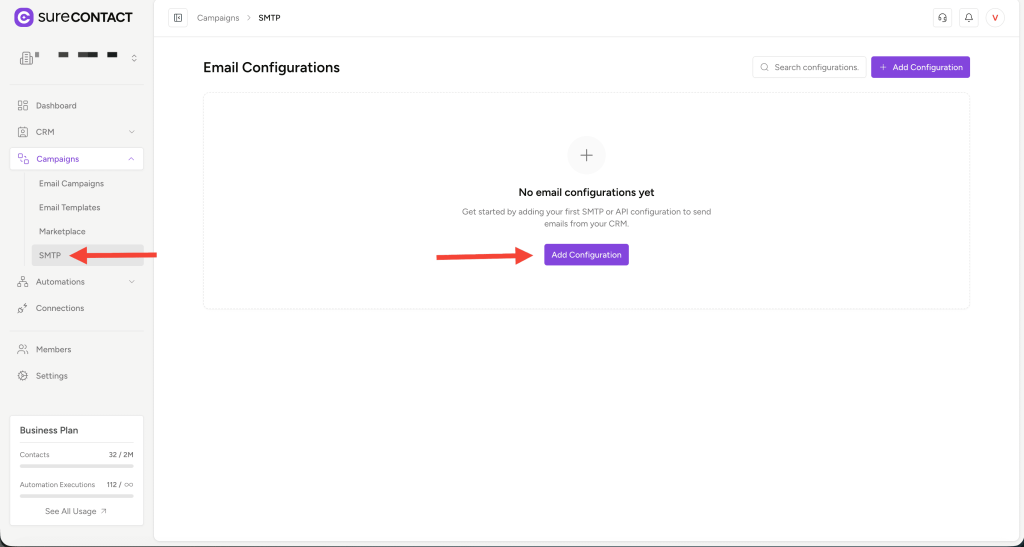
This will open the SMTP Email Provider flyout.
Available Email Providers
Surecontact supports multiple email delivery providers through both SMTP and API:
SMTP Providers (8 options):
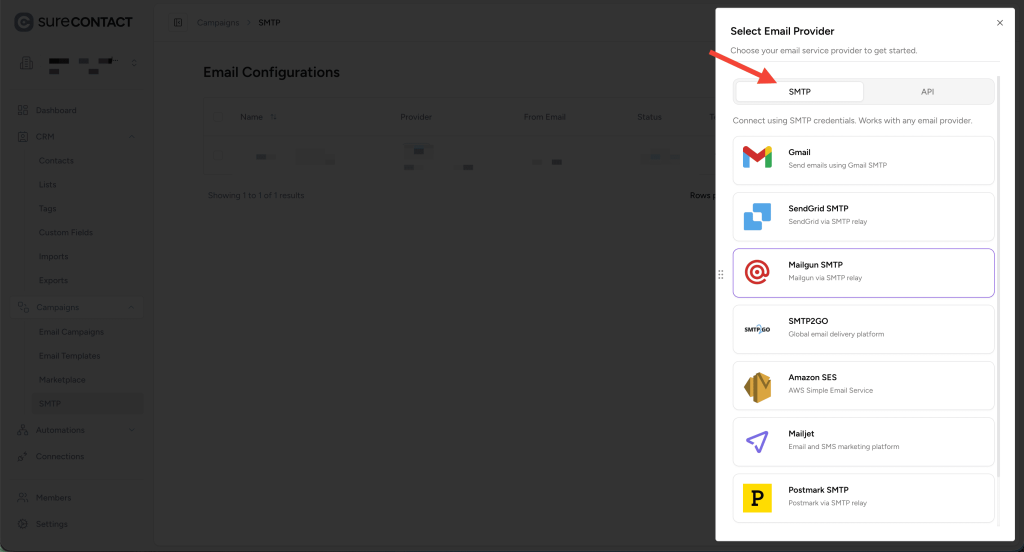
- Gmail
- SendGrid
- Mailgun
- SMTP2GO
- Amazon SES
- Mailjet
- Postmark
- Custom SMTP
API Providers (5 options):
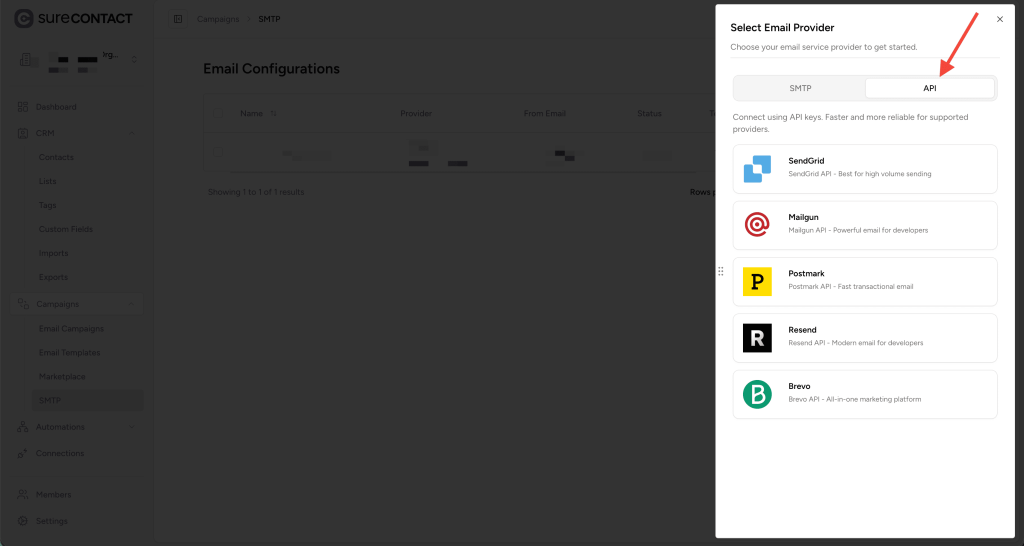
- SendGrid
- Mailgun
- Postmark
- Resend
- Brevo
You can configure any provider depending on your email service.
1. Configuring SMTP (Example: Gmail SMTP)
Let’s walk through configuring Gmail via SMTP as an example.
Step 1 — Select Gmail
- Click Add Configuration
- Select Gmail
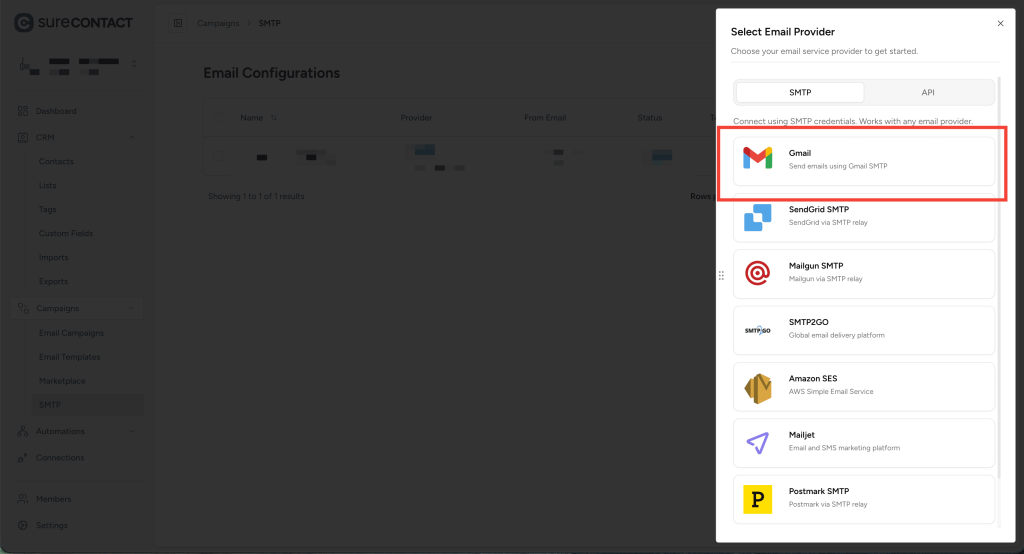
- A new flyout will open: Configure Gmail
Fields Required for Gmail SMTP
Below are all fields you need to fill:
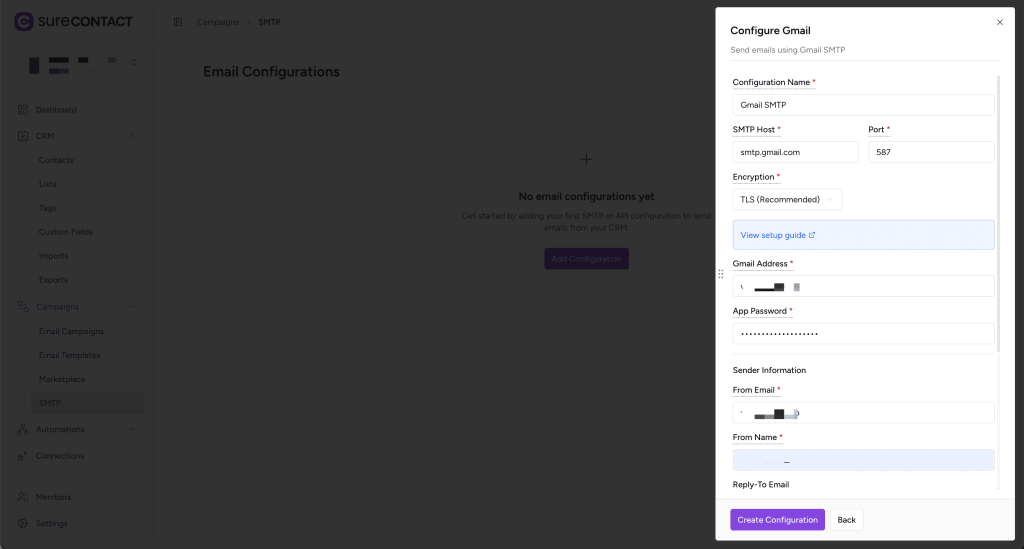
Basic Configuration
- Configuration Name
Name your SMTP setup (Example: “Gmail Primary SMTP”) - SMTP Host
Automatically set to smtp.gmail.com - Port
Recommended port: 587 (TLS)
Other options: 465 (SSL), 25 - Encryption
Recommended: TLS (leave default)
Gmail Credentials
- Gmail Address
Your full Gmail address (e.g. [email protected]) - App Password
Not your Gmail login password.
You must create an App Password.
How to Generate Gmail App Password
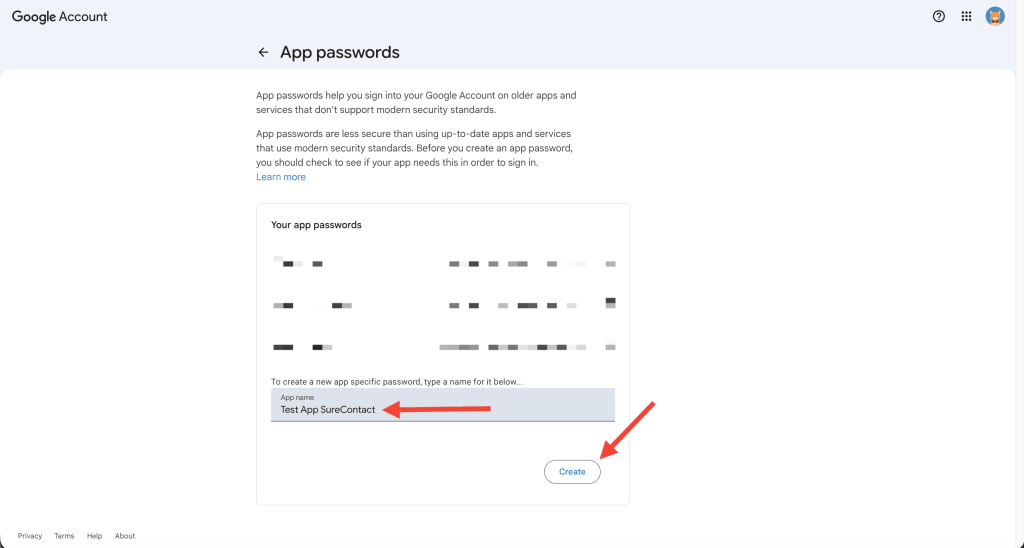
- Visit myaccount.google.com/apppasswords
- You need to create an app here. Provide a name for your app and click Create.
- Gmail will generate a 16-character app password
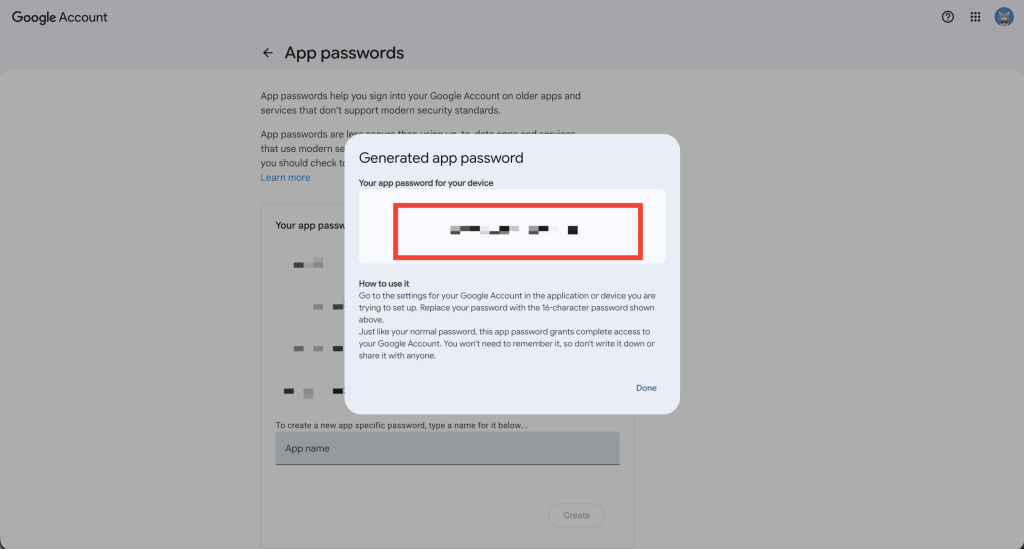
- Copy & paste it into the App Password field in Surecontact
Sender Information
- From Email
The email address contacts will see as the sender - From Name
Display name for the sender - Reply-To Email (optional)
Email address for replies - Reply-To Name (optional)
Display name for reply-to
Rate Limit Settings (Optional)
You can set limits on:
- Emails per day
- Emails per hour
- Emails per second
These settings help you stay within provider sending limits.
Final Step — Create Configuration
Click Create Configuration.
Your Gmail SMTP setup is now complete!
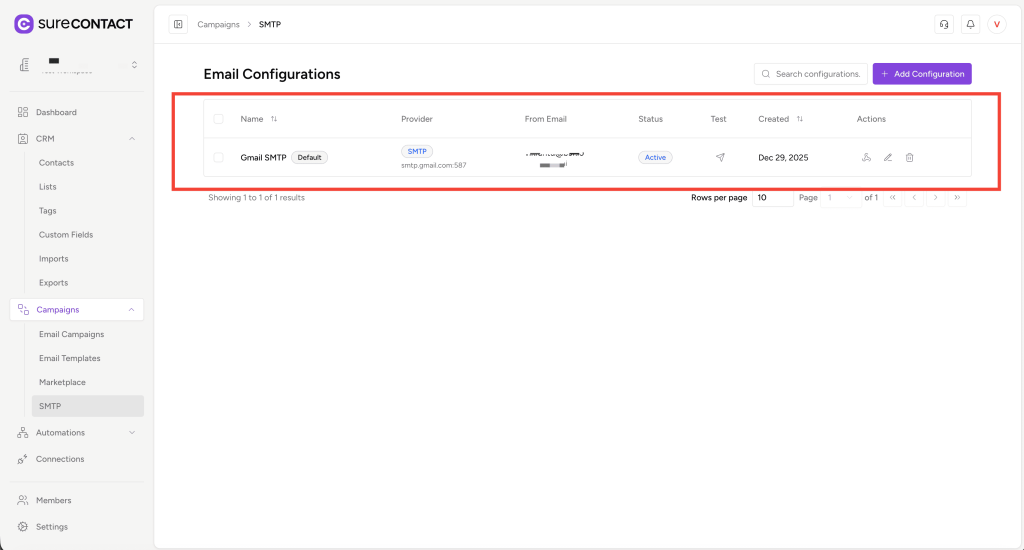
Testing Your SMTP Configuration
Surecontact lets you test your SMTP connection anytime.
- Go to SMTP list table
- Click Test Connection on your configuration row
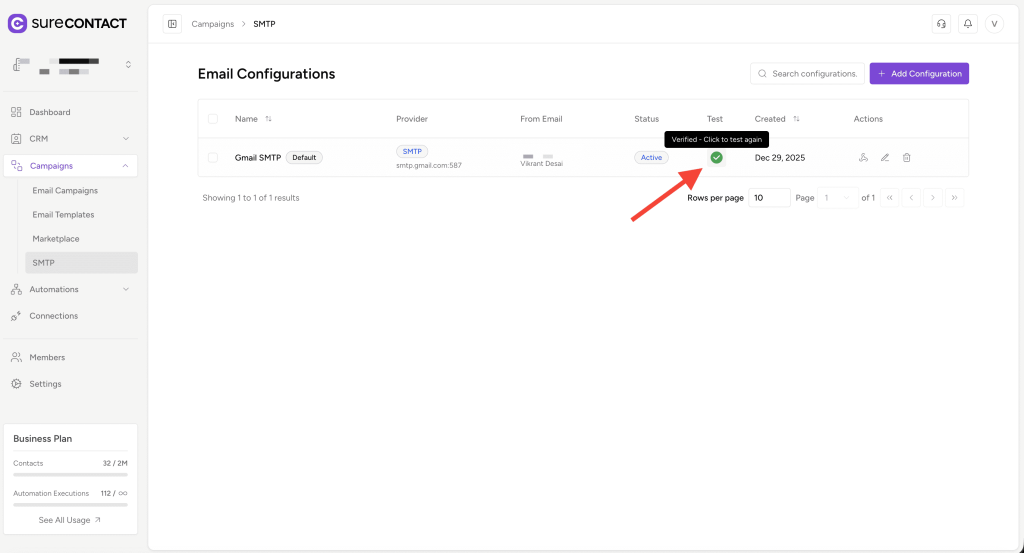
- A success or error notification will appear
Use this to ensure everything is correctly configured before sending campaigns.
Webhook URLs for Email Events
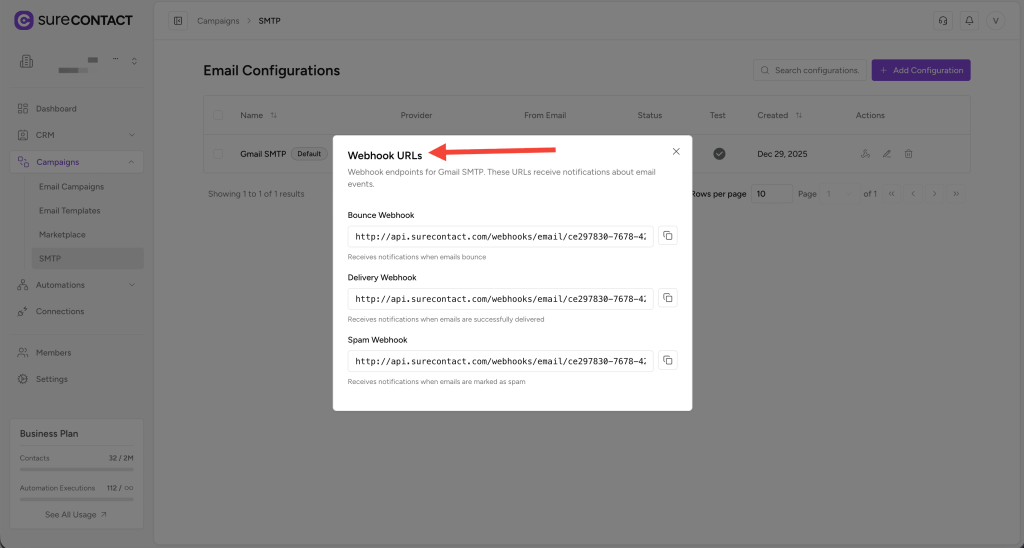
Surecontact automatically provides Webhook URLs for every SMTP configuration.
You can use these in external tools (like OttoKit) to trigger workflows based on email events.
Available Webhooks:
- Bounce Webhook — triggered when an email bounces
- Delivery Webhook — triggered when an email is delivered
- Spam Webhook — triggered when an email is marked as spam
To view them:
- Click View Webhook URLs from the configuration row
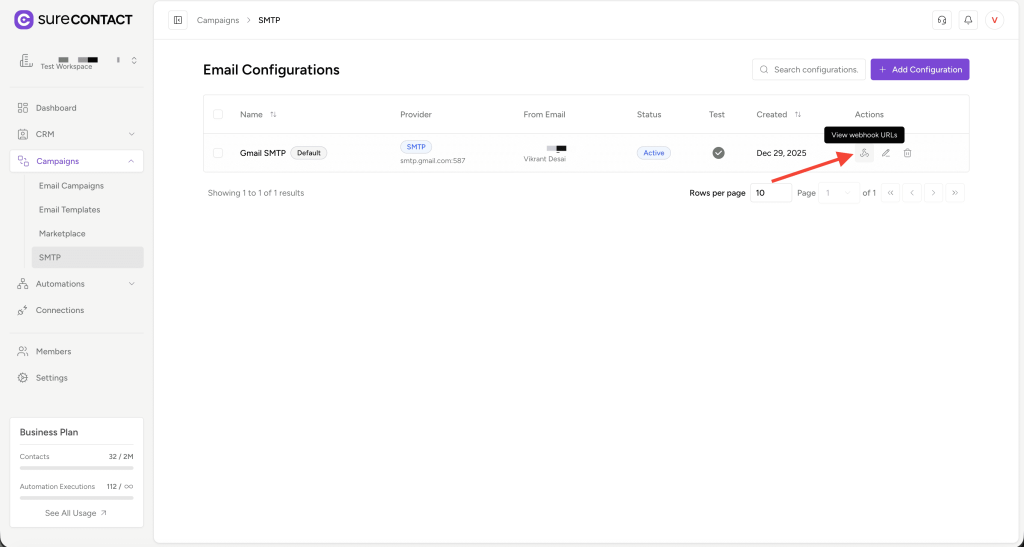
- Copy the URLs and use them as needed
Managing Your SMTP Configurations
For every SMTP setup, you can:
- Edit Configuration — update any field
- Delete Configuration — remove an entry you no longer need
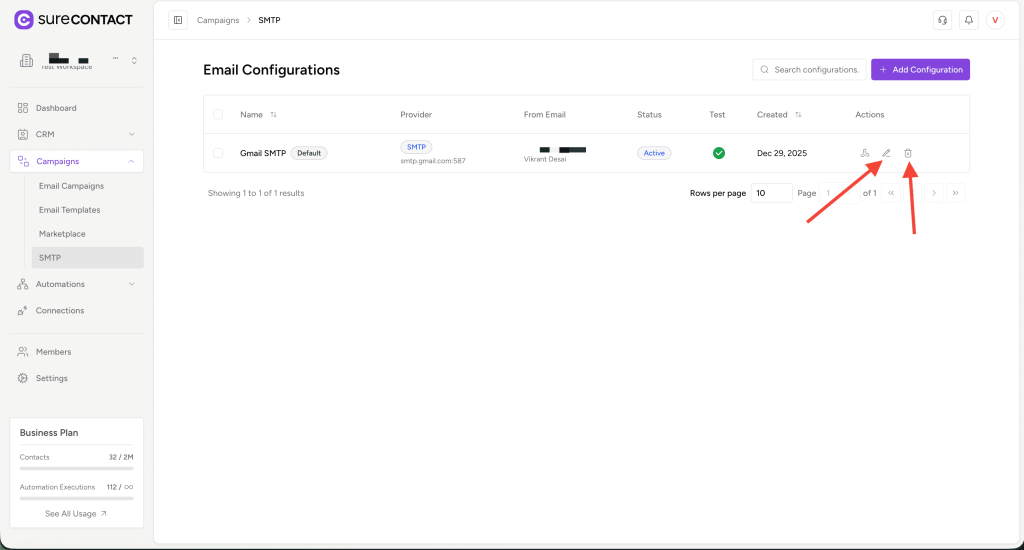
Changes apply immediately.
2. Configuring Email Using API (Example: Mailgun API)
You can also configure email sending using provider API keys instead of SMTP credentials.
Let’s take Mailgun API as an example.
Step 1 — Select Mailgun API
- Click Add Configuration
- Select Mailgun API
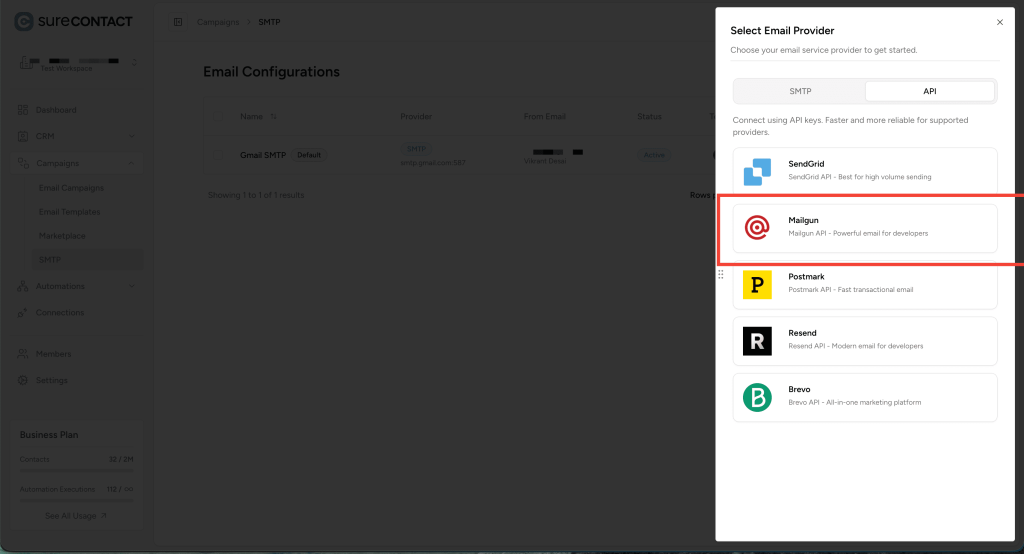
- The Configure Mailgun API flyout opens
Fields Required for Mailgun API
Most fields are the same as SMTP except these two:
API-Specific Fields
- API Key
Your private Mailgun API key (found in your Mailgun dashboard) - Sending Domain
Your verified Mailgun domain (e.g. mg.yourdomain.com)
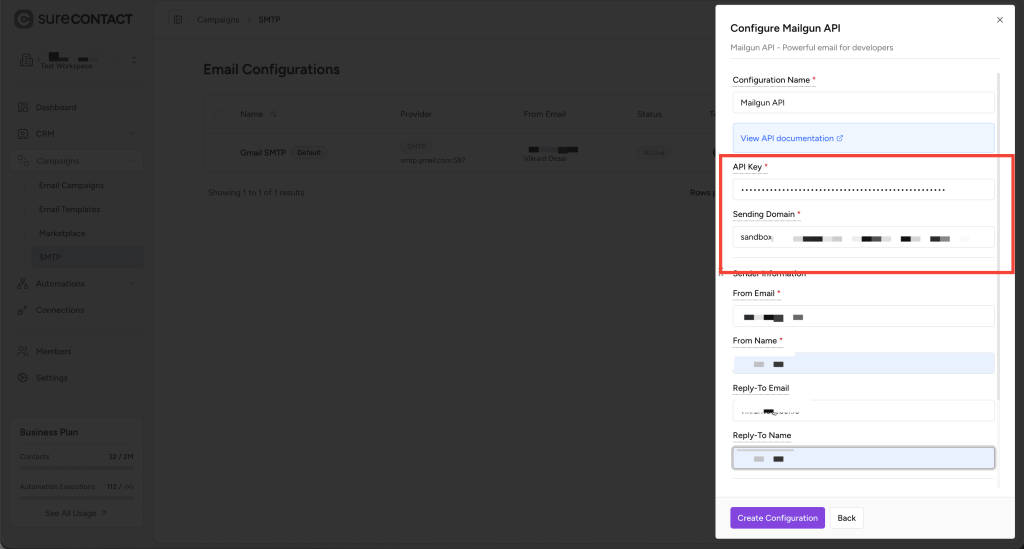
Sender Info, Rate Limits, and Other Options
These fields work the same as SMTP configuration.
Final Step — Save
Click Create Configuration.
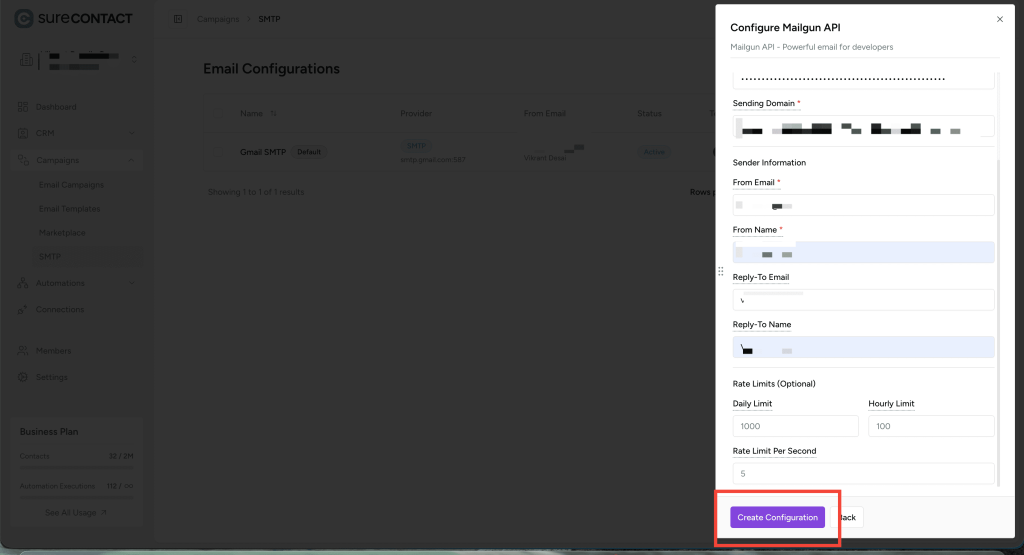
Your Mailgun API configuration is now active.
You’re Ready to Send Campaigns!
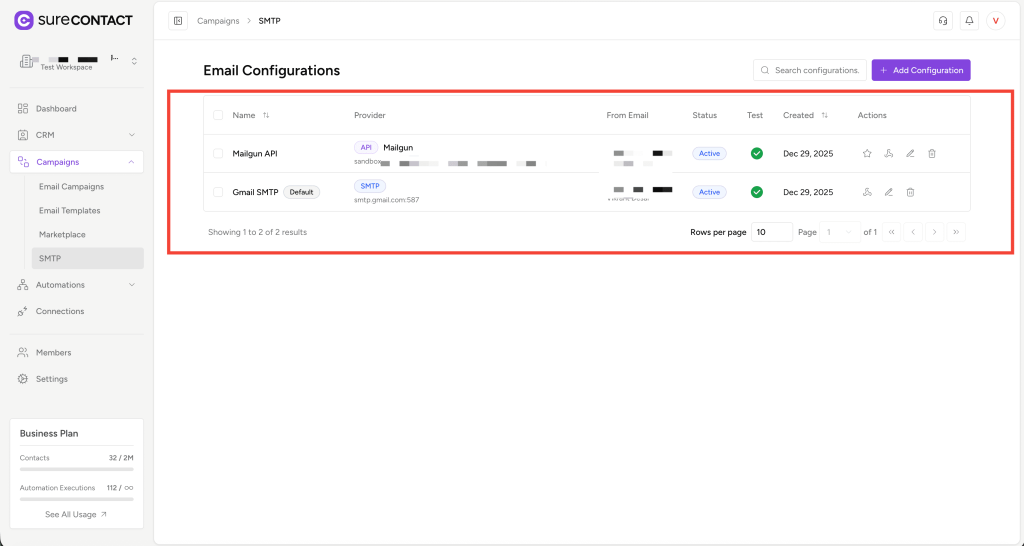
Once your SMTP or API configuration is set up:
- You can select it while creating email campaigns
- All emails will be sent using your configured provider
- You’ll enjoy higher deliverability and a smoother campaign experience
We don't respond to the article feedback, we use it to improve our support content.