
- Introduction to SureContact Dashboard
- How to Install and Connect the SureContact WordPress Plugin
- What Do Contact Fields Mean in the SureContact WordPress Plugin
- How to Invite Members to a Workspace in SureContact
- How to Switch Organizations in SureContact
- Workspace-Level Contact Allocation in SureContact
- Workspace-Level Timezone Settings in SureContact
- How to Add a Custom Tracking Domain in a Workspace in SureContact
What Do Contact Fields Mean in the SureContact WordPress Plugin
Overview
In SureContact, Contact Fields are used to map data between SureContact and all supported sources, including:
- WordPress users
- Fluent CRM
- WooCommerce
- SureCart
- Other supported plugins
Contact Fields mapping is not limited to WordPress only. It applies to every plugin or source that sends contact data to SureContact.
If contact fields are not mapped, contacts will not be created in SureContact during real-time sync or bulk sync.
Why Contact Fields Are Important
Contact fields tell SureContact which field from a plugin should go into which field in SureContact.
If this mapping is missing, SureContact cannot understand the incoming data and will skip creating the contact.
Example: Fluent CRM to SureContact
- You have Fluent CRM installed on your WordPress site.
- You install and connect the SureContact plugin.
- You decide to move from Fluent CRM to SureContact.
Now, when you:
- Create a Fluent CRM contact in real time, or
- Run a bulk sync
That contact will NOT be created in SureContact unless contact fields are mapped.
This is because SureContact does not know how Fluent CRM fields (like email, first name, last name) should be stored in SureContact.
Minimum Requirement
- If only the Email field is mapped, the contact will still be created in SureContact.
- Mapping additional fields is optional but recommended.
Before You Start
Make sure:
- The SureContact plugin is installed
- The plugin is connected to your SureContact account
Opening the Contact Fields Page
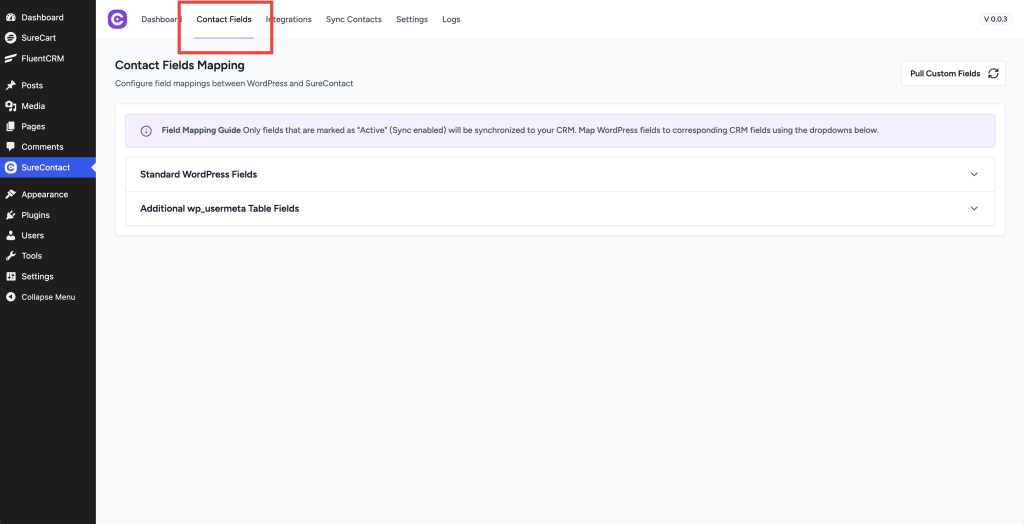
- Go to your WordPress Admin Dashboard
- Click on SureContact in the sidebar
- Click on the Contact Fields tab
When Fields Appear Automatically
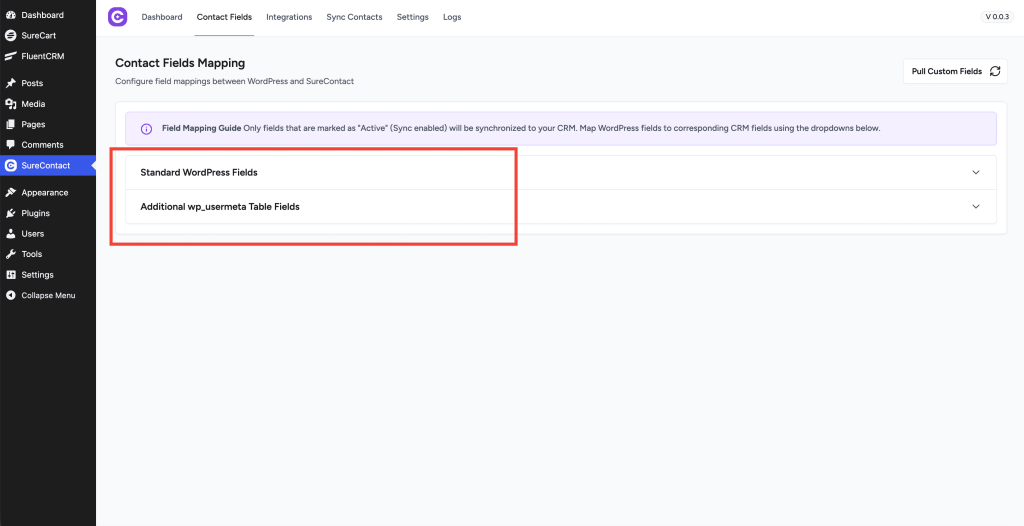
WordPress Standard fields and User meta appear by default
Plugins That Require Activation First
For plugins such as:
- Fluent CRM
- WooCommerce
- SureCart
- Other non-form plugins
Their contact fields do not appear automatically on the Contact Fields page.
Required Step
- Go to the Integrations page in the SureContact plugin
- Enable/activate the required plugin integration
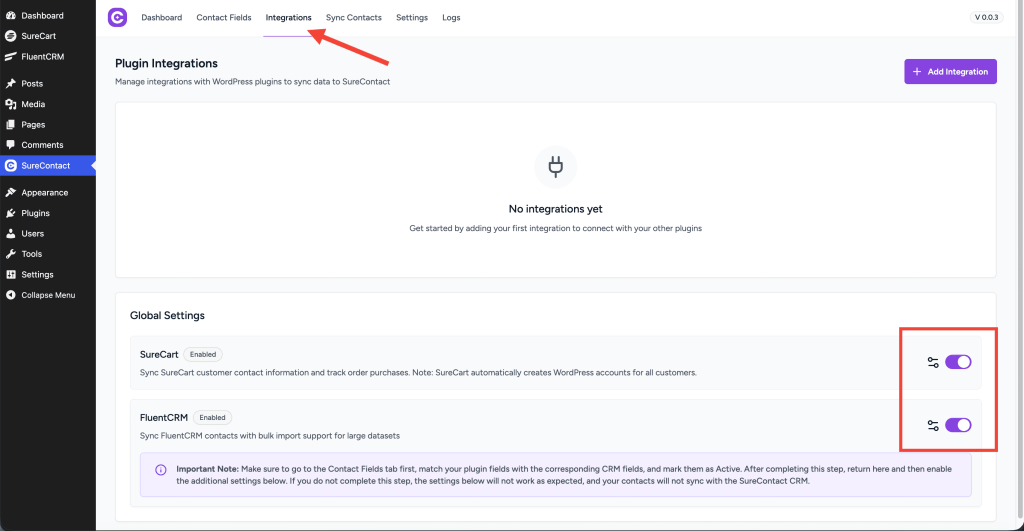
- Once activated, the plugin contact fields will appear on the Contact Fields page
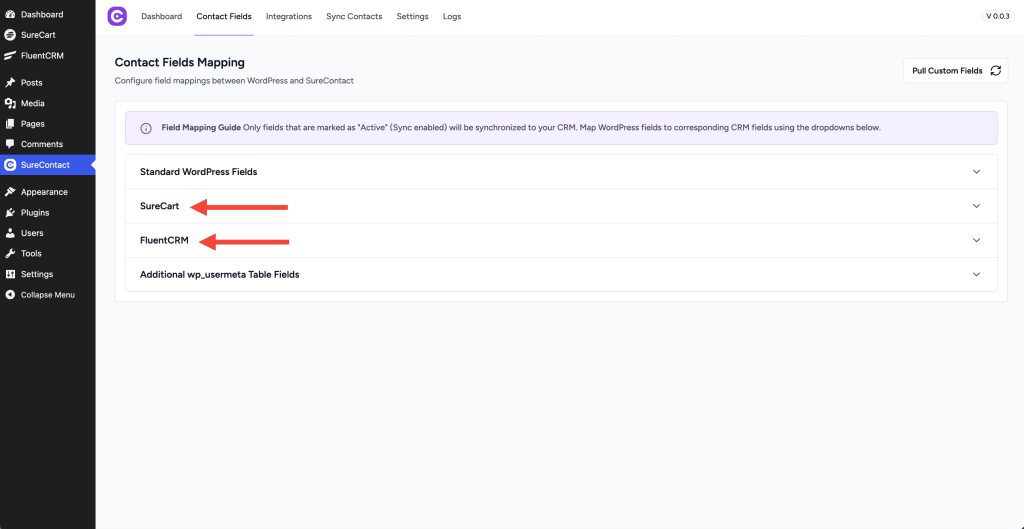
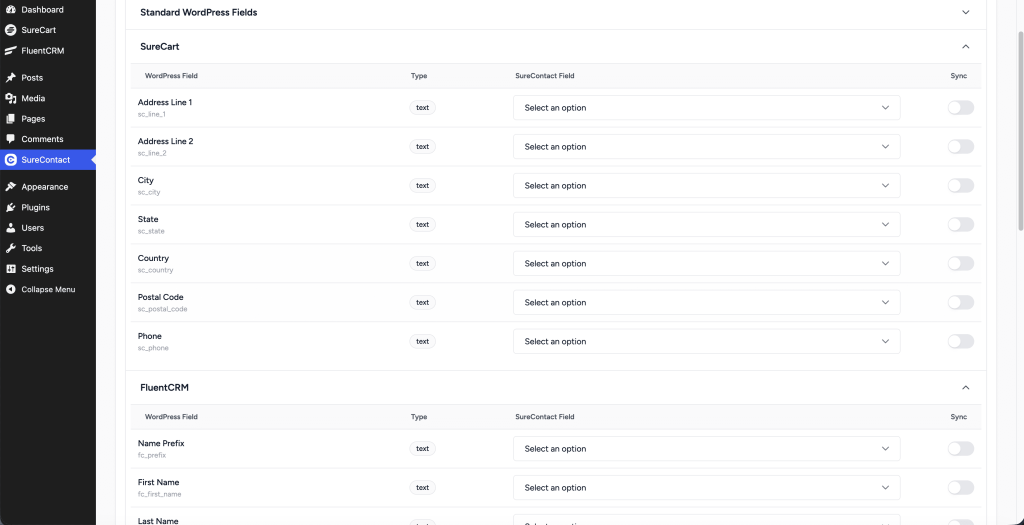
Only after this step you can map contact fields for those plugins.
Contact Fields Table Explanation
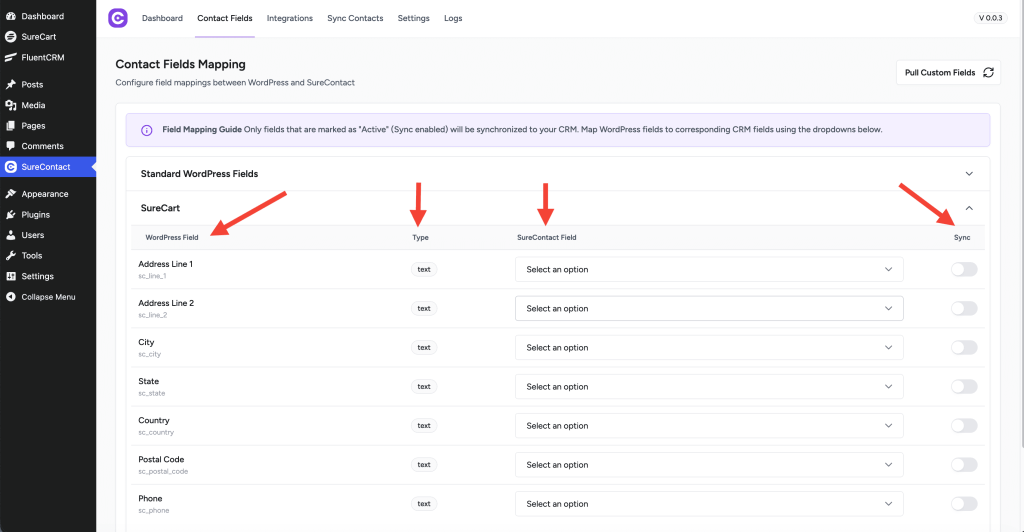
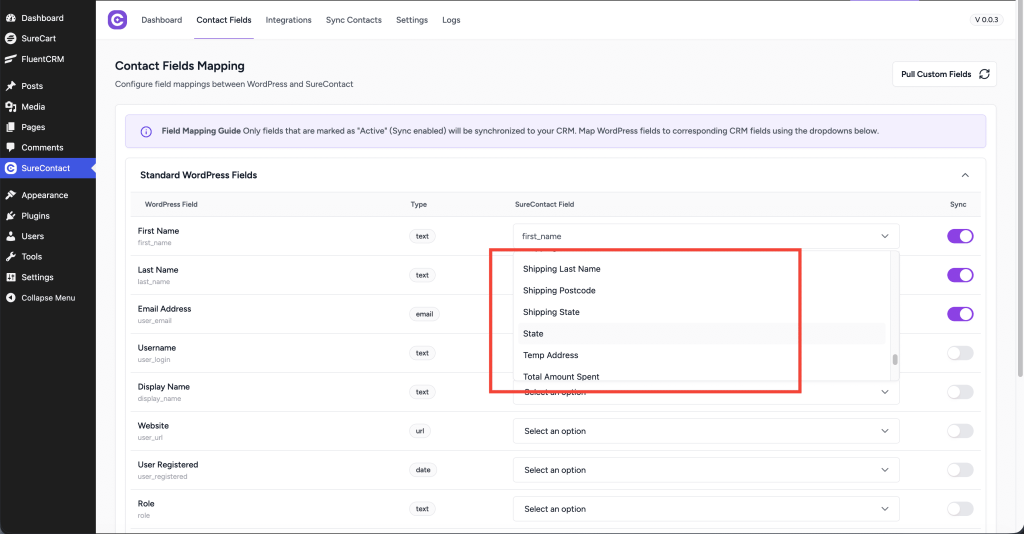
Inside each expandable section, a table appears with these columns:
- Source Field – Field from WordPress or the integrated plugin
- Type – Field data type
- SureContact Field – Dropdown to select the matching SureContact field
- Sync – Toggle to enable syncing
How Field Mapping Works
The mapping process is the same for all sources.
Example: Mapping First Name
- A source field (WordPress / Fluent CRM / WooCommerce) has First Name
- To store it in SureContact, you map it to the SureContact First Name field
Steps:
- Locate the field in the source section
- Select the matching field from the SureContact Field dropdown
- Turn ON the Sync toggle
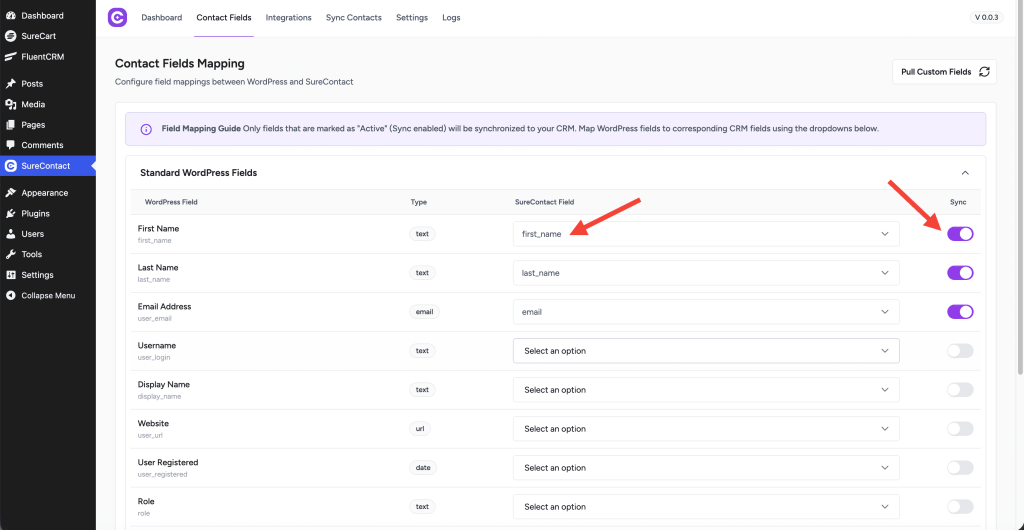
Mapping alone is not enough. Sync must be enabled for the field to work.
Custom Fields in SureContact
If you have custom fields in your SureContact account and they are not visible in the dropdown:
- Click the Pull Custom Fields button
- This button is located in the upper-right corner above the Contact Fields table
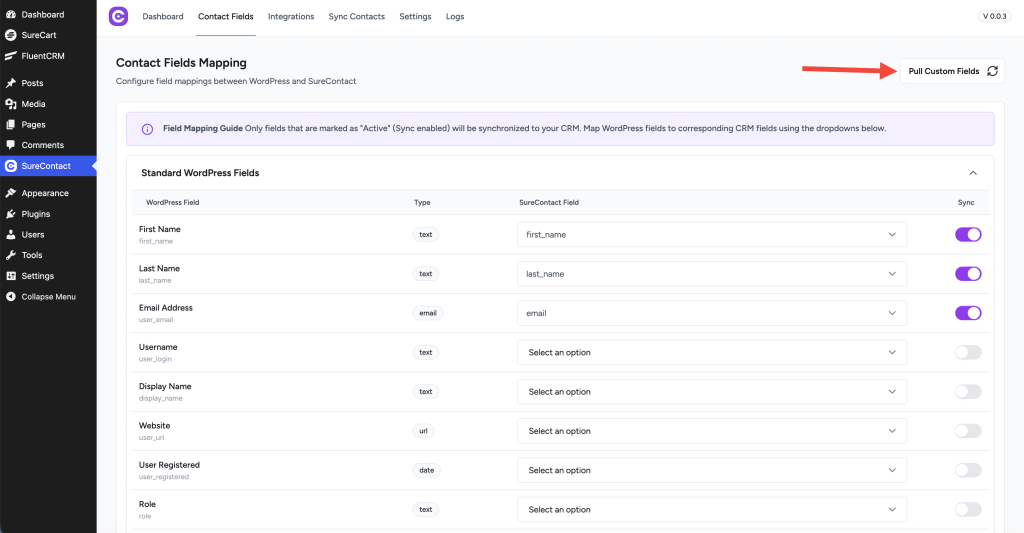
- This will sync custom fields from SureContact to WordPress
- The fields will then appear in the SureContact Field dropdown
What Happens After Mapping
Once contact fields are mapped and Sync is enabled:
- Bulk sync will create contacts correctly in SureContact
- Real-time contact creation will work
- All mapped data will be stored in SureContact
Next Step
To learn how WordPress users are sent to SureContact:
How to Bulk / Auto Sync WordPress Users to SureContact
We don't respond to the article feedback, we use it to improve our support content.