
- Introduction to SureContact Dashboard
- How to Install and Connect the SureContact WordPress Plugin
- What Do Contact Fields Mean in the SureContact WordPress Plugin
- How to Invite Members to a Workspace in SureContact
- How to Switch Organizations in SureContact
- Workspace-Level Contact Allocation in SureContact
- Workspace-Level Timezone Settings in SureContact
- How to Add a Custom Tracking Domain in a Workspace in SureContact
SureForms Integration with SureContact
SureContact allows you to seamlessly capture and sync form submissions from SureForms directly into your SureContact workspace. This integration helps you automatically add contacts, assign lists, apply tags, and map form fields without any manual work.
This guide explains the complete setup process and all available configuration settings for the SureForms integration.
Prerequisites
Before enabling the SureForms integration, please ensure the following:
1. SureForms Must Be Installed on Your WordPress Site
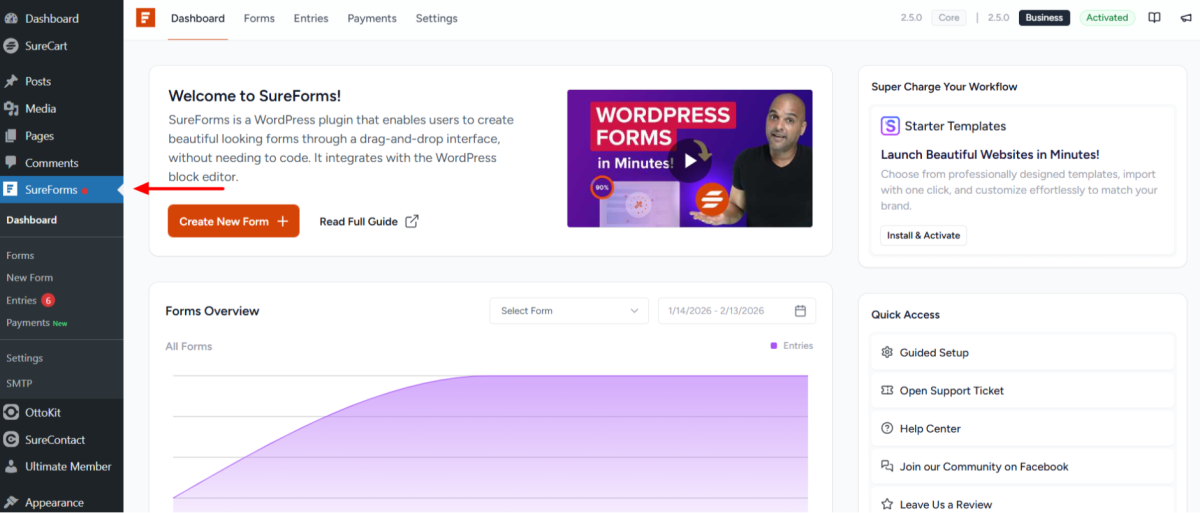
SureContact reads submission data directly from SureForms, so the SureForms plugin must be installed and active on your WordPress website.
2. The SureContact Plugin Must Be Installed on Your Site
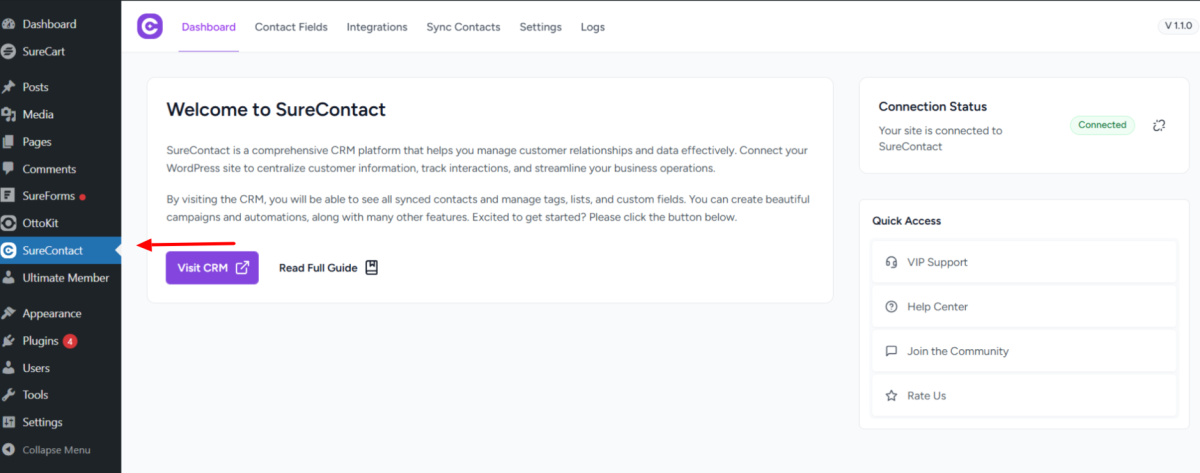
Install and activate the SureContact WordPress plugin.
3. The SureContact Plugin Must Be Connected to Your SureContact SaaS Account
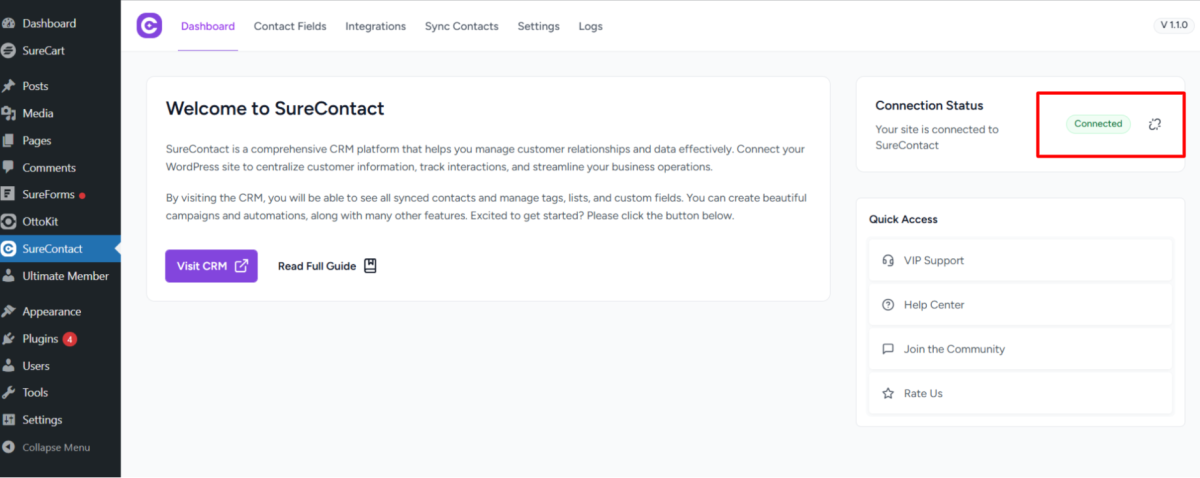
If the plugin is not yet connected, please refer to the documentation:
How to Install and Connect the SureContact Plugin
How to Connect SureForms with SureContact
Follow the steps below to connect SureForms with SureContact:
- Open your WordPress Dashboard.
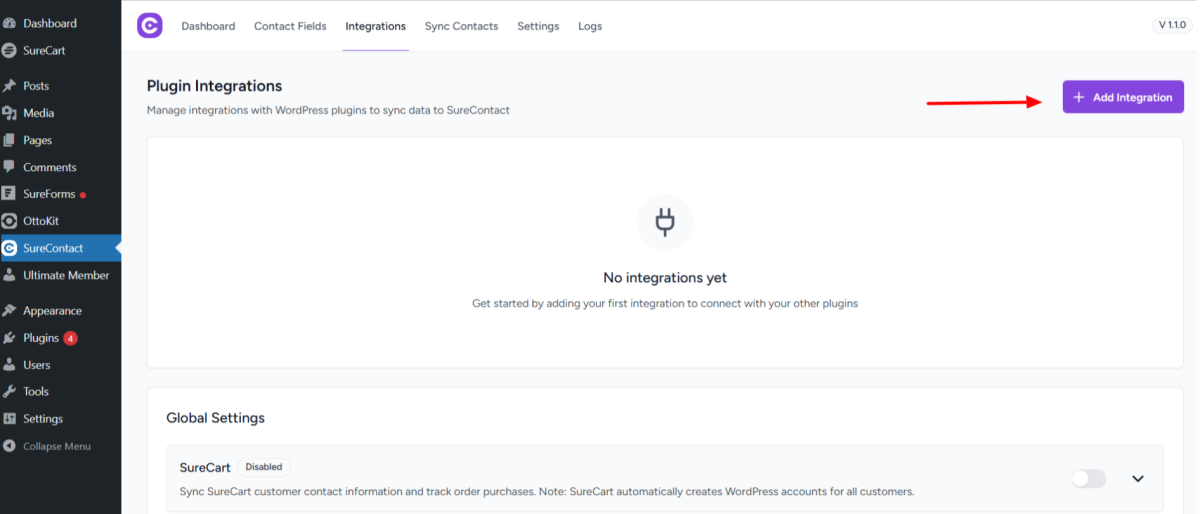
- Navigate to SureContact → Integrations.
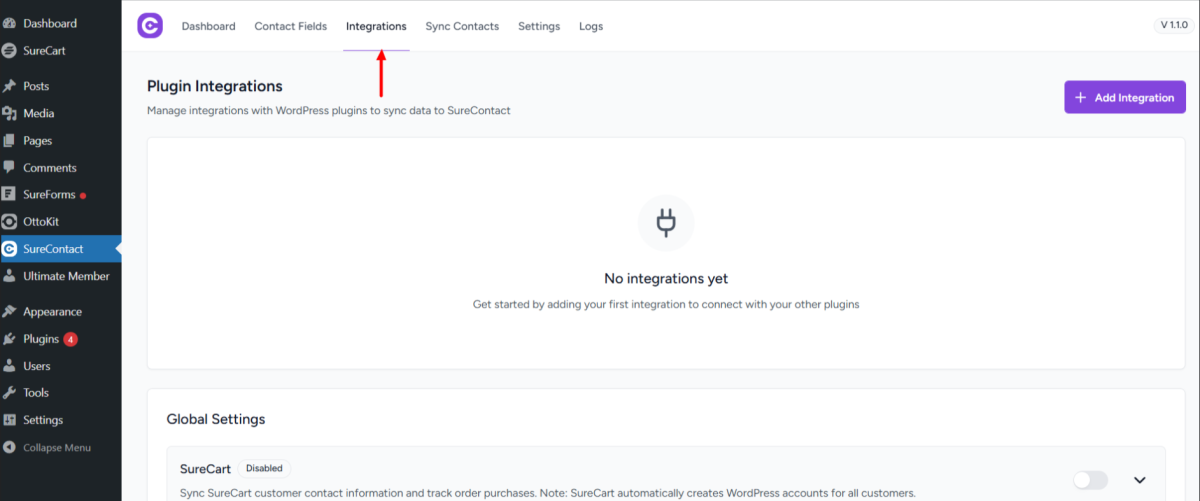
- Click Add New Integration.
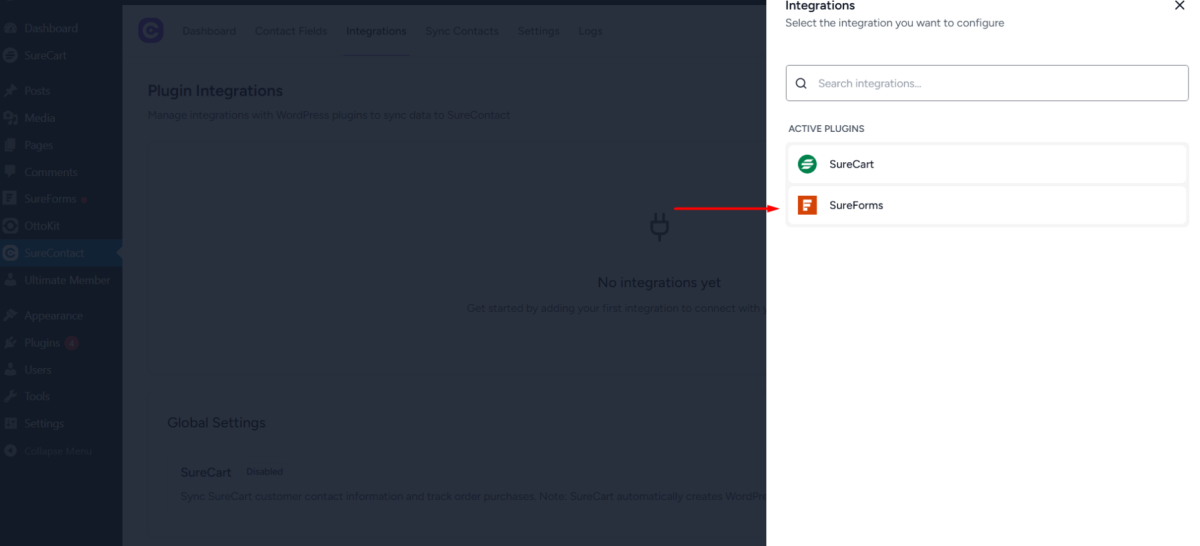
- Choose SureForms from the list of active plugins.
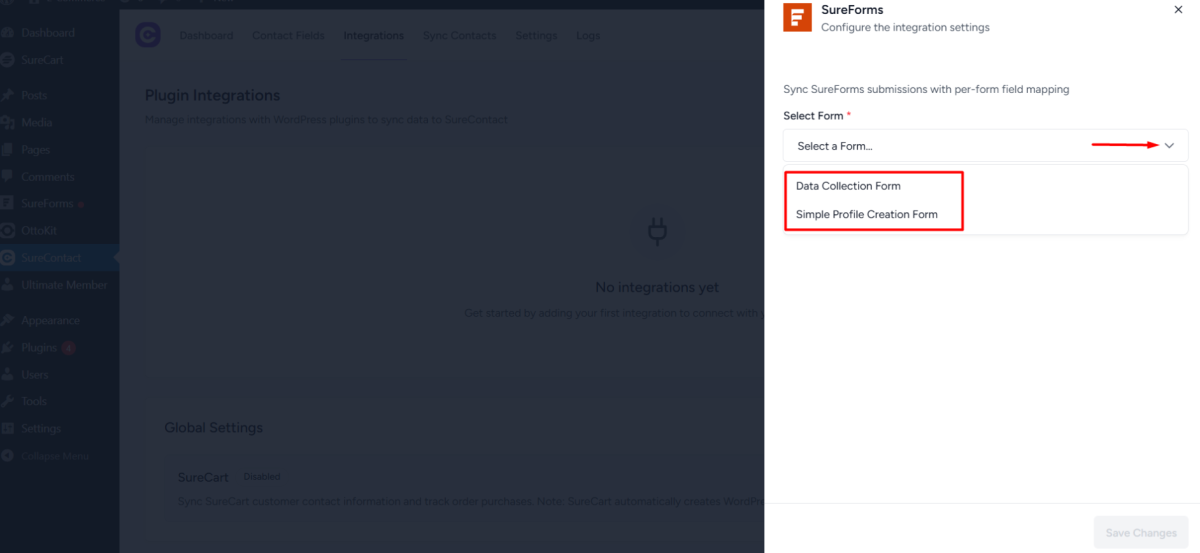
- Select the form you want to connect.
- Enter a title or note if required (this is optional).
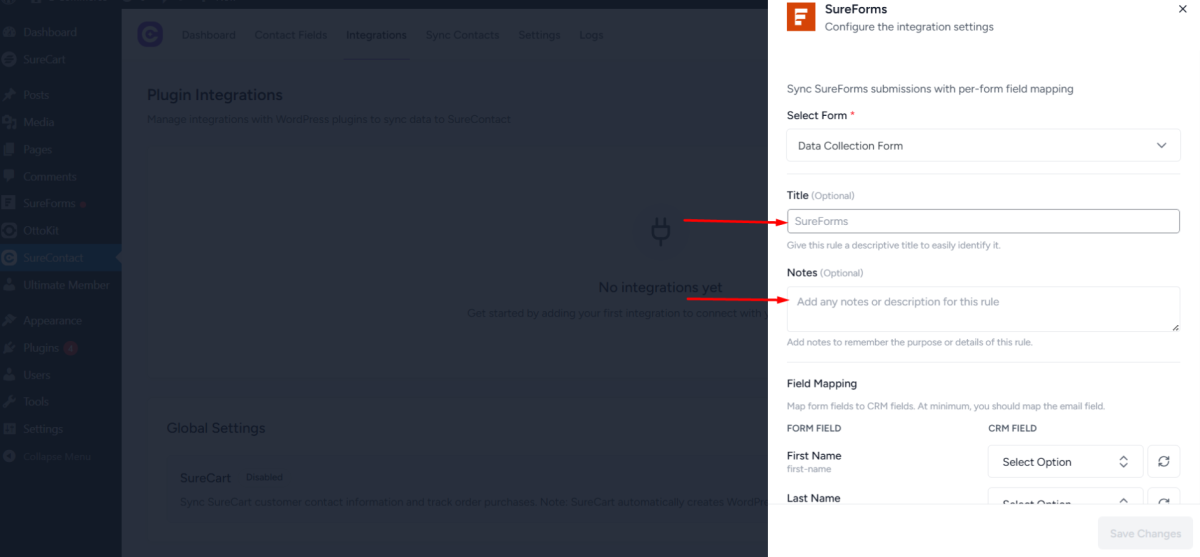
Field Mapping
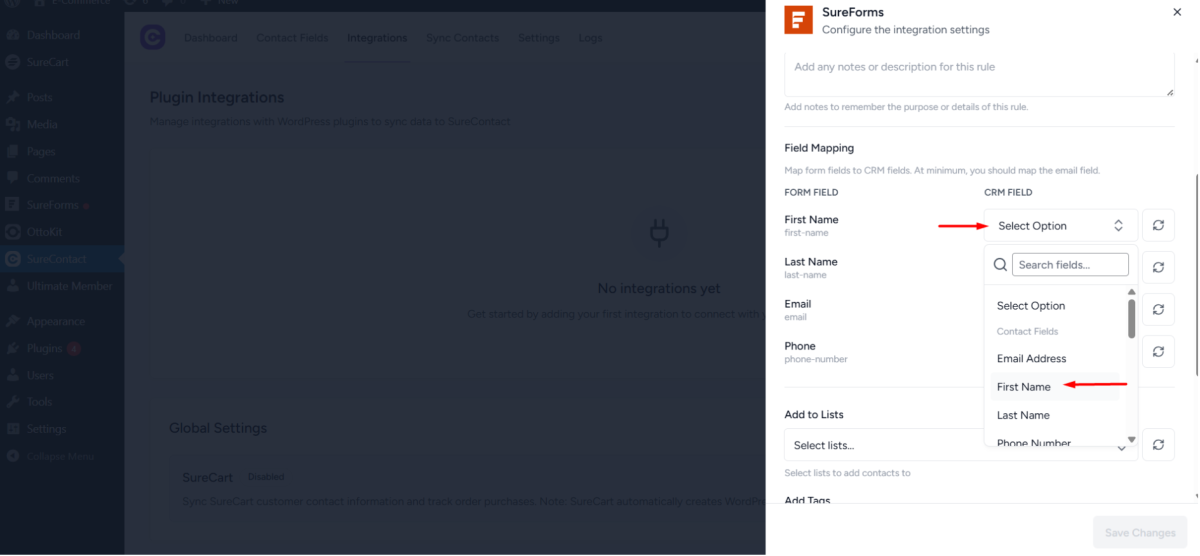
- Map your SureForms fields with SureContact fields.
- Select each corresponding field from the dropdown.
- Make sure each form field is matched with the correct SureContact contact field.
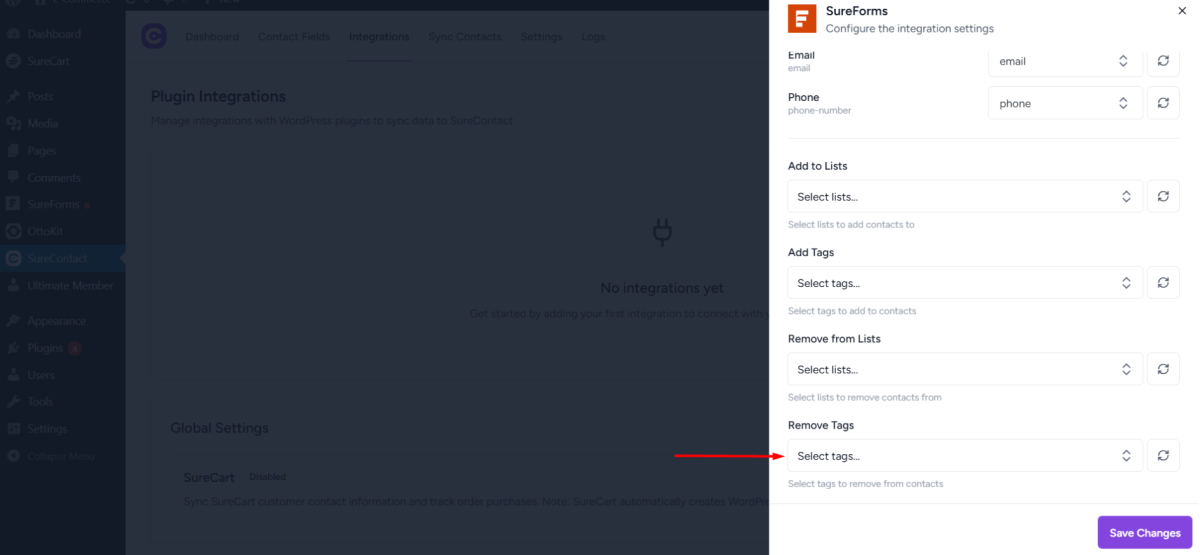
List and Tag Settings (Optional)
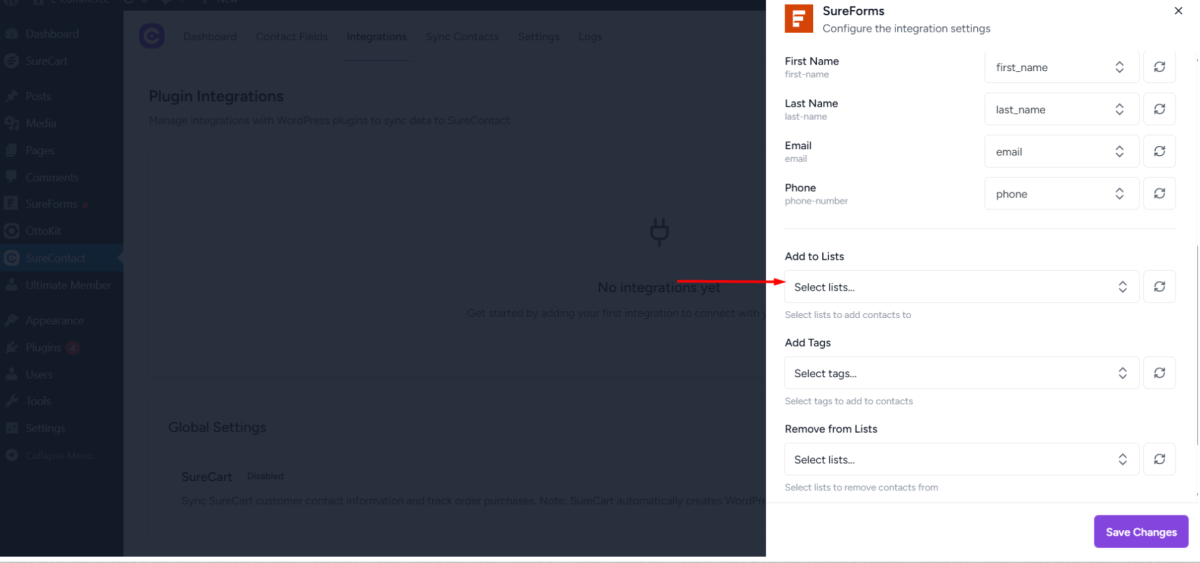
- Select a list to add contacts to (optional).
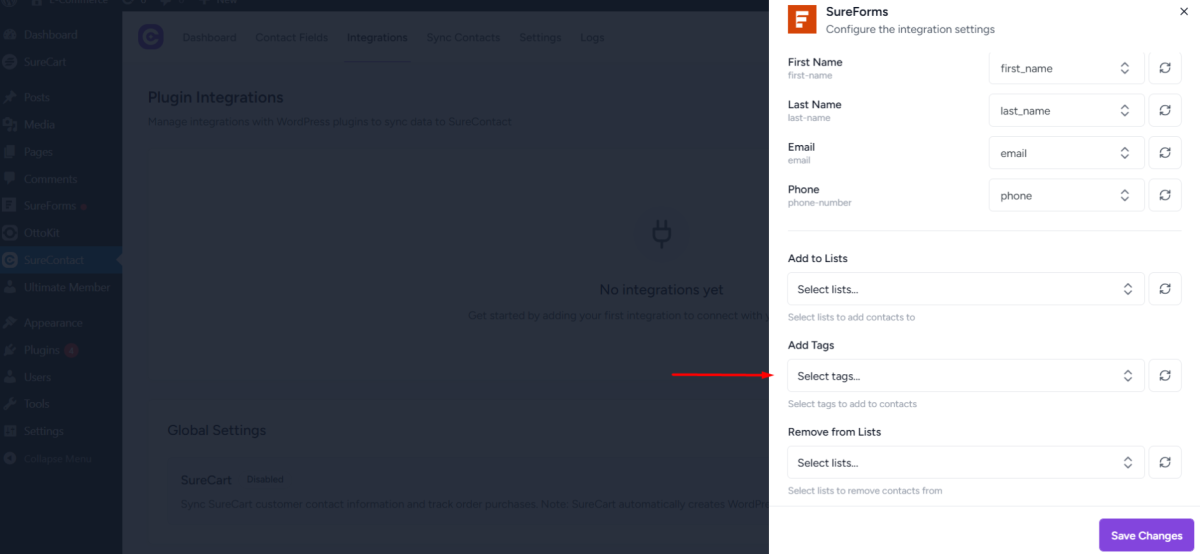
- Add tags to contacts if required (optional).
- Choose lists to remove contacts from if needed (optional).
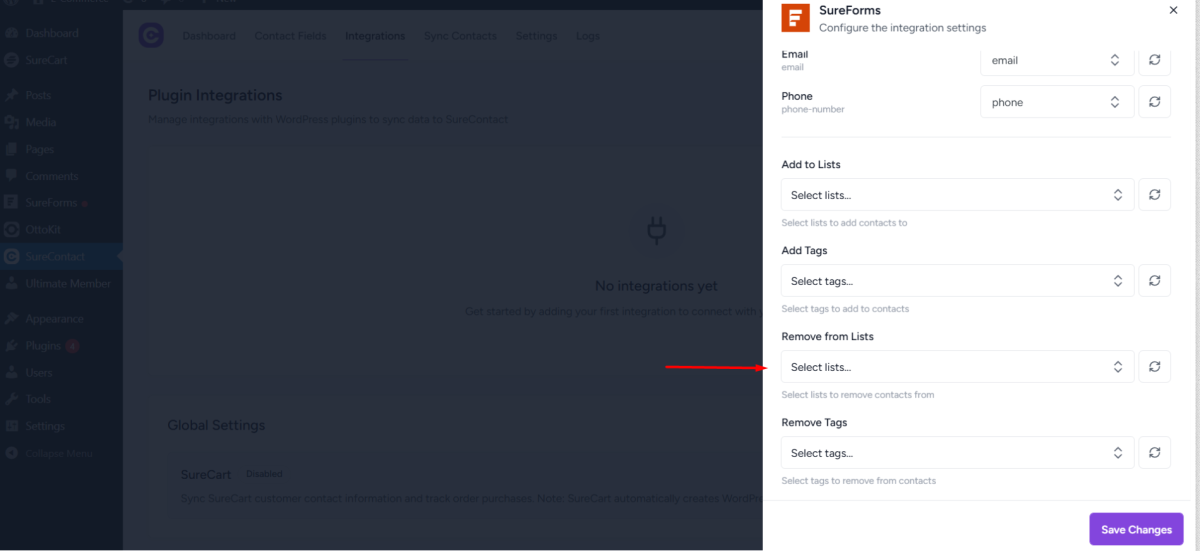
- Choose tags to remove if needed (optional).
- Click Save Changes.
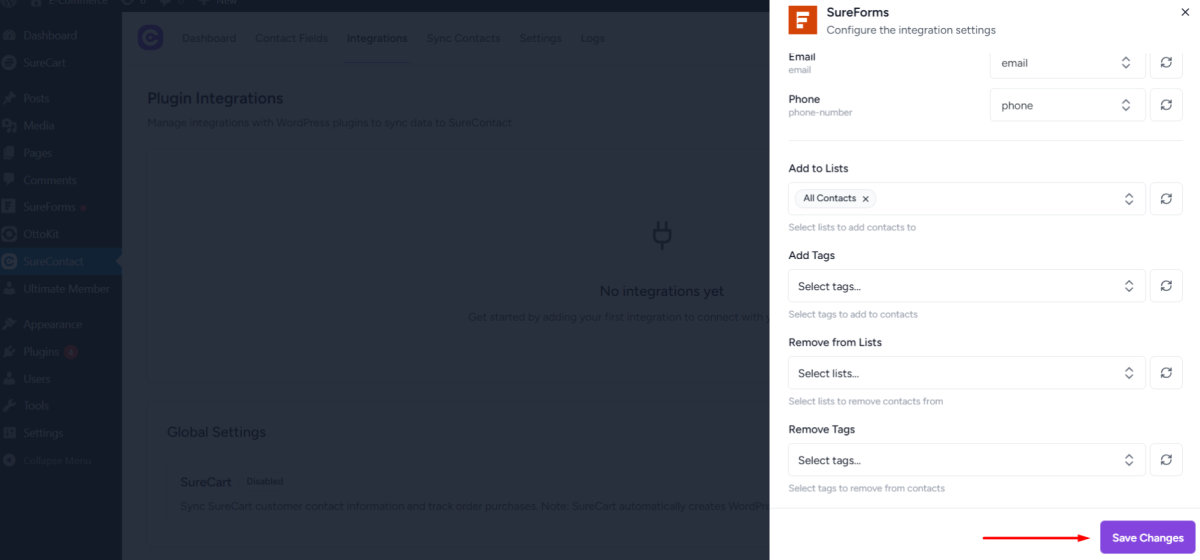
Once saved, you will see a confirmation message indicating that the integration has been successfully configured.
Testing the Integration
You can now test the integration by submitting a test entry through your SureForms form.
After submitting:
- Go to the Contacts section inside SureContact.
- Verify that the submitted data has been added correctly.
Need Help?
If you need any assistance, please email [email protected], and our support team will be happy to help you.
We don't respond to the article feedback, we use it to improve our support content.