
- Introduction to SureContact Dashboard
- How to Install and Connect the SureContact WordPress Plugin
- What Do Contact Fields Mean in the SureContact WordPress Plugin
- How to Invite Members to a Workspace in SureContact
- How to Switch Organizations in SureContact
- Workspace-Level Contact Allocation in SureContact
- Workspace-Level Timezone Settings in SureContact
- How to Add a Custom Tracking Domain in a Workspace in SureContact
Workspace-Level Contact Allocation in SureContact
To give you better control and clarity across your account, SureContact now supports workspace-level contact allocation.
This feature allows you to distribute your total contact limit across different workspaces based on your needs. It’s especially useful when managing multiple teams, clients, or projects within the same account.
What’s New?
Contact Allocation Per Workspace
- You can now assign specific contact limits to individual workspaces.
- Any workspace without a defined allocation will automatically use contacts from the shared pool (remaining available contacts).
- This helps you better manage usage and prevent one workspace from consuming all available contacts.
How to Allocate Contacts to a Specific Workspace
Follow the steps below to allocate contact limits to a workspace:
1. Open Your SureContact Dashboard
- Go to:https://surecontact.com/
- Log in to your SureContact account.
2. Click on the Profile Icon
- Navigate to the top-right corner of the dashboard and click on your Profile Icon.
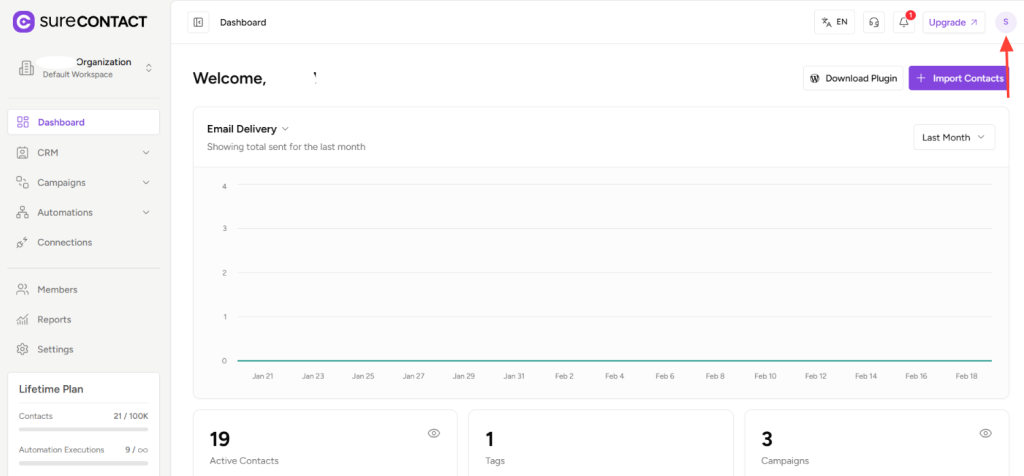
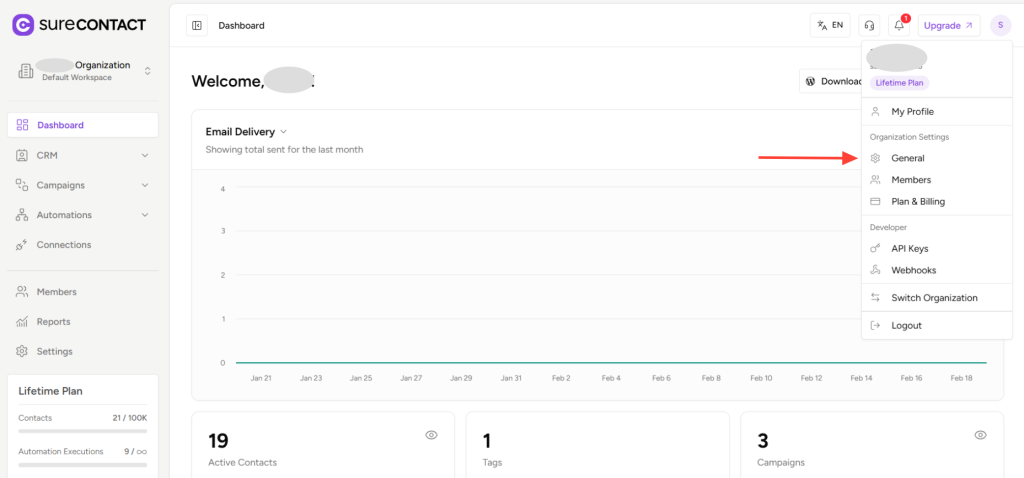
3. Open Settings
- From the dropdown menu, select Settings.
4. Go to General Settings
- Inside Settings, choose General from the available options.
5. Select Contact Allocation
- From the left-side menu, click on Contact Allocation.
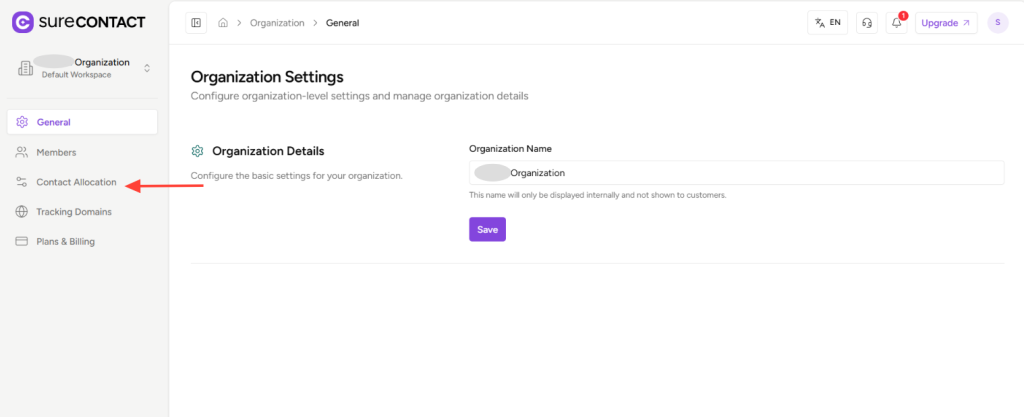
- This will display all your workspaces and their current contact usage settings.
6. Click Edit for the Workspace
- Locate the workspace where you want to allocate contacts.
- Click on the Edit button next to that workspace.
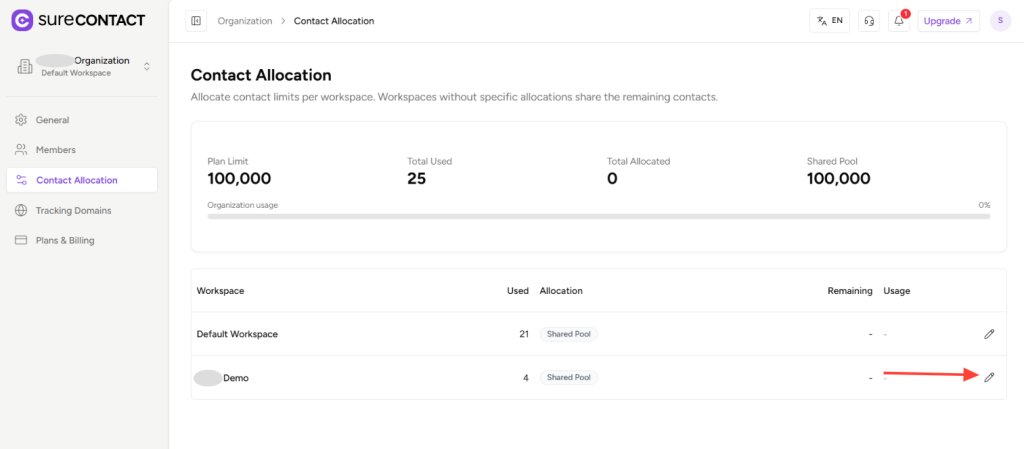
- A pop-up window will appear.
7. Disable Shared Pool Option
- In the popup:
- Untick the option “Use shared pool (no specific limit)”.
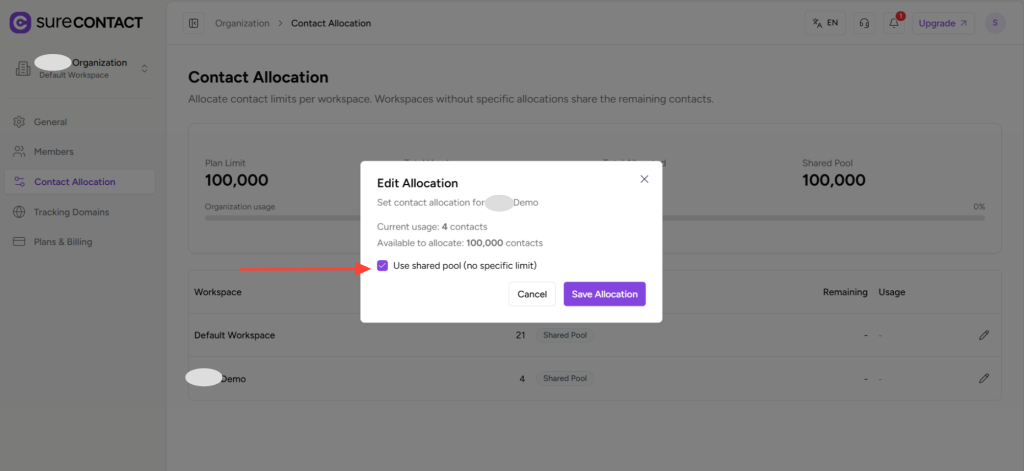
- This enables manual allocation for that workspace.
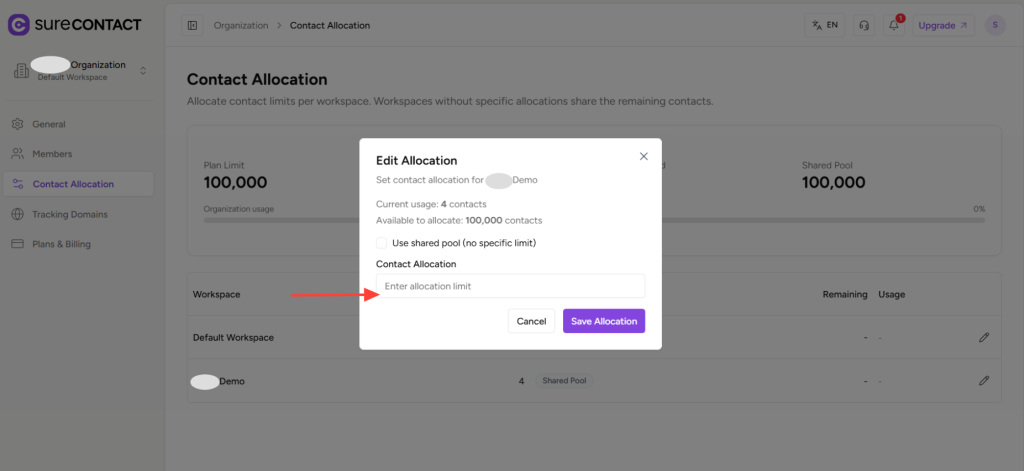
8. Set the Contact Limit
- Enter the number of contacts you want to allocate under Contact Allocation.
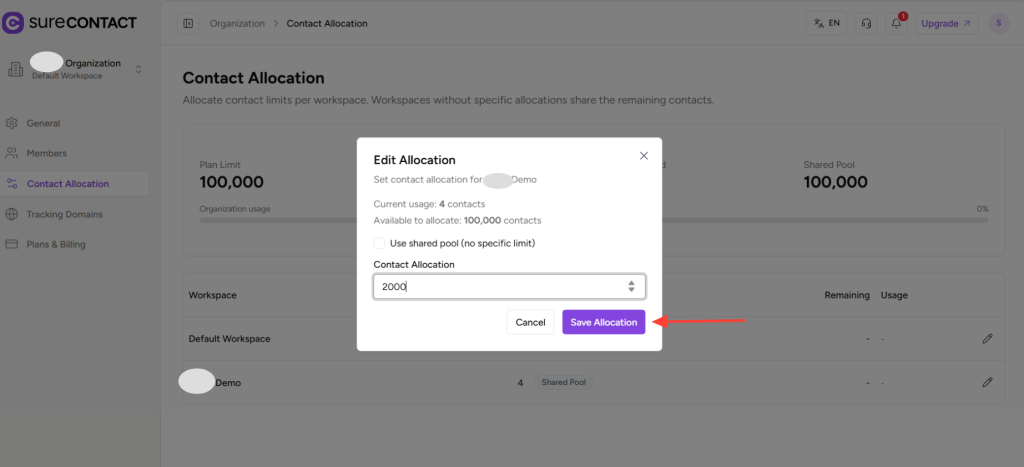
9. Save the Allocation
- Click Save Allocation.
- Once saved, you will see the workspace updated with the newly allocated contact limit.
That’s It
You have successfully allocated contacts to a specific workspace.
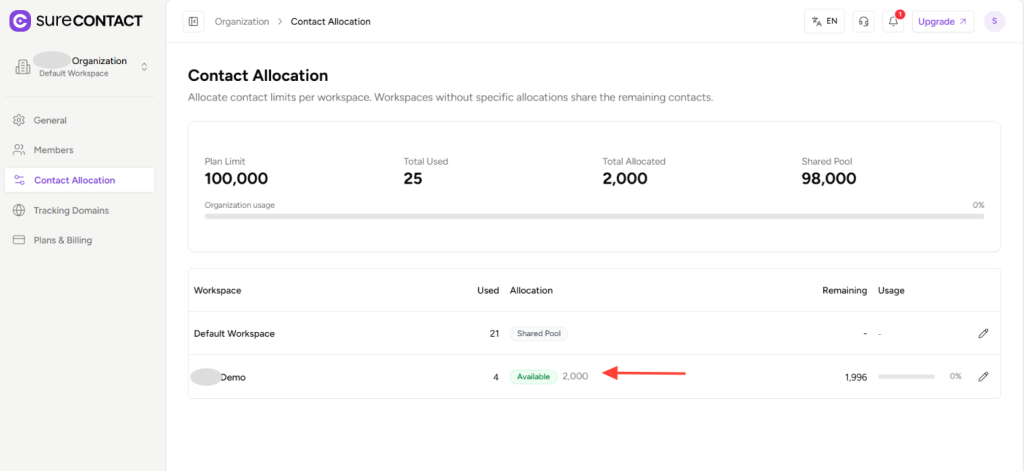
You can repeat the same steps for other workspaces as needed. Any workspace left without a defined limit will continue to use contacts from the shared pool automatically.
If you need any assistance, feel free to contact our support team at [email protected].
We don't respond to the article feedback, we use it to improve our support content.