
- Introduction to SureContact Dashboard
- How to Install and Connect the SureContact WordPress Plugin
- What Do Contact Fields Mean in the SureContact WordPress Plugin
- How to Invite Members to a Workspace in SureContact
- How to Switch Organizations in SureContact
- Workspace-Level Contact Allocation in SureContact
- Workspace-Level Timezone Settings in SureContact
- How to Add a Custom Tracking Domain in a Workspace in SureContact
- SureContact MCP Server
- Creating Forms in SureContact
- FluentCRM Integration with SureContact
- SureContact Third-Party Integration — Step-by-Step Guide
- Fluent Forms Integration with SureContact
- SureForms Integration with SureContact
- WPForms Integration with SureContact
- Bulk Sync WordPress Users to SureContact
- Contact Form 7 Integration with SureContact
- Sync WooCommerce Customers with SureContact
Analyzing a Campaign with AI (Spam & Ethics Check)
SureContact automatically checks your email campaigns before you send them. The AI analysis scans your content for spam triggers, harmful material, and common issues, then shows you what to fix so your emails reach the inbox successfully.
This guide walks you through how to read and act on the analysis results.
Prerequisites
Before running the AI analysis, please ensure the following:
1. Create Your Campaign
You must have an active campaign to work with. Go to Campaigns > Email Campaigns and create a new one or open an existing draft.
2. Add Your Email Content
Write your email body in Step 1 (Compose) and fill in your subject line in Step 2 (Subject & Sender). The analysis only runs once content is present.
How to View the AI Analysis
The analysis runs automatically, you do not need to turn it on. Here is how to access the results:
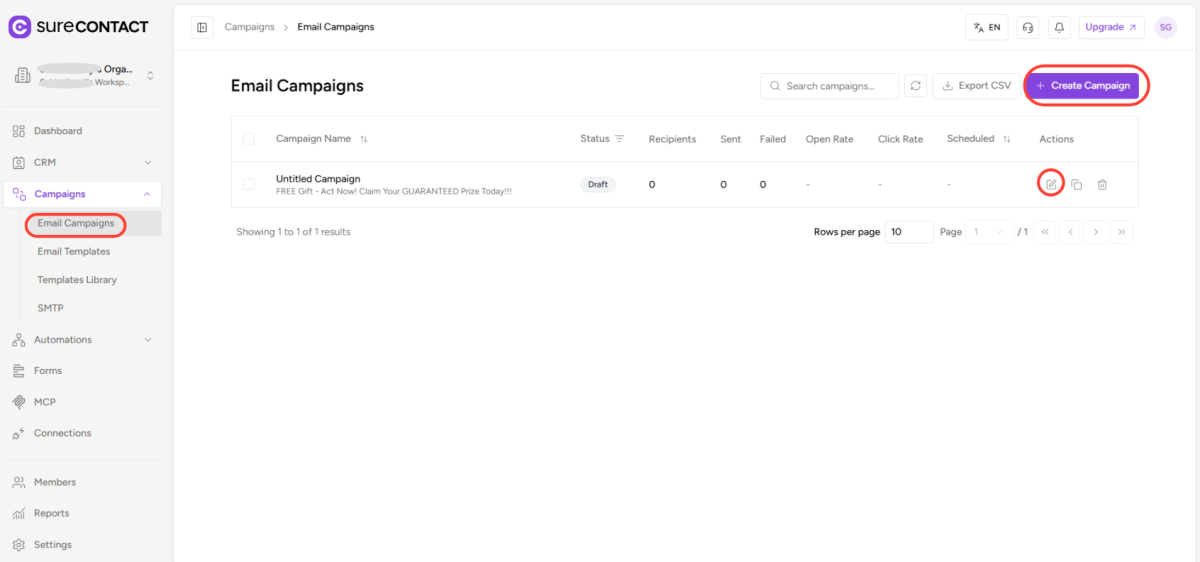
1. Open or Create a Campaign
- Go to Campaigns > Email Campaigns from the left sidebar.
- Click Create Campaign, or open any existing draft campaign.
2. Compose Your Email and Click Next
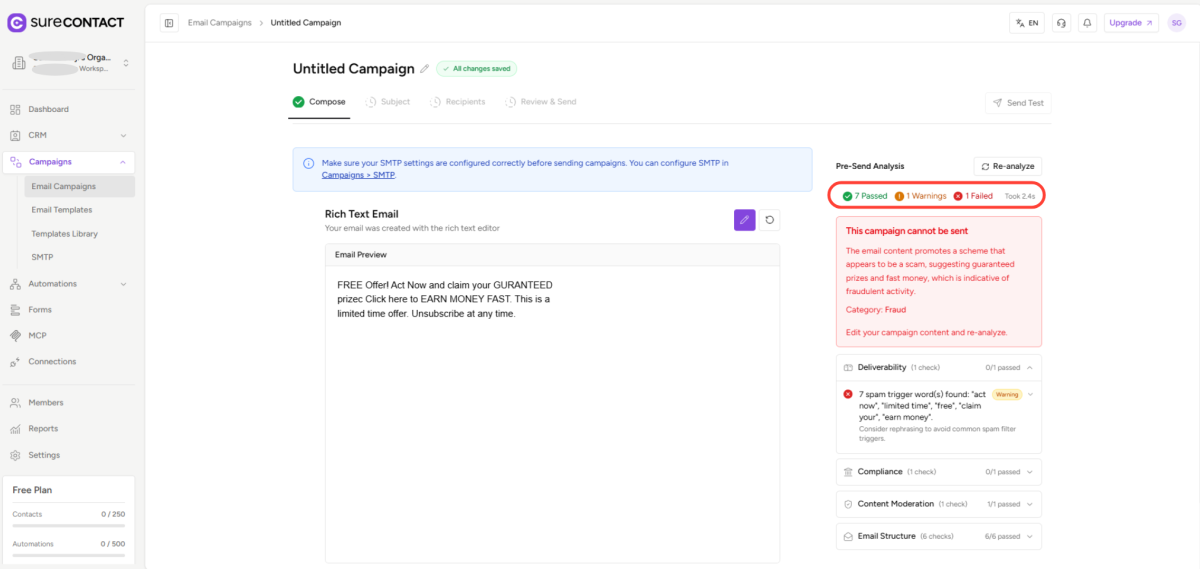
- Write your email content in Step 1 (Compose).
- Click Next, the analysis runs in the background and the results appear in the Pre-Send Analysis panel on the right side of the screen.
3. Review the Results Panel
- The panel shows a summary at the top: how many checks Passed, how many have Warnings, and how many Failed.
- Below the summary, each category of checks is listed. Click any category to expand it and see the details.
4. Fix Any Issues
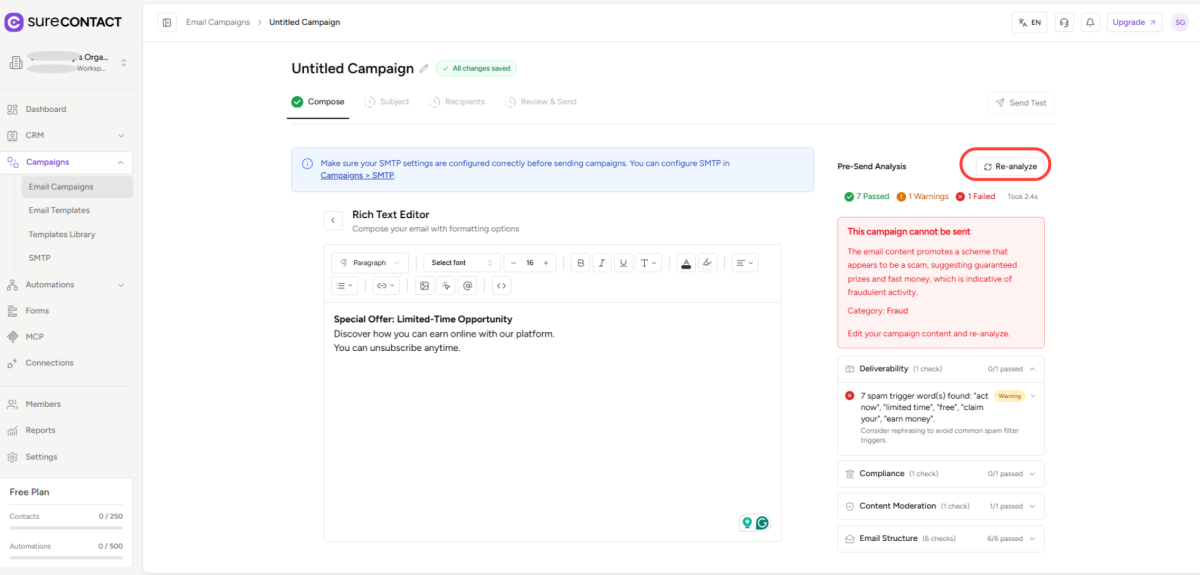
- If a check has a warning or failure, a suggestion is shown below it explaining what to change.
- Make the recommended edits to your email, then click Re-analyze to re-run the check.
5. Send Your Campaign
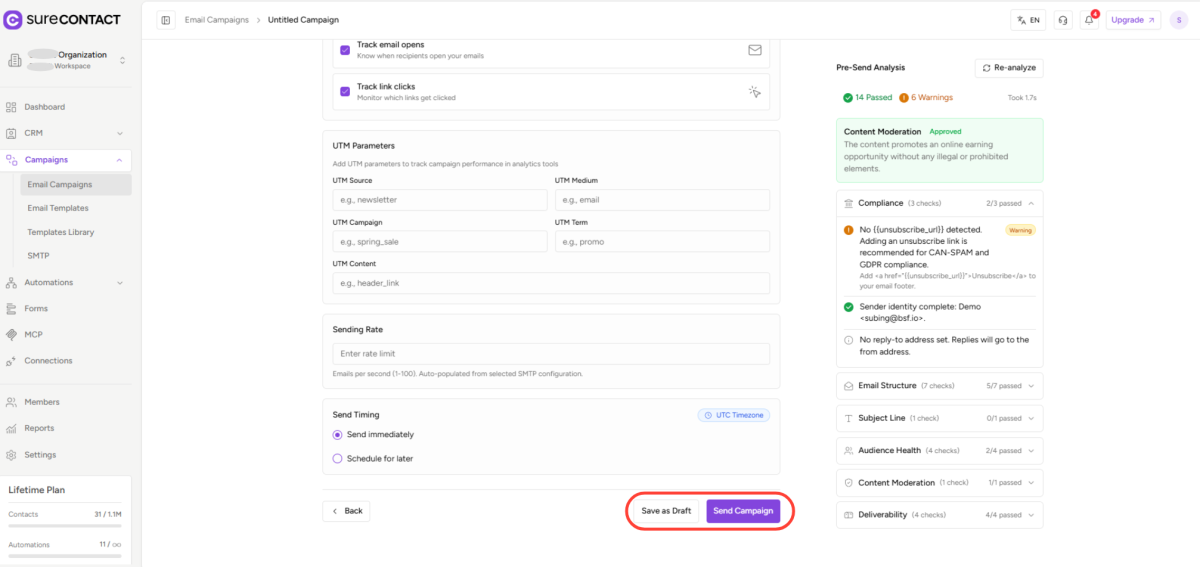
- Once all critical issues are resolved, the Send Now and Schedule buttons become active.
- Click Send Now to send immediately, or Schedule to pick a date and time.
Understanding the Analysis Results
The Pre-Send Analysis panel shows results in a simple traffic-light system. Here is what each status means:
| Status | What it means |
| Passed (green) | No issues found. This check is good to go. |
| Warning (amber) | A minor issue was found. It is not blocking, but fixing it will improve deliverability. |
| Failed (red) | A critical issue was found that must be fixed before you can send. |
Content Moderation, What It Checks
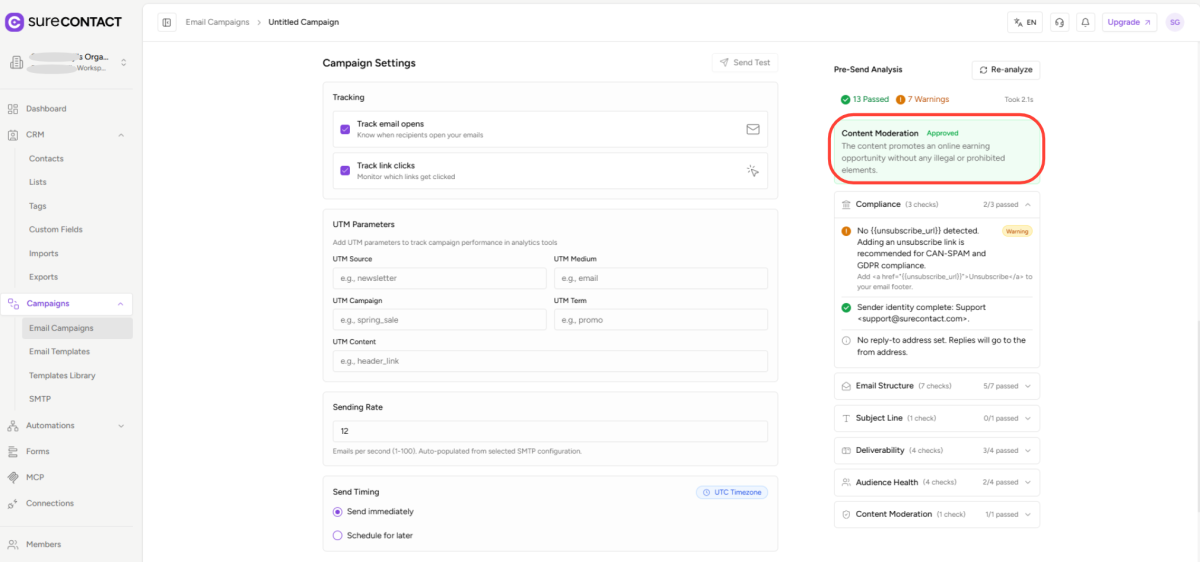
The Content Moderation check is the AI ethics scan. It reviews your email for content that could be considered harmful, misleading, or prohibited, such as scam-like language, false urgency, or explicit material.
There are three possible verdicts:
| Verdict | What happens |
| Approved | Your content is clear. No action needed. |
| Flagged | A concern was found. You can still send, but it is recommended to review and edit the flagged content. |
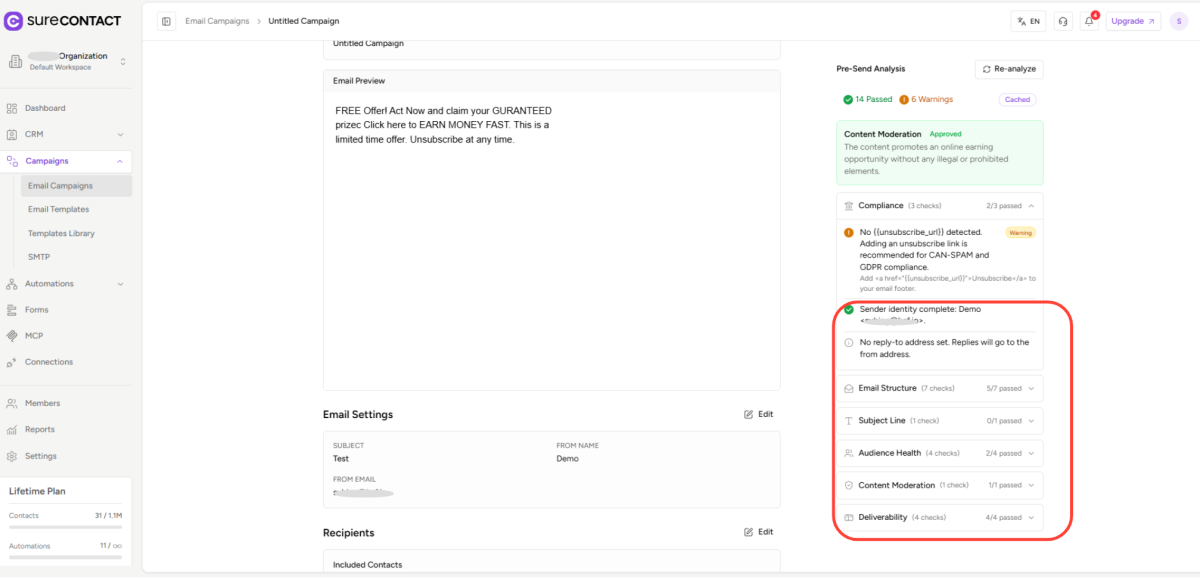
| Rejected | Prohibited content was detected. The Send button is disabled until you fix the content and re-analyze. |
When your content is Approved, a green confirmation card is shown:
When content is Rejected, a red error card explains the reason. Edit your email content and click Re-analyze to clear it:
What the Other Checks Cover
In addition to Content Moderation, the analysis checks four other areas. Click any category in the panel to expand it and see the individual results:
| Category | What it looks for |
| Compliance | Checks that your email includes an unsubscribe link, which is required by email law. |
| Email Structure | Checks for broken links, missing content, and other things that could prevent your email from displaying correctly. |
| Subject Line | Checks your subject line for spam trigger words that could cause your email to land in the junk folder. |
| Deliverability | Checks your sending domain setup to make sure emails can be delivered to inboxes. |

Warnings vs. Failures, What to Do
If you see Warnings
- Warnings are suggestions to improve your campaign but they do not prevent sending.
- A Continue Anyway button appears, you can proceed to the next step without fixing warnings.
- Fixing warnings is recommended as they can improve how many people receive and open your email.
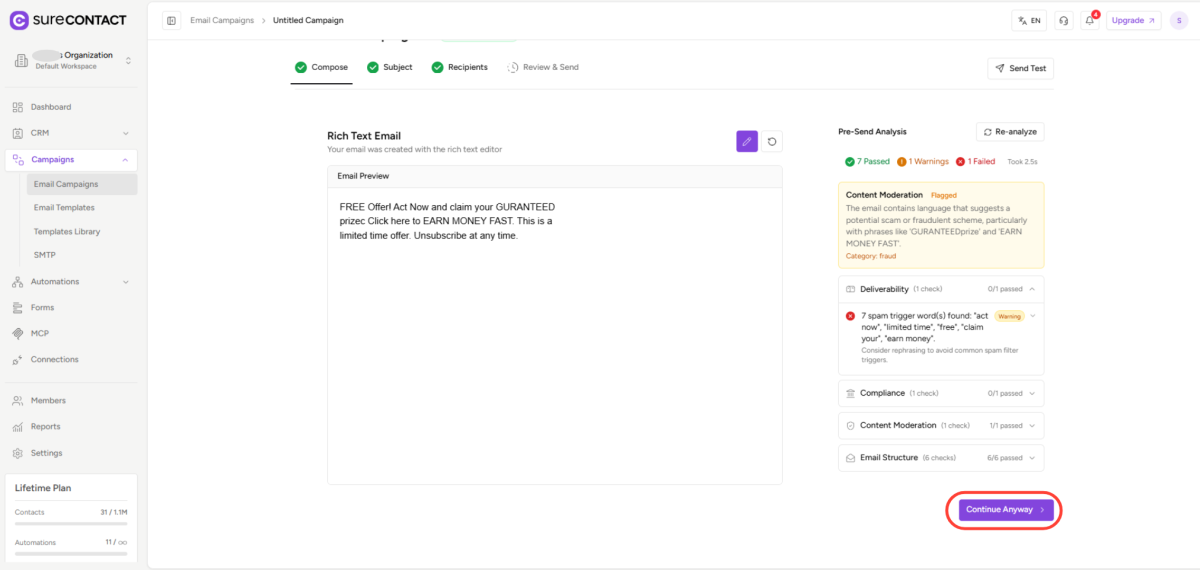
If you see Failures
- Failures block the campaign. The Send and Next buttons are disabled until the issue is fixed.
- Read the reason shown under the failed check, make the suggested changes to your email, then click Re-analyze.
Note: You can always click Re-analyze in the top-right corner of the analysis panel after making changes to get updated results.
Need Help?
If you need any assistance, please email [email protected], and our support team will be happy to help you.
We don't respond to the article feedback, we use it to improve our support content.