
- Introduction to SureContact Dashboard
- How to Install and Connect the SureContact WordPress Plugin
- What Do Contact Fields Mean in the SureContact WordPress Plugin
- How to Invite Members to a Workspace in SureContact
- How to Switch Organizations in SureContact
- Workspace-Level Contact Allocation in SureContact
- Workspace-Level Timezone Settings in SureContact
- How to Add a Custom Tracking Domain in a Workspace in SureContact
- SureContact MCP Server
- Creating Forms in SureContact
- FluentCRM Integration with SureContact
- SureContact Third-Party Integration — Step-by-Step Guide
- Fluent Forms Integration with SureContact
- SureForms Integration with SureContact
- WPForms Integration with SureContact
- Bulk Sync WordPress Users to SureContact
- Contact Form 7 Integration with SureContact
- Sync WooCommerce Customers with SureContact
Send Email Action in Automations
The Send Email action in Automations lets you automatically send a personalised email to a contact whenever a workflow step is triggered. You can compose the email inline using the rich-text editor, or select a pre-built template from your Email Templates library.
This guide walks you through every step of configuring the Send Email action, from opening the action panel to saving your workflow.
Opening the Send Email Action
To add a Send Email action to your workflow:
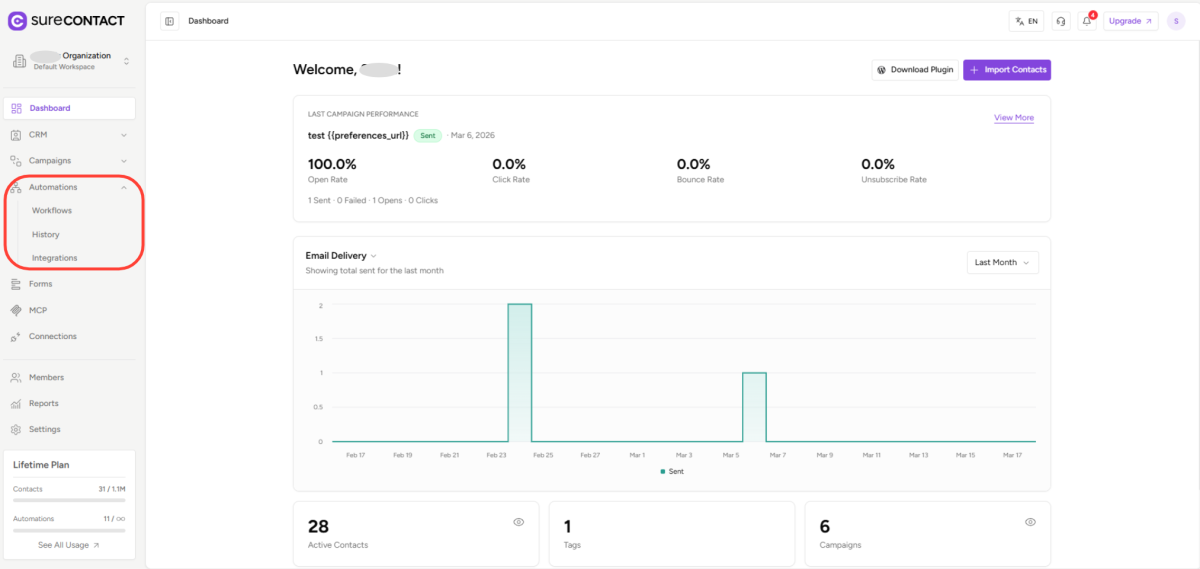
1. Go to Automations in the left sidebar.
- Click Automations in the navigation menu. The submenu expands to show Workflows, History, and Integrations.
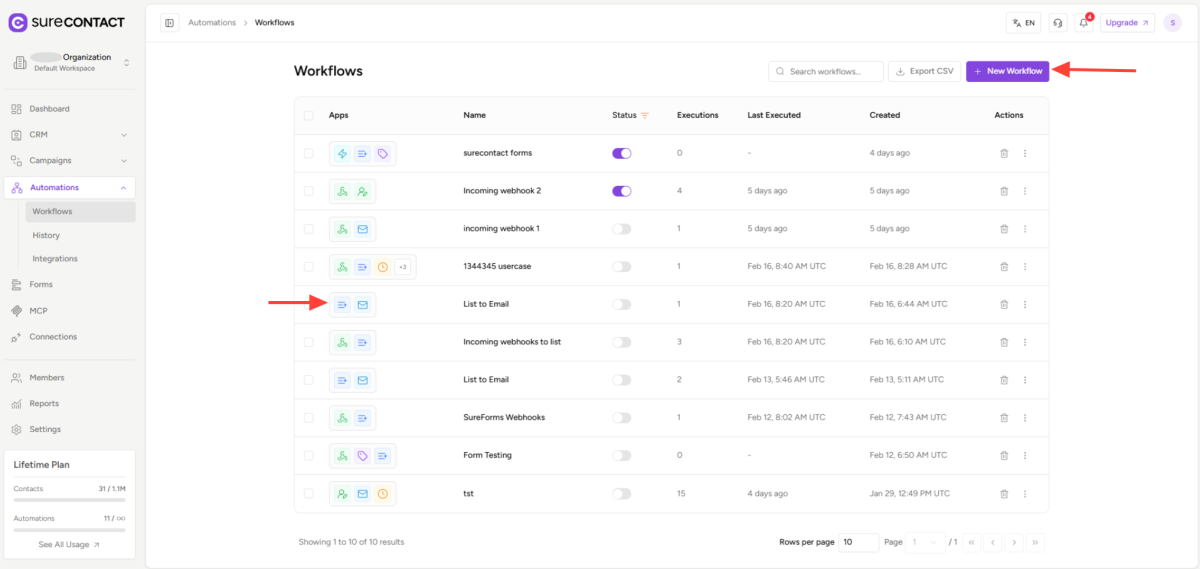
2. Open an existing workflow or create a new one.
- From the Workflows list, click an existing workflow name, or click New Workflow to start fresh.
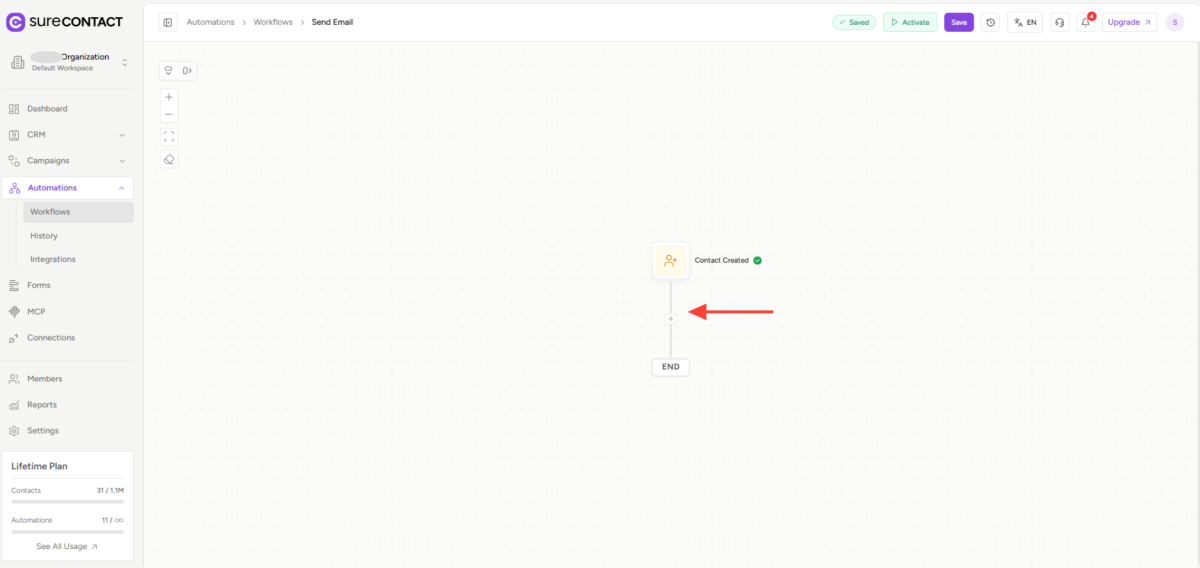
3. On the workflow canvas,add a trigger as per your requirement and then action step.
- The + button appears on the vertical connector line between nodes (or between the last node and the END block).
- A side panel opens showing Add Action with categories: Contact Management, Integration, Flow Control, and Communication.

4. Select Communication, then click Send Email.
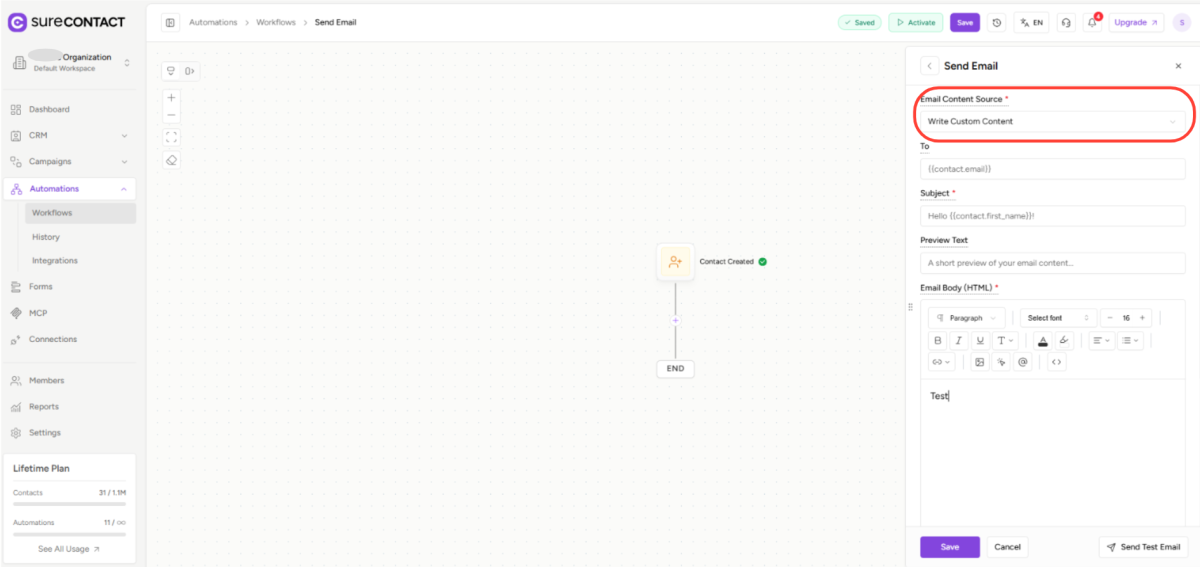
- The Send Email configuration panel slides open on the right side of the screen.

Configuring Email Delivery Fields
Before setting up the email body, fill in the standard delivery fields at the top of the Send Email panel. Fields marked with an asterisk (*) are required.
Email Content Source *
- A required dropdown that determines where the email body comes from. See Section 3 for the two options.
To
- The recipient’s email address. Defaults to {{contact.email}} to send to the enrolled contact automatically.
Subject *
- The email subject line. Supports personalisation variables, type @ to browse available variables such as {{contact.first_name}}.
Preview Text
- Short preview text shown in the inbox alongside the subject line. Optional but recommended for deliverability.
From Name
- The sender name contacts will see. You can use plain text or variables (e.g., Your Company Team).
From Email
- The email address the message is sent from. Type @ to insert a variable or enter a fixed address.
Note: Type @ in any text field to browse and insert personalisation variables such as contact name, company, or custom fields.

Choosing Your Email Content Source
The Email Content Source dropdown determines how the email body is created. Click the dropdown to reveal two options:
Use Email Template
- Select a template you have already created in the Email Templates library. The template is applied to this action and renders with your personalisation variables.
Write Custom Content
- Compose the email directly inside the panel using the built-in rich-text editor. Ideal for one-off or highly personalised messages.

Using a Global Email Template
If you select Use Email Template, a template picker area appears inside the panel.
Browsing and selecting a template
- Your saved templates are listed in the Email Template section.
- Find the template you want and click Use on its card.
- Once selected, the template name is shown in the panel and will be used when the workflow sends emails.
Editing a template
- Click Edit on any template card to navigate to the template editor. SureContact saves your current workflow state automatically before you leave.
- When you return, your workflow reopens where you left off.

Note: If no templates are listed yet, you can create one by going to Campaigns > Email Templates, then return to this workflow to select it.
Writing Custom Email Content
If you select Write Custom Content, the Email Body (HTML) section appears directly in the panel with a full-featured rich-text editor.
Using the rich-text editor
- Type your email content in the text area. Use the toolbar to apply formatting: paragraph style, font, size, bold, italic, underline, text colour, alignment, and lists.
- Click the @ icon in the toolbar to insert personalisation variables (e.g., {{contact.first_name}}, {{contact.company}}).
- Click the image icon (🖼) to insert an inline image into the email body.
- Click the <> icon to switch to raw HTML editing mode for advanced layouts.

Sending a Test Email
Before activating your workflow, send a test email to verify the layout and personalisation look correct.
1. In the Send Email panel, click Send Test Email at the bottom right.
- A Send Test Email dialog appears.
2. Enter one or more recipient email addresses in the Email Addresses field.
- Press Enter, comma, or space to add each address, or paste multiple addresses at once.
3. Click Send Test to dispatch the email.

Note: {{unsubscribe_url}} and {{preferences_url}} will not work in test emails. These links are only generated when the workflow sends to real contacts.
Saving the Action
Once your email is fully configured, save the Send Email action to commit it to the workflow.
1. Review all fields, Email Content Source, To, Subject, From Name, From Email, and email body.
2. Click Save at the bottom of the Send Email panel.
- The action node on the workflow canvas updates to reflect the saved configuration.
- The top bar shows “Saved” to confirm the workflow has been stored automatically.

Note: If you navigate away from the workflow (for example to edit a template) without clicking Save, SureContact auto-saves a draft of your current form state so you do not lose your work.
Switching or Removing Email Content
You can change the email content approach at any time by updating the Email Content Source dropdown:
- Switch from template to custom content: Change the dropdown to Write Custom Content. The previously selected template is cleared.
- Switch from custom content to a template: Change the dropdown to Use Email Template. Any custom body content is cleared.
- To start over, simply change the selection in the Email Content Source dropdown and reconfigure the email body.
Need Help?
If you need any assistance, please email [email protected], and our support team will be happy to help you.
We don't respond to the article feedback, we use it to improve our support content.