
- Introduction to SureContact Dashboard
- How to Install and Connect the SureContact WordPress Plugin
- What Do Contact Fields Mean in the SureContact WordPress Plugin
- How to Invite Members to a Workspace in SureContact
- How to Switch Organizations in SureContact
- Workspace-Level Contact Allocation in SureContact
- Workspace-Level Timezone Settings in SureContact
- How to Add a Custom Tracking Domain in a Workspace in SureContact
- SureContact MCP Server
- FluentCRM Integration with SureContact
- SureContact Third-Party Integration — Step-by-Step Guide
- Fluent Forms Integration with SureContact
- SureForms Integration with SureContact
- WPForms Integration with SureContact
- Bulk Sync WordPress Users to SureContact
- Contact Form 7 Integration with SureContact
- Sync WooCommerce Customers with SureContact
SureContact MCP Server
Let Your AI Take Action for You
Large language models (LLMs) can write, summarize, analyze, and generate content. But with Model Context Protocol (MCP), your AI can now go a step further; it can actually perform actions inside SureContact on your behalf.
With SureContact MCP, you can connect AI tools like Cursor or Claude Desktop and give natural language commands such as:
- “Create a new contact with this email address.”
- “Add this contact to a specific list.”
- “Fetch campaign statistics.”
- “Update this contact’s tag.”
Instead of manually performing actions inside SureContact, your AI does it for you.
What is MCP?
Model Context Protocol (MCP) is a standardized protocol that allows AI tools to securely connect with external applications and execute approved actions.
In simple terms:
- MCP acts as a bridge between your AI and SureContact
- You decide what permissions the AI gets
- The AI can securely perform those actions for you
No complex integrations. No custom coding.
Before You Start: Install Node.js (Required)
Node.js is required because MCP uses the npx mcp-remote command to establish a secure connection.
For Windows:
- Go to the official Node.js website: https://nodejs.org
- Click on Windows Installer (.msi) under the LTS version
- Download and run the installer
- Follow the installation wizard steps
- Once installed, open Command Prompt and verify: node -v
- Then verify npx: npx -v
If both return version numbers, you’re ready.
For Mac:
- Visit the official Node.js website: https://nodejs.org
- Click on the macOS Installer under the LTS (Long-Term Support) version.
- Download the .pkg file and run the installer.
- Follow the installation steps provided by the installer.
- After installation, open Terminal and type the following command to confirm Node.js is installed:
node -v - This should display the installed Node.js version.
- Also, verify npx by running: npx -v
⚠️ Important: MCP will not work in Cursor or Claude if Node.js is not installed.
How to Connect SureContact MCP to Cursor
Step 1: Create an MCP Key in SureContact
- Log in to your SureContact account
- Click your Profile icon
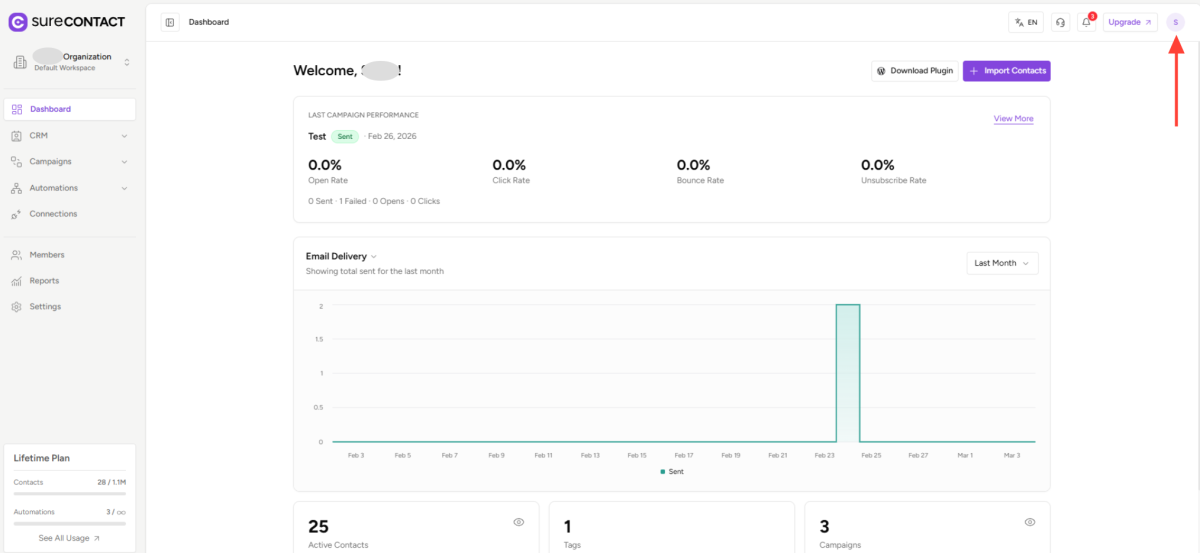
- Select MCP Integration
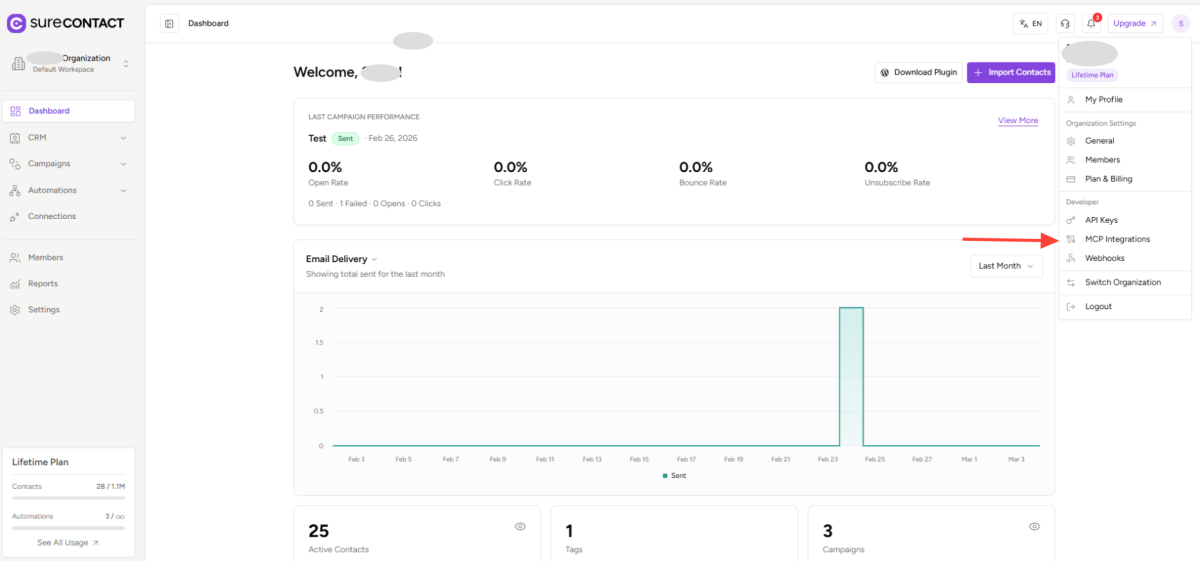
- Click Create MCP Key
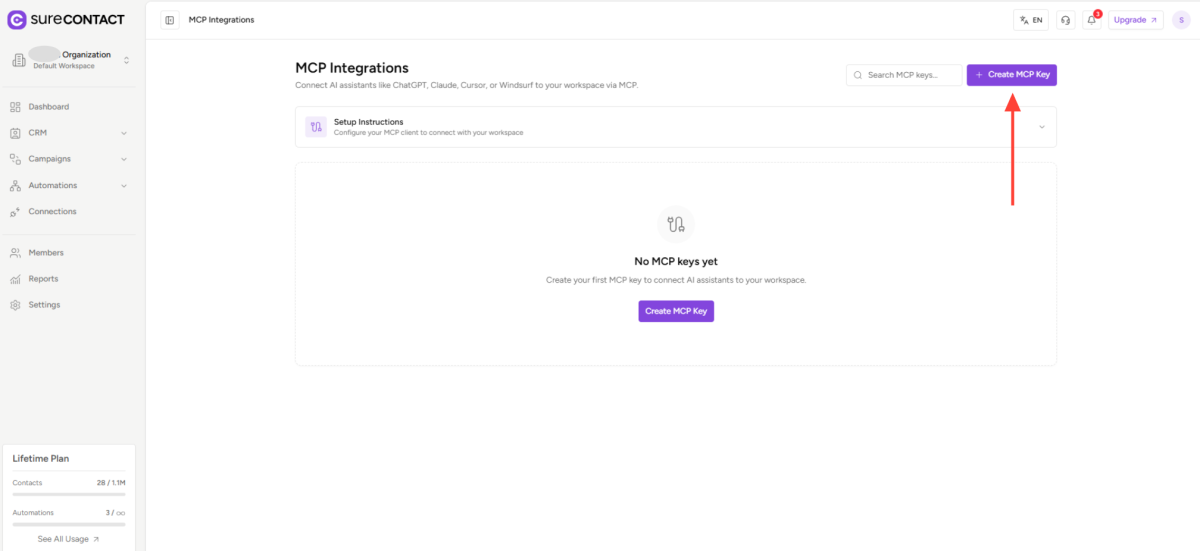
- Enter a name for your key
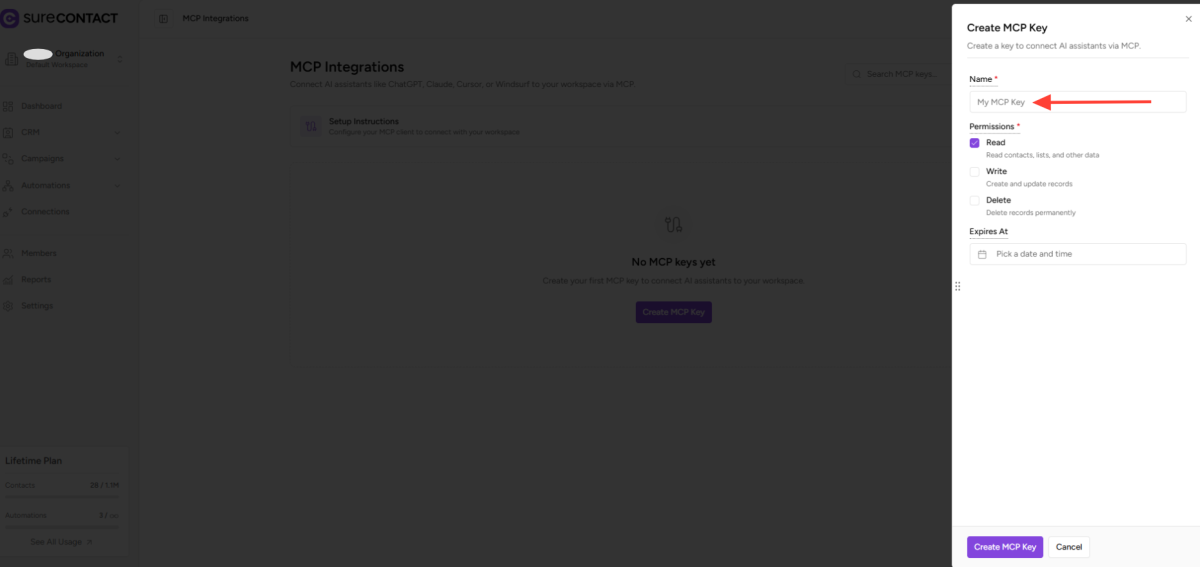
- Select the required permissions
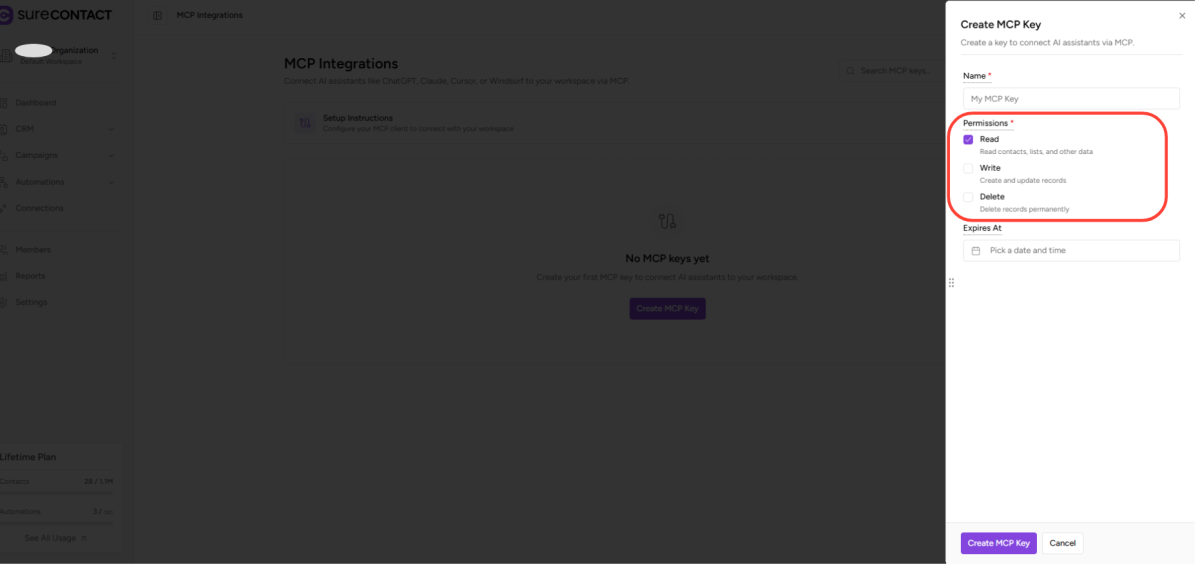
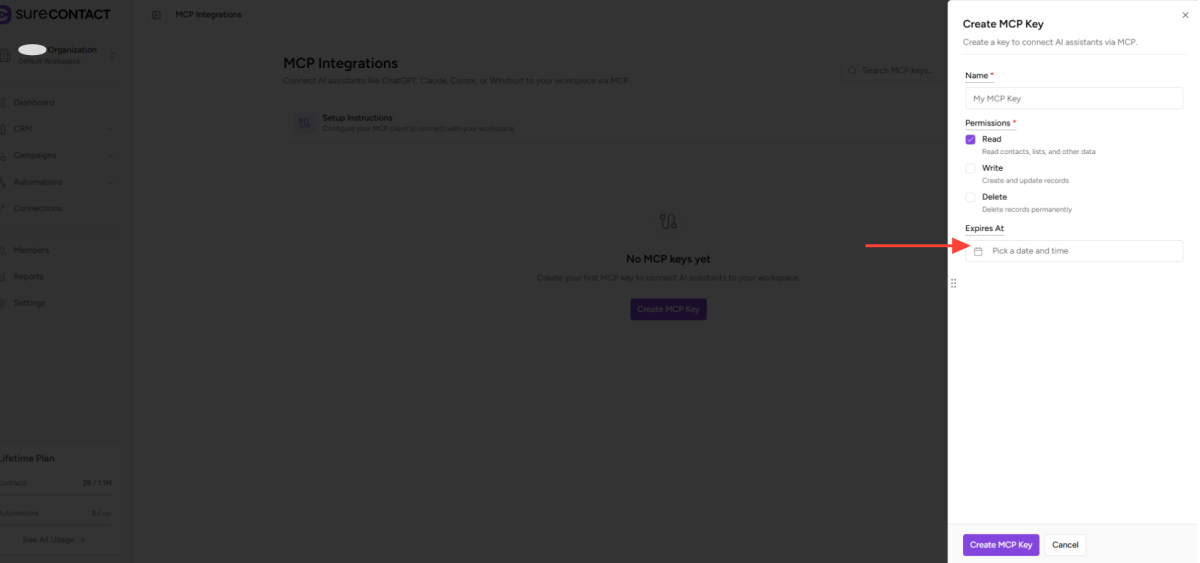
- Set an expiry date (optional)
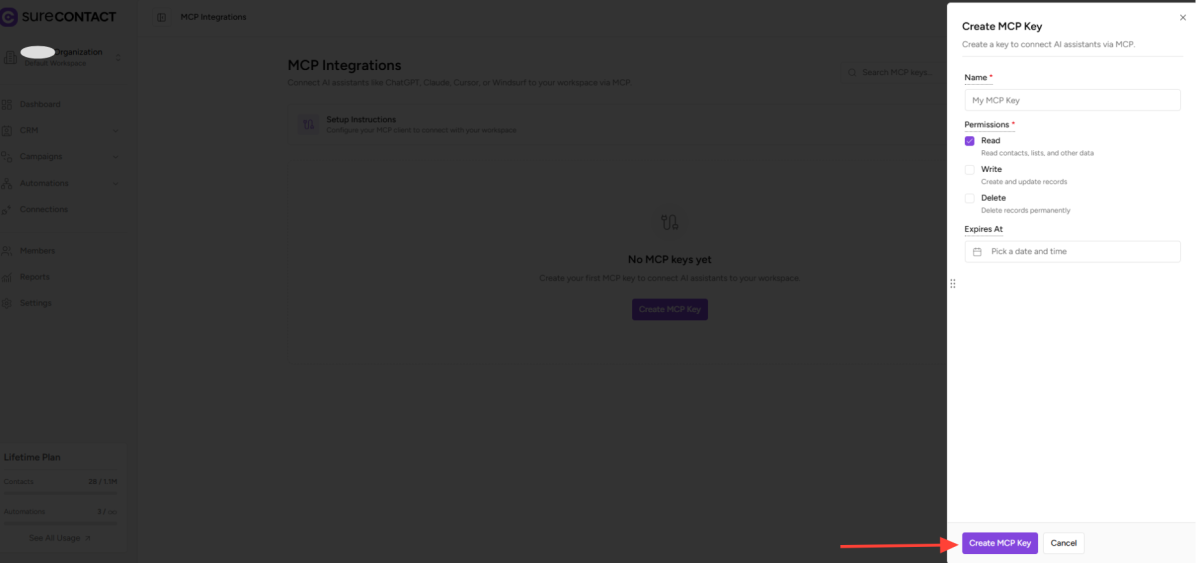
- Click Create MCP Key
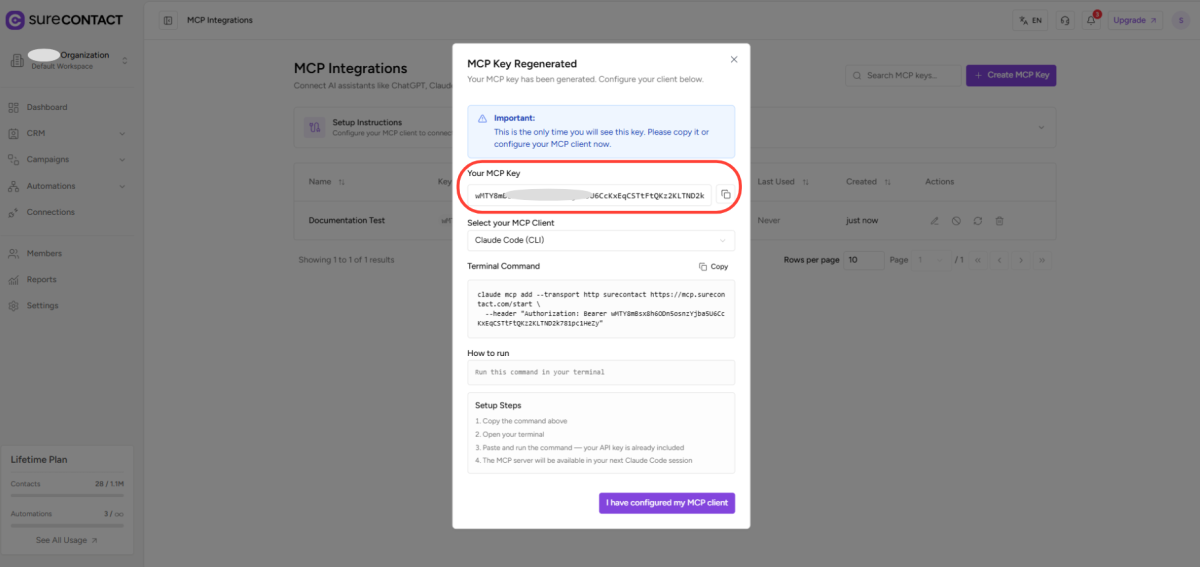
- Copy the MCP key and store it securely
(You will not be able to see it again.)
Step 2: Get the Cursor Configuration
- In SureContact, select Cursor from the MCP client dropdown
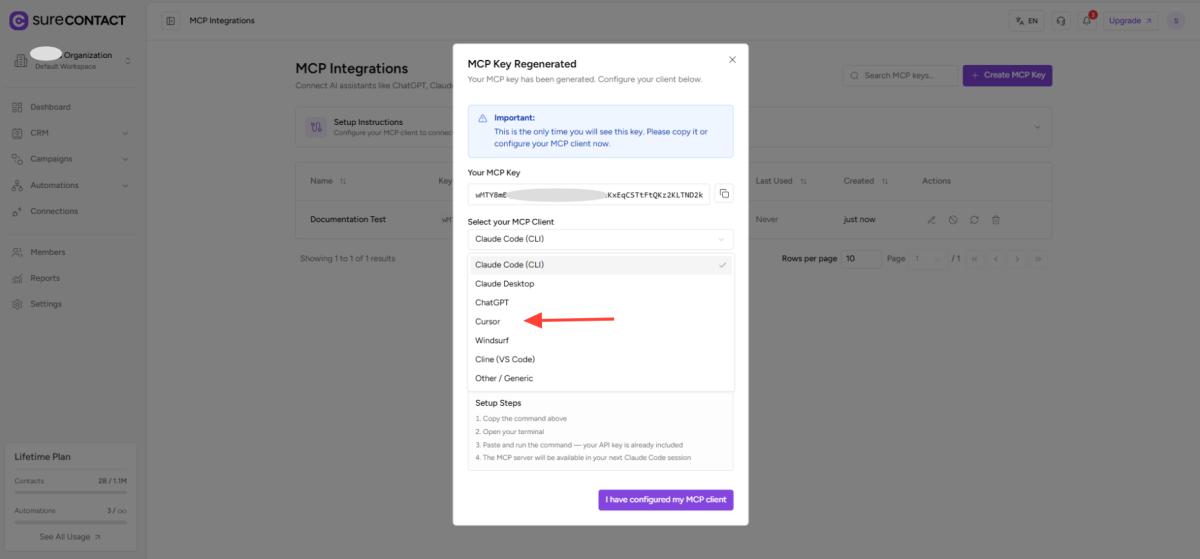
- Copy the generated configuration
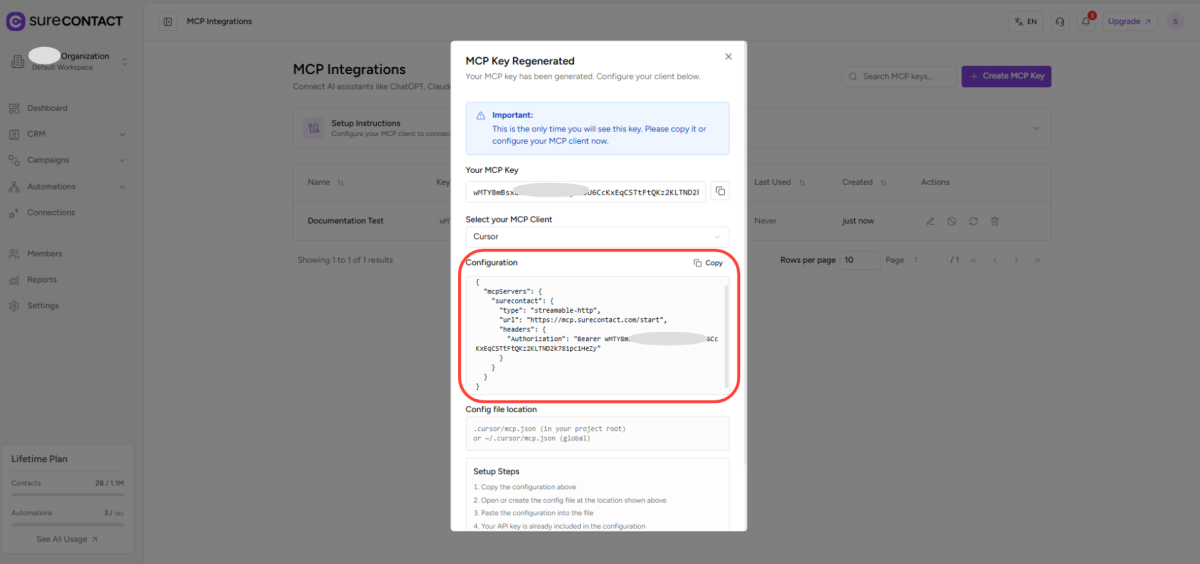
Step 3: Configure MCP in Cursor
- Open the Cursor application
- Click Settings

- Go to Tools & MCP
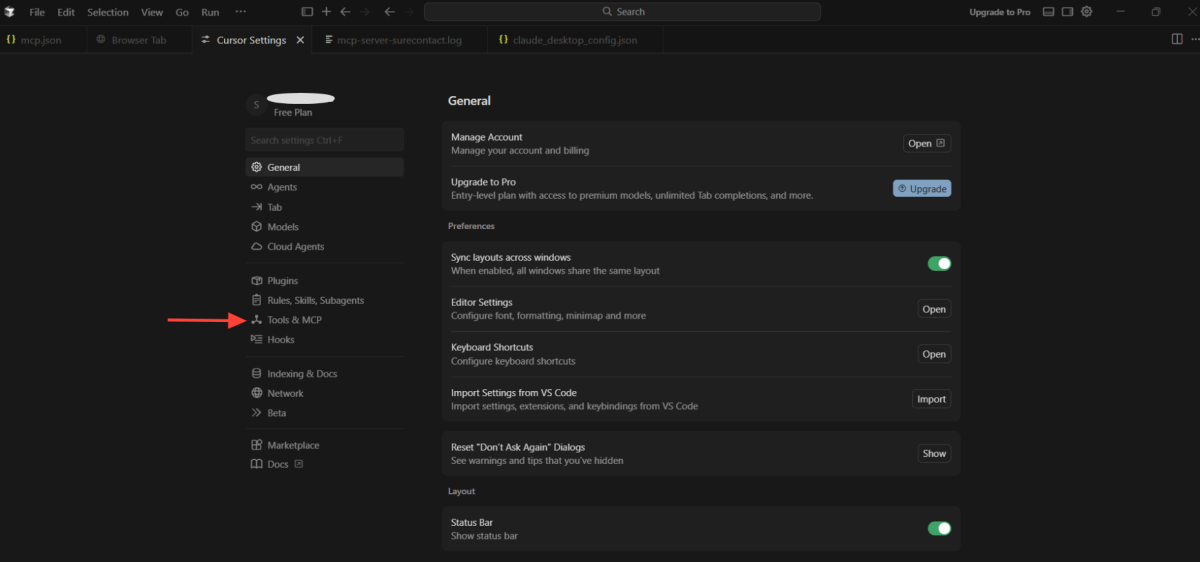
- Click New MCP Server
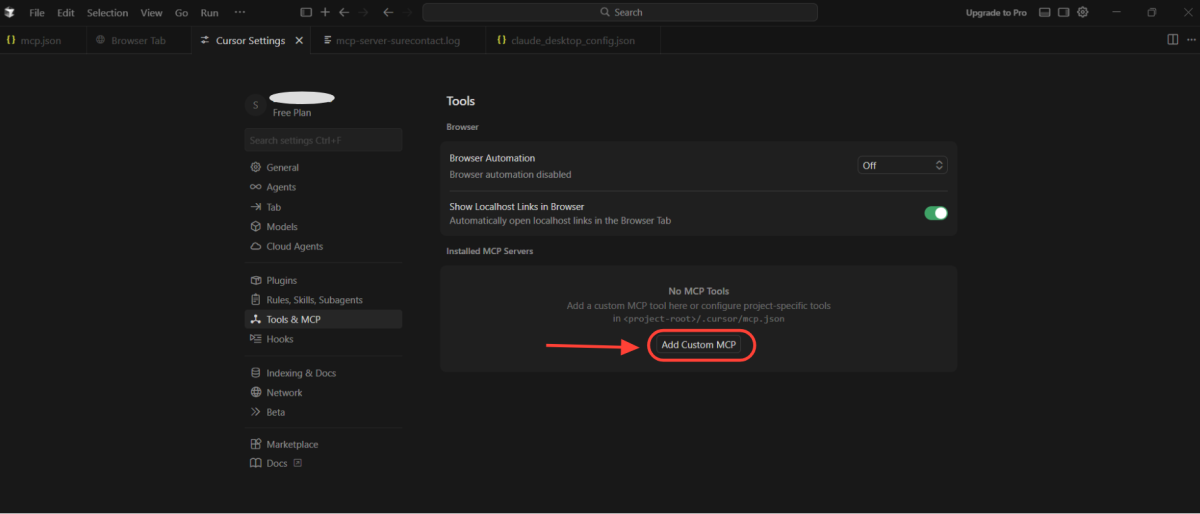
- Paste the configuration you copied
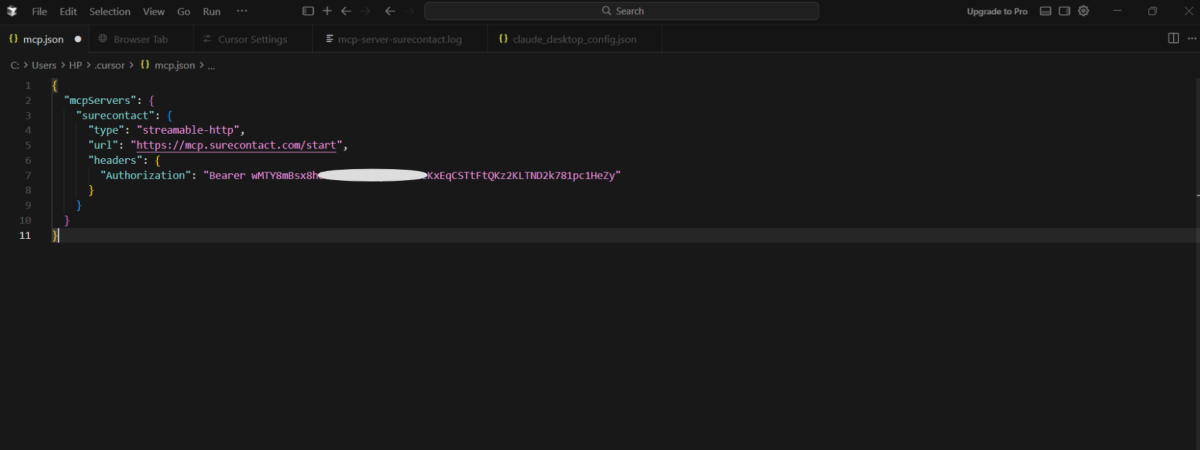
- Save and close
Step 4: Finalize Setup
- Return to SureContact
- Click I have configured my MCP client
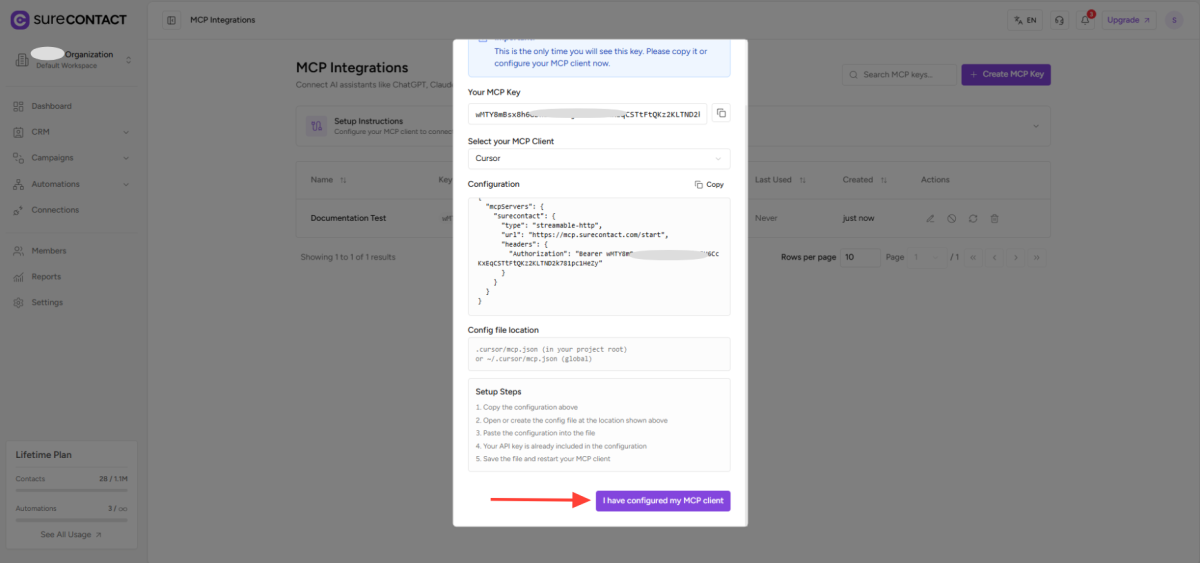
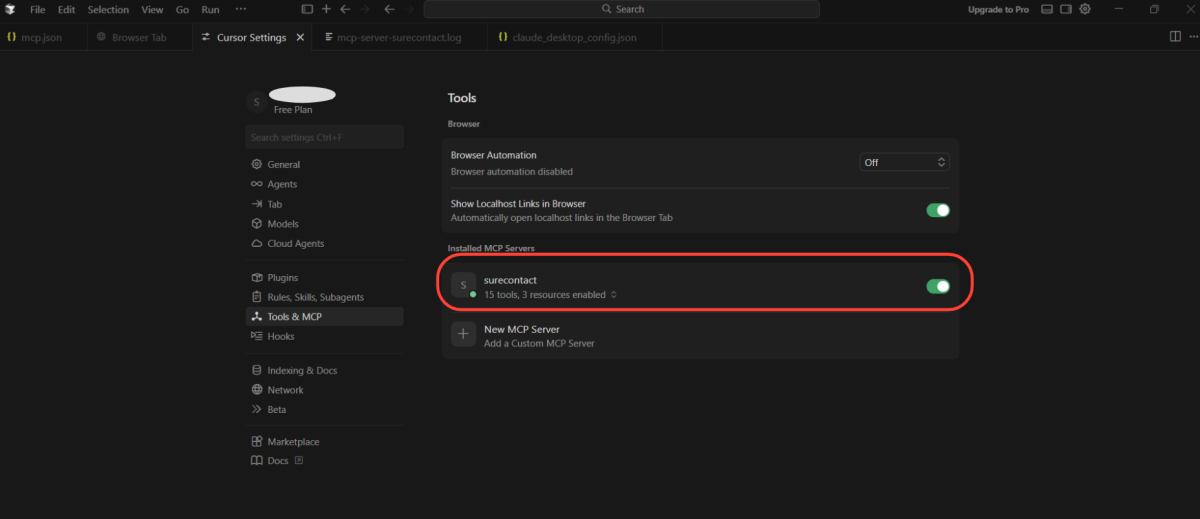
- Go back to Cursor → Settings → Tools & MCP
- You will see SureContact listed as an available MCP server
Step 5: Start Using It
- Click New Agent
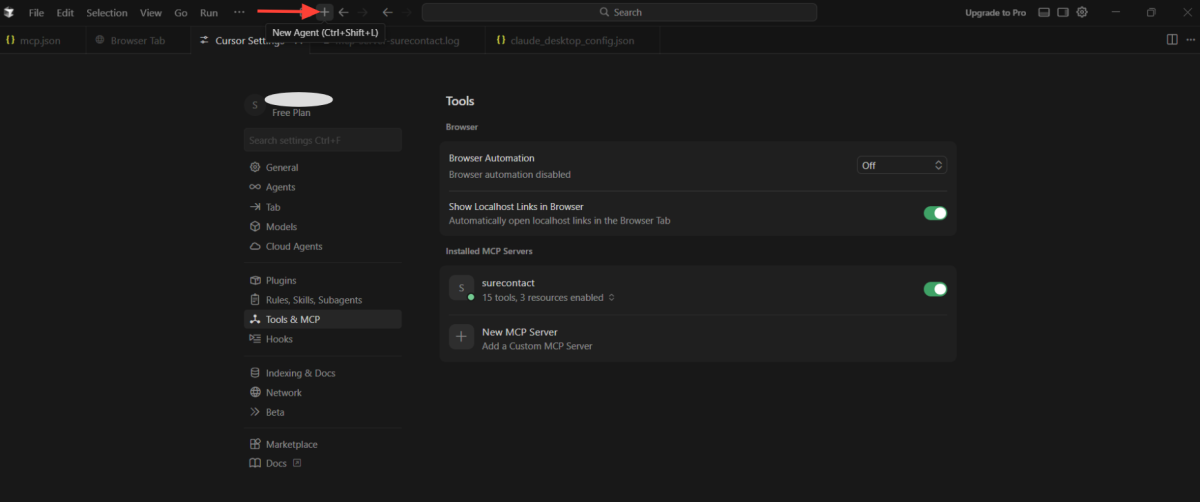
- Enter your query in natural language
Example:
- “Create a new contact named John with email [email protected]”
- “Add this contact to my newsletter list”
That’s it, SureContact MCP is now connected to Cursor.
How to Connect SureContact MCP to Claude Desktop
Step 1: Create an MCP Key in SureContact
- Log in to your SureContact account
- Click your Profile icon
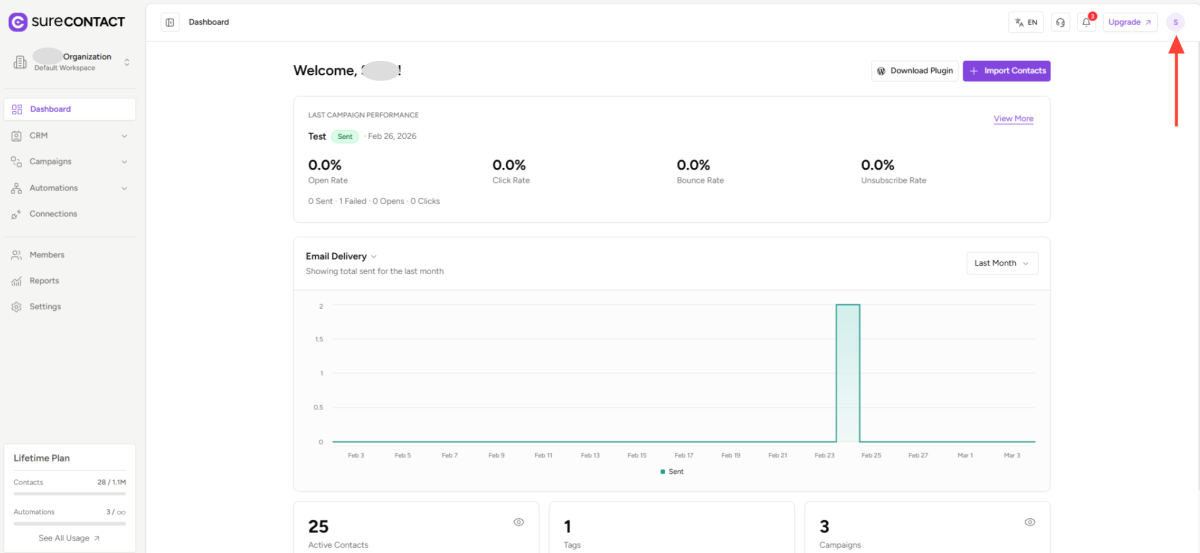
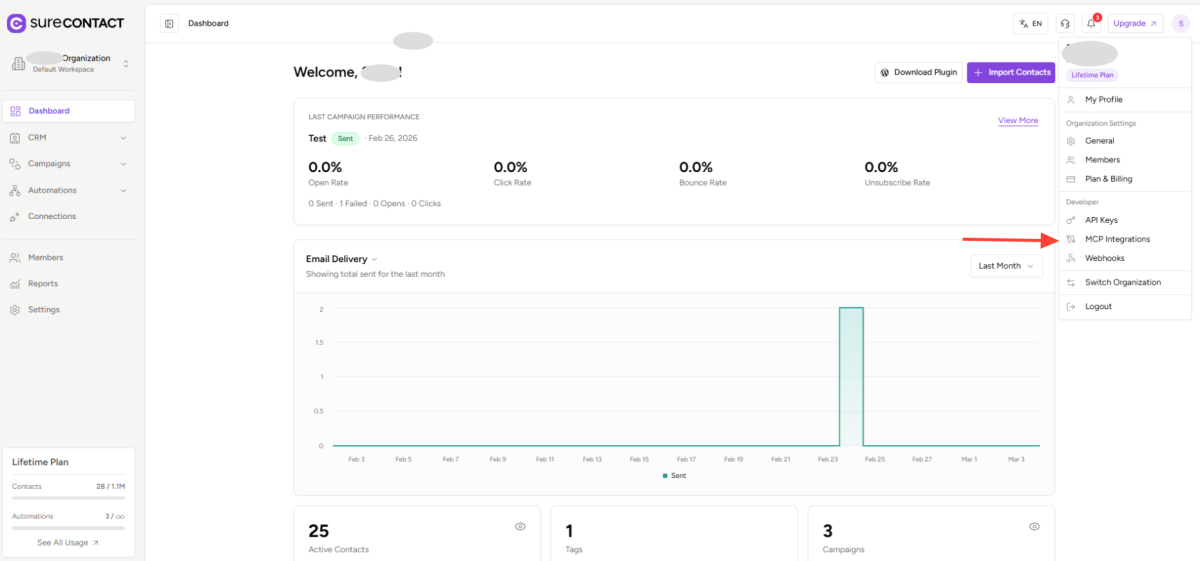
- Select MCP Integration
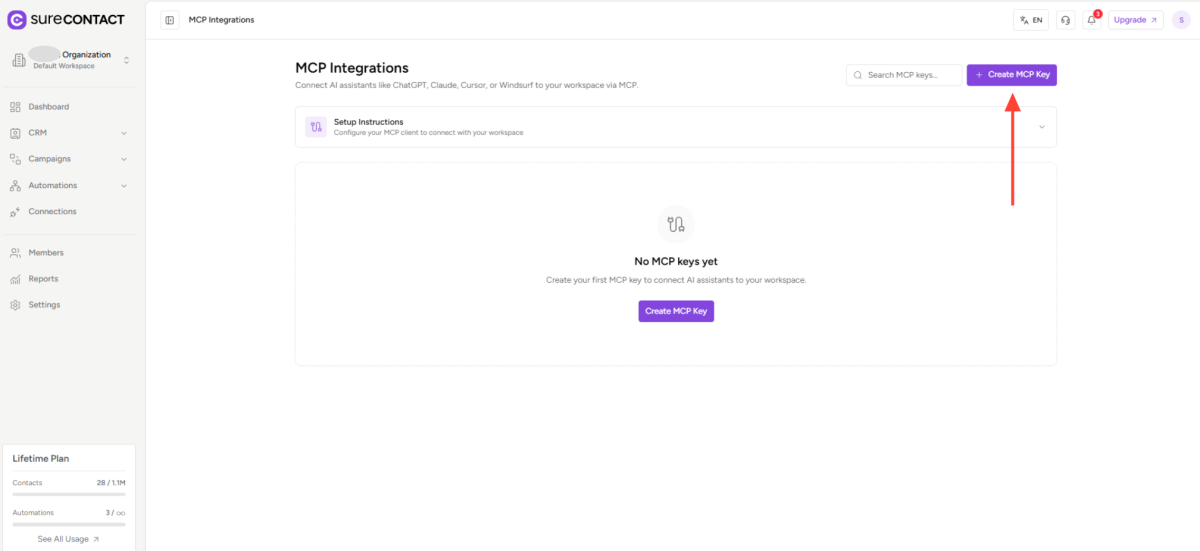
- Click Create MCP Key
- Enter a name for your key
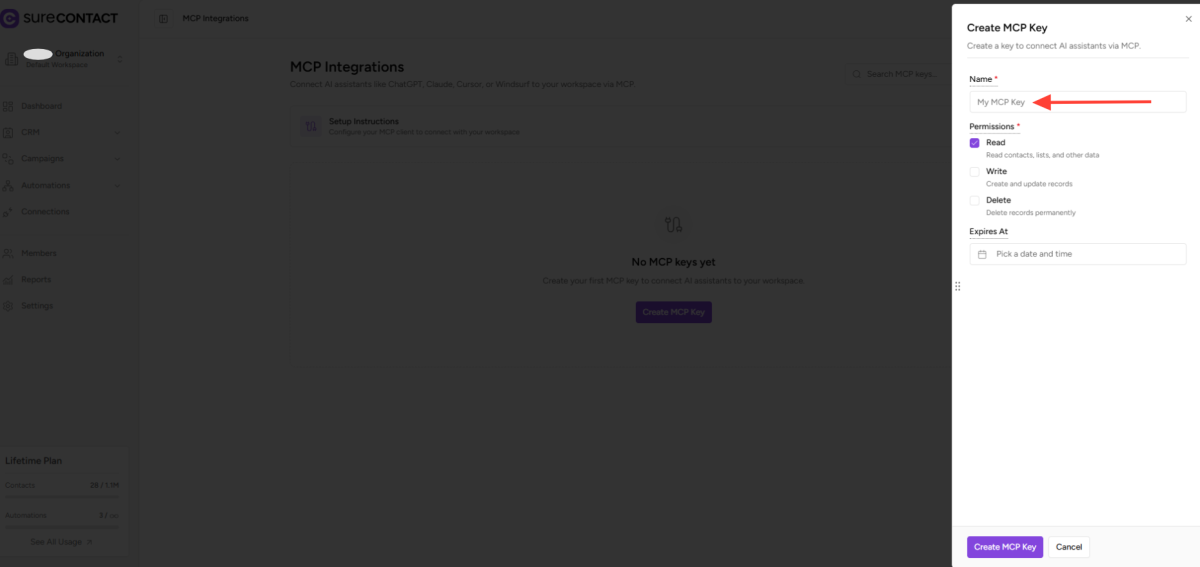
- Select the required permissions
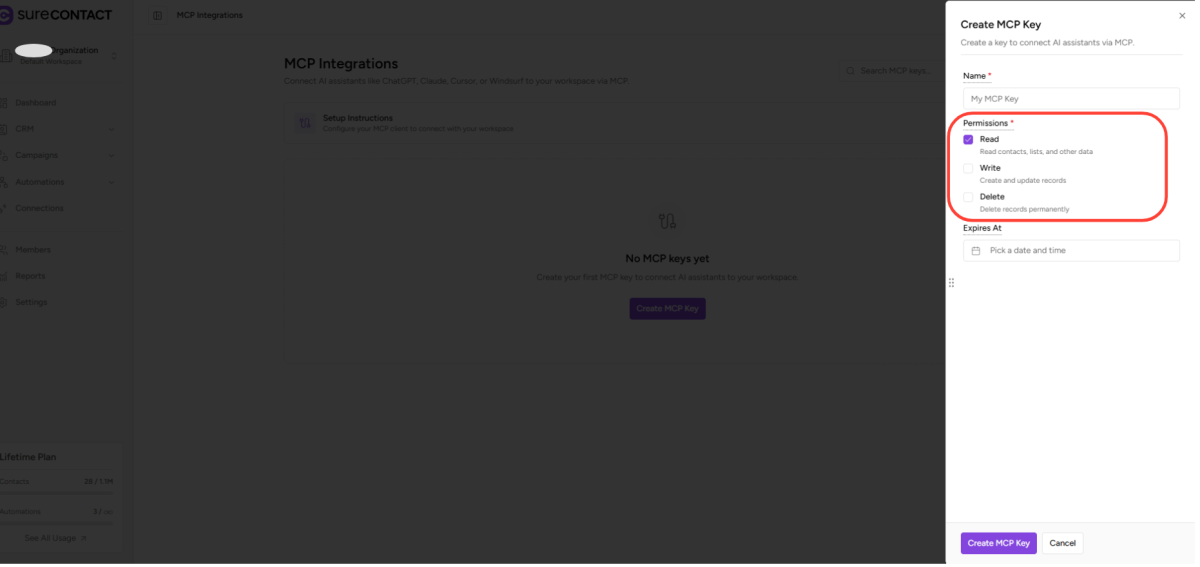
- Set an expiry date (optional)
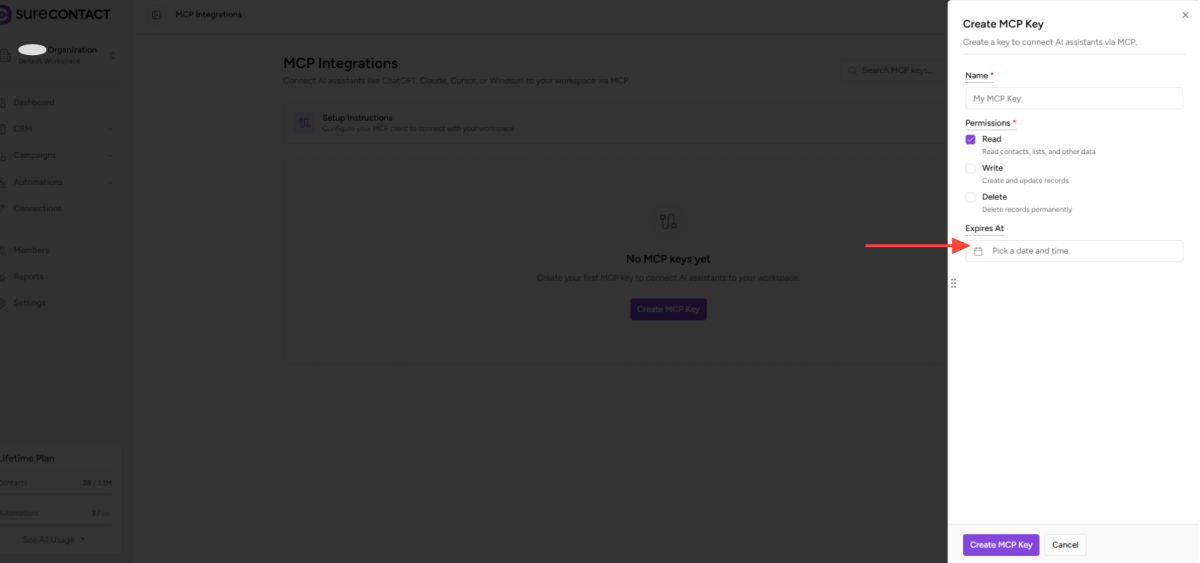
- Click Create MCP Key
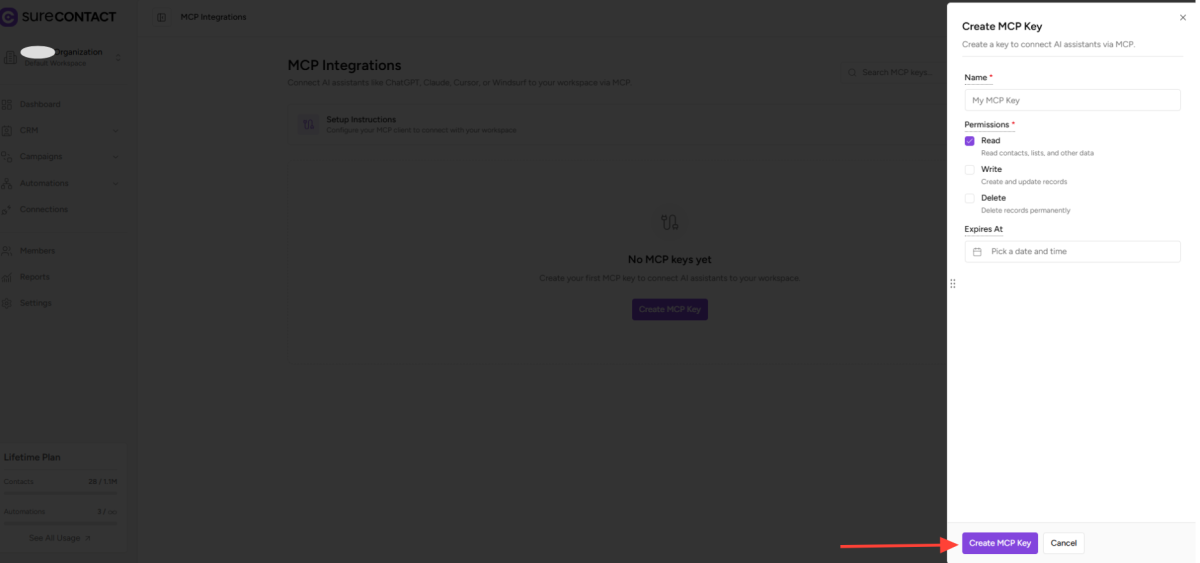
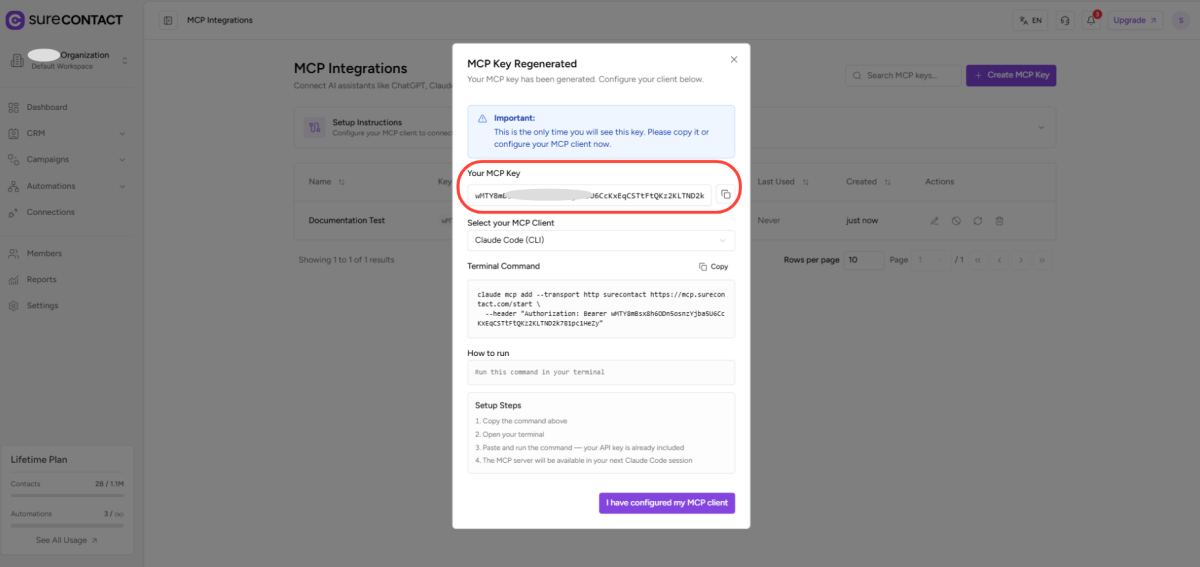
- Copy the MCP key and store it securely
(You will not be able to see it again.)
Step 2: Open Claude Settings
- Download and open Claude Desktop
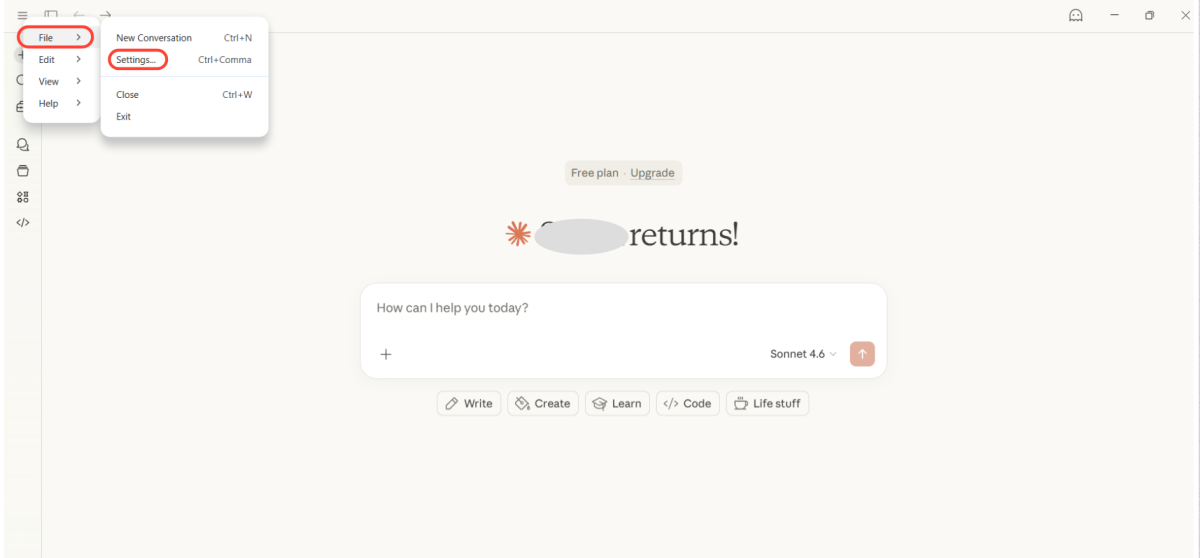
- Click the breadcrumb menu at the top
- Go to: File → Settings → Developer
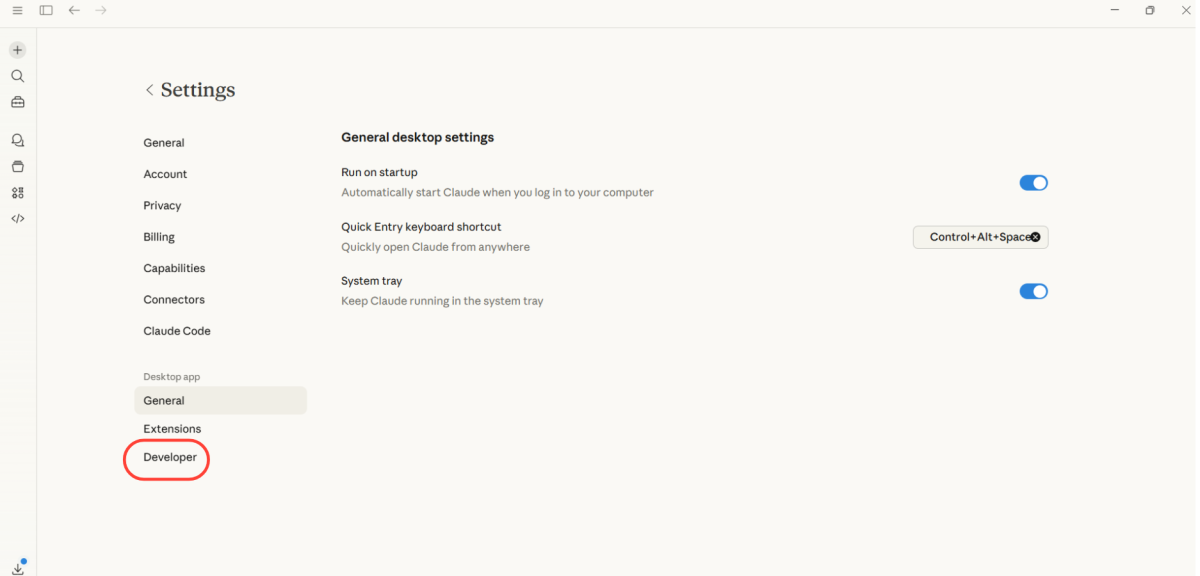
- Click Edit Config
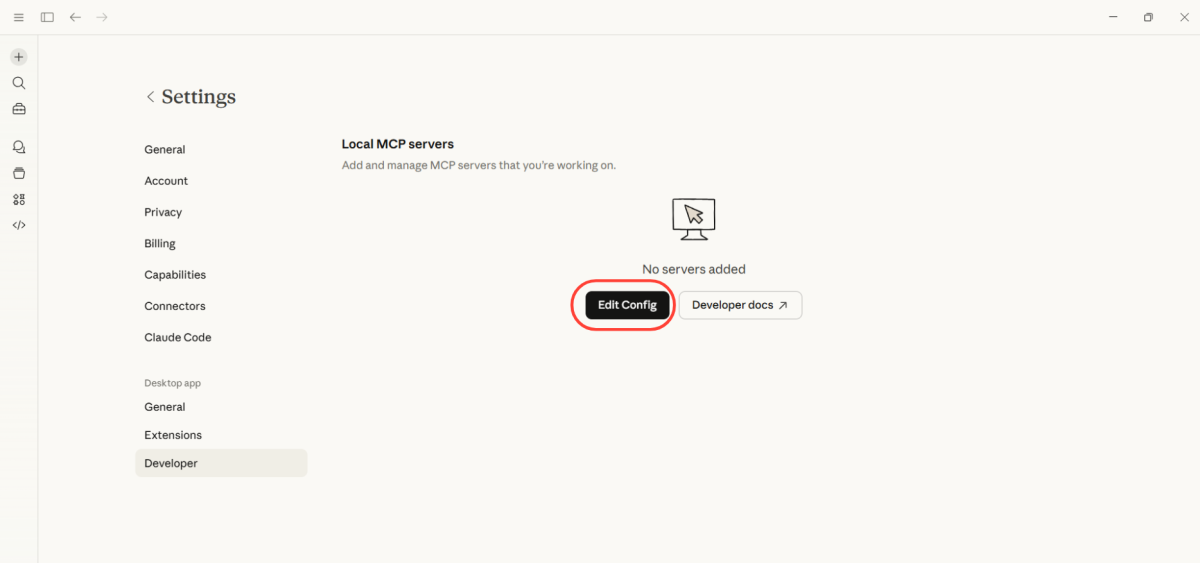
Step 3: Update the Configuration File
- Open the claude_desktop_config.json file in a text editor
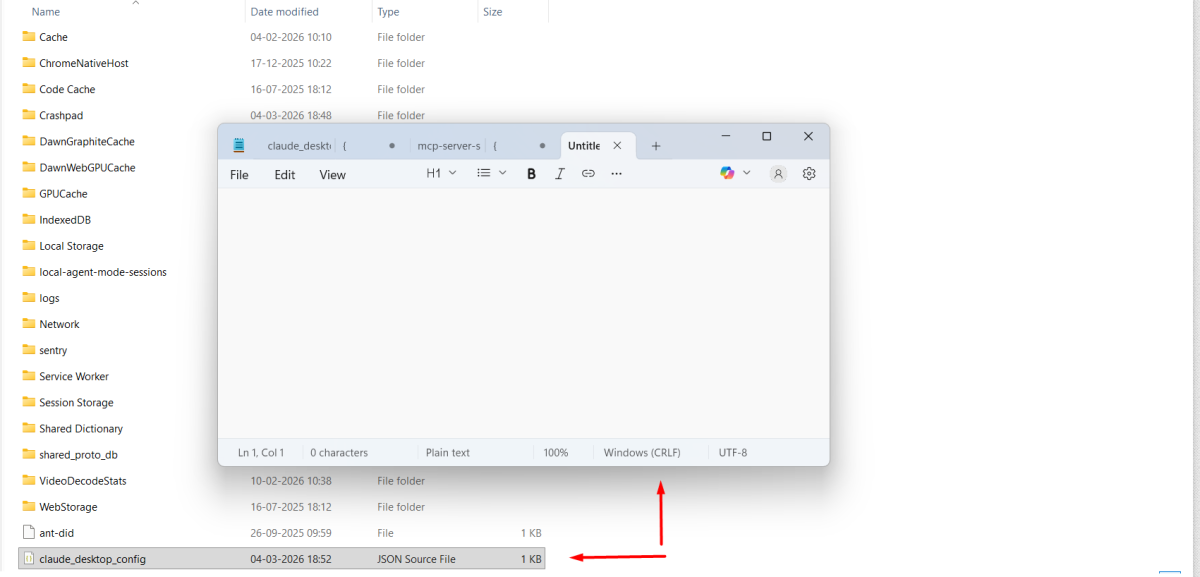
- Paste the MCP configuration copied from SureContact
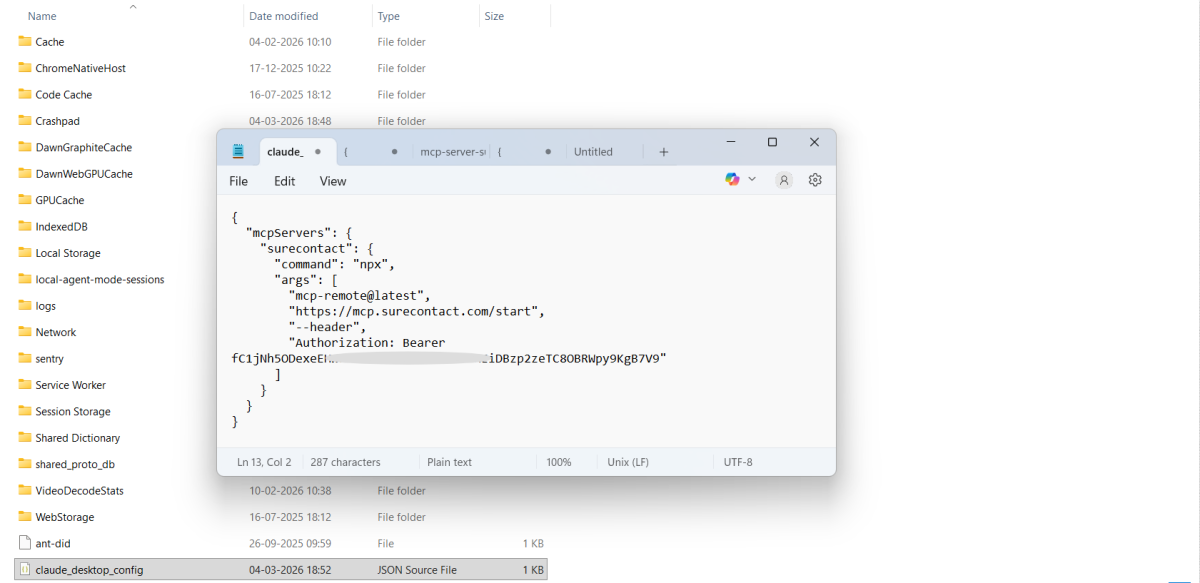
- Save the file
- Close and reopen Claude Desktop
Step 4: Verify MCP Connection
After restarting:
- Ensure SureContact MCP appears
- Confirm it shows as connected
- Start giving commands
Example:
- “Show me contacts added today.”
- “Add this user to the Premium Customers list.”
- “Create a new email campaign draft.”
Claude will now securely execute actions inside SureContact.
What You Can Do with SureContact MCP
Once connected, you can:
- Create or update contacts
- Add or remove tags
- Manage lists
- Fetch data
- Trigger actions
- Retrieve campaign details
All using simple natural language.
Security & Permissions
- Every MCP key has custom permissions
- You control what actions are allowed
- Keys can expire
- Keys can be revoked anytime
Your AI only performs actions you explicitly allow.
Summary
SureContact MCP allows your AI to:
✔ Connect securely
✔ Perform real actions
✔ Follow your natural language commands
✔ Automate tasks without coding
Need Help?
If you need any assistance, feel free to contact our support team at [email protected].
We don't respond to the article feedback, we use it to improve our support content.