Most WooCommerce store owners piece together their email marketing the same way: pick a tool, install the plugin, watch the sync break after an update, and spend a Friday afternoon figuring out why the abandoned cart email fired three hours late or not at all.
WooCommerce doesn’t come with email marketing built in. It handles order confirmations and shipping updates, but segmenting customers, running abandoned cart sequences, and automating post-purchase follow-ups all need a separate tool. Most of those tools treat WooCommerce as an integration, not a native connection, and that gap is where things go wrong. This guide covers how WooCommerce email marketing actually works, what separates tools that read your store’s events in real time from ones that sync on a schedule, and how to set up the three automations that recover the most revenue.
Quick answer: The best WooCommerce email marketing setup connects your store natively so order events, customer data, and purchase history arrive automatically, with no CSV exports, no Zapier, and no broken syncs. You set triggers based on real WooCommerce events (cart abandoned, order placed, product purchased) and build sequences that fire from those. SureContact connects to WooCommerce directly and starts automations the moment a customer action happens.
Does WooCommerce Have Email Marketing Built In?
WooCommerce includes basic transactional emails: new order, order processing, order complete, refund, and customer invoice. You can customise the template and toggle them on or off, but you can’t segment by purchase history, set up multi-step sequences, or trigger emails based on what someone bought or didn’t buy.
For anything beyond transactional, like abandoned cart recovery, post-purchase sequences, re-engagement campaigns, or win-back flows, you need a dedicated email marketing tool connected to your store.
What Should WooCommerce Email Marketing Actually Do?
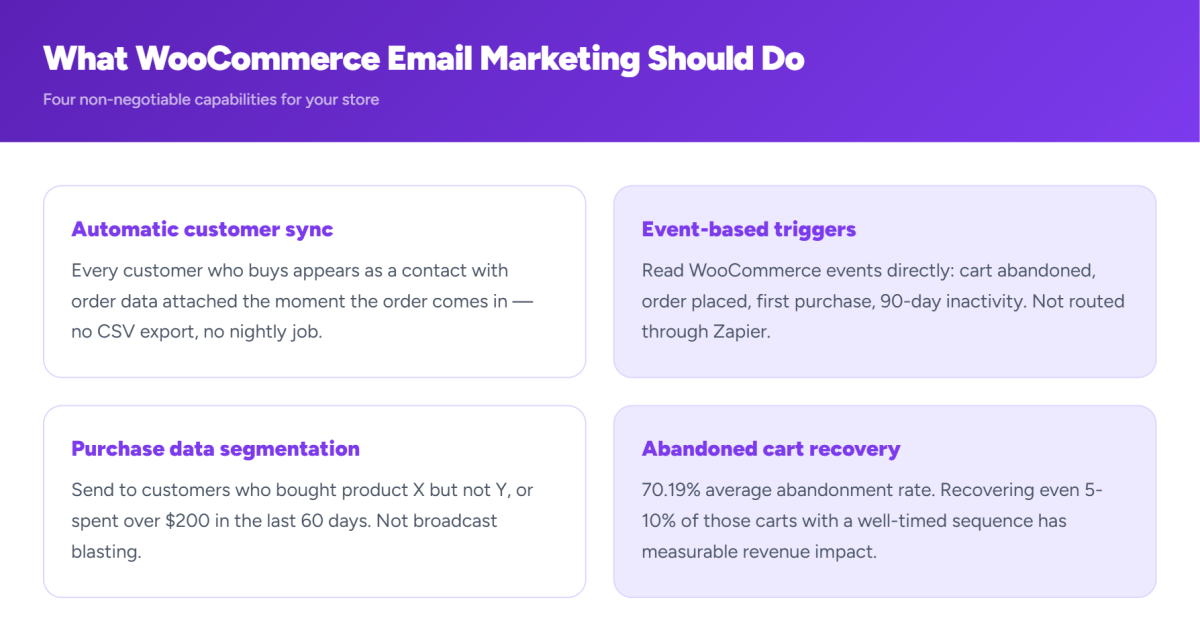
Most WooCommerce stores need four things from an email marketing tool, and it’s worth being clear on all of them before choosing one.
Customer sync should be automatic and immediate. Every customer who buys should appear as a contact with their order data attached the moment the order comes in, not after a CSV export or a nightly job.
Event-based triggers are what make automation worth setting up at all. Abandoned cart, order placed, first purchase, second purchase, no purchase in 90 days: if your tool can’t read these events from WooCommerce directly, you’ll end up routing them through Zapier, which adds latency, adds cost, and breaks when either platform updates.
Segmentation by purchase data is what separates useful email marketing from broadcast blasting. Being able to send to customers who bought product X but not product Y, or who spent over $200 in the last 60 days, is how you stop sending the same email to your entire list every time.
Abandoned cart recovery is where most of the money is. Baymard Institute puts average cart abandonment at 70.19% across industries, and recovering even 5-10% of those carts with a well-timed sequence has a measurable impact on monthly revenue.
How Do You Connect WooCommerce to an Email Marketing Tool?
There are two ways tools connect to WooCommerce, and the difference matters more than most comparisons acknowledge.
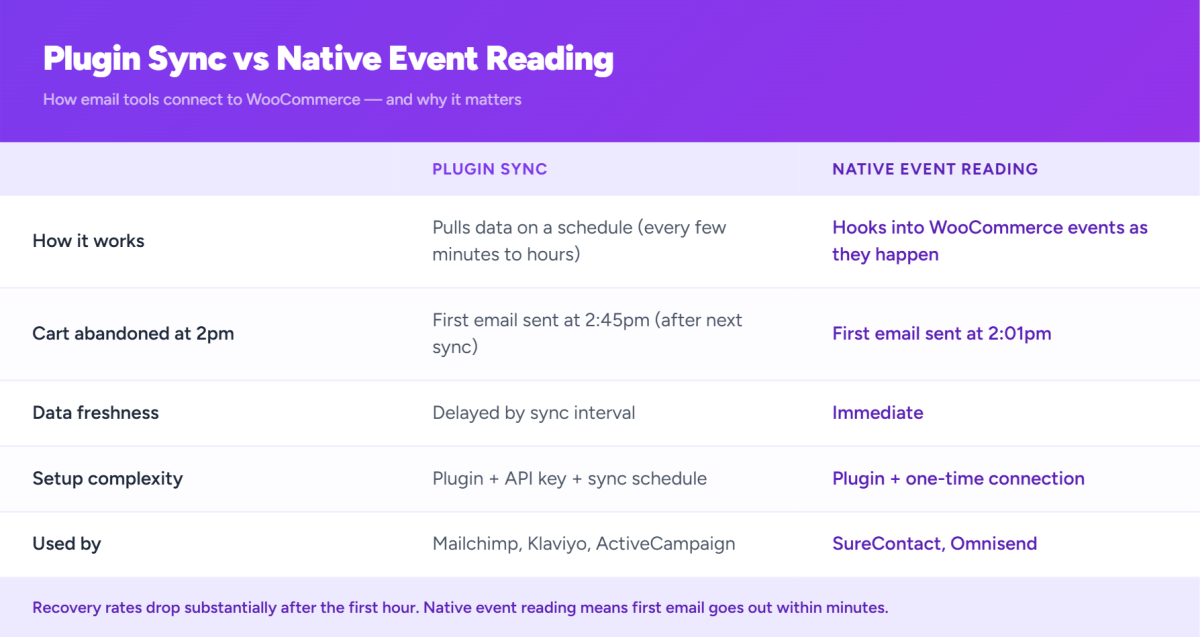
Most major tools, including Mailchimp, Klaviyo, and ActiveCampaign, work through plugin sync. The tool installs a WordPress plugin that periodically pulls data from your WooCommerce database and pushes it to the cloud. Customer records, order history, and product data sync on a schedule, usually every few minutes to a few hours.
SureContact works differently. Its plugin hooks directly into WooCommerce’s event system. When an order is placed, the hook fires and SureContact receives the event immediately, with no sync delay, no scheduled job, and no data sitting in a queue. It reads WooCommerce events including order placed, cart abandoned, subscription started, and refund issued in real time and fires automations the moment the event happens.
That difference matters most in abandoned cart recovery. If your tool syncs every 30 minutes, a customer who abandons a cart at 2pm might not get their first email until 2:45pm. Research from Rejoiner shows recovery rates drop substantially after the first hour. Native event reading means the first email goes out within minutes.
How Do You Set Up Abandoned Cart Emails in WooCommerce?
Abandoned cart is the highest-ROI automation for most WooCommerce stores. Here’s the full setup in SureContact.
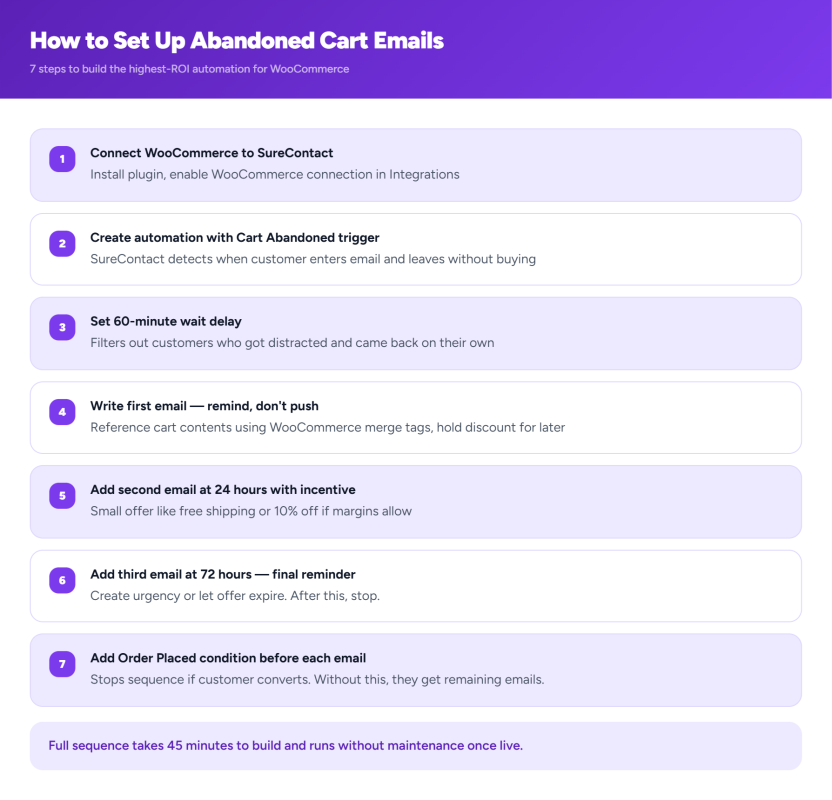
Step 1: Connect WooCommerce to SureContact. Install the SureContact WordPress plugin. In your SureContact workspace, go to Integrations and enable the WooCommerce connection. Customer data and order history sync on connection.
Step 2: Create a new automation and set the trigger. In Automations, create a new workflow and set the trigger to “WooCommerce: Cart Abandoned.” SureContact detects a cart abandonment when a customer adds items, starts checkout by entering their email, and leaves without completing the order.
Step 3: Set a wait delay before the first email. Don’t send immediately. A 30 to 60 minute wait filters out customers who got distracted and came back on their own. In SureContact, use the Fixed Delay option and set it to 1 hour.
Step 4: Write the first email. Keep it simple. Reference what they left behind and hold the discount for later. The goal of email one is to remind, not push. Use WooCommerce merge tags to pull in cart contents, product image, and price. SureContact’s 2-step email source picker lets you reuse a high-performing template from a past campaign and adjust the copy, so you’re not starting from scratch each time.
Step 5: Add a second email at 24 hours. If they haven’t bought, send a second email. This is where a small incentive like free shipping or 10% off can work if your margins allow it. Use the Day of Week delay to send only on weekdays if your store skews toward business buyers.
Step 6: Add a third email at 72 hours. Final reminder. Create urgency with inventory context or let the offer expire. After this, stop. Continuing to chase damages deliverability.
Step 7: Add a condition to stop the sequence on purchase. In SureContact, add an Order Placed condition before each email. If the customer buys at any point, the automation stops. Without this step, customers who convert still receive the remaining sequence.
The full three-email sequence takes about 45 minutes to build and runs without maintenance once it’s live.
What Other WooCommerce Automations Are Worth Setting Up?
The abandoned cart sequence gets the most attention, but two others recover significant revenue that most stores leave on the table.
Post-purchase sequence. The moment a customer completes an order is the highest-trust point in the relationship. Most stores send an order confirmation from WooCommerce and nothing else for 90 days. A post-purchase sequence uses that trust before it fades.
Trigger: WooCommerce Order Completed event.
- Email 1 (immediately): A personal note from the store, not a receipt since WooCommerce already sent that. Something that feels human.
- Email 2 (3 days): Product usage tips or setup help, which reduces support requests and increases satisfaction.
- Email 3 (14 days): Ask for a review. Early enough that the product is still fresh, late enough that they’ve actually used it.
- Email 4 (30 days): Related products or a replenishment prompt where applicable.
Win-back sequence. Customers who bought once and haven’t returned in 90 days exist in every WooCommerce store, and almost nobody emails them deliberately.
Trigger: SureContact’s inactivity trigger, set to fire when a contact tagged “customer” has had no purchase activity in 90 days.
- Email 1: A genuine reason to come back, whether that’s new products, seasonal stock, or something that changed.
- Email 2 (7 days): A specific offer if email 1 got no response.
- Email 3 (14 days): Last touch. After this, move them to a low-frequency list rather than continuing to email.
How Does WooCommerce Email Marketing Pricing Compare?
Most email marketing tools at this price point give you one thing: email. The difference with SureContact is what else is included.
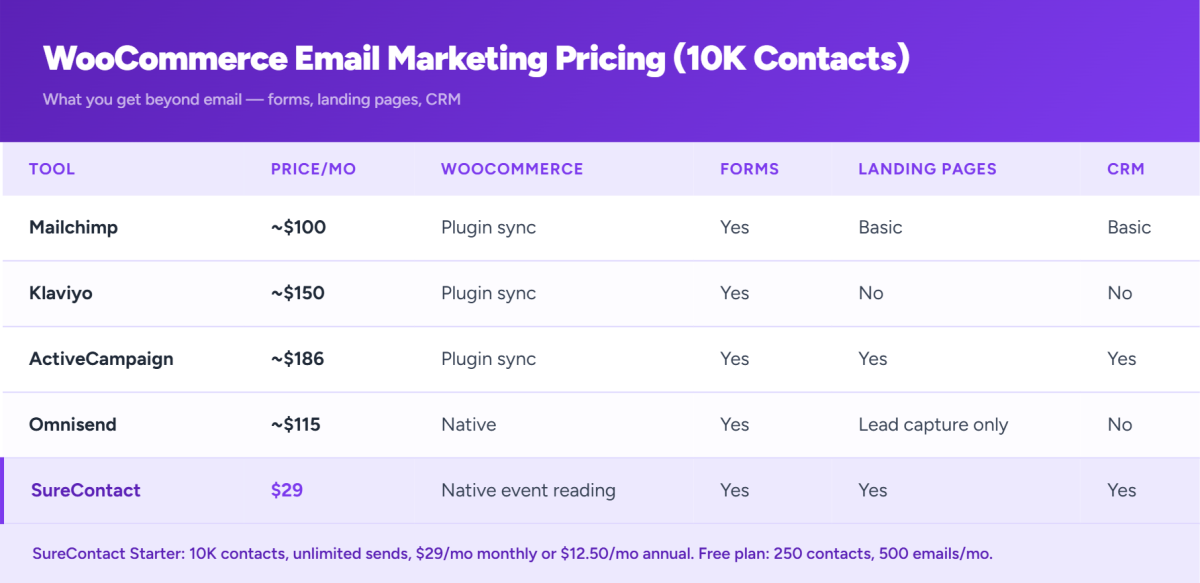
| Tool | 10K contacts/mo | WooCommerce | Forms | Landing pages | Automations | CRM |
|---|---|---|---|---|---|---|
| Mailchimp | ~$100/mo | Plugin sync | Yes | Basic | Limited (Standard+ only) | Basic |
| Klaviyo | ~$150/mo | Plugin sync | Yes | No | Yes | No |
| ActiveCampaign | ~$186/mo | Plugin sync | Yes | Yes | Yes | Yes |
| Omnisend | ~$115/mo | Native | Yes | Lead capture only | Yes | No |
| SureContact | $29/mo (up to 10K) | Native event reading | Yes | Yes | Yes | Yes |
Klaviyo at $150/month has no landing page builder. Omnisend’s landing pages are lead-capture forms only — you can’t build a campaign or product page. Mailchimp locks multi-step automations behind its Standard plan at $20/mo base, which scales fast at 10K contacts. ActiveCampaign at $186/month gets you the full stack but still runs through plugin sync. SureContact at $29/month includes native forms, full landing pages, automations, a CRM, and a WooCommerce connection that reads events in real time.
SureContact’s Starter plan covers up to 10,000 contacts with unlimited email sends at $29/month billed monthly, or $12.50/month billed annually.
Can You Manage WooCommerce Email Marketing From Claude or ChatGPT?
SureContact has 99 MCP tools, which means you can build and manage your WooCommerce email setup directly from an AI assistant. Describe the automation you want, something like “Create an abandoned cart sequence with a 1-hour delay, three emails, and a purchase condition to stop it,” and SureContact builds the workflow. You review and activate.
For store owners who prefer working from a chat interface rather than clicking through a visual builder, this is worth knowing about. The full list of what’s available through MCP is at SureContact MCP.
Which WooCommerce Email Marketing Tool Is Right for You?
The answer depends on your list size, your stack, and what you’re currently paying.
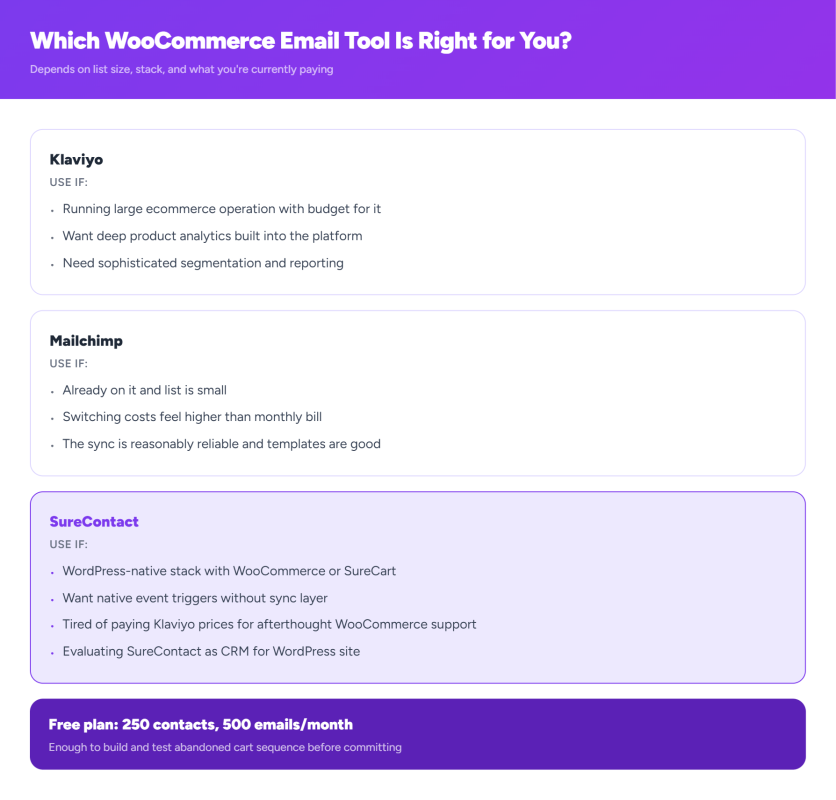
Use Klaviyo if you’re running a large ecommerce operation, you want deep product analytics built into the platform, and the budget is there. It’s purpose-built for ecommerce and the reporting reflects that.
Use Mailchimp if you’re already on it, your list is small, and switching costs feel higher than the monthly bill. The sync is reasonably reliable and the templates are good.
Use SureContact if you’re on a WordPress-native stack with WooCommerce, SureCart, or both, you want native event triggers without a sync layer, and you’re tired of paying Klaviyo prices for a tool that treats WooCommerce as an afterthought. The free plan covers 250 contacts and 500 emails/month, which is enough to build and test the abandoned cart sequence before committing to anything. If you’re also evaluating SureContact as a CRM for your WordPress site, the best WordPress CRM comparison covers where it sits against the other options.
Get started free or see the full WooCommerce integration details.
Frequently Asked Questions
Does WooCommerce have abandoned cart emails built in? WooCommerce’s built-in emails cover order status only: confirmation, processing, shipping, and refund. Abandoned cart recovery requires a third-party plugin or an email marketing tool with a native WooCommerce integration. SureContact and CartFlows both handle this without an additional plugin.
What’s the best time to send an abandoned cart email? Send the first email within 1 hour of abandonment. Data from Rejoiner and Klaviyo both point to the first hour as the highest recovery window. After 24 hours, recovery rates drop substantially, and a three-email sequence spread over 72 hours at 1 hour, 24 hours, and 72 hours captures most recoverable carts.
Do I need Zapier to connect WooCommerce to my email tool? Not with native integrations. SureContact and Omnisend both connect directly to WooCommerce through a WordPress plugin that reads order events in real time. Zapier is only needed when your email tool doesn’t have a native WooCommerce connection. If you’re currently on FluentCRM and evaluating the move, the FluentCRM vs SureContact comparison covers the architecture difference in detail.
How do I segment WooCommerce customers for email? Once your email tool is connected to WooCommerce and order data is synced, you can segment by purchase count, product purchased, total spend, last purchase date, or any custom tag applied at checkout. SureContact syncs all standard WooCommerce order data on connection and lets you filter by any of those fields when building a campaign or automation.
Can I use WooCommerce customer data to personalise emails? Once WooCommerce is connected, you can pull first name, last order, product purchased, and cart contents into email copy using merge tags. In SureContact, these appear as dynamic fields in the email builder and the customer’s data fills in automatically on send.
What’s the difference between WooCommerce and Shopify for email marketing? WooCommerce is self-hosted on WordPress while Shopify is a hosted platform. Shopify has more email marketing built in including basic abandoned cart recovery, while WooCommerce depends on plugins and integrations for most of it. For WordPress store owners, a tool with a native WooCommerce integration is more reliable than one built primarily around Shopify’s data model.
How many emails should you be sending to WooCommerce customers? Beyond transactional emails, most stores benefit from an abandoned cart sequence of 3 emails, a post-purchase sequence of 3-4 emails, a win-back sequence for inactive customers of 2-3 emails, and periodic campaigns for promotions or new products. That covers the full customer lifecycle without over-emailing any single segment.