Somewhere on your computer there’s a spreadsheet of leads you meant to follow up with. Maybe a few sticky notes too, or an inbox folder labeled “follow up” that nobody has opened in three weeks. A WordPress CRM plugin exists to replace all of that with something that actually remembers, tags, and follows up on its own, and getting the first automation running takes less time than most people expect.
A WordPress CRM plugin like SureContact connects directly to your site, pulls in contacts from your forms automatically, and lets you build an automation, like a welcome email or a lead-nurture sequence, without writing any code. Setup runs in three parts: connect the plugin, capture your first contacts, then build one automation using a ready-made template instead of starting from a blank canvas.
Why Run Your CRM Inside WordPress at All?
Because your leads are already there. Every contact form, every checkout, every newsletter signup happens on your WordPress site already, so a CRM that lives in the same place skips the export-import dance entirely. A contact fills out a form, and they’re already a record in your CRM, tagged and ready for whatever sequence you set up next.
That’s different from bolting on a separate CRM that lives outside WordPress, where every new lead needs a Zapier connection or a manual CSV upload just to show up where you can act on it. It also means one login, one place to check, and one system that already understands what a “contact” is on your specific site, instead of two tools that each have their own half of the picture.
What Should You Automate After the First One Is Working?
Once a welcome sequence is running cleanly, the next automation worth building depends on what happens after someone becomes a contact. A store adds a post-purchase sequence next, thanking the buyer and suggesting a related product a week later. A service business adds a booking reminder, since a missed appointment costs more than a slightly early one. A content site adds a re-engagement automation for subscribers who stopped opening emails three months back.
Resist building all three in the first week. One working automation that actually runs beats three half-finished ones sitting in draft, and the template library will still be there next week when the first one is solid.
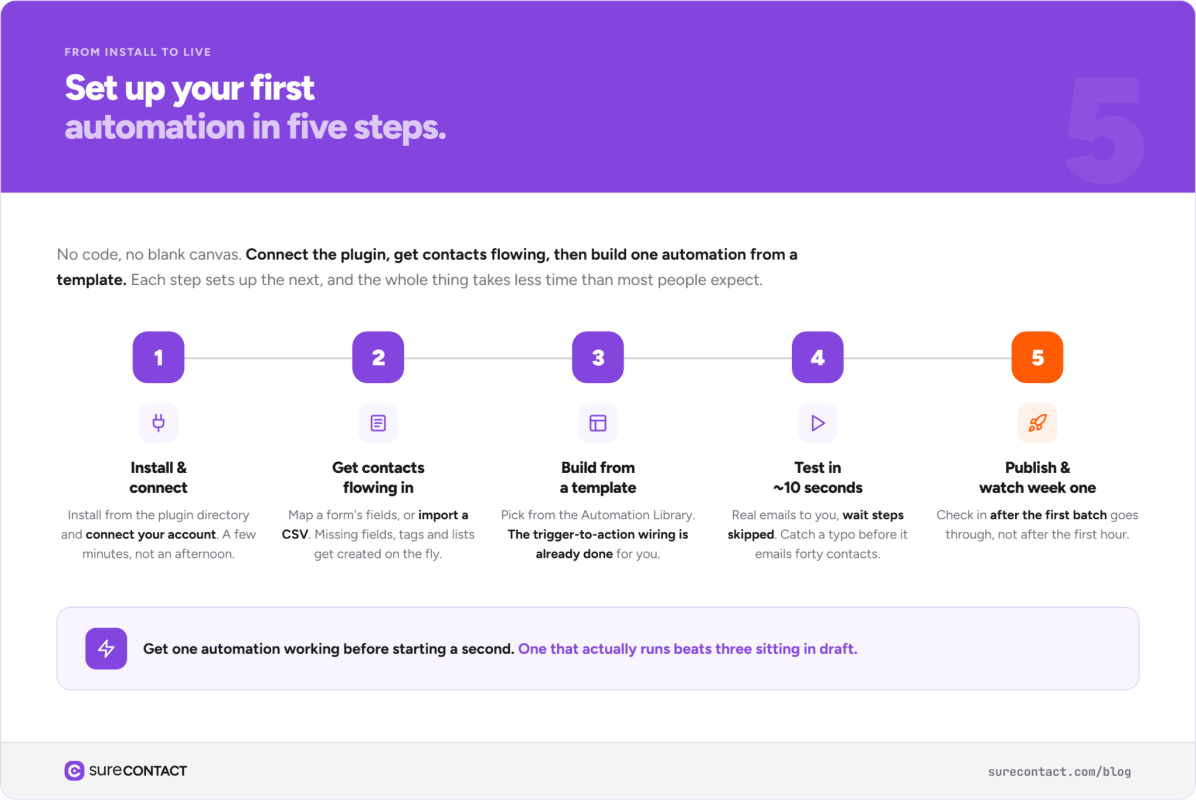
Step 1: Install and Connect
Install SureContact from the WordPress plugin directory and connect your account. This is the only step that touches your site’s core setup, and it takes a few minutes, not an afternoon.
Step 2: Get Your First Contacts Flowing In Automatically
The fastest path to your first real contacts is connecting whatever form you already use to collect them. If that’s SureForms, SureContact maps your form fields directly to CRM fields (name, email, company, whatever you’re already collecting) so every new submission becomes a contact automatically, no manual entry required.
Don’t have a form connected yet? A CSV import works too, and SureContact creates any missing custom fields, tags, or lists on the fly during that import rather than making you set them up first.
Once contacts are flowing in, you have something to actually automate. Before that step, there’s nothing for automation to act on.
Already Using Another Platform? Bring Your List With You
If you’re moving off Mailchimp, ActiveCampaign, MailerLite, Kit, or Drip, SureContact imports contacts, tags, and custom fields from those platforms using an API key, so an existing list doesn’t mean starting over. Connect the account you’re leaving, and the import carries over segmentation that took months to build instead of asking you to rebuild it by hand.
This matters more than it sounds like it should. The reason most people put off switching CRMs isn’t the new tool, it’s the fear of losing a year of tags and segments in the move. Handling that transfer automatically removes the actual reason people stay on a tool they’ve already outgrown.
Step 3: Build Your First Automation From a Template, Not a Blank Screen
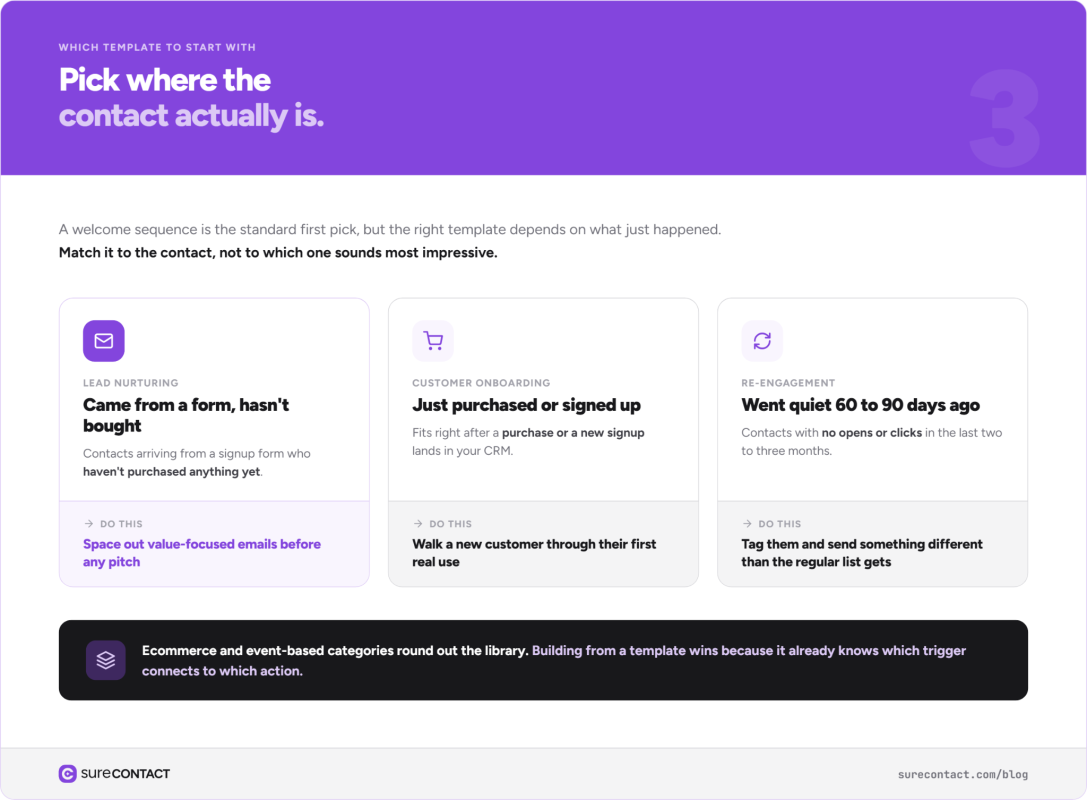
This is the step that used to take the longest, and it doesn’t have to anymore. SureContact’s Automation Library ships with ready-to-use templates across the categories that cover almost every first automation someone needs: lead nurturing, customer onboarding, re-engagement, ecommerce, and event-based workflows.
Pick the one closest to what you’re trying to do, a welcome sequence for new contacts is the standard first pick, and customize it instead of building the logic from scratch. Change the copy, adjust the timing between steps, add or remove a step, and the underlying trigger-and-action structure is already handling the parts that are easy to get wrong on a first attempt.
The Lead Nurturing category fits best if contacts are coming from a form but haven’t bought anything yet, spacing out value-focused emails before any pitch. Customer Onboarding fits right after a purchase or signup, walking a new customer through their first real use of whatever they bought. Re-engagement targets contacts who went quiet, tagging anyone with no opens or clicks in 60 or 90 days and sending something different than your regular list gets. Pick based on where the contact actually is, not which template sounds most impressive.
Building from a template beats a blank canvas for one simple reason: the template already knows which trigger connects to which action correctly. A first automation built from scratch usually breaks on that exact detail.
Step 4: Test It Before It Goes Live
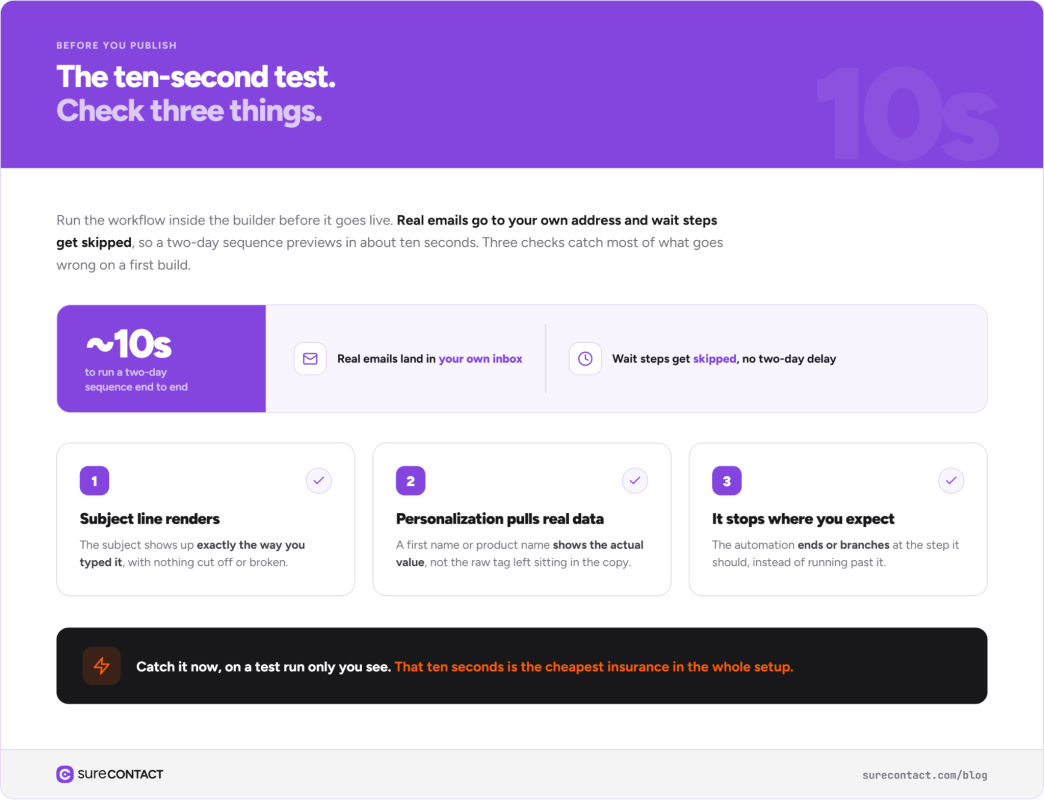
Before publishing, run the workflow inside the builder using the test option. Real emails go to your own address, and wait steps get skipped so you’re not sitting around for a two-day delay to preview a message. The whole automation runs in about ten seconds, so you see the actual result instead of guessing.
Catch a misconfigured step or a typo now, on a test run only you see, instead of after it’s already emailed forty real contacts. That ten seconds is the cheapest insurance in this entire setup.
Check three things specifically during that test run. The subject line renders the way you typed it. Any personalization tag, a first name, a product name, pulls real data instead of showing the raw tag itself. And the automation actually stops or branches where you expect it to. Those three catch most of what goes wrong on a first build.
Step 5: Publish and Watch the First Week
Once it’s live, check in after the first handful of contacts have gone through the whole sequence, not after the first hour. Open rates and click rates on the first real batch tell you whether the copy is landing. If a step is getting skipped for contacts who should qualify, that’s usually a tagging or trigger condition worth double-checking before more contacts hit that same wall.
How Is SureContact Different From Other WordPress CRM Plugins?
This space is more crowded than a quick search suggests. FluentCRM and WP-CRM System sit closest to SureContact. FluentCRM handles email and tagging well but leans lighter on the automation-building side, the visual workflow builder and template library are where SureContact spends more of its effort. WP-CRM System focuses more narrowly on client and project management than on marketing automation, so it fits a service business tracking client work better than a store or content site trying to nurture leads by email.
Beyond those two, FunnelKit and Groundhogg both pair a CRM with a heavier automation and funnel-building layer, closer in spirit to what SureContact does. WP Fusion and the HubSpot plugin take the opposite approach. They’re bridges to an external CRM rather than a CRM living inside WordPress itself, which means an extra account and an extra monthly bill on top of the plugin.
The real difference shows up at setup, not in a feature comparison table. A plugin with more raw features but no starting templates leaves a first-time user staring at an empty automation canvas, which is exactly the moment most people give up and go back to a spreadsheet.
Can You Manage Contacts and Automations Through an AI Assistant?
Yes. SureContact’s MCP tools let an AI assistant handle CRM tasks directly, so asking something like “add this new contact to my onboarding sequence” or “show me open rates on last week’s welcome email” gets answered without opening the dashboard first. That’s useful once the first automation is running and checking on it becomes a daily habit rather than a one-time setup task.
What If the First Automation Doesn’t Work Perfectly?
It won’t, and that’s fine. A welcome sequence that gets a 40% open rate on week one and a 55% open rate on week four, because the subject line got adjusted twice, is a completely normal first month. The template gets you a working automation on day one. The adjustments over the following weeks are what make it a good one.
Set Up Your First Automation Today
The SureContact setup docs walk through connecting your first form in more detail, and the plugin’s video tutorials cover the same steps visually if that’s the easier way to follow along.
Connect your forms, pick a template instead of a blank canvas, test before you publish, and you’ll have a working automation before the coffee gets cold.