If you’re running a WooCommerce store, you’ve probably set up the basics: order confirmed, order shipped, order complete. And then left it there, because setting up email automation felt like a project for next month.
Most store owners never get to next month. Every other customer interaction: the follow-up after a purchase, the win-back after 60 days of silence, the recovery after a lapsed cart. It happens manually, or not at all.
I built SureContact after watching this pattern repeat across thousands of WordPress stores. The ones that grow aren’t the ones with the best products. They’re the ones with email running in the background, doing the follow-up work automatically.
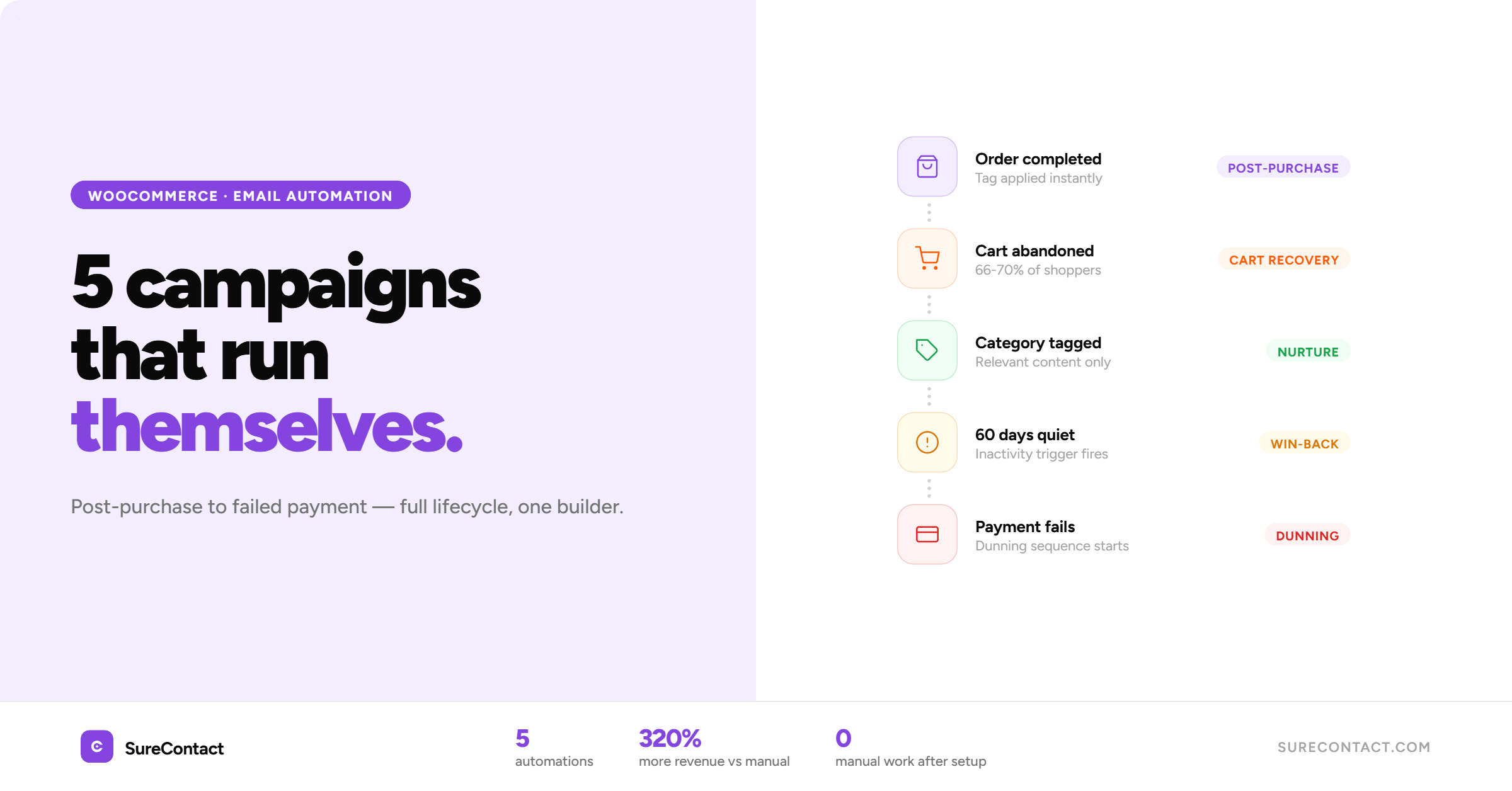
The five WooCommerce email automations worth setting up first:
- Post-purchase sequence
- Abandoned cart recovery
- Win-back for inactive customers
- Product category-based nurture
- Failed payment recovery
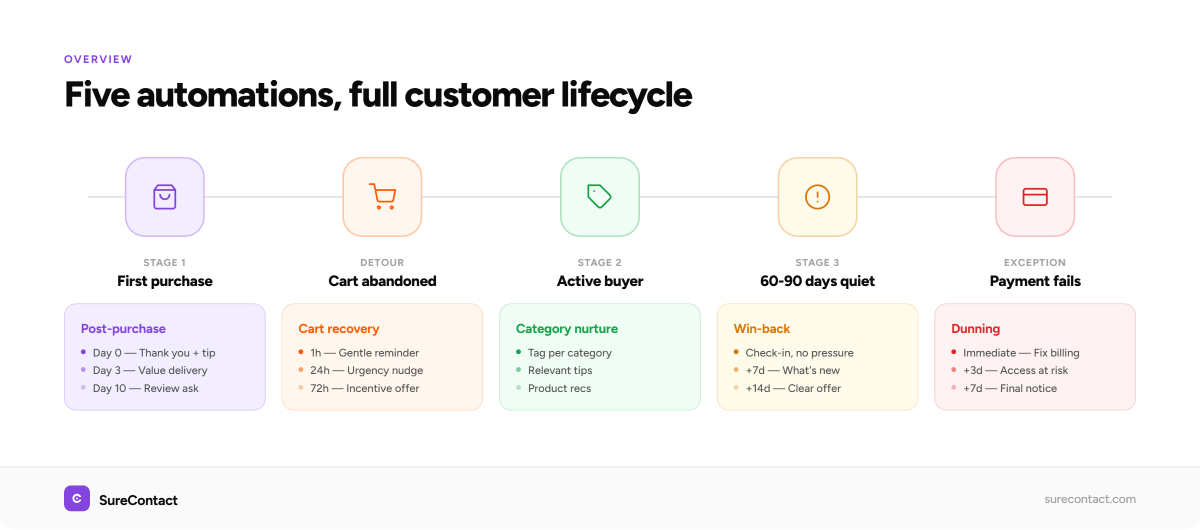
Together these cover the full customer lifecycle, from first purchase to lapsed buyer, without manual work after setup. Our WooCommerce integration handles all five from one automation builder.
WooCommerce doesn’t include any of this. Its built-in emails handle transactional messages only. Campaigns, behavioural triggers, and automated sequences all require a dedicated tool.
Here’s how to set up each one, what to send, and why it works.
What Is WooCommerce Email Automation?
WooCommerce email automation sends targeted emails based on what customers do in your store: placing an order, abandoning a cart, or going quiet for 60 days. It replaces manual sends with triggers that fire at exactly the right moment.
That timing difference is where the results come from. Automated emails generate around 320% more revenue than non-automated campaigns, according to Campaign Monitor. Not because they’re better written, but because they arrive when a customer is most likely to act.
A post-purchase email sent three days after delivery lands when the customer has used the product. A win-back email after 60 days of inactivity reaches someone at the exact moment they’re at risk of leaving. Timing is what makes them work.
What Do You Need to Set Up WooCommerce Email Automation?
You need a dedicated tool that connects to WooCommerce and triggers emails from store events: orders placed, carts abandoned, refunds issued, subscriptions renewed. WooCommerce doesn’t handle any of that on its own.
The two main options are self-hosted tools that run on your WordPress server (FluentCRM, Groundhogg, AutomateWoo) and cloud-based tools that handle sending and automation off your server (SureContact, Klaviyo, Omnisend).
Self-hosted tools give you data ownership. With active automations on shared hosting, send timing becomes unreliable as your list grows, because your server is carrying the full processing load. Cloud tools keep your WordPress site fast regardless of list size. The plugin captures WooCommerce events and passes them to our servers, where automation processing and sending happen.
Our free plan covers 250 contacts and 500 emails per month with all automation features included, no plan restrictions on what you can build.
The 5 WooCommerce Email Automations Worth Building First
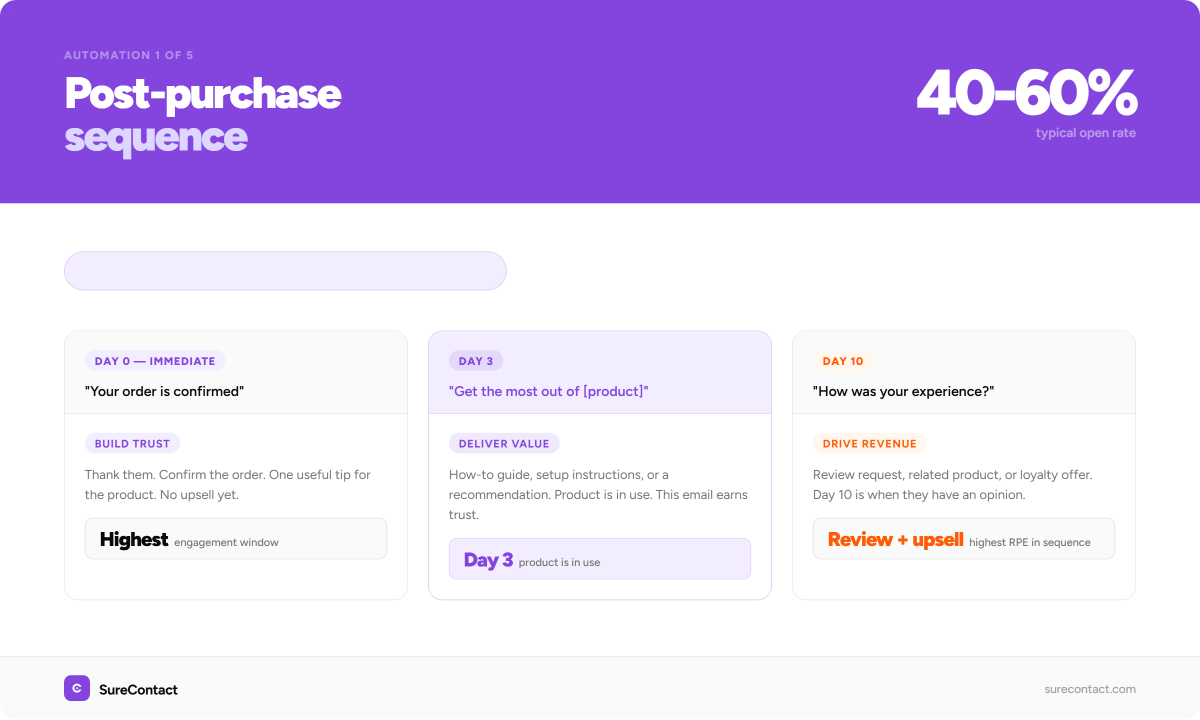
1. How Do You Set Up a Post-Purchase Email Sequence in WooCommerce?
A post-purchase sequence is the highest-ROI automation to build first. The customer just bought something, they’re engaged, and now is when you build loyalty, gather reviews, and introduce them to what else you sell.
A three-email sequence covers the full window:
- Email 1, Day 0 (immediate): Thank them. Confirm the order. Give one useful tip for the product they just bought. Keep it short. No upsell yet.
- Email 2, Day 3: Value delivery. A how-to guide, setup instructions, or a product recommendation that fits what they bought. This email earns trust.
- Email 3, Day 10: A review request, a related product, or a loyalty offer. By day 10 they’ve used the product long enough to have an opinion.
When a customer completes an order, SureContact syncs them as a contact and applies a preset tag based on what they purchased. Your automation triggers the moment that tag is added. No manual work, no exports.
How to set this up in SureContact:
- Connect your WooCommerce store in Integrations
- Go to Automations and click New Workflow
- Name it clearly: “Post-Purchase: [Product Category]”
- Set the trigger: Tag Added, then select the purchase tag for your product or category
- Add Send Email (Email 1): fires immediately
- Add Wait: 3 days, then Send Email (Email 2)
- Add Wait: 7 days, then Send Email (Email 3)
- Activate
Because each product or category gets its own tag, a customer buying running shoes triggers a different sequence than one buying supplements. No Zapier, no manual segmentation. The tag does the work.
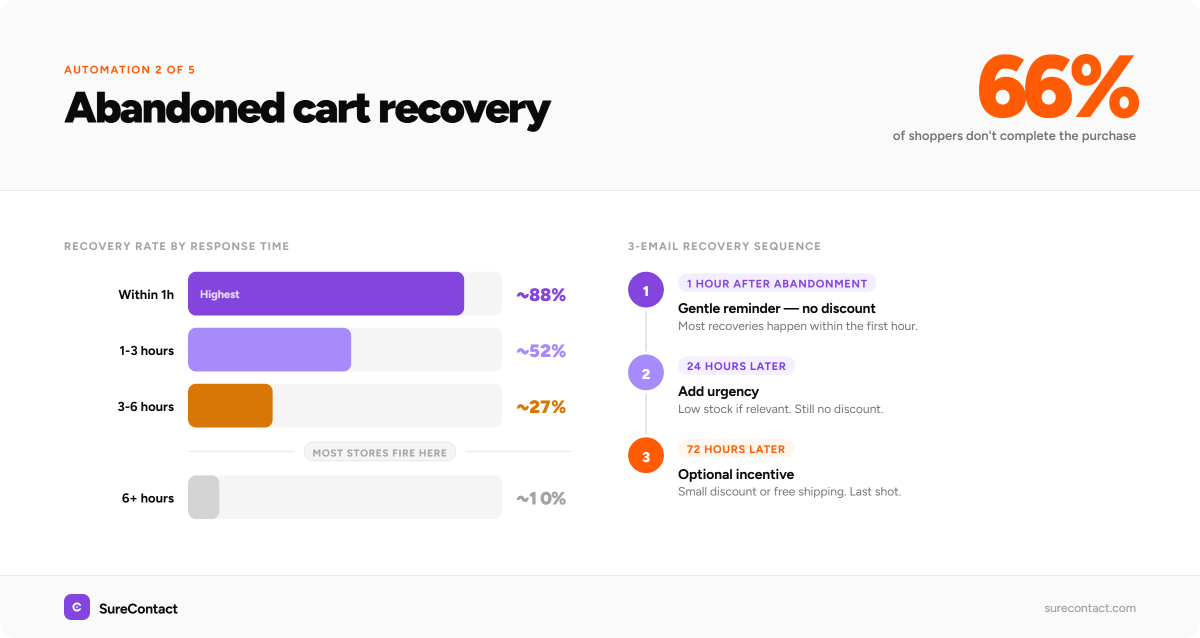
2. How Does Abandoned Cart Email Recovery Work in WooCommerce?
The sequence timing that consistently recovers the most carts:
Around 66–70% of shoppers who add something to a cart don’t complete the purchase, according to the Baymard Institute. An abandoned cart sequence brings a portion of them back.
- Email 1, 1 hour after abandonment: A gentle reminder. “You left something behind.” No discount yet.
- Email 2, 24 hours: Add urgency. Low stock if relevant. Still no discount.
- Email 3, 72 hours: Offer an incentive if you want to use one: a small discount or free shipping.
The first email is the most important one. Most recoveries happen within the first hour. After 24 hours, recovery rates drop sharply.
When WooCommerce detects an abandoned cart, it fires an event that SureContact catches and applies a preset tag to the contact. That tag triggers the recovery sequence automatically.
How to set this up in SureContact:
- Connect your WooCommerce store in Integrations
- Go to Automations and click New Workflow
- Name it: “Abandoned Cart Recovery”
- Set the trigger: Tag Added, then select your cart abandonment tag
- Add Send Email (Email 1): fires 1 hour after the trigger
- Add Wait: 23 hours, then Send Email (Email 2)
- Add Wait: 48 hours, then Send Email (Email 3)
- Add a condition before each step: check that the purchase tag has not been applied, so the sequence stops automatically if they complete the order
- Activate
3. How Do You Re-Engage Inactive WooCommerce Customers?
Every email list has customers who bought once and then stopped engaging. A win-back automation reaches them before that relationship goes cold.
The trigger is inactivity: a contact who hasn’t opened an email or placed an order in 60–90 days. Our inactivity triggers automatically when a contact crosses that threshold.
A three-email win-back sequence:
- Email 1: A simple check-in with something useful. No sales pressure.
- Email 2, 7 days later: A new product, a feature update, or customer proof. Show them what’s changed.
- Email 3, 7 days later: A clear offer. If they don’t engage after this, move them to a low-frequency list or suppress them entirely.
Suppressing contacts who stopped engaging after the win-back matters as much as the sequence itself. Sending to unengaged contacts affects your deliverability scores over time. Our gradual send feature, shipped in May 2026, lets you ramp send volume when re-engaging cold segments, reducing bounce spikes and keeping your sender reputation intact.
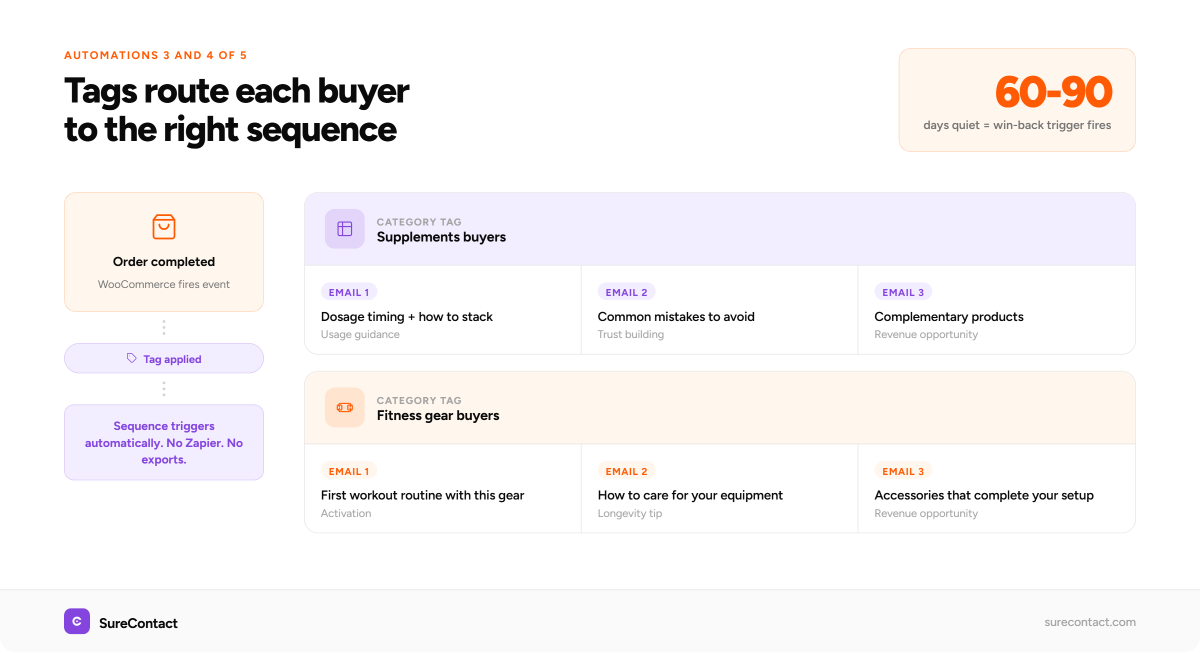
4. How Do You Set Up Product Category-Based Email Nurture in WooCommerce?
Category-based nurture sends emails based on what a customer actually bought, not just that they bought something. That’s where the revenue difference between generic and targeted email shows up.
When a customer buys from a specific category, they get tagged automatically in SureContact. That tag enrolls them in a category-specific automation. Every email they receive from that point is relevant to what they bought.
Take a store selling supplements and fitness gear. Each category runs its own nurture sequence:
- Supplements buyers: dosage tips, timing guidance, complementary products
- Fitness gear buyers: workout guides, product care tips, accessory recommendations
Both sequences run at the same time. A customer who buys from both categories gets enrolled in both. Our automation builder tracks each one independently and won’t send duplicate emails.
This is the automation that generic email tools without native WooCommerce integration can’t replicate cleanly. External tools require Zapier or custom webhooks to pass category data across. We read it directly from the WooCommerce order.
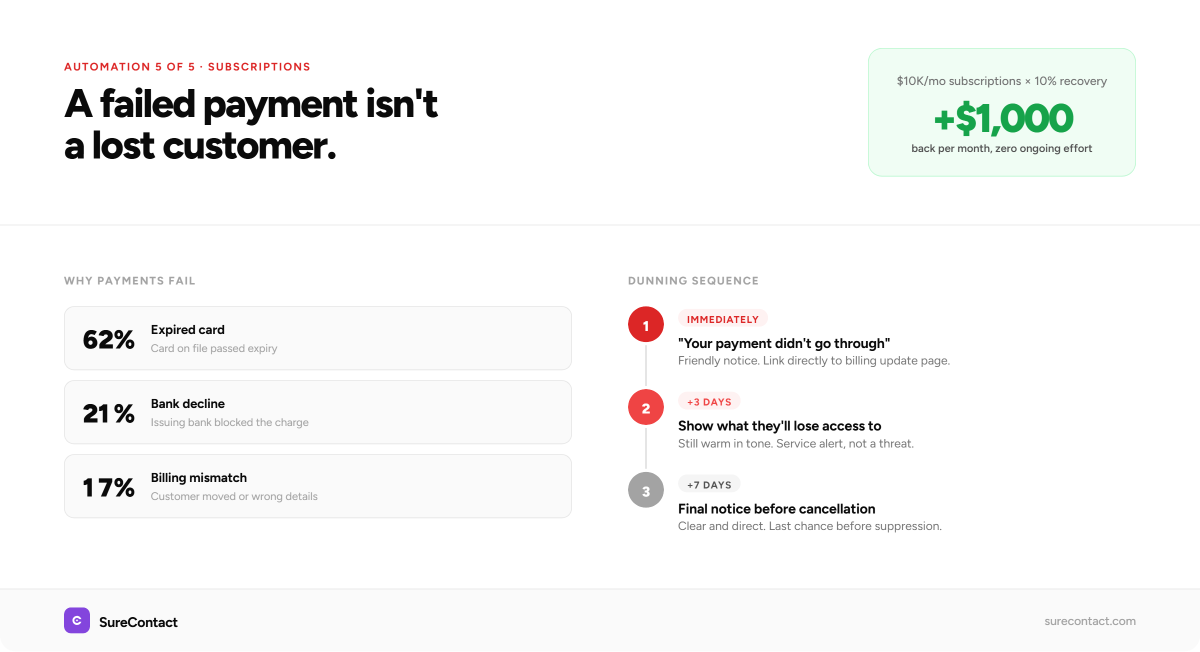
5. How Do You Automate Failed Payment Recovery for WooCommerce Subscriptions?
If you’re running WooCommerce subscriptions, this is the highest-value automation on the list.
A failed payment doesn’t mean a lost customer. It usually means an expired card, a bank flag, or a billing address mismatch. Most customers will fix it if you make it easy.
The sequence:
- Email 1, immediately after failure: Friendly notice. Subject line: “Your payment didn’t go through.” Link directly to the billing update page. No judgment.
- Email 2, 3 days later: Follow-up. Show what they’ll lose access to if it goes unresolved.
- Email 3, 7 days later: Final notice before cancellation.
When a payment fails, WooCommerce fires an event that SureContact catches and applies a preset tag to the contact, triggering the dunning sequence automatically. The same mechanism works for SureCart users, where failed payment events flow into SureContact directly.
How to set this up in SureContact:
- Connect your WooCommerce store in Integrations
- Go to Automations and click New Workflow
- Name it: “Failed Payment Recovery”
- Set the trigger: Tag Added, then select your payment failed tag
- Add Send Email (Email 1): fires immediately
- Add Wait: 3 days, then Send Email (Email 2)
- Add Wait: 4 days, then Send Email (Email 3)
- Activate
For a store processing $10,000 per month in subscriptions, recovering 10% of failed payments adds $1,000 back per month with no ongoing effort after setup.
How Do You Measure If WooCommerce Email Automation Is Working?
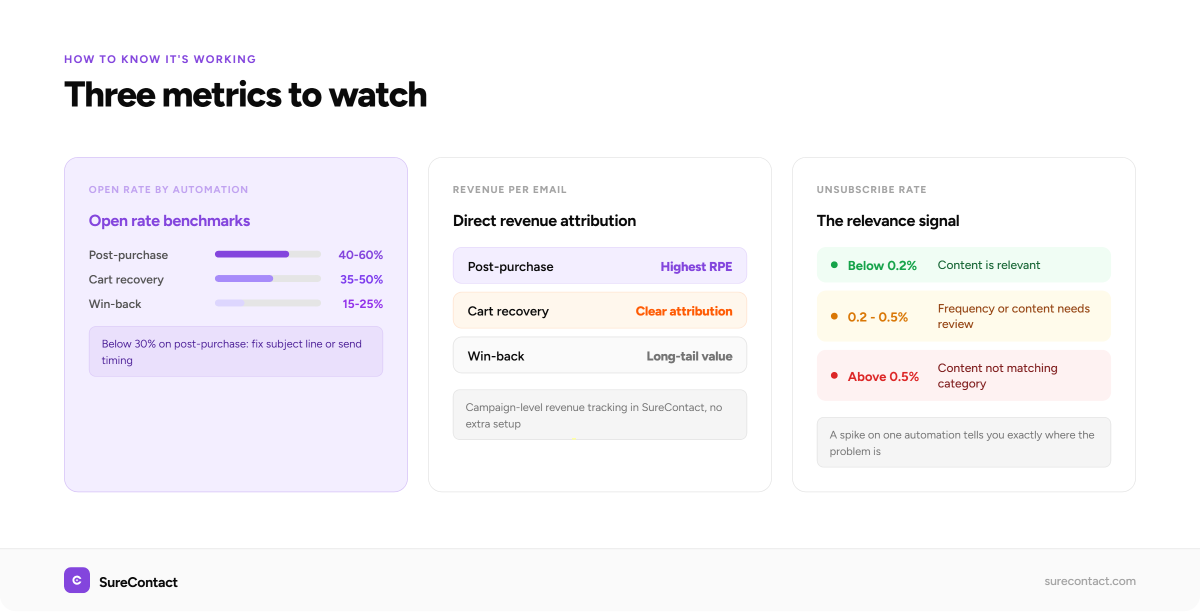
Three metrics to watch:
Open rate by automation: A post-purchase sequence should open at 40–60% based on industry benchmarks for triggered emails. If it’s below 30%, the subject line or send timing needs work. Win-back sequences open lower, with 15–25% being a healthy range.
Revenue per email sent: Track which automations generate direct revenue. Post-purchase and abandoned cart sequences should show clear attribution. Our campaign-level revenue tracking shows total customer spend tied to each automation without extra setup.
Unsubscribe rate per automation: A spike on a specific automation usually means the frequency is too high or the content isn’t relevant. Category-based nurture that doesn’t match what someone bought will surface here quickly.
Where to Start
Build the post-purchase sequence first. The customer just bought something, the trigger is clean, the timing is obvious. It takes about 15 minutes in SureContact and runs from that point forward.
After that, abandoned cart recovery. Then win-back. Each one adds a layer of automated follow-up that would otherwise require manual work or not happen at all.
Store owners who’ve migrated from FluentCRM and MailerLite tell us the post-purchase sequence is the first automation they build, and the one that generates the most repeat purchases.
Build your first automation free, no credit card required. Install the WordPress plugin, connect WooCommerce, and you’re set up in an afternoon. The WooCommerce sync guide walks through every step.
Related reading: Email Marketing for WooCommerce · 7 Best WordPress CRM Plugins in 2026