
- Introduction to SureContact Dashboard
- How to Install and Connect the SureContact WordPress Plugin
- What Do Contact Fields Mean in the SureContact WordPress Plugin
- How to Invite Members to a Workspace in SureContact
- How to Switch Organizations in SureContact
- Workspace-Level Contact Allocation in SureContact
- Workspace-Level Timezone Settings in SureContact
- How to Add a Custom Tracking Domain in a Workspace in SureContact
- SureContact MCP Server
- Creating Forms in SureContact
- Setup SMTP in SureContact
- Email Campaigns in SureContact
- How to Add a Preferences URL in Your Emails
- How to Share Email Templates in SureContact
- Spintax Feature in SureContact
- Deleting Sent Campaigns in SureContact
- A/B Testing Integration Guide
- Unsubscription Guide
- SureContact SMTP Setup Guide
- SMTP Routing User Flow
- FluentCRM Integration with SureContact
- SureContact Third-Party Integration — Step-by-Step Guide
- Fluent Forms Integration with SureContact
- SureForms Integration with SureContact
- WPForms Integration with SureContact
- Bulk Sync WordPress Users to SureContact
- Contact Form 7 Integration with SureContact
- Sync WooCommerce Customers with SureContact
- FluentCart & FluentCommunity Integration With SureContact
Incoming Webhook Integration Guide
SureContact’s Incoming Webhook trigger lets any external service or application start an automation by sending a simple HTTP POST request to a unique URL. When a payload is received, SureContact identifies the contact, optionally creates them, and triggers the connected workflow, making it the easiest way to wire SureContact into OttoKit, Zapier, Make, custom apps, or any tool that can send a webhook.
This guide explains the complete setup process, the configuration options available on the trigger, payload format expectations, security via Webhook Secret, and how to use Test Mode to verify your setup before going live.
Prerequisites
Before configuring the Incoming Webhook trigger, please ensure the following:
1. An Active SureContact Workspace
You must have access to a SureContact workspace with permission to create or edit Automation Workflows.
2. An External Service That Can Send a POST Request
Your source system (Zapier, OttoKit, Make, n8n, a custom application, an e-commerce platform, etc.) must be able to send an HTTP POST request with a JSON body to a custom URL. Most automation tools and modern apps support this out of the box.
3. Knowledge of Your Payload Structure
You should know what JSON payload your external service will send so you can map the contact identifier (email or UUID) and any additional contact fields using dot-notation paths (for example, customer.email or data.user.email_address).
How It Works
The Incoming Webhook trigger acts like a doorbell: an external system rings it by sending a POST request, SureContact answers and triggers the connected automation for the matching contact.
- You create a Workflow in SureContact and add Incoming Webhook as the trigger.
- SureContact generates a unique webhook URL of the form: POST /incoming-webhooks/{automation_uuid}.
- You paste this URL into your external service.
- When the external service POSTs JSON to that URL, SureContact validates the automation is Active, extracts the contact identifier from the configured path, finds (or optionally creates) the contact, and triggers the automation.
- Webhook responses are returned immediately; the automation runs asynchronously in the background.
How to Set Up an Incoming Webhook
Follow these steps to create a workflow that listens for an Incoming Webhook.
1. Open the Workflows Page
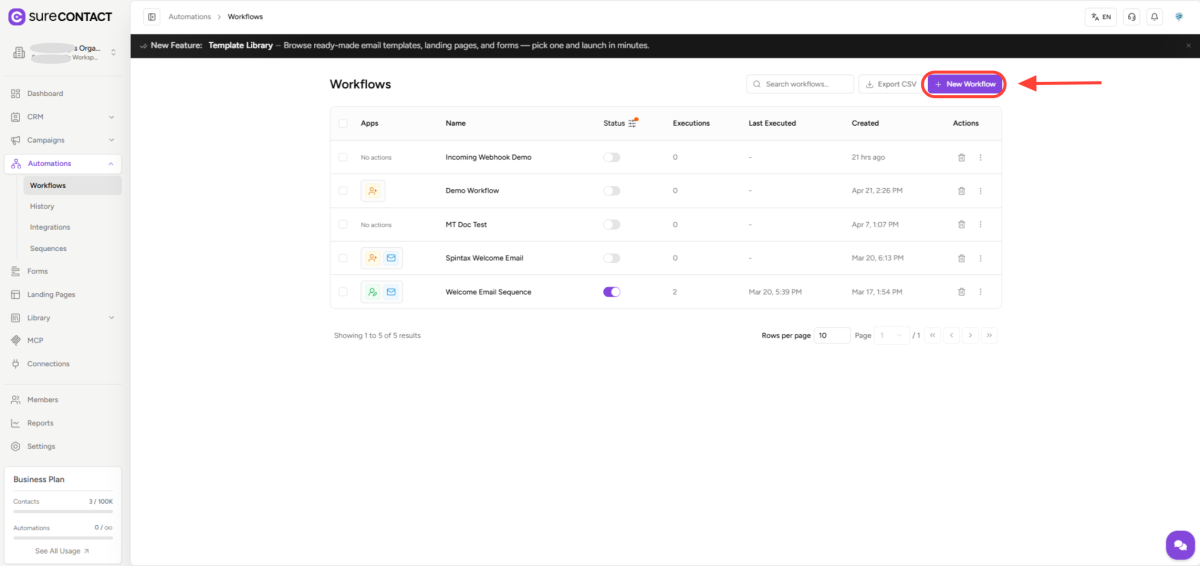
- From the left sidebar, click Automations to expand the menu, then click Workflows.
- On the top-right of the Workflows list, click the New Workflow button to start creating a new workflow.
2. Create a New Workflow
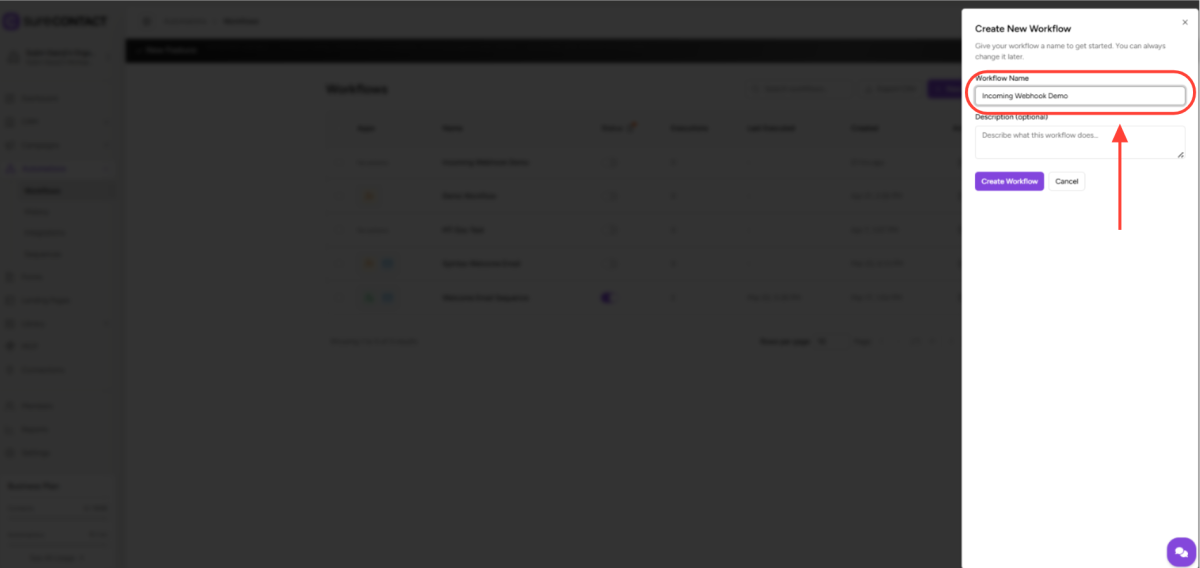
- In the Create New Workflow dialog, enter a descriptive name (for example, Incoming Webhook Demo).
- The Description field is optional. Click Create Workflow to continue.
3. Add the Trigger
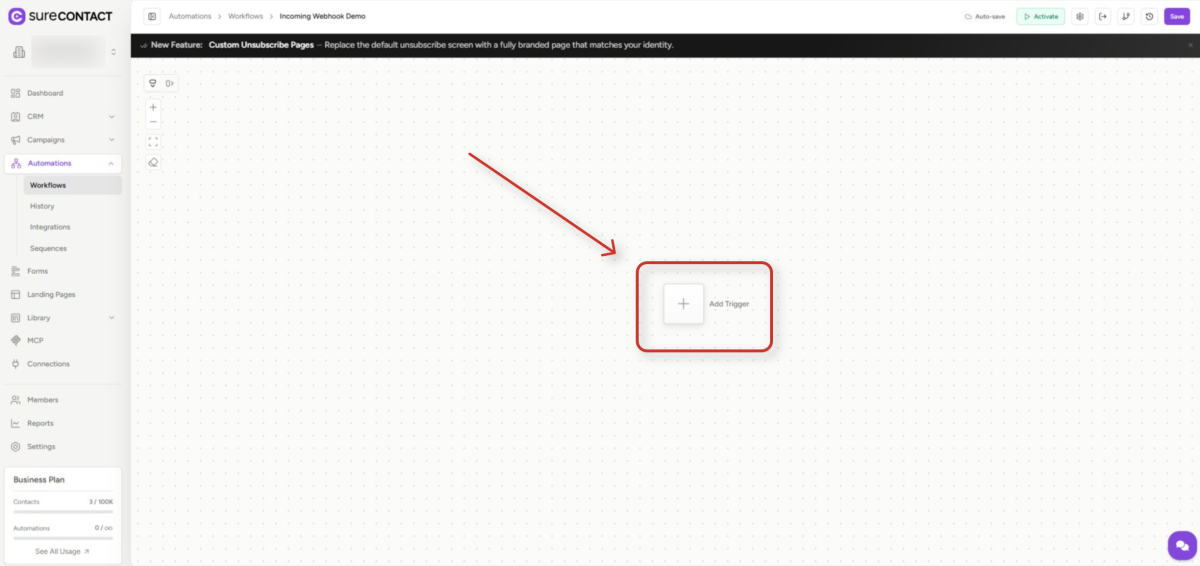
- You will land on the empty Workflow canvas. Click the Add Trigger card in the center of the canvas to open the trigger picker.
4. Choose the Webhooks Category
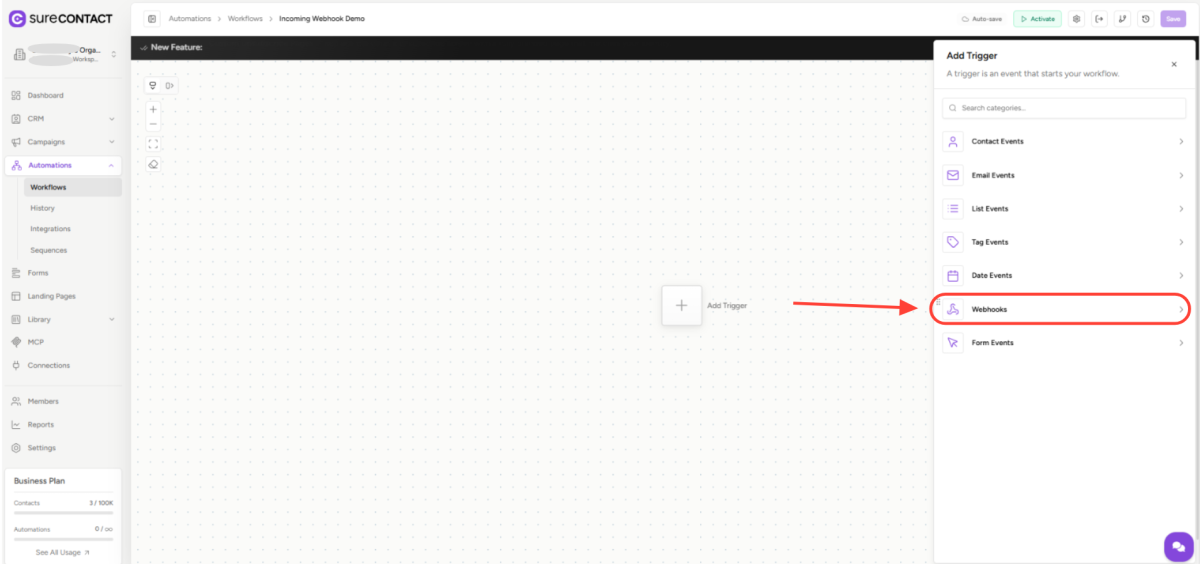
- In the Add Trigger panel, you will see the available trigger categories: Contact Events, Email Events, List Events, Tag Events, Date Events, Webhooks, and Form Events.
- Click Webhooks to see the webhook-based triggers.
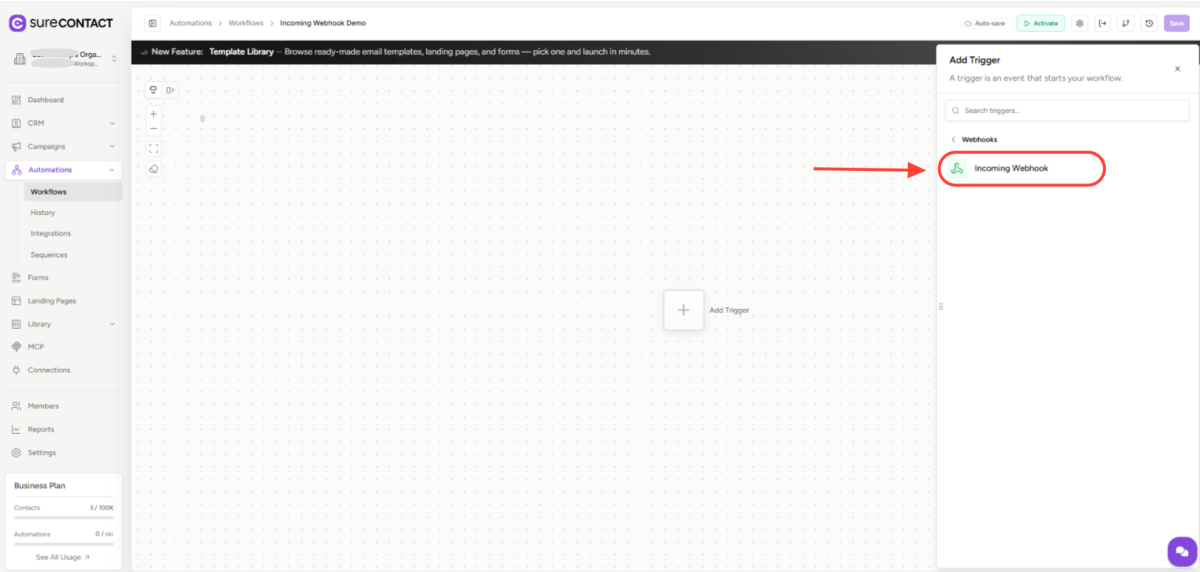
5. Select the Incoming Webhook Trigger
- Inside the Webhooks category, click Incoming Webhook. This is the trigger that listens for POST requests sent from external systems.
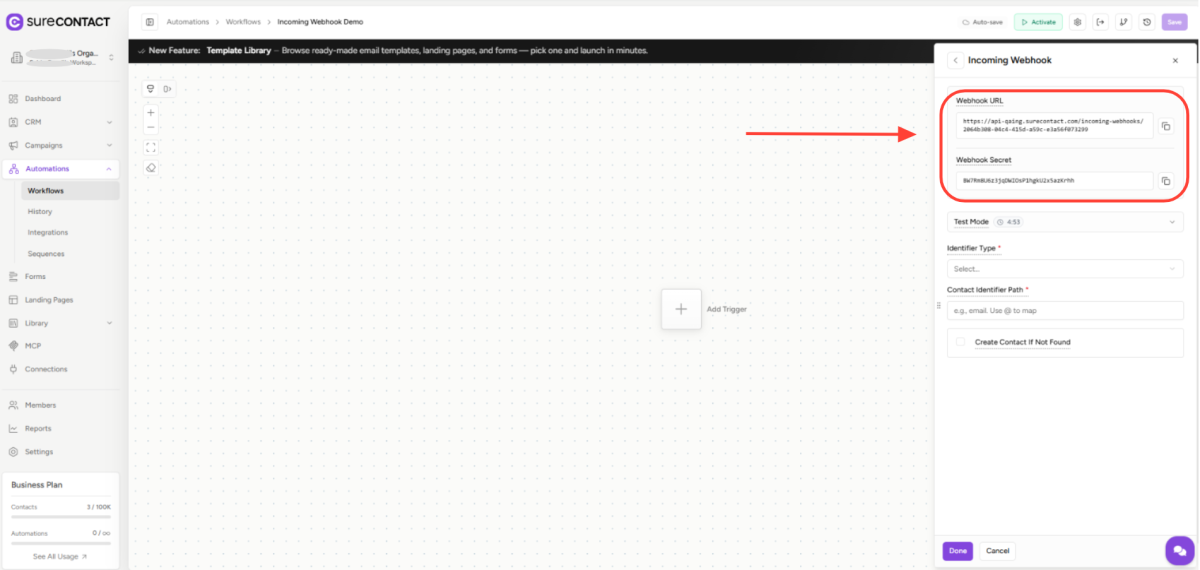
6. Copy the Webhook URL and Secret
- SureContact instantly generates a unique Webhook URL bound to this automation. Use the copy icon next to the field to copy it.
- A Webhook Secret is also generated automatically. If your external service supports custom headers, send this value in the X-Webhook-Secret header to authenticate requests. You can leave the secret empty if your source system cannot send custom headers – in that case, all requests will be accepted.
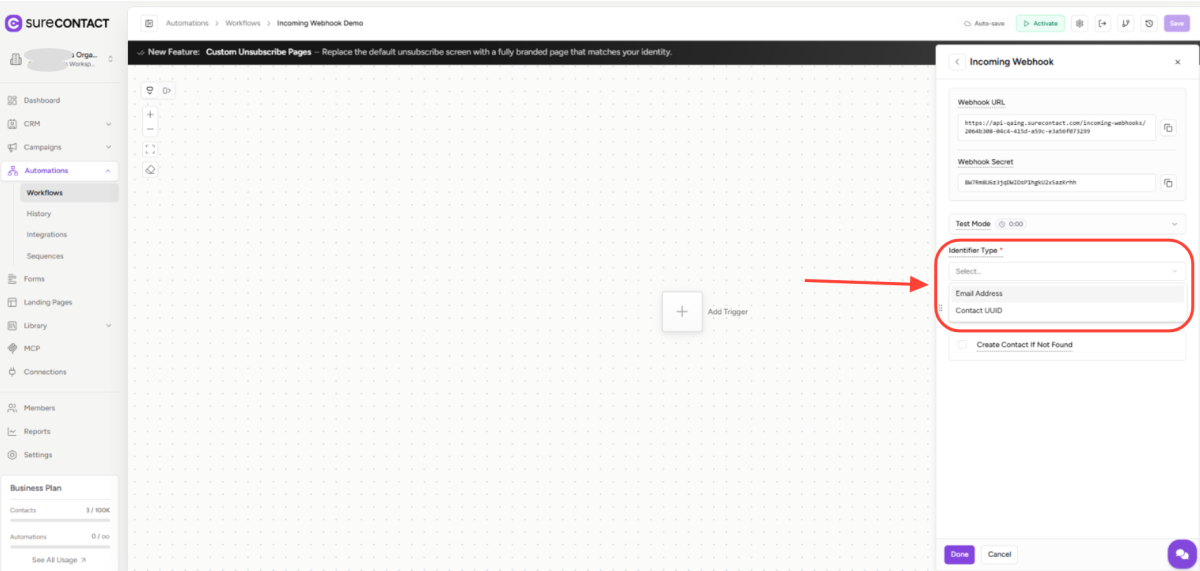
7. Configure the Identifier
- Click the Identifier Type dropdown and choose how SureContact should identify the contact in the payload.
- Email Address – match a contact by their email value.
- Contact UUID – match a contact by their internal SureContact UUID.
8. Set the Contact Identifier Path
- In the Contact Identifier Path field, enter the dot-notation path within your JSON payload where the email or UUID lives.
- Examples: customer.email, data.user.email_address, contact.uuid.
- If a payload field name itself contains a dot, escape it using @ in the path.
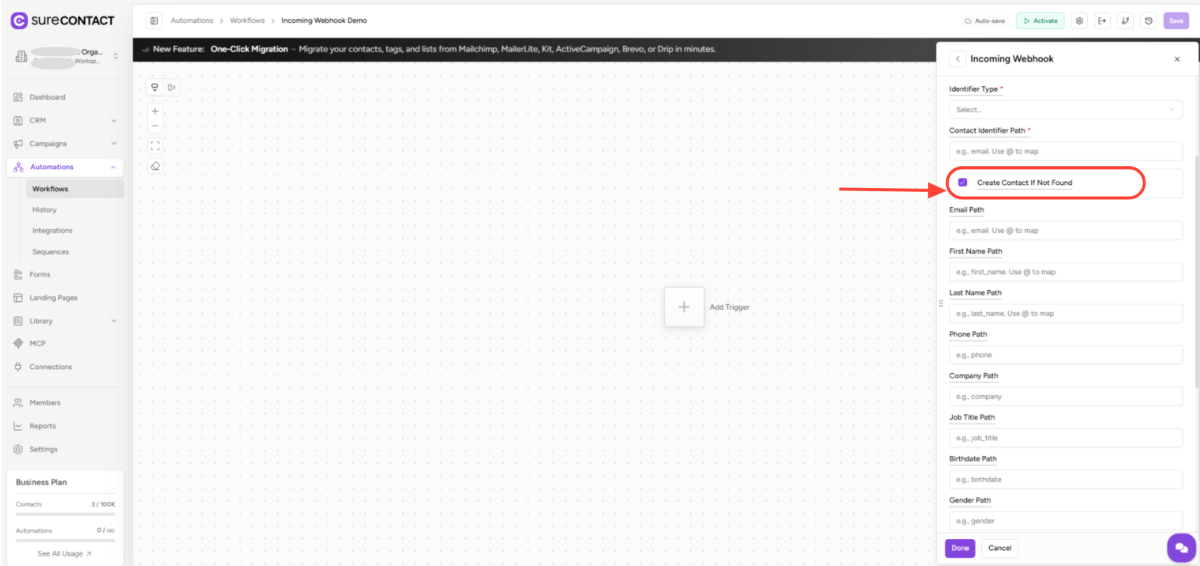
9. (Optional) Enable Auto-Create Contact
- Tick Create Contact If Not Found if you want SureContact to automatically create the contact when no match is found in your CRM.
- When enabled, the panel reveals additional Path fields you can map from the payload: Email Path, First Name Path, Last Name Path, Phone Path, Company Path, Job Title Path, Birthdate Path, Gender Path, and Anniversary Path.
- Each value is a dot-notation path inside your JSON payload pointing to the corresponding contact field.
9.1 Contact Field Mapping Reference
- First Name → customer.first_name
- Last Name → customer.last_name
- Phone → customer.phone
- Company → customer.company
- Job Title → customer.job_title
- Custom Fields → Map any custom field UUID to a payload path.
10. Save the Trigger and Activate the Workflow
- Click Done to save the trigger configuration.
- Build out the rest of your workflow (e.g., Send Email, Add Tag, Update Contact) by chaining additional steps to the trigger.
- Toggle the workflow to Active in the top-right or from the Workflows listing – the webhook URL only accepts requests when the automation is Active. Inactive or Draft automations will respond with 422 Automation is not active.
Example Payload
If your Contact Identifier Path is set to customer.email, a valid POST body looks like this:
{
“customer”: {
“email”: “[email protected]”,
“first_name”: “John”,
“last_name”: “Doe”
},
“order_id”: “12345”,
“amount”: 99.99
}
SureContact will look up (or create) the contact [email protected], store any mapped fields, and trigger the workflow asynchronously.
Security – Using the Webhook Secret
Each Incoming Webhook trigger is protected by an optional Webhook Secret.
- Header name: X-Webhook-Secret
- If a Webhook Secret is configured on the trigger, the external service must send the same value in the X-Webhook-Secret header on every request.
- If the header value does not match, SureContact returns 401 Unauthorized and does not trigger the automation.
- If no Webhook Secret is configured, all requests to the URL are accepted (provided the automation is Active and the identifier path resolves).
Test Mode
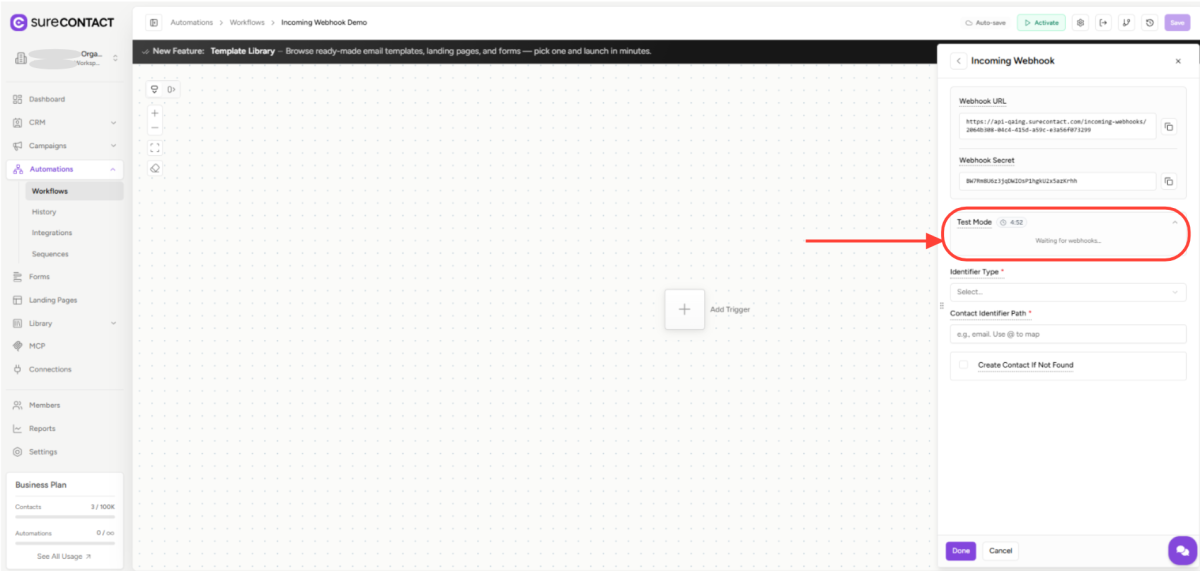
Test Mode is a built-in helper that lets you verify your payload mapping before pointing real traffic at the webhook.
- Click the Test Mode dropdown on the trigger configuration panel to start a 5-minute listening session.
- During this window, send a sample POST request from your external service to the Webhook URL – the request body will be displayed in real time inside the panel so you can confirm your identifier path resolves correctly.
- Test Mode auto-expires after the timer elapses; click again to start a new session.
Common Errors and What They Mean
- 404 Webhook not found – The automation UUID is incorrect, the workflow has been deleted, or the trigger is not Incoming Webhook. Check the URL and trigger type.
- 422 Automation is not active – The workflow is in Draft or Inactive state. Activate it from the Workflows list.
- 400 Missing identifier – The Contact Identifier Path does not resolve to a value in the payload. Verify your path matches the actual JSON structure.
- 404 Contact not found – The contact does not exist, and Create Contact If Not Found is disabled. Enable auto-create or create the contact manually.
- 401 Invalid webhook secret – The X-Webhook-Secret header value does not match the secret on the trigger. Re-copy the secret and update your sender.
Key Points to Remember
- One Incoming Webhook URL maps to exactly one automation – it is not a global endpoint.
- Payloads can be any valid JSON. SureContact uses dot-notation to extract identifier and field values.
- The connected workflow must be Active for the webhook URL to accept requests.
- Webhook processing is asynchronous: the URL returns success immediately, and the workflow runs in the background.
- Use Test Mode whenever you change the payload structure or paths to confirm your mapping before going live.
Need Help?
If you need any assistance, please email [email protected], and our support team will be happy to help you.
We don't respond to the article feedback, we use it to improve our support content.