
- Introduction to SureContact Dashboard
- How to Install and Connect the SureContact WordPress Plugin
- What Do Contact Fields Mean in the SureContact WordPress Plugin
- How to Invite Members to a Workspace in SureContact
- How to Switch Organizations in SureContact
- Workspace-Level Contact Allocation in SureContact
- Workspace-Level Timezone Settings in SureContact
- How to Add a Custom Tracking Domain in a Workspace in SureContact
- SureContact MCP Server
- Creating Forms in SureContact
- Setup SMTP in SureContact
- Email Campaigns in SureContact
- How to Add a Preferences URL in Your Emails
- How to Share Email Templates in SureContact
- Spintax Feature in SureContact
- Deleting Sent Campaigns in SureContact
- A/B Testing Integration Guide
- Unsubscription Guide
- SureContact SMTP Setup Guide
- SMTP Routing User Flow
- FluentCRM Integration with SureContact
- SureContact Third-Party Integration — Step-by-Step Guide
- Fluent Forms Integration with SureContact
- SureForms Integration with SureContact
- WPForms Integration with SureContact
- Bulk Sync WordPress Users to SureContact
- Contact Form 7 Integration with SureContact
- Sync WooCommerce Customers with SureContact
- FluentCart & FluentCommunity Integration With SureContact
Archiving Lists & Tags Guide
SureContact lets you archive lists and tags you are no longer actively using. Archived items are hidden from active views but can be restored at any time; your contacts and their associations remain completely intact.
This guide walks you through every archive and unarchive action available for lists and tags, including single-item archiving, bulk archiving, and viewing or restoring archived items.
1. What Archiving Does
Hidden from active views
- Archived lists and tags do not appear in your default Lists or Tags pages.
Contacts preserved
- Contacts assigned to an archived list or tag remain associated; no data is lost.
Restorable anytime
- You can unarchive and bring items back into active use whenever needed.
Not deleted
- Archiving is a reversible action. It is not the same as deleting.
Note: System lists (such as the default all-contacts list) cannot be archived.
2. Archiving a Single List
1. Navigate to Lists
- Go to CRM → Lists in the left sidebar.
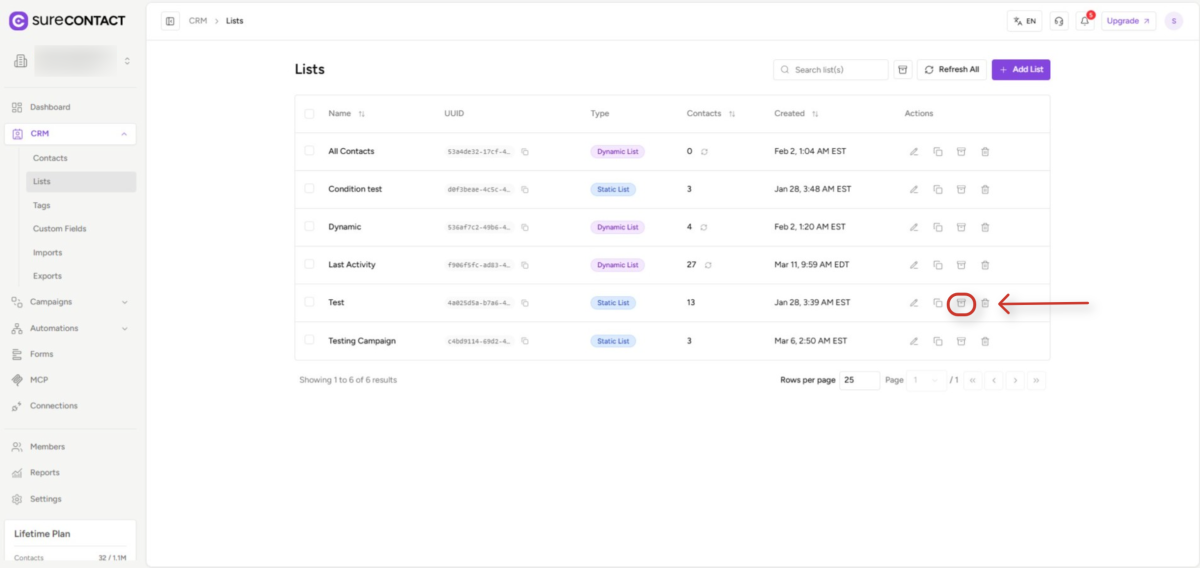
2. Locate the Archive icon
- Find the list you want to archive in the table.
- In the Actions column on the right side of the row, click the Archive icon (box with a down arrow).
3. Confirm the action
- A confirmation dialog appears: “Are you sure you want to archive [List Name]? It will be hidden from active use but can be restored anytime.”
- Click Archive to confirm.
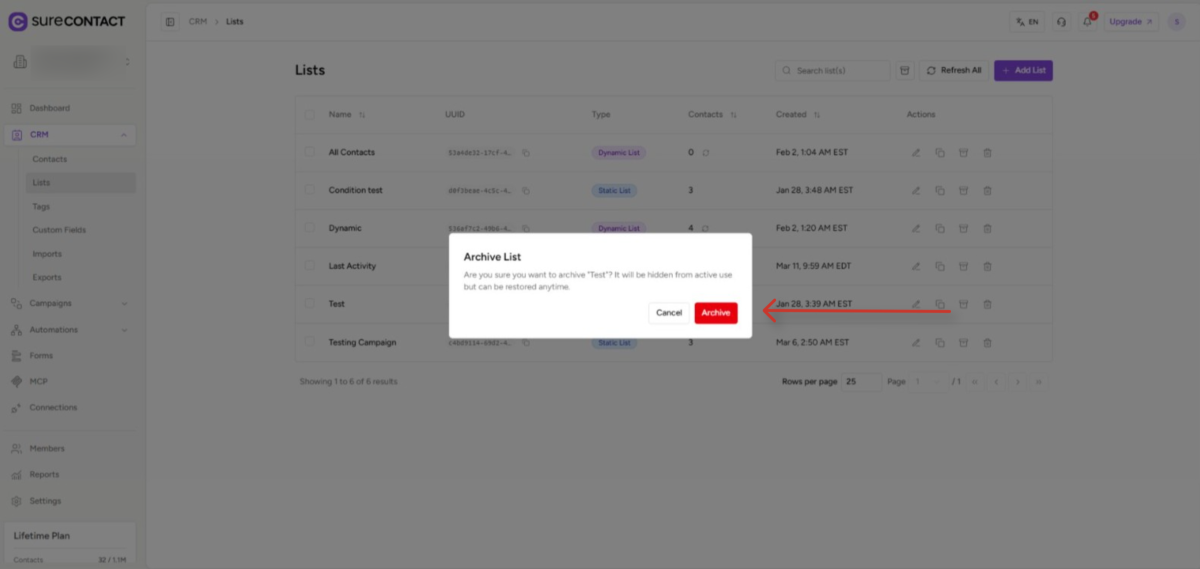
The list disappears from the active view and a success message confirms the action.
3. Archiving a Single Tag
1. Navigate to Tags
- Go to CRM → Tags in the left sidebar.
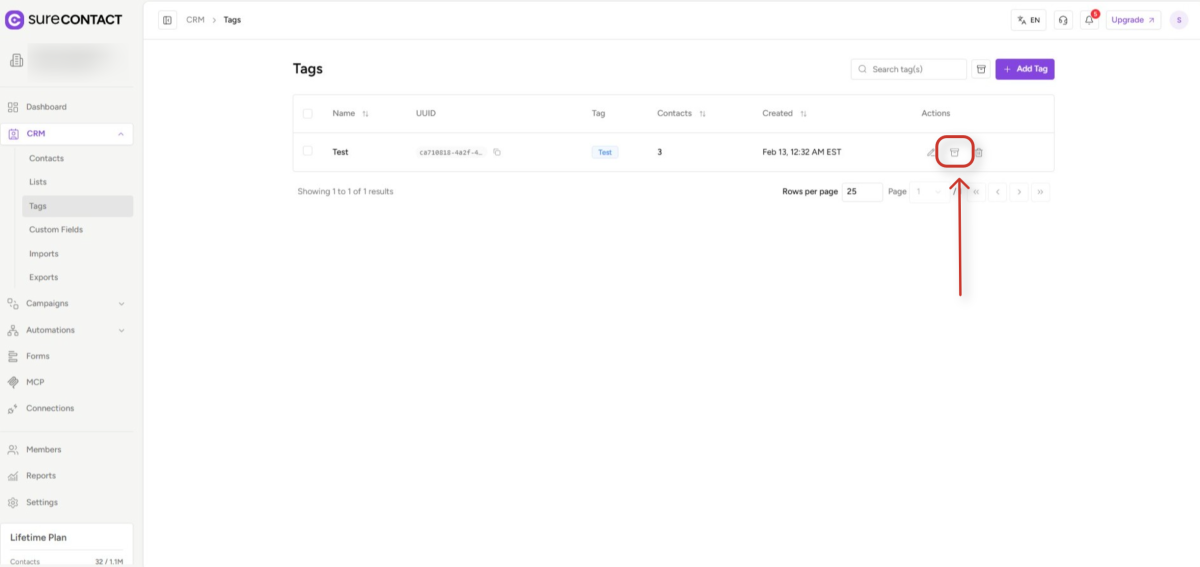
2. Click the Archive icon
- Find the tag you want to archive in the table.
- In the Actions column, click the Archive icon (box with a down arrow).
- Confirm in the dialog that appears.
4. Bulk Archiving Multiple Lists or Tags
Step 1 — Select items
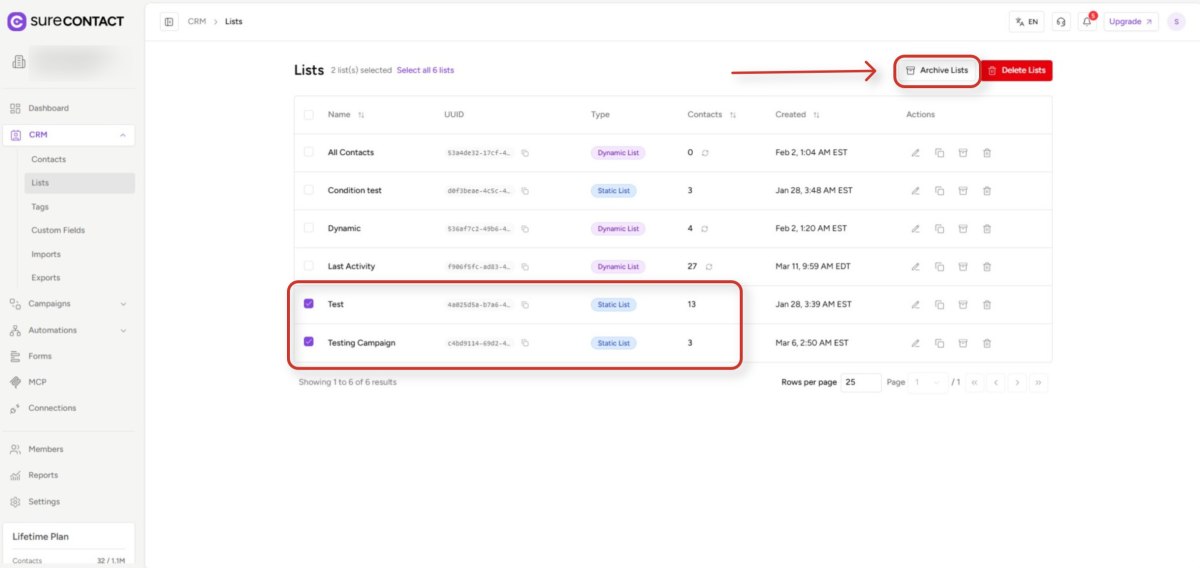
- Check the checkbox on the left of each list or tag you want to archive.
- To select all items on the current page, check the header checkbox in the table header row.
- To select all items across all pages, click the Select all [N] lists (or tags) link in the banner that appears.
Step 2 — Click Archive Lists (or Archive Tags)
- Once items are selected, an Archive Lists (or Archive Tags) button appears in the toolbar above the table.
- Click it to proceed.
Step 3 — Confirm
- Confirm the action in the dialog. The selected lists or tags are archived and the table refreshes.
5. Viewing Archived Lists or Tags
Archived items are hidden by default. To view them:
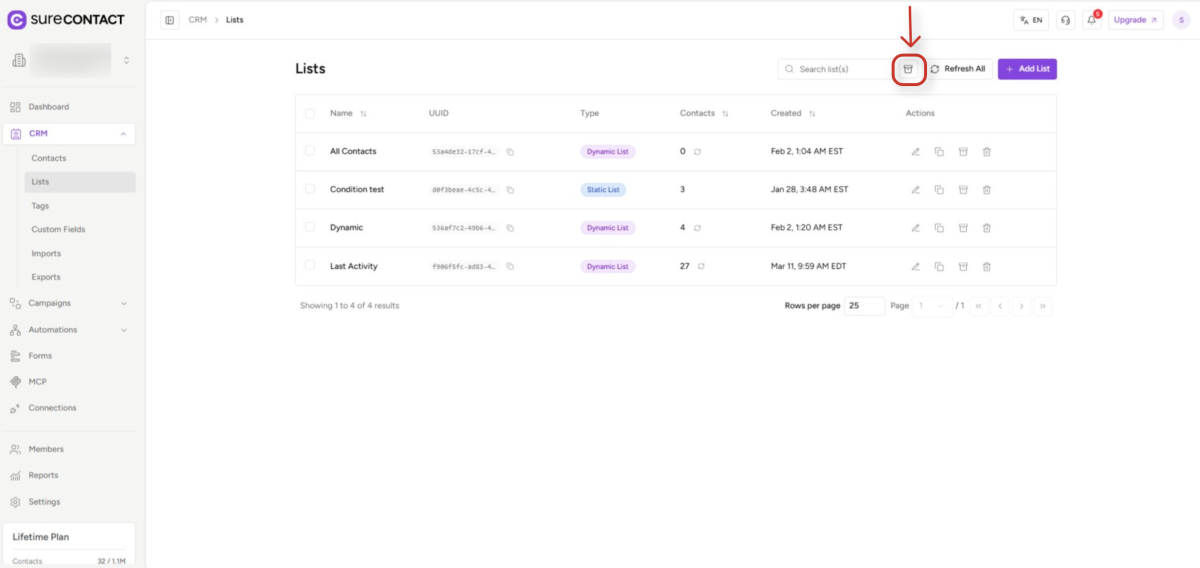
1. Click the archive toggle icon
- On the Lists (or Tags) page, click the archive toggle icon in the top-right area of the page header (next to the search bar).
- When active, the icon turns orange and the view switches to show only archived items.
2. Return to active items
- To switch back to your active lists or tags, click the same toggle icon again. The icon returns to its default gray color.
6. Unarchiving a Single List or Tag
While viewing archived items:
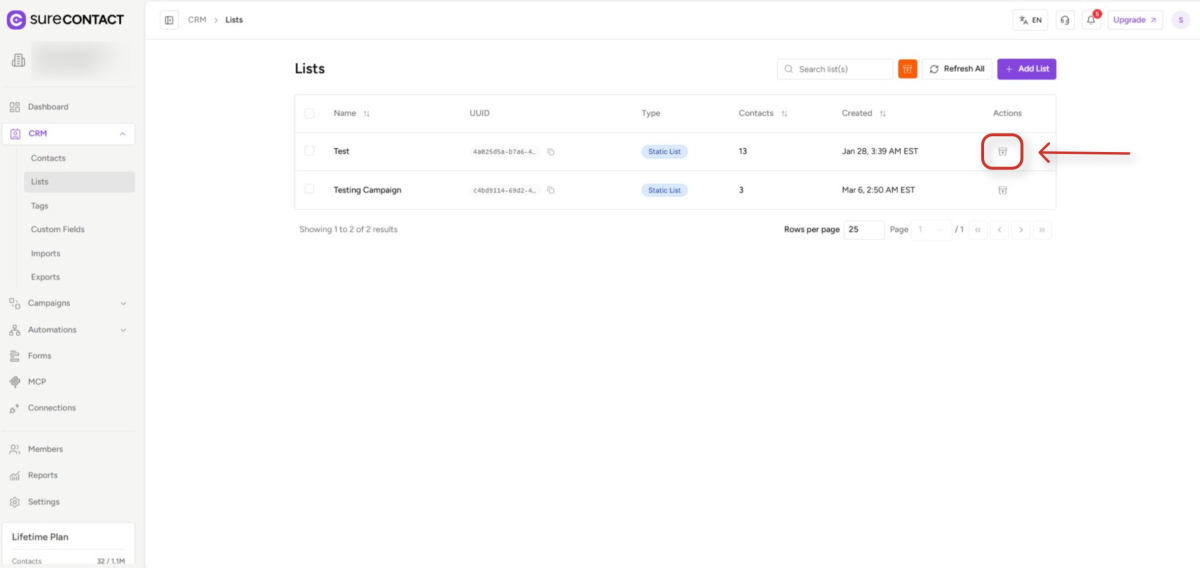
1. Locate the Unarchive icon
- Find the list or tag you want to restore.
- In the Actions column, click the Unarchive icon (box with an up arrow).
2. Item is restored immediately
- No confirmation dialog is shown — the item moves back to the active view instantly.
- The restored list or tag is immediately available for use in campaigns, automations, and forms.
7. Bulk Unarchiving Multiple Lists or Tags
While viewing archived items:
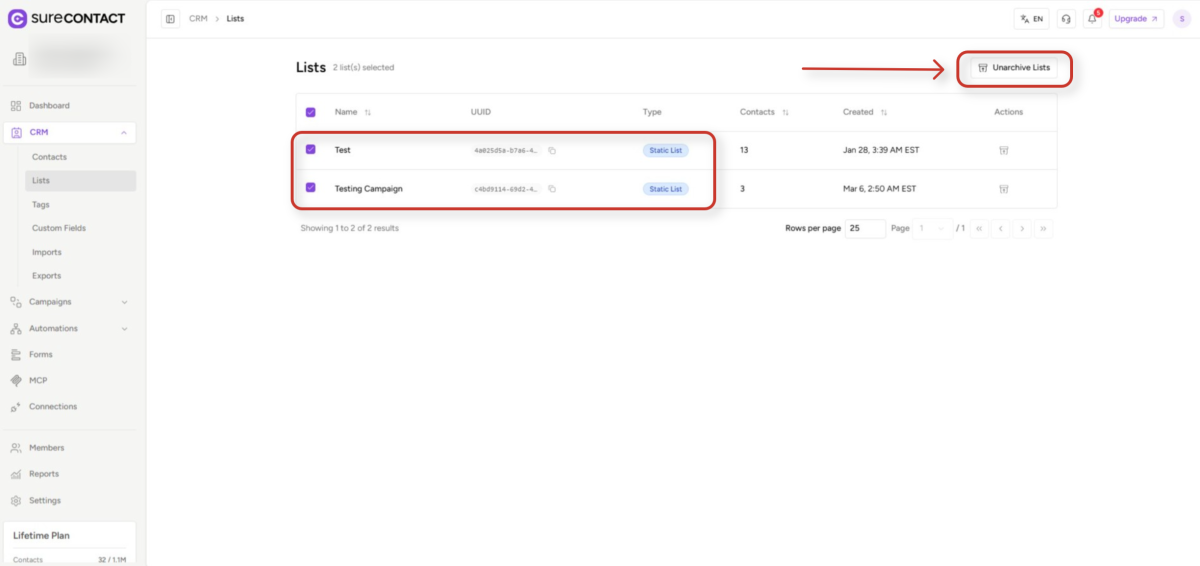
1. Select items to restore
- Use the checkboxes to select the items you want to unarchive.
2. Click Unarchive Lists (or Unarchive Tags)
- Click the Unarchive Lists (or Unarchive Tags) button in the toolbar.
- All selected items are immediately restored to the active view.
8. What Happens to Contacts and Automations
Archiving a list or tag has no effect on your contacts or automation references:
Contacts
- Contacts assigned to an archived list remain associated with it.
- Contacts tagged with an archived tag retain that tag on their profile.
- When you unarchive, all associations are restored exactly as they were.
Automations and campaigns
- References to archived lists or tags in automations and campaigns remain intact.
- The archived item is simply not visible in active pickers until it is restored.
Need Help?
If you need any assistance, please email [email protected], and our support team will be happy to help you.
We don't respond to the article feedback, we use it to improve our support content.