
- Introduction to SureContact Dashboard
- How to Install and Connect the SureContact WordPress Plugin
- What Do Contact Fields Mean in the SureContact WordPress Plugin
- How to Invite Members to a Workspace in SureContact
- How to Switch Organizations in SureContact
- Workspace-Level Contact Allocation in SureContact
- Workspace-Level Timezone Settings in SureContact
- How to Add a Custom Tracking Domain in a Workspace in SureContact
- SureContact MCP Server
- Creating Forms in SureContact
- Setup SMTP in SureContact
- Email Campaigns in SureContact
- How to Add a Preferences URL in Your Emails
- How to Share Email Templates in SureContact
- Spintax Feature in SureContact
- Deleting Sent Campaigns in SureContact
- A/B Testing Integration Guide
- Unsubscription Guide
- SureContact SMTP Setup Guide
- SMTP Routing User Flow
- FluentCRM Integration with SureContact
- SureContact Third-Party Integration — Step-by-Step Guide
- Fluent Forms Integration with SureContact
- SureForms Integration with SureContact
- WPForms Integration with SureContact
- Bulk Sync WordPress Users to SureContact
- Contact Form 7 Integration with SureContact
- Sync WooCommerce Customers with SureContact
- FluentCart & FluentCommunity Integration With SureContact
SureContact Workflows User Guide
SureContact Workflows – User Flow Documentation
SureContact Workflows (also called Automations) let you run a chain of actions for a contact whenever a specific event happens, without lifting a finger. From welcome emails to tag-based nurtures and webhook notifications, Workflows turn repeatable tasks into set-and-forget logic.
This guide walks you through the complete Automations → Workflows experience in SureContact: understanding the building blocks, creating a workflow from scratch, configuring triggers and actions, publishing, and monitoring.
1. Introduction – What is an Automation / Workflow?
An Automation (Workflow) in SureContact is a set of automatic actions that run for a contact when a specific event happens, without manual effort. Think of it as a simple rule:
“When this happens to a contact → automatically do that.”
Examples
- When someone submits your form → automatically send them a welcome email
- When a tag is added to a contact → automatically add them to a list
- When a contact clicks a link → automatically notify via webhook
2. Key Concepts
Before building your first automation, understand these building blocks:
| Term | What it means |
| Trigger | The event that starts the automation (e.g. “Contact Created”) |
| Action | What happens after the trigger fires (e.g. “Send Email”) |
| Condition | Optional check to continue or branch the flow |
3. Types of Automations
SureContact has two types:
- Workflow – Free-form automation for event-based logic
- Sequence – Pre-scheduled email series (drip campaigns)
This guide focuses on Workflows.
4. Available Triggers
Contact Events
- Contact Created
- Contact Updated
- Contact Deleted
- Contact Unsubscribed
- Contact Do Not Mail
- Opt-In Confirmed
Email Events
- Email Opened
- Email Clicked
Tag Events
- Tag Added
- Tag Removed
List Events
- Added to List
- Removed from List
Form Events
- Form Submitted
Date / Schedule Events
- Contact Birthday
- Contact Anniversary
- Scheduled (once, weekly, monthly)
Integrations
- Incoming Webhook
5. Available Actions
Send Communications
- Send Email
- Send Opt-In Reminder
Manage Contact
- Add Tag / Remove Tag
- Add to List / Remove from List
- Update Contact Fields
- Add Note
- Log Activity
- Unsubscribe Contact
- Delete Contact
Control Flow
- Wait – pause before next action
- If/Else – branch logic
- Filter – stop if conditions fail
Integrations
- Send Webhook
- Enroll / Remove from Sequence
- Trigger / End Another Automation
6. How to Create a Workflow
Step 1 – Navigate to Workflows
From the left sidebar, expand Automations and click Workflows. You’ll land on the Workflows list, which shows every workflow in the workspace along with its status, executions, and last run.
The red box highlights the New Workflow button in the top-right corner, that’s where every new automation starts.
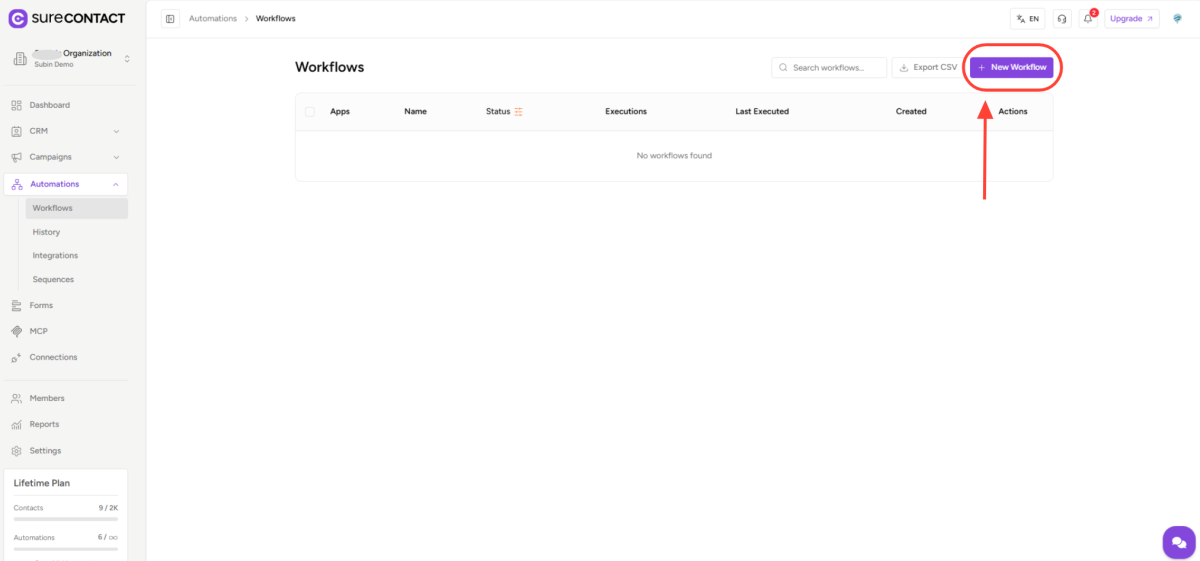
Workflows list – New Workflow button highlighted
Step 2 – Create the Workflow
Click New Workflow. A drawer opens asking for a name and an optional description.
- Give the workflow a clear name (e.g. “Welcome Email Sequence”)
- The description is optional but helpful for teammates
- Click Create Workflow to enter the builder
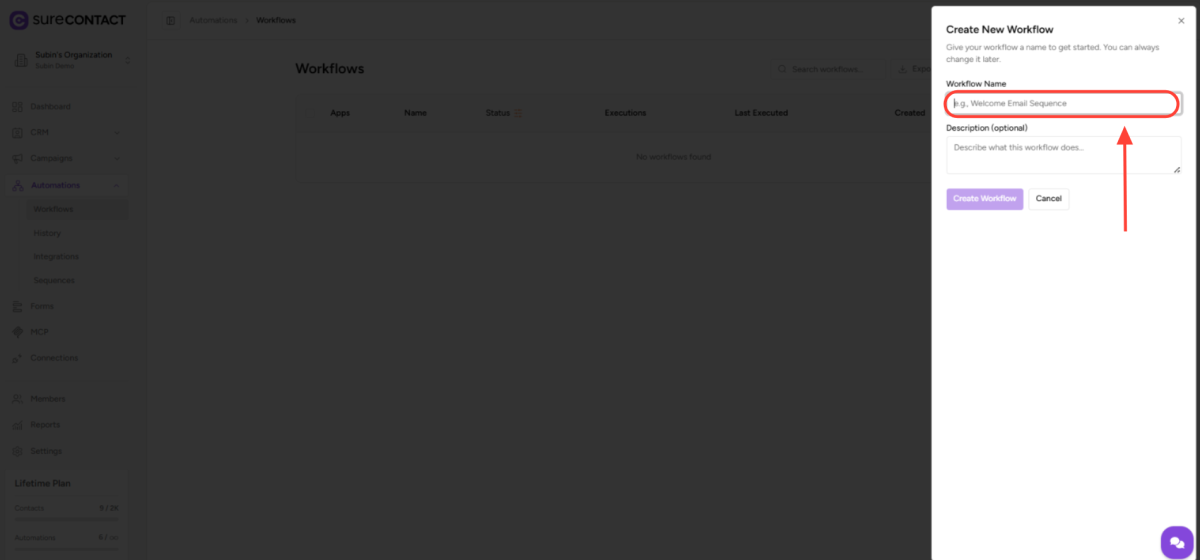
Create New Workflow drawer – name input highlighted
Step 3 – Add a Trigger
After creating the workflow, you land on an empty canvas with a single Add Trigger placeholder in the centre. Click it to open the trigger picker.
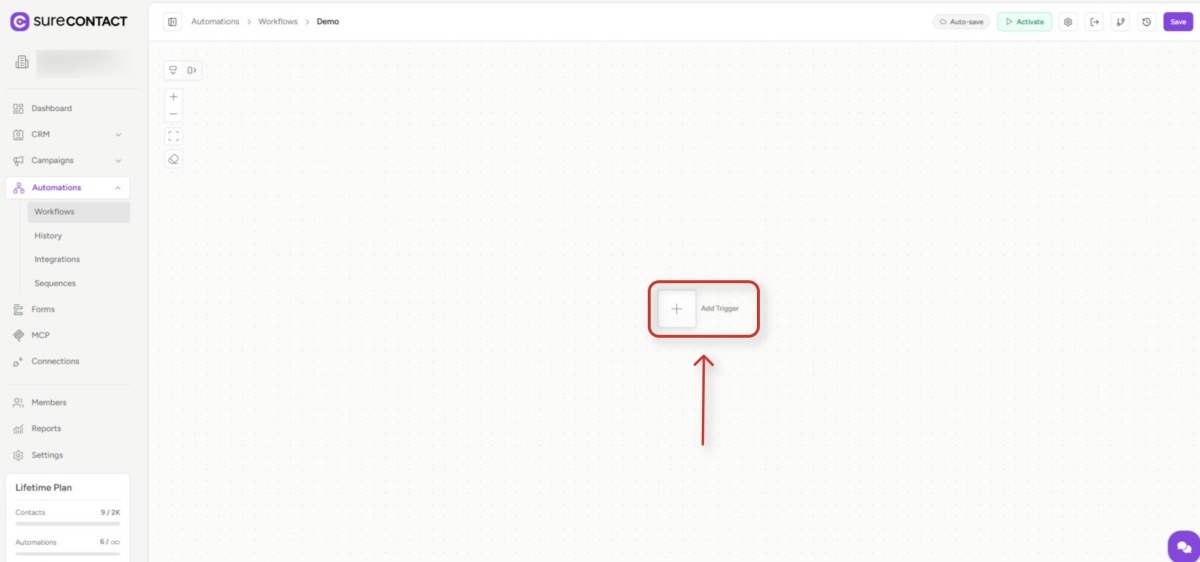
Empty workflow canvas – Add Trigger highlighted
The right-hand panel lists every trigger category – Contact Events, Email Events, List Events, Tag Events, Date Events, Webhooks, and Form Events. Pick the category that matches the event you want to listen for.
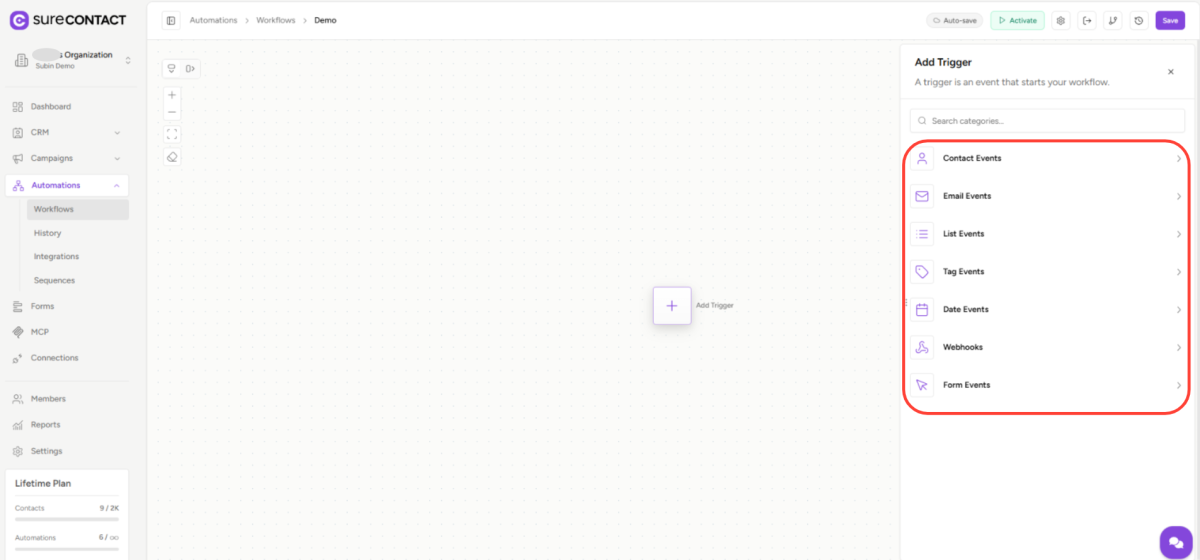
Add Trigger panel – category list highlighted
Selecting a category reveals its individual triggers. For this example, Contact Events → Contact Created is selected. Configure any filters (such as Contact Source) and click Done.
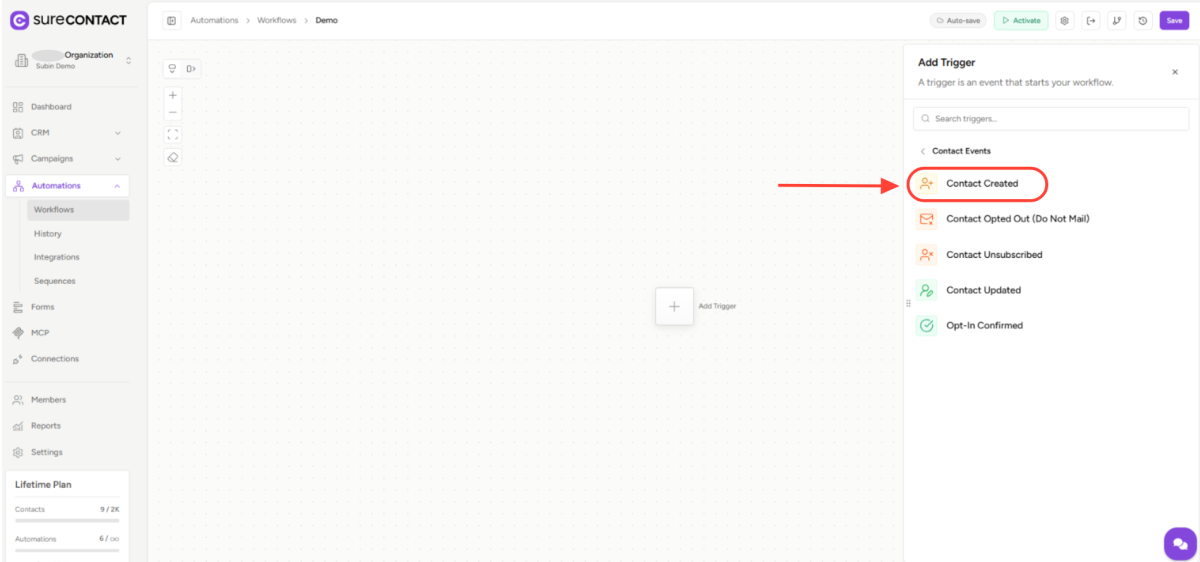
Contact Events sub-panel – Contact Created highlighted
Step 4 – Add Actions
The trigger now appears on the canvas with a + connector and an END marker beneath it. Click the purple + to add the first action.
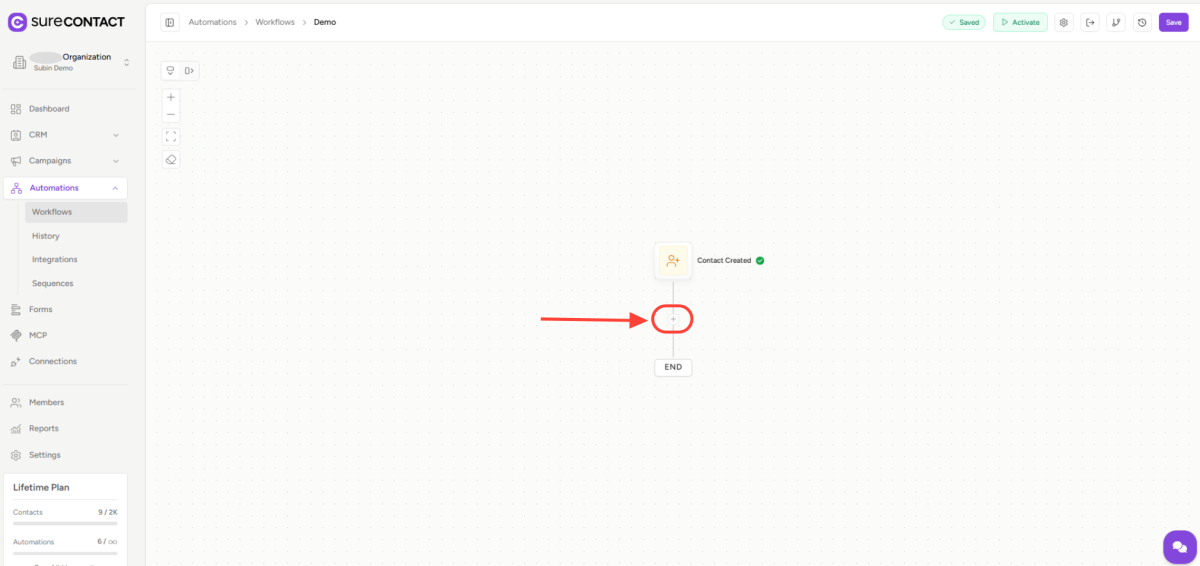
Canvas with Contact Created trigger – + connector highlighted
The Add Action panel opens on the right with five categories – Contact Management, Integration, Flow Control, Sequences, and Communication. Pick the right category, choose an action (e.g. Send Email), configure it, and save.
Repeat this step to chain multiple actions in a row.
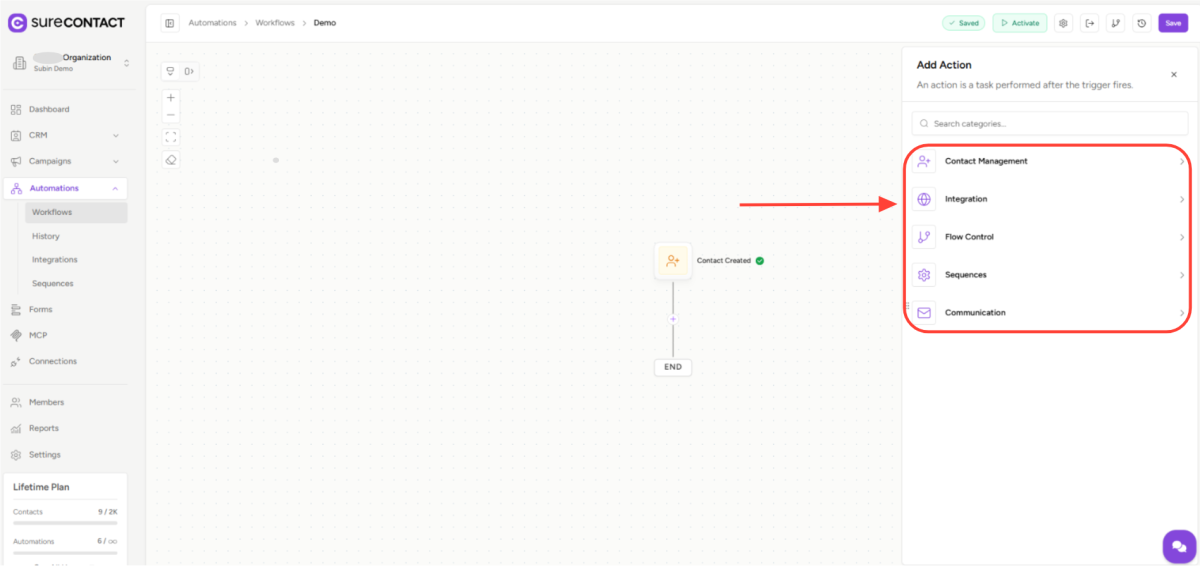
Add Action panel – category list highlighted
Step 5 – Add Conditions (Optional)
Use Flow Control actions to shape the path:
- If/Else – run one of two branches based on a condition
- Filter – stop the workflow if a condition isn’t met
- Wait – pause for minutes, hours, or days before the next step
Step 6 – Settings (Optional)
Open the settings gear in the top bar to configure:
- Re-entry – whether a contact can enter the workflow more than once
- Exit conditions – events that stop a contact mid-flow (e.g. Unsubscribed)
Step 7 – Publish
When the flow is ready, click Activate in the top-right. The workflow status flips from Draft to Active and begins running for any contact that matches the trigger.
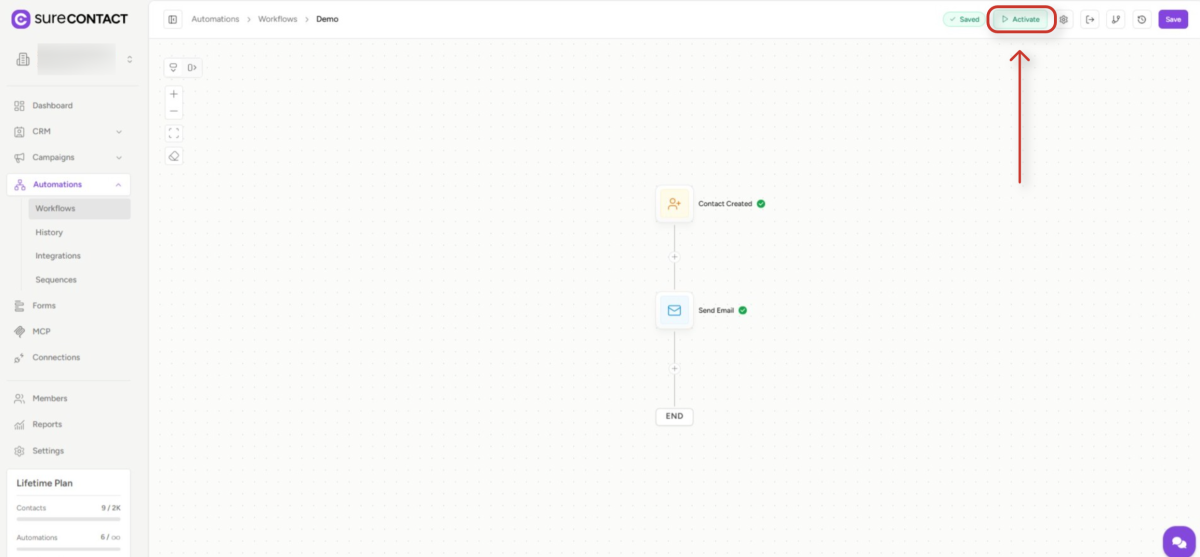
Canvas with trigger + Send Email action – Activate button highlighted
7. Workflow Statuses
| Status | Meaning |
| Draft | Not live yet |
| Active | Running for matching contacts |
| Inactive | Paused — no new entries |
Once a workflow is published, it shows up in the Workflows list with an Active pill next to its status toggle.
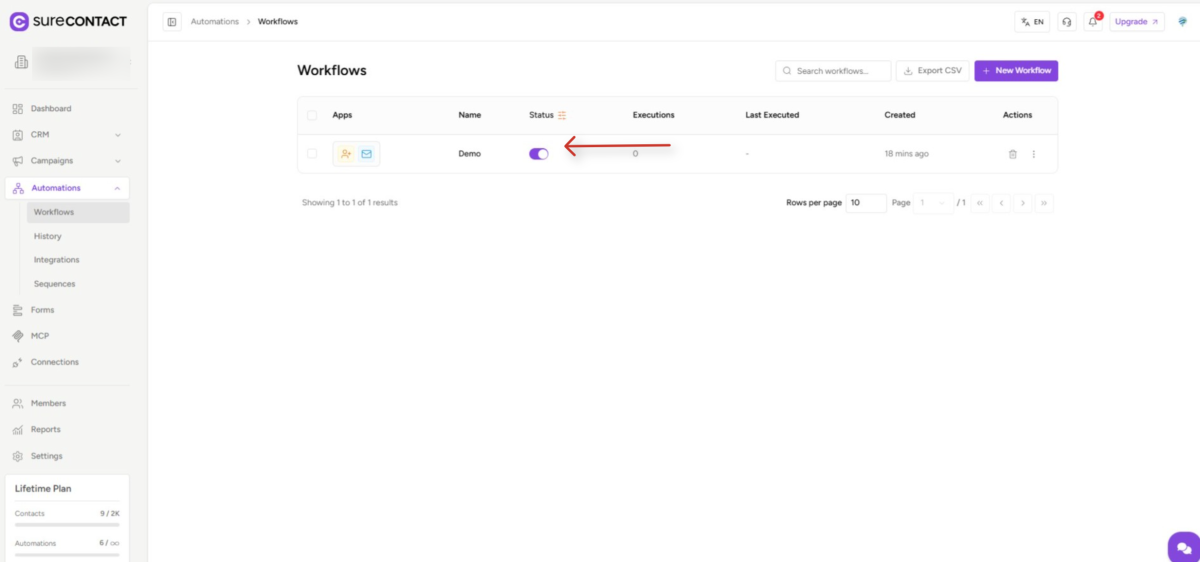
Workflows list after publishing – Active pill highlighted
8. Monitoring Your Workflow
Three views help you keep an eye on how a workflow is performing:
- Subscribers – live list of contacts currently moving through the flow
- History – execution logs for every run (succeeded / failed)
- Versions – restore a previous version of the workflow if needed
The History view (Automations → History) is the main place to audit activity across every workflow in the workspace.
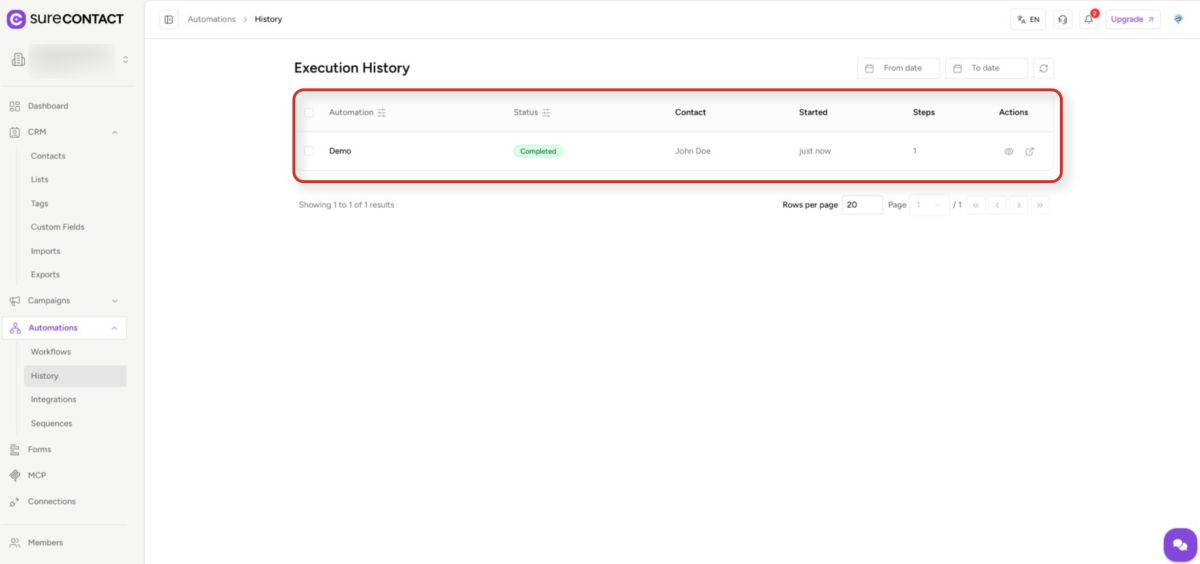
Automations History page – execution log highlighted
9. Re-Entry Setting
By default, a contact enters a workflow only once.
Enable Re-entry (in Workflow Settings) if you want the workflow to run every time the trigger fires for that contact – useful for things like tag-added → send tagged content every time.
10. Common Use Cases
| Goal | Trigger | Actions |
| Welcome new subscribers | Contact Created | Wait → Send Email |
| Nurture form leads | Form Submitted | Email → Wait → Email |
| Re-engage inactive contacts | Tag Added | Email → If/Else → Remove Tag |
| Birthday greeting | Contact Birthday | Send Email |
| Notify team of signups | Contact Created | Send Webhook |
Need Help?
If you need any assistance, please email [email protected], and our support team will be happy to help you.
We don't respond to the article feedback, we use it to improve our support content.