
- Introduction to SureContact Dashboard
- How to Install and Connect the SureContact WordPress Plugin
- What Do Contact Fields Mean in the SureContact WordPress Plugin
- How to Invite Members to a Workspace in SureContact
- How to Switch Organizations in SureContact
- Workspace-Level Contact Allocation in SureContact
- Workspace-Level Timezone Settings in SureContact
- How to Add a Custom Tracking Domain in a Workspace in SureContact
- SureContact MCP Server
- Creating Forms in SureContact
- Create Forms & assign lists & tags
- Multi Language Support(WordPress)
- Page Visit Tracking Guide (WordPress)
- Forms Custom Fields Sync Guide
- Landing Pages User Flow Guide
- SureContact Organization Workspace Setup Guide
- Companies User Flow Guide
- FAQs
- Bulk Operations SureContact
- SureContact Double Opt-In Guide
- SureContact API Keys Guide
- SureContact 2FA User Guide
- SureContact Bookings User Flow Guide
- SureContact MultiStep Forms Guide
- Zoom Integration with SureContact
- Group Booking User Flow Documentation
- Global Search – User Flow Documentation
- Folders in SureContact
- SureContact Email Tracking Pixel Regulations
- Email Open Tracking Consent SureContact
- Forms Custom Success Message Redirect Guide
- Partial Form Submission Guide
- Shopify Integration with SureContact Guide
- Migrate to Unified Preference Page
- Setup SMTP in SureContact
- Email Campaigns in SureContact
- How to Add a Preferences URL in Your Emails
- How to Share Email Templates in SureContact
- Spintax Feature in SureContact
- Deleting Sent Campaigns in SureContact
- A/B Testing Integration Guide
- Unsubscription Guide
- SureContact SMTP Setup Guide
- SMTP Routing User Flow
- FluentCRM Integration with SureContact
- SureContact Third-Party Integration — Step-by-Step Guide
- Fluent Forms Integration with SureContact
- SureForms Integration with SureContact
- WPForms Integration with SureContact
- Bulk Sync WordPress Users to SureContact
- Contact Form 7 Integration with SureContact
- Sync WooCommerce Customers with SureContact
- FluentCart & FluentCommunity Integration With SureContact
Forms Custom Fields Sync Guide
Syncing Custom Fields (Dropdowns & Multi-Select) via Forms
SureContact forms can map dropdown and multi-select fields directly to your contact custom fields. When a contact submits the form, their selected option is saved to the matching custom field on their contact record – no manual data entry needed.
This guide explains how to set up custom fields, add and map dropdown or multi-select fields on a form, what happens when options auto-sync, and how to keep your form options in step with the latest custom field definitions.
1. What Is Custom Field Syncing?
When you add a dropdown or multi-select field to a form, you can link it to a contact custom field. This means:
- The form automatically pulls in the options defined on your custom field.
- When a contact submits the form, their answer is saved directly to that custom field.
- The options on the form stay consistent with your custom field definition.
2. Before You Start, Set Up Your Custom Fields
Before mapping a form field, make sure your custom fields are already created with their options defined.
1. Open Custom Fields in CRM
- Go to CRM in the left sidebar.
- Navigate to Custom Fields.
2. Create the Custom Field
- Click + Add Custom Field.
- Set the Field Type to Select (for single choice) or Multi-Select (for multiple choices).
- Enter the field name and add all available options.
- Click Save.
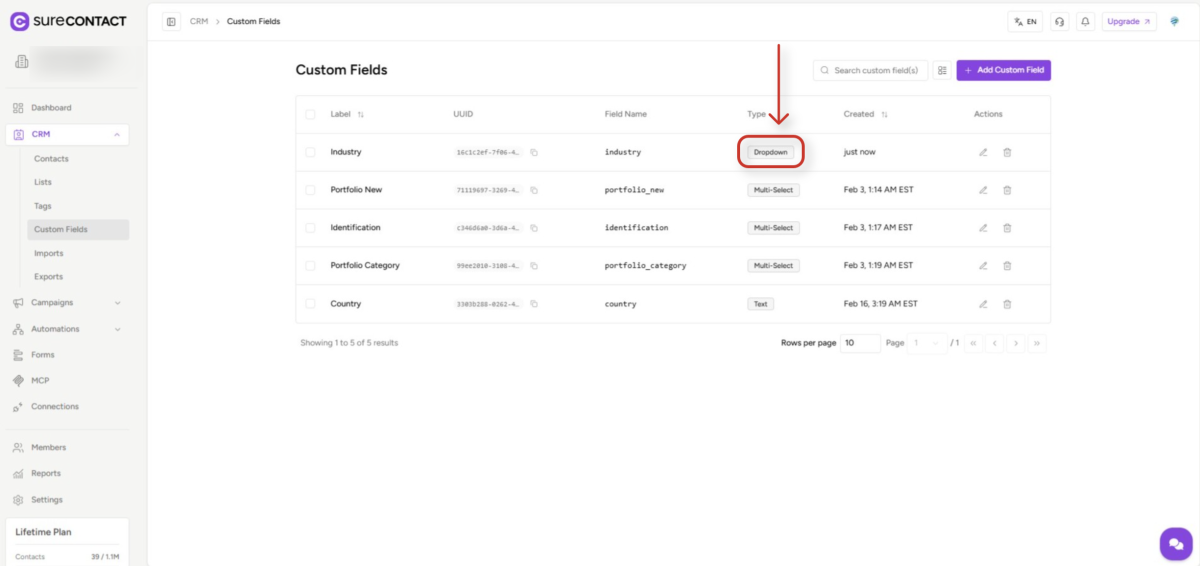
Note: You can add or update options on a custom field at any time from CRM. However, changes to custom field options after a form is already configured will not automatically update the form, you will need to remap the field (see Section 9).
3. Opening the Form Builder
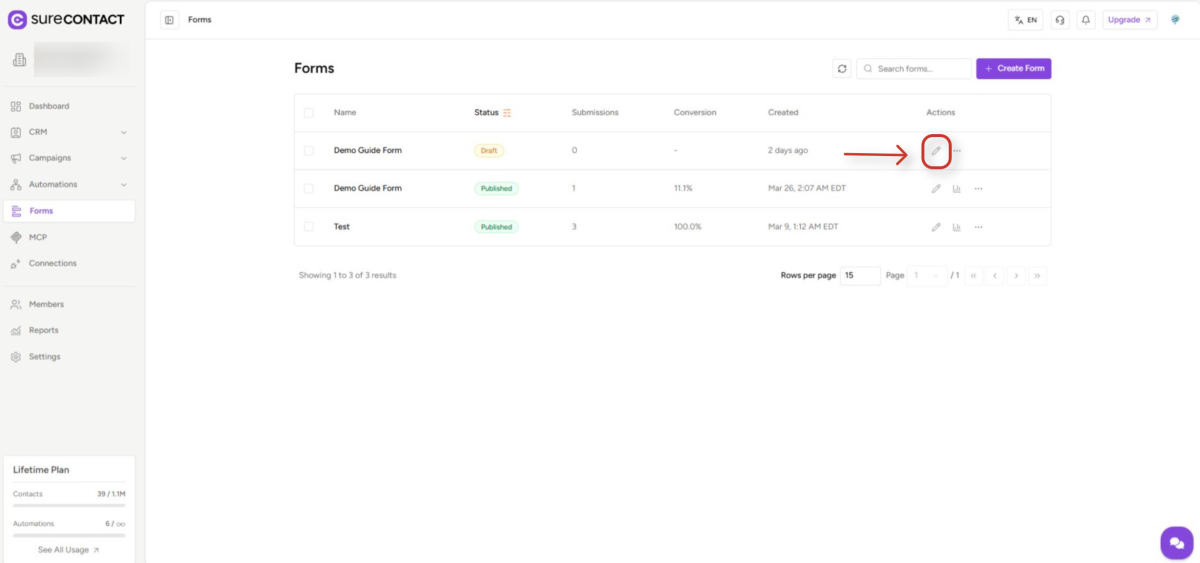
1. Open or Create a Form
- Go to Forms in the left sidebar.
- Open an existing form or click + Create Form to start a new one.
2. Launch the Visual Builder
- Click the pencil (Design) icon on the form row to open the visual form builder.
4. Adding a Dropdown or Multi-Select Field
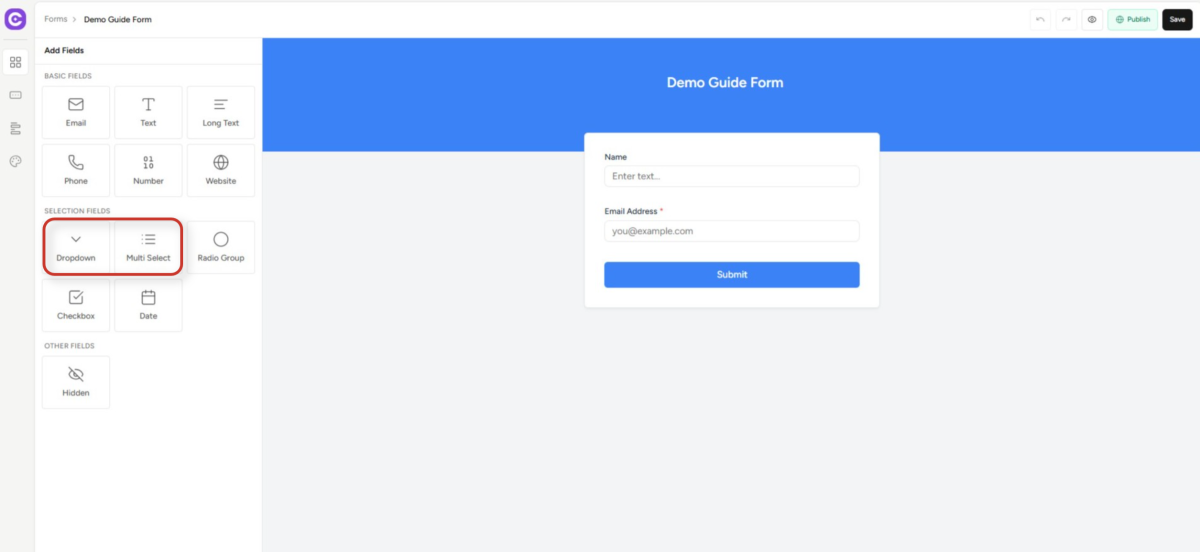
1. Locate the Selection Fields
- In the form builder, find the field palette on the left side under Selection Fields.
2. Drag a Field onto the Canvas
- Drag Dropdown onto the form canvas – lets the contact choose one option from a list.
- Or drag Multi-Select onto the canvas – lets the contact choose one or more options.
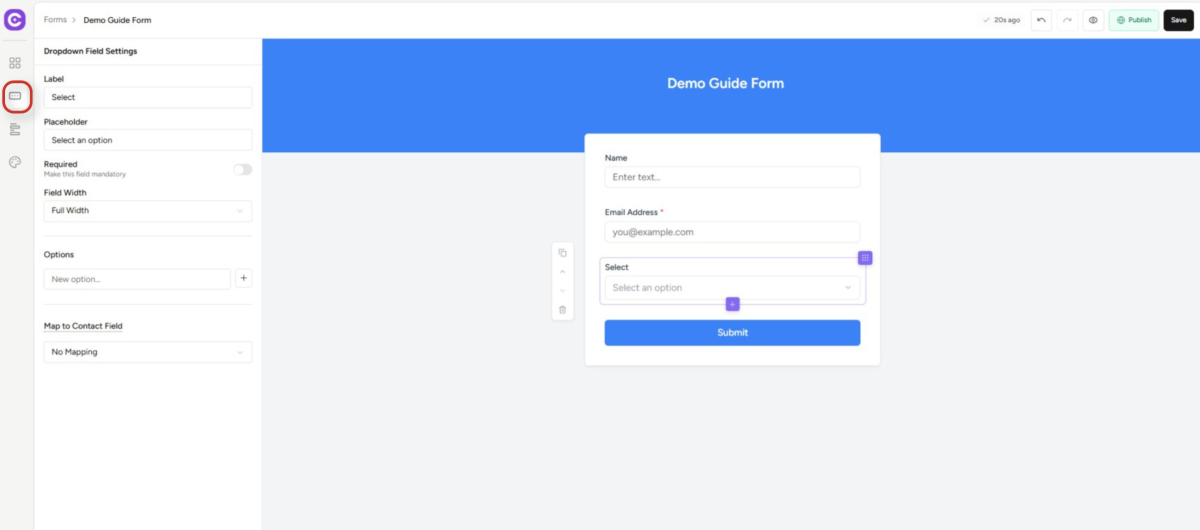
3. Open the Field Settings
- The field appears on the canvas. Click the field to open its settings panel on the right.
5. Mapping the Field to a Custom Field
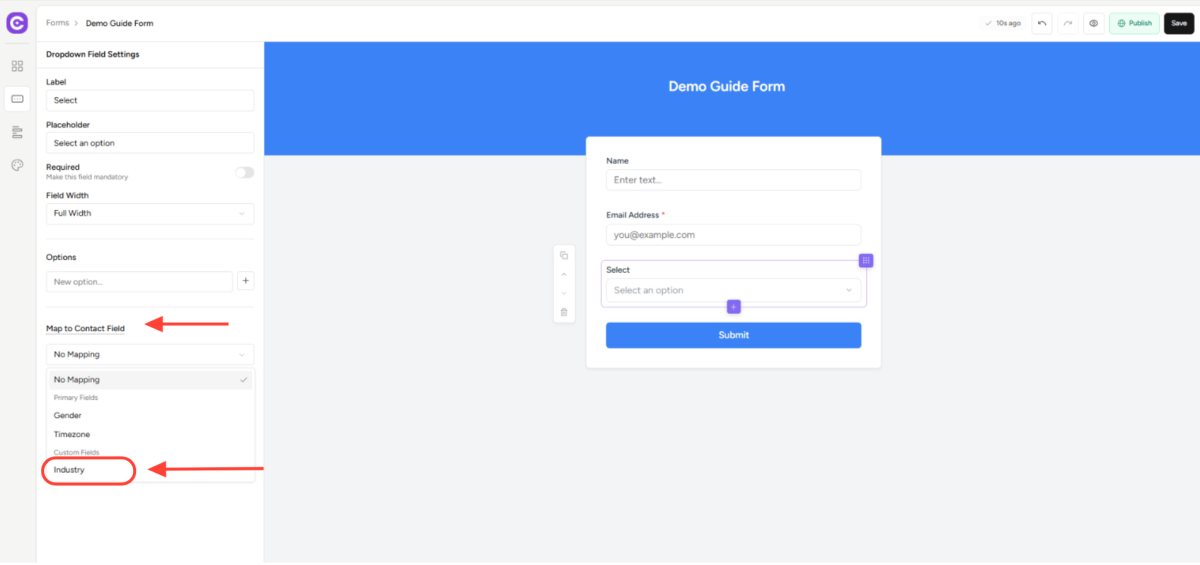
1. Find the Map to Contact Field Section
- In the field settings panel, find the Map to Contact Field section.
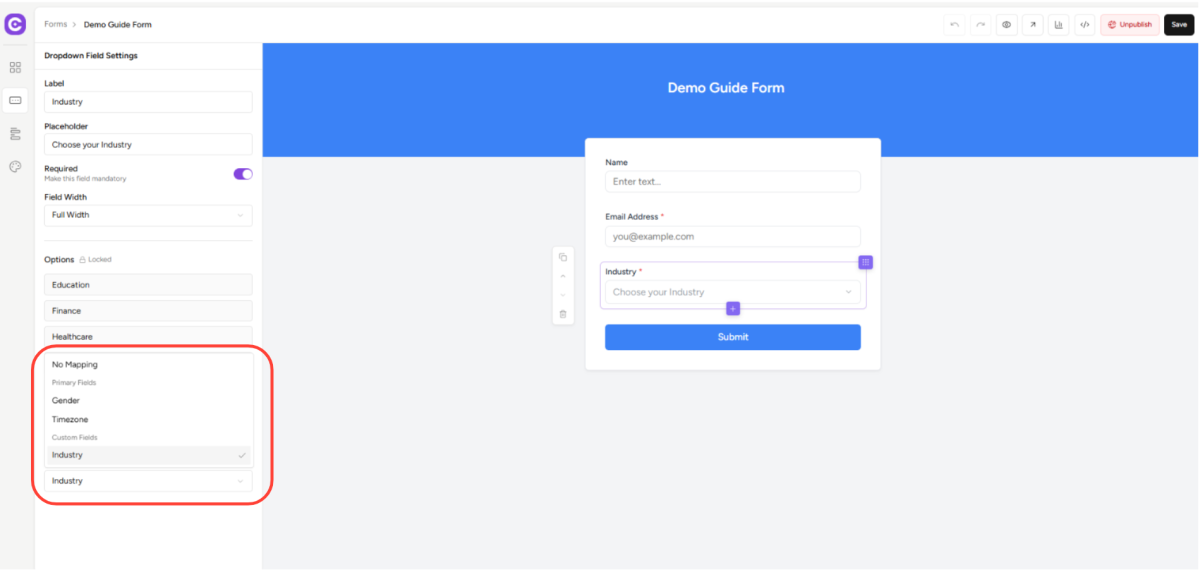
2. Open the Mapping Dropdown
- Click the dropdown to open the list of mappable fields.
- A grouped list appears showing Primary Fields and Custom Fields.
3. Select the Custom Field
- If you added a Dropdown field, only Select-type custom fields appear.
- If you added a Multi-Select field, only Multi-Select-type custom fields appear.
- Click the custom field you want to map to.
6. Options Auto-Sync from the Custom Field
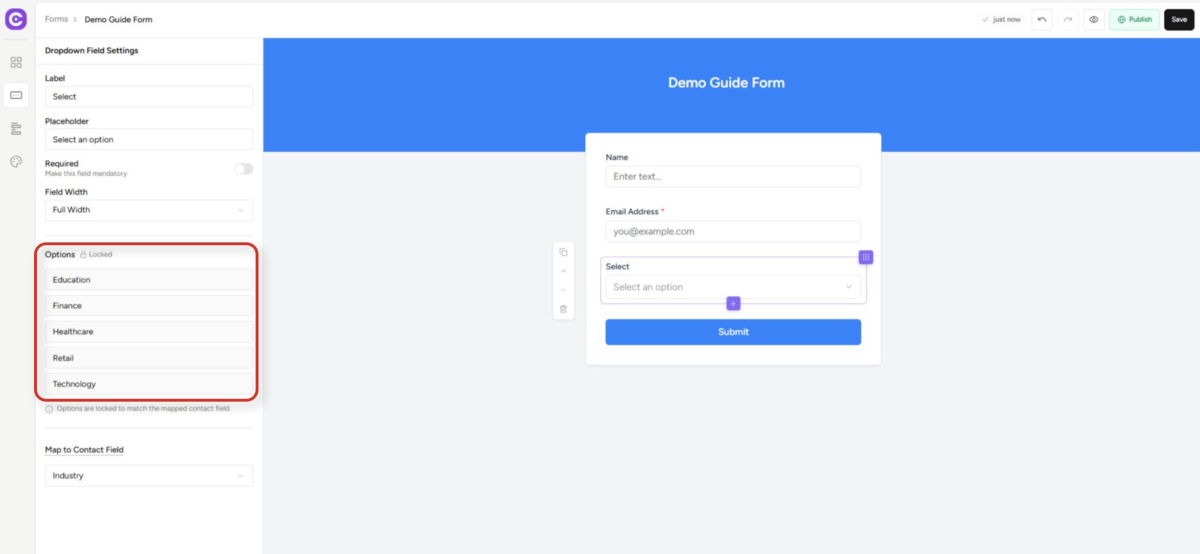
As soon as you select a custom field that has predefined options, SureContact automatically pulls those options into the form field.
- The options appear in the Options section of the field settings.
- Each option shows the display label and an auto-generated internal value.
- The options are now locked – a lock icon appears next to the Options label.
What “Locked” Means
When options are locked:
- You cannot add new options – the + Add Option button is hidden.
- You cannot delete options – remove buttons are hidden.
- You cannot reorder options – drag handles are disabled.
- The source is the custom field – options match exactly what is defined in Settings → Custom Fields.
Note: This ensures that the form options always match the valid values for that custom field, keeping your contact data consistent.
7. Configuring the Field Label and Other Settings
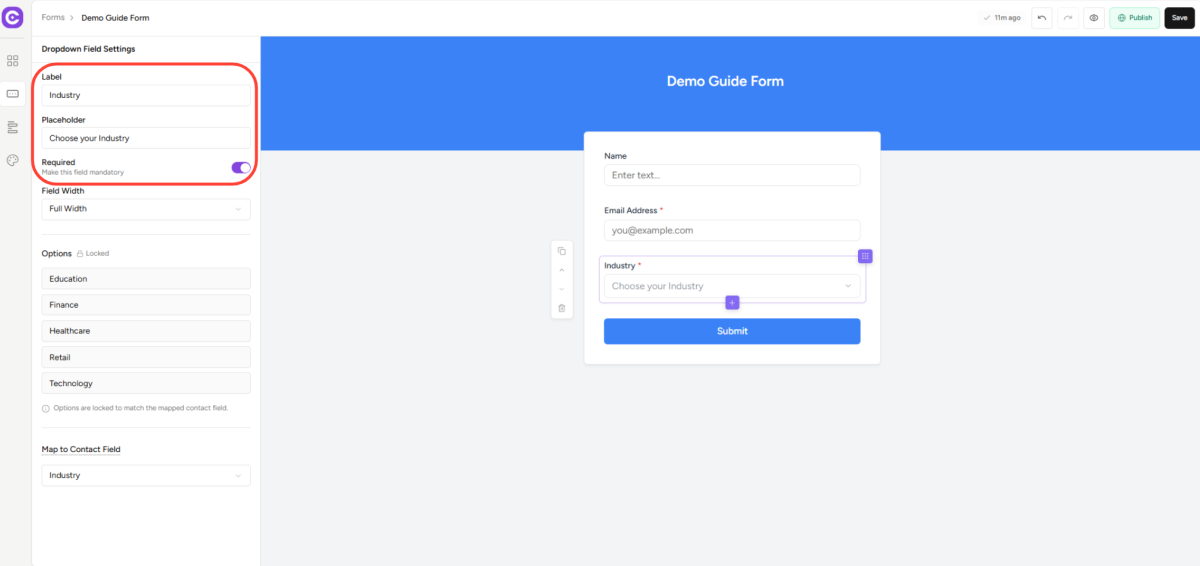
After mapping, finish setting up the field:
- Label – the question or heading shown above the field on the form.
- Placeholder – the hint text shown inside the field before a contact selects an option.
- Required – toggle on to make the field mandatory before the form can be submitted.
- Field Width – set to half or full width within the form layout.
8. What Happens When a Contact Submits the Form
When a contact fills in and submits the form:
- Their selected option (or options, for multi-select) is sent to SureContact.
- SureContact matches the field to the mapped custom field using the internal field link.
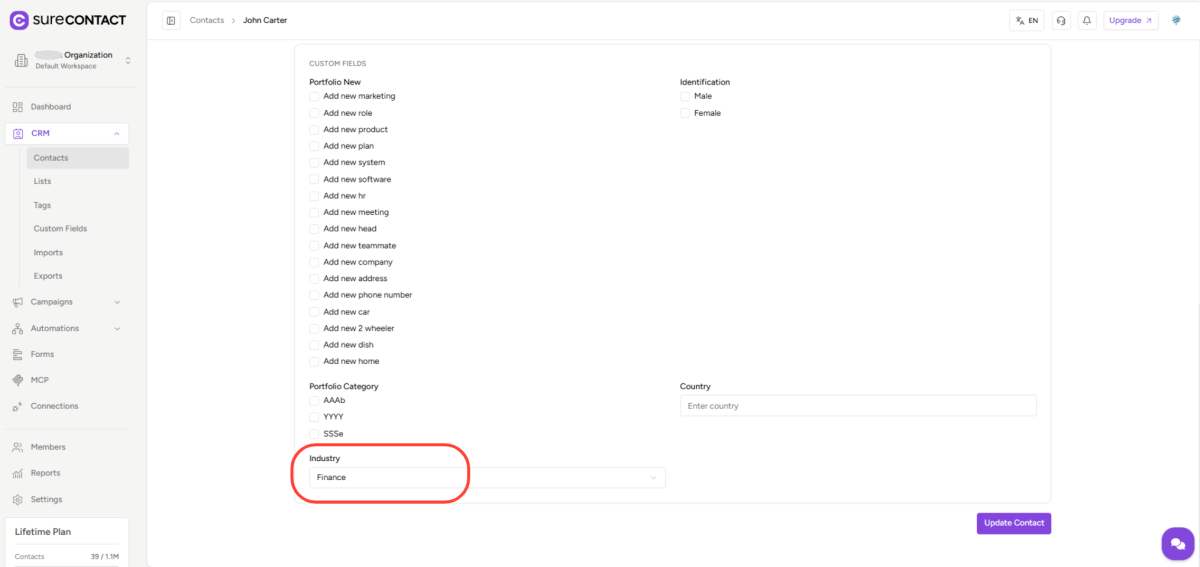
- The value is saved to the contact’s record under that custom field.
- You can see the saved value on the contact’s profile page under Custom Fields.
Dropdown vs. Multi-Select Storage
- For Dropdown fields, the contact’s single selected value is saved as a text string.
- For Multi-Select fields, all selected values are saved as a list on the contact record.
9. Updating Options After the Form Is Configured
If you update the options on a custom field in Settings after the form is already configured, the form does not update automatically.
To refresh the options on a form field:
1. Reopen the Form Builder
- Open the form in the Design builder.
- Click the mapped dropdown or multi-select field on the canvas.
2. Re-Select the Custom Field
- In the field settings panel, clear the current custom field mapping.
- Re-select the same custom field from the Map to Contact Field dropdown.
- The latest options are pulled in fresh and the field is locked again.
3. Save the Form
- Click Save to update the form with the refreshed options.
10. Manually Entered Options (Without Mapping)
If you do not map the field to a custom field, you can enter options manually:
1. Add the Field Without Mapping
- Add a Dropdown or Multi-Select field to the form.
- Leave the Map to Contact Field section unset (or set to No Mapping).
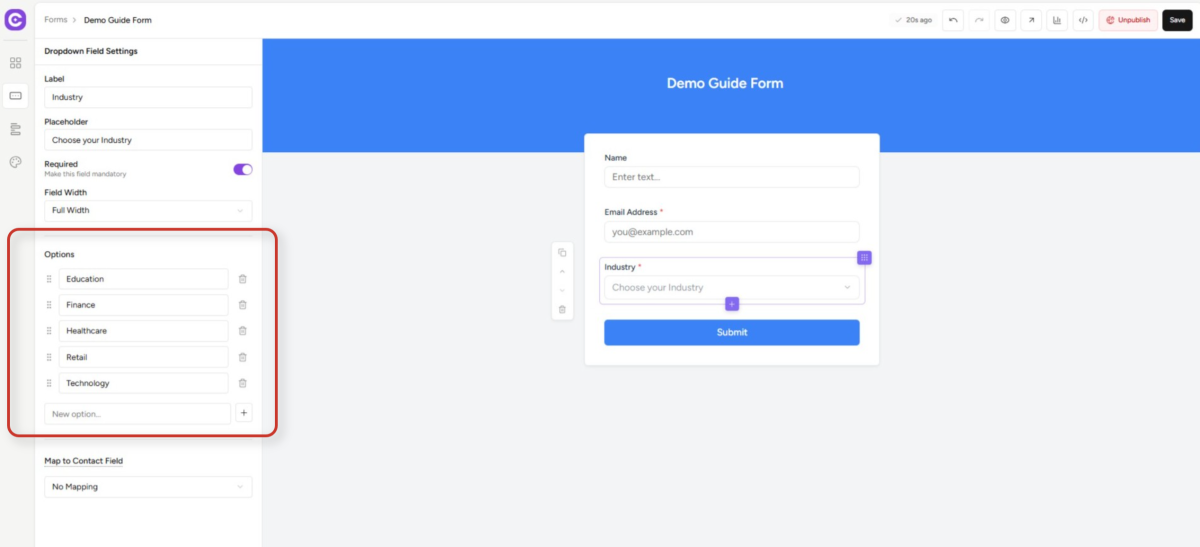
2. Add Options Manually
- In the Options section, click + Add Option.
- Type the option label. An internal value is generated automatically.
- Repeat for each option.
- Drag options to reorder them.
- Click the trash icon to remove an option.
Note: Manually entered options are not linked to any contact field. The submitted values will not be saved to the contact record unless a field mapping is set.
11. Saving the Form
Once your fields are configured:
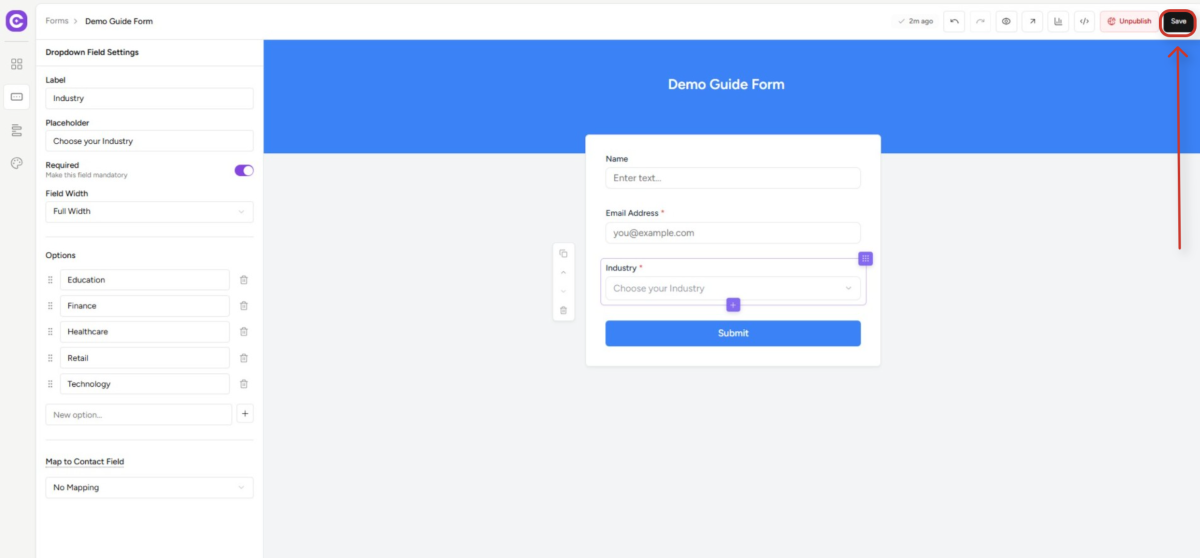
1. Save the Form
- Click Save in the top-right corner of the form builder.
- Your form is updated with the new field configuration, option values, and mappings.
Need Help?
If you need any assistance, please email [email protected], and our support team will be happy to help you.
We don't respond to the article feedback, we use it to improve our support content.