
- Introduction to SureContact Dashboard
- How to Install and Connect the SureContact WordPress Plugin
- What Do Contact Fields Mean in the SureContact WordPress Plugin
- How to Invite Members to a Workspace in SureContact
- How to Switch Organizations in SureContact
- Workspace-Level Contact Allocation in SureContact
- Workspace-Level Timezone Settings in SureContact
- How to Add a Custom Tracking Domain in a Workspace in SureContact
- SureContact MCP Server
- Creating Forms in SureContact
- Setup SMTP in SureContact
- Email Campaigns in SureContact
- How to Add a Preferences URL in Your Emails
- How to Share Email Templates in SureContact
- Spintax Feature in SureContact
- Deleting Sent Campaigns in SureContact
- A/B Testing Integration Guide
- Unsubscription Guide
- SureContact SMTP Setup Guide
- SMTP Routing User Flow
- Gradual Send Feature Guide
- Reusable Email Templates Guide
- Conditional Blocks Guide
- Scheduling vs. Sending Immediately Emails in SureContact
- Campaign Analytics Guide
- Email Tracking Opens Clicks SureContact
- SureContact Email Template Library Guide
- Sending Domains Subdomain vs Root Domain Guide
- DMARC Setup Guide
- Warming Up a New Sending Domain
- Email Link Actions in SureContact
- How to Add an Unsubscribe Link in Your Emails
- Analyzing a Campaign with AI (Spam & Ethics Check)
- FluentCRM Integration with SureContact
- SureContact Third-Party Integration — Step-by-Step Guide
- Fluent Forms Integration with SureContact
- SureForms Integration with SureContact
- WPForms Integration with SureContact
- Bulk Sync WordPress Users to SureContact
- Contact Form 7 Integration with SureContact
- Sync WooCommerce Customers with SureContact
- FluentCart & FluentCommunity Integration With SureContact
SMTP Routing User Flow
SureContact lets you route campaign and transactional emails through multiple SMTP providers, with built-in failover so your delivery never depends on a single provider being healthy. You can also pin specific SMTPs to individual campaigns when you want full control over which provider sends a particular send.
This guide walks you through configuring SMTP servers, enabling failover routing, and pinning a provider to a specific campaign, with annotated screenshots from the SureContact app.
Prerequisites
Before configuring SMTP routing, please ensure the following:
1. You Have an Active SureContact Workspace
You must be signed in to your SureContact workspace with permission to access the SMTP and Settings pages.
2. You Have at Least Two SMTP Providers Ready
Failover routing only takes effect when a fallback provider is available. Have credentials ready for two or more SMTP services (e.g., Gmail, SendGrid, Mailgun, SES, Postmark, Resend, MailerSend, or any custom SMTP server).
3. Your Sending Domain Is Verified (Recommended)
For best deliverability, verify your sending domain in Organization → Sending Domains before assigning From addresses to your SMTP configurations.
Part 1 – Add Your SMTP Configurations
You need at least two SMTP configurations for failover to be meaningful. Each configuration represents a single email-sending provider.
1. Open the SMTP Page
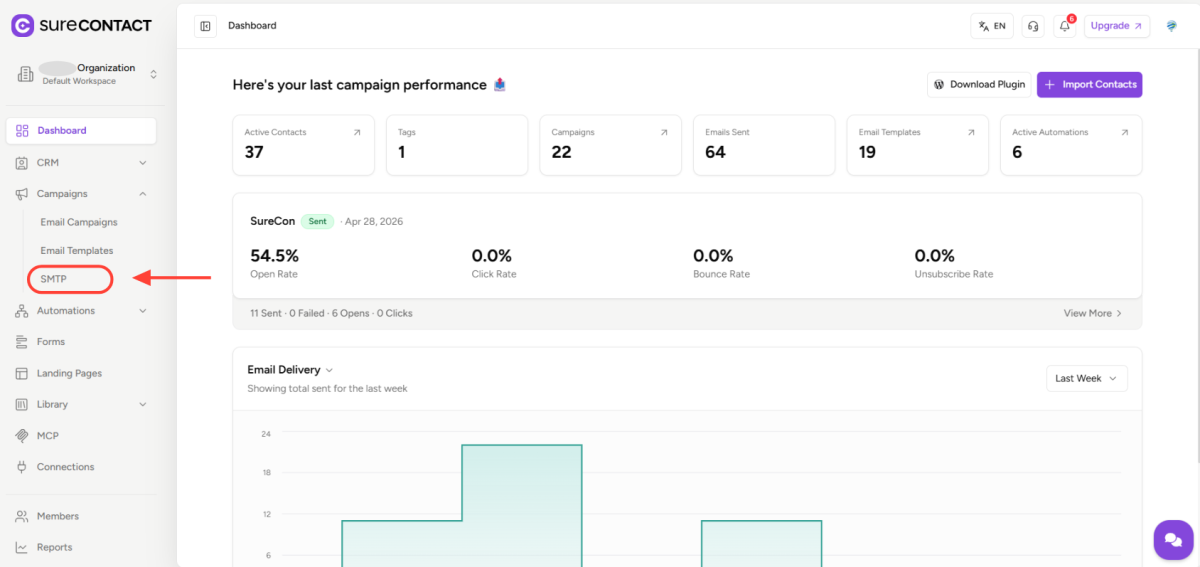
- In the left sidebar, expand Campaigns and click SMTP.
- You’ll see the Email Configurations table listing every SMTP and API identity in your workspace.
2. Click “Add SMTP / API”
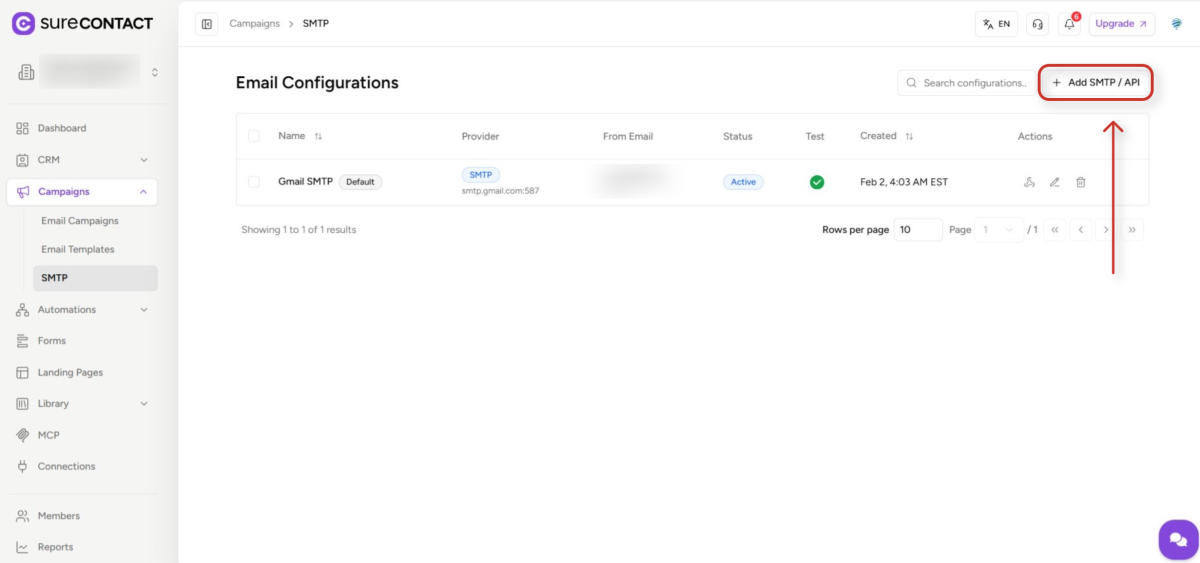
- In the top-right of the Email Configurations page, click the Add SMTP / API button.
- A two-step provider setup flow opens.
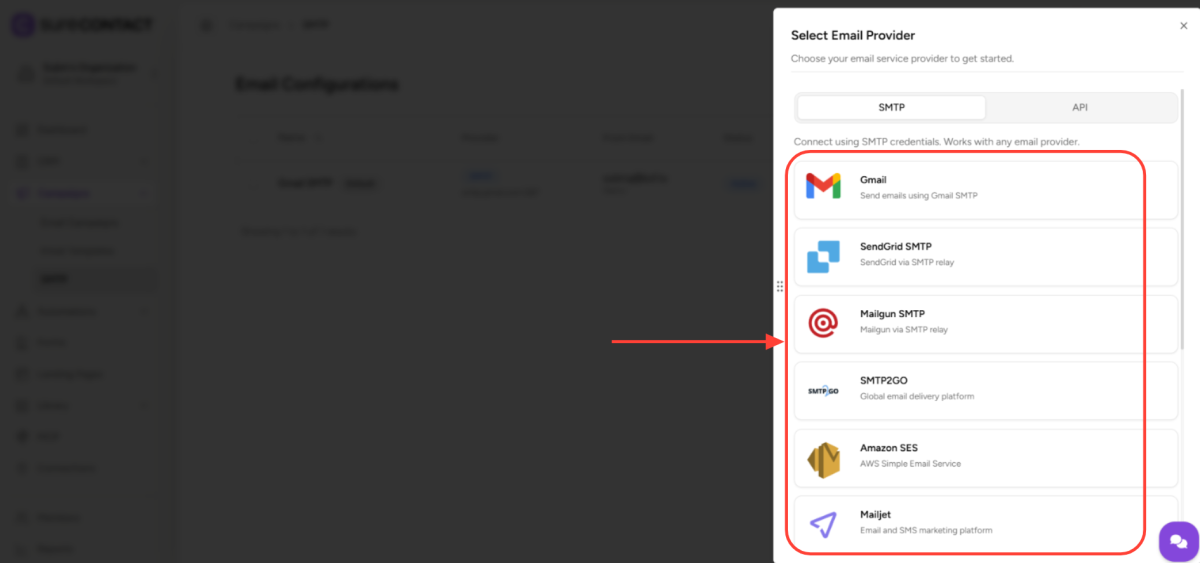
3. Step 1 – Select Your Provider
- In the Select Email Provider dialog, switch between the SMTP tab (any provider that supports SMTP) and the API tab (provider-native APIs).
- Choose your provider – Gmail, SendGrid, Mailgun, SMTP2GO, Amazon SES, Mailjet, Postmark, MailerSend, Resend, or a custom SMTP server.
4. Step 2 – Fill In the Configuration Details
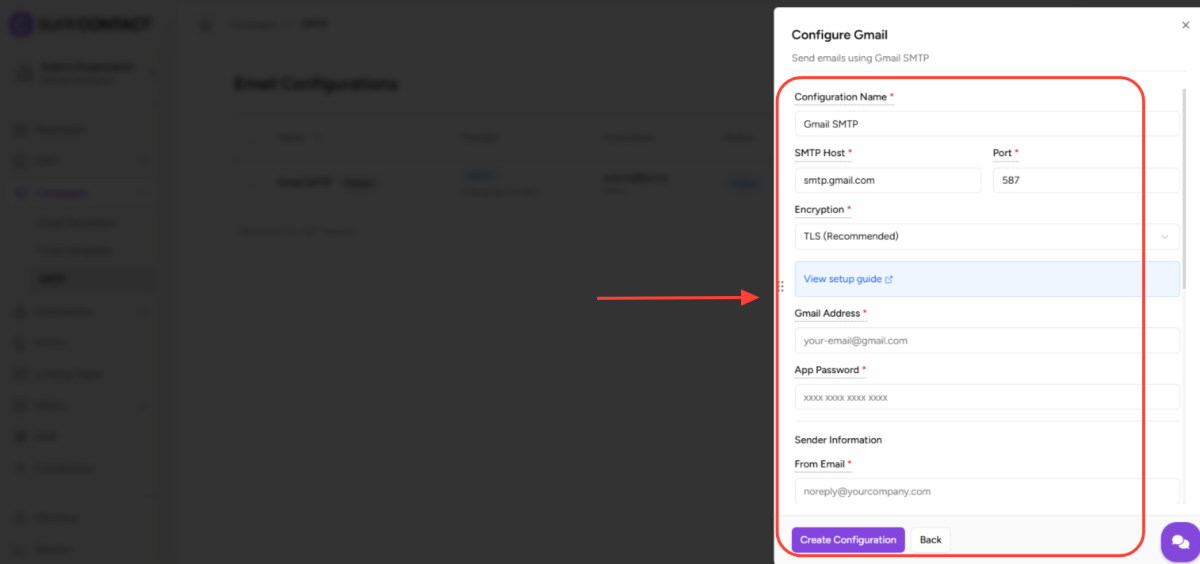
After selecting a provider, fill in the connection details. Required fields vary slightly per provider, but the form follows this structure:
4.1 Connection details
- Configuration Name – a label that appears in dropdowns (e.g., “Gmail SMTP”).
- SMTP Host & Port – e.g., smtp.gmail.com on port 587.
- Encryption – TLS (recommended), SSL, or None.
- Username & Password (or App Password for Gmail).
4.2 Sender information
- From Email & From Name – what recipients see in their inbox.
- Reply-To Email & Reply-To Name (optional) – overrides the From address for replies.
4.3 Rate limits & failover priority (optional)
- Daily Limit / Hourly Limit / Rate Limit Per Second – protects providers from over-use.
- Failover Priority – a number where lower means higher priority (tried first). Leave blank to auto-assign.
- Exclude from failover routing – check this if you want this SMTP to be used only when manually pinned to a campaign, never as an automatic fallback.
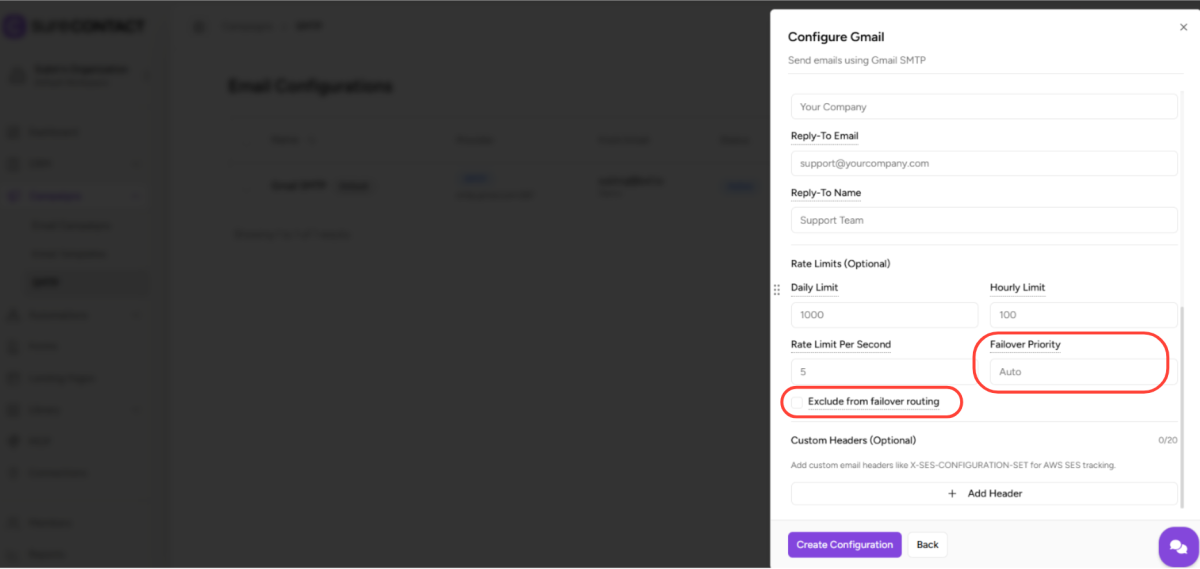
5. Save the Configuration
- Click Save (or Update Configuration when editing an existing one).
- Repeat the steps above for each additional SMTP – you’ll need at least two for failover to function.
Part 2 – Enable SMTP Failover Routing
Once you have two or more SMTPs configured, turn on failover so SureContact will automatically route around a failing provider.
1. Open Workspace Settings
- In the left sidebar, click Settings.
- Scroll down past Brand Settings, Double Opt-In, and Unsubscribe Page until you reach SMTP Failover Routing.
2. Toggle “Enable SMTP Failover” ON
- Click the toggle switch on the right of the SMTP Failover Routing row.
- That’s it – the system is now active. No save button is required.
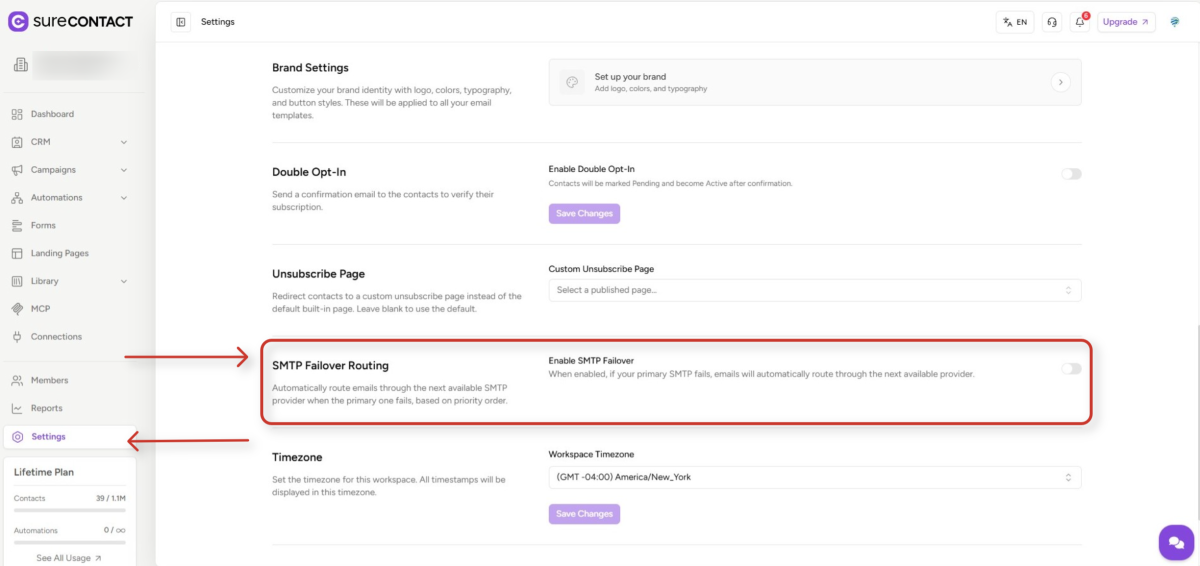
Tip: Once enabled, if your primary SMTP fails, SureContact will automatically route through the next available provider in priority order.
Part 3 – Pin an SMTP to a Specific Campaign (optional)
You can override the workspace default for a single campaign. This is useful when a particular send must originate from a specific provider, for example, transactional alerts via Postmark or marketing newsletters via SendGrid.
1. Create or Edit a Campaign
- Go to Campaigns → Email Campaigns.
- Click + Create Campaign or click the edit (pencil) icon next to an existing draft campaign.
2. Open the Subject Step
- In the campaign editor, you’ll see four tabs across the top: Subject, Compose, Recipients, Review & Send.
- The Send From (SMTP) selector lives in the Subject step.
3. Choose Your SMTP from the “Send From (SMTP)” Dropdown
- Locate the Send From (SMTP) field below the Email Subject and Pre-Header fields.
- Click the dropdown to view all configured SMTPs in this workspace.
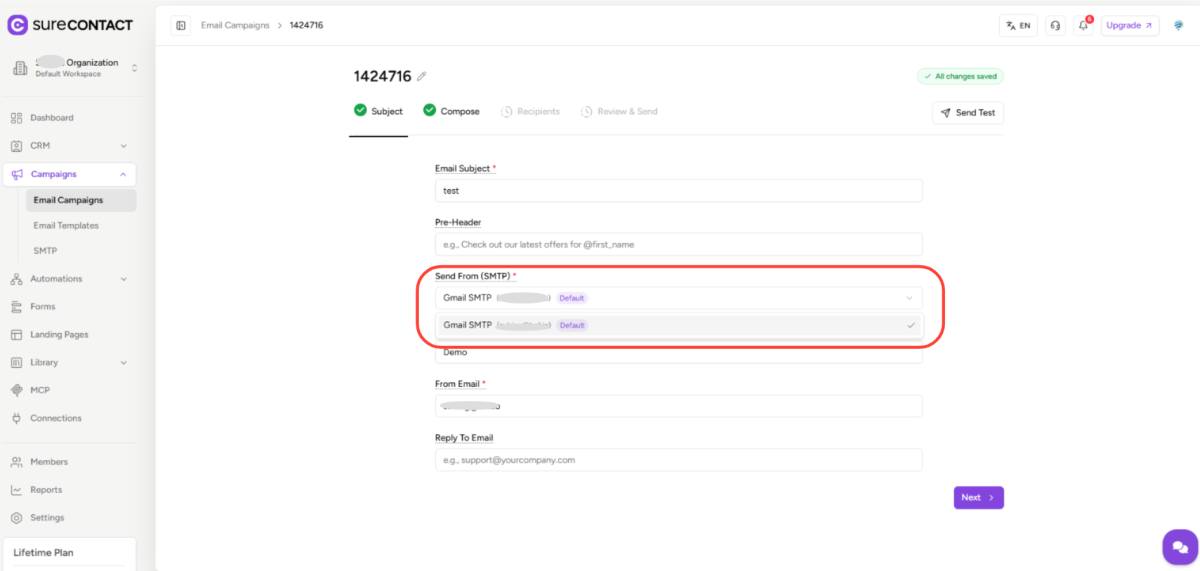
4. Pick the SMTP You Want to Use for This Campaign
- The dropdown lists every SMTP, including ones marked Default.
- Click the SMTP you want this campaign to send through. From Email, From Name, and Reply-To fields auto-fill from the chosen SMTP, you can still override them for this campaign.
5. Continue Through the Remaining Steps
- Move through Compose → Recipients → Review & Send.
- On send, SureContact will use the pinned SMTP first; if failover is also enabled, it will fall back to the next provider on failure.
Tip: When failover is enabled and a campaign has a pinned SMTP, SureContact tries the pinned SMTP first. If it fails, the system walks the priority chain automatically.
How the Failover Logic Works
The table below summarizes how SureContact decides which SMTP to use, based on whether failover is enabled and whether an SMTP has been pinned or excluded.
| Scenario | Behavior |
|---|---|
| Failover is OFF | Always uses the pinned SMTP (or workspace default) |
| Failover is ON, pinned SMTP is healthy | Uses the pinned SMTP |
| Failover is ON, pinned SMTP fails | Falls through to next available SMTP by priority order |
| An SMTP fails 5 times in a row | Circuit breaker kicks in, that SMTP is disabled for 5 minutes, then retried automatically |
| SMTP is marked “Exclude from failover” | Never used as an automatic fallback, but can still be pinned manually |
Need Help?
If you need any assistance, please email [email protected], and our support team will be happy to help you.
We don't respond to the article feedback, we use it to improve our support content.