
- Introduction to SureContact Dashboard
- How to Install and Connect the SureContact WordPress Plugin
- What Do Contact Fields Mean in the SureContact WordPress Plugin
- How to Invite Members to a Workspace in SureContact
- How to Switch Organizations in SureContact
- Workspace-Level Contact Allocation in SureContact
- Workspace-Level Timezone Settings in SureContact
- How to Add a Custom Tracking Domain in a Workspace in SureContact
- SureContact MCP Server
- Creating Forms in SureContact
- Setup SMTP in SureContact
- Email Campaigns in SureContact
- How to Add a Preferences URL in Your Emails
- How to Share Email Templates in SureContact
- Spintax Feature in SureContact
- Deleting Sent Campaigns in SureContact
- A/B Testing Integration Guide
- Unsubscription Guide
- SureContact SMTP Setup Guide
- SMTP Routing User Flow
- Gradual Send Feature Guide
- Reusable Email Templates Guide
- Conditional Blocks Guide
- Scheduling vs. Sending Immediately Emails in SureContact
- Campaign Analytics Guide
- Email Tracking Opens Clicks SureContact
- SureContact Email Template Library Guide
- Sending Domains Subdomain vs Root Domain Guide
- DMARC Setup Guide
- Warming Up a New Sending Domain
- How to Add an Unsubscribe Link in Your Emails
- Analyzing a Campaign with AI (Spam & Ethics Check)
- FluentCRM Integration with SureContact
- SureContact Third-Party Integration — Step-by-Step Guide
- Fluent Forms Integration with SureContact
- SureForms Integration with SureContact
- WPForms Integration with SureContact
- Bulk Sync WordPress Users to SureContact
- Contact Form 7 Integration with SureContact
- Sync WooCommerce Customers with SureContact
Gradual Send Feature Guide
Gradual Send is an optional sending strategy available when creating an email campaign in SureContact. It starts your campaign at a low send rate and automatically ramps up to your full sending rate over a chosen time window, also known as domain or IP warmup. This protects your sender reputation by giving mailbox providers (Gmail, Outlook, Yahoo, etc.) time to recognize your traffic as legitimate.
This guide walks through the complete user flow: where to find the toggle, every available setting, how the ramp behaves, and the safety thresholds that automatically pause the campaign if bounce or complaint rates spike.
Prerequisites
Before enabling Gradual Send on a campaign, please ensure the following:
1. A Verified SMTP Connection
A configured SMTP must be available in Campaigns › SMTP. The selected SMTP’s own per-minute rate cap is one of the inputs SureContact uses to determine your maximum sending rate.
2. A Campaign in Draft or Scheduled Status
Gradual Send can only be configured while the campaign is in Draft or Scheduled status. Once sending has started, the configuration is locked. If you need to adjust ramp settings on an in-flight campaign, you must pause and resume in a new campaign.
3. A Recipient Audience Larger Than the Ramp Window
Gradual Send is most useful when the recipient list is large enough that ramping yields a real benefit. For very small lists (under ~500 contacts) sending to a warm domain, the ramp may complete before producing meaningful warmup signal.
How to Access Gradual Send
The Gradual Send toggle lives on the Review & Send step of the campaign editor, in the Campaign Settings panel.
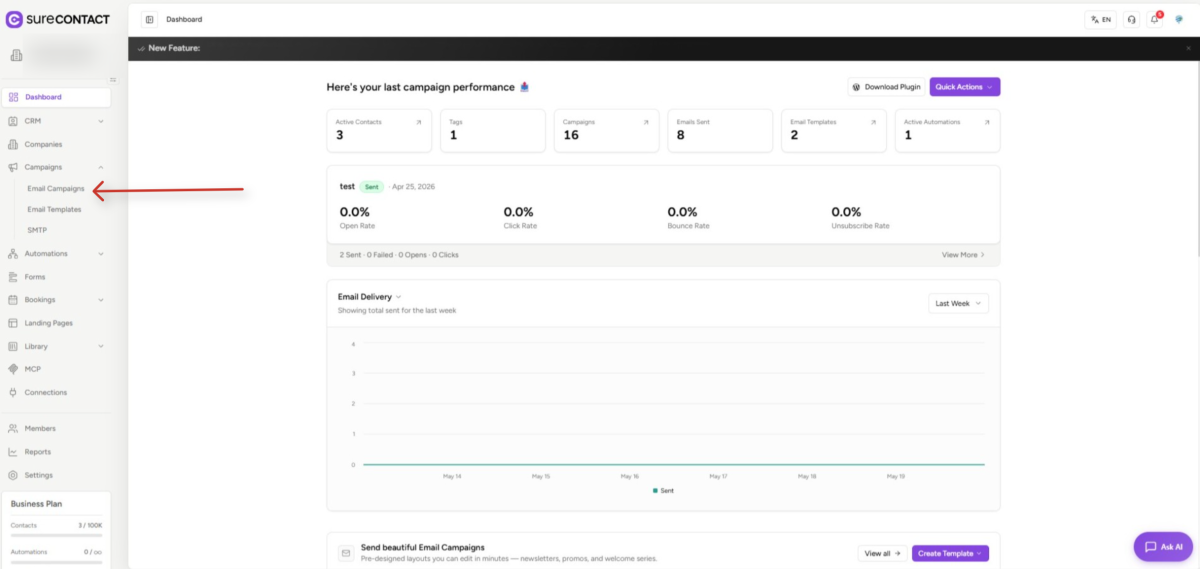
1. Go to Campaigns › Email Campaigns
- From the left sidebar, expand Campaigns and select Email Campaigns.
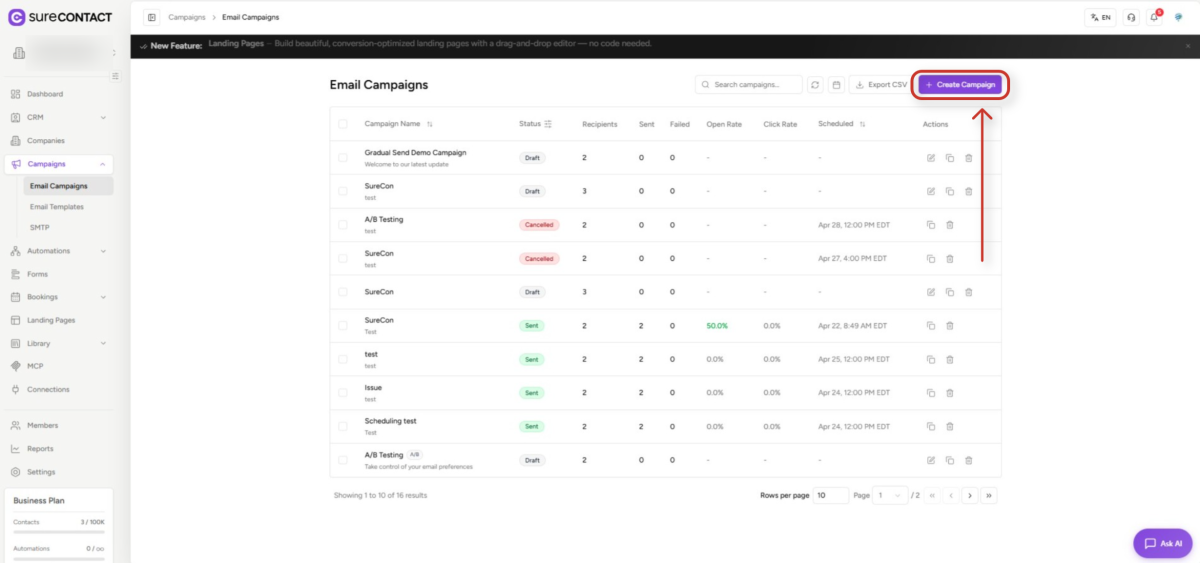
- Click + Create Campaign (top right). Enter a campaign name, choose Standard, and click Create Campaign.
2. Complete the Subject, Compose, and Recipients Steps
- Fill in the email subject, sender details, content, and recipients.
- Each step must be marked complete (green checkmark) before the Review & Send tab unlocks.
3. Open the Review & Send Step
- Click Review & Send (step 4) at the top of the campaign editor.
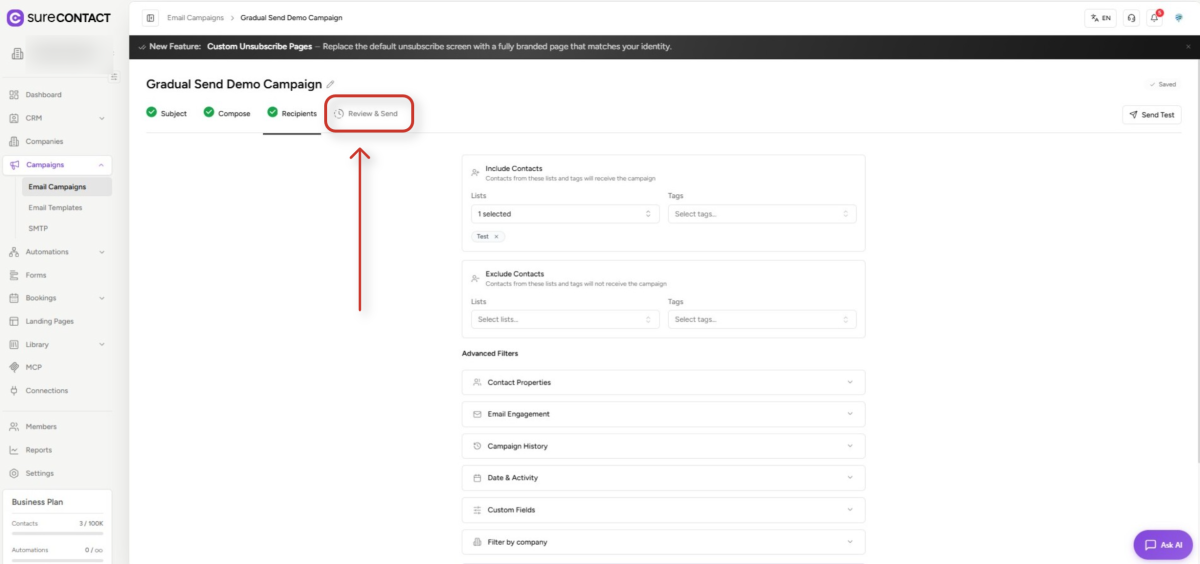
- Scroll down past Campaign Settings, Tracking, UTM Parameters, Sending Rate Per Minute, and Send Timing, you will find the Gradual Send card just below.
How to Enable Gradual Send
In the Review & Send step, locate the Gradual Send card (marked Optional) and flip the toggle on the right-hand side to ON.
1. Toggle Gradual Send On
- The toggle starts in the OFF (gray) position. Click it to flip it to the ON (purple) position.
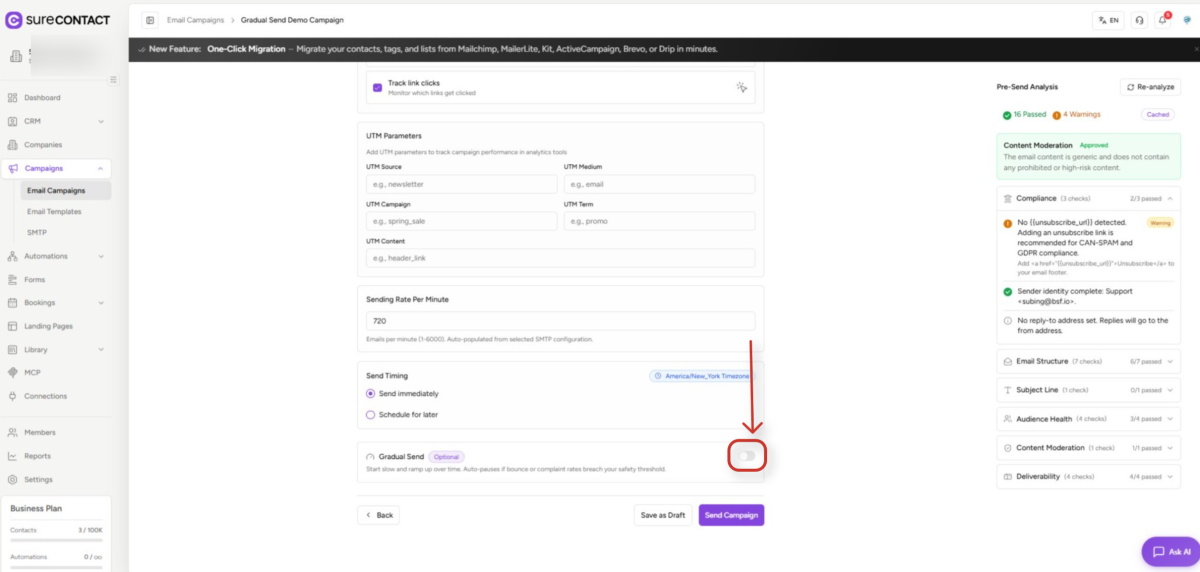
- Turning it on reveals three configuration sections: Starting rate, Ramp duration, and Safety threshold.
Once enabled, the card expands to show all configuration controls:
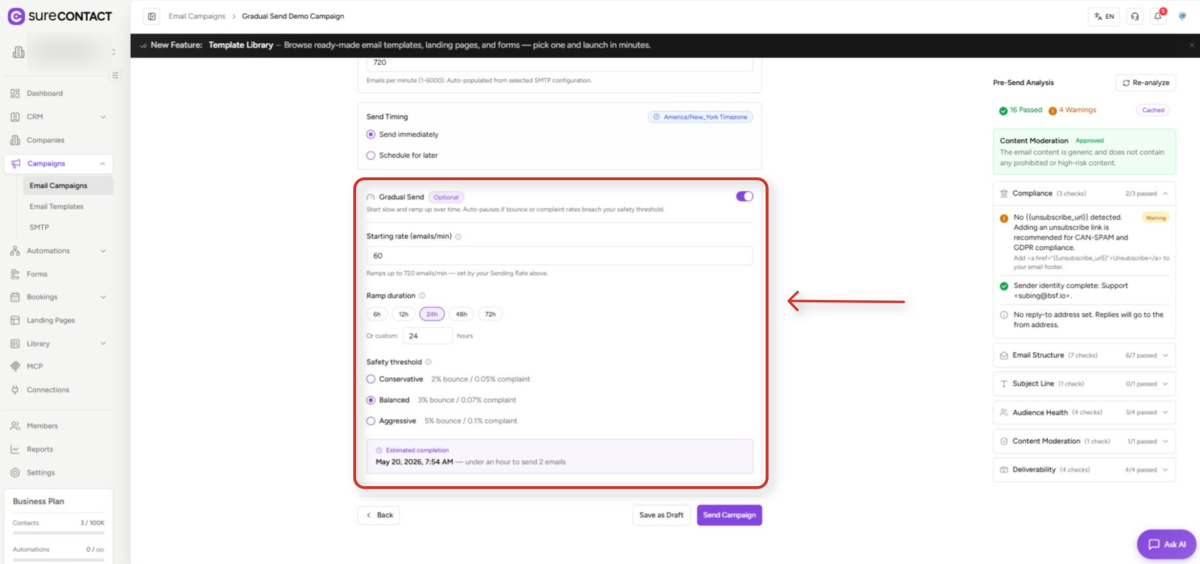
Configuration Settings
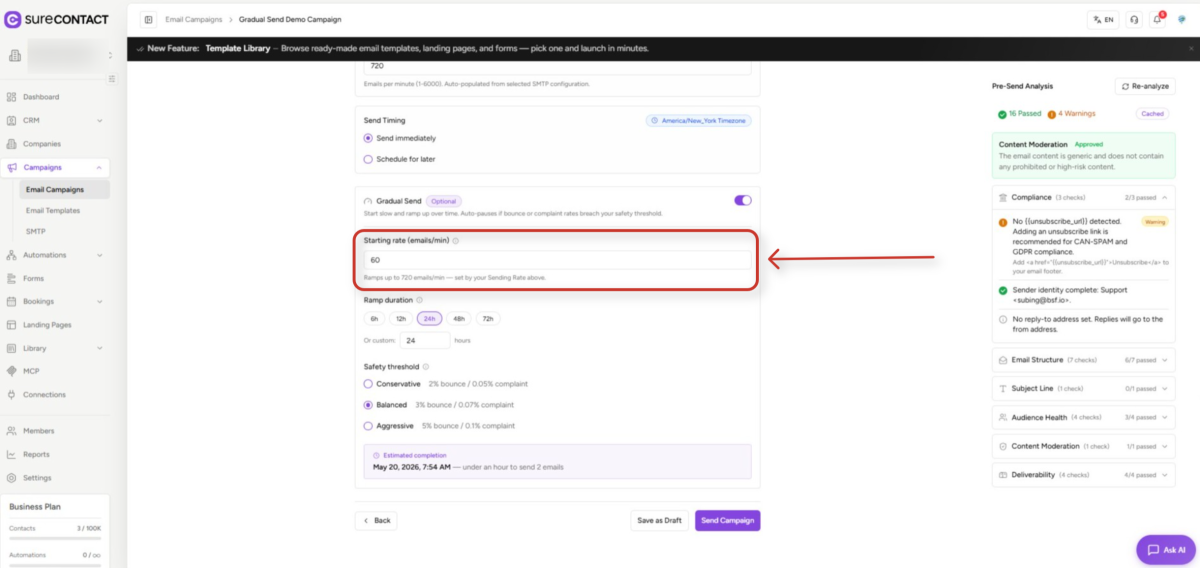
1. Starting Rate (emails/min)
The Starting rate is how many emails per minute SureContact will send at the very beginning of the campaign – i.e. minute zero.
- Minimum: 1 email per minute.
- Maximum: must be lower than your campaign’s Sending Rate (otherwise the ramp is skipped).
- Default: 60 emails per minute.
- Tip: Start low (1–60/min) when sending from a brand-new domain or IP so mailbox providers can build a reputation gradually.
The helper line under the input reads “Ramps up to N emails/min – set by your Sending Rate above,” where N is the value of the Sending Rate Per Minute field higher up the page.
2. Ramp Duration
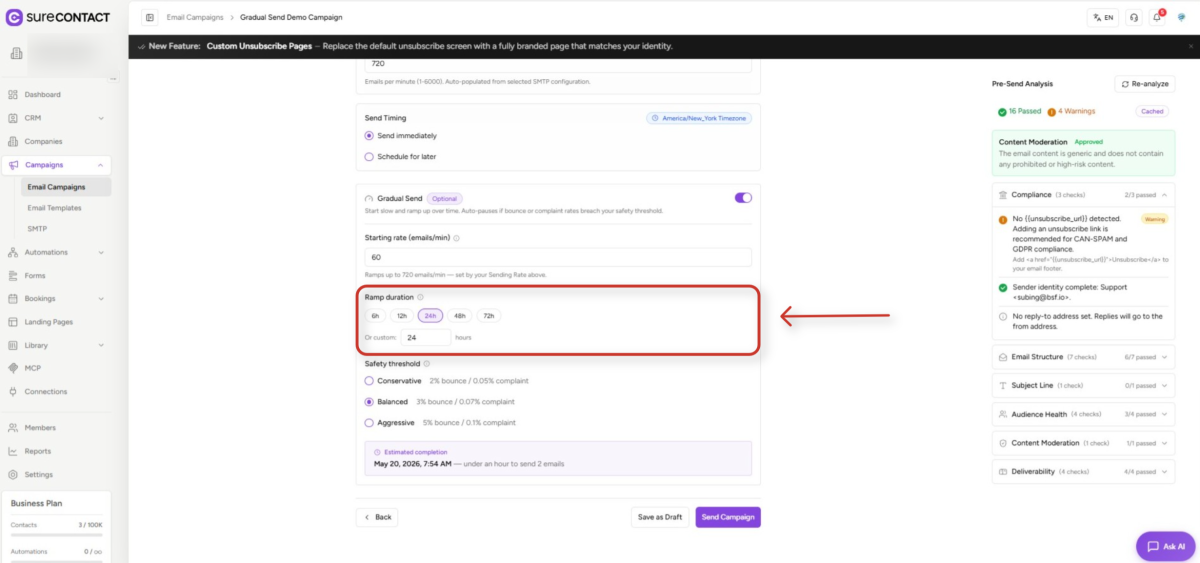
Ramp duration controls how long it takes to climb linearly from the Starting Rate to your full Sending Rate.
- Range: 1 to 168 hours (1 week maximum).
- Default: 24 hours.
- Quick presets: 6h, 12h, 24h, 48h, 72h – selectable as pill buttons.
- Or custom: type any hour value (1–168) into the input below the presets.
- The rate increases linearly from start to end of this window.
Example: If you start at 60/min and the campaign Sending Rate is 600/min over a 24-hour ramp, the system steadily climbs from 60 to 600 emails/min, hitting the full rate exactly at hour 24. If the list finishes earlier, the campaign completes early. If the list is larger, sending continues at the full rate after the ramp completes.
3. Safety Threshold
The Safety threshold automatically pauses the campaign if the running bounce rate or complaint rate exceeds the selected limits. The workspace owner is notified by email and in-app when this happens.
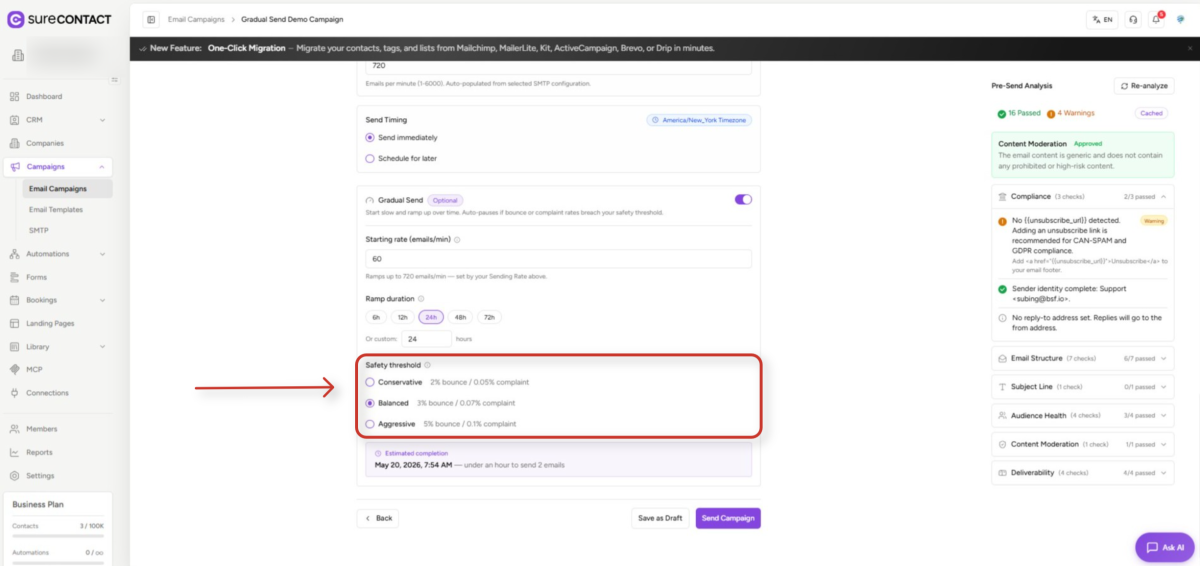
Pick one of three presets:
| Preset | Bounce Rate Limit | Complaint Rate Limit |
| Conservative | 2% | 0.05% |
| Balanced (default) | 3% | 0.07% |
| Aggressive | 5% | 0.1% |
Important notes on how thresholds are evaluated:
- Bounce rate threshold only activates after 50 emails have been sent (avoids false positives at very low volumes).
- Complaint rate threshold only activates after 1,000 emails have been sent.
- SureContact checks the running rates every 5 minutes automatically – no manual action is required.
- When a pause is triggered, the workspace owner receives an email and an in-app notification showing total sent, bounce rate, and complaint rate.
- Resuming the campaign is a manual action – go back to the campaign and click Resume.
Estimated Completion Preview
While you’re configuring Gradual Send, the UI shows a live Estimated completion preview at the bottom of the card. Until you’ve completed the Audience (Recipients) step, it reads “Select recipients on the Audience step to see when your campaign will finish.”
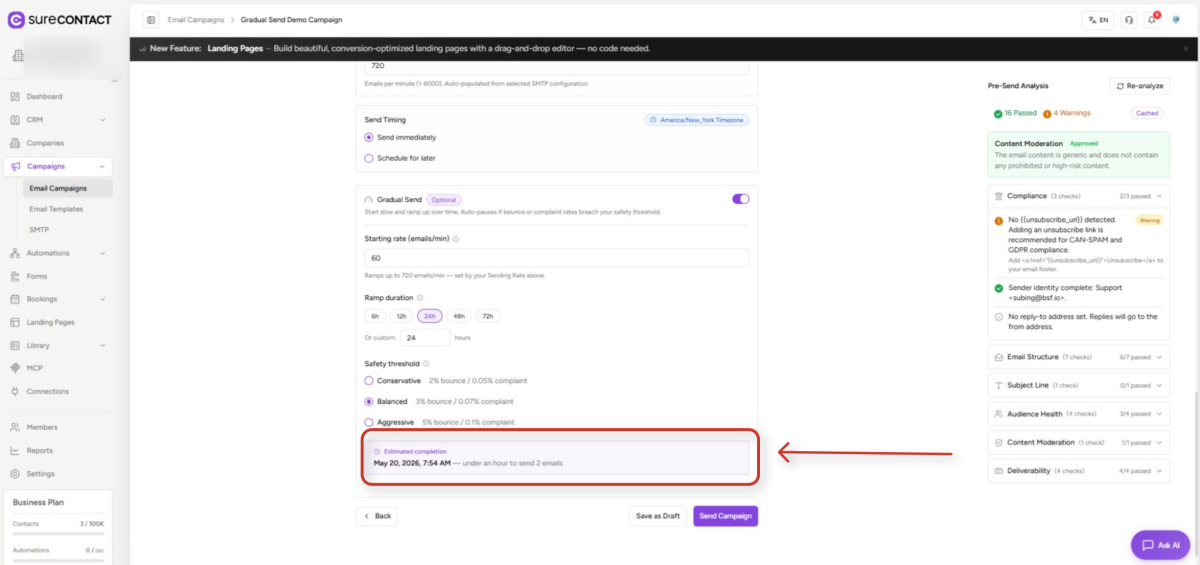
Once recipients are selected, the estimate updates live as you change Starting rate, Ramp duration, or Sending Rate. It accounts for both the ramp phase and the flat-rate phase that follows the ramp.
How the Ramp Works
The sending rate increases linearly from the Starting Rate to the campaign’s full Sending Rate (the throttle_limit) over the chosen Ramp Duration.
Rate Ceiling Resolution (in order of priority)
- Campaign’s Sending Rate (throttle_limit) – set in the Sending Rate Per Minute field on the Review & Send step.
- Selected SMTP’s own per-minute rate limit – pulled from the connection configuration.
- Fallback: 300 emails/min if neither of the above is set.
If the full list finishes sending before the ramp duration elapses, the campaign completes early. If the list is large enough, the system continues sending at the full rate after the ramp ends until the campaign is complete.
Editing After Creation
Gradual Send configuration can only be updated while the campaign is in Draft or Scheduled status. Once sending has started, the configuration becomes locked and the controls are disabled.
Constraints & Validation
The system enforces the following rules:
| Rule | Detail |
| Starting rate must be below Sending Rate | If not, the ramp is skipped entirely and the full rate is used. |
| Ramp duration range | 1 to 168 hours (1 week maximum). |
| Starting rate range | 1 – 6,000 emails/min (backend enforced). |
| Sending Rate lowered below Starting Rate after setup | Ramp is skipped, full rate used immediately. |
| Editing after start | Gradual Send is locked once the campaign begins sending. |
When Gradual Send Is Not Needed
Gradual Send adds the most value during domain or IP warmup. You can typically skip it in these cases:
- Small lists (under ~500 recipients) sent to a warm, well-established domain.
- Re-sends or follow-up campaigns to an already-engaged audience.
- Transactional sends – this is a campaign-level feature only and is not available for one-off transactional emails.
Need Help?
If you need any assistance configuring Gradual Send, please email [email protected], and our support team will be happy to help you.
We don't respond to the article feedback, we use it to improve our support content.