
- Introduction to SureContact Dashboard
- How to Install and Connect the SureContact WordPress Plugin
- What Do Contact Fields Mean in the SureContact WordPress Plugin
- How to Invite Members to a Workspace in SureContact
- How to Switch Organizations in SureContact
- Workspace-Level Contact Allocation in SureContact
- Workspace-Level Timezone Settings in SureContact
- How to Add a Custom Tracking Domain in a Workspace in SureContact
- SureContact MCP Server
- Creating Forms in SureContact
- Setup SMTP in SureContact
- Email Campaigns in SureContact
- How to Add a Preferences URL in Your Emails
- How to Share Email Templates in SureContact
- Spintax Feature in SureContact
- Deleting Sent Campaigns in SureContact
- A/B Testing Integration Guide
- Unsubscription Guide
- SureContact SMTP Setup Guide
- SMTP Routing User Flow
- Gradual Send Feature Guide
- Reusable Email Templates Guide
- Conditional Blocks Guide
- Scheduling vs. Sending Immediately Emails in SureContact
- Campaign Analytics Guide
- Email Tracking Opens Clicks SureContact
- SureContact Email Template Library Guide
- Sending Domains Subdomain vs Root Domain Guide
- DMARC Setup Guide
- Warming Up a New Sending Domain
- Email Link Actions in SureContact
- SureContact – Email Flagged or Rejected Guide
- How to Generate a Campaign Report in SureContact
- How to Add an Unsubscribe Link in Your Emails
- Analyzing a Campaign with AI (Spam & Ethics Check)
- FluentCRM Integration with SureContact
- SureContact Third-Party Integration — Step-by-Step Guide
- Fluent Forms Integration with SureContact
- SureForms Integration with SureContact
- WPForms Integration with SureContact
- Bulk Sync WordPress Users to SureContact
- Contact Form 7 Integration with SureContact
- Sync WooCommerce Customers with SureContact
- FluentCart & FluentCommunity Integration With SureContact
SureContact SMTP Setup Guide
SureContact SMTP allows you to send emails from your own verified domain directly through SureContact, ensuring better deliverability, brand consistency, and trust with your recipients. Once configured, SureContact SMTP will automatically be used to send emails from your campaigns and automations.
This guide explains the complete process of setting up and verifying a sending domain, configuring DNS records, and adding a SureContact SMTP identity to your workspace.
Availability
The SureContact SMTP feature is currently supported for Monthly and Annual plan users only. Only users on these plans will see the SMTP option in their SureContact account once it has been set up.
Prerequisites
Before setting up SureContact SMTP, please ensure the following:
1. Active Monthly or Annual Subscription
You must be on a Monthly or Annual SureContact plan. SMTP is not available on other plans.
2. Access to Your Domain’s DNS Settings
You will need access to your domain provider (admin panel) to add the DNS records required for domain verification.
How to Set Up SureContact SMTP
Follow the steps below to add a sending domain, verify it, and configure your SureContact SMTP identity.
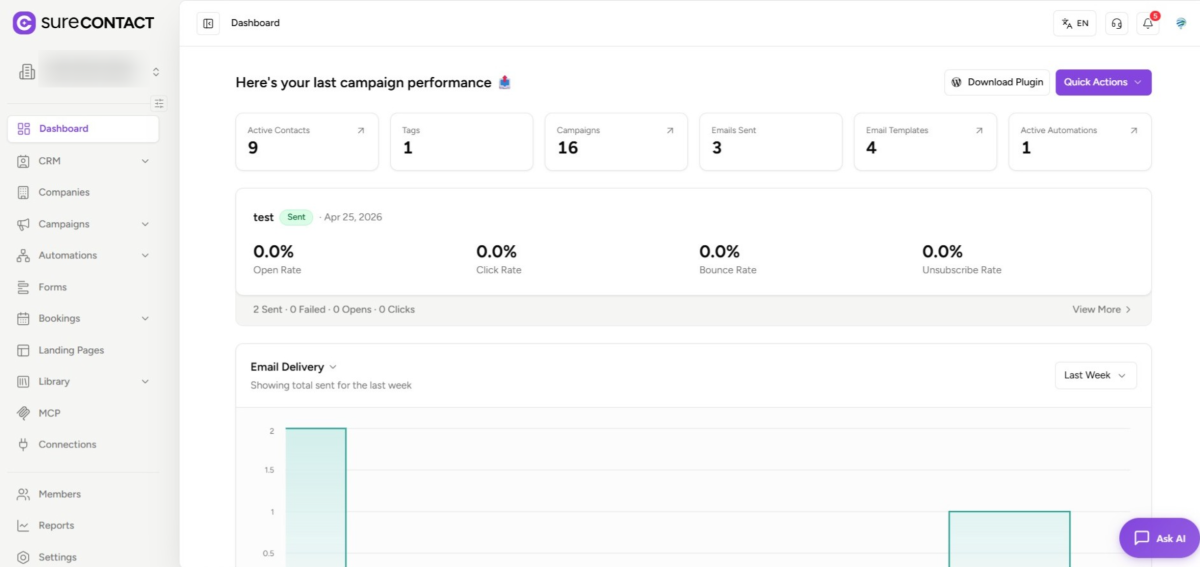
1. Open Your SureContact Account
- Log in to your SureContact account to get started.
2. Go to General Settings
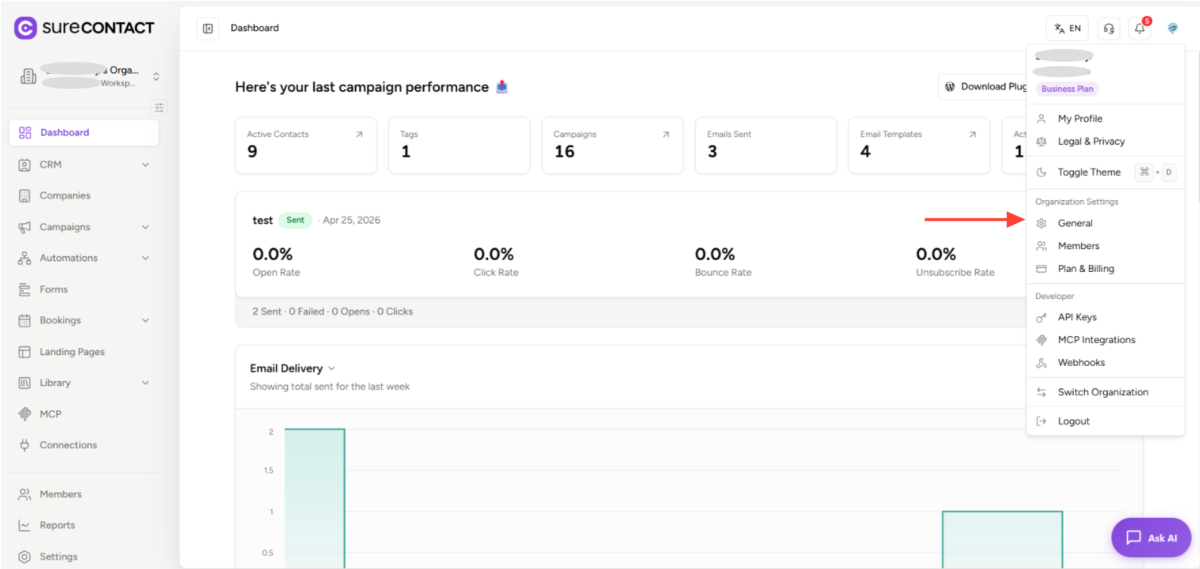
- Click on the profile icon in the top-right corner of the page.
- From the dropdown menu, choose General Settings.
3. Open Sending Domain
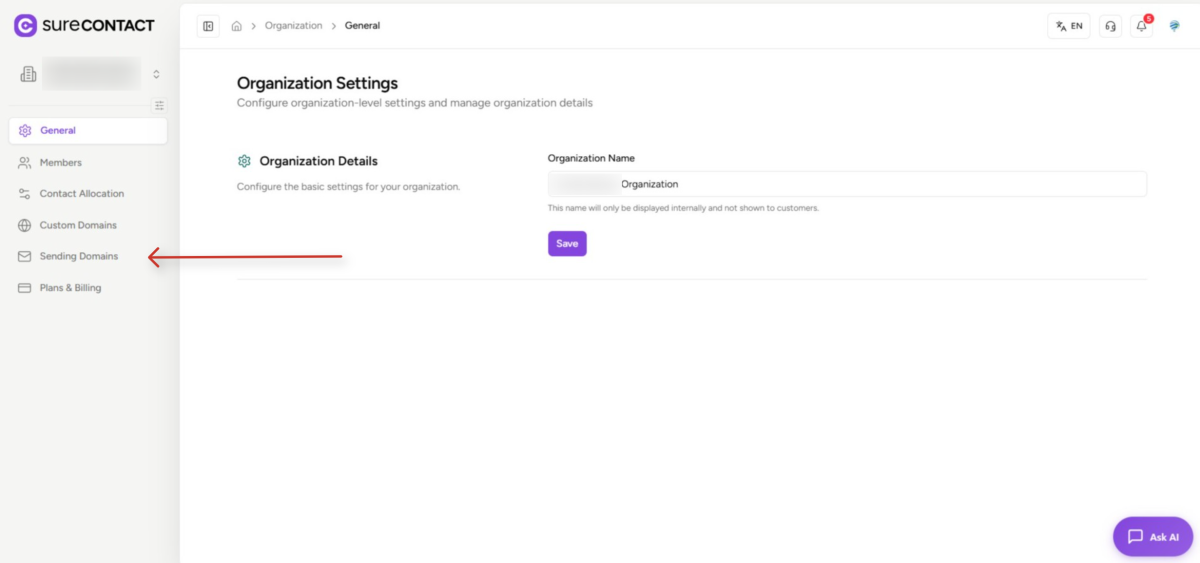
- In the left-hand sidebar of the General Settings page, click on Sending Domain.
4. Add a New Domain
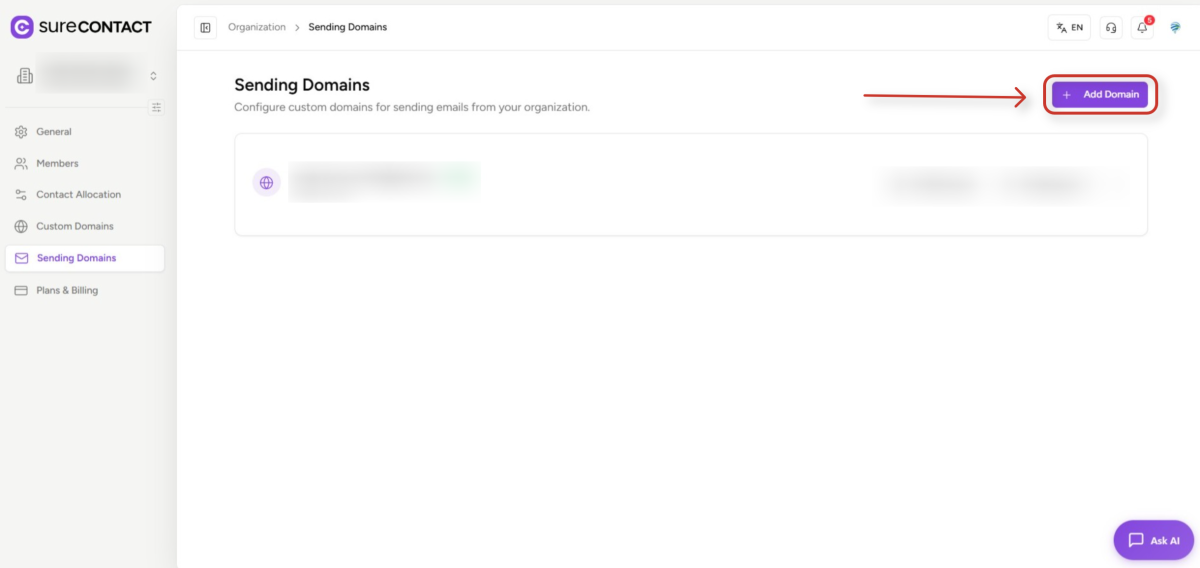
- Click on the Add Domain button to begin adding your sending domain.
5. Enter Your Domain
- Enter the domain you want to use for sending emails.
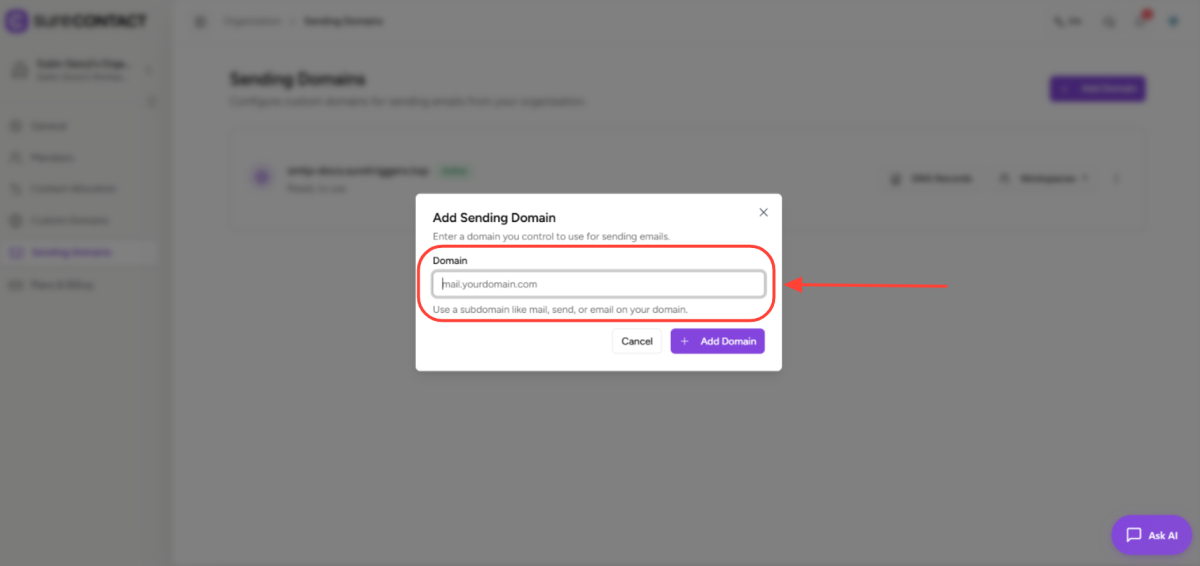
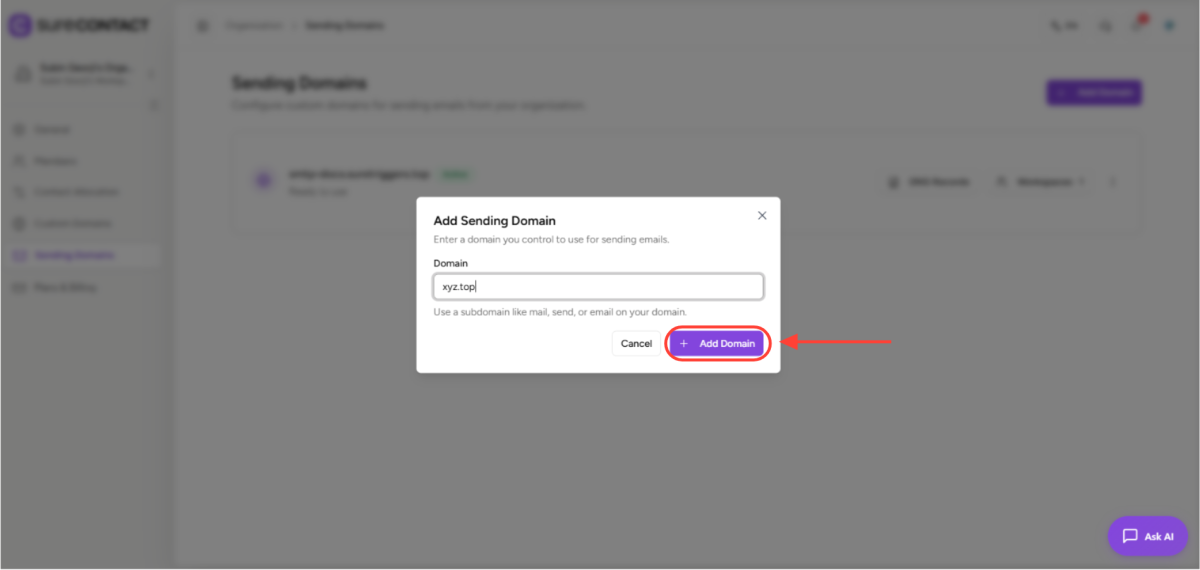
6. Confirm by Clicking Add Domain
- Click the Add Domain button to submit your domain.
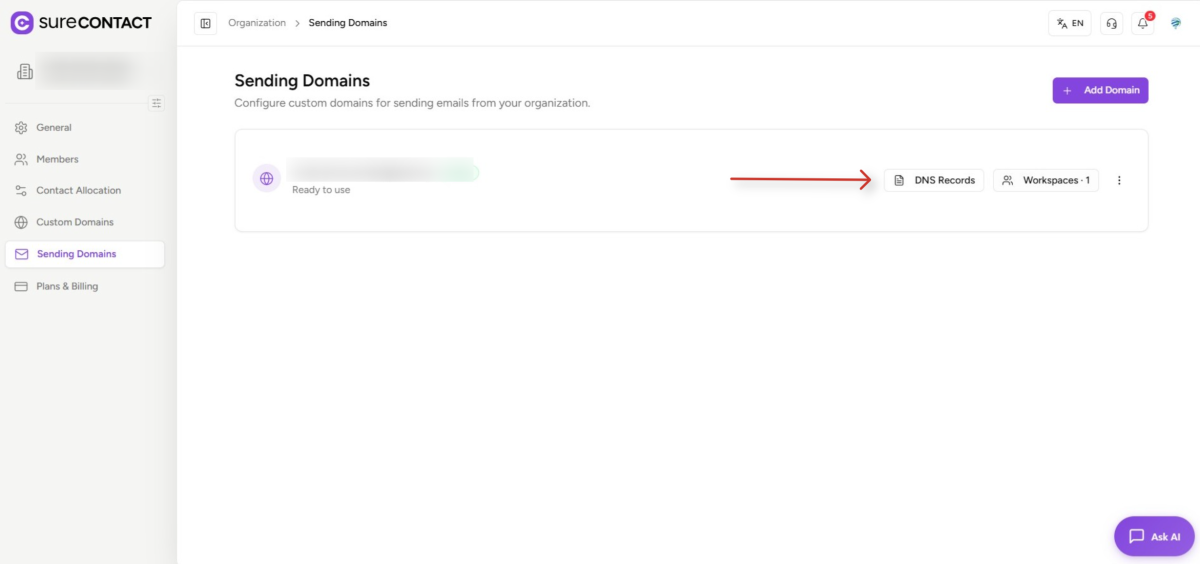
7. Configure DNS
- Click on Configure DNS to view the DNS records that need to be added to your domain.
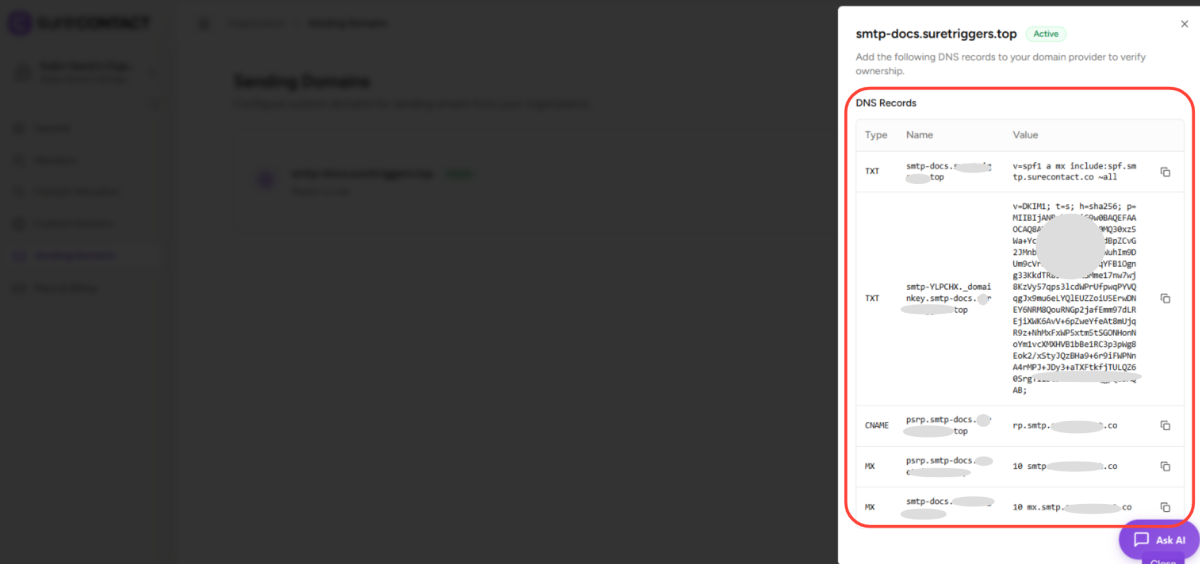
8. Add the DNS Records to Your Domain
- Copy the DNS records shown in SureContact.
- Log in to your domain provider’s admin panel and add these DNS records to your domain settings.
9. Verify the DNS Records
- Once the records are added in your domain provider, return to SureContact and click Verify, then close the window.
- DNS changes may take a few seconds (or longer, depending on your provider) to reflect.
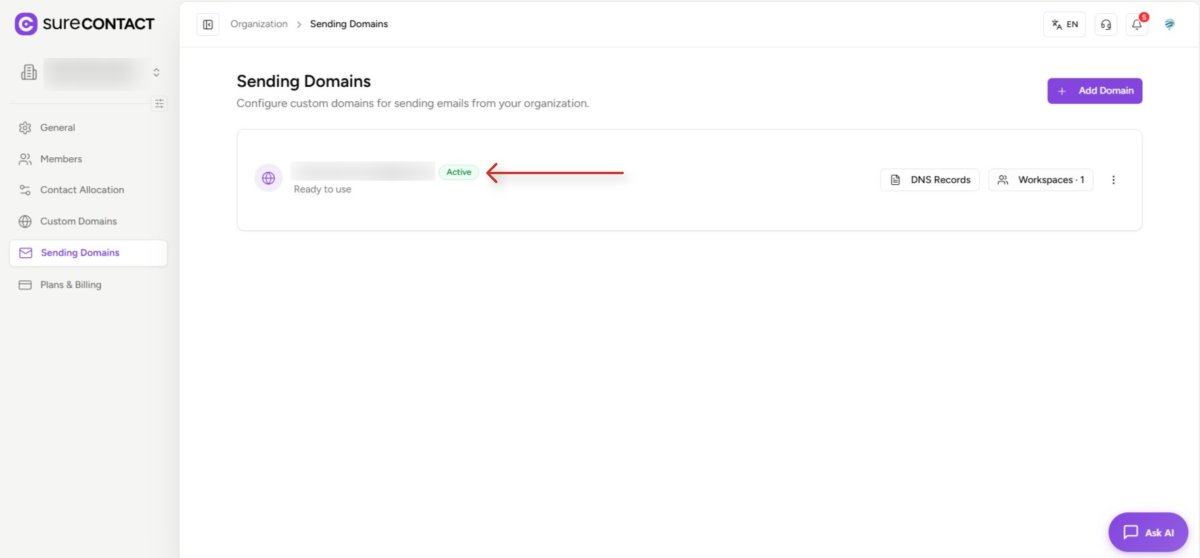
10. Confirm the Domain is Active
- Refresh the Sending Domain page. Your added domain should now appear as Active.
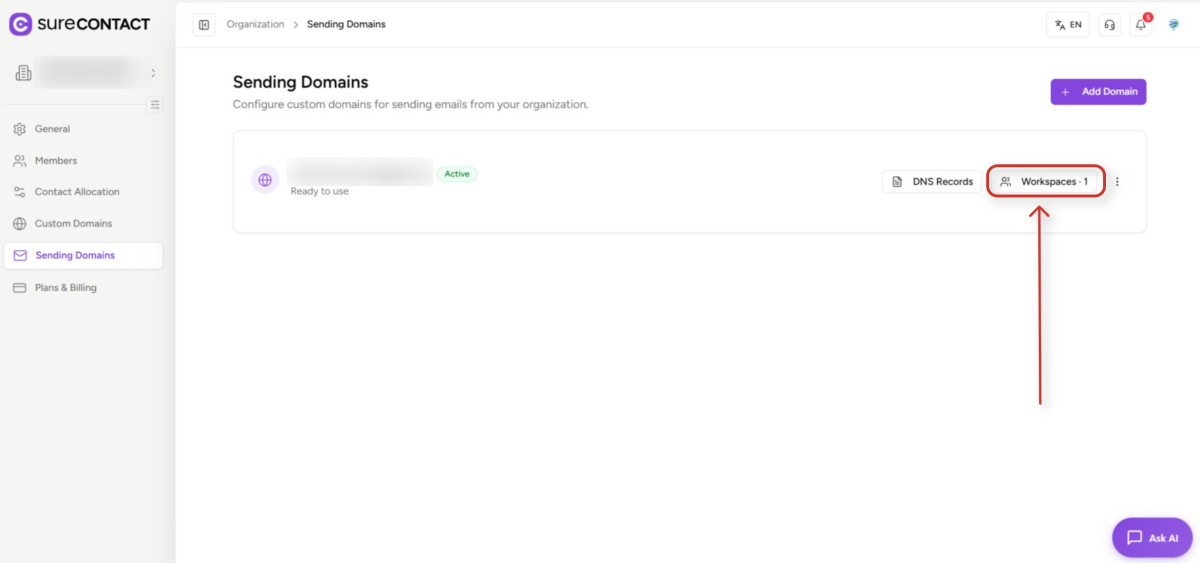
11. Select the Workspace
- Click on Workspace to open the workspace selection screen.
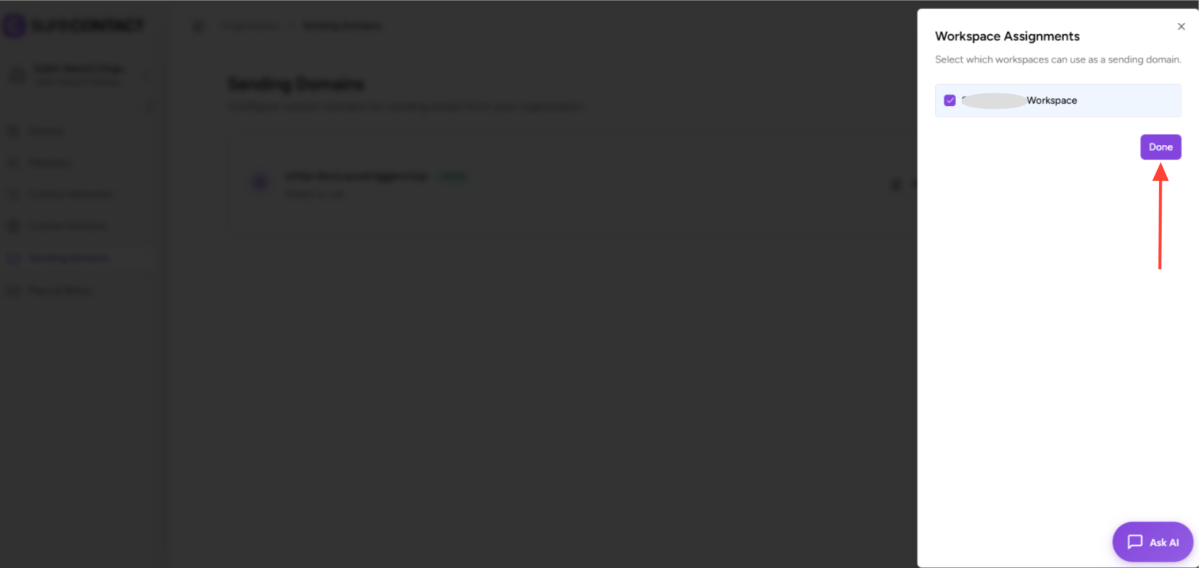
- Choose the workspace in which you want to enable SureContact SMTP, then click Done.
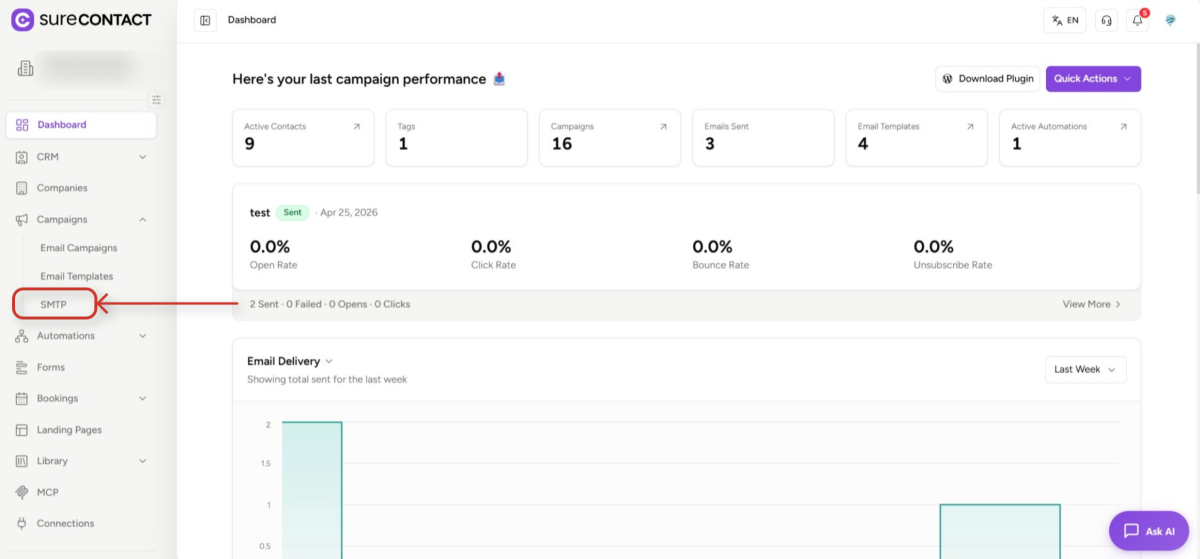
12. Navigate to SMTP
- Go to the SMTP section inside the selected workspace.
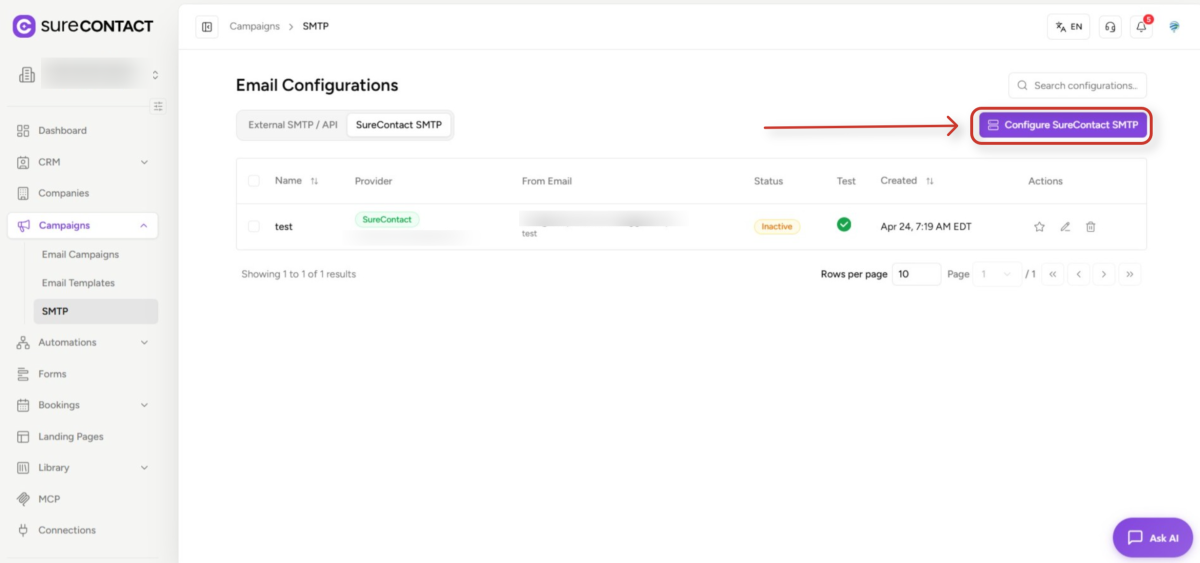
13. Configure SureContact SMTP
- Click the Configure SureContact SMTP button.
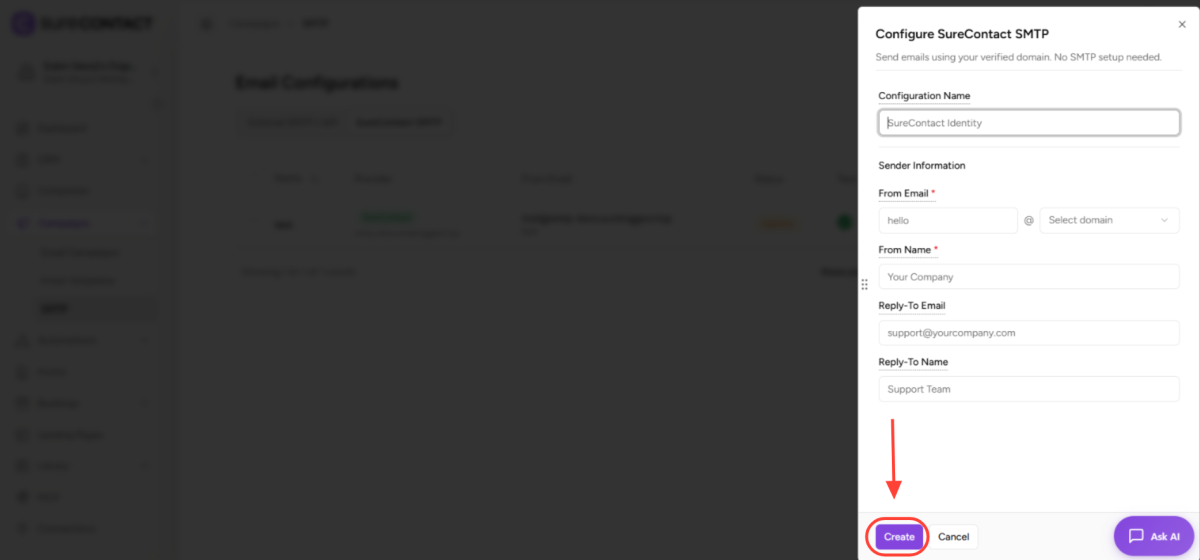
14. Enter Sending Details and Create SMTP
- Enter your sending details (such as the from name and verified email address).
- Click Create to save.
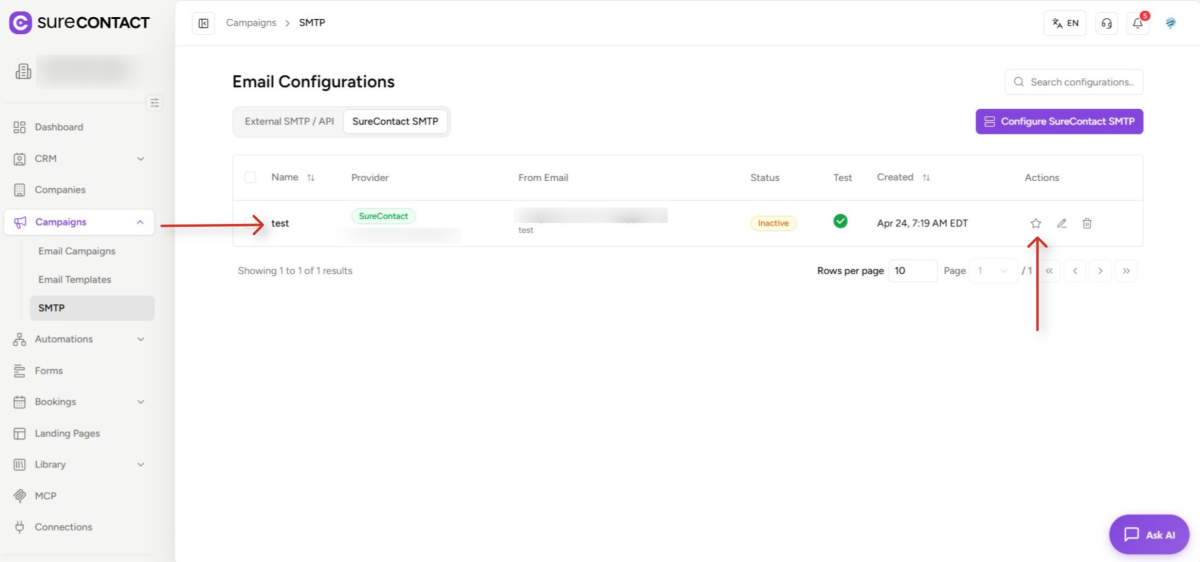
15. Set SureContact SMTP as Default
- The newly added SMTP will now appear in your SMTP list.
- You can mark it as your default sending SMTP for the workspace.
Setup Complete
Your SureContact SMTP is now fully configured. Whenever you send an email through an automation or create a campaign, SureContact will automatically use your SureContact SMTP identity to deliver the email from your verified domain.
Need Help?
If you need any assistance, please email [email protected], and our support team will be happy to help you.
We don't respond to the article feedback, we use it to improve our support content.