
- Introduction to SureContact Dashboard
- How to Install and Connect the SureContact WordPress Plugin
- What Do Contact Fields Mean in the SureContact WordPress Plugin
- How to Invite Members to a Workspace in SureContact
- How to Switch Organizations in SureContact
- Workspace-Level Contact Allocation in SureContact
- Workspace-Level Timezone Settings in SureContact
- How to Add a Custom Tracking Domain in a Workspace in SureContact
- SureContact MCP Server
- Creating Forms in SureContact
- Setup SMTP in SureContact
- Email Campaigns in SureContact
- How to Add a Preferences URL in Your Emails
- How to Share Email Templates in SureContact
- Spintax Feature in SureContact
- Deleting Sent Campaigns in SureContact
- A/B Testing Integration Guide
- Unsubscription Guide
- SureContact SMTP Setup Guide
- SMTP Routing User Flow
- Gradual Send Feature Guide
- Reusable Email Templates Guide
- Conditional Blocks Guide
- Scheduling vs. Sending Immediately Emails in SureContact
- Campaign Analytics Guide
- Email Tracking Opens Clicks SureContact
- SureContact Email Template Library Guide
- Sending Domains Subdomain vs Root Domain Guide
- DMARC Setup Guide
- Warming Up a New Sending Domain
- How to Add an Unsubscribe Link in Your Emails
- Analyzing a Campaign with AI (Spam & Ethics Check)
- FluentCRM Integration with SureContact
- SureContact Third-Party Integration — Step-by-Step Guide
- Fluent Forms Integration with SureContact
- SureForms Integration with SureContact
- WPForms Integration with SureContact
- Bulk Sync WordPress Users to SureContact
- Contact Form 7 Integration with SureContact
- Sync WooCommerce Customers with SureContact
Email Tracking Opens Clicks SureContact
SureContact can track when recipients open your campaign emails and when they click links inside them, so you can see how your emails are actually performing rather than just whether they were delivered.
This guide explains how to turn on open and click tracking for a campaign, where to view the results, and how to use that engagement data in contact filters and automations.
Prerequisites
Before enabling email tracking, please ensure the following:
1. A Campaign Ready to Send
Tracking is configured per campaign, so you will need a draft campaign (or one you are about to create) with its subject, content, and recipients already set up.
2. At Least One Link in Your Email (for Click Tracking)
Click tracking only has something to measure if your email contains at least one link, such as a button or a URL to your website.
How to Enable Tracking
1. Go to Email Campaigns → Create Campaign
- You can also open an existing draft campaign to edit its tracking settings.
2. Build Your Email as Usual
- Set the subject, sender details, email content, and recipients through the Subject, Compose, and Recipients steps.
3. Open the Review & Send Step and Check the Tracking Options
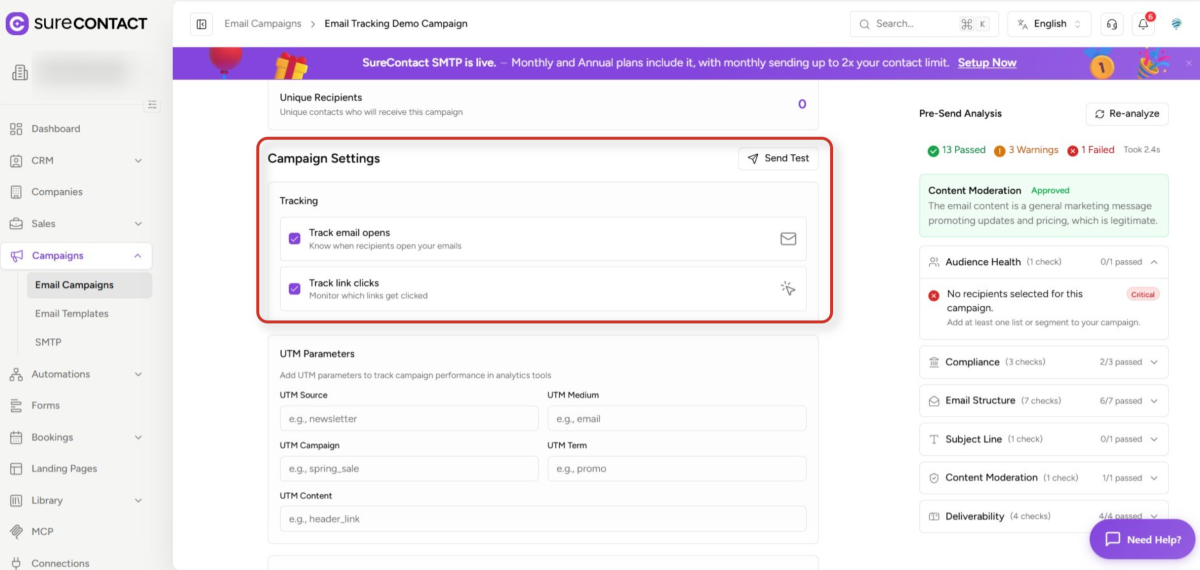
- Under Campaign Settings → Tracking, you will see two independent checkboxes: “Track email opens” and “Track link clicks.” Both are enabled by default.
- Check the ones you want. You can track opens only, clicks only, both, or neither.
4. Finish Scheduling or Sending Your Campaign
- No extra setup is required. Tracking is applied automatically to every recipient of that campaign once it sends.
How It Works Behind the Scenes
- Opens are tracked using a tiny, invisible image embedded in the email. When a recipient’s email app loads that image, which normally happens automatically when they open the email, SureContact counts it as an open.
- Clicks are tracked by briefly routing the link through SureContact before sending the recipient on to the real destination. The recipient does not notice this; it happens instantly and they land on the correct page.
You don’t need to do anything to make this work, it is fully automatic once tracking is enabled on the campaign.
Where to See Your Results
1. Open a Sent Campaign’s Report
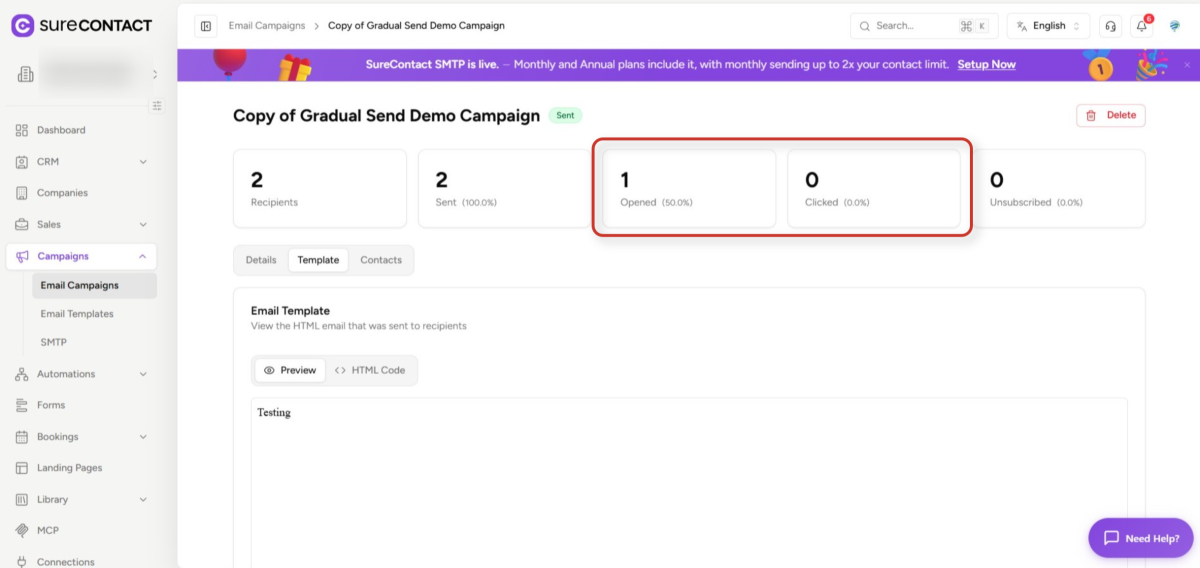
- Go to Email Campaigns and open a campaign that has been sent. The report page shows Opened and Clicked counts and percentages alongside Recipients, Sent, and Unsubscribed.
2. Filter Your Contact List by Engagement
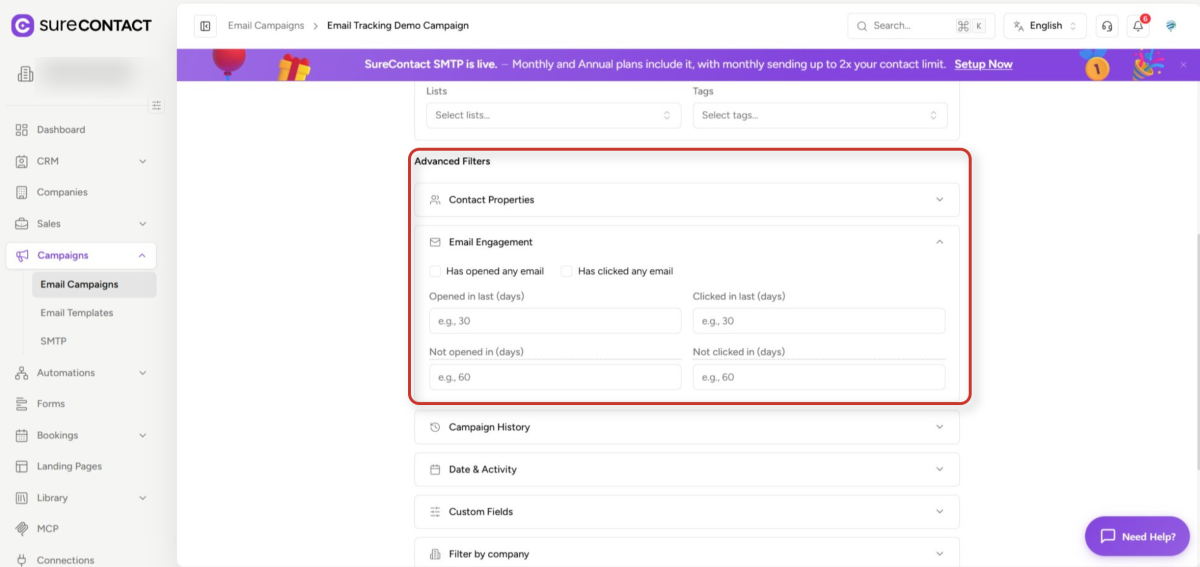
- When choosing recipients for a new campaign, open Advanced Filters → Email Engagement to filter by “Has opened any email,” “Has clicked any email,” or by a specific number of days since a contact last opened or clicked.
Using Opens & Clicks in Automations
1. Add an Email Events Trigger to a Workflow
- From Automations → Workflows, add a trigger and choose the Email Events category. “Email Opened” fires when a recipient opens a tracked campaign, and “Email Link Clicked” fires when a recipient clicks a tracked link (including which link was clicked).
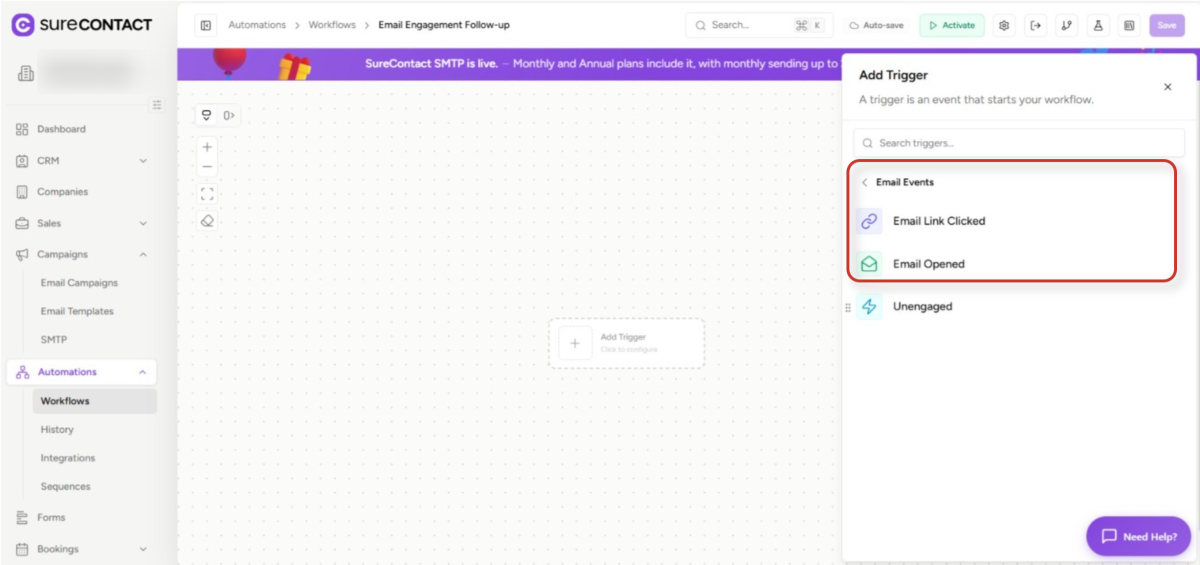
- Use these triggers to build flows such as tagging contacts who click a pricing link, or sending a reminder to people who didn’t open the last campaign.
Good to Know / Limitations
- Only the first open and first click count. If someone opens the same email five times, it is still counted once, so reports reflect reach rather than raw hit counts.
- Some opens may not register. Many email apps block images by default, so if a recipient never loads images, their open won’t be tracked even though they read the email.
- Some “opens” may be automatic, not human. Certain email security scanners and privacy features (like Apple Mail Privacy Protection) can trigger an open automatically without the recipient actually reading the email. This is a limitation across all email tracking tools, not specific to SureContact, so open rates should be treated as a directional signal rather than an exact count.
- IP addresses are not stored from opens or clicks, in line with privacy best practices — only the fact that the event happened and when.
- Clicks always count, since a click requires an actual action from the recipient (there is no way to accidentally trigger one).
- Unsubscribe and “view in browser” links are never tracked as clicks, so they don’t skew your click stats.
Custom Tracking Domain (Optional)
By default, tracking and click links use SureContact’s shared domain. If your plan supports custom domains, you can connect your own domain so tracking links appear branded with your own domain instead. This is configured under your workspace’s domain settings and requires verifying DNS records for that domain.
FAQ
Q: Why does my open rate seem inflated?
A: This is usually caused by email security software or privacy features that automatically load images without the recipient actually opening the email, a known industry-wide tracking limitation, not a bug.
Q: Why is my open rate 0% even though people are reading the email?
A: The recipient’s email app likely blocked images from loading. Ask them to click “Display images” if their inbox shows that prompt.
Q: I clicked a link in a test email and it took me to the homepage instead of the real page. Why?
A: This usually means the tracking link had expired or the destination link wasn’t valid. Try resending a fresh test.
Q: Can I track opens/clicks on individual (non-campaign) emails?
A: Yes – direct one-off emails support the same tracking, as long as the email is linked to a saved contact.
Need Help?
If you need any assistance, please email [email protected], and our support team will be happy to help you.
We don't respond to the article feedback, we use it to improve our support content.