
- Introduction to SureContact Dashboard
- How to Install and Connect the SureContact WordPress Plugin
- What Do Contact Fields Mean in the SureContact WordPress Plugin
- How to Invite Members to a Workspace in SureContact
- How to Switch Organizations in SureContact
- Workspace-Level Contact Allocation in SureContact
- Workspace-Level Timezone Settings in SureContact
- How to Add a Custom Tracking Domain in a Workspace in SureContact
- SureContact MCP Server
- Creating Forms in SureContact
- Create Forms & assign lists & tags
- Multi Language Support(WordPress)
- Page Visit Tracking Guide (WordPress)
- Forms Custom Fields Sync Guide
- Landing Pages User Flow Guide
- SureContact Organization Workspace Setup Guide
- Companies User Flow Guide
- FAQs
- Bulk Operations SureContact
- SureContact Double Opt-In Guide
- SureContact API Keys Guide
- SureContact 2FA User Guide
- SureContact Bookings User Flow Guide
- SureContact MultiStep Forms Guide
- Zoom Integration with SureContact
- Group Booking User Flow Documentation
- Global Search – User Flow Documentation
- Folders in SureContact
- SureContact Email Tracking Pixel Regulations
- Email Open Tracking Consent SureContact
- Forms Custom Success Message Redirect Guide
- Partial Form Submission Guide
- Shopify Integration with SureContact Guide
- Migrate to Unified Preference Page
- Setup SMTP in SureContact
- Email Campaigns in SureContact
- How to Add a Preferences URL in Your Emails
- How to Share Email Templates in SureContact
- Spintax Feature in SureContact
- Deleting Sent Campaigns in SureContact
- A/B Testing Integration Guide
- Unsubscription Guide
- SureContact SMTP Setup Guide
- SMTP Routing User Flow
- FluentCRM Integration with SureContact
- SureContact Third-Party Integration — Step-by-Step Guide
- Fluent Forms Integration with SureContact
- SureForms Integration with SureContact
- WPForms Integration with SureContact
- Bulk Sync WordPress Users to SureContact
- Contact Form 7 Integration with SureContact
- Sync WooCommerce Customers with SureContact
- FluentCart & FluentCommunity Integration With SureContact
Zoom Integration with SureContact
SureContact integrates with Zoom to let you automatically generate Zoom meeting links for your bookings, so meetings are created and shared with your invitees without any manual work.
This guide explains how to connect, use, and disconnect the Zoom integration within SureContact.
How to Add Zoom Connection
- Go to your SureContact dashboard.
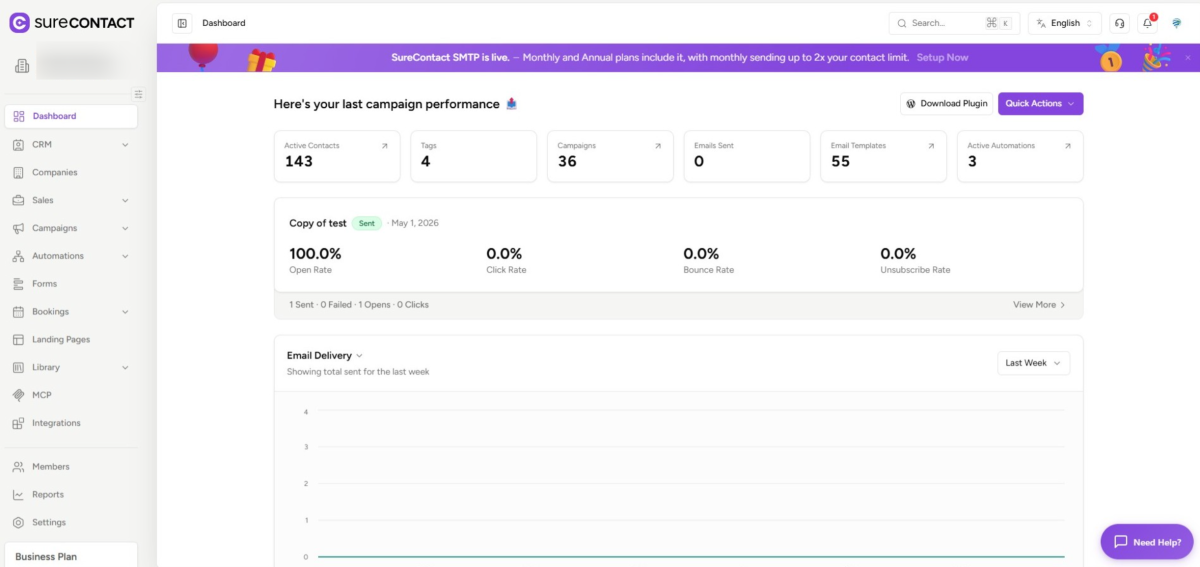
- On the bottom left side, click on the Integrations option.
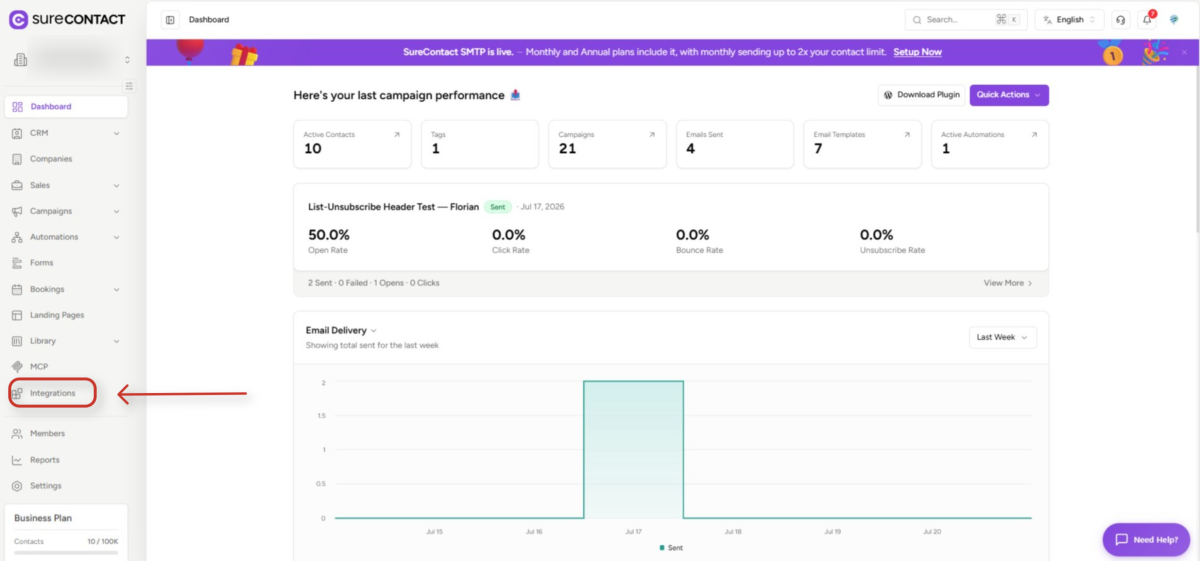
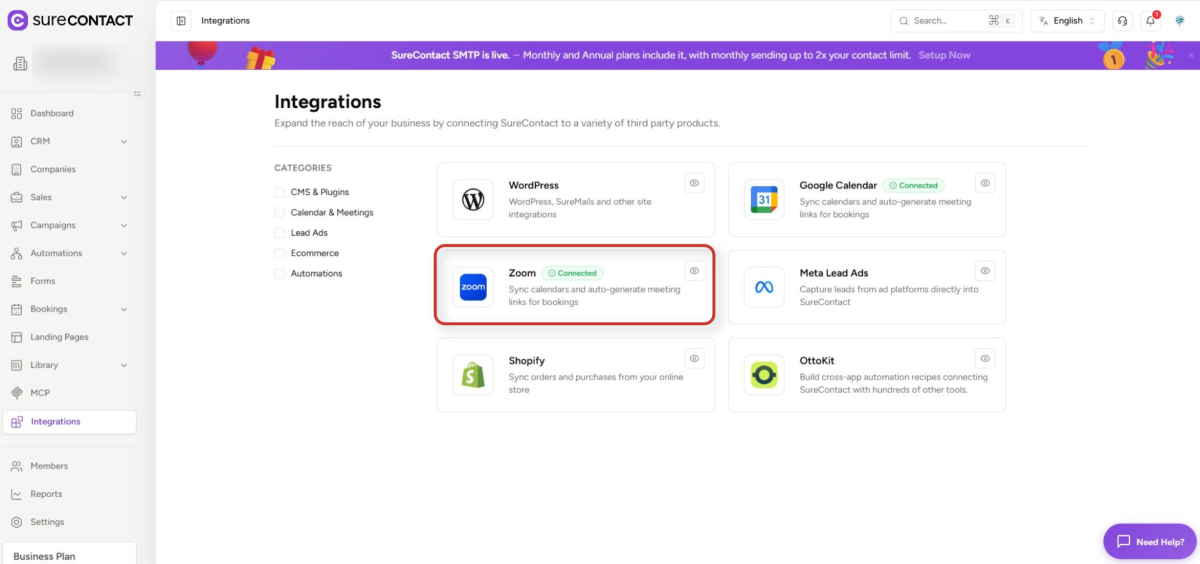
- You will see Zoom listed as an available app integration.
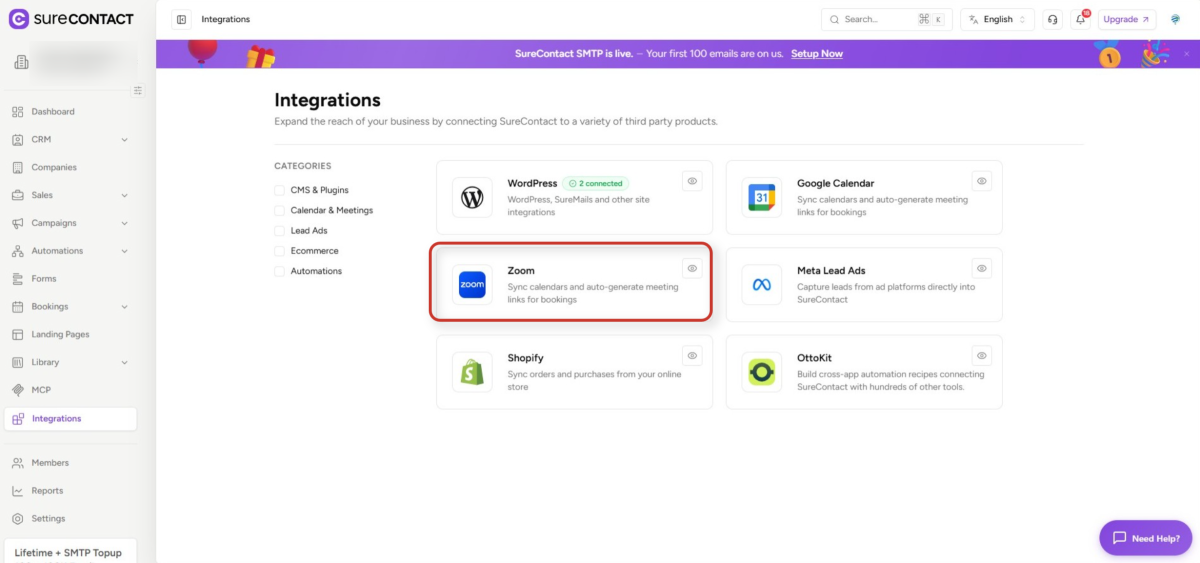
- Click on it and then click Connect
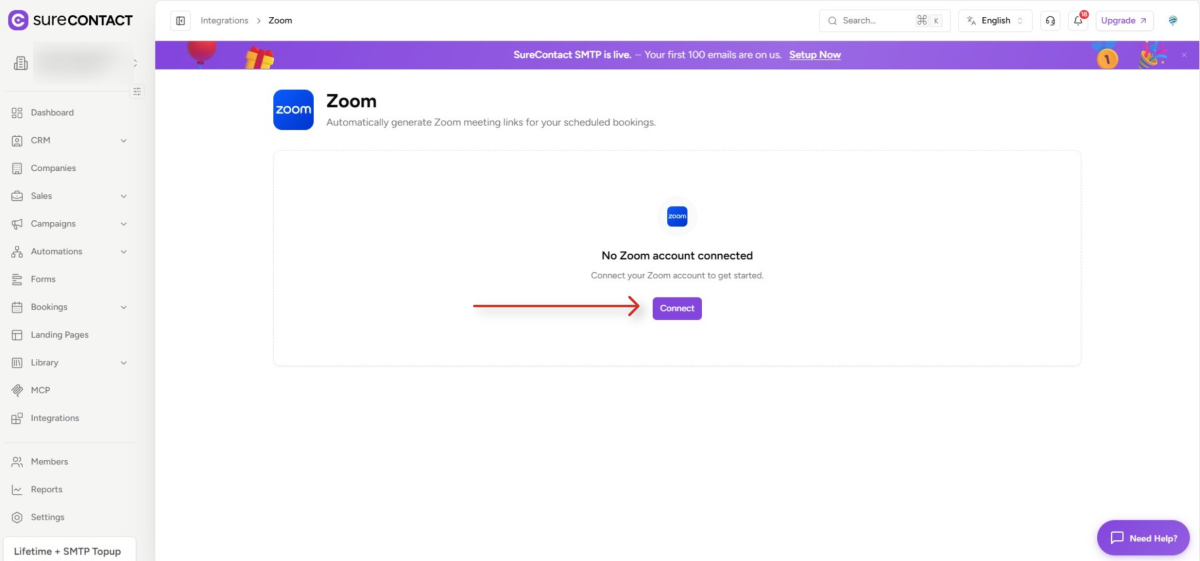
- You will be redirected to the Zoom app.
- Add your Zoom credentials if you are not already logged in, or accept the authorization request if you are already logged in.
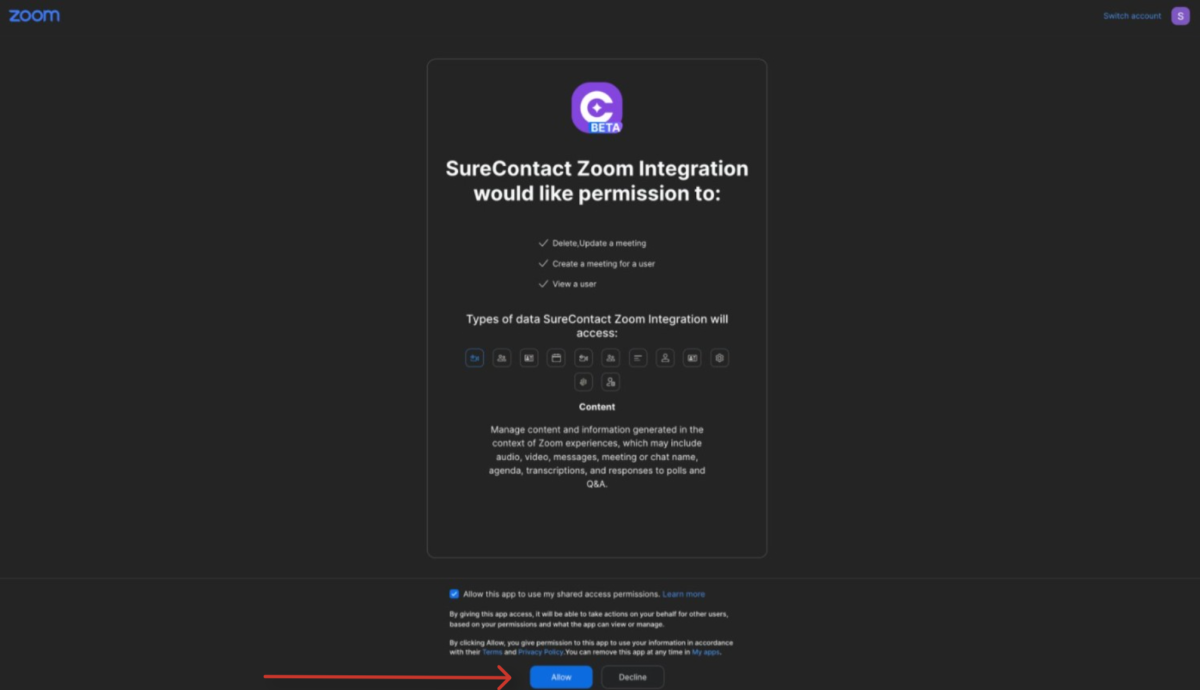
- The connection will be completed, and you will be redirected back to SureContact.
- Zoom will now appear as Connected under the Integrations section.
How to Use Zoom Connection
- Go to Bookings.
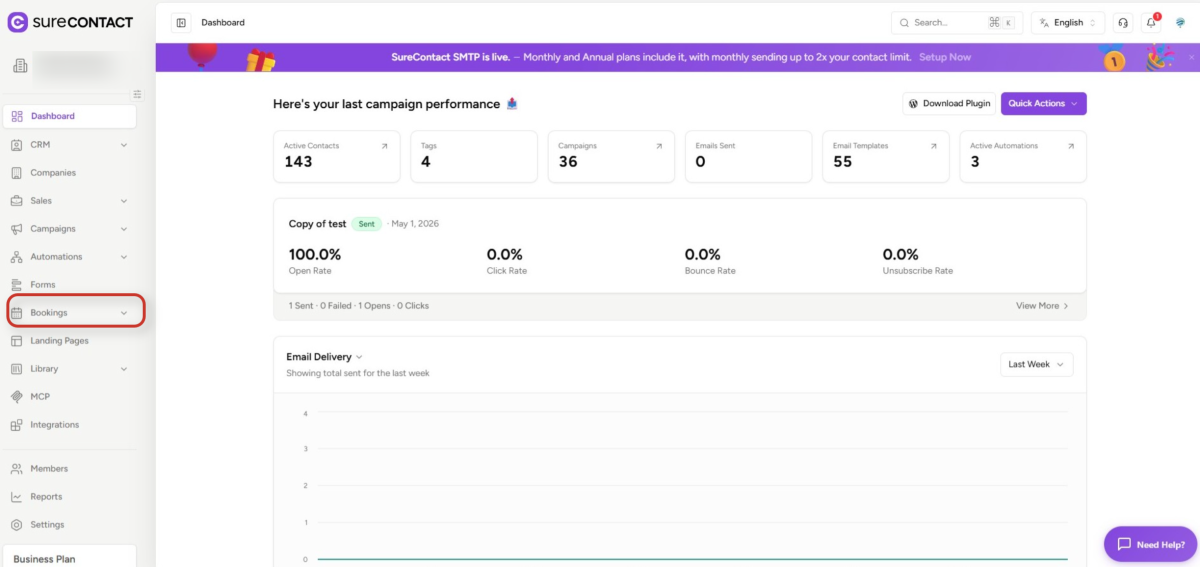
- Under Bookings, click on Event.
- Click New Event Type.
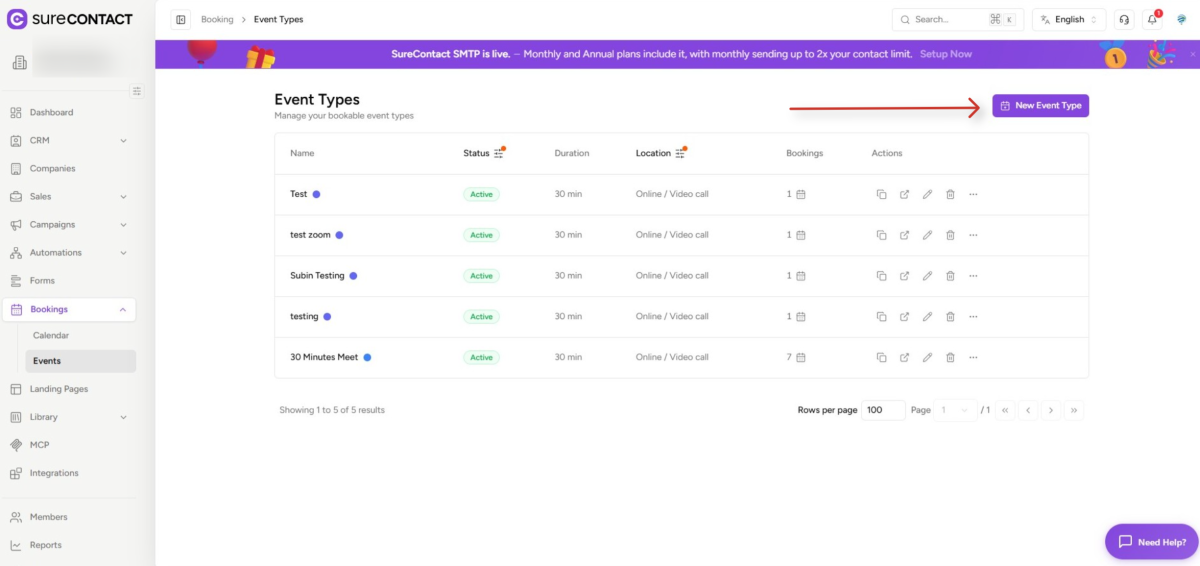
- Select 1-on-1 or Group depending on your requirement.
- Add a name for the event.
- Under General, select Zoom as your provider.
- Click on the Zoom option to select it.
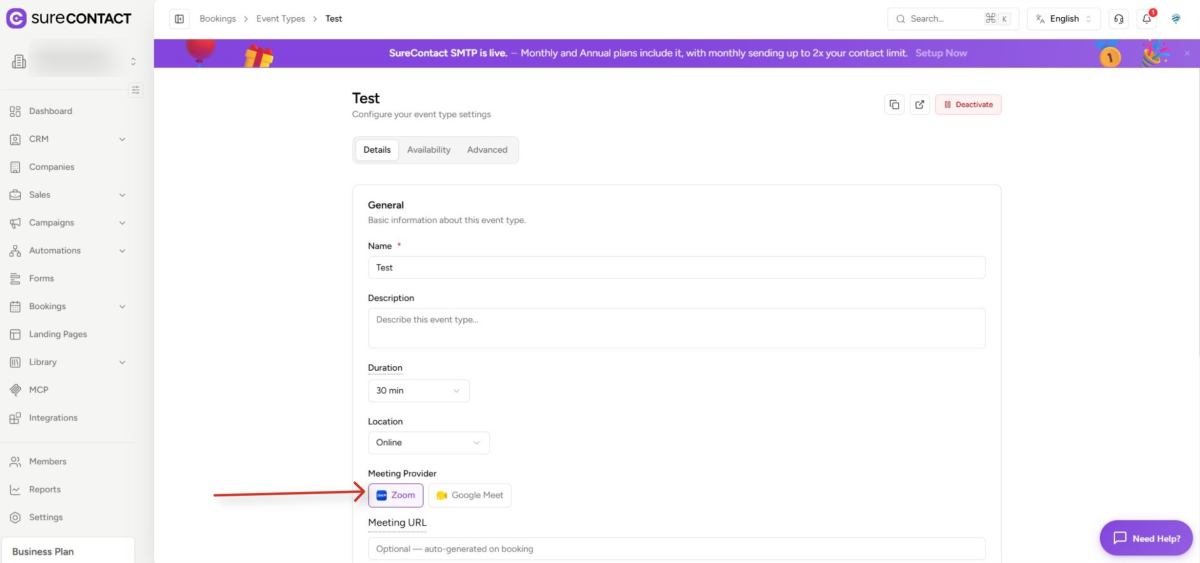
- Add the rest of the event details and click Save.
- Click the Open Booking Page option shown on the right side.
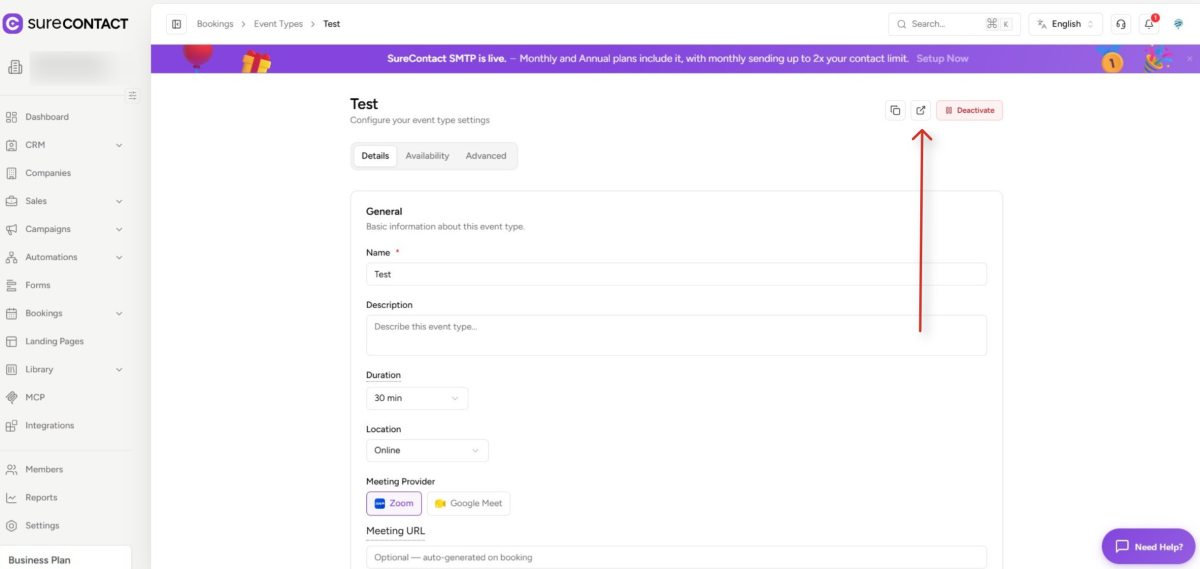
- You will be redirected to the booking page.
- Click any available slot, add the requested details, and confirm.
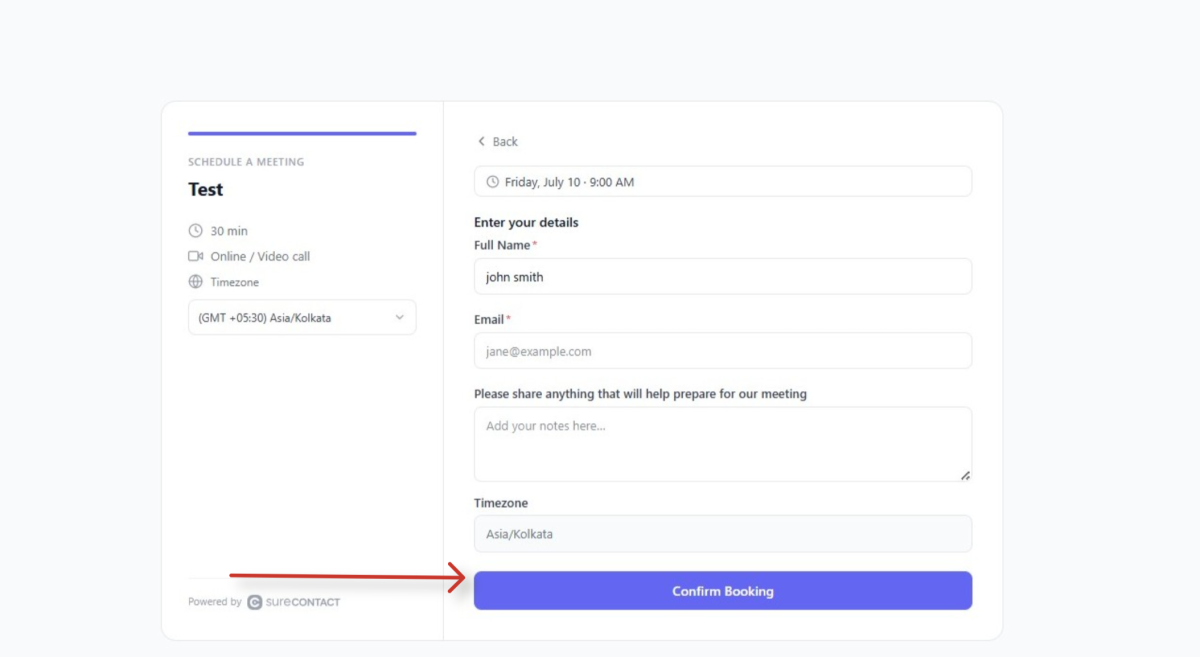
- A confirmation popup will appear along with the Zoom meeting link created below it.
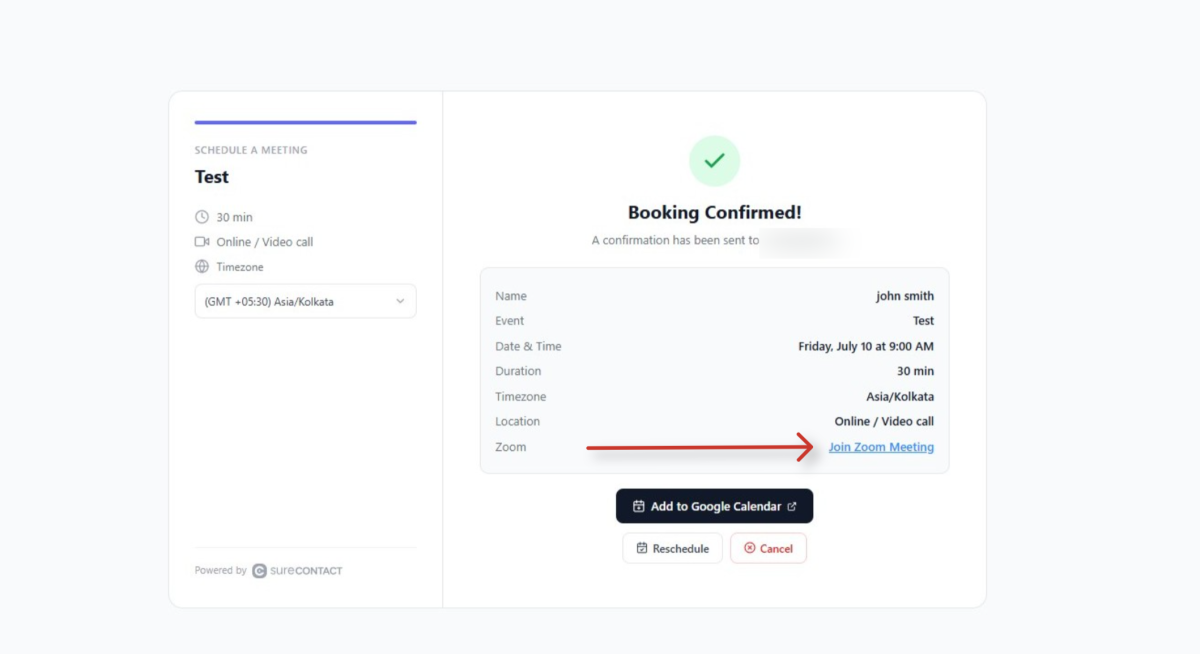
- The booking is now complete.
How to Disconnect the Zoom App
- Go to your SureContact dashboard.
- Go to Integrations.
- Under Integrations, you will see Zoom listed as a connected app.
- Click Disconnect under the Zoom app.
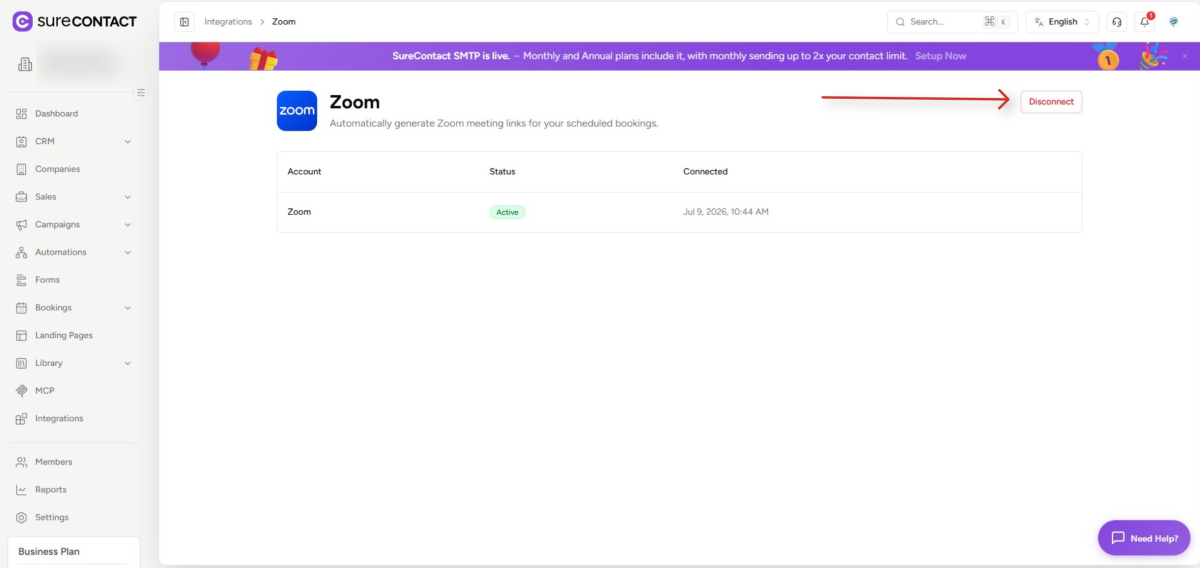
- Once clicked, Zoom will be disconnected from SureContact.
Need Help?
If you need any assistance, please email [email protected], and our support team will be happy to help you.
Was this doc helpful?
What went wrong?
We don't respond to the article feedback, we use it to improve our support content.