
- Introduction to SureContact Dashboard
- How to Install and Connect the SureContact WordPress Plugin
- What Do Contact Fields Mean in the SureContact WordPress Plugin
- How to Invite Members to a Workspace in SureContact
- How to Switch Organizations in SureContact
- Workspace-Level Contact Allocation in SureContact
- Workspace-Level Timezone Settings in SureContact
- How to Add a Custom Tracking Domain in a Workspace in SureContact
- SureContact MCP Server
- Creating Forms in SureContact
- Create Forms & assign lists & tags
- Multi Language Support(WordPress)
- Page Visit Tracking Guide (WordPress)
- Forms Custom Fields Sync Guide
- Landing Pages User Flow Guide
- SureContact Organization Workspace Setup Guide
- Companies User Flow Guide
- FAQs
- Bulk Operations SureContact
- SureContact Double Opt-In Guide
- SureContact API Keys Guide
- SureContact 2FA User Guide
- SureContact Bookings User Flow Guide
- SureContact MultiStep Forms Guide
- Zoom Integration with SureContact
- Group Booking User Flow Documentation
- Global Search – User Flow Documentation
- Folders in SureContact
- SureContact Email Tracking Pixel Regulations
- Email Open Tracking Consent SureContact
- Forms Custom Success Message Redirect Guide
- Partial Form Submission Guide
- Shopify Integration with SureContact Guide
- Setup SMTP in SureContact
- Email Campaigns in SureContact
- How to Add a Preferences URL in Your Emails
- How to Share Email Templates in SureContact
- Spintax Feature in SureContact
- Deleting Sent Campaigns in SureContact
- A/B Testing Integration Guide
- Unsubscription Guide
- SureContact SMTP Setup Guide
- SMTP Routing User Flow
- FluentCRM Integration with SureContact
- SureContact Third-Party Integration — Step-by-Step Guide
- Fluent Forms Integration with SureContact
- SureForms Integration with SureContact
- WPForms Integration with SureContact
- Bulk Sync WordPress Users to SureContact
- Contact Form 7 Integration with SureContact
- Sync WooCommerce Customers with SureContact
- FluentCart & FluentCommunity Integration With SureContact
Global Search – User Flow Documentation
Global Search lets users find contacts, companies, campaigns, and other workspace records from anywhere in the SureContact dashboard, without navigating through individual modules.
This guide walks through the complete Global Search experience: how to open it, how results are organized, and every state a user may encounter, with live screenshots from the SureContact app.
1. Opening Search
Users can open search two ways:
- Keyboard shortcut: ⌘K (Mac)
- Click the search UI: on desktop, there’s an inline search box in the header. On mobile/narrow screens, a search icon opens a full-screen search modal instead.
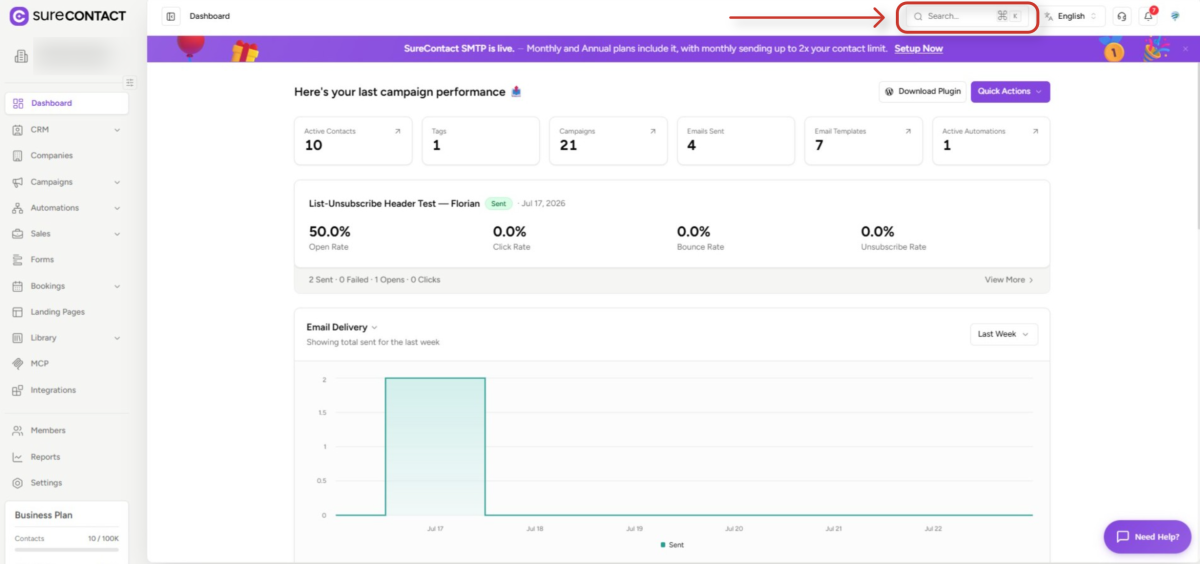
Which UI opens depends on screen width (around the 768px breakpoint). Wide screens use the inline header box shown above, while narrow screens use a full-screen modal instead.
2. Typing a Query
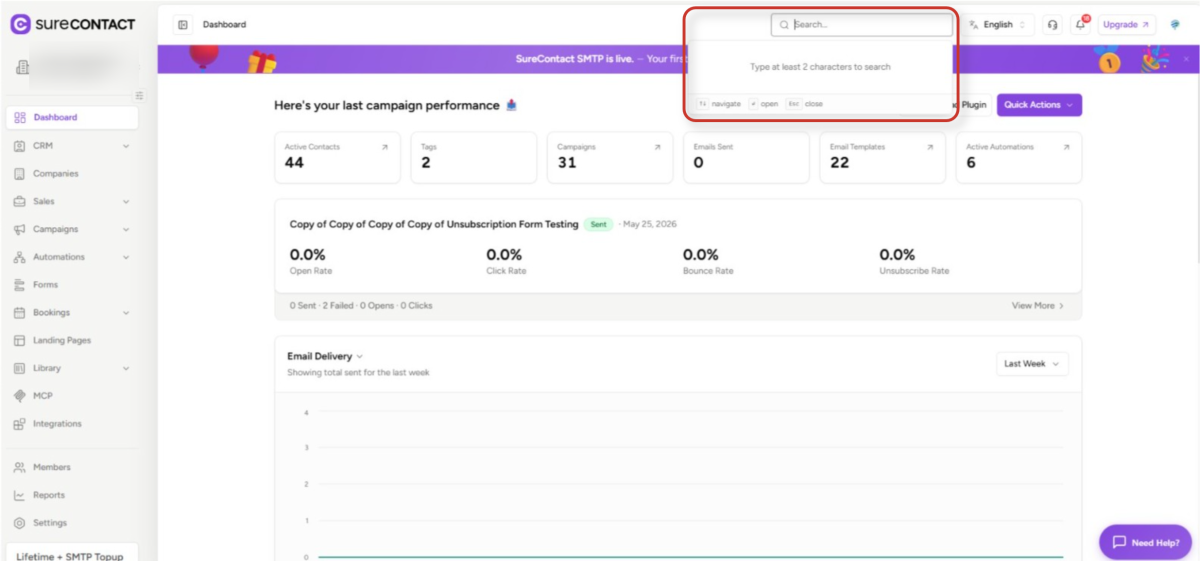
Search requires a minimum of 2 characters before it queries anything. There’s also a short typing delay (about 300ms) before the search fires, so results don’t refetch on every keystroke.
Below 2 characters
The panel shows a prompt to type at least 2 characters, unless there is search history to show instead.
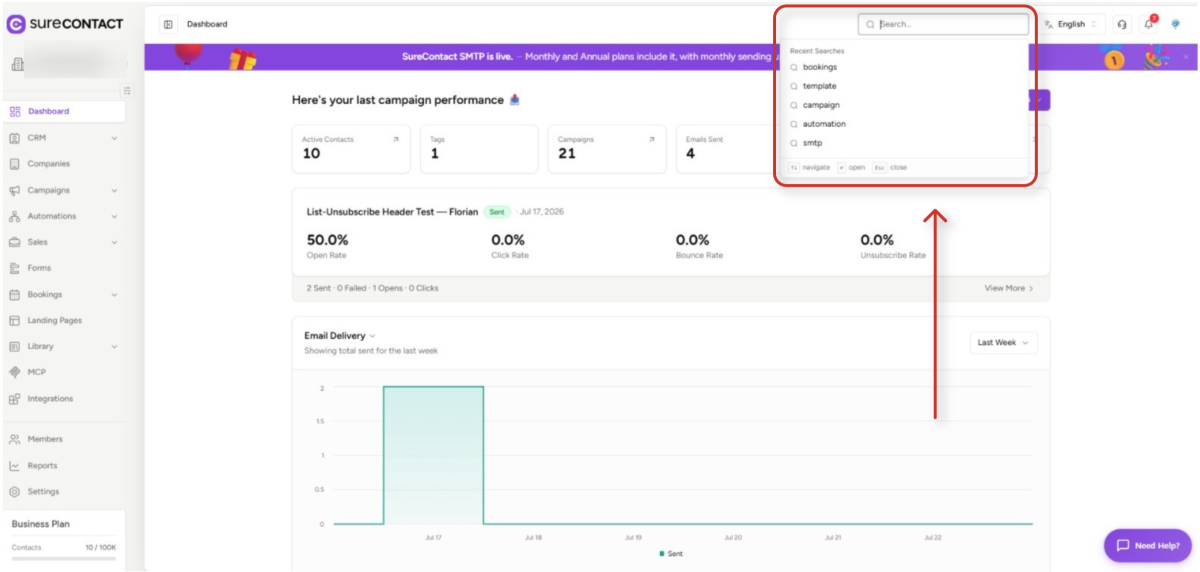
Recent searches
If the user has searched before, up to 5 recent searches are shown instead of the prompt, stored locally in the browser.
3. Viewing Results
Results are grouped into sections, one per entity type, each with its own icon: Contacts, Companies, Campaigns, Automations, Forms, Landing Pages, Deals, Bookings, Tasks, Pipelines, Booking Event Types, Docs (Help Articles), and Email Templates.
A Navigation section also appears above these results. It matches app pages and settings screens (e.g. Billing Settings, Automations) without an API call and respects the user’s permissions.
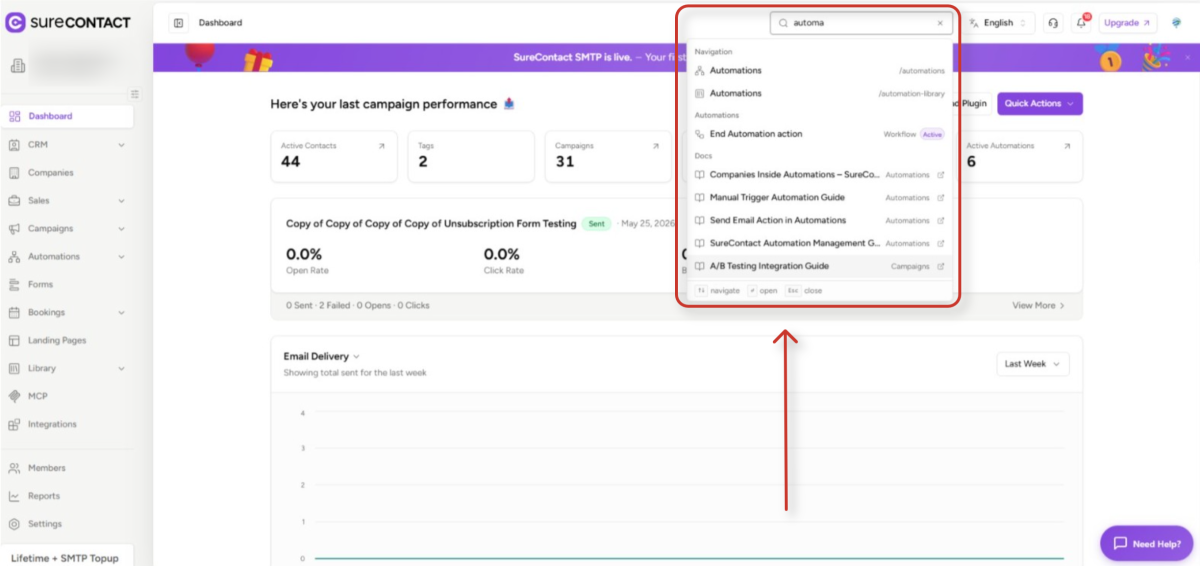
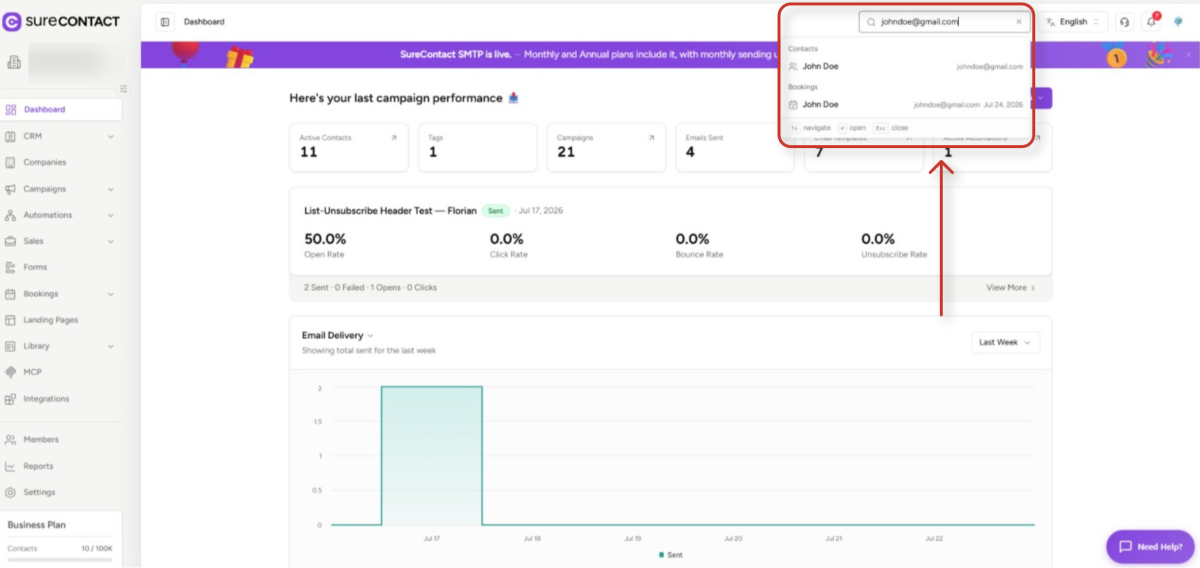
Each entity type shows a secondary detail alongside the record name, for example:
| Entity | Secondary Detail |
| Contact | Email address |
| Company | Domain |
| Campaign | Subject + Status |
| Deal | Amount + Status |
| Booking | Invitee email, status, start time |
| Task | Due date, done/not done |
| Automation | Status + Type (Workflow/Sequence) |
Bookings, for instance, show the invitee’s email, status, and start time next to each result:
4. States a User Might See
Loading
A spinner replaces the search icon while skeleton placeholders fill in for the results that are still loading.
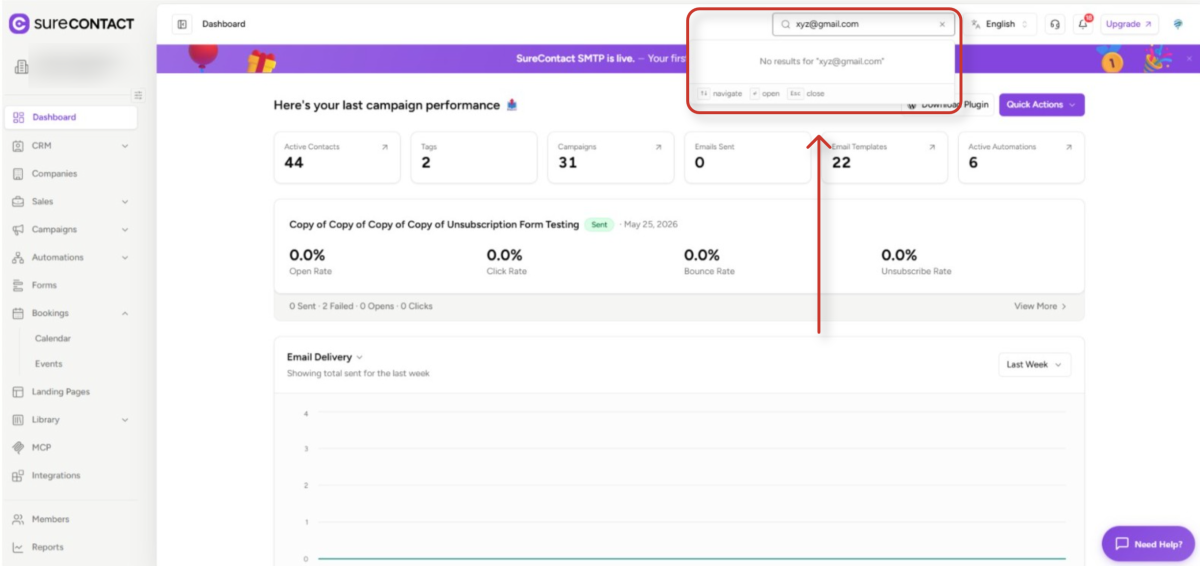
No results
If nothing matches the query, the panel shows: “No results for ‘{query}’.”
Error
If the search request fails, the panel shows: “Something went wrong, try again.”
5. Selecting a Result
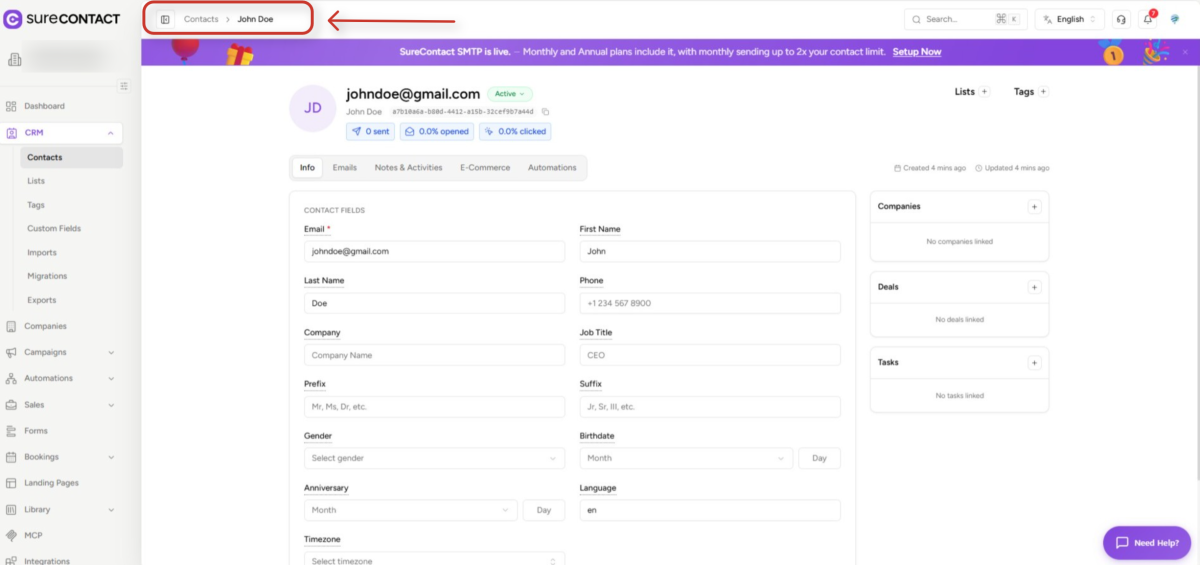
Clicking a result (or using arrow keys + Enter) opens the record. Contacts open at /contacts/{id}, Campaigns open at /email-campaigns/{id}, and Deals open at /deals/{id}. Some types open listing pages instead, such as Tasks and Bookings. Docs open in a new browser tab; everything else opens within the app. Ctrl/Cmd-click or middle-click opens supported results in a new tab, and the selected query is saved to Recent Searches.
6. Keyboard Navigation
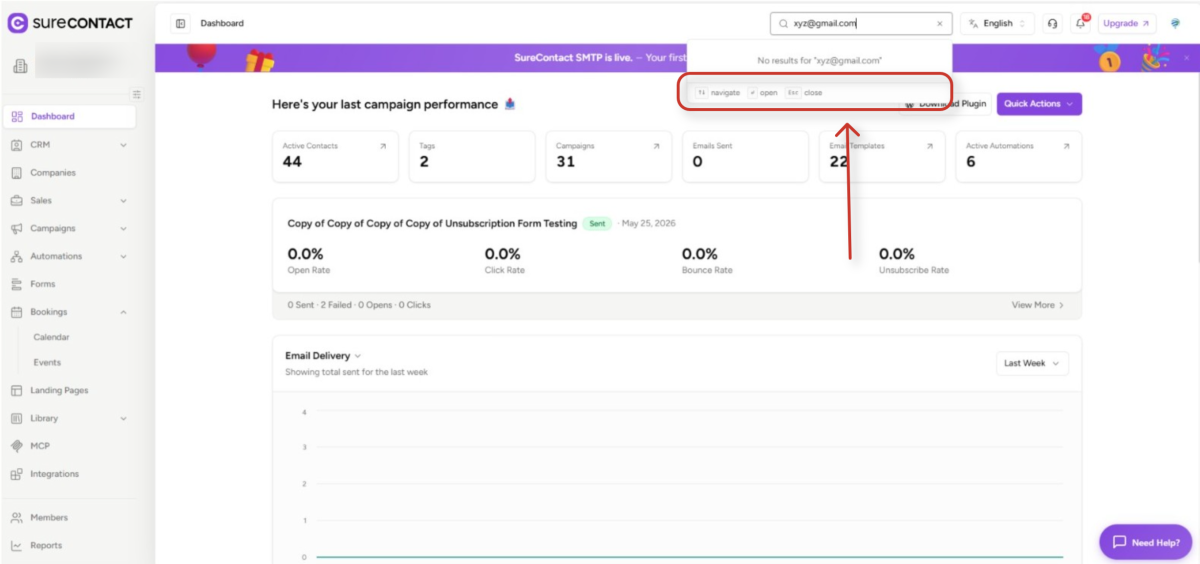
- ↑ / ↓ – Move between results
- Enter – Open highlighted result
- Esc – Close search
A footer hint bar reminds users of these shortcuts on every open panel:
Need Help?
If you need any assistance, please email [email protected], and our support team will be happy to help you.
We don't respond to the article feedback, we use it to improve our support content.