
- Introduction to SureContact Dashboard
- How to Install and Connect the SureContact WordPress Plugin
- What Do Contact Fields Mean in the SureContact WordPress Plugin
- How to Invite Members to a Workspace in SureContact
- How to Switch Organizations in SureContact
- Workspace-Level Contact Allocation in SureContact
- Workspace-Level Timezone Settings in SureContact
- How to Add a Custom Tracking Domain in a Workspace in SureContact
- SureContact MCP Server
- Creating Forms in SureContact
- Create Forms & assign lists & tags
- Multi Language Support(WordPress)
- Page Visit Tracking Guide (WordPress)
- Forms Custom Fields Sync Guide
- Landing Pages User Flow Guide
- SureContact Organization Workspace Setup Guide
- Companies User Flow Guide
- FAQs
- Bulk Operations SureContact
- SureContact Double Opt-In Guide
- SureContact API Keys Guide
- SureContact 2FA User Guide
- SureContact Bookings User Flow Guide
- SureContact MultiStep Forms Guide
- Zoom Integration with SureContact
- Group Booking User Flow Documentation
- Global Search – User Flow Documentation
- Folders in SureContact
- SureContact Email Tracking Pixel Regulations
- Email Open Tracking Consent SureContact
- Forms Custom Success Message Redirect Guide
- Partial Form Submission Guide
- Shopify Integration with SureContact Guide
- Migrate to Unified Preference Page
- Setup SMTP in SureContact
- Email Campaigns in SureContact
- How to Add a Preferences URL in Your Emails
- How to Share Email Templates in SureContact
- Spintax Feature in SureContact
- Deleting Sent Campaigns in SureContact
- A/B Testing Integration Guide
- Unsubscription Guide
- SureContact SMTP Setup Guide
- SMTP Routing User Flow
- FluentCRM Integration with SureContact
- SureContact Third-Party Integration — Step-by-Step Guide
- Fluent Forms Integration with SureContact
- SureForms Integration with SureContact
- WPForms Integration with SureContact
- Bulk Sync WordPress Users to SureContact
- Contact Form 7 Integration with SureContact
- Sync WooCommerce Customers with SureContact
- FluentCart & FluentCommunity Integration With SureContact
Landing Pages User Flow Guide
SureContact’s Landing Pages feature lets you build standalone, branded pages, for campaigns, lead capture, events, unsubscribe flows, or anything else, using a drag-and-drop builder with no code required.
This guide walks you through the complete Landing Pages experience: accessing the feature, creating a page, using the builder, publishing, and managing your pages post-launch.
Prerequisites
Before you start working with Landing Pages, please ensure the following:
1. Active SureContact Workspace
You must be logged in to a SureContact workspace and have permission to create and edit landing pages. The feature is available on all plans that include the Landing Pages module.
2. A Plan Name in Mind
Each landing page needs a name at creation (you can rename later). Pick something descriptive; it makes the list far easier to scan once you have many pages.
3. (Optional) Tracking IDs Ready
If you plan to track page views with Google Tag Manager or Facebook Pixel, have your GTM container ID (GTM-XXXXXXX) or Pixel ID handy before publishing.
1. Accessing Landing Pages
Open Landing Pages from the main sidebar. You’ll see a BETA badge next to the menu item – the feature is stable but still evolving.
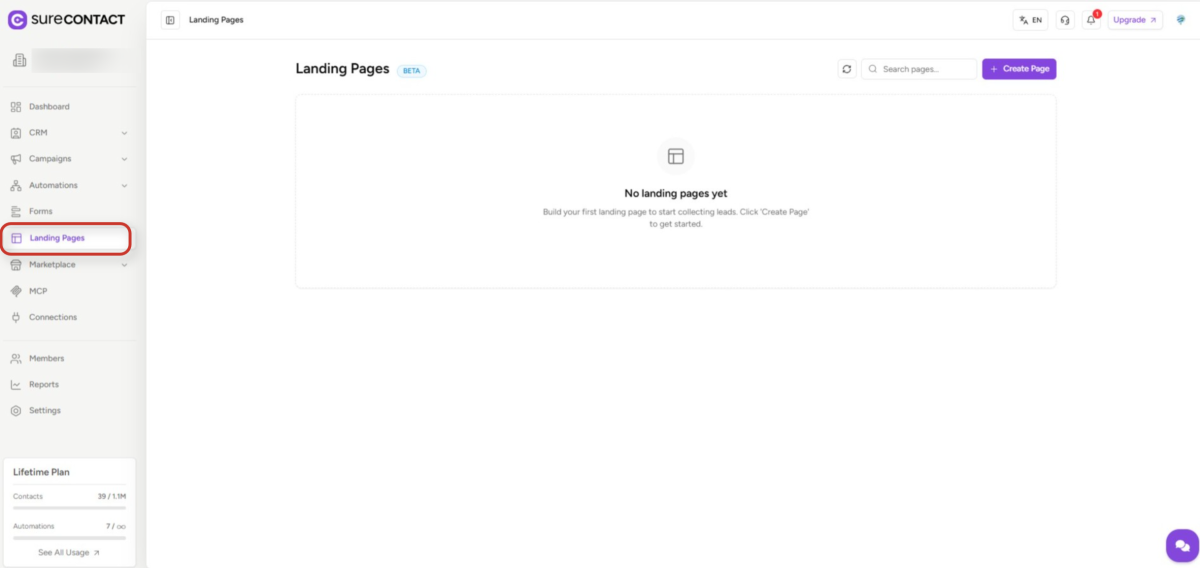
The SureContact sidebar with Landing Pages highlighted.
2. The Landing Pages List
The list page shows every page in your workspace at a glance.
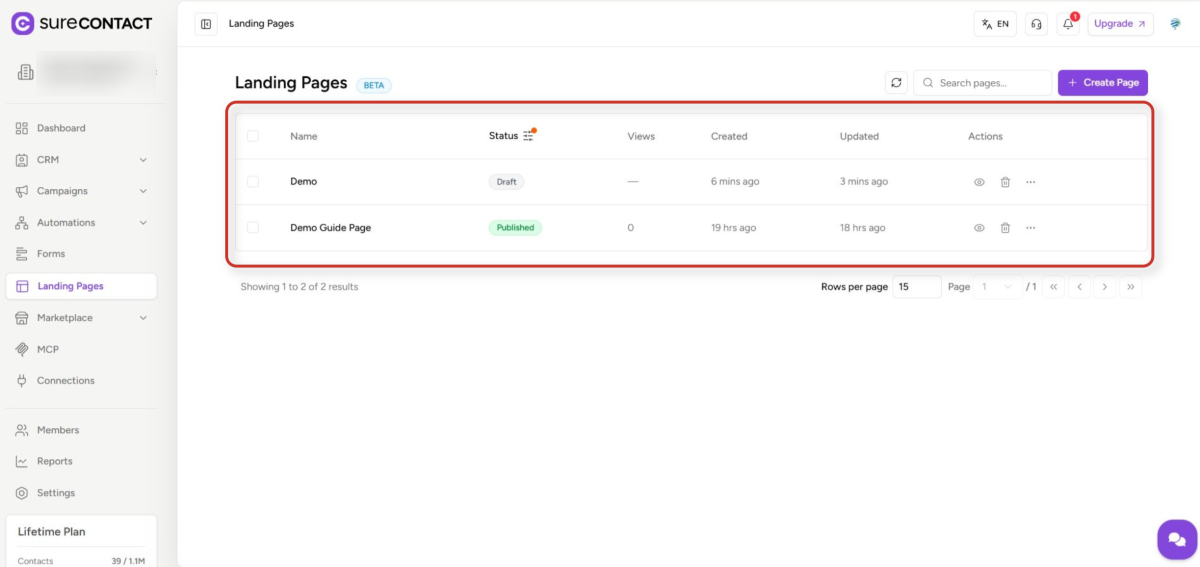
The Landing Pages list showing all pages, their status, and quick actions.
Columns
| Column | What it shows |
| Name | The page title. Click to open it in the builder. |
| Status | Draft, Published, or Archived – shown as a coloured badge. |
| Views | Total public views (or a dash for pages that haven’t been viewed yet). |
| Created | When the page was created. Hover for the exact timestamp. |
| Updated | When the page was last edited. Hover for the exact timestamp. |
| Actions | Quick preview, delete, and a more menu. |
Searching and Filtering
- Search – type into the search box at the top to filter by name (placeholder: “Search pages…”).
- Status filter – click the Status column header to filter by All, Draft, Published, or Archived.
- Refresh – the circular refresh button reloads the list.
Bulk Selection
Tick the checkbox on any row to start a bulk selection. A counter appears (“N page(s) selected”) along with a red Delete button. A Select all N pages link appears if you want to select every page across all list pages.
Empty State
If you have no pages yet, SureContact shows: “No landing pages yet – Build your first landing page to start collecting leads. Click ‘Create Page’ to get started.”
3. Creating a New Page
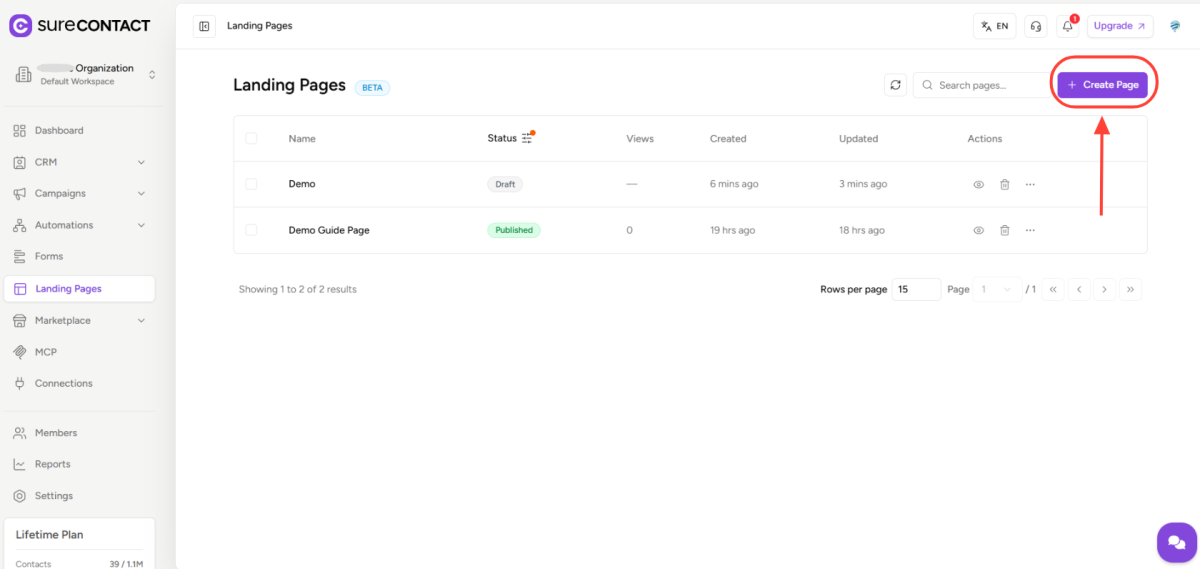
To create your first landing page, click the Create Page button in the top-right of the Landing Pages list.
The Create Landing Page dialog – give your page a name to get started.
- Step 1 – click Create Page in the top-right of the list.
- Step 2 – enter a Page Name (e.g. “Summer Campaign 2026”). Names can be up to 100 characters.
- Step 3 – click Create Page.
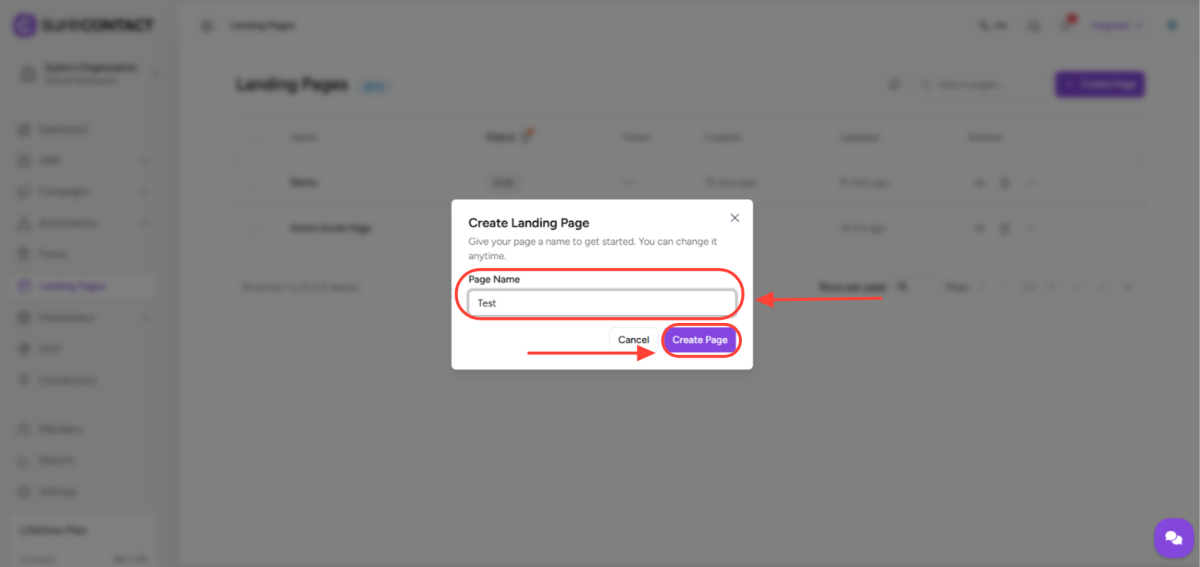
SureContact creates the page as a Draft and opens it in the page builder. There are no starter templates – every page begins blank so you can design it the way you want.
Note: You can rename the page at any time by clicking its name in the builder’s top bar. Press Enter to save, Esc to cancel.
4. The Page Builder at a Glance
The builder opens full-screen and is split into three zones: a narrow icon strip on the far left, a panel beside it (Insert / Layers / Assets / Data / Page Settings / Marketplace), and the centre canvas where you design your page. When you select an element, a right panel appears with that element’s styling controls.
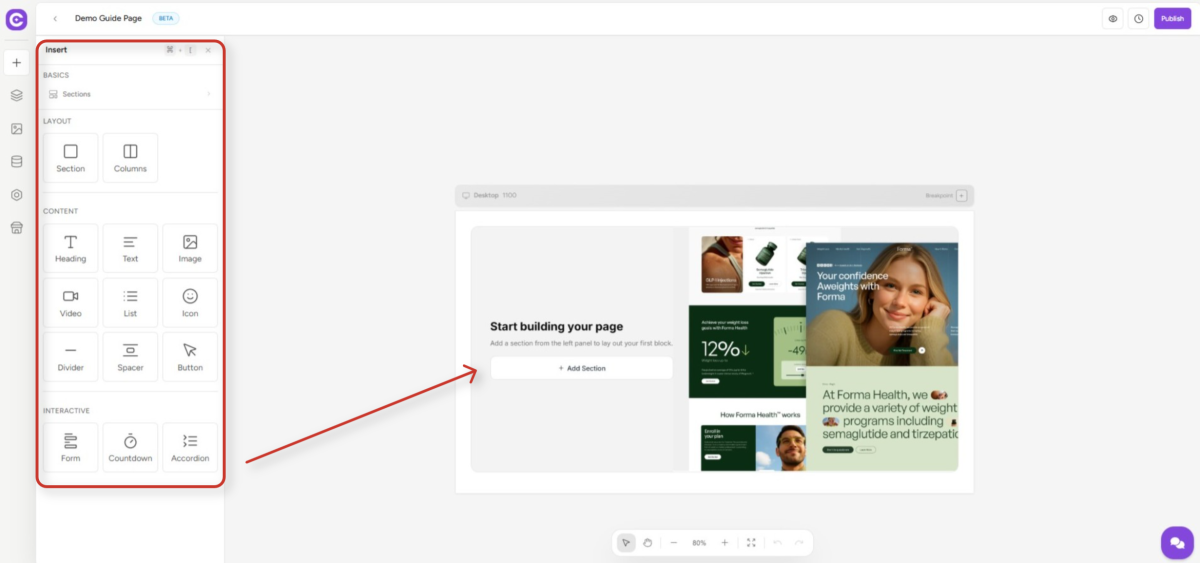
The page builder with the Insert panel open and a blank canvas ready.
Top Bar Controls
| Control | What it does |
| Back arrow | Returns to the Landing Pages list. |
| Page name | Click to rename the page inline. Press Enter to save or Esc to cancel. |
| Save status | Shows Saved, Saving…, Unsaved, or Error – SureContact auto-saves your work. |
| Preview | Opens a live preview of the page. |
| Version History | Restore a previous version of the page. |
| View Live Page | Opens the public page in a new tab (only visible once published). |
| Publish / Update | Opens the publish panel to set the URL and go live. |
Left Panel Tabs
| Tab | Purpose |
| Insert | Drag elements onto the page (headings, images, forms, buttons, etc.). |
| Layers | See the full page structure as a tree and reorder elements. |
| Assets | Upload and browse your images, GIFs, and videos. |
| Data | Copy or paste the page’s JSON / view its HTML. |
| Page Settings | Global page styles, fonts, and tracking IDs. |
| Marketplace | Publish the page as a reusable template. |
5. Adding Elements to Your Page
- Step 1 – open the Insert tab on the left panel.
- Step 2 – browse the categories: Layout, Content, and Interactive.
- Step 3 – either drag an element onto the canvas, or click it to add it to the end of the page.
Snippets
Above the element list, the Sections snippet category contains pre-built section designs (heroes, feature grids, CTAs, footers). Drag any snippet onto the canvas to drop a ready-made block of content you can then edit.
Layers Tab
Open Layers to see your whole page as a nested tree. This is useful when the element you want to edit is buried inside a column, when you want to reorder or re-parent an element precisely, or when you need to select something that’s hidden behind another element on the canvas.
6. Element Types
SureContact groups elements into three categories: Layout, Content, and Interactive.
Layout
| Element | What it does |
| Section | Full-width container. Use sections as the horizontal bands of your page. |
| Columns | Multi-column grid with 10 preset layouts (1-col, 50/50, 33/33/33, 66/33, 25/75, and more). |
Content
| Element | What it does |
| Heading | Heading text. Choose H1, H2, H3, or H4 in the right panel. |
| Text | Paragraph / rich text. |
| Image | Photo or graphic. Supports alt text and linking. |
| Video | YouTube or Vimeo embed with 16:9 / 4:3 / 1:1 aspect ratios. |
| List | Bulleted or numbered list. |
| Icon | A single Lucide icon with optional link. |
| Divider | Horizontal rule to separate sections. |
| Spacer | Vertical empty space for breathing room. |
| Button | Call-to-action button with a link. |
Interactive
| Element | What it does |
| Form | Embed any SureContact form (subscription, unsubscribe, contact, etc.). |
| Countdown | Live countdown timer to a target date – useful for launches and offers. |
| Accordion | Expand/collapse block – great for FAQs. |
7. Arranging Content with Sections and Columns
SureContact pages use a simple vertical stack of sections. Inside a section you can drop any element, including a Columns element for side-by-side layouts.
7.1 Column Presets
When you add a Columns element, pick one of ten presets in the right panel:
| Preset | Widths |
| 1 Col | 100% |
| 2 Equal | 50 / 50 |
| 3 Equal | 33 / 33 / 33 |
| 4 Equal | 25 / 25 / 25 / 25 |
| 2/3 + 1/3 | 66 / 33 |
| 1/3 + 2/3 | 33 / 66 |
| 1/4 + 3/4 | 25 / 75 |
| 3/4 + 1/4 | 75 / 25 |
| Alt 1:2 | 16 / 33 / 16 / 33 |
| Alt 2:1 | 33 / 16 / 33 / 16 |
Each column is independently styleable – you can give each one its own background, padding, and alignment.
7.2 Section Settings
Select any section to set:
- Background – solid colour or an image (with size, position, repeat, and attachment options).
- Spacing – padding on all four sides, with an all-equal shortcut.
- Layout – text alignment, minimum height, minimum / maximum width.
- Row Layout – stack content vertically (default) or arrange horizontally with flex controls.
- Border – colour, width, style, radius.
- Effects – opacity and box shadow.
Note: Stack on mobile is a toggle on the Columns element that automatically stacks columns vertically on small screens.
8. Editing Element Styles
Every element’s style controls live in the right panel. The controls change based on the element type, but common patterns are:
- Content – the actual text, link URL, image source, or form to embed.
- Typography – font family, weight, size, line height, letter spacing, transform, decoration.
- Colour – text colour, background colour.
- Spacing – padding on top, right, bottom, left (with all-equal shortcut).
- Border – colour, width, style (solid / dashed / dotted), radius.
- Effects – opacity slider and box shadow.
- Alignment – left / centre / right.
8.1 Buttons
Buttons have a few extras: full-width toggle, background and text colour, and a target option to open the link in a new tab.
8.2 Forms
Forms have a single main setting – the form to embed. Pick any form from your workspace in the dropdown. Width and alignment controls shape how it sits on the page. The form itself is styled in the Forms area of SureContact, not here.
8.3 Countdowns
Countdowns let you set:
- Target date and time (with timezone).
- Which units to show (days, hours, minutes, seconds).
- Labels for each unit.
- Full styling for digits and labels – colour, size, padding, separator style.
- An expired message shown after the timer hits zero.
8.4 Accordions
Set the header text, pick a Lucide icon for the toggle, and control all header styling. The body content is edited inline on the canvas.
9. Responsive Design for Mobile and Tablet
SureContact pages are responsive by default. When you need a different look on smaller screens, switch the breakpoint in the builder:
- Desktop – default layout.
- Tablet – overrides apply on medium screens.
- Mobile – overrides apply on phones.
Any style you change while on Tablet or Mobile only applies to that breakpoint, leaving desktop untouched.
Note: Always preview at all three sizes before publishing. Large desktop images, in particular, can dominate a mobile screen.
10. Page Settings
Open the Page Settings tab on the left panel to control page-wide defaults.
10.1 Colours
- Background colour – the canvas colour behind all content.
10.2 Typography
- Body font – a default font for every text element on the page.
10.3 Page Layout
| Setting | Options |
| Height | Full height (fills the viewport) or Custom (enter a minimum height in pixels). |
| Content alignment | Top, Centre, Bottom – controls vertical positioning when the page is shorter than the viewport. |
| Overflow X | Visible, Hidden, or Auto – controls horizontal scrolling. |
| Padding | Page-level padding on all four sides. |
10.4 Tracking
- Google Tag Manager ID – enter your GTM container ID (e.g. GTM-XXXXXXX) and SureContact will inject GTM on the public page.
- Facebook Pixel ID – enter your pixel ID to track page views and conversions in Meta Ads Manager.
11. Publishing Your Page
Click Publish in the top-right. The left panel switches to the publish panel.
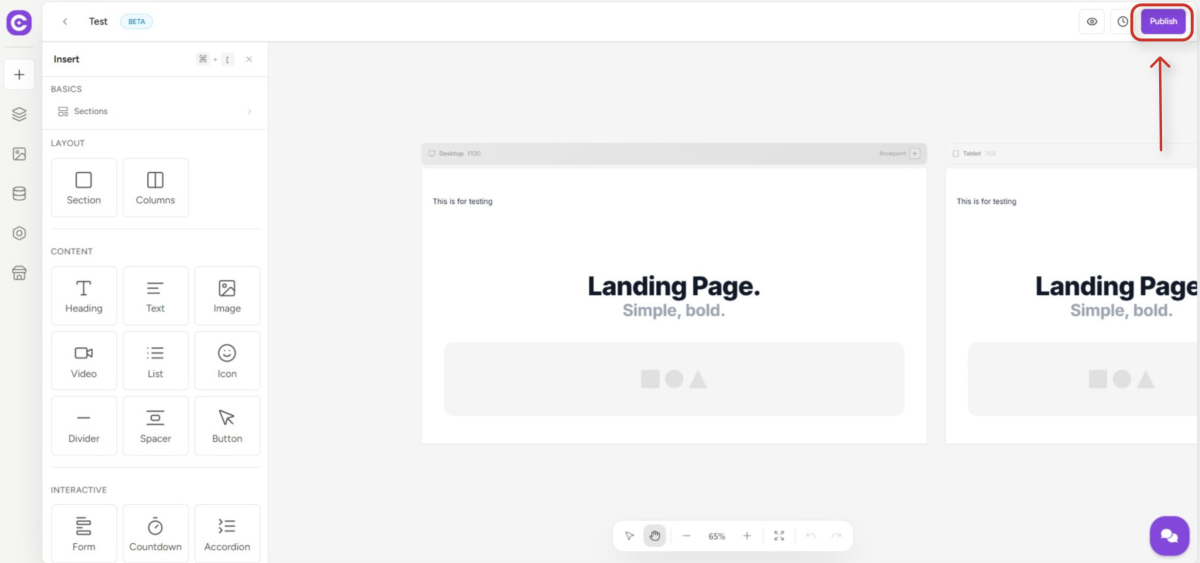
The Publish panel with Page URL, Search & Social, and Access sections.
11.1 Page URL
Choose a unique slug – lowercase letters, numbers, and hyphens only. The public URL will be /p/{your-slug}.
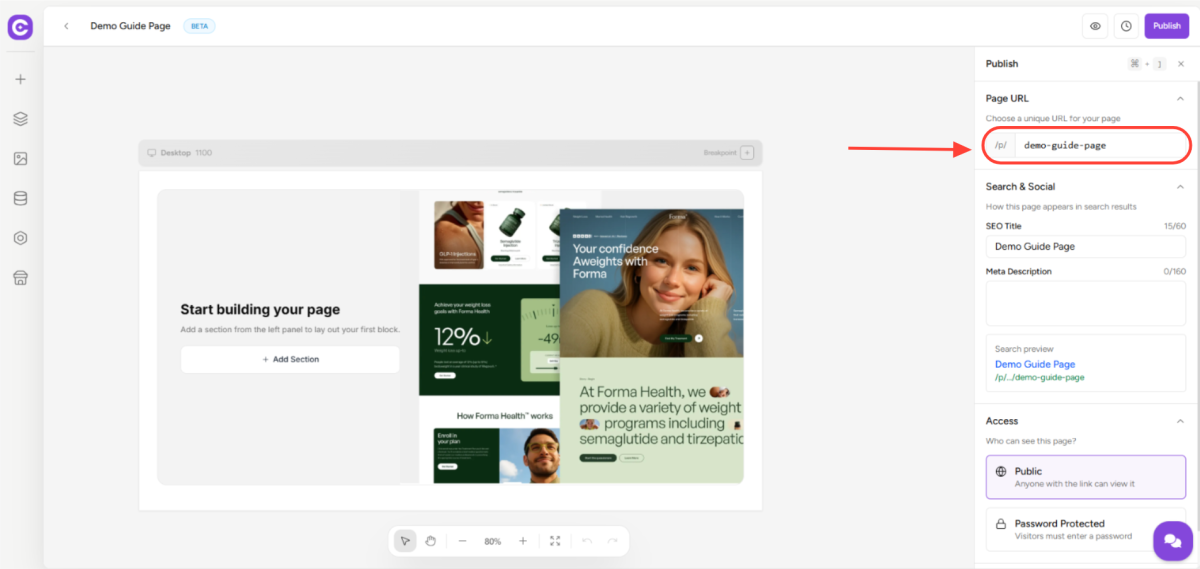
SureContact validates the slug as you type:
- “Use lowercase letters, numbers, and hyphens only” – the slug has invalid characters.
- “This URL is already taken. Try a different one.” – another page in your workspace uses that slug.
Warning: The URL is locked after publishing to protect existing links you’ve already shared. Pick the slug carefully the first time.
11.2 Search & Social (SEO)
| Field | Purpose | Limit |
| SEO Title | Title shown in Google results and browser tabs. | 60 characters |
| Meta Description | Summary shown in Google results and social previews. | 160 characters |
A live search preview shows how the page will appear to visitors on Google.
11.3 Access
- Public – anyone with the link can view the page.
- Password Protected – visitors must enter a password before they can see the page.
11.4 Going Live
- Publish Now – shown when the page is currently a Draft.
- Update Page – shown when the page is already live and you’re editing it.
After publishing, SureContact shows a success toast with a View Live link. You can also open the live page any time from the View Live Page button in the top bar.
12. Password-Protected Pages
When you enable Password Protected and publish, visitors see a lock screen before the page content loads.
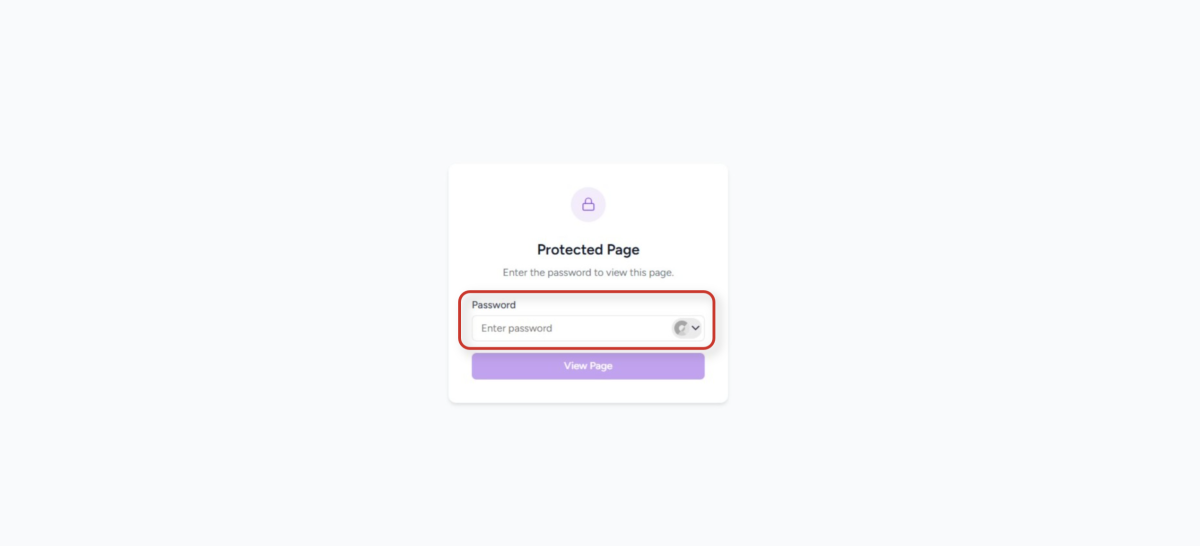
The public password gate that appears before a protected page loads.
- Wrong passwords show: “Incorrect password. Please try again.”
- Repeated wrong attempts add a growing delay: 5s, 15s, 30s, and up to 60s.
- After several failed attempts, the gate shows: “Too many attempts. Please wait Ns before trying again.”
Once the password is accepted, the page loads normally. Protection is per-browser session – a visitor won’t be asked again until they close the tab.
Note: Password protection is best for simple gating (e.g. client previews, private event info). It’s not a replacement for real authentication.
13. Tracking and Analytics
13.1 Built-in Views
The Views column on the Landing Pages list shows how many times each page has been loaded. SureContact records one view per visitor session – a visitor who refreshes repeatedly is counted once.
13.2 Google Tag Manager and Facebook Pixel
If you add a GTM or Pixel ID in Page Settings, SureContact injects the tracking script on the public page. Use these for detailed analytics, conversion tracking, and retargeting via your existing tools.
Note: Analytics scripts only fire on the public page, not inside the builder preview.
14. Version History and Auto-Save
14.1 Auto-Save
Every change auto-saves a few hundred milliseconds after you make it. The save status badge in the top bar tells you where things stand:
| Status | Meaning |
| Saved | All changes are on SureContact’s servers. |
| Saving… | A save is in progress. |
| Unsaved | You have unsaved changes – don’t close the tab yet. |
| Error | Something went wrong. Try editing again or refresh. |
14.2 Undo and Redo
| Shortcut | Action |
| Cmd/Ctrl + Z | Undo the last change |
| Cmd/Ctrl + Shift + Z | Redo |
| Delete | Remove the selected element |
| Esc | Deselect |
14.3 Version History
Click the clock icon (Version History) in the top bar to see saved snapshots of the page. You can restore any previous version if an edit goes wrong.
Note: Restoring a version overwrites the current design. The design you’re restoring from is not lost – restoring creates a new version entry.
15. Page Actions
Every row on the Landing Pages list has a set of actions.
15.1 Quick Actions (always visible)
| Action | Icon | What it does |
| Preview | Eye | Opens a preview of the page in a dialog. |
| Delete | Trash | Permanently deletes the page after confirmation. |
15.2 More Menu
| Action | Available when | What it does |
| Edit | Always | Opens the page in the builder. |
| View Live | Published | Opens the public page in a new tab. |
| Duplicate | Always | Creates a copy named “{Original} (Copy)”, starting as a Draft. |
| Archive | Not already archived | Hides the page from the default list view. |
| Unpublish | Published | Reverts the page to Draft. Its public URL will stop working. |
Warning: Delete removes the page and all its analytics permanently. If you just want to hide a page, use Archive or Unpublish instead.
15.3 Bulk Delete
Select multiple pages with the row checkboxes, then click the red Delete (N) button that appears. SureContact confirms once before deleting all of them.
16. Status Overview
| Status | Editable in builder | Visible at public URL | Counts views |
| Draft | Yes | No | No |
| Published | Yes | Yes | Yes |
| Archived | Yes | No | No |
Move a page between statuses using:
- Publish / Update – in the builder, takes a Draft to Published.
- Unpublish – in the row menu, takes a Published page back to Draft.
- Archive – in the row menu, hides any page from the default list.
Need Help?
If you need any assistance, please email [email protected], and our support team will be happy to help you.
We don't respond to the article feedback, we use it to improve our support content.