
- Introduction to SureContact Dashboard
- How to Install and Connect the SureContact WordPress Plugin
- What Do Contact Fields Mean in the SureContact WordPress Plugin
- How to Invite Members to a Workspace in SureContact
- How to Switch Organizations in SureContact
- Workspace-Level Contact Allocation in SureContact
- Workspace-Level Timezone Settings in SureContact
- How to Add a Custom Tracking Domain in a Workspace in SureContact
- SureContact MCP Server
- Creating Forms in SureContact
- Create Forms & assign lists & tags
- Multi Language Support(WordPress)
- Page Visit Tracking Guide (WordPress)
- Forms Custom Fields Sync Guide
- Landing Pages User Flow Guide
- SureContact Organization Workspace Setup Guide
- Companies User Flow Guide
- FAQs
- Bulk Operations SureContact
- SureContact Double Opt-In Guide
- SureContact API Keys Guide
- SureContact 2FA User Guide
- SureContact Bookings User Flow Guide
- SureContact MultiStep Forms Guide
- Zoom Integration with SureContact
- Group Booking User Flow Documentation
- Global Search – User Flow Documentation
- Folders in SureContact
- SureContact Email Tracking Pixel Regulations
- Email Open Tracking Consent SureContact
- Forms Custom Success Message Redirect Guide
- Partial Form Submission Guide
- Shopify Integration with SureContact Guide
- Migrate to Unified Preference Page
- Setup SMTP in SureContact
- Email Campaigns in SureContact
- How to Add a Preferences URL in Your Emails
- How to Share Email Templates in SureContact
- Spintax Feature in SureContact
- Deleting Sent Campaigns in SureContact
- A/B Testing Integration Guide
- Unsubscription Guide
- SureContact SMTP Setup Guide
- SMTP Routing User Flow
- FluentCRM Integration with SureContact
- SureContact Third-Party Integration — Step-by-Step Guide
- Fluent Forms Integration with SureContact
- SureForms Integration with SureContact
- WPForms Integration with SureContact
- Bulk Sync WordPress Users to SureContact
- Contact Form 7 Integration with SureContact
- Sync WooCommerce Customers with SureContact
- FluentCart & FluentCommunity Integration With SureContact
SureContact Bookings User Flow Guide
SureContact Bookings lets contacts schedule meetings directly through a public scheduling page linked to the host’s calendar. When a booking is confirmed, SureContact automatically creates or updates the contact record, applies CRM actions, syncs the calendar event, and fires automation triggers.
This guide walks through the complete setup process, connecting a calendar, creating event types, setting availability, and managing bookings, as well as the full invitee experience on the public booking page.
Prerequisites
Before setting up Bookings, please ensure the following:
1. A SureContact Workspace
- You must have an active SureContact workspace. Bookings is available to all workspace roles.
2. A Supported Calendar Account
- Google Calendar is required to connect as your availability source and event calendar. You will need to authorize access via OAuth during setup.
Step 1 – Connect Your Calendar
Before creating event types, connect your calendar so SureContact can check your real-time availability and automatically create calendar events when bookings are confirmed.
1. Navigate to Connections
- In the left sidebar, click Connections.
- Scroll down to the Integrations → Calendar section.
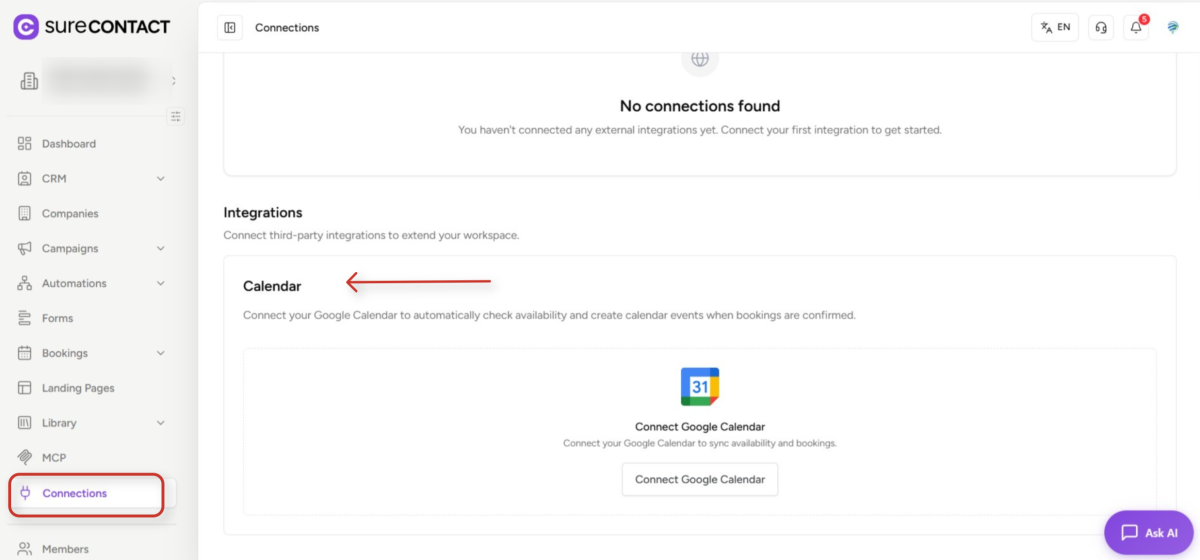
2. Connect Your Calendar
- Click Connect Calendar.
- Choose your provider: Google Calendar or Microsoft Outlook.
- Authorize access through the OAuth flow in the pop-up window.
- After authorization you will be returned to SureContact and the calendar will appear as Active.
3. Calendar Connection Statuses
Your calendar connection can have one of the following statuses:
| Status | Description |
| Active | Connection is working normally. |
| Expired | Authentication token has expired. Click Reconnect to renew. |
| Revoked | Calendar access was disconnected from the provider side. Reconnect to restore. |
| Error | A connection issue was detected. Reconnect to restore functionality. |
Step 2 – Create an Event Type
Event types define the structure of your bookable meetings, duration, location, availability rules, and CRM actions.
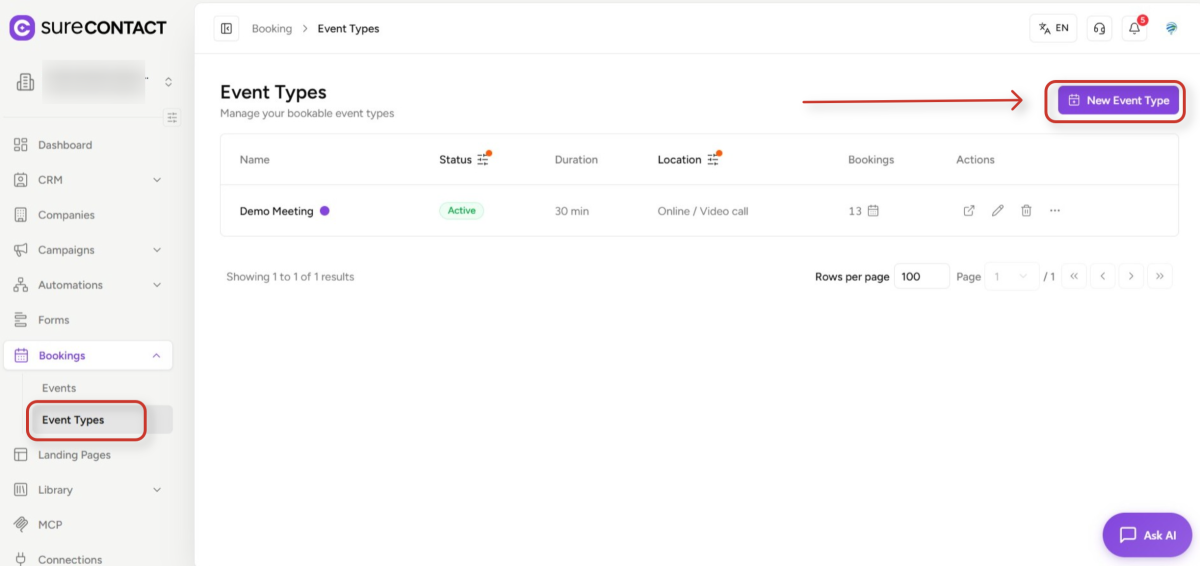
1. Open Event Types
- In the left sidebar, expand Bookings and click Event Types.
- Click New Event Type in the top-right corner.
2. Fill in General Details
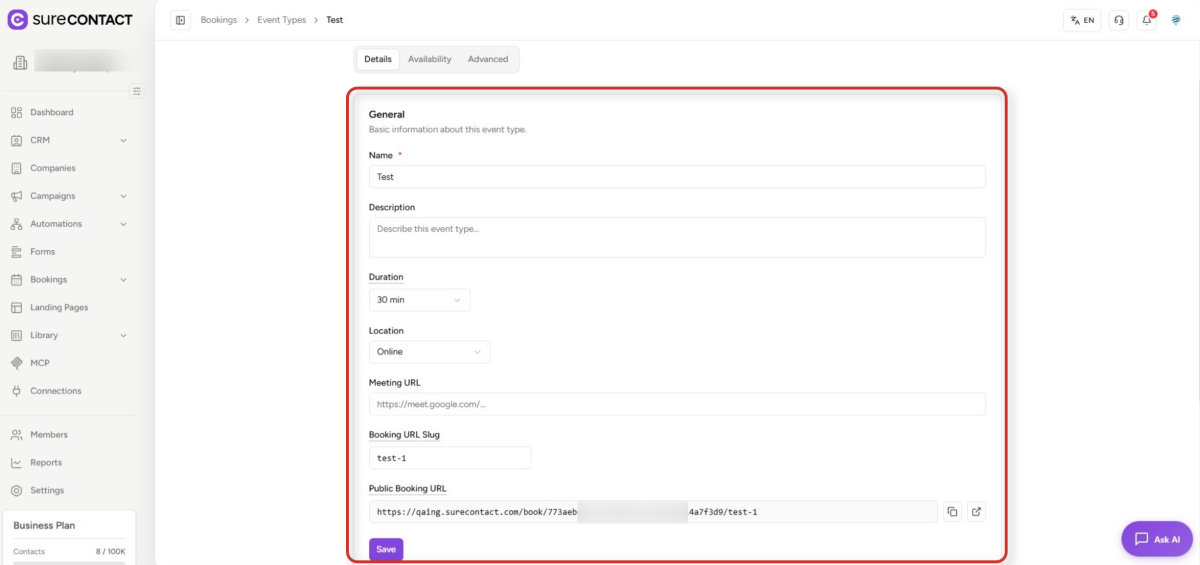
- Name – give the event type a clear, recognisable name (e.g., “Demo Meeting”).
- Description – optional text displayed on the public booking page.
- Duration – choose from 5 to 480 minutes (e.g., 30 min).
- Location – select one of three types:
- Online: a Google Meet link is auto-generated.
- In Person: enter a physical address.
- Phone Call: enter the host phone number; optionally require the invitee’s phone.
3. Customise Appearance
- Color – choose a brand colour displayed on the public booking page.
- Font Family – select the typeface used on the booking page.
- The Booking URL Slug and full Public Booking URL are shown in this section. Share the Public Booking URL with invitees or embed it on your website.
Step 3 – Set Availability
Click the Availability tab within the Event Type editor to configure when invitees can book.
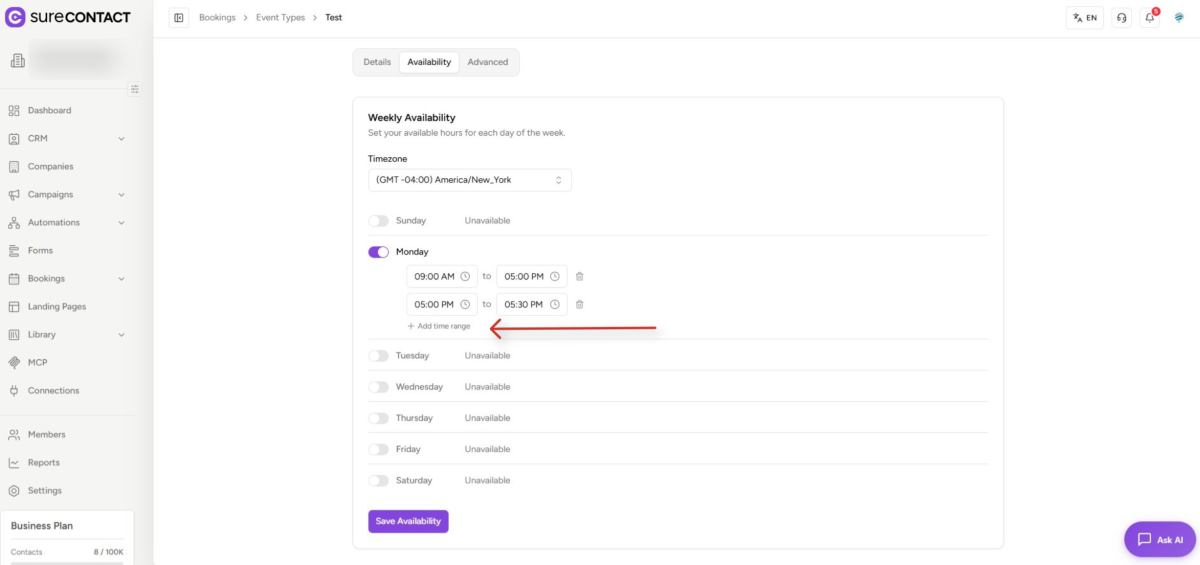
1. Choose Your Timezone
- Select your timezone from the dropdown. All availability windows are stored in this timezone.
2. Configure Weekly Availability
- Toggle each day of the week on or off.
- For enabled days, add one or more time windows (e.g., 11:00 AM – 11:30 AM).
- Multiple windows per day are supported and repeat every week.
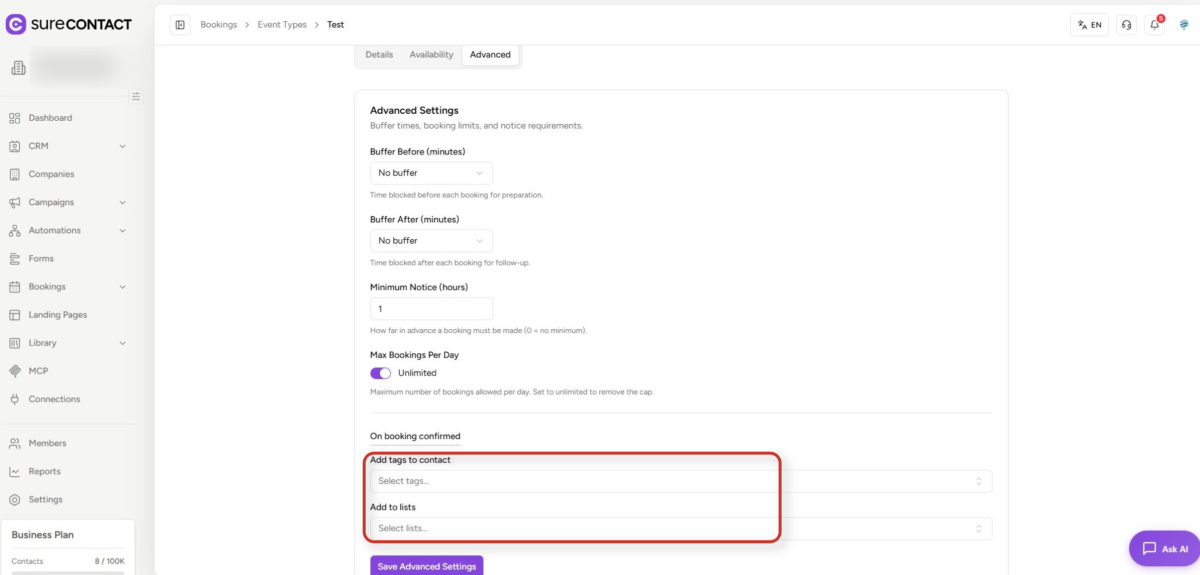
Step 4 – Configure Advanced Settings
Click the Advanced tab to set buffer times, booking limits, and CRM actions.
1. Buffer Times
- Buffer Before (minutes) – blocks time before each booking so you can prepare.
- Buffer After (minutes) – blocks time after each booking for follow-up. Range: 0–120 minutes.
2. Booking Limits
- Minimum Notice (hours) – the minimum advance notice required for a booking (0 = no minimum, maximum 336 hours).
- Max Bookings Per Day – toggle Unlimited off to set a daily cap on bookings.
3. CRM Actions on Booking Confirmed
- Add tags to contact – automatically apply up to 50 tags to the contact when a booking is confirmed.
- Add to lists – automatically add the contact to up to 50 lists.
The Public Booking Page – Invitee Experience
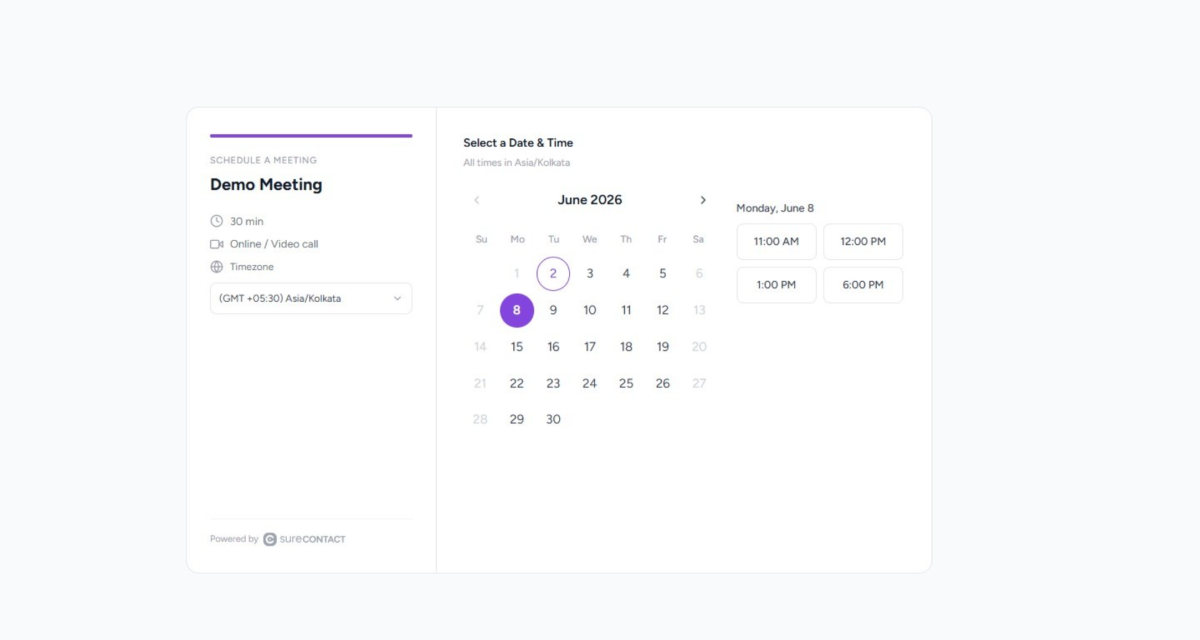
Each event type has a unique public URL in the format: /book/{workspace-id}/{event-slug}. Share this link with invitees or embed it on your website. No login is required for invitees.
1. Select a Date & Time
- The invitee sees the event name, duration, location type, and a calendar showing available dates.
- Greyed-out dates have no available slots (due to availability rules, calendar conflicts, minimum notice, or daily limits).
- Selecting an available date reveals the time slots for that day.
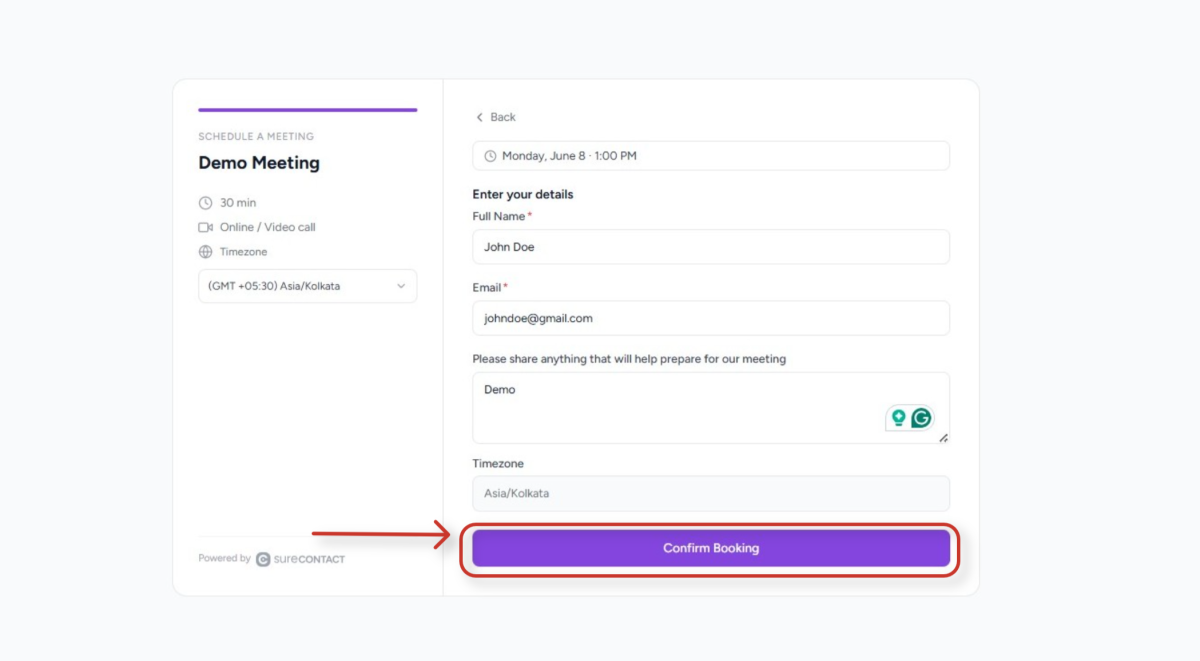
2. Complete the Booking Form
- The invitee enters their Full Name and Email (required), plus any optional notes.
- Their timezone is auto-detected but can be changed.
- Clicking Confirm Booking locks the slot and triggers the booking confirmation flow.
What Happens When Someone Books
When a booking is confirmed, SureContact automatically performs the following actions in sequence:
| Step | Action |
| 1 | The selected time slot is locked so it cannot be double-booked. |
| 2 | The contact is created (if new) or updated (if existing, matched by email). |
| 3 | Tags and lists configured in the event type are applied to the contact. |
| 4 | The booking is created with status Confirmed. |
| 5 | A calendar event is created in the connected calendar (host and invitee). |
| 6 | Confirmation emails are sent to the host and invitee. |
| 7 | The booking.created automation trigger fires, enabling custom workflows. |
Booking Statuses
| Status | Meaning |
| Confirmed | The meeting is scheduled and active. |
| Rescheduled | The booking was moved to a new time by the invitee or host. |
| Cancelled | The booking was cancelled by the invitee or host. |
| No Show | The invitee did not attend the meeting. |
Managing Bookings
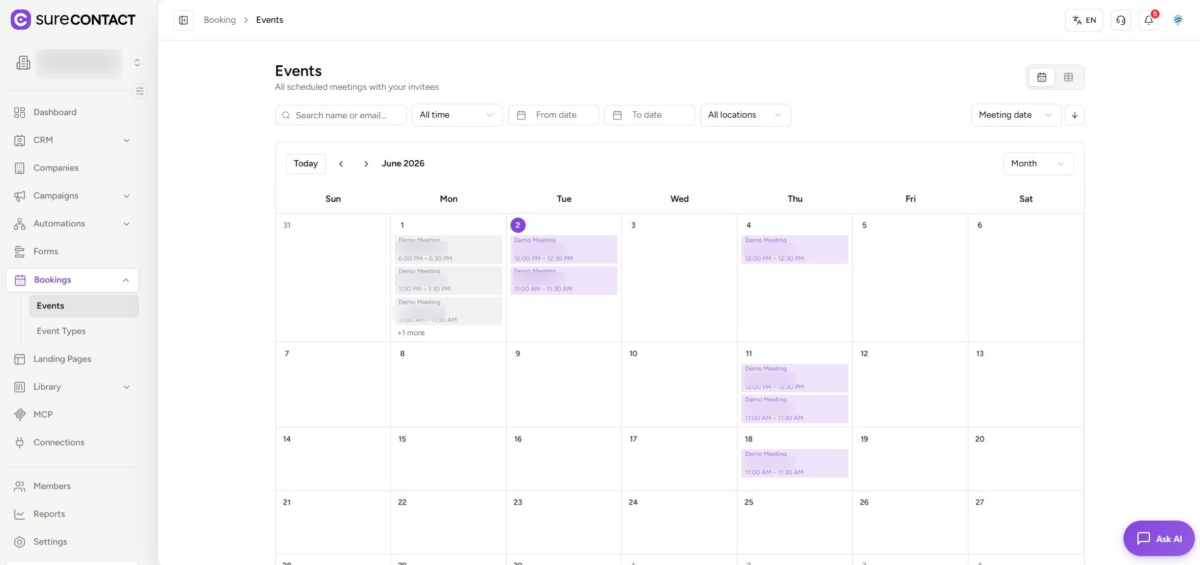
Hosts can view and manage all bookings from Bookings → Events. Two views are available: a calendar view for a visual overview, and a list view for detailed filtering and bulk actions.
1. Events – Calendar View
- Navigate to Bookings → Events in the sidebar.
- The calendar defaults to the current month. Use the navigation arrows to move between months, or switch to Week or Day view.
2. Events – List View
- Click the list icon (☰) at the top-right of the Events page to switch to list view.
- Filter by name, email, date range, and location type.
- Each row shows the invitee, event type, date/time, and status.
- Use the action icons to view details, reschedule, or cancel a booking.
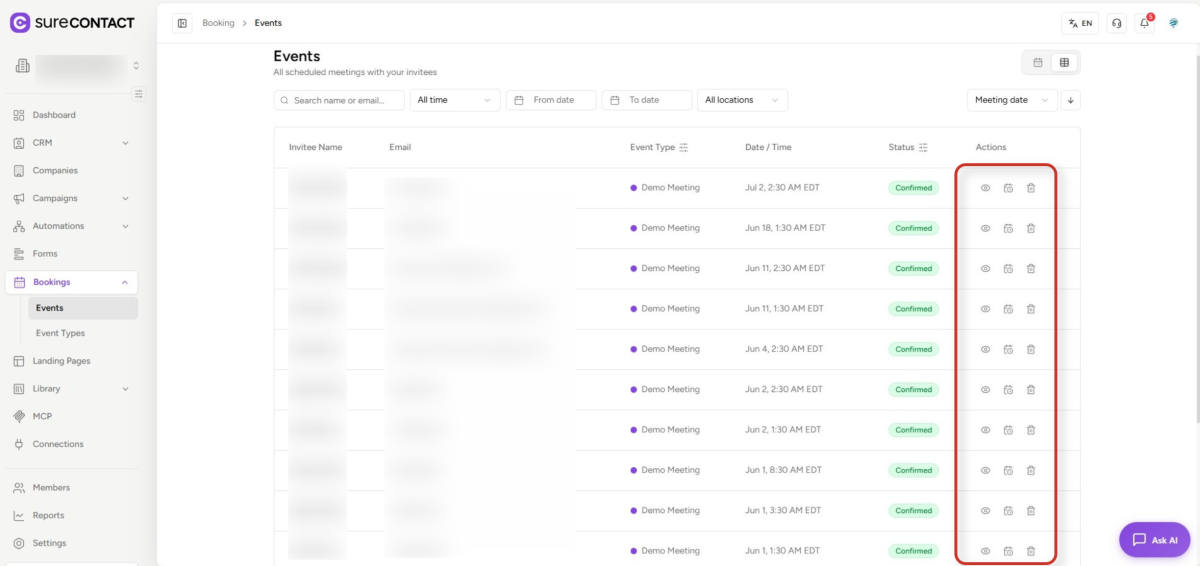
3. Host Actions
- View booking details – click the eye icon or calendar icon to open a detail popup.
- Reschedule – hosts (Editor role or above) can select a new slot on behalf of the invitee.
- Cancel – cancels the booking, removes the calendar event, and sends notifications.
- Book on behalf of an invitee – available to Editor+ roles via the event type’s booking URL.
Invitee Cancel & Reschedule
Confirmation emails include unique cancel and reschedule links. These links use a secure token tied to the specific booking.
Cancel
- The invitee clicks the cancel link in their confirmation email.
- The booking status changes to Cancelled, the calendar event is removed, and notifications are sent.
- The booking.cancelled automation trigger fires.
Reschedule
- The invitee clicks the reschedule link and selects a new available slot.
- The calendar event is updated to the new time, and new confirmation emails are sent.
- The booking.rescheduled automation trigger fires.
Automations & Triggers
Bookings integrates with SureContact Automations. Use these triggers to build follow-up sequences, send custom notifications, apply additional tags, or enrol contacts into campaigns.
| Trigger | When It Fires |
| booking.created | A new booking is confirmed by an invitee. |
| booking.cancelled | A booking is cancelled by the invitee or host. |
| booking.rescheduled | A booking is moved to a new time slot. |
To use a trigger, go to Automations → Workflows and select the relevant booking trigger as the workflow entry point.
Troubleshooting
No Available Slots Showing on the Booking Page
- Check that the event type’s Availability tab has at least one active day with time windows.
- Verify that Minimum Notice does not block all near-future slots.
- Check whether the Max Bookings Per Day limit has already been reached.
- Review your connected calendar for events that may be blocking time.
Calendar Event Not Created After Booking
- Go to Connections and verify your calendar connection status is Active.
- If the status is Expired or Error, click Reconnect and re-authorise via OAuth.
Confirmation Email Not Received
- Check whether the invitee’s email has bounced or they have previously unsubscribed.
Contact Not Created After Booking
- This is usually caused by an invalid email address submitted in the booking form.
Tags or Lists Not Applied
- Verify the event type’s Advanced tab → On booking confirmed section has the correct tags and lists selected.
Need Help?
If you need any assistance, please email [email protected], and our support team will be happy to help you.
We don't respond to the article feedback, we use it to improve our support content.