
- Introduction to SureContact Dashboard
- How to Install and Connect the SureContact WordPress Plugin
- What Do Contact Fields Mean in the SureContact WordPress Plugin
- How to Invite Members to a Workspace in SureContact
- How to Switch Organizations in SureContact
- Workspace-Level Contact Allocation in SureContact
- Workspace-Level Timezone Settings in SureContact
- How to Add a Custom Tracking Domain in a Workspace in SureContact
- SureContact MCP Server
- Creating Forms in SureContact
- Setup SMTP in SureContact
- Email Campaigns in SureContact
- How to Add a Preferences URL in Your Emails
- How to Share Email Templates in SureContact
- Spintax Feature in SureContact
- Deleting Sent Campaigns in SureContact
- A/B Testing Integration Guide
- Unsubscription Guide
- SureContact SMTP Setup Guide
- SMTP Routing User Flow
- FluentCRM Integration with SureContact
- SureContact Third-Party Integration — Step-by-Step Guide
- Fluent Forms Integration with SureContact
- SureForms Integration with SureContact
- WPForms Integration with SureContact
- Bulk Sync WordPress Users to SureContact
- Contact Form 7 Integration with SureContact
- Sync WooCommerce Customers with SureContact
- FluentCart & FluentCommunity Integration With SureContact
Companies Inside Automations – SureContact
SureContact automations allow you to trigger workflows and take actions based on a contact’s relationship with a company. Every automation in SureContact is contact-centric: triggers fire when a contact’s company link changes, and actions operate on the company linked to the enrolled contact.
This guide explains how to use Company Events triggers, Company Actions, and company-based filters to build powerful B2B automation workflows.
Overview
Companies in SureContact automations are always contact-centric: every trigger fires based on a change in a contact’s relationship with a company, not on the company itself. This means automations enroll a specific contact and can then read or update that contact’s linked company data.
Part 1: Triggers (What Can Start an Automation)
There are five company-related triggers available in SureContact. They all fire in response to changes in a contact’s company linkage.
1. Navigate to Automations → Workflows
- From the left sidebar, click Automations to expand it, then select Workflows.
- Click + New Workflow and give your automation a name.
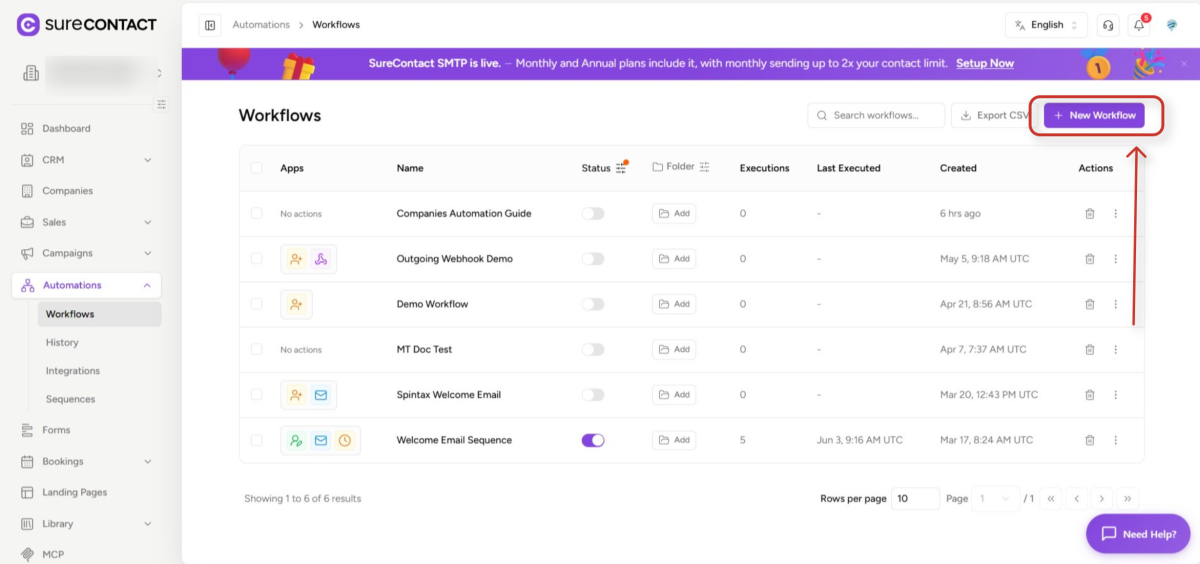
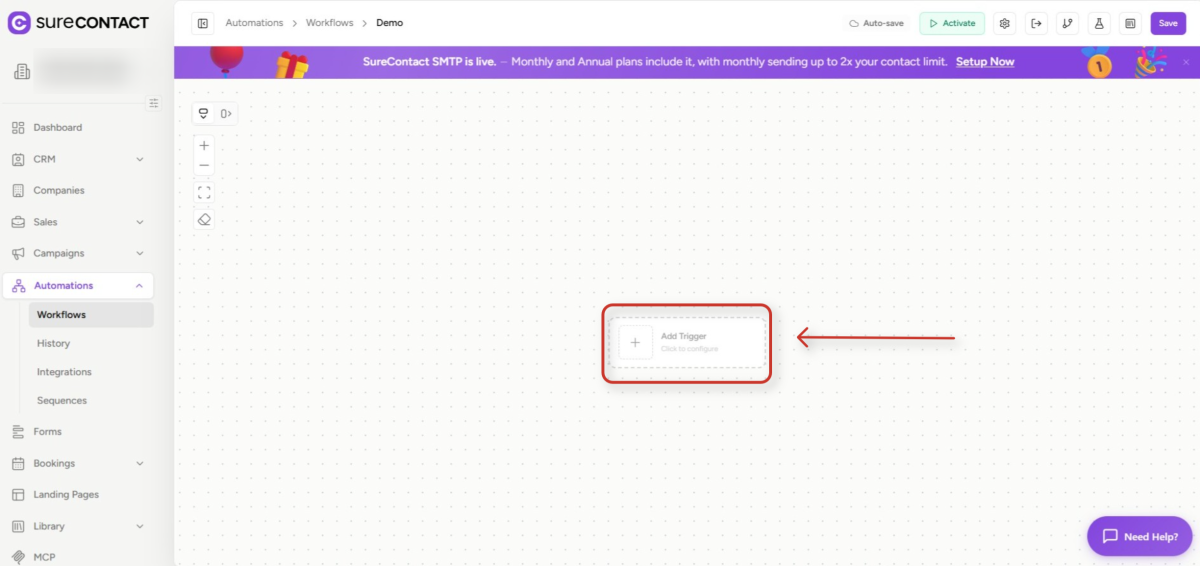
2. Open the workflow builder
- After creating a new workflow, you will see an empty canvas with an Add Trigger node in the centre.
- Click the Add Trigger node to open the trigger selection panel.
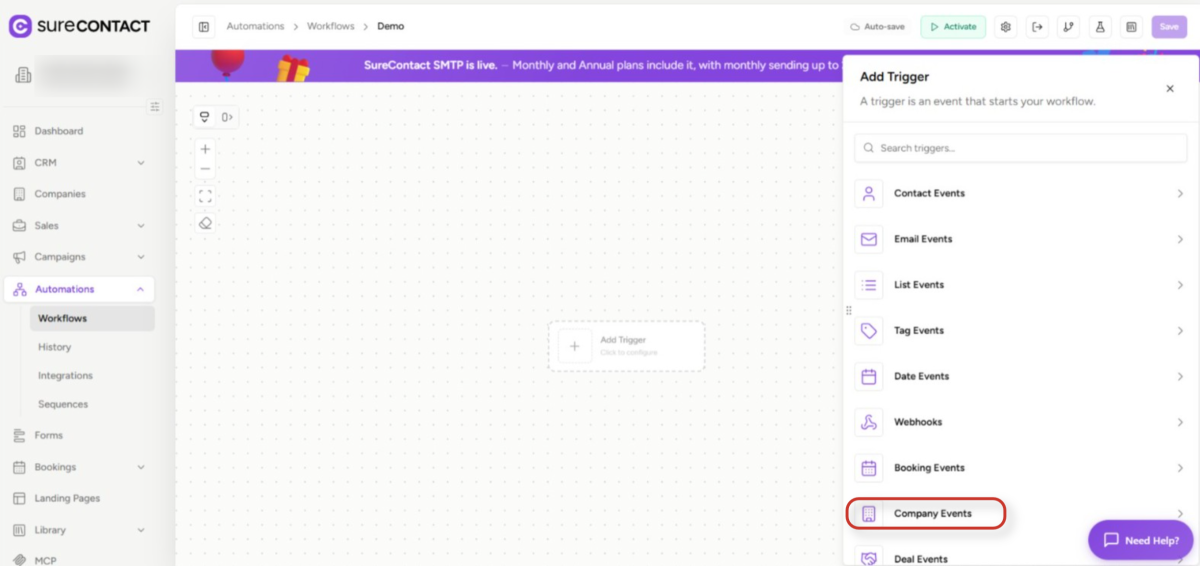
3. Open the Add Trigger panel
- The panel lists all trigger categories. Scroll to the bottom and click Company Events.
4. Select a Company Events trigger
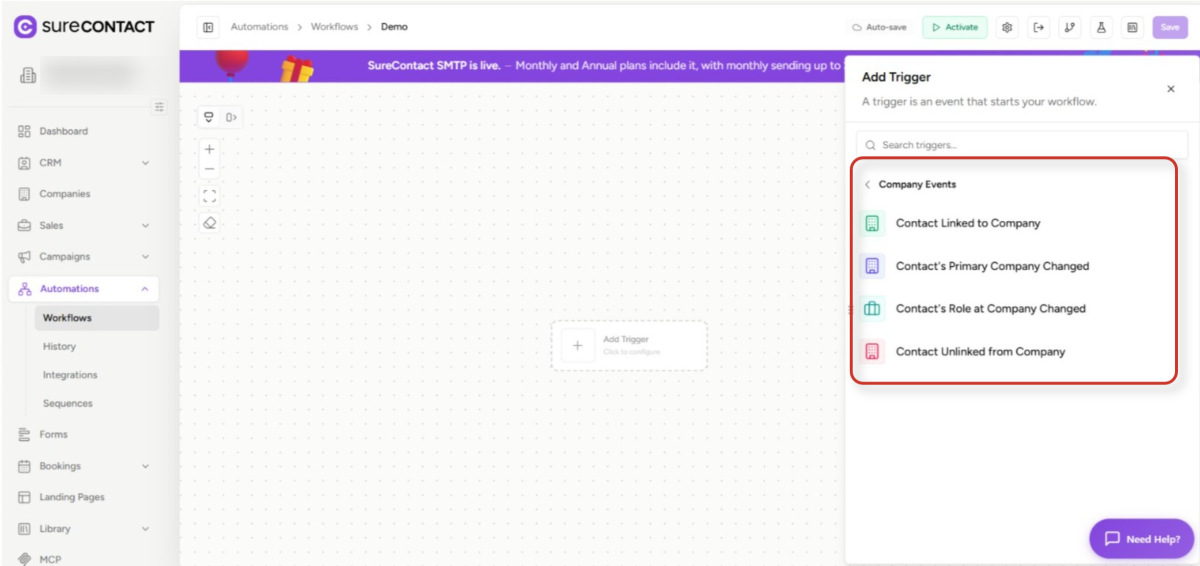
- Four company triggers are available:
- Contact Linked to Company – fires when a contact is linked to any (or a specific) company.
- Contact’s Primary Company Changed – fires when the contact’s primary company is switched.
- Contact’s Role at Company Changed – fires when the role field on the contact↔company link is updated.
- Contact Unlinked from Company – fires when a contact is removed from a company.
5. Configure the trigger
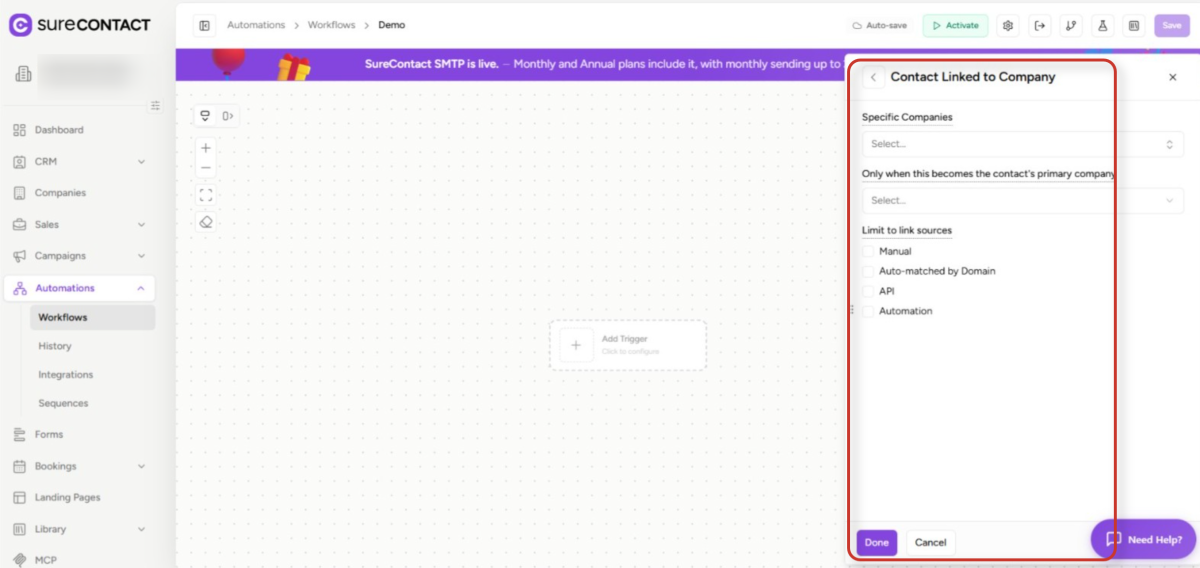
- Click Contact Linked to Company (or whichever trigger you need) to open its configuration panel.
- Specific Companies – optionally filter to one or more companies (leave blank for all).
- Only when this becomes the contact’s primary company – set to ‘Yes’ to avoid re-running for secondary links.
- Limit to link sources – optionally restrict to specific link origins: Manual, Auto-matched by Domain, API, or Automation.
- Click Done when finished.
Part 2: Actions (What Automations Can Do to Companies)
Once a trigger fires and enrolls a contact, you can add company-related actions to update company records linked to that contact.
1. Add an action node
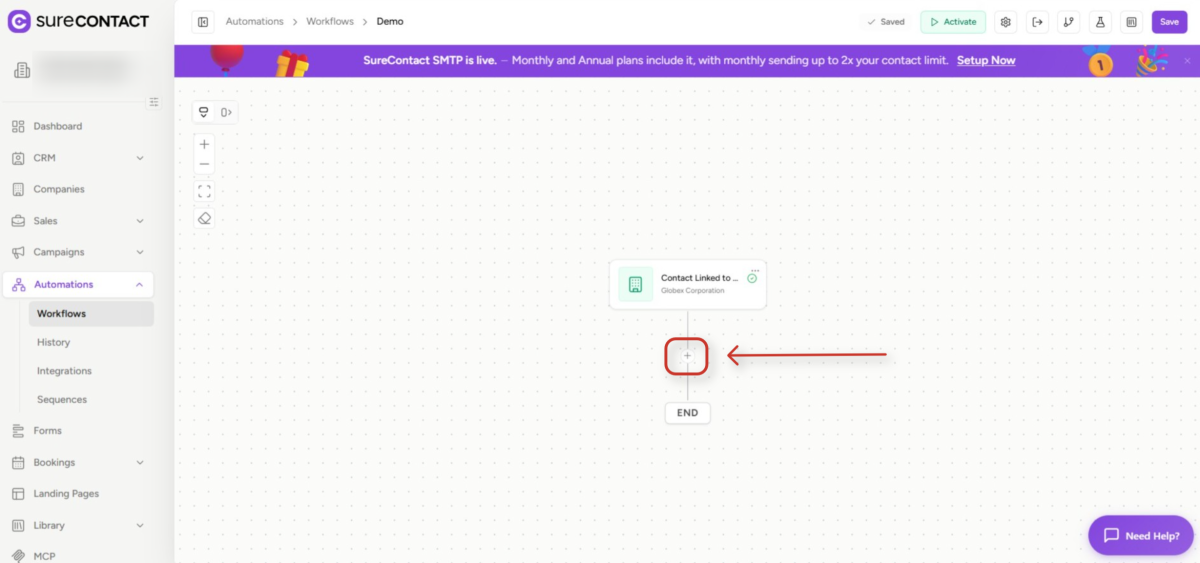
- On the workflow canvas, after the trigger node is set, click the + button below it to add an action.
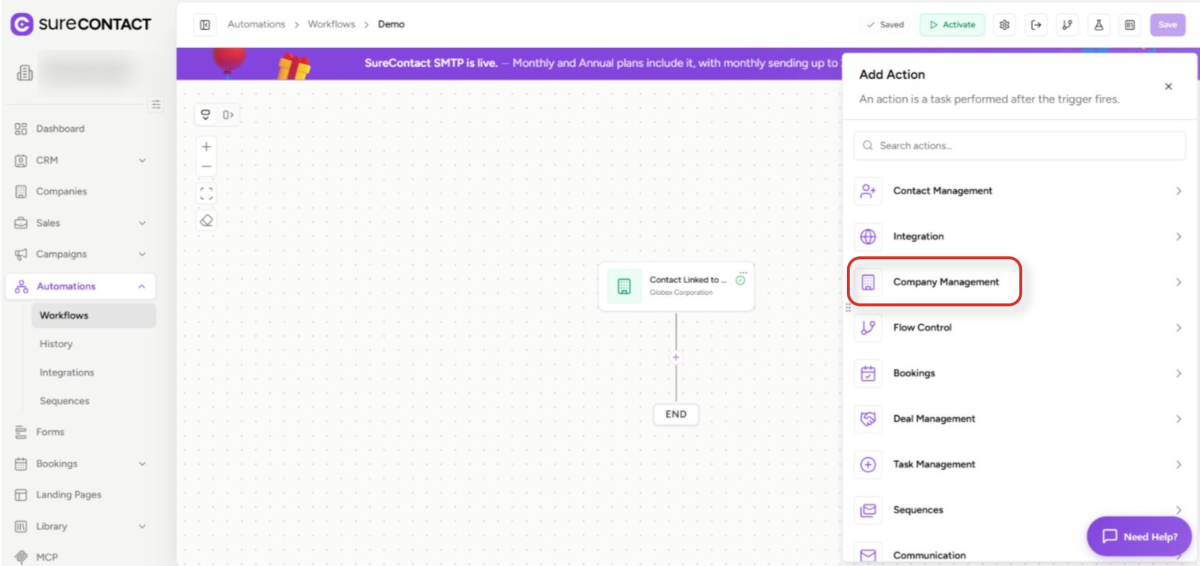
- In the Add Action panel, scroll to Company Actions and click it.
2. Choose a Company Action
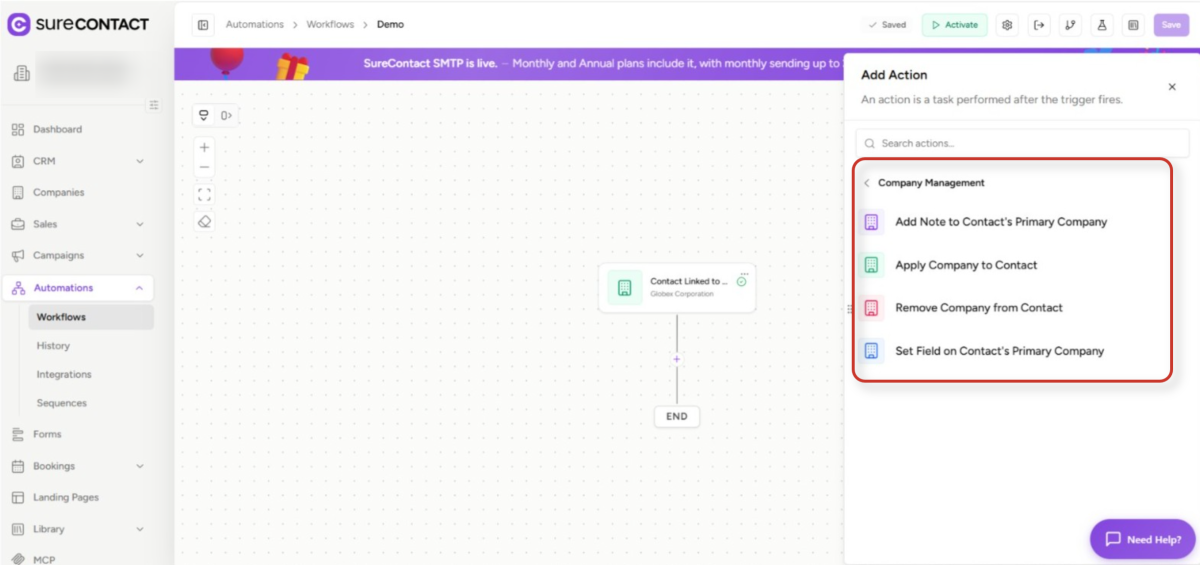
- Apply Company – links the enrolled contact to a company. Set role and primary mode (auto / always primary / never primary). This action is idempotent – if the contact is already linked with the same config, nothing changes.
- Remove Company – unlinks the contact from a specific company, or from all linked companies (mode ‘all’).
- Set Primary Company Field – updates a standard or custom field (e.g. lifecycle_stage, industry) on the contact’s primary company. Silently skips if the contact has no primary company.
- Add Note to Primary Company – appends a note (title + body) to the contact’s primary company record. Silently skips if the contact has no primary company.
Part 3: Conditions / Filters
Inside a Filter node you can branch automation paths based on company data using the company.* namespace. This lets you apply different actions to contacts depending on their company’s properties.
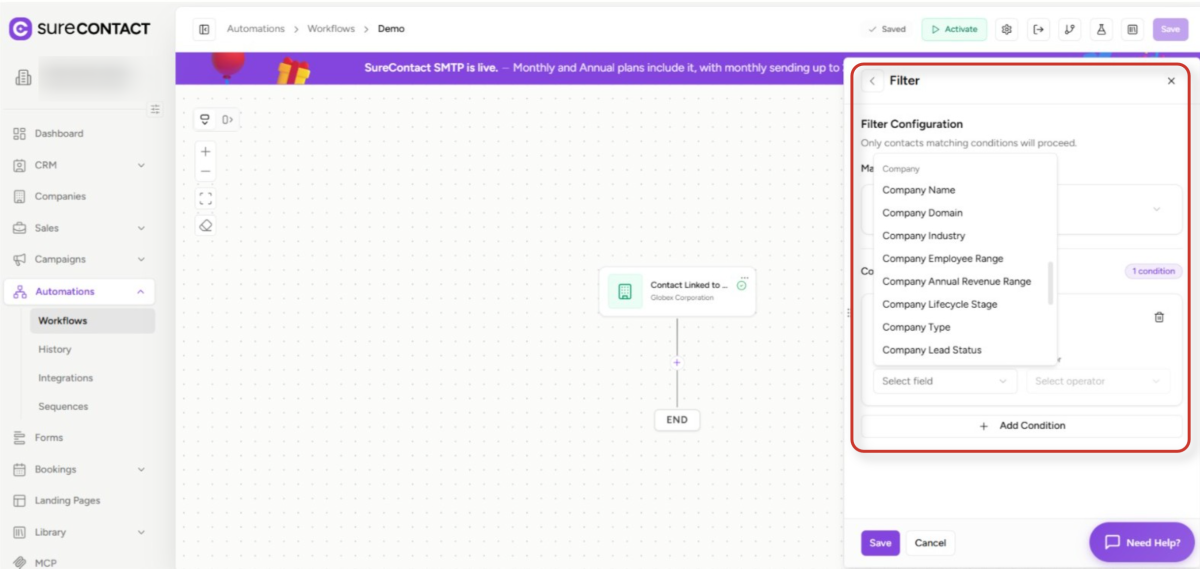
1. Add a Filter node and select company fields
- Click the + button and choose Condition / Branch to add a filter node.
- In the field picker, type ‘company.’ to browse available company fields.
- The following company fields are available for filtering:
- company.name, company.domain, company.industry (Text)
- company.lifecycle_stage, company.type, company.lead_status (Select)
- company.employee_range, company.annual_revenue_range (Select)
- company.year_founded, company.contacts_count (Numeric)
- company.role – the contact’s role at the company (Text)
- company.is_primary – whether this is the contact’s primary company (Boolean)
- company.linked_via – how the link was created: manual / automation / API / domain match (Select)
- company.last_activity_at (Date)
Use Case 1: Auto-Assign a Contact to a Company on Form Submission
Scenario: When a new contact submits a lead form with their company domain, automatically link them to the matching company, set the company lifecycle stage to ‘Lead’, and add an onboarding note to the company record.
1. Create New Automation
- Go to Automations → Workflows → + New Workflow.
2. Set the Trigger – Contact Linked to Company
- Open the Add Trigger panel → Company Events → Contact Linked to Company.
- Enable ‘Only fire if this becomes the primary company’ to avoid re-running for secondary links.
- Click Done.
3. Add Action – Set Primary Company Field
- Click + below the trigger node → Company Actions → Set Primary Company Field.
- Field: lifecycle_stage
- Value: Lead
- Click Done.
4. Add Action – Add Note to Primary Company
- Click + below the previous action → Company Actions → Add Note to Primary Company.
- Title: New contact linked – {{trigger.company.name}}
- Content: Contact {{contact.first_name}} {{contact.last_name}} ({{contact.email}}) was linked on {{trigger.link.linked_at}}. Source: {{trigger.link.linked_via}}.
- Click Done.
5. Save and Activate
- Click Auto-save (top bar) to confirm changes, then click Activate.
Use Case 2: Tag Contacts When Their Company Becomes a Customer
Scenario: When a company moves to ‘Customer’ lifecycle stage, automatically tag all contacts at that company as customers and send them a welcome email.
1. Create New Automation
- Go to Automations → Workflows → + New Workflow.
2. Set the Trigger – Primary Company Property Changed
- Open the Add Trigger panel → Company Events → Primary Company Property Changed (requires feature flag – confirm with your team first).
- Property to watch: lifecycle_stage
- To value: Customer
- This fires once for every contact whose primary company moves to ‘Customer’ stage.
3. Add Filter Node (recommended)
- Click + → Condition / Branch.
- Condition: company.is_primary equals true – ensures only primary-linked contacts proceed.
4. Add Action – Manage Contact Tags
- Click + → Contact Actions → Manage Tags.
- Add tag: Customer
5. Add Action – Send Email
- Click + → Email Actions → Send Email.
- Template: Welcome / onboarding email (can reference {{trigger.company.name}} in subject or body).
6. Save and Activate
Need Help?
If you need any assistance, please email [email protected], and our support team will be happy to help you.
We don't respond to the article feedback, we use it to improve our support content.