
- Introduction to SureContact Dashboard
- How to Install and Connect the SureContact WordPress Plugin
- What Do Contact Fields Mean in the SureContact WordPress Plugin
- How to Invite Members to a Workspace in SureContact
- How to Switch Organizations in SureContact
- Workspace-Level Contact Allocation in SureContact
- Workspace-Level Timezone Settings in SureContact
- How to Add a Custom Tracking Domain in a Workspace in SureContact
- SureContact MCP Server
- Creating Forms in SureContact
- Setup SMTP in SureContact
- Email Campaigns in SureContact
- How to Add a Preferences URL in Your Emails
- How to Share Email Templates in SureContact
- Spintax Feature in SureContact
- Deleting Sent Campaigns in SureContact
- A/B Testing Integration Guide
- Unsubscription Guide
- SureContact SMTP Setup Guide
- SMTP Routing User Flow
- Gradual Send Feature Guide
- Reusable Email Templates Guide
- Conditional Blocks Guide
- Scheduling vs. Sending Immediately Emails in SureContact
- Campaign Analytics Guide
- Email Tracking Opens Clicks SureContact
- SureContact Email Template Library Guide
- Sending Domains Subdomain vs Root Domain Guide
- DMARC Setup Guide
- Warming Up a New Sending Domain
- Email Link Actions in SureContact
- SureContact – Email Flagged or Rejected Guide
- How to Generate a Campaign Report in SureContact
- How to Add an Unsubscribe Link in Your Emails
- Analyzing a Campaign with AI (Spam & Ethics Check)
- FluentCRM Integration with SureContact
- SureContact Third-Party Integration — Step-by-Step Guide
- Fluent Forms Integration with SureContact
- SureForms Integration with SureContact
- WPForms Integration with SureContact
- Bulk Sync WordPress Users to SureContact
- Contact Form 7 Integration with SureContact
- Sync WooCommerce Customers with SureContact
- FluentCart & FluentCommunity Integration With SureContact
A/B Testing Integration Guide
SureContact’s A/B Testing feature allows you to test multiple email variants against a portion of your audience and automatically, or manually, send the winning version to the remainder of your list.
This guide explains the complete setup process for creating and launching an A/B Test campaign in SureContact, including how to configure variants, test settings, and review results.
Prerequisites
Before creating an A/B Test campaign, please ensure the following:
1. A SureContact Account with Campaign Access
You must have an active SureContact account with the Campaigns feature enabled. Log in at qaing.surecontact.com (or your SureContact instance URL) and navigate to Campaigns → Email Campaigns.
2. At Least One Contact List
Your account must have at least one contact list with subscribers. A/B Tests send to a sample of your selected list, so your list should have enough contacts to produce statistically significant results (ideally 100+ subscribers).
3. Email Content Ready for Both Variants
Prepare at least two variations of your email, differing in subject line, from name, preview text, or body content. A/B Testing works best when you are testing a single variable at a time so results are clearly attributable.
How to Create an A/B Test Campaign
Follow the steps below to set up, configure, and launch an A/B Test campaign in SureContact.
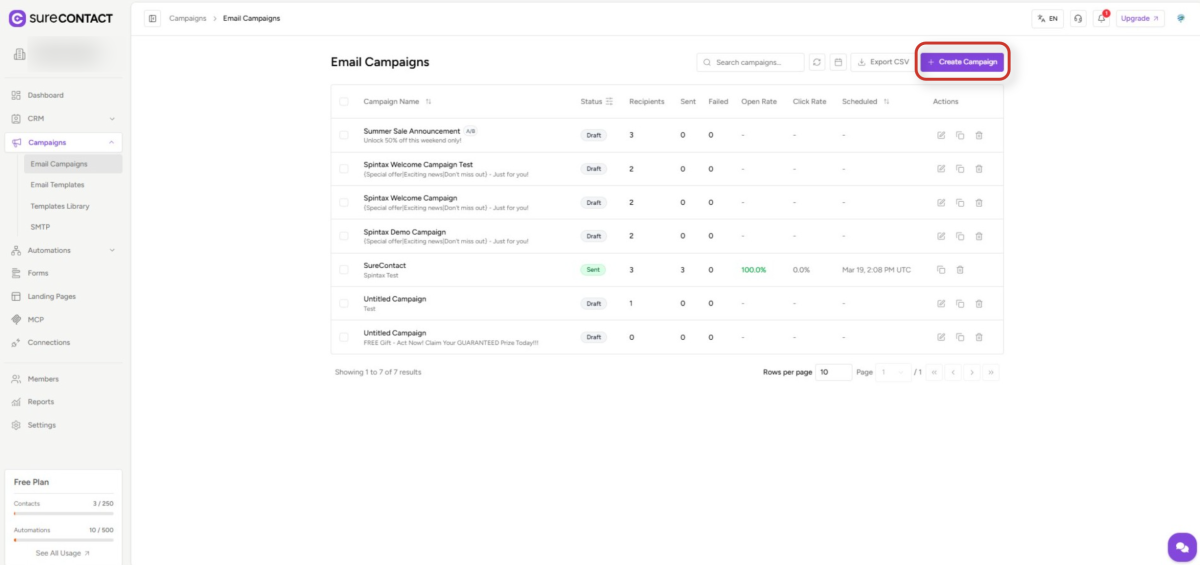
1. Navigate to Email Campaigns and Click “Create Campaign”
- From the left sidebar, click Campaigns to expand the menu, then select Email Campaigns.
- You will see a list of your existing campaigns. Click the Create Campaign button in the top-right corner to open the campaign creation modal.
2. Select “A/B Test” as the Campaign Type
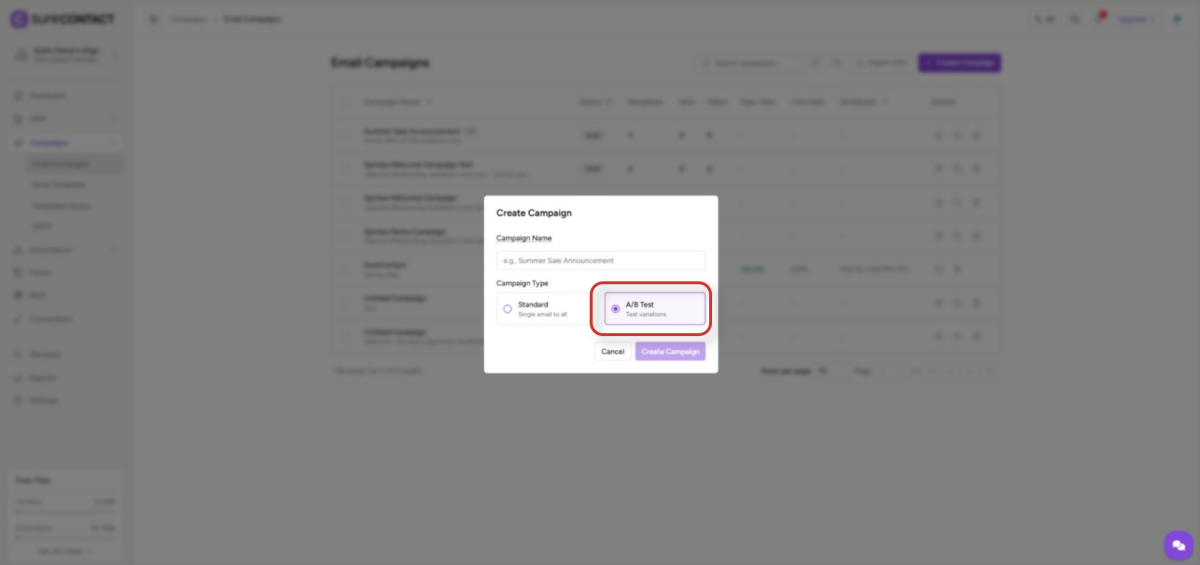
- In the Create Campaign modal, you will see two campaign type options: Regular and A/B Test.
- Click the A/B Test radio button to select it.
- Enter a Campaign Name in the text field. This is an internal label for your reference only and is not visible to recipients.
- Click Create Campaign to proceed.
3. Configure the Subject Line
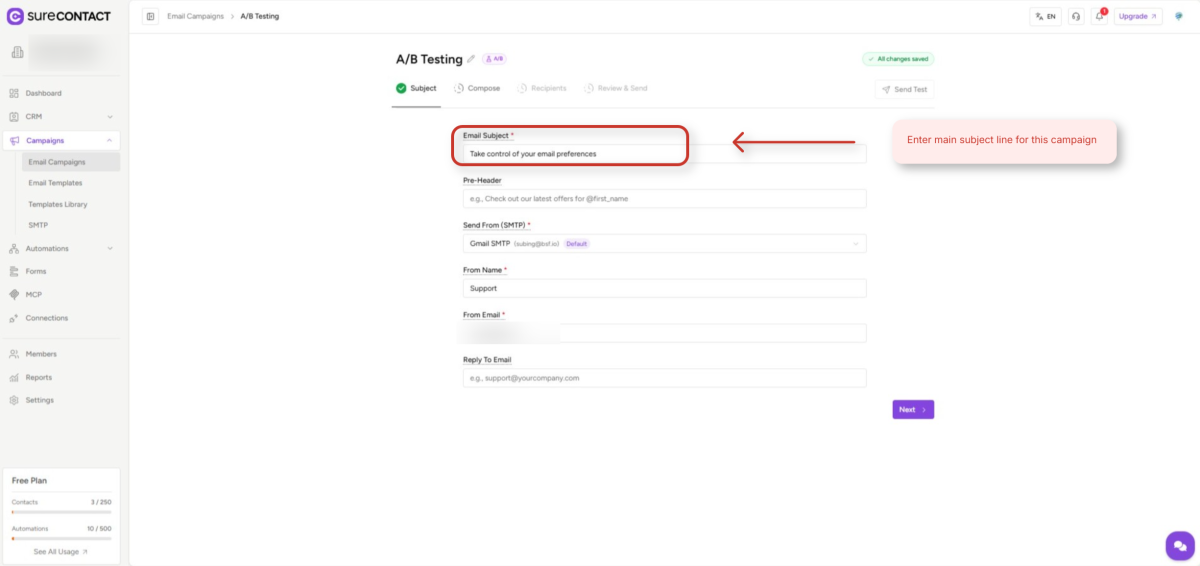
- In the Subject step, enter the primary email subject line in the Email Subject field.
- Fill in the From Name (e.g. your brand or sender name) and From Email (your verified sender address).
- Optionally enter a Preview Text, which appears in the recipient’s inbox preview below the subject line.
- Click Next to proceed to the Compose step.
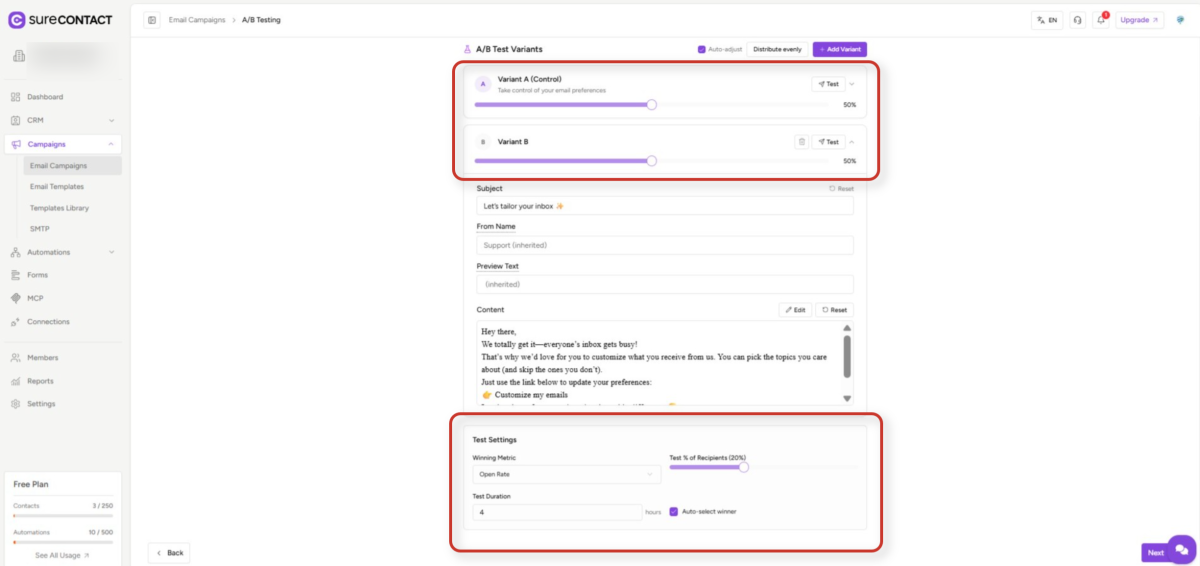
4. Configure A/B Test Variants
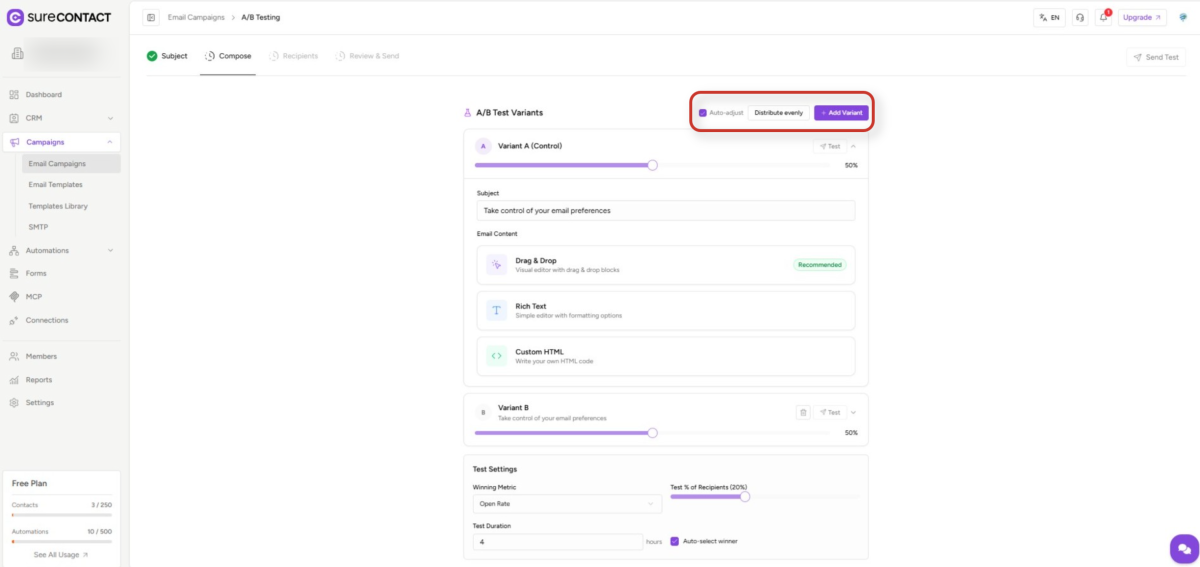
- In the Compose step, the A/B Test Variants panel shows Variant A and Variant B side by side.
- Each variant card displays the variant label (A or B) and a drag handle for reordering.
- Use the Add Variant button to add additional variants (e.g. Variant C) if needed.
- The audience split bar at the top of the Test Settings panel shows how the test sample will be divided between variants (default: 50% / 50%).
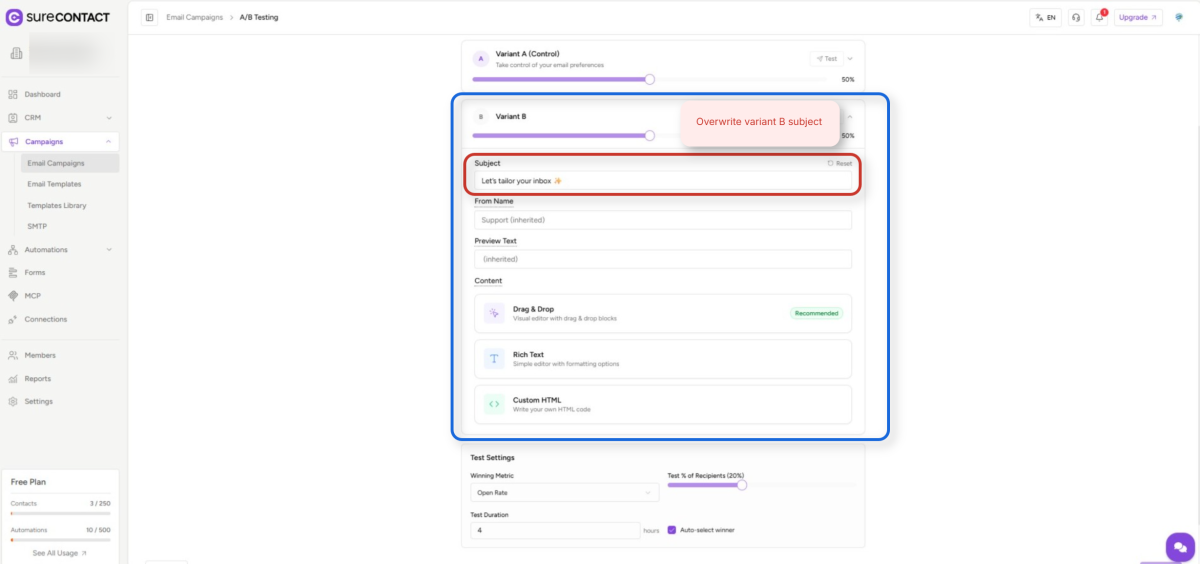
5. Customize Individual Variant Settings
- Click the expand arrow on a variant card to reveal that variant’s override settings.
- For Variant B (or any non-default variant), you can override the Subject Line, From Name, and Preview Text independently; leaving any field blank will inherit the value from the primary subject step.
- This allows you to test a specific difference (e.g. a different subject line) while keeping all other fields identical between variants.
6. Configure Test Settings
- In the Test Settings panel (right side of the Compose step), set the following parameters:
- Winning Metric – choose the metric used to determine the winner: Open Rate, Click Rate, or Revenue.
- Test Sample Size – use the slider to set what percentage of your total audience will receive the test variants. The remainder will receive the winning variant after the test period ends.
- Test Duration – set how long the test will run (in hours) before a winner is selected.
- Auto-select Winner – toggle on to automatically send the winning variant to the remaining audience when the test ends. If off, you will need to manually select a winner.
7. Select Recipients
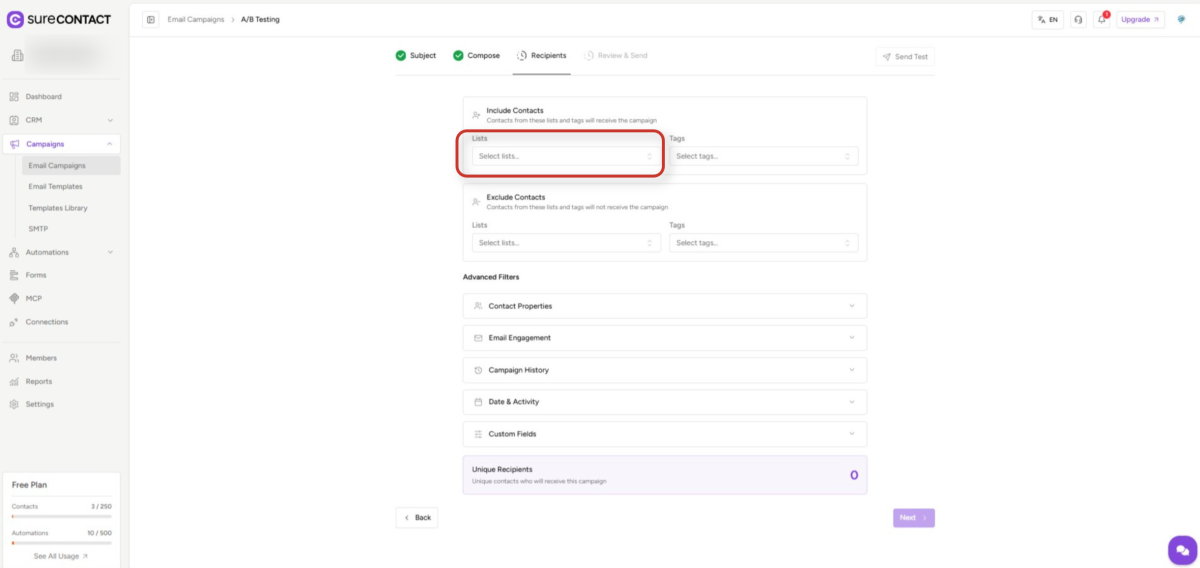
- In the Recipients step, select one or more contact lists to send the campaign to.
- Optionally add exclusion lists to prevent certain contacts from receiving the campaign.
- The Estimated Recipients count updates automatically based on your list selections and exclusions.
- Click Next to proceed to Review & Send.
8. Review and Send
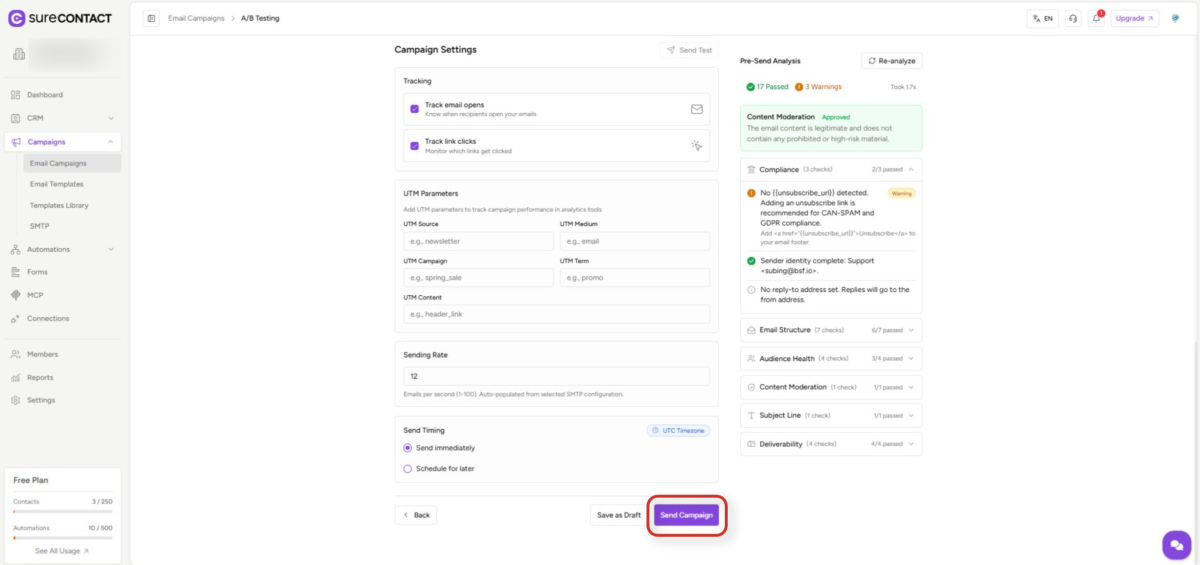
- The Review & Send step shows a summary of your campaign configuration, including the subject lines for each variant, the sender information, the selected recipient lists, and the test settings.
- Review each section carefully. Use the Back button to return to any previous step to make changes.
- When you are satisfied with the configuration, click the Send Campaign button to launch the A/B test.
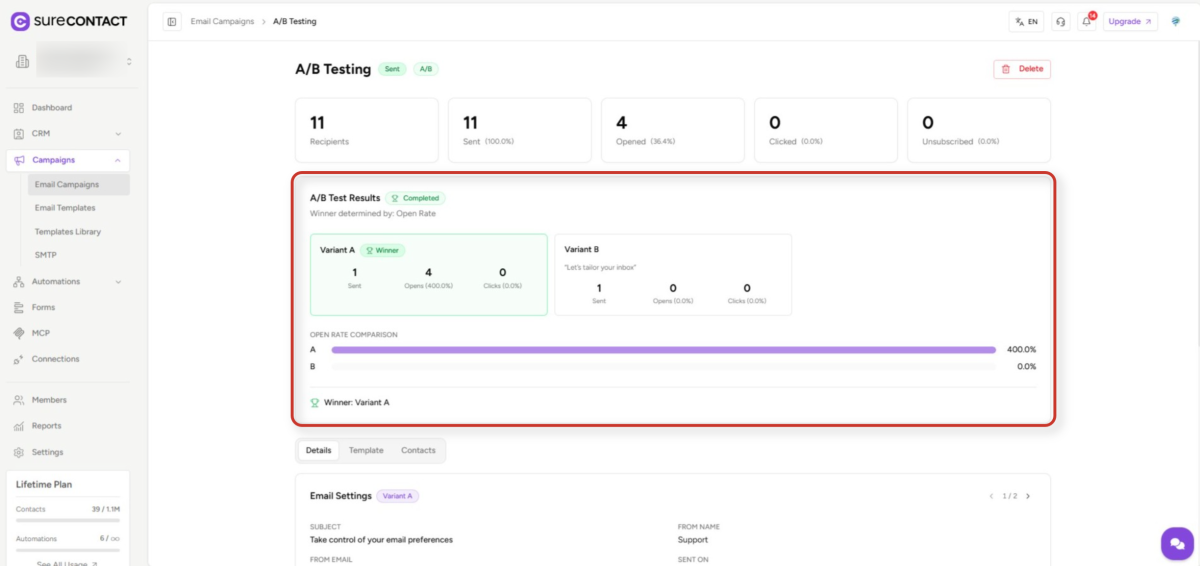
9. Monitor A/B Test Results
- After the test period ends, navigate to the campaign in your Email Campaigns list and open the A/B Test Results view.
- The results panel shows key metrics (Sent, Opens, Open Rate, Click Rate, Unsubscribes) side by side for each variant.
- The winning variant is highlighted with a WINNER badge and a green border.
- If Auto-select Winner was enabled, the winning variant will have already been sent to the remaining audience. If disabled, click Select Winner to manually choose and send the winning variant.
That’s it, this is how you can set up the A/B Testing for your email campaign using SureContact
Need Help?
If you need any assistance, please email [email protected], and our support team will be happy to help you.
We don't respond to the article feedback, we use it to improve our support content.