
- Introduction to SureContact Dashboard
- How to Install and Connect the SureContact WordPress Plugin
- What Do Contact Fields Mean in the SureContact WordPress Plugin
- How to Invite Members to a Workspace in SureContact
- How to Switch Organizations in SureContact
- Workspace-Level Contact Allocation in SureContact
- Workspace-Level Timezone Settings in SureContact
- How to Add a Custom Tracking Domain in a Workspace in SureContact
- SureContact MCP Server
- Creating Forms in SureContact
- Setup SMTP in SureContact
- Email Campaigns in SureContact
- How to Add a Preferences URL in Your Emails
- How to Share Email Templates in SureContact
- Spintax Feature in SureContact
- Deleting Sent Campaigns in SureContact
- A/B Testing Integration Guide
- Unsubscription Guide
- SureContact SMTP Setup Guide
- SMTP Routing User Flow
- Gradual Send Feature Guide
- Reusable Email Templates Guide
- Conditional Blocks Guide
- Scheduling vs. Sending Immediately Emails in SureContact
- Campaign Analytics Guide
- Email Tracking Opens Clicks SureContact
- SureContact Email Template Library Guide
- Sending Domains Subdomain vs Root Domain Guide
- DMARC Setup Guide
- Warming Up a New Sending Domain
- Email Link Actions in SureContact
- SureContact – Email Flagged or Rejected Guide
- How to Generate a Campaign Report in SureContact
- How to Add an Unsubscribe Link in Your Emails
- Analyzing a Campaign with AI (Spam & Ethics Check)
- FluentCRM Integration with SureContact
- SureContact Third-Party Integration — Step-by-Step Guide
- Fluent Forms Integration with SureContact
- SureForms Integration with SureContact
- WPForms Integration with SureContact
- Bulk Sync WordPress Users to SureContact
- Contact Form 7 Integration with SureContact
- Sync WooCommerce Customers with SureContact
- FluentCart & FluentCommunity Integration With SureContact
Deleting Sent Campaigns in SureContact
SureContact allows you to delete sent campaigns from your Email Campaigns list to keep your workspace clean and organised. Deletion is permanent and cannot be undone, so a confirmation step is always required.
This guide covers deleting a single campaign, bulk deleting multiple campaigns, and using the status filter to find sent campaigns quickly.
📌 Note: Only campaigns with a status of Sent, Draft, or Cancelled can be deleted. Campaigns that are currently Sending, Scheduled, or Paused cannot be deleted until their status changes.
1. Deleting a Single Campaign
1.1 From the Campaigns List
- Go to Email Campaigns in the left sidebar.
- Find the sent campaign you want to delete.
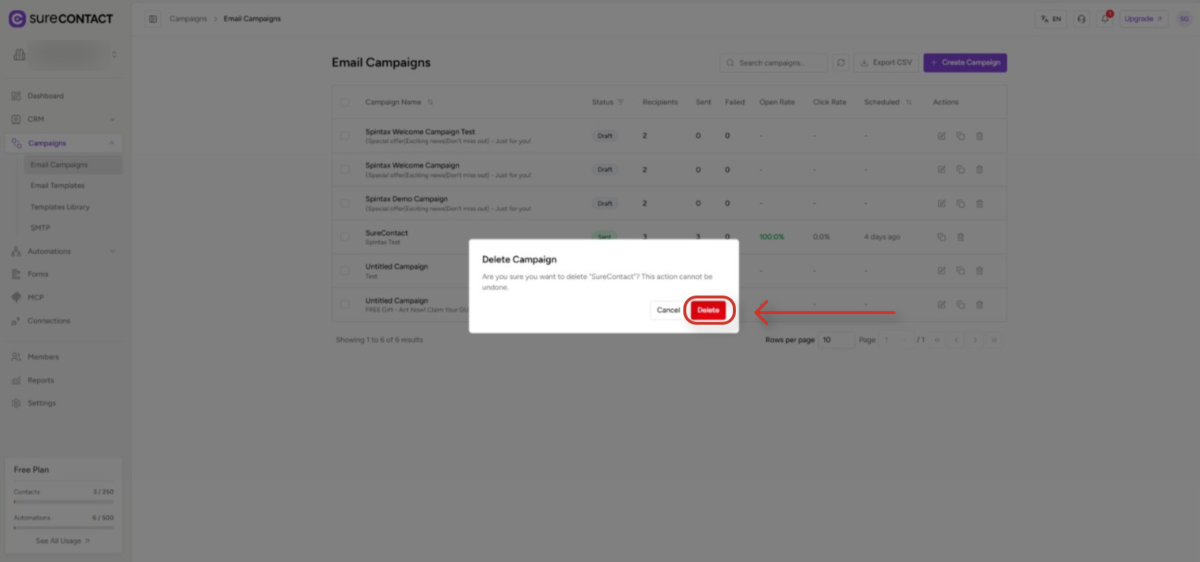
- In the Actions column on the right side of the row, click the trash icon.

- A confirmation dialog appears asking you to confirm the deletion.
- Click Delete to confirm. The campaign is removed, and a success message appears.
1.2 From the Campaign Detail Page
- Open the campaign by clicking its name in the campaigns list.
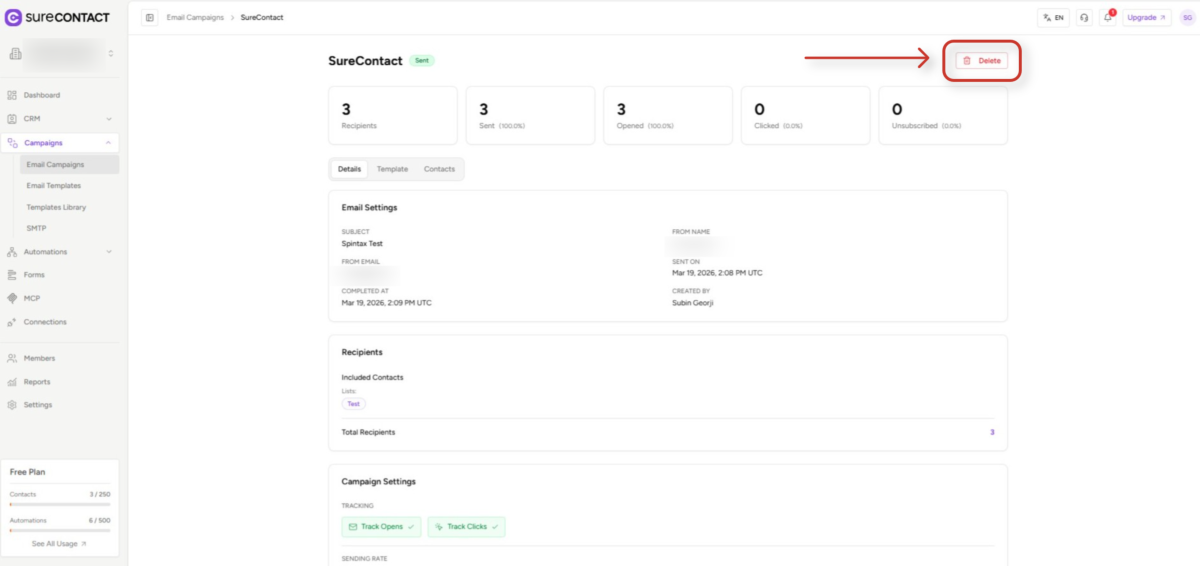
- In the campaign detail header (top-right), click the Delete button.
- Confirm in the dialog that appears.
- You are returned to the campaigns list after deletion.
2. Deleting Multiple Campaigns (Bulk Delete)
Step 1 — Select Campaigns
You can select campaigns in three ways:
Select individual campaigns:
- Check the checkbox on the left side of each campaign row you want to delete.
Select all on the current page:
- Check the checkbox in the table header row to select all campaigns visible on the current page.
Select all campaigns across all pages:
- After checking the header checkbox, a banner appears next to the page title.
- Click Select all [N] campaigns to extend the selection to all campaigns, including those on other pages.
Step 2 — Click Delete Campaigns
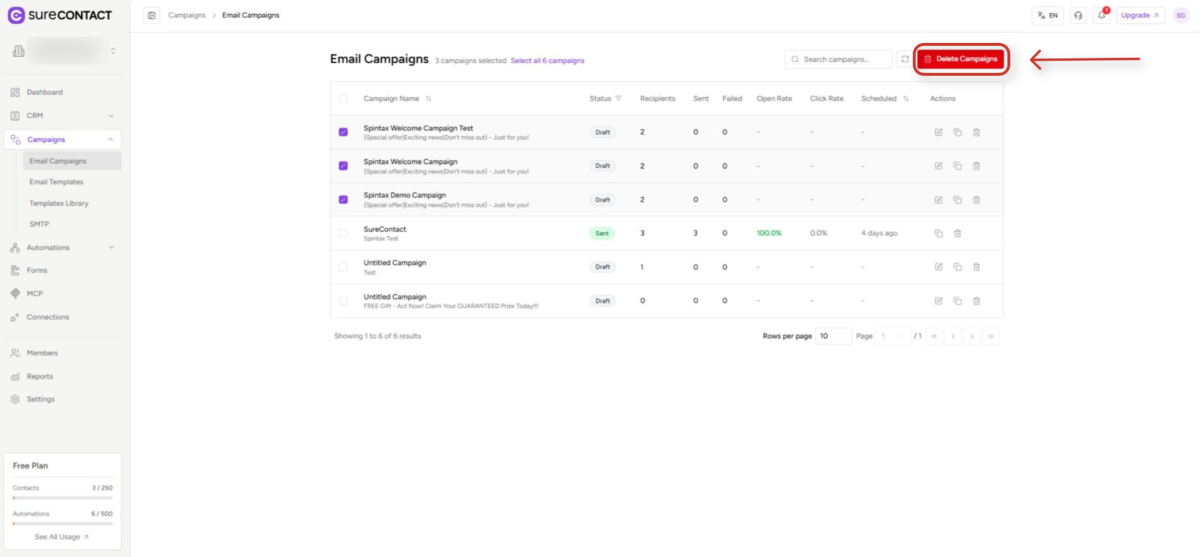
- Once campaigns are selected, a red Delete Campaigns button (with a trash icon) appears in the toolbar above the table.
- The button label shows how many campaigns are selected, for example: Delete Campaigns.
Step 3 — Confirm Deletion
- A confirmation dialog appears with a warning: “Are you sure you want to delete [N] campaigns? Only Draft, Cancelled, and Sent campaigns will be deleted. This action cannot be undone.”
- Click Delete to proceed.
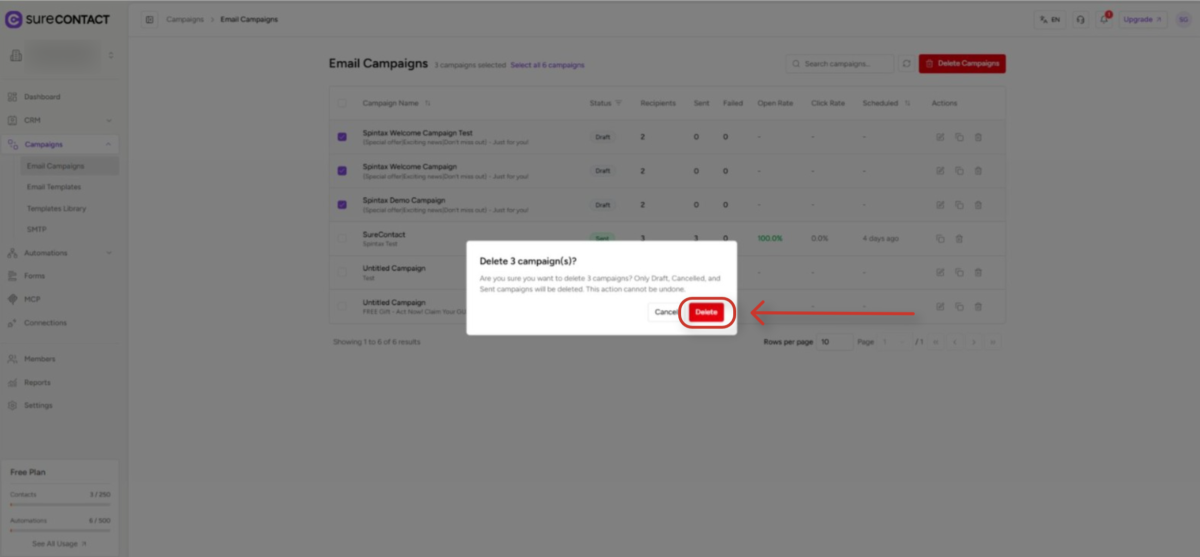
- After deletion, the list refreshes automatically and a message confirms how many campaigns were deleted (e.g., “5 campaign(s) deleted successfully”).
3. Filtering to Find Sent Campaigns
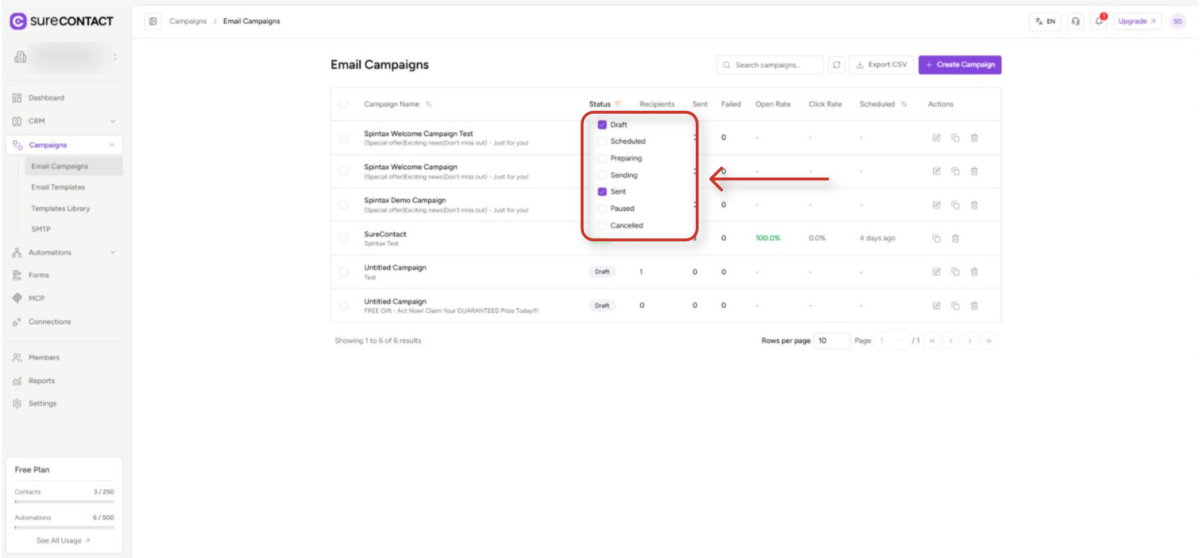
If your campaigns list contains many campaigns in different statuses, use the status filter to narrow down to sent campaigns only:
1. Open the Status filter
- In the campaigns list table header, click the Status column filter icon (the funnel icon next to the “Status” label).
2. Select “Sent”
- From the dropdown, check the Sent option.
- The list instantly updates to show only sent campaigns, making it easier to select and delete them.
3. Clear the filter
- To return to the full list, click the Status filter icon again and uncheck Sent.
4. What to Know Before Deleting
| Permanent action | Deleted campaigns cannot be recovered. |
| Deletable statuses | Sent, Draft, Cancelled |
| Non-deletable statuses | Sending, Scheduled, Paused |
| Reports and analytics | Deleting a sent campaign removes its data from your campaigns list. |
| Contacts not affected | Deleting a campaign does not remove contacts or affect their records. |
Need Help?
If you need any assistance, please email [email protected], and our support team will be happy to help you.
We don't respond to the article feedback, we use it to improve our support content.