
- Introduction to SureContact Dashboard
- How to Install and Connect the SureContact WordPress Plugin
- What Do Contact Fields Mean in the SureContact WordPress Plugin
- How to Invite Members to a Workspace in SureContact
- How to Switch Organizations in SureContact
- Workspace-Level Contact Allocation in SureContact
- Workspace-Level Timezone Settings in SureContact
- How to Add a Custom Tracking Domain in a Workspace in SureContact
- SureContact MCP Server
- Creating Forms in SureContact
- Setup SMTP in SureContact
- Email Campaigns in SureContact
- How to Add a Preferences URL in Your Emails
- How to Share Email Templates in SureContact
- Spintax Feature in SureContact
- Deleting Sent Campaigns in SureContact
- A/B Testing Integration Guide
- Unsubscription Guide
- SureContact SMTP Setup Guide
- SMTP Routing User Flow
- FluentCRM Integration with SureContact
- SureContact Third-Party Integration — Step-by-Step Guide
- Fluent Forms Integration with SureContact
- SureForms Integration with SureContact
- WPForms Integration with SureContact
- Bulk Sync WordPress Users to SureContact
- Contact Form 7 Integration with SureContact
- Sync WooCommerce Customers with SureContact
- FluentCart & FluentCommunity Integration With SureContact
Outgoing Webhook SureContact Guide
SureContact lets you push contact data from your workspace to any external tool or system in real time using outgoing webhooks inside the automation builder. When a contact is tagged, added to a list, or matches any other workflow trigger, the Send Webhook action delivers their details to your CRM, Slack, custom server, or any other endpoint without manual effort.
This guide explains the complete setup process and all available configuration settings for the Send Webhook action in SureContact Automations.
Prerequisites
Before adding a Send Webhook action to your automation, please ensure the following:
1. An Active SureContact Workspace
You must be signed in to a SureContact workspace with permission to create and edit Automations.
2. A Reachable Webhook Endpoint
You need a publicly reachable HTTPS URL that can accept the chosen HTTP method (POST, GET, PUT, PATCH, or DELETE). The endpoint must respond within the configured timeout window.
3. Authentication Credentials (Optional)
If your destination requires authentication, have your bearer token, API key, or other header values ready before you begin.
How to Enable the Outgoing Webhook
Follow the steps below to add and configure a Send Webhook action inside an automation workflow.
1. Open or Create a Workflow
- From the left sidebar, click Automations and then Workflows.
- Open an existing workflow or click New Workflow to start a fresh one.
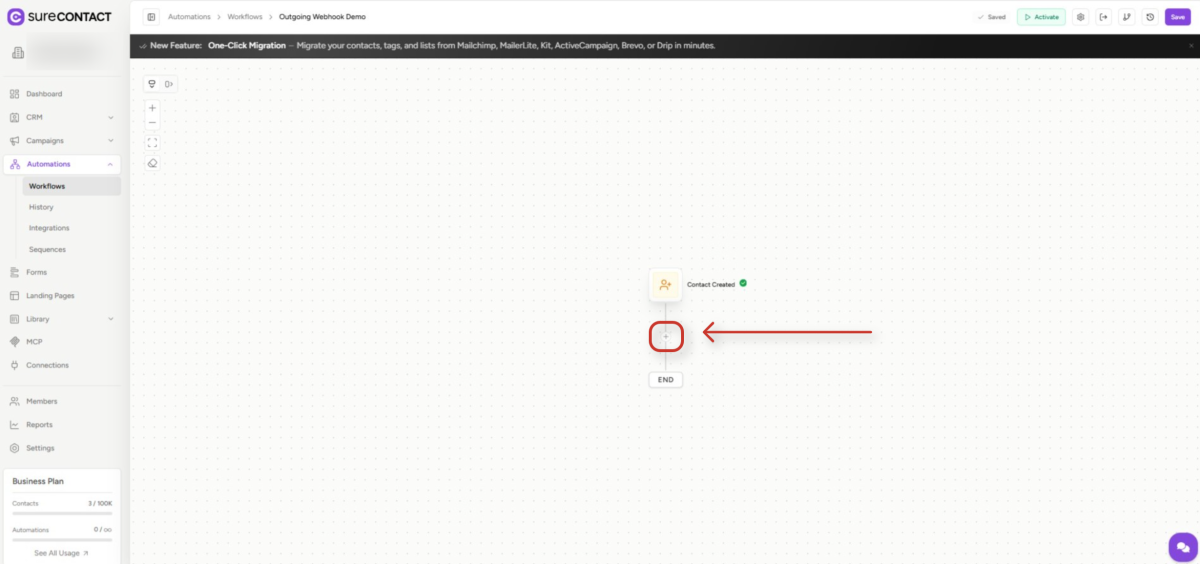
- On the workflow canvas, click the purple + button below the trigger node where you want to add the webhook step.
2. Choose the Integration Category
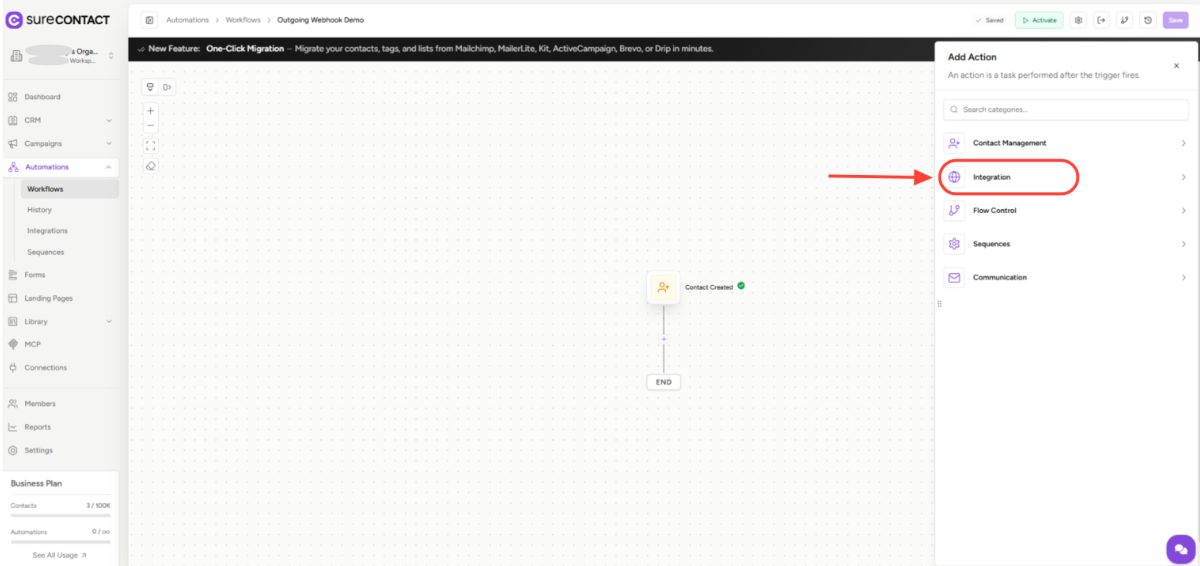
- In the Add Action panel that opens on the right, you will see grouped categories: Contact Management, Integration, Flow Control, Sequences, and Communication.
- Click Integration to view all integration-style actions.
3. Select Send Webhook
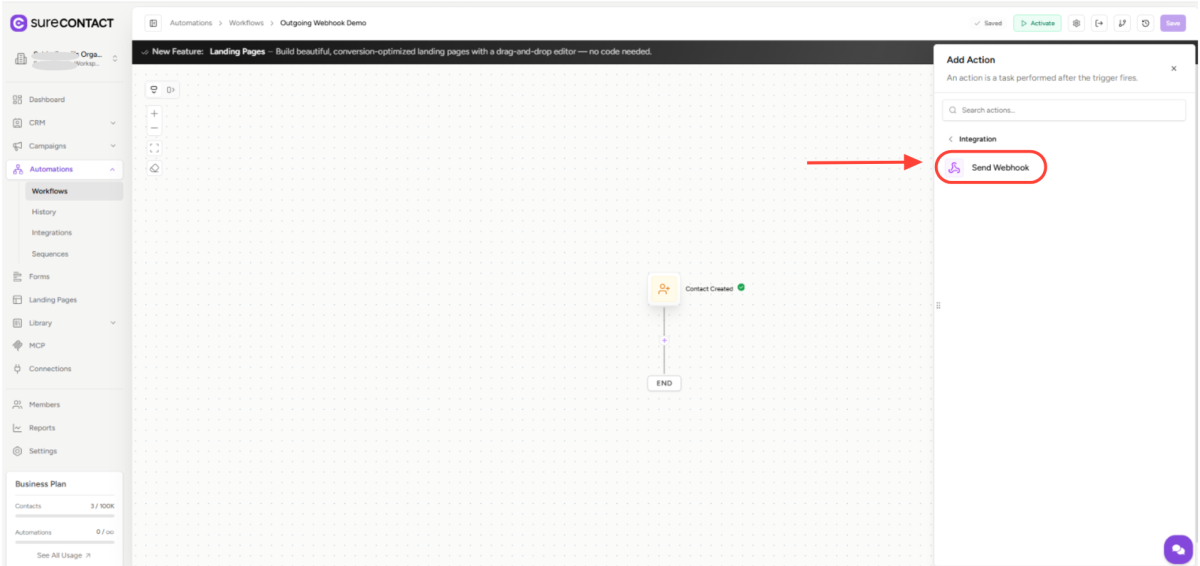
- Inside the Integration category, choose Send Webhook.
- The configuration panel for the action will open with all required fields.
4. Configure the Webhook Request
Fill in the request fields based on your destination service. Each field is described below.
4.1 Webhook URL (required)
- Enter the external URL where SureContact should send the data, for example https://your-crm.com/api/contacts.
- You may include contact variables in the URL, for example {{contact.email}}.
4.2 HTTP Method (required)
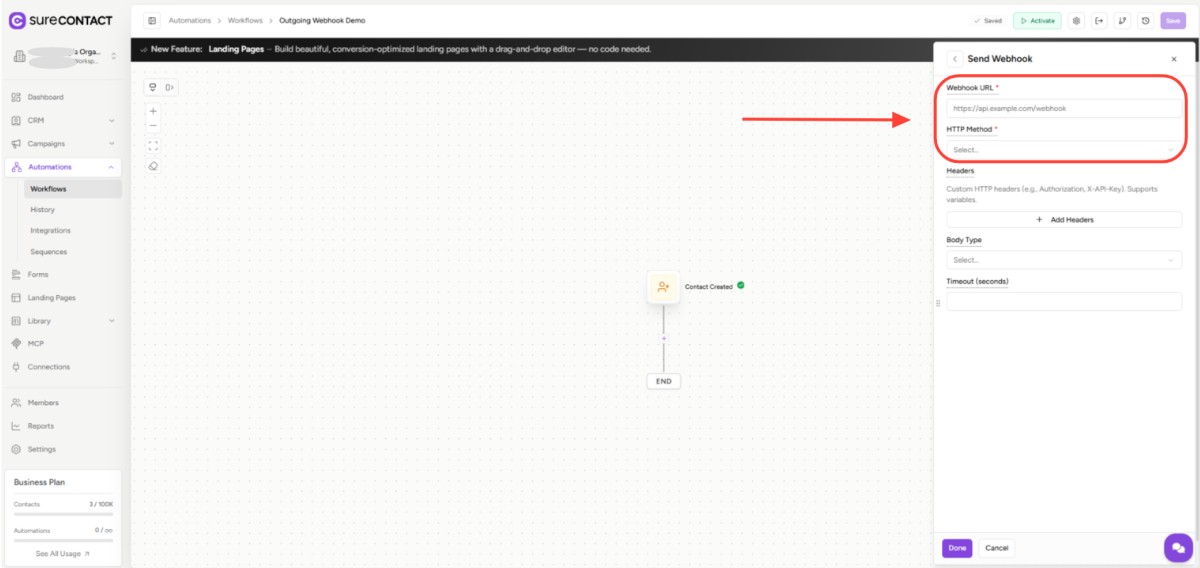
- Choose the verb that matches your destination API.
- POST is the most common and sends data in the request body.
- GET, PUT, PATCH, and DELETE are also supported for APIs that require them.
4.3 Headers (optional)
- Click Add Headers to define one or more custom HTTP headers.
- Headers are typically used for authentication, for example Authorization: Bearer your-token or X-API-Key: your-api-key.
- Header values support contact and workspace variables for dynamic values.
4.4 Body Type
- Key-Value (default): simple field-value pairs serialised as JSON.
- Form URL-Encoded: for tools that require form-style data.
- Raw JSON: paste a custom JSON structure for full control over the payload.
- When Key-Value is selected, click Add Body Parameters to define each field.
4.5 Timeout (seconds)
- Defines how long SureContact waits for a response before treating the call as failed.
- Default is 30 seconds. Allowed range is 5 to 120 seconds.
5. Review the Filled Configuration
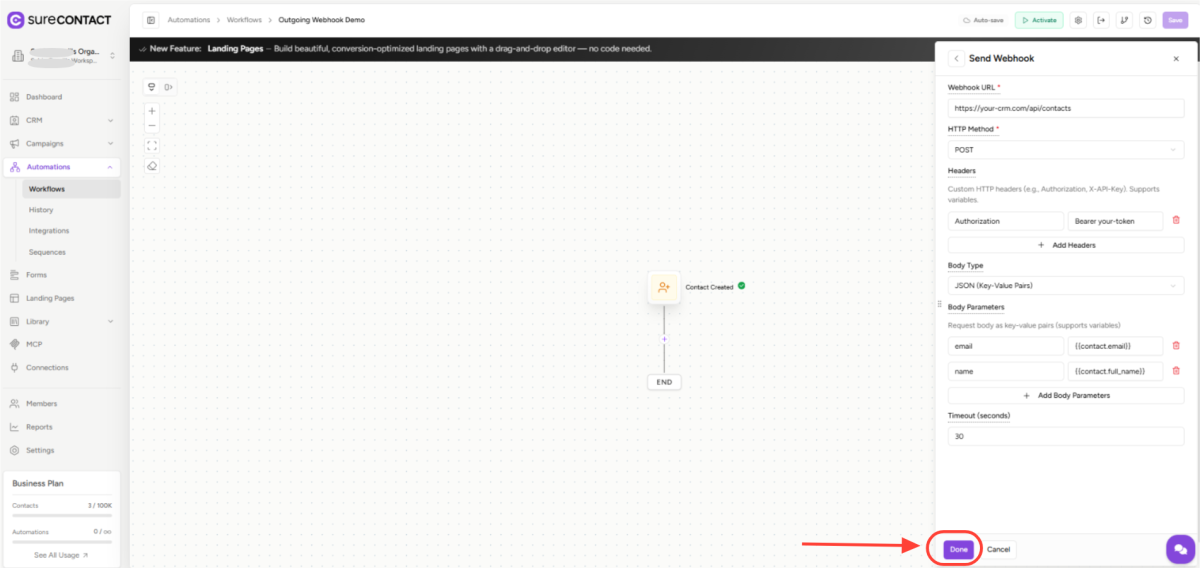
- Once all required fields are completed, the panel will look similar to the screenshot below.
- Verify the URL, HTTP method, headers, body type, body parameters, and timeout values.
- Click Done to save the action and return to the canvas.
6. Save and Activate the Workflow
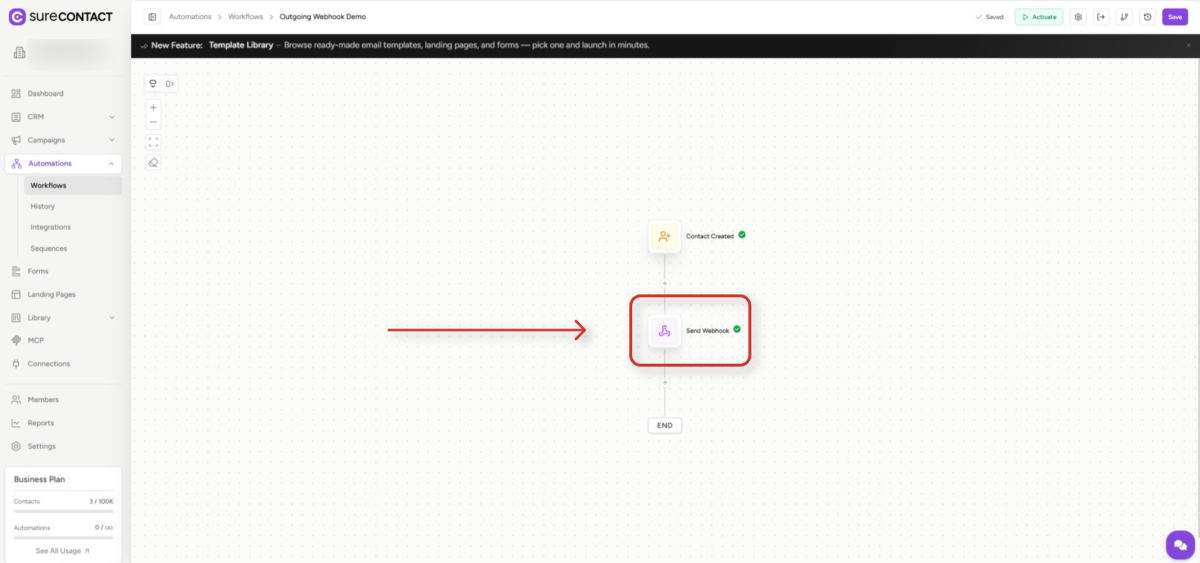
- After clicking Done, the Send Webhook node appears between the trigger and the END marker on the canvas.
- Click Save in the top-right of the workflow builder.
- Toggle Activate to start sending webhooks for matching contacts.
Variables You Can Use
SureContact resolves variables before the webhook is sent, so you can pass contact details directly from the workflow context.
| Variable | What it inserts |
|---|---|
| {{contact.first_name}} | Contact’s first name |
| {{contact.last_name}} | Contact’s last name |
| {{contact.email}} | Contact’s email address |
| {{contact.phone}} | Contact’s phone number |
| {{contact.company}} | Contact’s company |
| {{contact.custom.field_name}} | Value of a custom field |
| {{workspace.name}} | Current workspace name |
You can also provide a fallback when a value may be missing, for example {{contact.phone || “N/A”}}.
Using the Response in Later Steps
After the webhook runs, the response is exposed through the action result so you can branch on success or failure in subsequent steps.
| Variable | What it contains |
|---|---|
| {{action_id.result.status}} | success or failed |
| {{action_id.result.http_status_code}} | HTTP response status code |
| {{action_id.result.response_body}} | Response body returned by the endpoint |
Example Use Case
Goal: When a contact is tagged as VIP, send their details to an external CRM.
1. Trigger
- Tag Added → “VIP”.
2. Action
- Send Webhook configured as follows:
- URL: https://your-crm.com/api/contacts
- Method: POST
- Header: Authorization: Bearer your-token
- Body parameters: email → {{contact.email}}, name → {{contact.full_name}}, company → {{contact.company}}
Send Webhook vs. Standalone Webhooks
SureContact offers two distinct webhook capabilities. Use this comparison to pick the right one for your scenario.
| Aspect | Send Webhook (Automation) | Standalone Webhooks |
|---|---|---|
| Triggered by | Automation flow | Workspace events |
| Variables | Full contact data | Not supported |
| Configured | Per action | Global settings |
| Retries | No automatic retry | Up to 4 retries |
| Signature | Not included | HMAC-SHA256 signed |
| Best for | Workflow integrations | Event notifications |
Need Help?
If you need any assistance, please email [email protected], and our support team will be happy to help you.
We don't respond to the article feedback, we use it to improve our support content.