
- Introduction to SureContact Dashboard
- How to Install and Connect the SureContact WordPress Plugin
- What Do Contact Fields Mean in the SureContact WordPress Plugin
- How to Invite Members to a Workspace in SureContact
- How to Switch Organizations in SureContact
- Workspace-Level Contact Allocation in SureContact
- Workspace-Level Timezone Settings in SureContact
- How to Add a Custom Tracking Domain in a Workspace in SureContact
- SureContact MCP Server
- Creating Forms in SureContact
- Setup SMTP in SureContact
- Email Campaigns in SureContact
- How to Add a Preferences URL in Your Emails
- How to Share Email Templates in SureContact
- Spintax Feature in SureContact
- Deleting Sent Campaigns in SureContact
- A/B Testing Integration Guide
- Unsubscription Guide
- SureContact SMTP Setup Guide
- SMTP Routing User Flow
- FluentCRM Integration with SureContact
- SureContact Third-Party Integration — Step-by-Step Guide
- Fluent Forms Integration with SureContact
- SureForms Integration with SureContact
- WPForms Integration with SureContact
- Bulk Sync WordPress Users to SureContact
- Contact Form 7 Integration with SureContact
- Sync WooCommerce Customers with SureContact
- FluentCart & FluentCommunity Integration With SureContact
Add Notes to Contacts Guide
Notes let you and your team record important information about a contact, call summaries, follow-up reminders, context from past conversations, and more. Notes stay attached to the contact’s profile and are visible to every member of your workspace, so the whole team has shared context.
This guide walks through everything you can do with notes in SureContact: where to find them, how to add, edit, and delete them, who can do what, and the limits to keep in mind.
Where to Find Notes
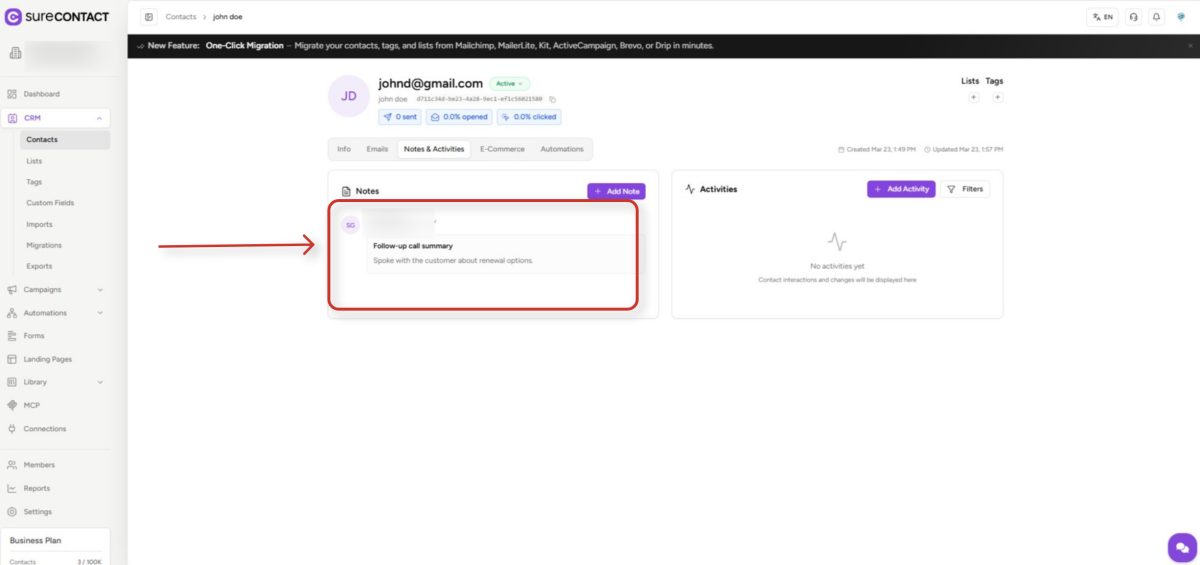
Notes live on the contact profile, alongside the activity timeline.
1. Open the Contacts list
- In the left sidebar, expand CRM and click Contacts.
- You’ll see every contact in your workspace, with their email, lists, tags, status, and last-updated time.
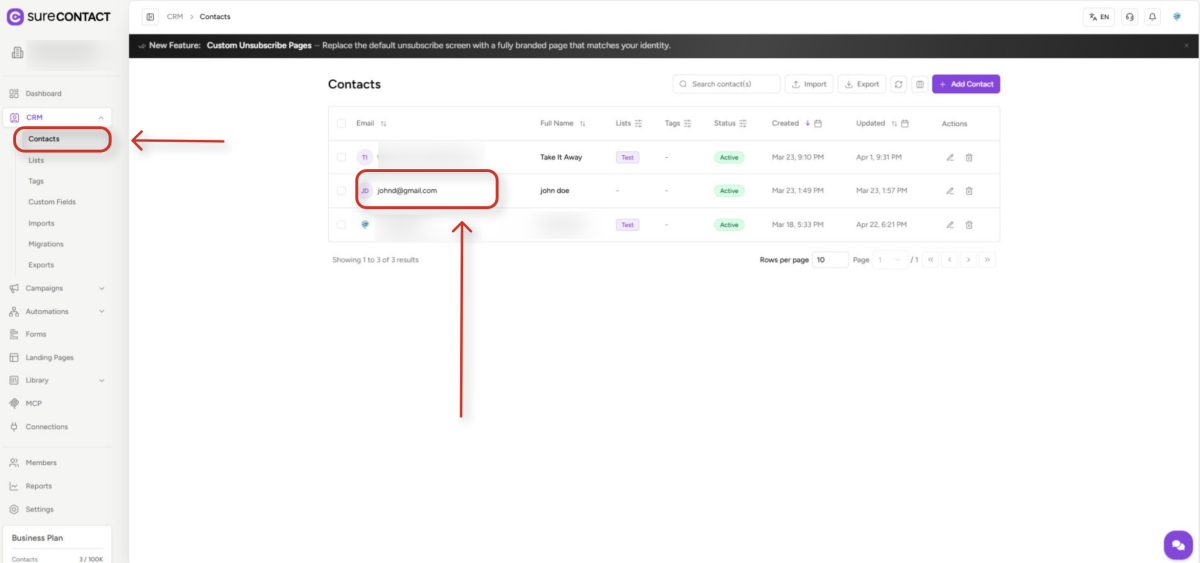
2. Open a contact’s profile
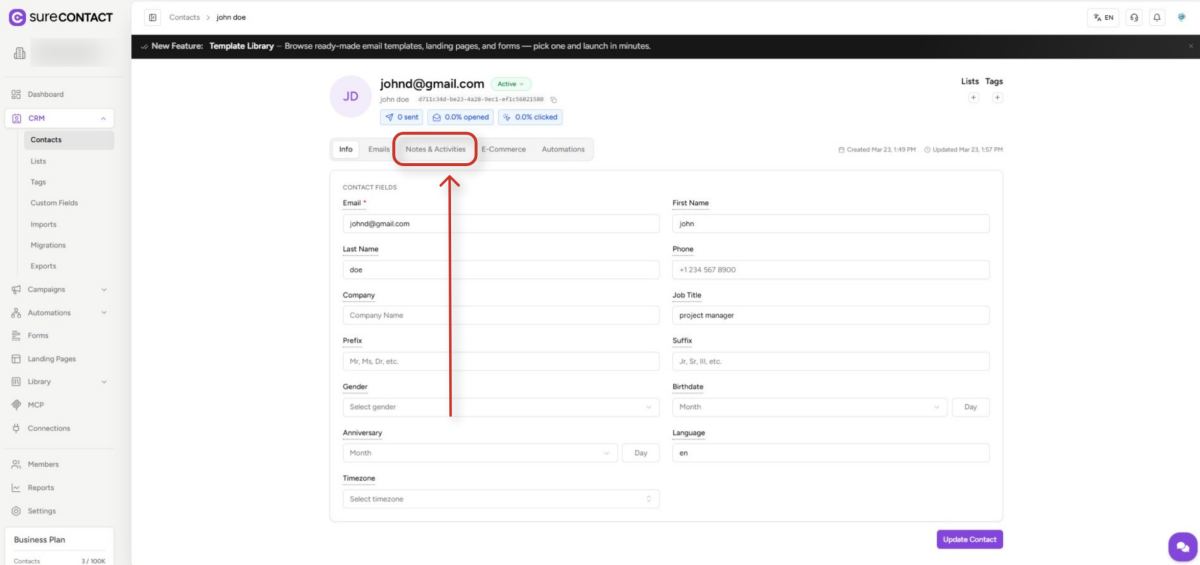
- Click any row to open that contact’s profile page.
- Use the Notes & Activities tab to view the Notes panel, it sits to the left of the activity timeline.
Adding a Note
Notes can be created from the contact’s profile in just a few clicks.
1. Click Add Note
- On the Notes & Activities tab, click the Add Note button at the top right of the Notes panel.
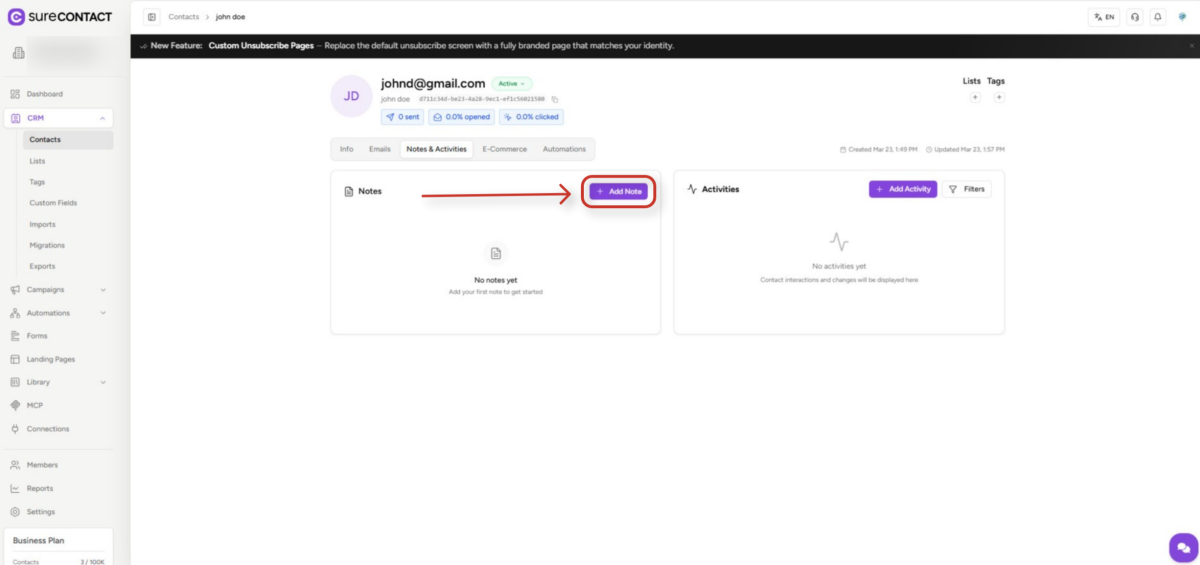
- An inline form appears at the top of the panel with a title field and a content area.
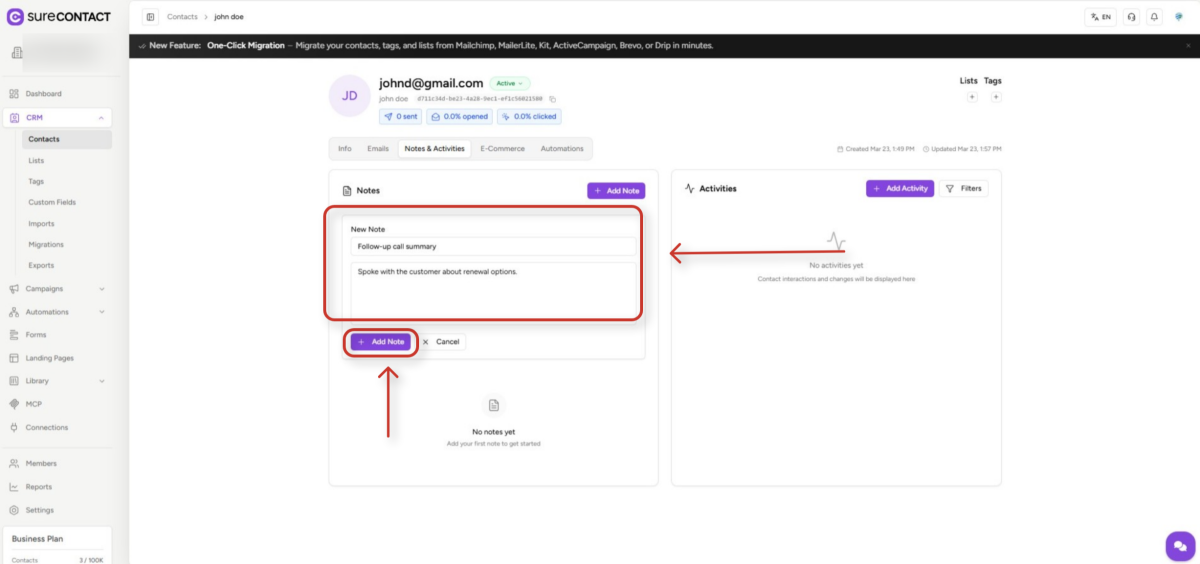
2. Enter a title and note content
- Title is optional – use it as a short label (max 255 characters).
- Note content is required – up to 10,000 characters of free text.
- Once you’ve typed at least one character in the content area, the Add Note button becomes active.
Note: The Add Note button stays disabled until at least one character is typed in the content field. The title alone is not enough to enable saving.
3. Save the note
- Click Add Note to save.
- A confirmation toast – “Note added successfully” – appears in the top-right corner.
- Your new note shows up at the top of the Notes panel with your name, avatar initials, and a relative timestamp such as “just now.”
Editing a Note
You can update a note’s title or content at any time. The system tracks who last edited a note and when.
1. Hover over the note
- When you hover over a note card, edit (pencil) and delete (trash) icons appear at the top-right corner of the card.
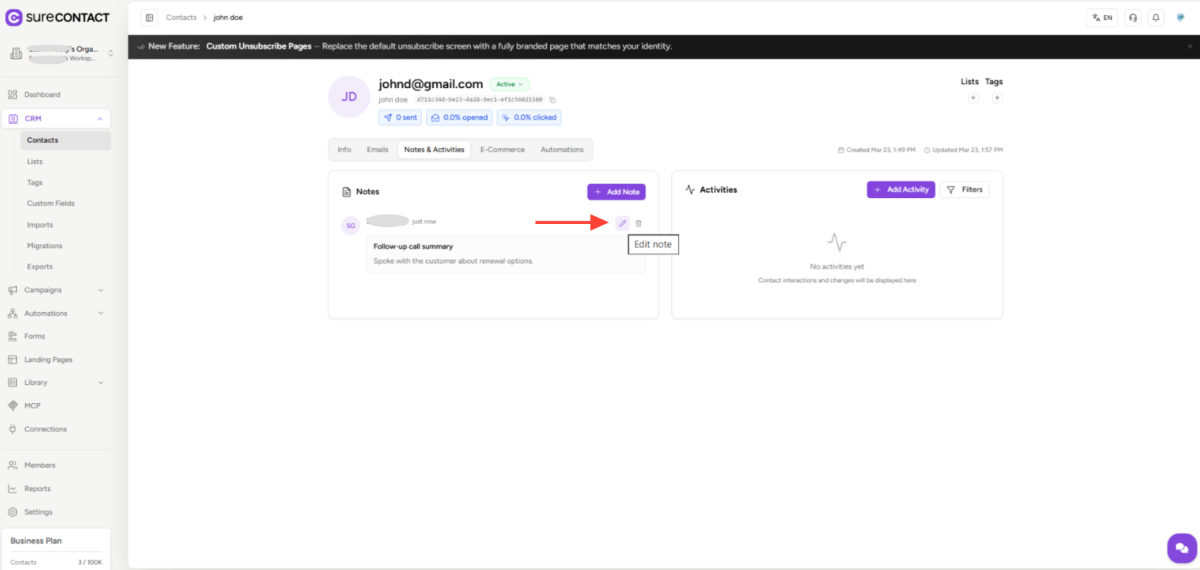
2. Click the pencil icon to enter edit mode
- The title and content fields become editable inline.
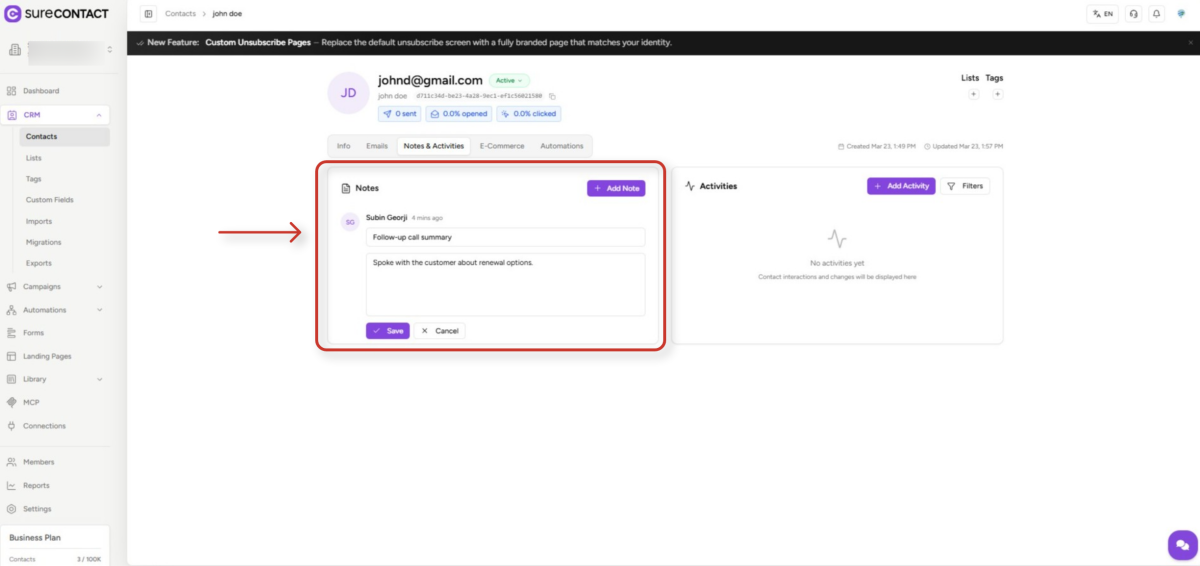
- Update the title or content as needed, then click Save to apply your changes – or Cancel to discard them.
Note: After editing, the note will display “(edited)” along with “Last edited by [Name]” and the edit timestamp, so the team always knows what changed and who changed it.
Deleting a Note
Deleting a note removes it from the contact’s profile, but it stays recoverable for 60 days.
1. Hover over the note and click the trash icon
- Just like editing, hover the note to reveal the action icons, then click the trash (delete) icon.
2. Confirm in the deletion dialog
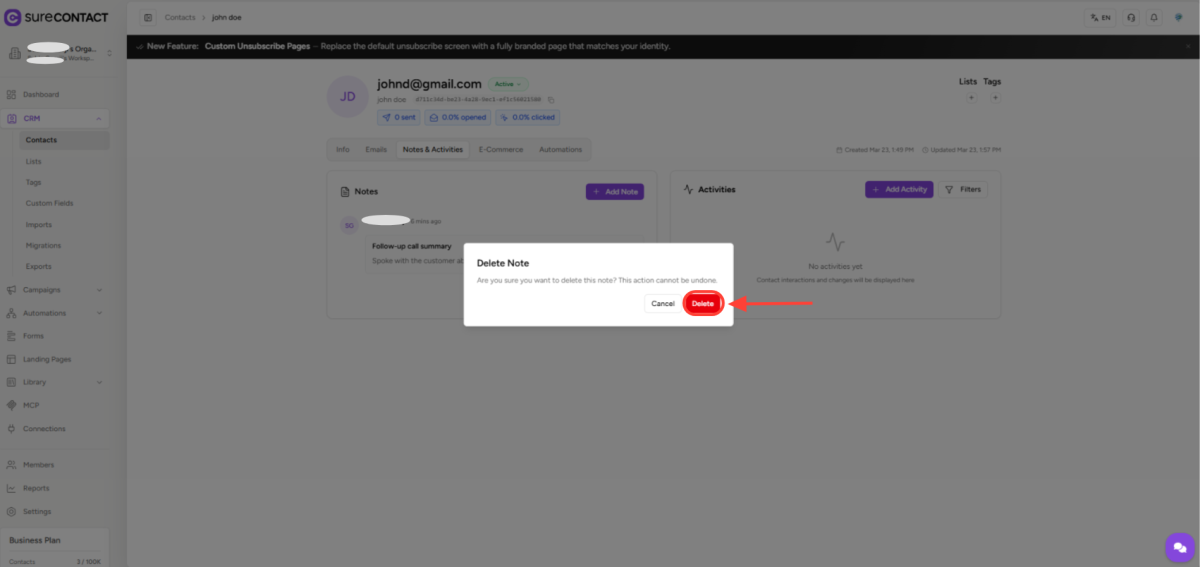
- A confirmation dialog appears: “Are you sure you want to delete this note? This action cannot be undone.”
- Click Delete to remove the note, or Cancel to keep it.
Note: Deletion is a soft delete – the note is hidden but retained for 60 days before being permanently removed. Only Organization Admins or Owners can permanently delete a note immediately.
Viewing Notes
- Notes are listed newest first.
- Long notes (over 300 characters) are automatically collapsed – click Read more to expand them, or Show less to collapse again.
- Each note shows the creator’s name, their avatar initials, and a relative timestamp (e.g., “2 hours ago”).
- If a contact has more than 15 notes, click Load More at the bottom of the Notes panel to fetch older notes.
Permissions
Who can do what with notes depends on the workspace role assigned to each member.
| Role | View | Add | Edit Own | Edit Others | Delete Own | Delete Others |
| Viewer | Yes | No | — | No | — | No |
| Editor | Yes | Yes | Yes | No | Yes | No |
| Manager | Yes | Yes | Yes | Yes | Yes | Yes |
| Org Admin / Owner | Yes | Yes | Yes | Yes | Yes | Yes |
Things to Keep in Mind
- Character limit: Note content supports up to 10,000 characters; titles up to 255 characters.
- Title is optional: You can save a note with just content and no title.
- Workspace-scoped: Notes are only visible to members of the same workspace.
- Author tracking: Every note records who created it and who last edited it.
- Auto-purge: Soft-deleted notes are permanently removed after 60 days.
Need Help?
If you need any assistance, please email [email protected], and our support team will be happy to help you.
We don't respond to the article feedback, we use it to improve our support content.