
- Introduction to SureContact Dashboard
- How to Install and Connect the SureContact WordPress Plugin
- What Do Contact Fields Mean in the SureContact WordPress Plugin
- How to Invite Members to a Workspace in SureContact
- How to Switch Organizations in SureContact
- Workspace-Level Contact Allocation in SureContact
- Workspace-Level Timezone Settings in SureContact
- How to Add a Custom Tracking Domain in a Workspace in SureContact
- SureContact MCP Server
- Creating Forms in SureContact
- Setup SMTP in SureContact
- Email Campaigns in SureContact
- How to Add a Preferences URL in Your Emails
- How to Share Email Templates in SureContact
- Spintax Feature in SureContact
- Deleting Sent Campaigns in SureContact
- A/B Testing Integration Guide
- Unsubscription Guide
- SureContact SMTP Setup Guide
- SMTP Routing User Flow
- Gradual Send Feature Guide
- Reusable Email Templates Guide
- Conditional Blocks Guide
- Scheduling vs. Sending Immediately Emails in SureContact
- Campaign Analytics Guide
- Email Tracking Opens Clicks SureContact
- SureContact Email Template Library Guide
- Sending Domains Subdomain vs Root Domain Guide
- DMARC Setup Guide
- Warming Up a New Sending Domain
- Email Link Actions in SureContact
- How to Add an Unsubscribe Link in Your Emails
- Analyzing a Campaign with AI (Spam & Ethics Check)
- FluentCRM Integration with SureContact
- SureContact Third-Party Integration — Step-by-Step Guide
- Fluent Forms Integration with SureContact
- SureForms Integration with SureContact
- WPForms Integration with SureContact
- Bulk Sync WordPress Users to SureContact
- Contact Form 7 Integration with SureContact
- Sync WooCommerce Customers with SureContact
- FluentCart & FluentCommunity Integration With SureContact
Unsubscription Guide
SureContact lets your contacts opt out of your emails through a branded, on-brand unsubscribe page that you design yourself, instead of the default SureContact page. This keeps the unsubscribe experience consistent with the rest of your marketing and gives you control over what you ask (and what you say) as a contact leaves.
This guide walks through the complete unsubscribe flow end-to-end: building the form, building the landing page, wiring it up in Settings, inserting the unsubscribe merge tag into your emails, and reviewing the results afterward.
1. Accessing the Unsubscribe Features
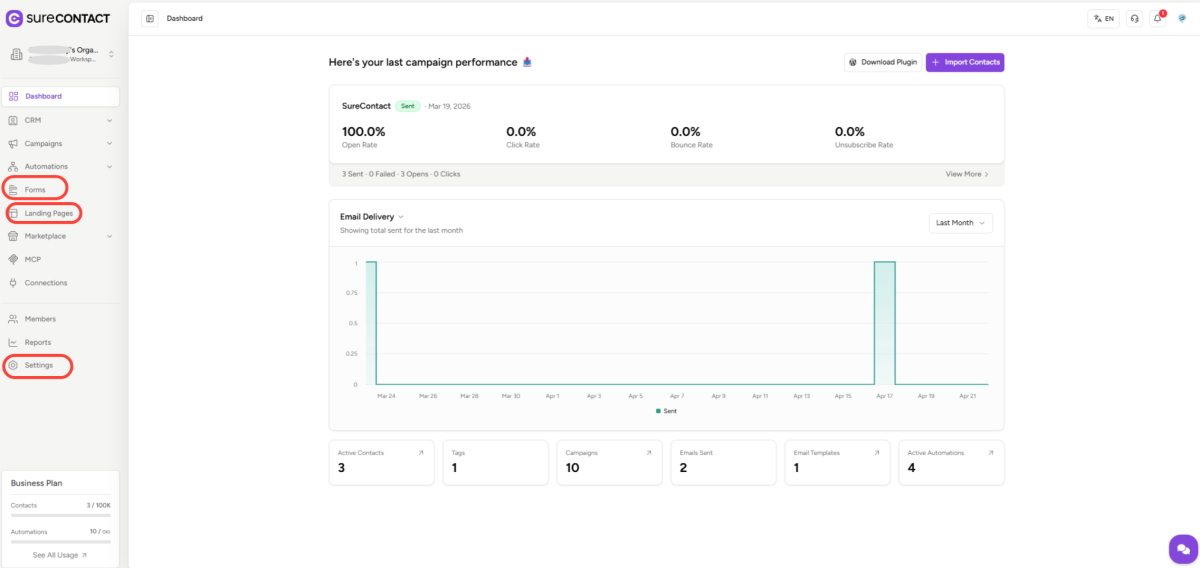
The unsubscribe flow in SureContact is spread across three areas, each reachable from the main sidebar:
- Forms – where you build the unsubscribe form, contacts will fill in.
- Landing Pages – where you build the page that hosts the form.
- Settings > Unsubscribe – where you tell SureContact which page to send contacts to when they click the unsubscribe link in your emails.
Note: You can skip all of this and SureContact will use its built-in unsubscribe page by default. Follow the steps below only if you want a custom, branded experience.
2. Creating an Unsubscribe Form
An unsubscribe form is what the contact actually fills in, an email field, optionally a reason, and a submit button.
1. Open Forms from the sidebar.
2. Click Create Form in the top right.
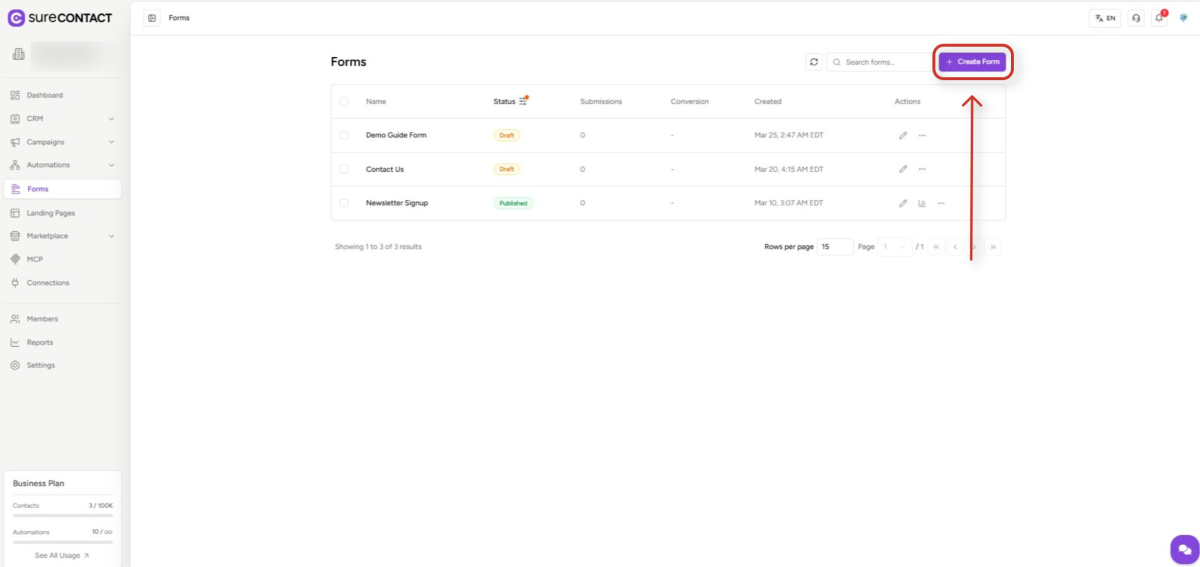
3. Give the form a name (e.g. “Unsubscribe Form”) and click Create.
SureContact creates the form with a default email field and opens the form builder.
Switching the form to Unsubscription type
New forms are created as Subscription forms by default. To turn yours into an unsubscribe form:
1. In the form builder, open the Settings tab.
2. Under Form Type, choose Unsubscription.
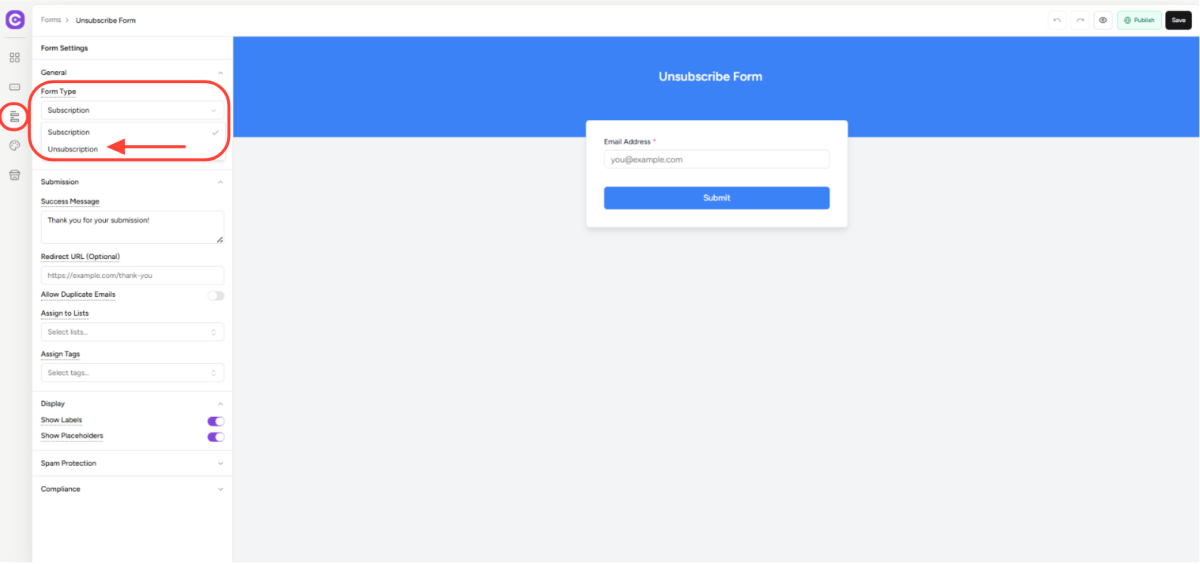
As soon as you pick Unsubscription, a new Unsubscribe Behavior section appears further down the page.
Note: Changing form type after the form has been live is safe, but it changes what happens when contacts submit it. Review your settings afterward.
3. Configuring Unsubscribe Behavior
The Unsubscribe Behavior section controls exactly what SureContact does when a contact submits the form.
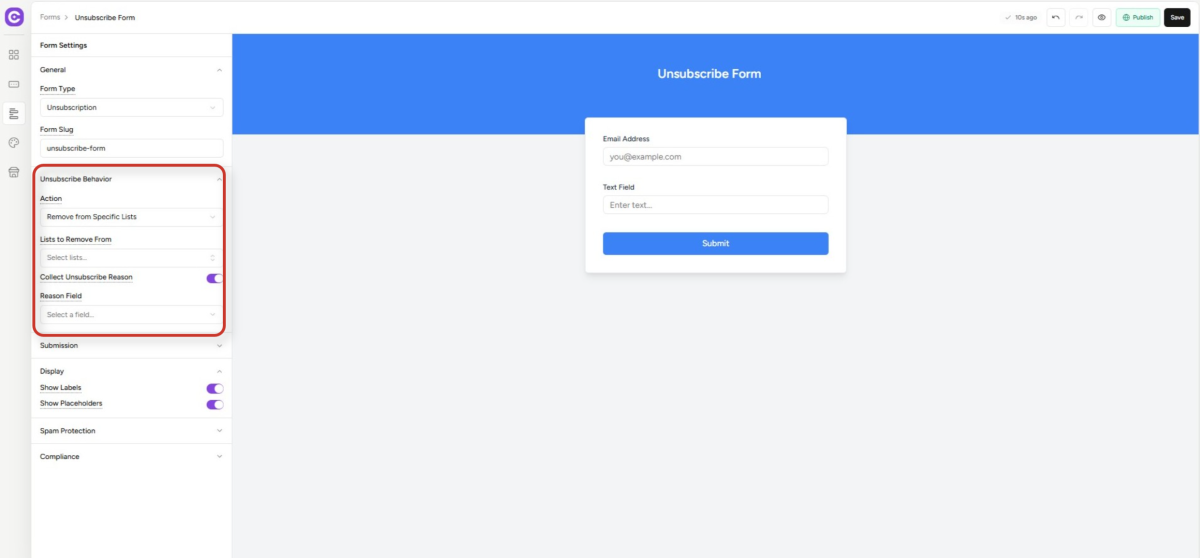
Action
Pick one of the two actions below:
| Action | What it does |
| Global Unsubscribe | Marks the contact as opted out of all marketing email. They won’t receive any further campaigns. |
| Remove from Specific Lists | Removes the contact from the specific lists you choose. They can still receive email from your other lists. |
Lists (only for “Remove from Specific Lists”)
When you choose Remove from Specific Lists, a Lists picker appears. Select one or more lists the contact should be removed from on submit.
Collect Unsubscribe Reason
Turn on Collect Unsubscribe Reason if you want to know why contacts are unsubscribing.
1. Add a Textarea or Text field to the form (on the Fields tab) labelled something like “Tell us why you’re leaving”.
2. Back on the Settings tab, enable Collect Unsubscribe Reason.
3. Under Reason Field, select the field you just added.
SureContact saves the reason alongside the unsubscribe event so you can review patterns later.
Save and publish
Click Save, then click Publish to make the form live. A draft form will not render on your page.
4. Building the Unsubscribe Page
The unsubscribe page is a standard Landing Page – there’s no separate “unsubscribe page” type. You simply embed your unsubscribe form on any published page.
1. Open Landing Pages from the sidebar.
2. Click Create Page in the top right.
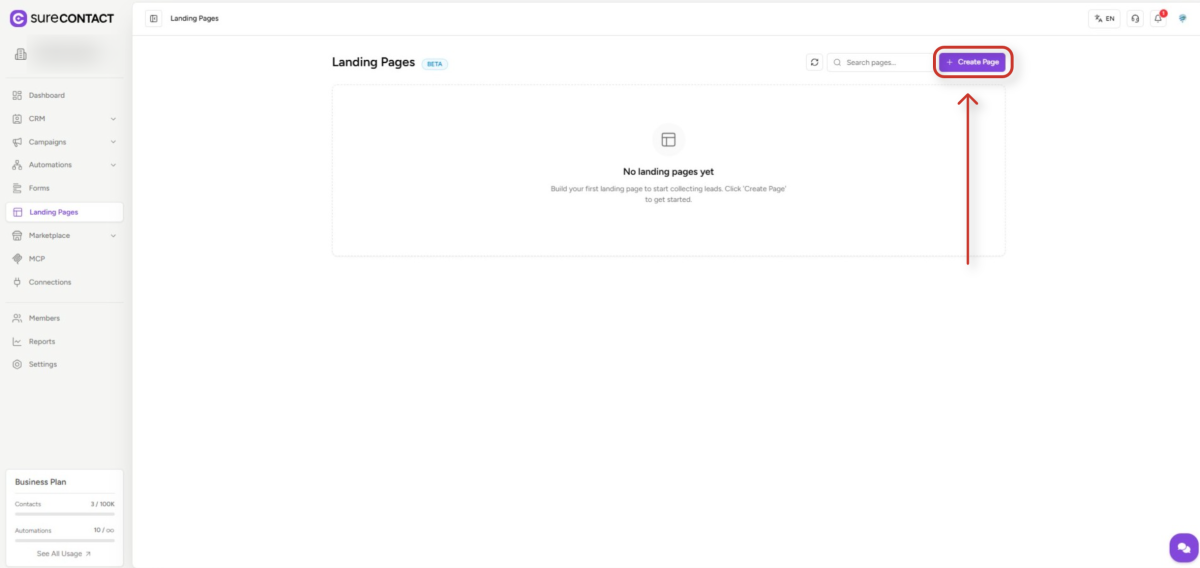
3. Give the page a name (e.g. “Unsubscribe”) and click Create.
SureContact opens the page builder.
Adding the form
1. From the left Elements panel, drag the Form block (under Interactive) onto the page.
2. In the right-hand settings panel, open the Form dropdown and pick the unsubscribe form you just published.
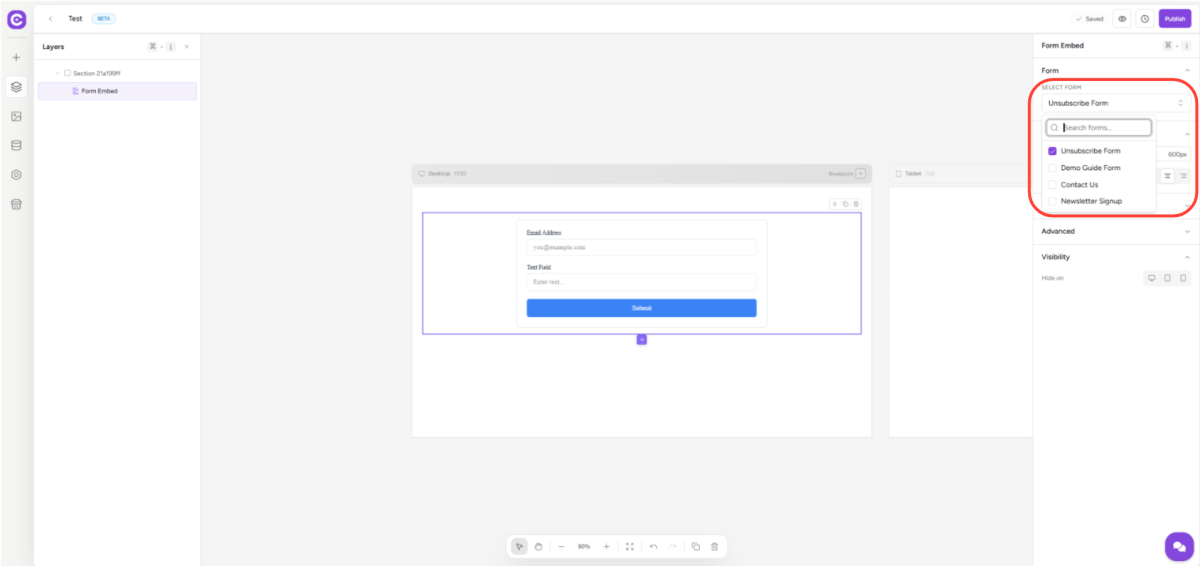
3. Add any supporting content around the form – a heading like “Sorry to see you go”, your logo, a short message, a link back to your site.
Publish the page
1. Click Publish in the top right.
2. Copy the Public URL that SureContact shows you – you’ll need it in the next step.
Note: Only published pages appear in the unsubscribe settings dropdown. If your page is still a draft, you won’t be able to select it in Step 5.
5. Setting Your Custom Unsubscribe Page
This is the step that actually wires everything together. Until you do this, your emails still point at the default SureContact unsubscribe page.
1. Open Settings from the sidebar.
2. Select Unsubscribe from the settings menu on the left.
3. Under Custom Unsubscribe Page, open the dropdown.
4. Choose the landing page you built in Step 4.
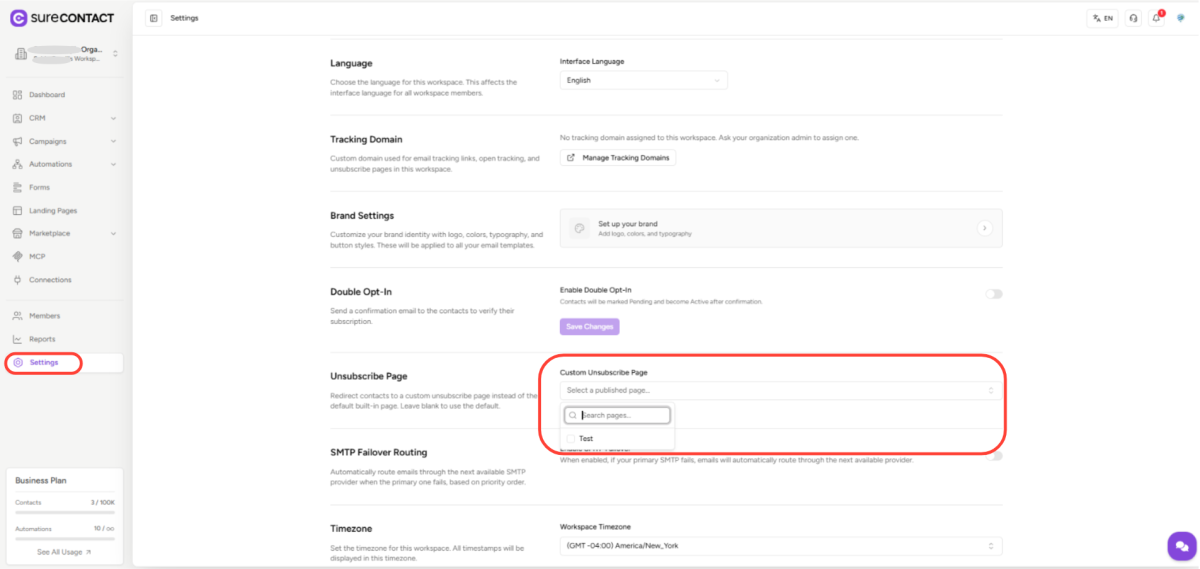
5. Click Save Changes.
From this point on, every unsubscribe link in every email will send contacts to your custom page.
Note: You can clear this at any time to revert to the default SureContact unsubscribe page – no emails need to be resent.
6. Adding the Unsubscribe Link to Emails
Your email templates need a link for the contact to click. SureContact uses a merge tag – a placeholder that’s replaced with the real unsubscribe link when the email is sent.
The merge tag is:
{{unsubscribe_url}}
In the email editor
1. Open any email template.
2. Select the text you want to turn into an unsubscribe link (usually “Unsubscribe” in the footer).
3. Click the Link button in the formatting toolbar.
4. Choose Unsubscribe Link from the preset options.
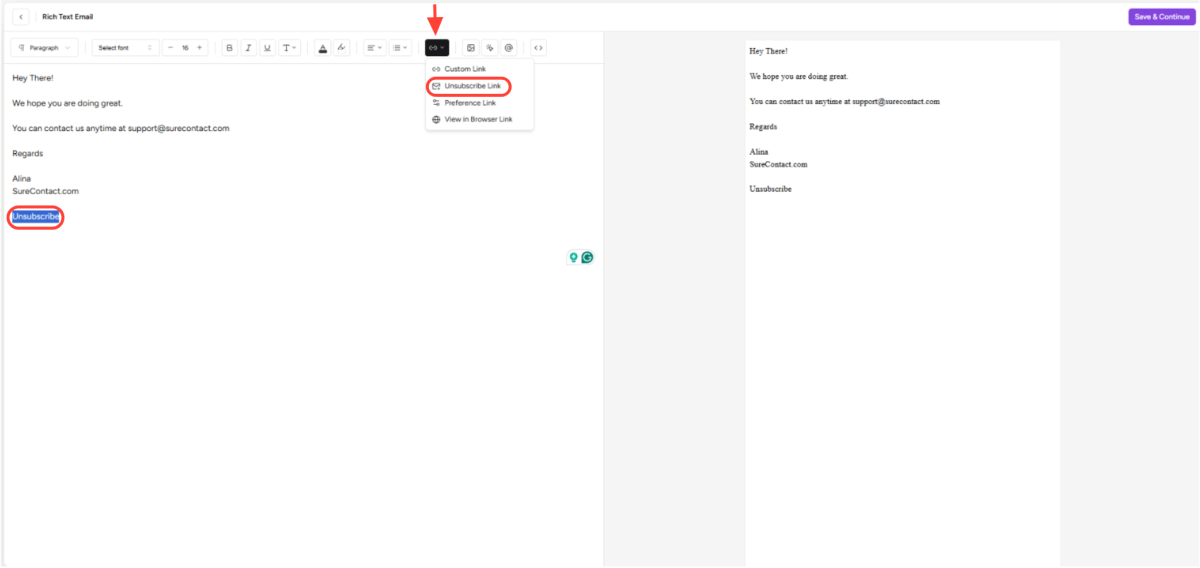
SureContact inserts {{unsubscribe_url}} into the link. You’ll see it literally in the editor – that’s expected. It gets replaced with the real URL at send time.
Warning: Test sends (e.g. “Send to yourself”) do not replace the unsubscribe tag. You’ll see the literal {{unsubscribe_url}} in a test email. Only real sends to contacts resolve the link. Send a real campaign to yourself as a contact to verify.
Required by law
Every marketing email must include an unsubscribe link to comply with CAN-SPAM, GDPR, and similar regulations. Don’t remove the link from your templates.
7. What Contacts See When They Unsubscribe
Here’s the flow from the contact’s point of view:
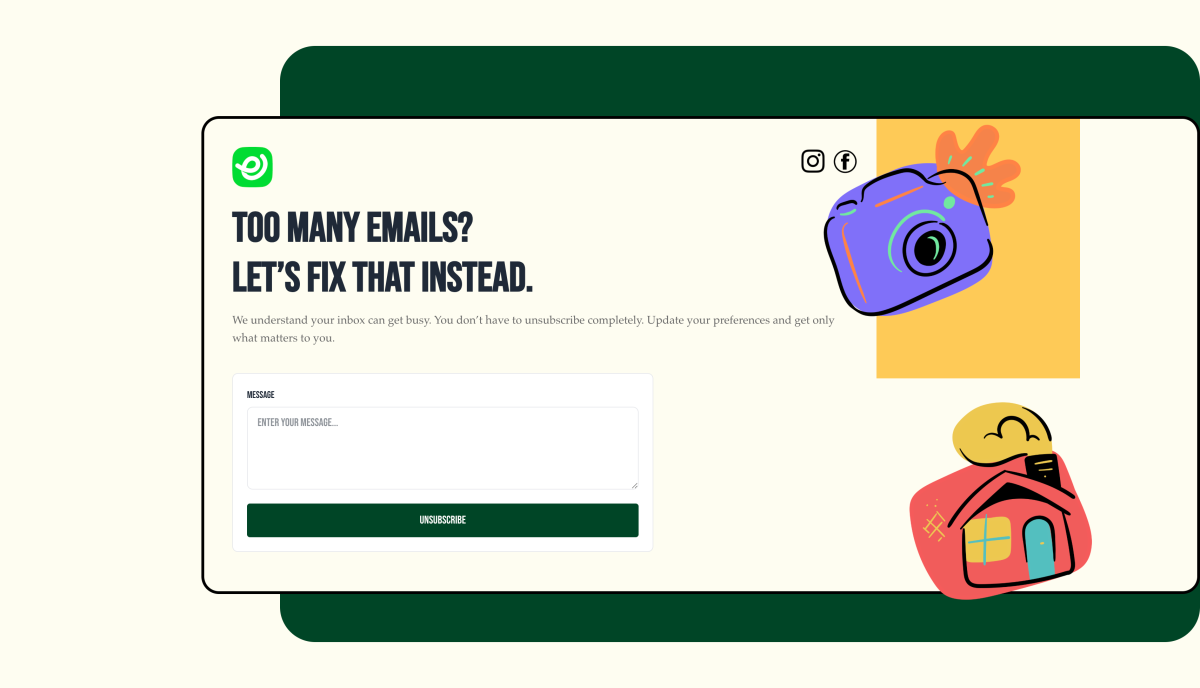
- 1. They receive your email.
- 2. They click Unsubscribe in the footer.
- 3. Their browser opens your custom unsubscribe page.
- 4. Your unsubscribe form appears, pre-filled with their email address.
- 5. They click Unsubscribe (and optionally enter a reason).
- 6. SureContact shows your success message and records the unsubscribe.
Pre-filling the email
You don’t need to add logic to prefill the email – SureContact does it automatically using a secure token in the unsubscribe link. The contact cannot change the email and unsubscribe someone else.
Success message and redirect
On the form’s Settings tab you can customise:
- Success Message – the text shown after submit (e.g. “You’ve been unsubscribed. Sorry to see you go!”).
- Redirect URL – optional; send the contact to another page instead of showing the message.
Note: If an unsubscribe link is opened without a valid token (for example, the link was shared or the URL was typed manually), SureContact shows an error and does not render the form. This is intentional – only the original recipient can unsubscribe themselves.
8. Viewing Unsubscribe Reasons and Results
If you enabled Collect Unsubscribe Reason on your form, you can review the responses in two places.
On the form
1. Open Forms from the sidebar.
2. Click your unsubscribe form.
3. Open the Submissions tab.
Each submission shows the contact, the submission date, and any field values they entered – including the reason.
On the contact
Open any individual contact to see their Activity timeline. Unsubscribe events are logged there with a link back to the form submission.
9. Unsubscribe Action Types
A quick reference for the two main actions available on unsubscribe forms.
| Action | What happens | Use when |
| Global Unsubscribe | Contact is marked “do not email” across your entire workspace. No further marketing emails are sent, regardless of list. | You want a single, clear opt-out – most businesses should pick this. |
| Remove from Specific Lists | Contact is removed only from the lists you select on the form. They continue to receive email from other lists. | You run distinct newsletters (e.g. Product Updates vs. Weekly Digest) and want contacts to opt out of one without losing the others. |
Note: You can create multiple unsubscribe forms, each with different behaviour – for example, one for “Unsubscribe from everything” and another for “Remove from this specific newsletter”. Link to the right form from the right email.
10. Troubleshooting
The unsubscribe link shows a 404 or “form not found”
The unsubscribe form or landing page is likely in Draft. Open each and click Publish.
The unsubscribe page shows “This unsubscribe link is missing a required token”
Someone reached the page without the original unsubscribe link – usually because they typed or copied the URL by hand. This is expected. Only links sent by SureContact in real emails contain the token.
My test email still shows {{unsubscribe_url}}
Test/preview sends don’t resolve merge tags. Send a real campaign (to a list containing only yourself) to see the resolved link.
I changed my landing page’s URL slug and the unsubscribe link is broken
SureContact stores the full page URL in Settings > Unsubscribe. If you rename the page slug after publishing, open the setting, re-select the page from the dropdown, and click Save Changes so it picks up the new URL.
I need to switch back to the default SureContact unsubscribe page
Open Settings > Unsubscribe, clear the Custom Unsubscribe Page selection, and click Save Changes. SureContact will route all future unsubscribe clicks to the built-in page.
Need Help?
If you need any assistance, please email [email protected], and our support team will be happy to help you.
We don't respond to the article feedback, we use it to improve our support content.