
- Introduction to SureContact Dashboard
- How to Install and Connect the SureContact WordPress Plugin
- What Do Contact Fields Mean in the SureContact WordPress Plugin
- How to Invite Members to a Workspace in SureContact
- How to Switch Organizations in SureContact
- Workspace-Level Contact Allocation in SureContact
- Workspace-Level Timezone Settings in SureContact
- How to Add a Custom Tracking Domain in a Workspace in SureContact
- SureContact MCP Server
- Creating Forms in SureContact
- Setup SMTP in SureContact
- Email Campaigns in SureContact
- How to Add a Preferences URL in Your Emails
- How to Share Email Templates in SureContact
- Spintax Feature in SureContact
- Deleting Sent Campaigns in SureContact
- A/B Testing Integration Guide
- Unsubscription Guide
- SureContact SMTP Setup Guide
- SMTP Routing User Flow
- FluentCRM Integration with SureContact
- SureContact Third-Party Integration — Step-by-Step Guide
- Fluent Forms Integration with SureContact
- SureForms Integration with SureContact
- WPForms Integration with SureContact
- Bulk Sync WordPress Users to SureContact
- Contact Form 7 Integration with SureContact
- Sync WooCommerce Customers with SureContact
- FluentCart & FluentCommunity Integration With SureContact
SureContact One-Click Migration Guide
SureContact’s Migration feature lets you bring your entire contact list from another email marketing platform, including contacts, tags, lists, and custom fields, directly into SureContact, with no manual CSV export or import. The wizard is guided, step-by-step, and once started runs in the background so you can keep working.
This guide walks through the complete one-click migration flow end-to-end, with annotated screenshots of every screen so you know exactly where to click, what to enter, and what to expect.
Prerequisites
Before starting a migration, please ensure the following:
1. A SureContact Workspace
You need an active SureContact workspace where the contacts will land. Migrations import into the currently selected workspace, so make sure you’ve switched to the right one before you begin.
2. An Account with a Supported Source Platform
SureContact’s One-Click Migration currently supports six platforms: Mailchimp, MailerLite, Kit (formerly ConvertKit), ActiveCampaign, Brevo, and Drip. You’ll need login access to that source account to generate an API key.
3. An API Key from the Source Platform
Most platforms only require an API key. ActiveCampaign and Drip additionally require your account URL. Where to find your key:
- Mailchimp – Account → Extras → API Keys
- MailerLite – Integrations → API
- Kit – Settings → Developer → Add a new key (use V4 API key)
- ActiveCampaign – Settings → Developer (also note your account URL)
- Brevo – SMTP & API → API Keys
- Drip – Settings → User Settings → API (also note your account URL)
4. Permission to Read Contacts on the Source Platform
The API key must belong to a user with permission to read contacts, lists/audiences, tags, and custom fields. Most owner/admin keys cover this by default.
What Gets Migrated
In a single migration run, SureContact imports:
- Contacts – subscribed by default; you can optionally include unsubscribed and bounced contacts.
- Tags – applied to contacts the same way they were on the source platform.
- Lists / Audiences / Groups / Segments – imported as SureContact lists (naming depends on the source).
- Custom fields – automatically mapped to SureContact fields, or auto-created if no match exists.
- Subscriber statuses – preserved automatically (Subscribed → Active, Unsubscribed stays Unsubscribed, etc.).
How to Run a One-Click Migration
Follow the six steps below. The whole flow takes about a minute of clicking; the actual contact transfer happens in the background, and you can close the dialog at any point.
1. Open Migrations from the CRM Menu
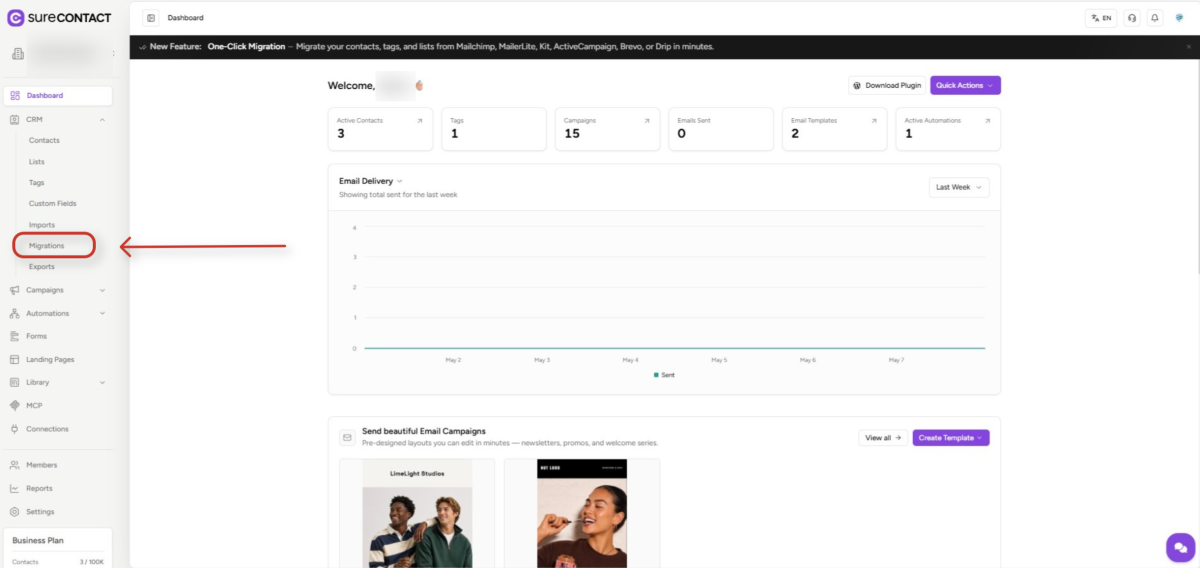
- In your SureContact dashboard, expand CRM in the left sidebar and click Migrations.
- This is where every past, in-progress, and ready-to-resume migration lives.
2. Click New Migration to Start the Wizard
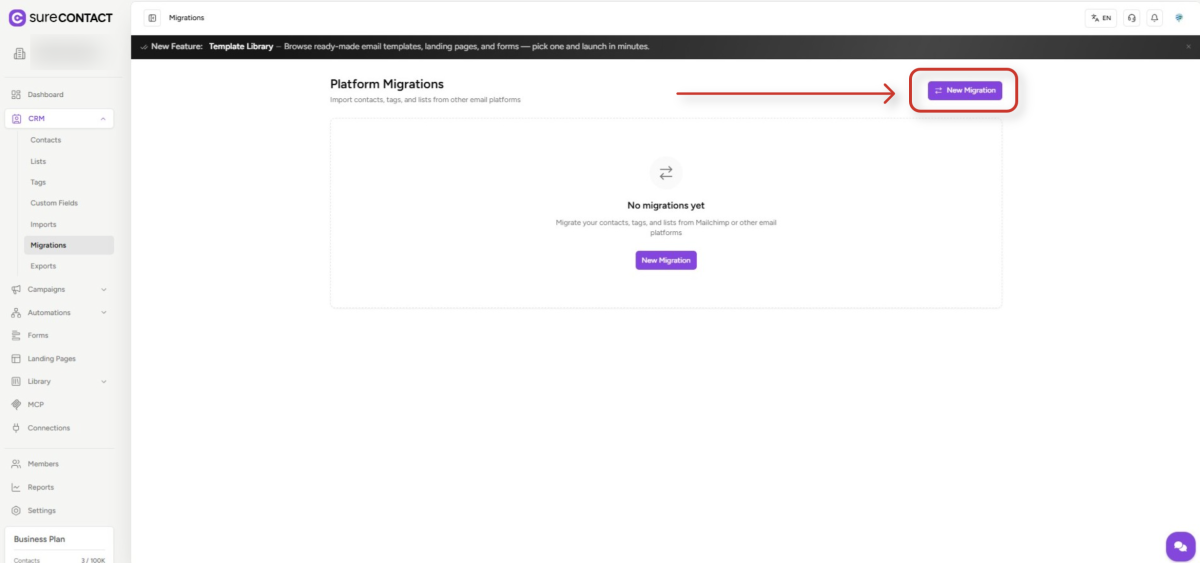
- On the Platform Migrations page, click the New Migration button (top-right, or in the empty state).
- A side panel opens with the New Migration wizard. You can close and reopen it at any point, your progress is saved as soon as the connection is verified.
3. Choose Your Source Platform
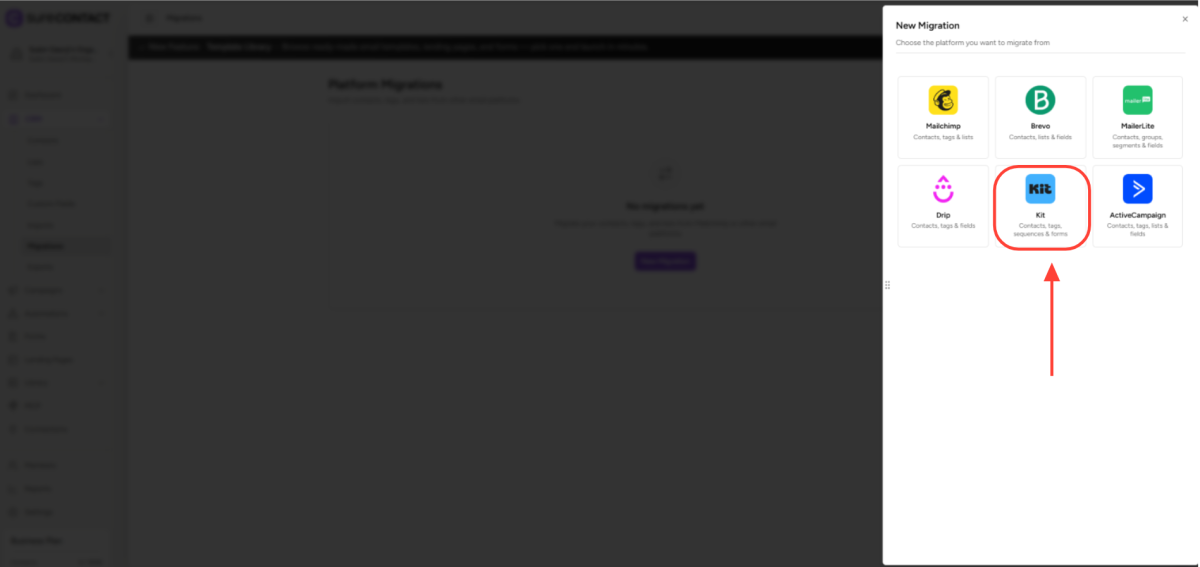
- Pick the platform you’re migrating from: Mailchimp, Brevo, MailerLite, Drip, Kit, or ActiveCampaign.
- Each card lists what the migration will pull from that platform (e.g., “Contacts, tags & lists”).
- In this guide we’ll use Mailchimp, the flow is essentially identical for the other platforms.
4. Connect Your Account with an API Key
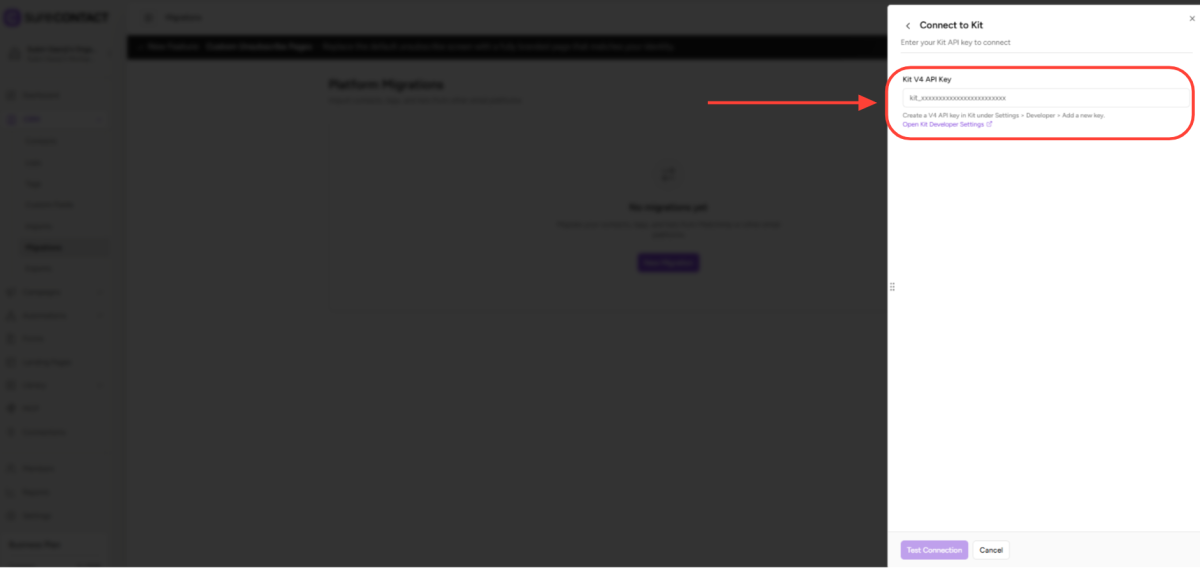
- Paste the API key you generated on the source platform into the API Key field.
- For ActiveCampaign and Drip, also enter your account URL.
- Click Test Connection. If the key is valid, the wizard automatically advances to the next step.
- Tip: never share API keys in screenshots, tickets, or chat. SureContact stores your key encrypted and only uses it during the migration.
5. Select What to Migrate
- Pick the audiences/lists/groups/segments you want to import. Use “Select all” if you’re moving everything.
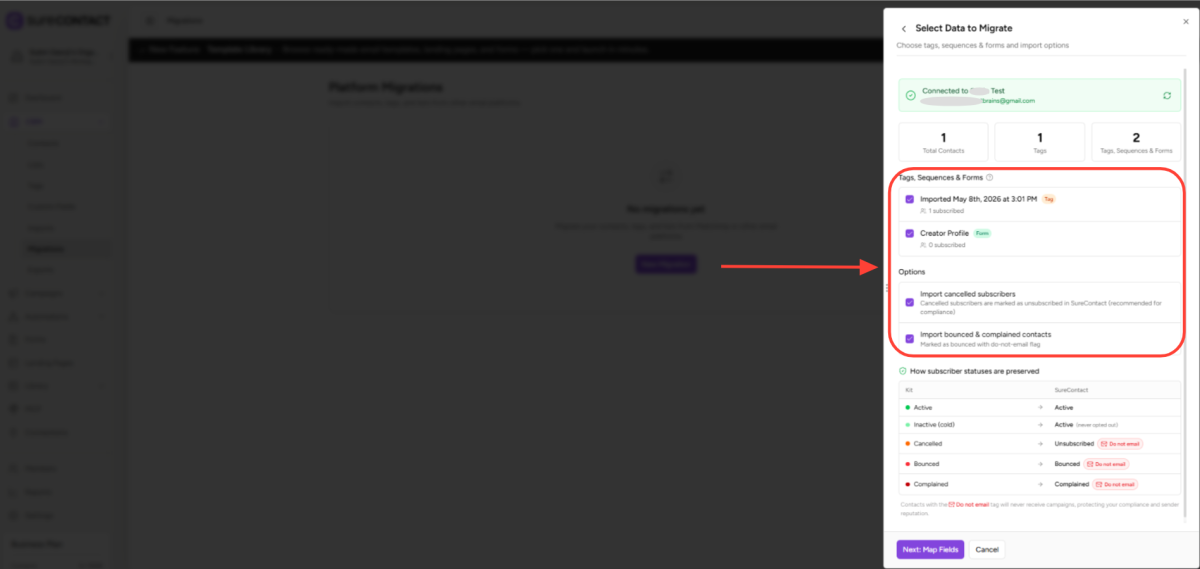
- Optionally toggle Import unsubscribed contacts – they’ll land in SureContact as Unsubscribed and won’t receive emails.
- Optionally toggle Import bounced/cleaned contacts (Mailchimp, MailerLite, Kit, ActiveCampaign), they’ll be marked Bounced with a Do not email flag.
- Note: when you only pick a subset of audiences, the contact count shown is an estimate, since the same contact may exist in more than one audience.
6. Map Your Fields
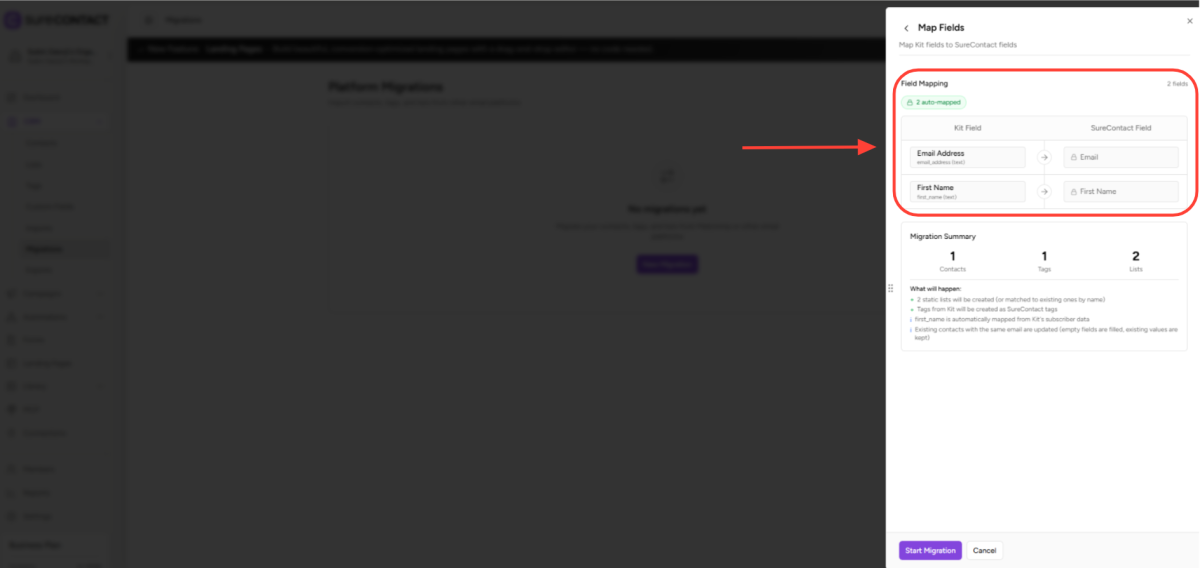
- Standard fields like Email, First Name, and Last Name are mapped automatically.
- For each remaining custom field you can: map it to an existing SureContact field, let SureContact auto-create a new field, or skip it.
- A summary at the bottom shows exactly how many contacts, tags, and lists will be created/updated.
7. Review and Start the Migration
- Review the migration summary, source, audiences, contact count, mapped fields, and the unsubscribed/bounced settings.
- Click Start Migration. The migration runs in the background; you can safely close the panel and track progress from the Migrations page.
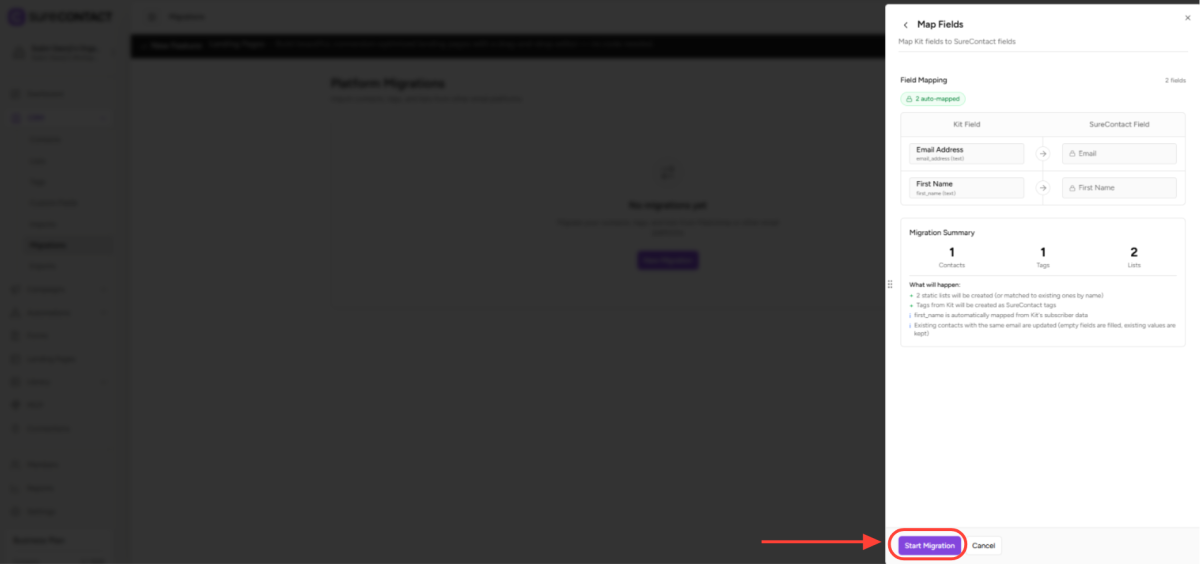
- Heads-up: existing contacts (matched by email) are updated rather than duplicated. Empty fields are filled in, but existing values in SureContact are kept.
Important Notes
- Migrations are safe to restart. If you closed the wizard mid-way and the row shows status Ready, you can resume it without re-entering your API key.
- Contacts marked as Do not email (unsubscribed or bounced) will never receive campaigns, protecting your sender reputation and keeping you compliant.
- When selecting a subset of audiences, the contact count shown is an estimate; contacts that exist in multiple audiences are counted once.
- Kit-specific: tags become SureContact tags + lists; sequences and forms are imported as static lists.
- MailerLite-specific: groups and segments are both imported as static lists.
- Mailchimp-specific: audiences become lists, and Mailchimp tags become SureContact tags one-to-one.
Frequently Asked Questions
Will running a migration twice create duplicates?
No. SureContact matches contacts by email address. A second run on the same source updates existing contacts rather than creating duplicates.
How long does a migration take?
Most accounts under 10,000 contacts finish in a few minutes. Very large accounts (100k+) may take an hour or more. You can leave the page, the migration runs server-side.
Can I migrate from a platform that’s not listed?
If your platform isn’t in the supported list, use a CSV export from that platform and SureContact’s standard CRM → Imports flow.
Where do I see what was migrated?
Open the migration row on the Migrations page to see counts of created/updated contacts, lists, tags, and custom fields, plus any errors.
Need Help?
If you need any assistance, please email [email protected], and our support team will be happy to help you.
We don't respond to the article feedback, we use it to improve our support content.