
- Introduction to SureContact Dashboard
- How to Install and Connect the SureContact WordPress Plugin
- What Do Contact Fields Mean in the SureContact WordPress Plugin
- How to Invite Members to a Workspace in SureContact
- How to Switch Organizations in SureContact
- Workspace-Level Contact Allocation in SureContact
- Workspace-Level Timezone Settings in SureContact
- How to Add a Custom Tracking Domain in a Workspace in SureContact
- SureContact MCP Server
- Creating Forms in SureContact
- Setup SMTP in SureContact
- Email Campaigns in SureContact
- How to Add a Preferences URL in Your Emails
- How to Share Email Templates in SureContact
- Spintax Feature in SureContact
- Deleting Sent Campaigns in SureContact
- A/B Testing Integration Guide
- Unsubscription Guide
- SureContact SMTP Setup Guide
- SMTP Routing User Flow
- FluentCRM Integration with SureContact
- SureContact Third-Party Integration — Step-by-Step Guide
- Fluent Forms Integration with SureContact
- SureForms Integration with SureContact
- WPForms Integration with SureContact
- Bulk Sync WordPress Users to SureContact
- Contact Form 7 Integration with SureContact
- Sync WooCommerce Customers with SureContact
- FluentCart & FluentCommunity Integration With SureContact
Email Sequences Guide
SureContact’s Email Sequences feature allows you to build automated drip email campaigns that deliver time-delayed messages to enrolled contacts in a defined order. Once activated, a sequence runs automatically, sending each step to subscribers at the intervals you configure, without any manual intervention.
This guide walks you through the complete process of creating, configuring, and activating an Email Sequence in SureContact.
Prerequisites
Before setting up an Email Sequence, please ensure the following:
1. An Active SureContact Account
You must have an active SureContact workspace. Log in at your workspace URL to get started.
2. SMTP Configured for Email Sending
Sequences require a connected SMTP server to deliver emails. Navigate to Campaigns → SMTP in the sidebar to configure your sending settings before activating any sequence.
3. Contacts Available in Your Workspace
Have at least one contact in your CRM to test enrollment. Contacts can be imported via Contacts → Import Contacts or added individually.
How to Use Email Sequences
1. Navigate to Automations → Sequences
- In the left navigation sidebar, click Automations to expand the sub-menu.
- Click Sequences from the expanded sub-menu items.
- The Sequences list page opens, showing all existing sequences or an empty state if none exist yet.
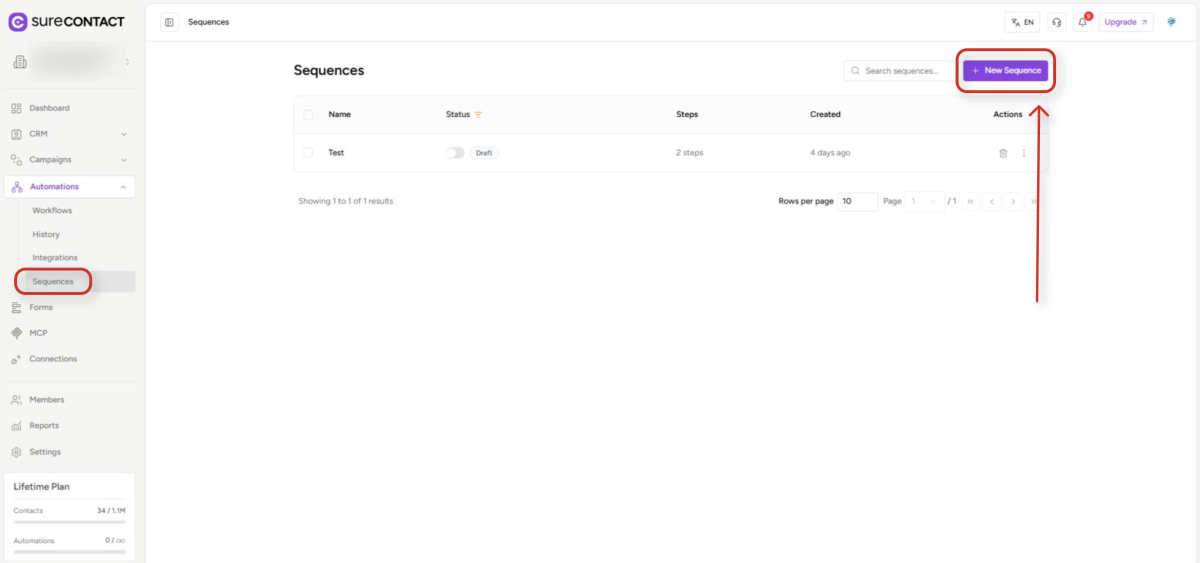
2. Create a New Sequence
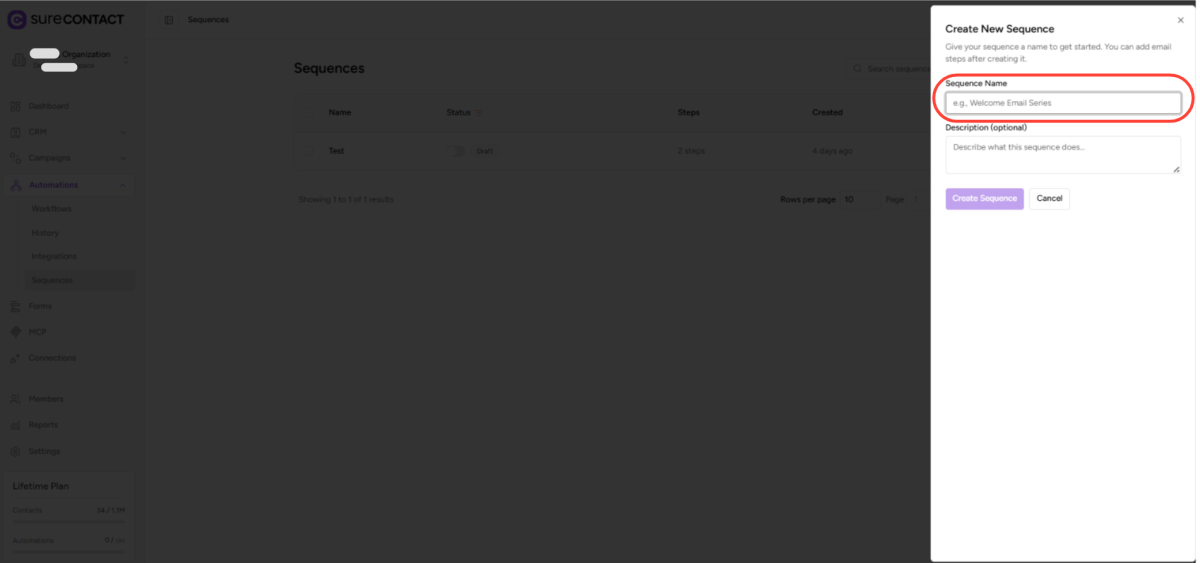
- On the Sequences page, click the + New Sequence button in the top-right corner.
- A slide-in panel appears on the right side of the screen.
- Sequence Name (required): Enter a descriptive name for your sequence, e.g., “Welcome Email Series”.
- Description (optional): Add a short description to help identify this sequence’s purpose.
- Click Create Sequence to proceed to the sequence editor.
3. Add Your First Email Step
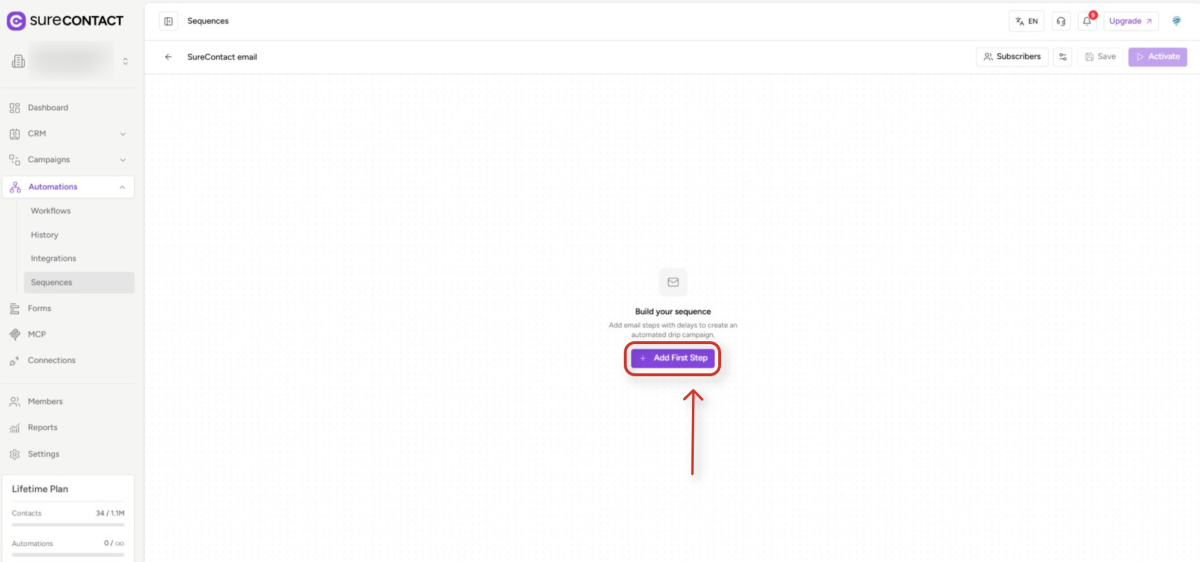
- The sequence editor opens with an empty canvas showing the message “Build your sequence”.
- Click the + Add First Step button to add the first email step.
- A step card expands immediately below, ready to be configured.
4. Configure the Email Step
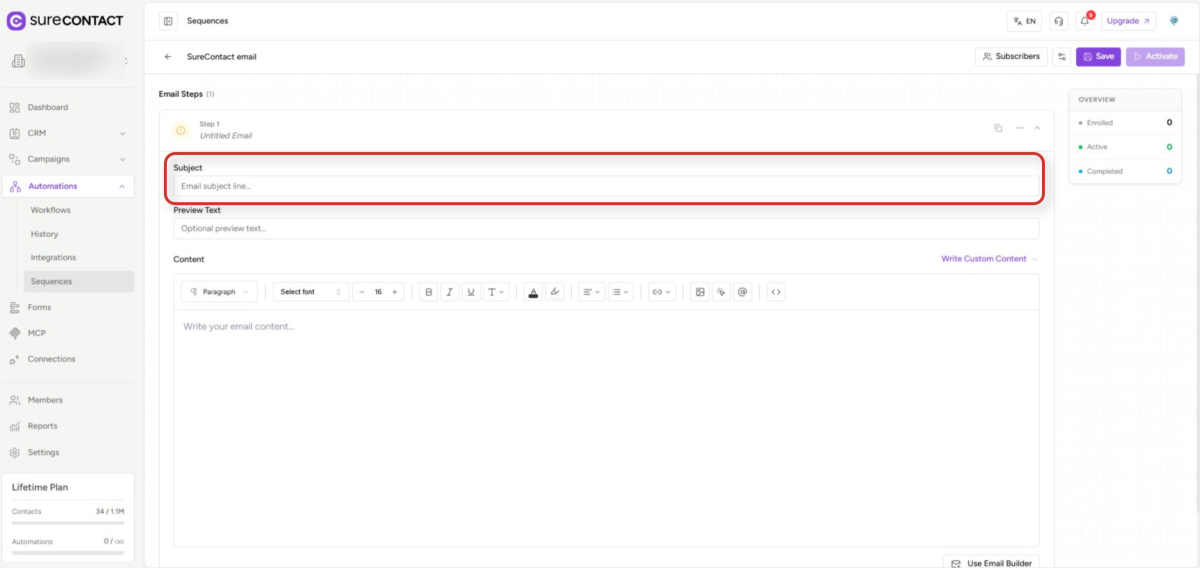
- Each step card contains three key fields:
4.1 Subject
- Click the Subject field and type the subject line for this email. This is the subject your subscribers will see in their inbox.
4.2 Preview Text
- (Optional) Enter preview text, the snippet that appears below the subject line in most email clients.
4.3 Content
- Use the rich text editor toolbar to compose your email body directly. Formatting options include paragraph styles, font selection, font size, bold, italic, underline, text colour, alignment, links, images, and HTML source view.
- Click Write Custom Content ▾ to select from a saved template library.
- Click the Use Email Builder button (bottom-right of the step card) to open a visual drag-and-drop email builder for more complex designs.
5. Manage Step Options
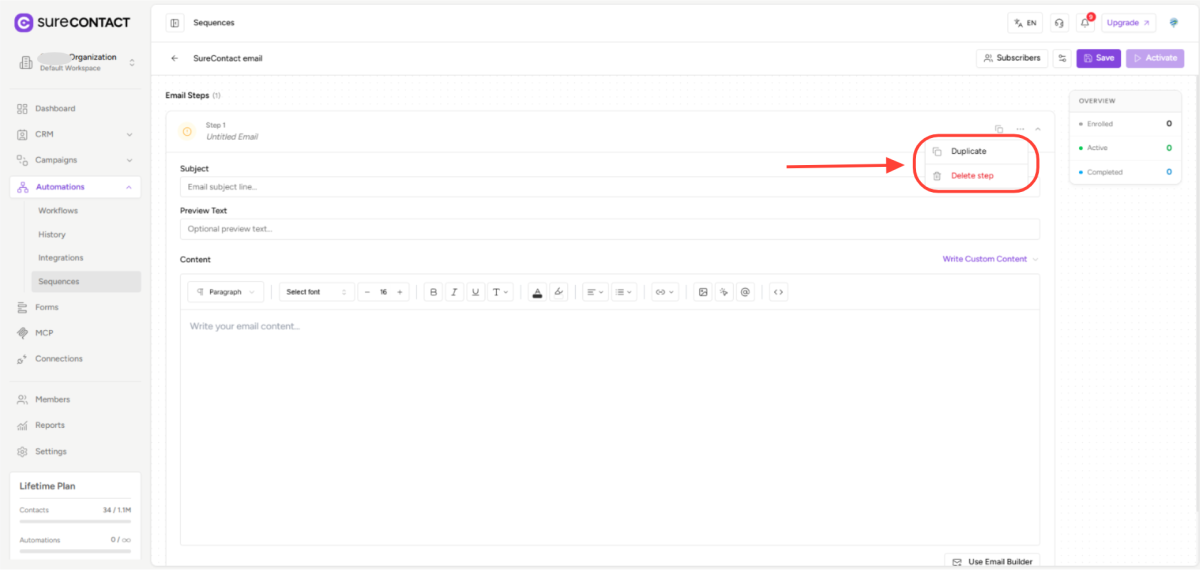
- Each step card header includes two action controls on the right side:
- Copy icon: Duplicates the current step, including its subject and content.
- … (More options): Opens a context menu with two actions — Duplicate, and Delete step (removes the step permanently).
- Chevron (▾/▸): Collapses or expands the step card to save vertical space while editing multiple steps.
6. Add More Steps and Set Delays
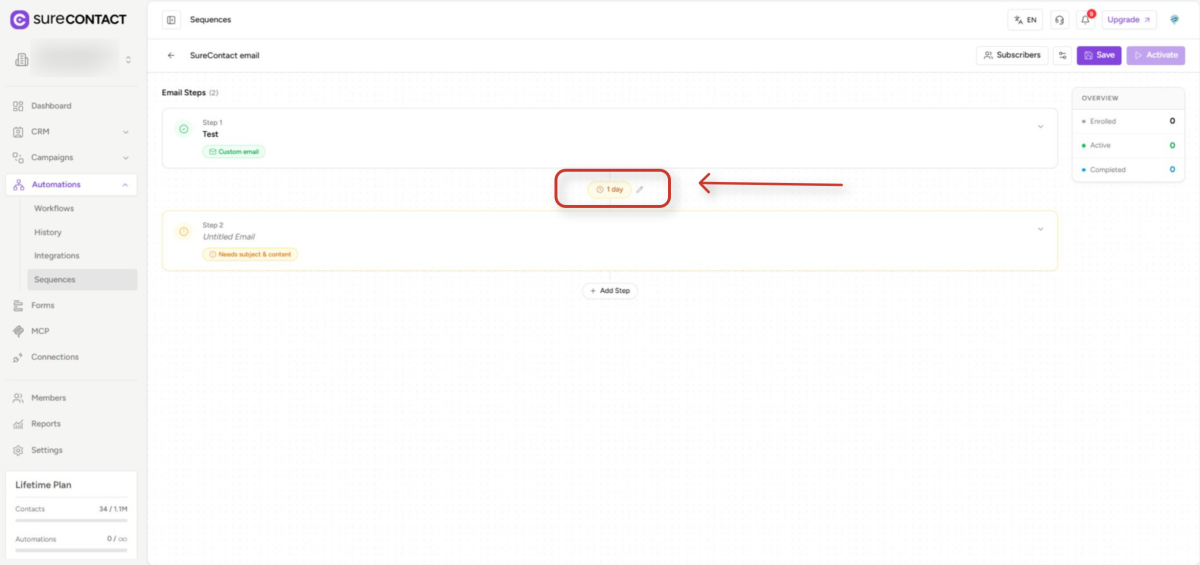
- Scroll to the bottom of the step list and click + Add Step to add additional email steps.
- Between each pair of steps, a delay badge appears (default: 1 day) showing how long the system waits before sending the next email.
- Click the delay badge to switch it into edit mode. A number input and a Days dropdown appear inline, adjust the number and unit to set the exact waiting period between that step and the next.
- Repeat this process to build a full drip sequence with as many steps as needed.
7. View and Manage Subscribers
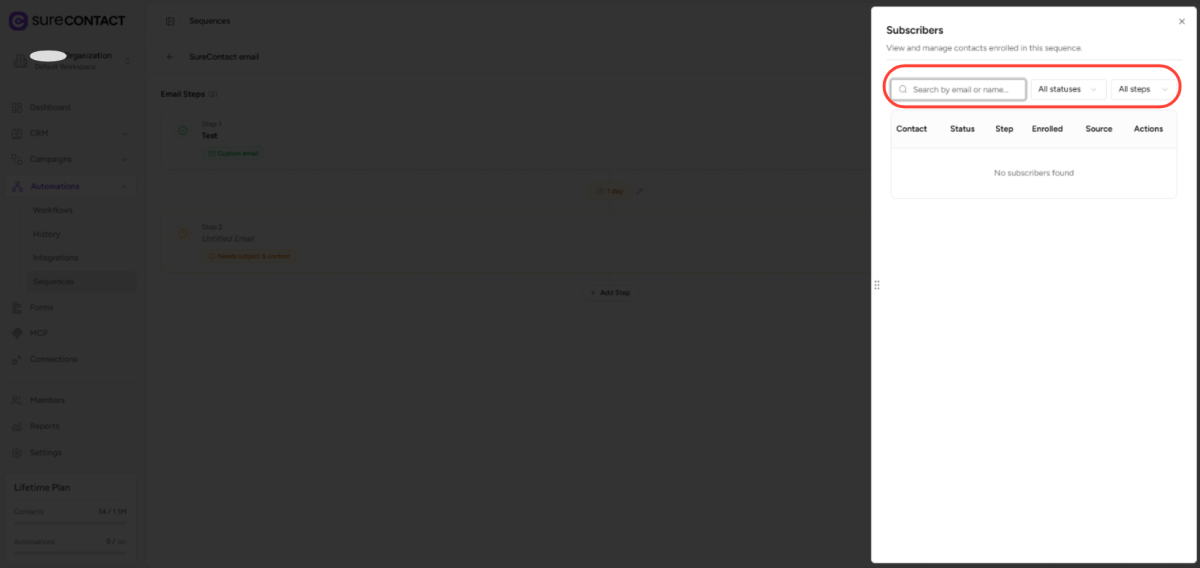
- Click the Subscribers button in the top action bar to open the Subscribers panel.
- The panel displays a searchable list of all contacts currently enrolled in the sequence.
- Use the All statuses dropdown to filter by enrollment status (e.g., Active, Completed, Unsubscribed).
- Use the All steps dropdown to filter by which step a subscriber is currently on.
- The table shows each subscriber’s Contact, Status, current Step, Enrolled date, Source, and available Actions.
8. Save and Activate the Sequence
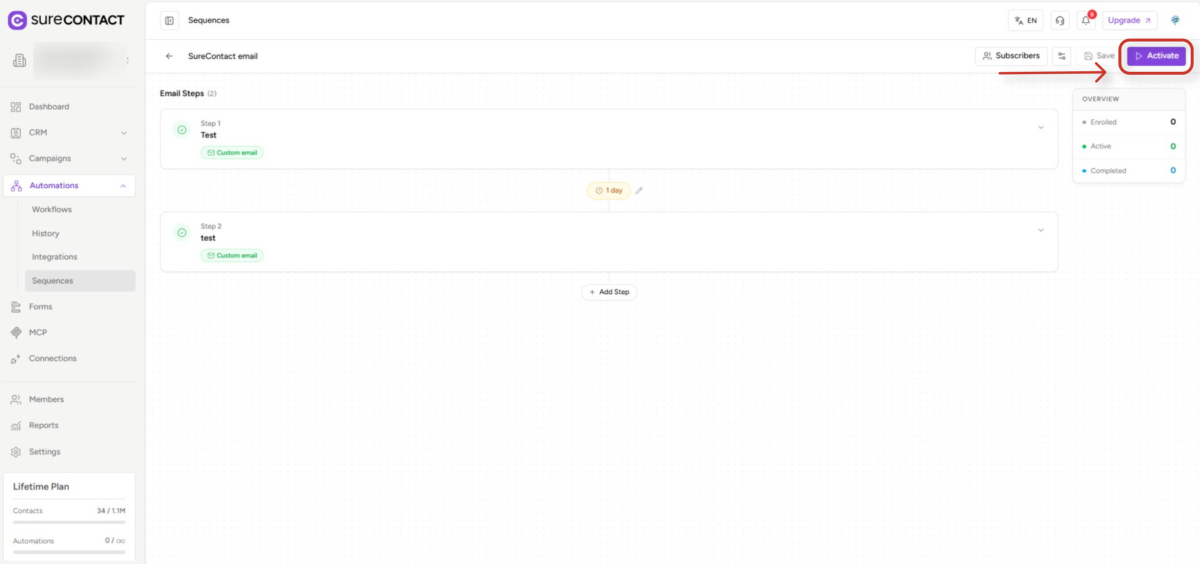
- Click Save at any time to save your sequence as a draft without activating it.
- When all steps have a subject line and content, the sequence is ready to activate.
- Click the Activate button (purple, top-right) to make the sequence live.
- Once active, newly enrolled contacts will begin receiving emails according to the configured schedule. The OVERVIEW panel on the right will update to show Enrolled, Active, and Completed subscriber counts in real time.
Need Help?
If you need any assistance, please email [email protected], and our support team will be happy to help you.
We don't respond to the article feedback, we use it to improve our support content.