
- Introduction to SureContact Dashboard
- How to Install and Connect the SureContact WordPress Plugin
- What Do Contact Fields Mean in the SureContact WordPress Plugin
- How to Invite Members to a Workspace in SureContact
- How to Switch Organizations in SureContact
- Workspace-Level Contact Allocation in SureContact
- Workspace-Level Timezone Settings in SureContact
- How to Add a Custom Tracking Domain in a Workspace in SureContact
- SureContact MCP Server
- Creating Forms in SureContact
- Setup SMTP in SureContact
- Email Campaigns in SureContact
- How to Add a Preferences URL in Your Emails
- How to Share Email Templates in SureContact
- Spintax Feature in SureContact
- Deleting Sent Campaigns in SureContact
- A/B Testing Integration Guide
- Unsubscription Guide
- SureContact SMTP Setup Guide
- SMTP Routing User Flow
- Gradual Send Feature Guide
- Reusable Email Templates Guide
- Conditional Blocks Guide
- Scheduling vs. Sending Immediately Emails in SureContact
- Campaign Analytics Guide
- Email Tracking Opens Clicks SureContact
- SureContact Email Template Library Guide
- Sending Domains Subdomain vs Root Domain Guide
- DMARC Setup Guide
- Warming Up a New Sending Domain
- How to Add an Unsubscribe Link in Your Emails
- Analyzing a Campaign with AI (Spam & Ethics Check)
- FluentCRM Integration with SureContact
- SureContact Third-Party Integration — Step-by-Step Guide
- Fluent Forms Integration with SureContact
- SureForms Integration with SureContact
- WPForms Integration with SureContact
- Bulk Sync WordPress Users to SureContact
- Contact Form 7 Integration with SureContact
- Sync WooCommerce Customers with SureContact
Conditional Blocks Guide
SureContact’s email builder includes a Conditional Blocks feature that lets you show or hide email content based on your contacts’ data, including tags, list memberships, contact fields, and custom fields. This lets you personalize one email for different audience segments without creating multiple campaigns.
This guide walks through how to add and configure conditional blocks in the email builder.
How to Use Conditional Blocks
1. Open Your Email Templates
- From the SureContact left navigation, click Campaigns to expand the section.
- Click Email Templates to open the templates list page.
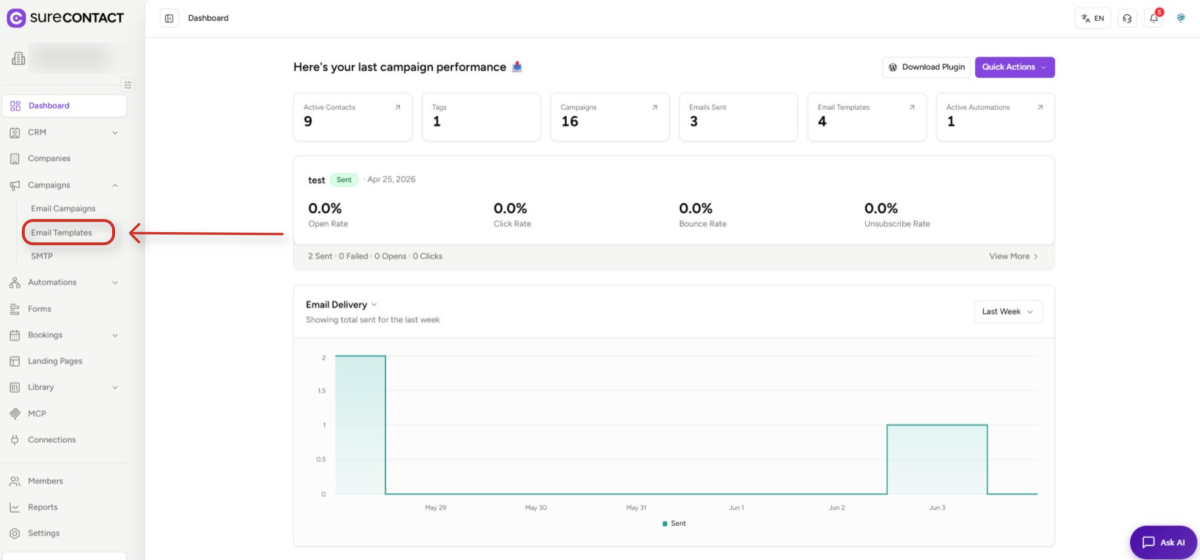
- The page shows all your email templates with their name, subject, type, folder, and last updated date.
2. Open the Email Builder
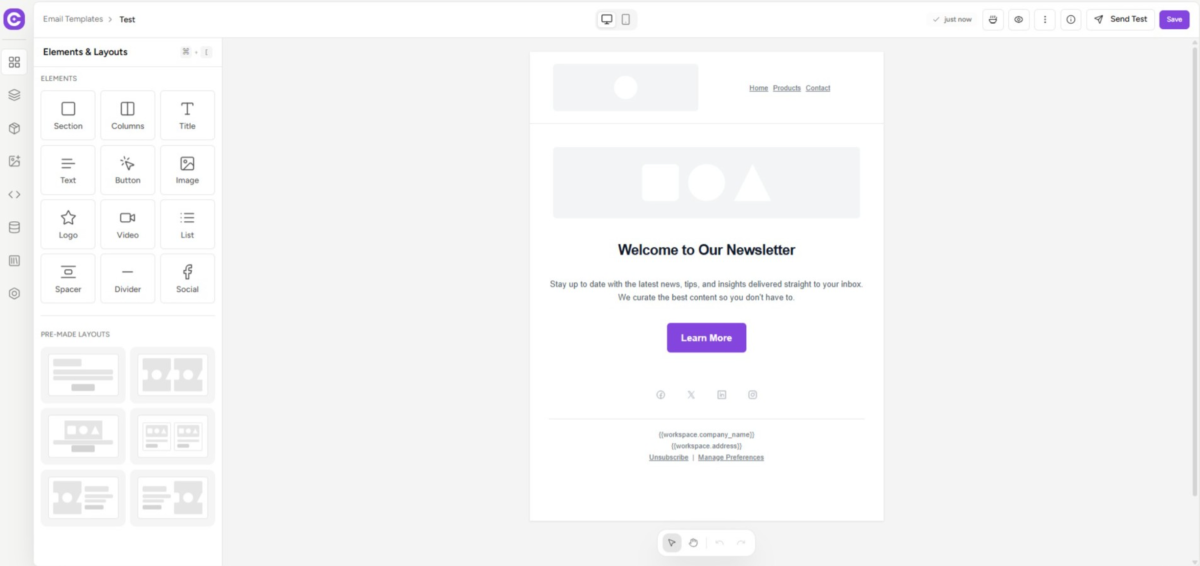
- Locate a template in which you want to add conditional blocks in the template list.
- Click the pencil (edit) icon in the Actions column for that template.
- The email builder opens with the Elements & Layouts panel on the left and your email canvas in the center.
3. Select an Element in the Canvas
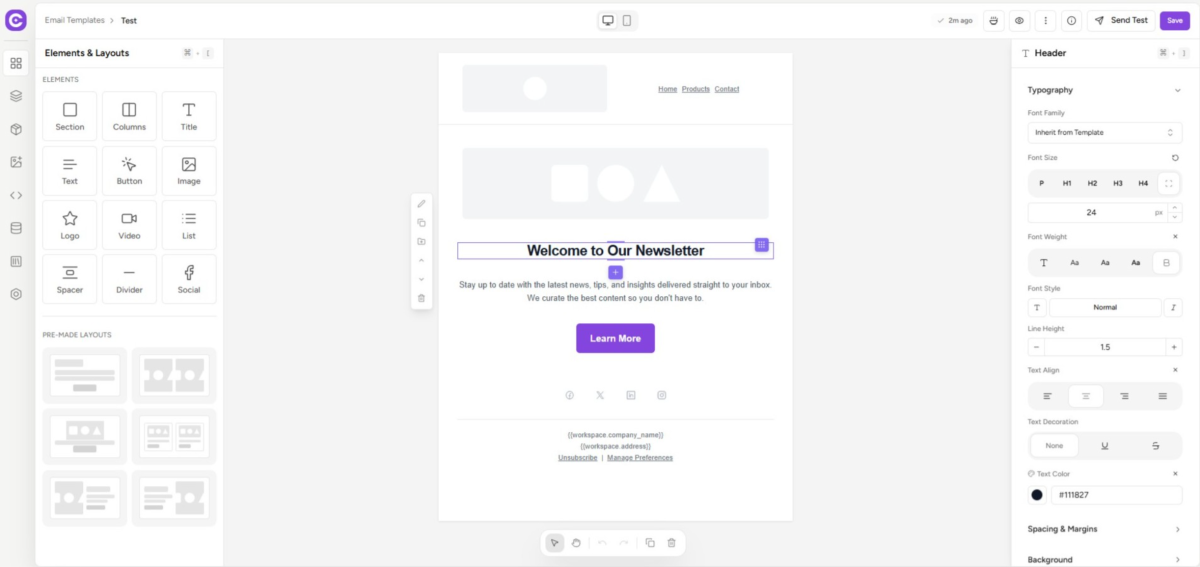
- Click on any section or element in the email canvas, for example, a header section, text block, image, or button.
- A purple selection border appears around the selected element.
- The right panel appears, showing the element’s style properties (Layout & Dimensions, Typography, Background, etc.).
4. Open the Conditional Block Panel
- Click on the edit button on the text where you want to add the conditions.
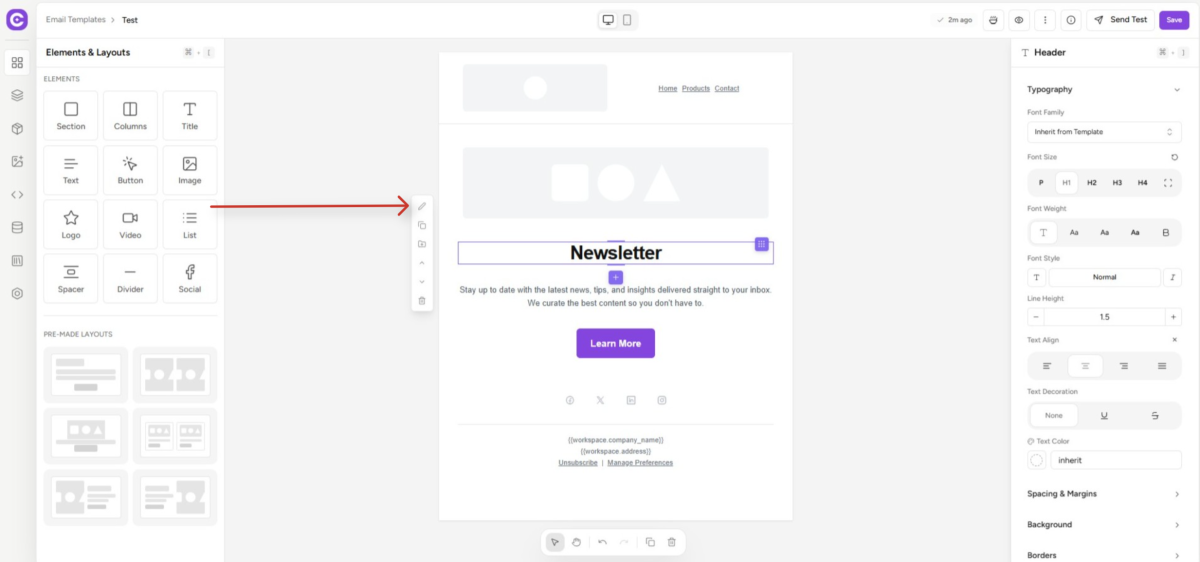
- Click the icon (the link/connector icon) to open the Conditional Block panel.
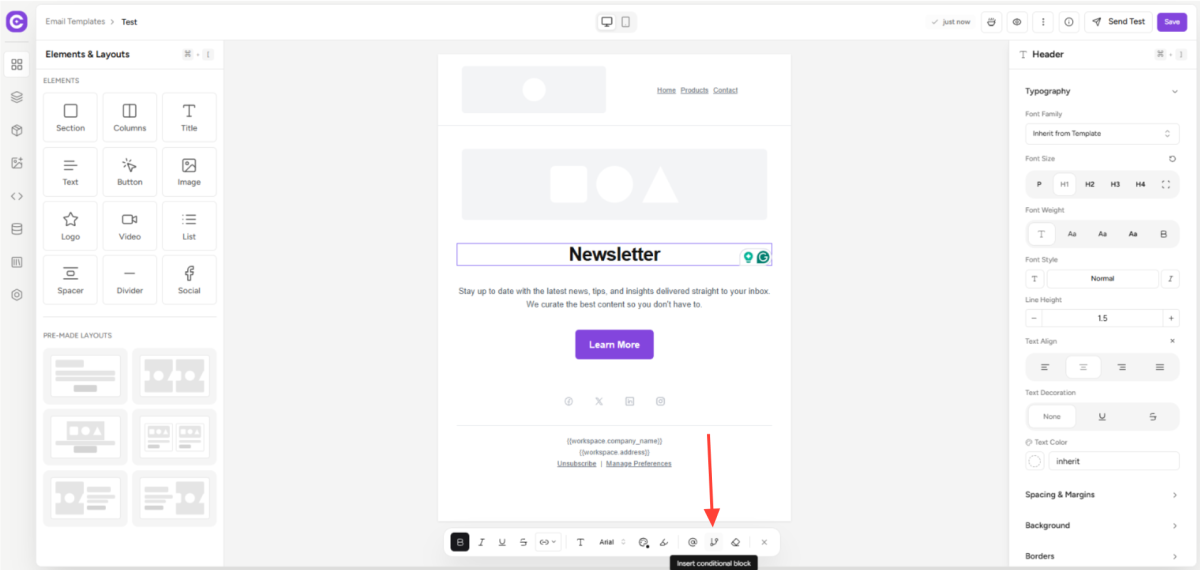
- The Conditional Block panel replaces the style panel on the right side.
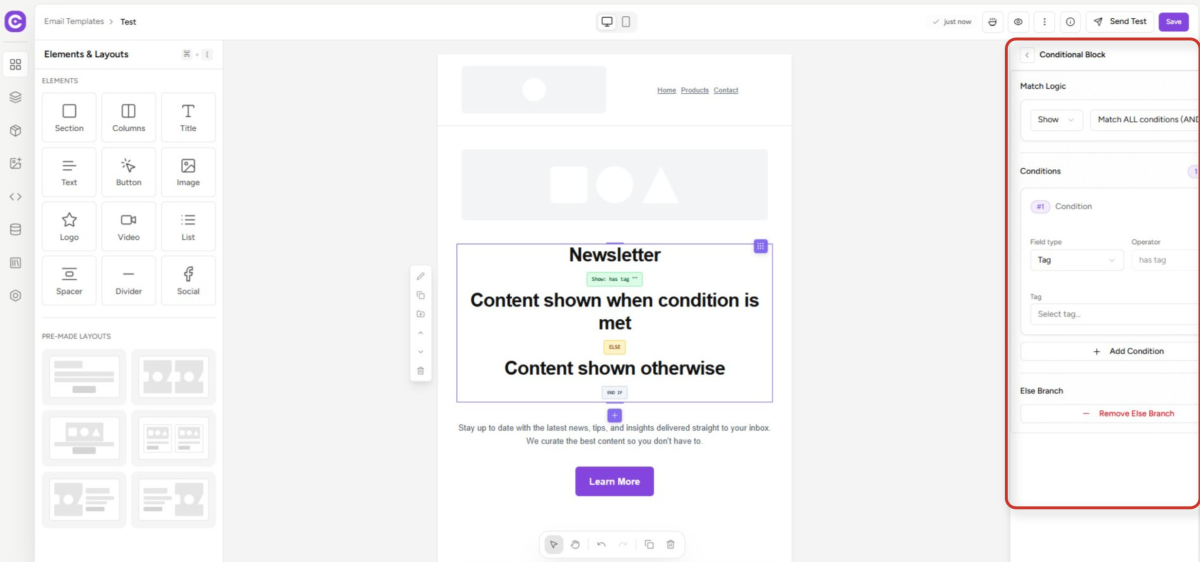
5. Set Visibility – Show or Hide
- At the top of the Conditional Block panel, you will see the Visibility section with two radio buttons: Show and Hide.
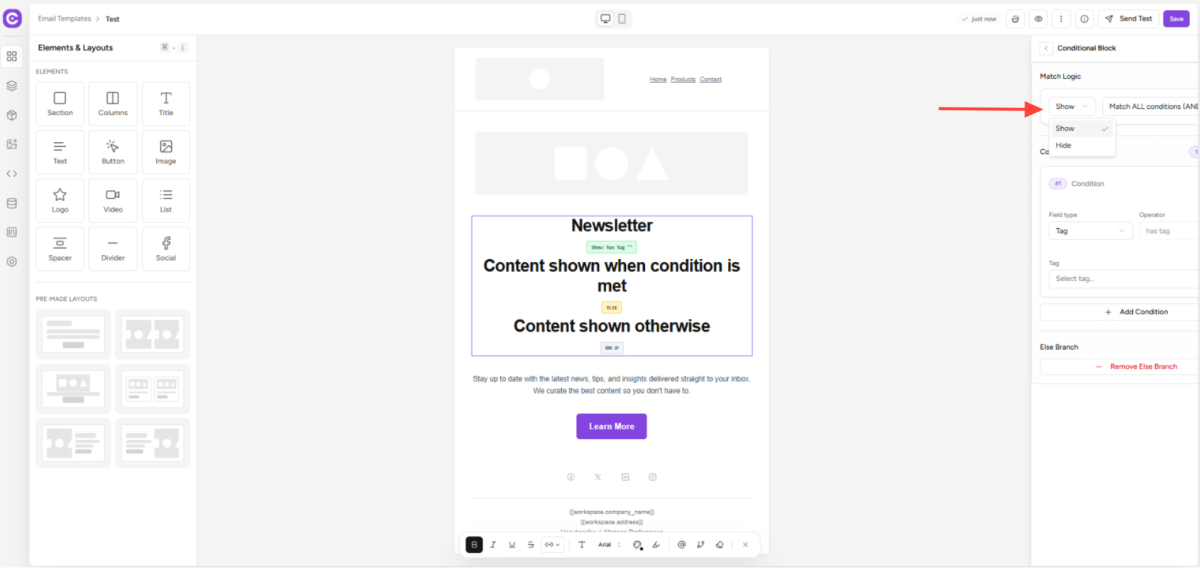
- Show: The element is displayed when the condition(s) match.
- Hide: The element is hidden when the condition(s) match.
- Select Show to display the block for contacts who meet the condition, or Hide to conceal it from them.
6. Choose Logic – ALL or ANY
- In the Logic section, choose how multiple conditions are evaluated:
- ALL – All conditions must be true (AND logic). The block is shown/hidden only when every condition matches.
- ANY – Any one condition can be true (OR logic). The block is shown/hidden when at least one condition matches.
- The default is ALL. Click ANY to switch to OR logic if needed.
7. Add a Condition
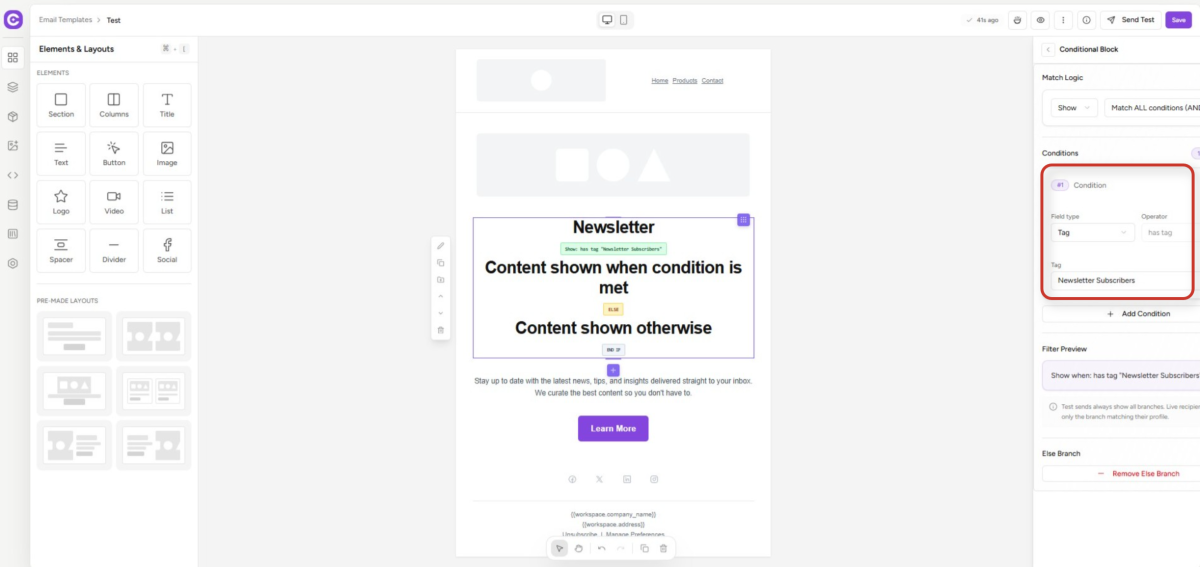
- Click the “+ Add Condition” button to add your first condition row.
- Each condition row has three fields: Field Type, Operator, and Value.
- Field Type: Select from Tag, List, Contact Field, or Custom Field.
- Operator: Select from contains, equals (==), not equals (!=), is empty, or is not empty.
- Value: Enter the specific tag name, list name, field name, or value to compare against.
Available condition types and examples:
| Condition Type | What It Checks | Example |
| Tag | Whether the contact has (or lacks) a specific tag | Has tag “VIP Customer” |
| List | Whether the contact is (or isn’t) in a specific list | Is in list “Newsletter” |
| Contact Field | The value of a standard contact profile field | country equals India |
| Custom Field | The value of a workspace-defined custom field | plan_type equals Pro |
8. Add Additional Conditions (Optional)
- Click “+ Add Condition” again to add more condition rows.
- Each new condition row is evaluated according to the ALL / ANY logic you selected in Step 6.
- To remove a condition, click the ✕ icon at the end of its row.
9. Add an ELSE Branch (Optional)
- At the bottom of the Conditional Block panel, toggle on “Add ELSE branch”.
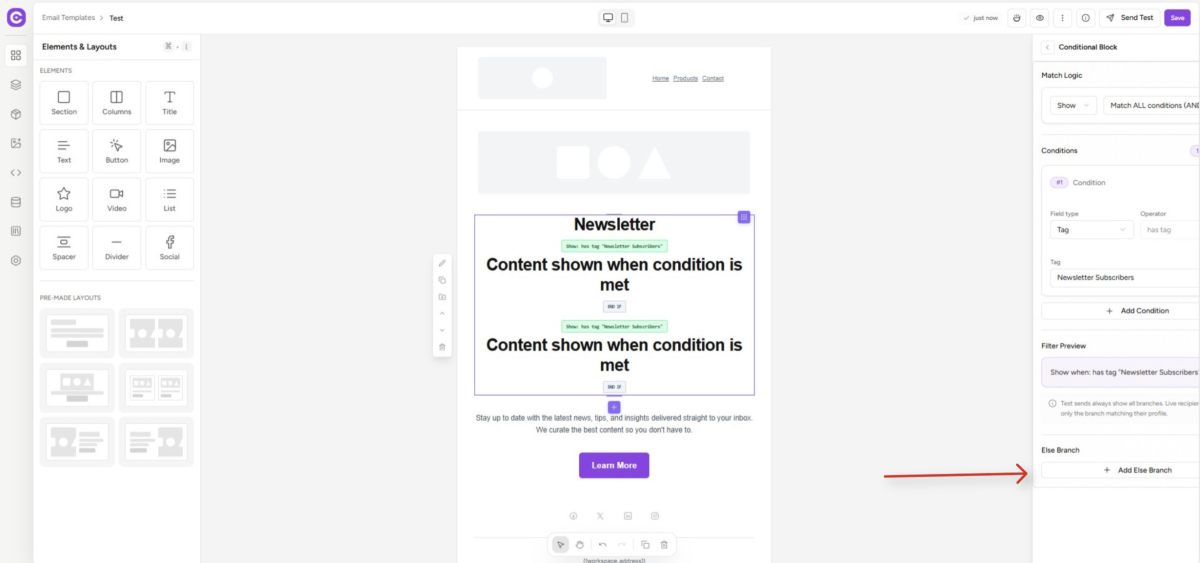
- This adds a secondary content path, an IF section (what to show when conditions match) and an ELSE section (what to show when they do not match).
- Use ELSE branching when you want to display different content to different contact segments within the same email.
10. Preview and Test with Condition Overrides
- Click the “Send Test ▾” button in the email builder top bar.
- In the test email dialog, you can override conditions to preview how the email renders for different contact scenarios.
- Test with a real contact to verify that conditions evaluate correctly based on actual contact data.
- Note: Test emails sent without a real contact selected always render the IF branch (the primary show/hide behavior).
11. Save the Template
- Once your conditional blocks are configured, click the Save or Publish button in the email builder.
- The conditional block settings are stored with the template and will be evaluated at send time against each recipient’s contact data.
- You can edit or remove a conditional block at any time by selecting the element and clicking the conditional block icon again.
Limitations and Notes
Keep the following in mind when using Conditional Blocks:
- Maximum nesting depth: Conditional blocks support up to 16 levels of nesting within a single template.
- Unsupported Liquid tags: The conditional block system does not support the Liquid tags for, assign, or include. Use the standard condition types (Tag, List, Contact Field, Custom Field) instead.
- Test emails: When sending a test email without a specific contact selected, SureContact always renders the IF branch (primary condition result). Use a real contact for accurate testing.
- Empty field values: Contacts who have no value set for a given field will automatically match the “is empty” operator.
- Checkbox field values: For checkbox-type custom fields, use 1 to match Checked and 0 to match Unchecked.
Need Help?
If you need any assistance, please email [email protected], and our support team will be happy to help you.
Was this doc helpful?
What went wrong?
We don't respond to the article feedback, we use it to improve our support content.
Table of Contents