
- Introduction to SureContact Dashboard
- How to Install and Connect the SureContact WordPress Plugin
- What Do Contact Fields Mean in the SureContact WordPress Plugin
- How to Invite Members to a Workspace in SureContact
- How to Switch Organizations in SureContact
- Workspace-Level Contact Allocation in SureContact
- Workspace-Level Timezone Settings in SureContact
- How to Add a Custom Tracking Domain in a Workspace in SureContact
- SureContact MCP Server
- Creating Forms in SureContact
- Create Forms & assign lists & tags
- Multi Language Support(WordPress)
- Page Visit Tracking Guide (WordPress)
- Forms Custom Fields Sync Guide
- Landing Pages User Flow Guide
- SureContact Organization Workspace Setup Guide
- Companies User Flow Guide
- FAQs
- Bulk Operations SureContact
- SureContact Double Opt-In Guide
- SureContact API Keys Guide
- SureContact 2FA User Guide
- SureContact Bookings User Flow Guide
- SureContact MultiStep Forms Guide
- Zoom Integration with SureContact
- Group Booking User Flow Documentation
- Global Search – User Flow Documentation
- Folders in SureContact
- SureContact Email Tracking Pixel Regulations
- Email Open Tracking Consent SureContact
- Forms Custom Success Message Redirect Guide
- Partial Form Submission Guide
- Shopify Integration with SureContact Guide
- Migrate to Unified Preference Page
- Setup SMTP in SureContact
- Email Campaigns in SureContact
- How to Add a Preferences URL in Your Emails
- How to Share Email Templates in SureContact
- Spintax Feature in SureContact
- Deleting Sent Campaigns in SureContact
- A/B Testing Integration Guide
- Unsubscription Guide
- SureContact SMTP Setup Guide
- SMTP Routing User Flow
- FluentCRM Integration with SureContact
- SureContact Third-Party Integration — Step-by-Step Guide
- Fluent Forms Integration with SureContact
- SureForms Integration with SureContact
- WPForms Integration with SureContact
- Bulk Sync WordPress Users to SureContact
- Contact Form 7 Integration with SureContact
- Sync WooCommerce Customers with SureContact
- FluentCart & FluentCommunity Integration With SureContact
SureContact MultiStep Forms Guide
SureContact’s Multi-Step Forms feature allows you to split a single form into sequential steps, improving completion rates by breaking long forms into smaller, manageable sections. Each step is validated before the user proceeds, and all data is submitted together at the end.
This guide walks you through creating and configuring a multi-step form, from enabling the feature to publishing and sharing your form.
Prerequisites
Before creating a multi-step form, please ensure the following:
1. Active SureContact Account
You must have an active SureContact workspace with access to the Forms module.
2. Access to the Form Builder
Multi-step forms are configured inside the Form Builder, which is available from the Forms section in the left sidebar.
How to Create a Multi-Step Form
1. Navigate to Forms
- Click Forms in the left sidebar navigation.
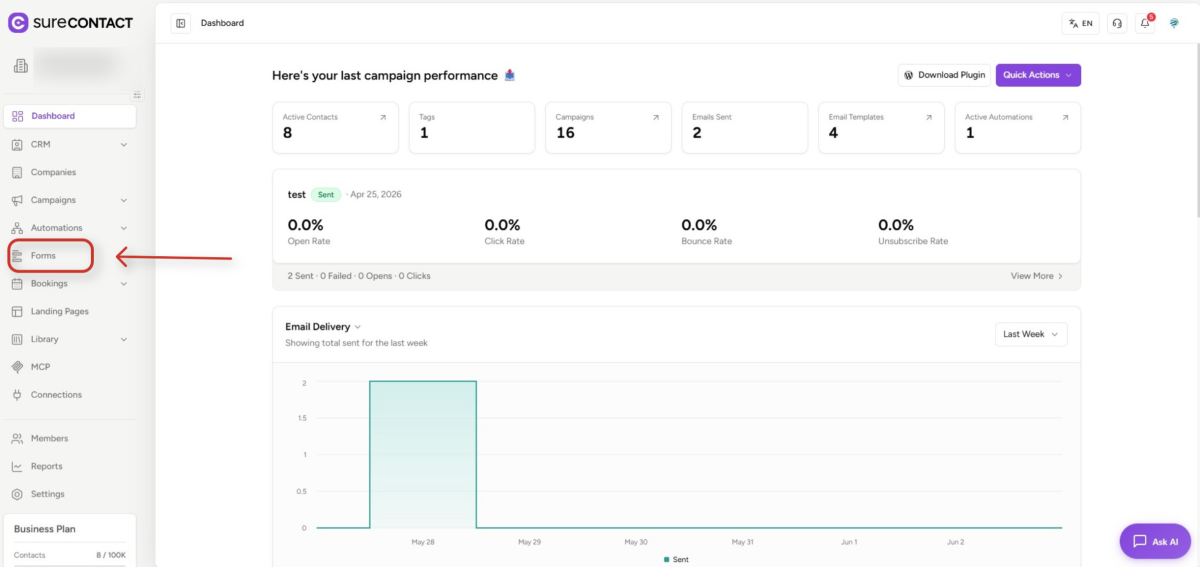
- The Forms list page displays all your existing forms with their status, submissions, and actions.
2. Create a New Form
- Click the + Create Form button in the top-right corner of the Forms page.
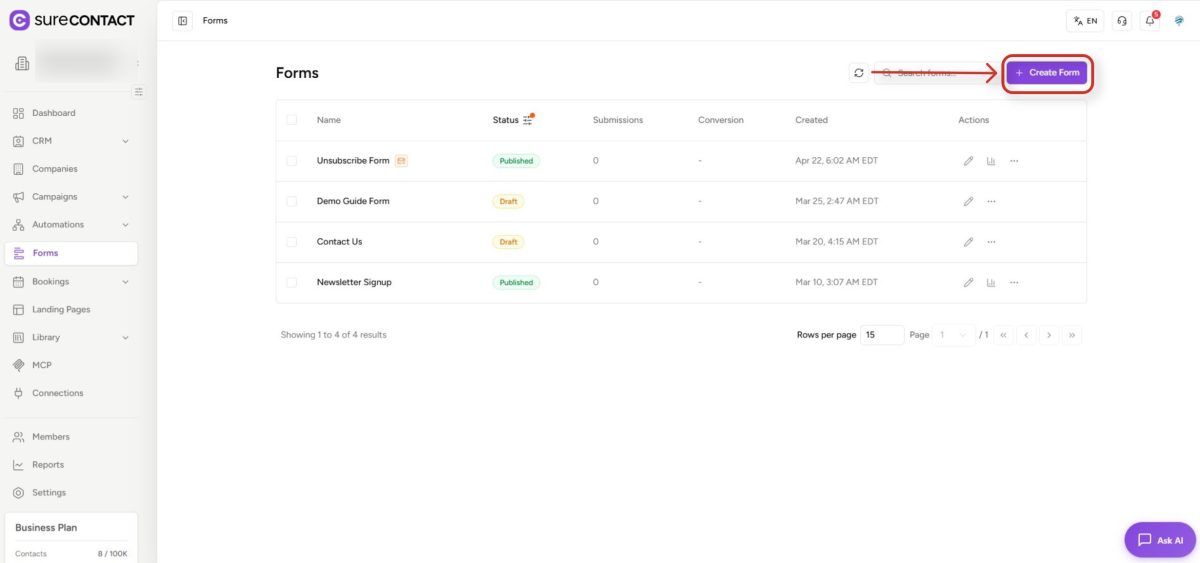
- A dialog appears asking for a Form Name and an optional Description.
- Enter a descriptive name (e.g., “Contact Us – Multi-Step”) and click Create Form.
3. Enable Multi-Step Mode
- Inside the Form Builder, click the bolt icon in the left rail to open Form Settings.
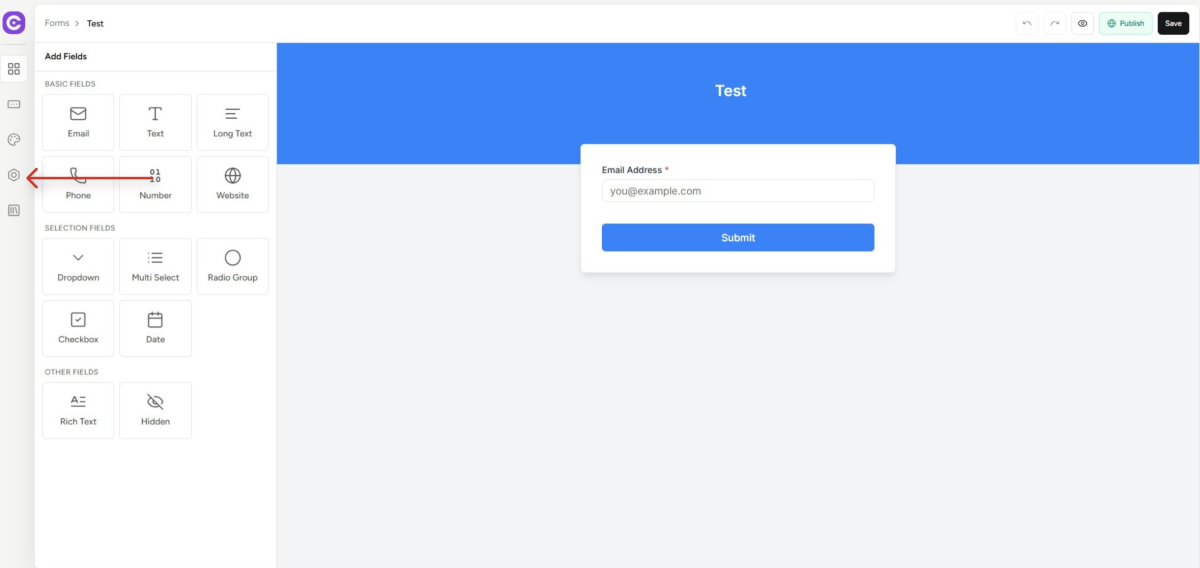
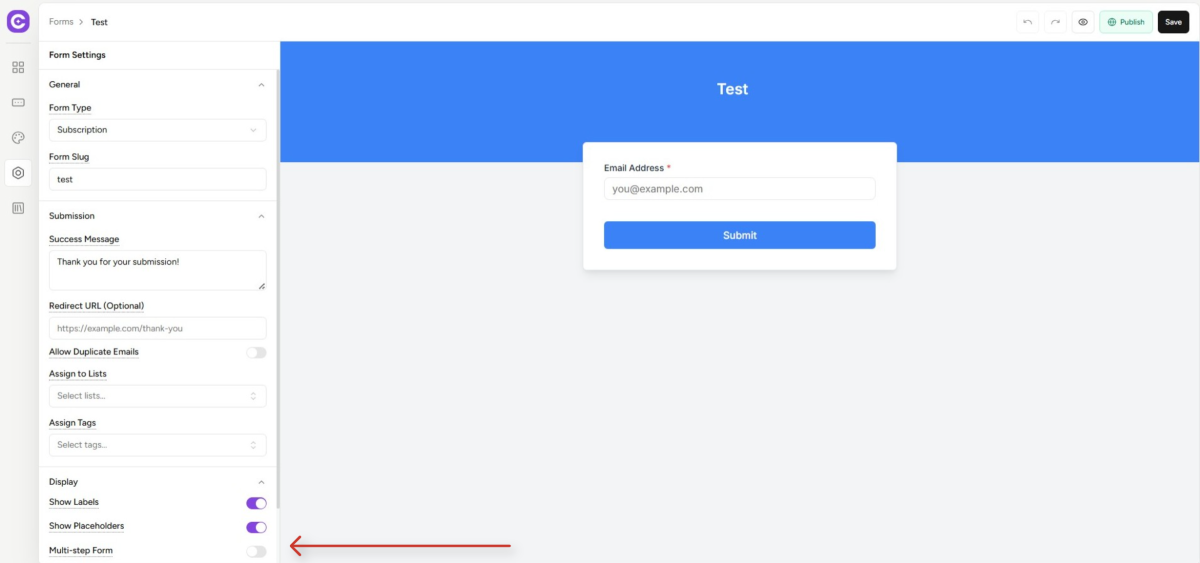
- Scroll down to the Display section.
- Toggle Multi-step Form ON. All existing fields are automatically placed into Step 1.
4. Add More Steps
- Once Multi-step Form is enabled, a step bar appears at the top of the canvas.
- Click the + button in the step bar to add a new step.
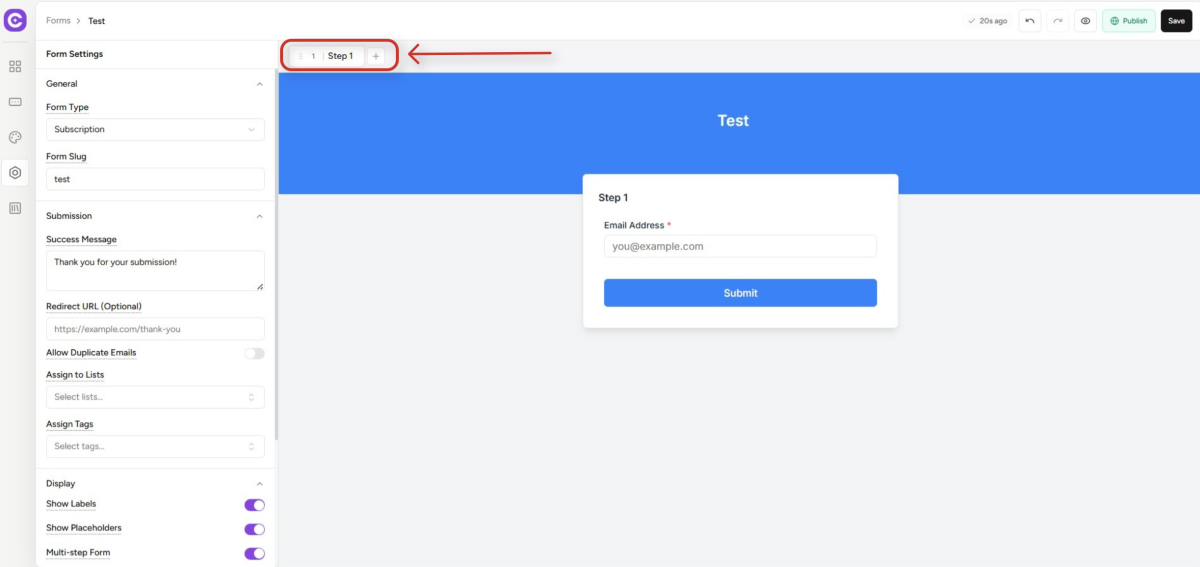
- Rename steps by clicking the pencil icon next to each step name.
- Drag steps using their grip handles (:::) to reorder them.
5. Add Fields to Each Step
- Click a step in the step bar to select it.
- Click the grid icon in the left rail to open the Add Fields panel.
- Drag or click any field type (Email, Text, Phone, Dropdown, etc.) to add it to the selected step.
- Intermediate steps automatically show a Next button. The final step shows Submit.
6. Configure the Progress Bar
- In Form Settings → Display, toggle Show Progress Bar ON.
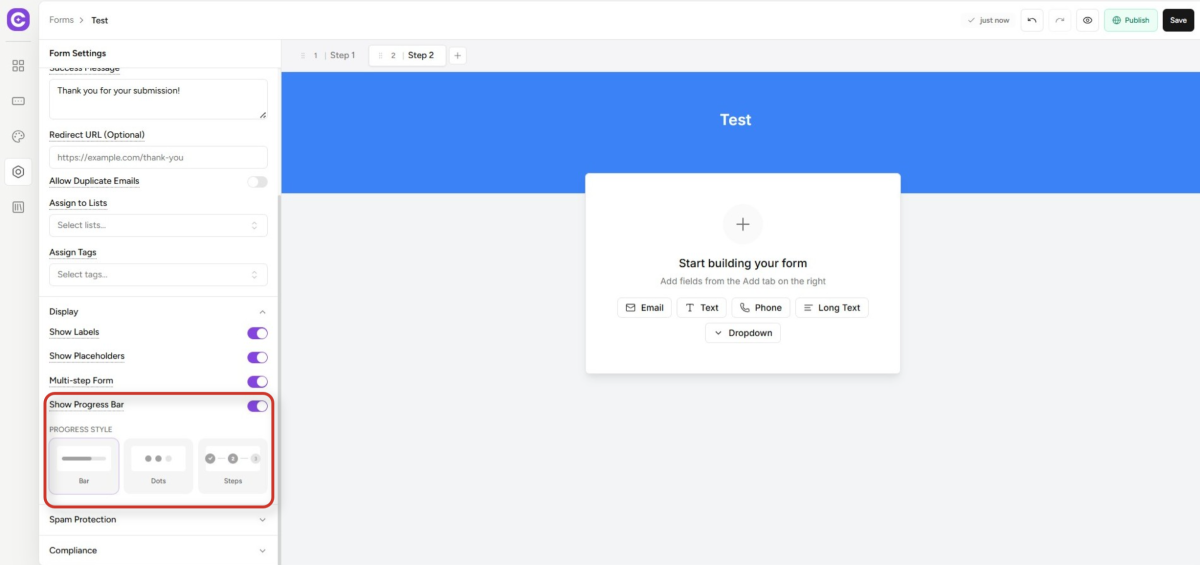
- Under Progress Style, choose one of three display options:
- Bar – a horizontal progress bar that fills as the user advances through steps.
- Dots – a series of dots representing each step.
- Steps – numbered step indicators (e.g., ① ②).
7. Configure Other Form Settings
- Form Type – choose Subscription (adds contacts) or Unsubscription (removes contacts).
- Success Message – the message shown after a successful submission.
- Redirect URL (Optional) – redirect users to a URL after submission.
- Assign to Lists / Tags – automatically assign submitted contacts to lists or tags.
- Spam Protection – enable honeypot protection and rate limiting.
- Compliance – add a GDPR consent checkbox if required.
8. Style the Form
- Click the palette icon in the left rail to open the Style panel.
- Customize colors, fonts, button styles, border radius, spacing, and form width.
9. Preview the Form
- Click the eye 👁 icon in the top bar to open the Preview mode.
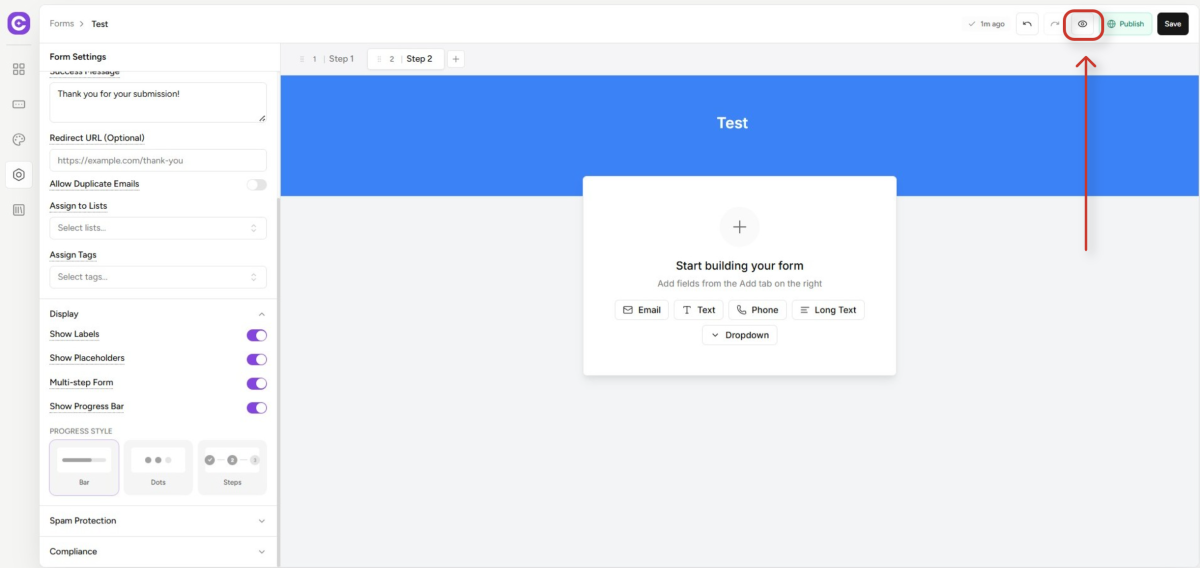
- Preview your form across Laptop, Tablet, and Mobile viewports.
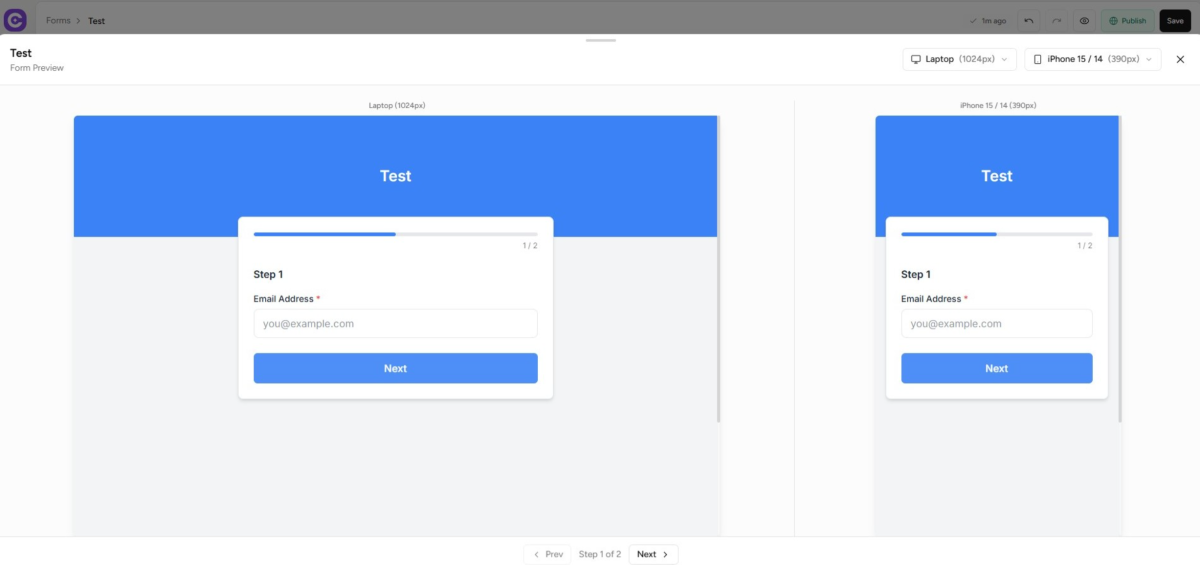
- Verify the progress bar appears, step navigation works, and the Next/Submit buttons are correct.
10. Save and Publish
- Click Save (or press Ctrl + S) to save your work at any time. Auto-save runs every 2 seconds.
- When ready, click Publish to make the form live.
- After publishing, you can access:
- Live Form Link – direct URL to the hosted form (format: /f/{uuid}/{slug}).
- Embed Code – an HTML snippet or iFrame to embed the form on any website.
- Submissions Link – view all form submissions in SureContact.
Need Help?
If you need any assistance, please email [email protected], and our support team will be happy to help you.
We don't respond to the article feedback, we use it to improve our support content.